My AI Video Editor Workflow: How I Use Descript’s 8 Best Features
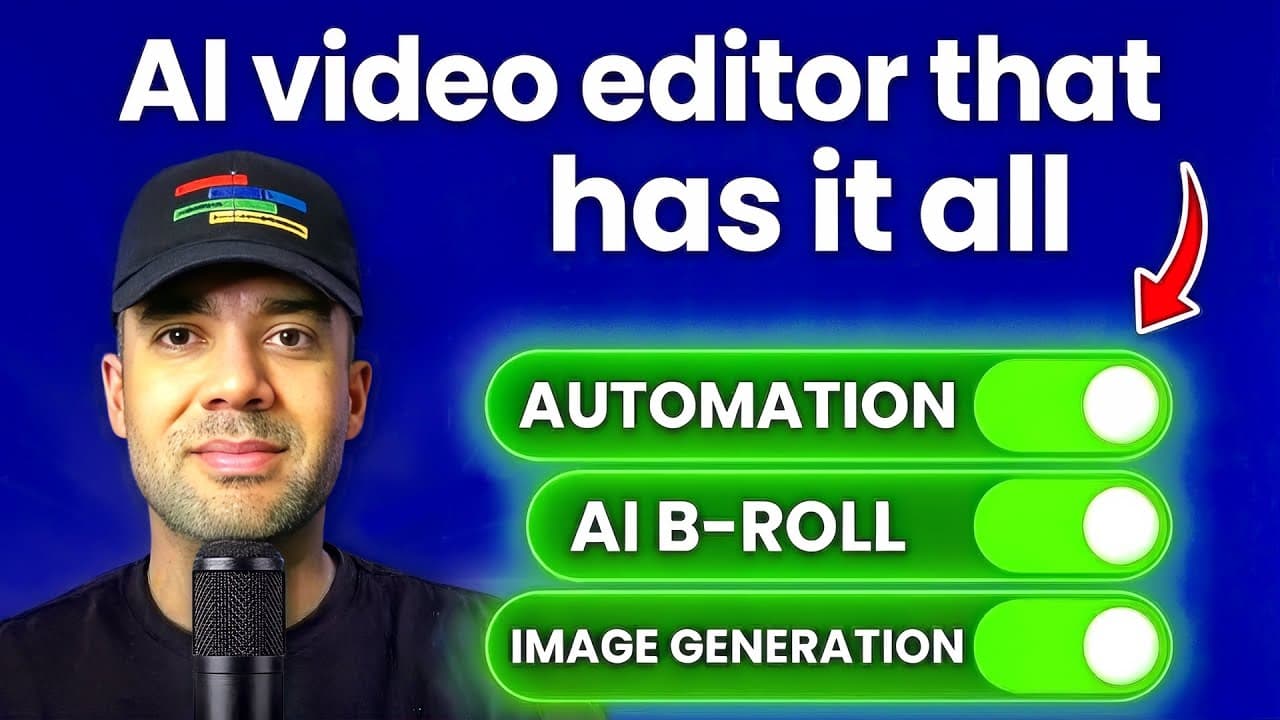
If you’re searching for an AI video editor that can fix mistakes, generate extra footage, and add polish fast, this is the workflow I use in Descript.
It’s aimed at talking-head creators, marketers, and teams who want to edit faster without juggling a bunch of separate AI apps.
Last updated: February 2026
Author: Greg Preece — I test AI video tools weekly and build real editing workflows around them.
TL;DR (Summary)
- Descript isn’t just “edit by transcript” anymore — it can act like an all-in-one AI video editor for common fixes and upgrades.
- In one edit, you can: replace spoken words (with synced lips), extend a scene, generate B-roll, make edits by typing, fix eye line, enhance audio, add captions, and translate/dub with lip sync.
- The biggest win is speed: fewer tool hops, more “do it where you edit.”
Table of contents
- [What you get from an ai video editor like [[Descript](/articles/best-ai-dubbing-tool-for-online-course-creators)](/articles/best-ai-rough-cut-tool-for-premiere-pro)](#what-you-get-from-an-ai-video-editor-like-descript)
- My 8-step Descript workflow
- 1 Fix spoken mistakes with Regenerate
- 2 Extend a shot with Extend video with AI
- 3 Generate b-roll with Generate AI video
- 4 Edit by typing with Edit like a doc and Ask AI Tools
- 5 Fix eye line with Eye Contact
- 6 Clean up audio with Studio Sound
- 7 Add captions fast
- 8 Translate and dub with lip sync
- FAQ
- Conclusion
Prefer to watch? Here’s the video. Prefer to skim? The full breakdown is below.
Quick link
- Descript — Try it here: Try Descript →
What you get from an ai video editor like Descript
A lot of “AI video editor” tools are either:
- a single-purpose AI feature (captions, audio cleanup, translation), or
- a generator that isn’t really an editor.
The reason Descript stands out (in this workflow) is that the AI features show up inside the edit. You’re not exporting, re-uploading, and stitching things back together every time you want a fix or an upgrade.
My 8-step Descript workflow
This is the exact order I run the features in, because each step makes the next one easier:
- Fix obvious spoken mistakes (word swaps).
- Extend the ending (if the cut feels abrupt).
- Generate B-roll for key lines (so it’s not just you talking).
- Do bulk edits by typing (instead of hunting through the timeline).
- Fix eye contact on “reading” moments.
- Enhance audio (one-click cleanup).
- Add captions (style once, reuse).
- Translate/dub (only when you truly need it).
1 Fix spoken mistakes with Regenerate
This is the “I said the wrong word” fix.
In the demo, I replace “mountain” with “money”, and “penguin” with “expert” — and the key point is that it doesn’t just swap audio. It also tries to match the mouth movement so the fix looks natural.
 Caption: Selecting one wrong word in the transcript and regenerating it so the audio (and lips) match the correction.
How to do it:
- Find the wrong word in the transcript.
- Select it and choose Regenerate.
- Type the replacement word.
- Generate, then play it back to check the lip sync.
What I found:
- This is the fastest “talking-head mistake” fix when the rest of the take is good.
2 Extend a shot with Extend video with AI
If your recording ends and you want an extra beat (a reaction, a gesture, a visual payoff), Descript can generate an extension.
In the demo, I prompt an ending where I walk up and the books set on fire — then drop that generated clip into the timeline.
 Caption: The extend tool where you describe what should happen next, generating an extra clip you can place on the timeline.
How to do it:
- Move to the end (or the point) you want to extend.
- Choose Extend video with AI.
- Describe what should happen next in plain language.
- Generate and insert the result into your edit.
When it’s useful:
- Outros, transitions, quick “extra beat” moments where you didn’t record enough.
3 Generate b-roll with Generate AI video
This is the “make my video more visual” step.
In the demo, I’m talking about being the conductor of an orchestra, then I generate a short B-roll clip that visualizes that line and insert it at the right moment.
 Caption: Generating a short B-roll clip from a text prompt, then previewing it before placing it over the talking-head section.
How to do it:
- Identify a sentence that would benefit from a visual.
- Open Generate AI video.
- Describe the shot you want (what it should show).
- Generate, preview, then drop it onto the timeline at the right line.
What I found:
- The “single editor” benefit is real here: you generate the clip and place it immediately, without leaving the project.
4 Edit by typing with Edit like a doc and Ask AI Tools
Descript’s core idea is still the same: edit the video by editing text.
But in the demo, I go one step further and use a chat-style box where I type the edits I want in normal language, then the editor applies them automatically.
Think of it as two layers:
- Edit like a doc: delete words/sentences in the transcript to cut the video.
- Ask AI Tools (Underlord): type instructions (“remove this section, tighten this part”) and let it apply the changes.
 Caption: The prompt box where you describe edits in plain English and Descript applies them directly to the project.
How to use it in a real edit:
- Do a quick pass deleting obvious junk in the transcript (rambling, repeats).
- Open the AI chat/prompt box.
- Type one clear instruction at a time (e.g., “cut the boring intro and start at the first tip”).
- Review the applied edits and tweak if needed.
What I found:
- This is the “speed multiplier” feature. I personally don’t see many editors that let you do project edits just by describing them.
5 Fix eye line with Eye Contact
If you look off-screen (reading notes, checking a second monitor), Eye Contact can adjust your gaze so it looks like you’re looking into the camera.
In the demo, I select a section where I’m clearly looking away, apply Eye Contact, and the “after” looks like direct-to-camera delivery.
 Caption: A selected clip where the gaze is corrected so you appear to maintain eye contact with the camera.
How to do it:
- Highlight the section where your eyes drift off-camera.
- Apply Eye Contact.
- Preview the result and keep it only where it looks natural.
6 Clean up audio with Studio Sound
Studio Sound is the “one-click” audio polish step.
In the transcript, I compare it conceptually to the kind of result people use Adobe Podcast Enhance Speech for — taking rough spoken audio and pushing it toward a cleaner, more “studio” sound.
 Caption: Applying Studio Sound to spoken voice to reduce distractions and improve clarity.
How to do it:
- Select your voice track or the relevant section.
- Turn on Studio Sound.
- Listen for any sections that need manual adjustment after enhancement.
7 Add captions fast
If you want readable, styled captions without building them manually, Descript can generate captions and apply a style.
In the demo, I pick a caption style and the captions animate/update as the video plays.
 Caption: Choosing a caption style and previewing how it appears on the video as it plays.
How to do it:
- Add captions (or enable the captions layer).
- Choose a style template.
- Scrub through and spot-check timing and readability.
8 Translate and dub with lip sync
This is the “reach more viewers” step.
In the demo, I translate the video to German:
- the subtitles translate, and
- the voice changes to the new language, and
- the mouth movement is adjusted to match the dubbed speech (lip sync).
 Caption: Selecting a target language for translation/dubbing, with an option to apply lip sync to the video.
A practical way to use this:
- Duplicate your finished edit first (so you keep a clean original).
- Use Translate and dub for your target language.
- Review the translated subtitles, then apply the dub/lip sync result.
- Watch a few full sections to confirm it still feels natural.
One reminder before you copy this workflow
If you want to try the same “all-in-one AI video editor” approach in your next edit, here’s Descript: Try Descript →
FAQ
Is Descript really an “AI video editor,” or just a transcript editor?
In this workflow, it behaves like an AI video editor because the AI features (fixing speech, extending scenes, generating B-roll, eye contact, audio enhancement, captions, translation/dubbing) happen inside the edit instead of in separate tools.
What’s the fastest win if I only use one feature?
Regenerating spoken mistakes is the quickest “instant improvement” step when you’re filming talking-head content and you don’t want to re-record.
Do I need to use all eight features every time?
No. Most edits won’t need scene extension or translation. The point is having the options in one place when you do need them.
Conclusion
If your goal is to find an AI video editor that reduces tool-hopping, Descript’s strength is how many practical AI upgrades you can do without leaving the project.
The workflow above is the simplest way to feel the difference: fix the words you actually said, add visuals where the video drags, polish the delivery, then optionally localize it — all in the same editor.