I Tested ChatCut AI Video Editor: How I Automate Entire Podcast Edits
Last updated: October 2026
Author: Greg Preece — I test AI video tools hands-on and show creators how to get usable results fast.
I loaded 25 minutes of raw, unedited podcast footage into the ChatCut AI video editor to see if conversational AI can replace tedious timeline editing. If you create video podcasts or talking-head content, ChatCut eliminates hours of manual cutting, speaker switching, caption styling, and thumbnail generation using prompt-driven AI skills.
TL;DR: ChatCut is a prompt-driven AI video editor desktop app designed to automate technical editing tasks for video podcasters. During testing, it cloned my voice to fix spoken stutters, automatically edited a two-camera multicam timeline, generated speaker-aware caption styles, auto-cropped vertical Shorts, and created context-driven YouTube thumbnails. It drastically reduces post-production friction for creators.
Prefer to watch? Here's the video. Prefer to skim? The full breakdown is below.
Quick link
- ChatCut: Try it here: Try ChatCut →
Table of Contents
- What I Tested in ChatCut
- Fix Spoken Mistakes with AI Voice Cloning
- Generate Custom Podcast Thumbnails Automatically
- Switch AI Engines: ChatCut Agent, ChatGPT, or Claude
- Automate Multi-Camera Angles with AI Multicam
- Apply Speaker-Aware Caption Styles
- Convert Long-Form Podcasts into Vertical Shorts
- ChatCut Workflow Summary
- Frequently Asked Questions
What I Tested in ChatCut
I imported two unedited video tracks from a recent podcast conversation into the ChatCut desktop app. Instead of manually scrubbing through the timeline, slicing clips, and building graphics, I ran ChatCut through six specific AI skills to evaluate its accuracy and speed:
- Voice replacement for audio stumbles
- Thumbnail generation
- Custom AI agent switching
- Automatic speaker-based multicam switching
- Speaker-aware dynamic captioning
- Automated long-form video highlight extraction into 9:16 Shorts
Fix Spoken Mistakes with AI Voice Cloning
One of the biggest anxieties for podcasters is stumbling over words during a recording. In my raw footage, I stumbled mid-sentence, going "um, adding some sub- substance to the edit" before tailing off into gibberish.
Rather than re-recording or settling for an awkward jump cut, I used ChatCut's built-in repair tool.
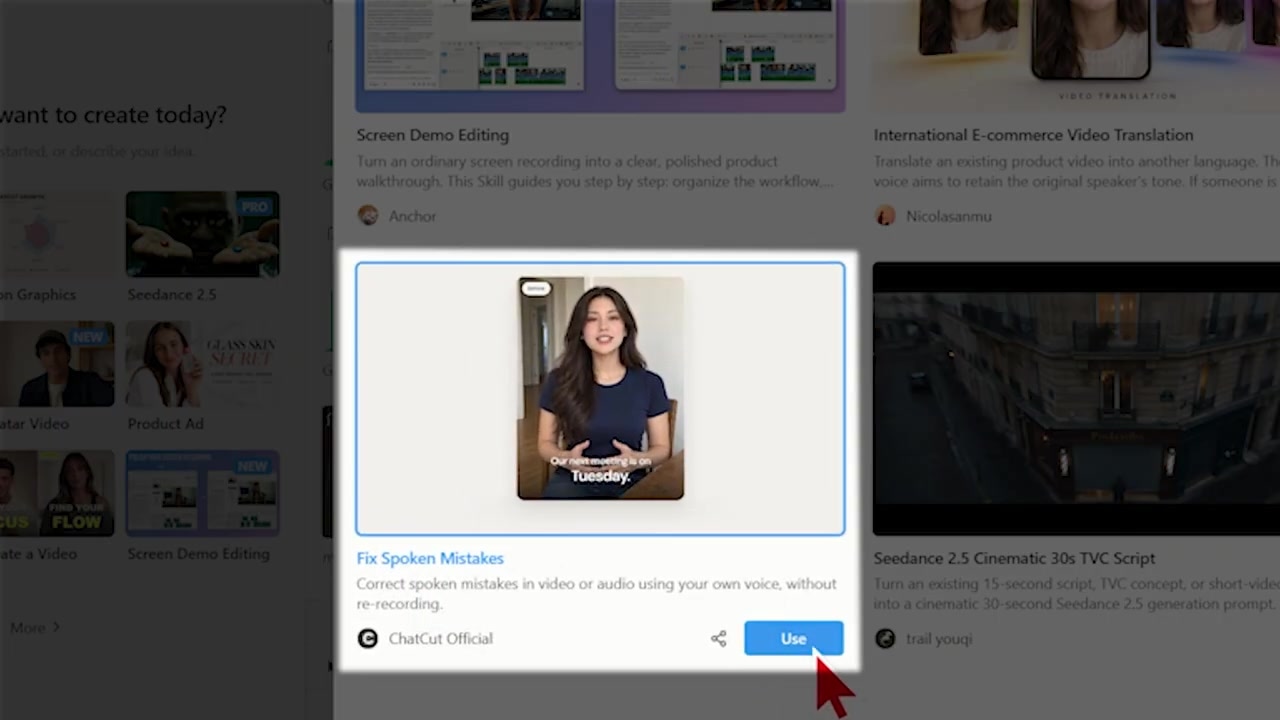
Caption: Selecting the "Fix Spoken Mistakes" skill inside ChatCut to repair a spoken stutter.
How to fix audio mistakes with ChatCut
- Locate the timestamp of the audio blunder on your transcript or timeline.
- Click Skills in the prompt window and select Fix Spoken Mistakes.
- Type a prompt referencing the exact mistake and the clear sentence you intended to say.
- Click Submit and allow the AI to synthesize the replacement audio.
When I played the footage back, ChatCut had removed the mumble and substituted the clear text using a cloned version of my own voice. The patch matched my tone and cadence smoothly without requiring a re-take.
Generate Custom Podcast Thumbnails Automatically
Podcast thumbnails often follow recognizable layouts to maximize click-through rates, but assembling custom graphics for every episode takes time. I wanted to see if ChatCut could construct episode-specific thumbnails from raw footage and an existing reference template.
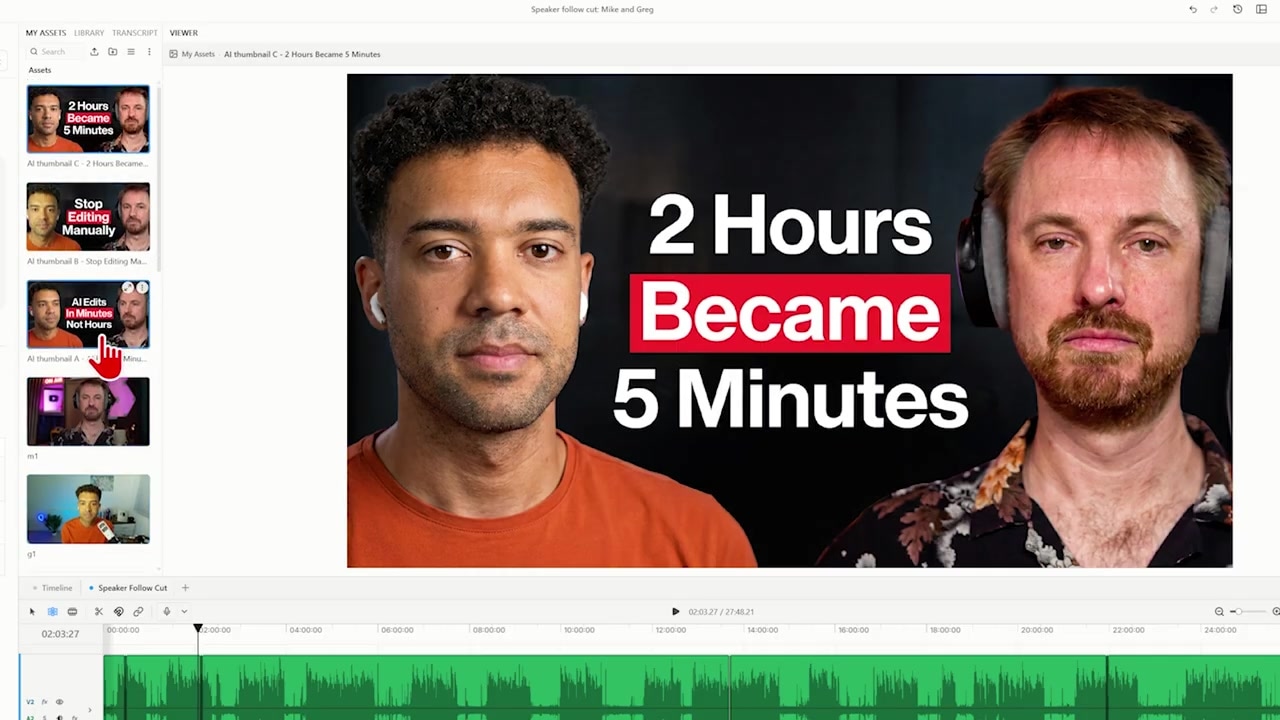
Caption: ChatCut generating three thumbnail options by extracting face grabs and context-relevant text from the conversation.
I loaded a target thumbnail template into ChatCut, selected the Video Thumbnail Generator skill, and typed a quick prompt into the chat box.
ChatCut automatically pulled high-quality screen grabs of both my face and Mike's face directly from the video layers. It then analyzed our transcribed conversation, extracted key thematic phrases, and replaced the placeholder text with title concepts relevant to what we discussed. It rendered three full thumbnail choices directly inside the app.
Switch AI Engines: ChatCut Agent, ChatGPT, or Claude
ChatCut operates via an internal AI agent by default, but it also gives creators full control over which underlying LLM powers the video editing process.
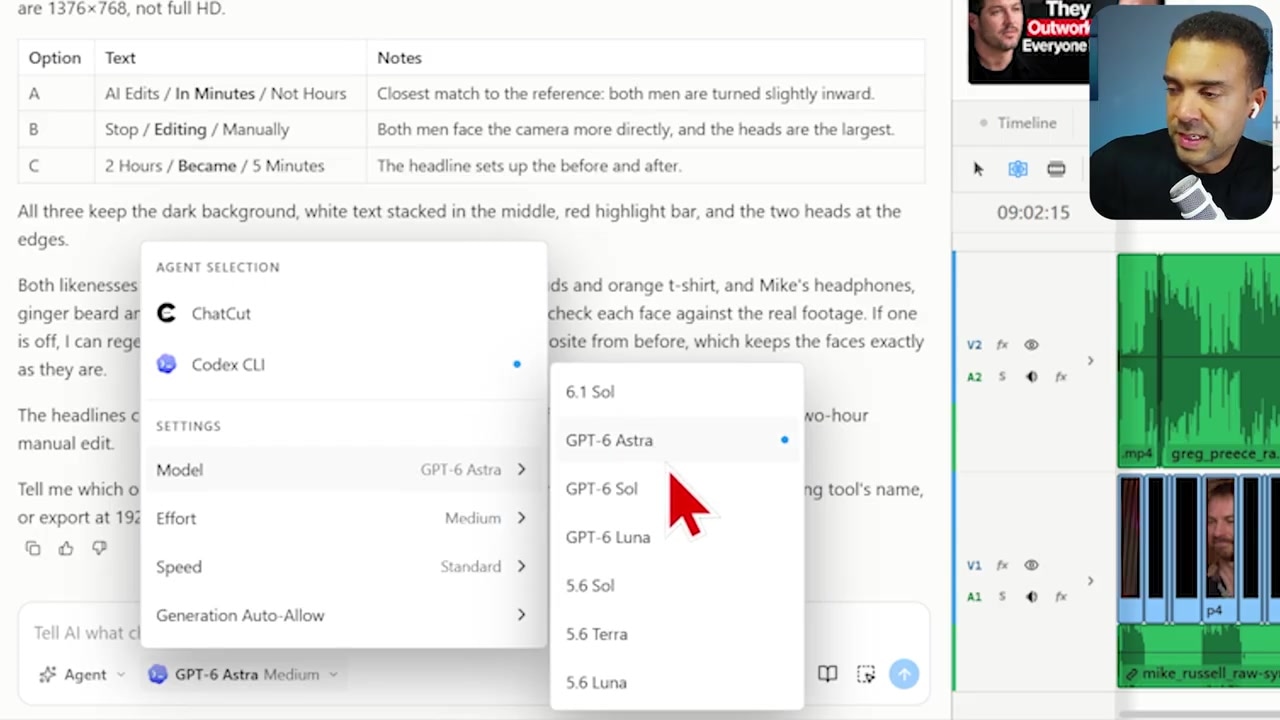
Caption: Switching between the native ChatCut agent, ChatGPT Codex models, and connected Claude accounts.
Inside the AI settings panel, you can toggle between:
- ChatCut Agent: The default, pre-tuned AI editor.
- ChatGPT / Codex: Connects OpenAI models (such as Sol or Astra) to run timeline logic.
- Claude Integration: Instructions inside the app allow you to link an Anthropic Claude account to drive project decisions.
This flexibility allows power users who prefer specific language model reasoning to swap backends without leaving the desktop editor.
Automate Multi-Camera Angles with AI Multicam
Editing two or more camera angles together usually requires hours of cutting back and forth based on who is speaking. I imported two synchronized, unedited camera layers—one on me and one on Mike.
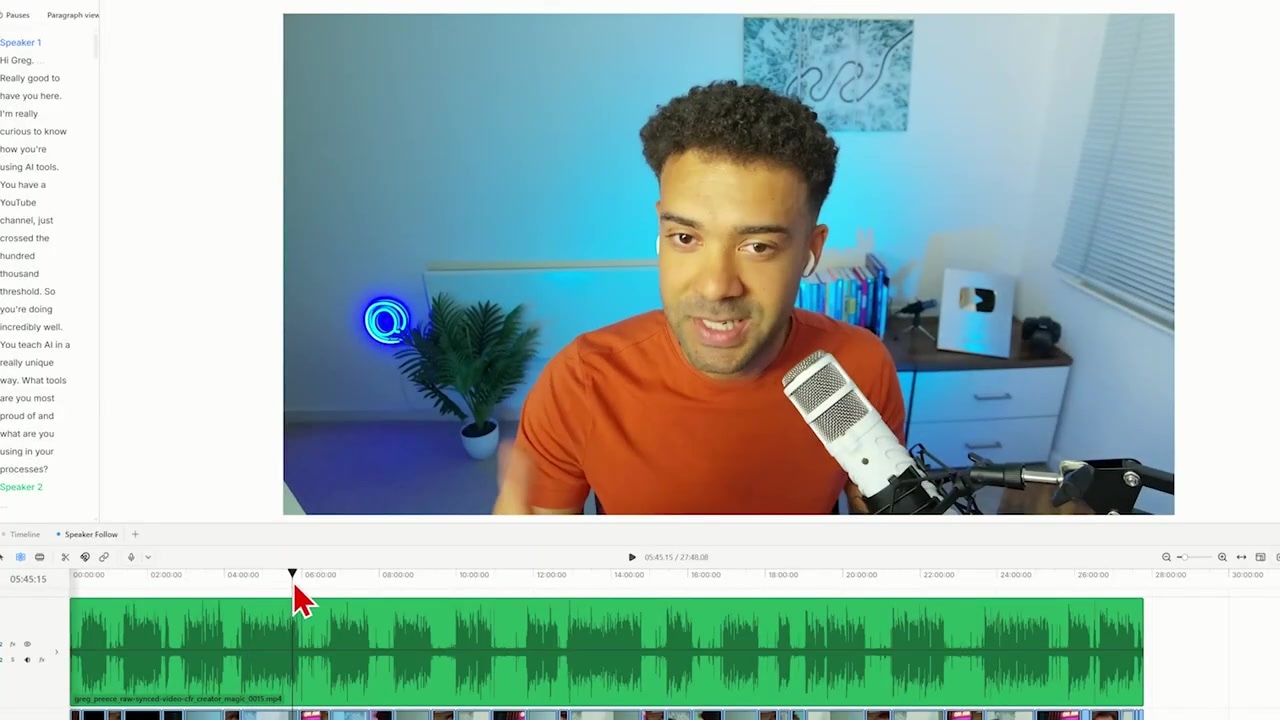
Caption: The AI Multicam Editor automatically tracking active speakers and switching camera angles on the timeline.
How to automate multicam edits
- Stack your synced raw footage tracks in the project timeline.
- Select the AI Multicam Editor skill from the skills menu.
- Submit the job to the chat box.
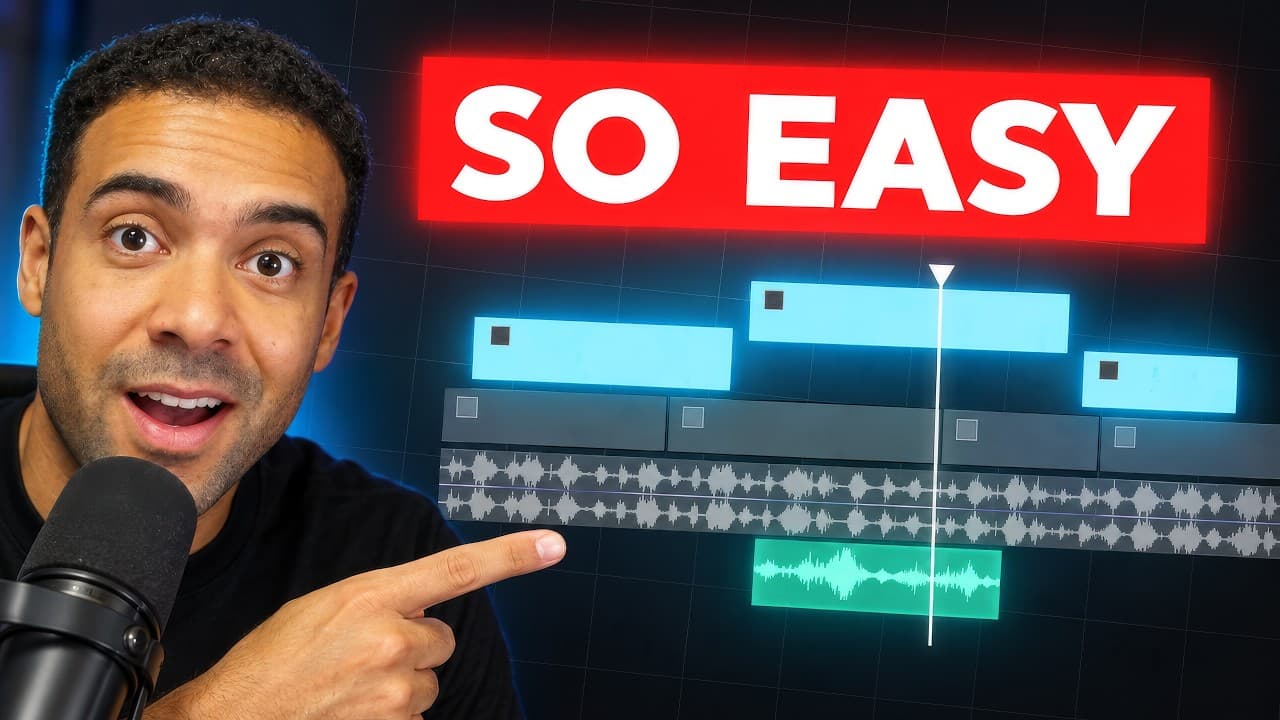
ChatCut analyzed the voice tracks across the entire 25-minute timeline and automatically assigned active focus. When Mike spoke, the timeline displayed his full-screen angle; when I replied, it seamlessly switched back to my camera. The automation eliminated manual cutting while preserving precise switching points.
Apply Speaker-Aware Caption Styles
Basic auto-captioning is common across most modern editors, but ChatCut introduces speaker recognition directly into caption design.
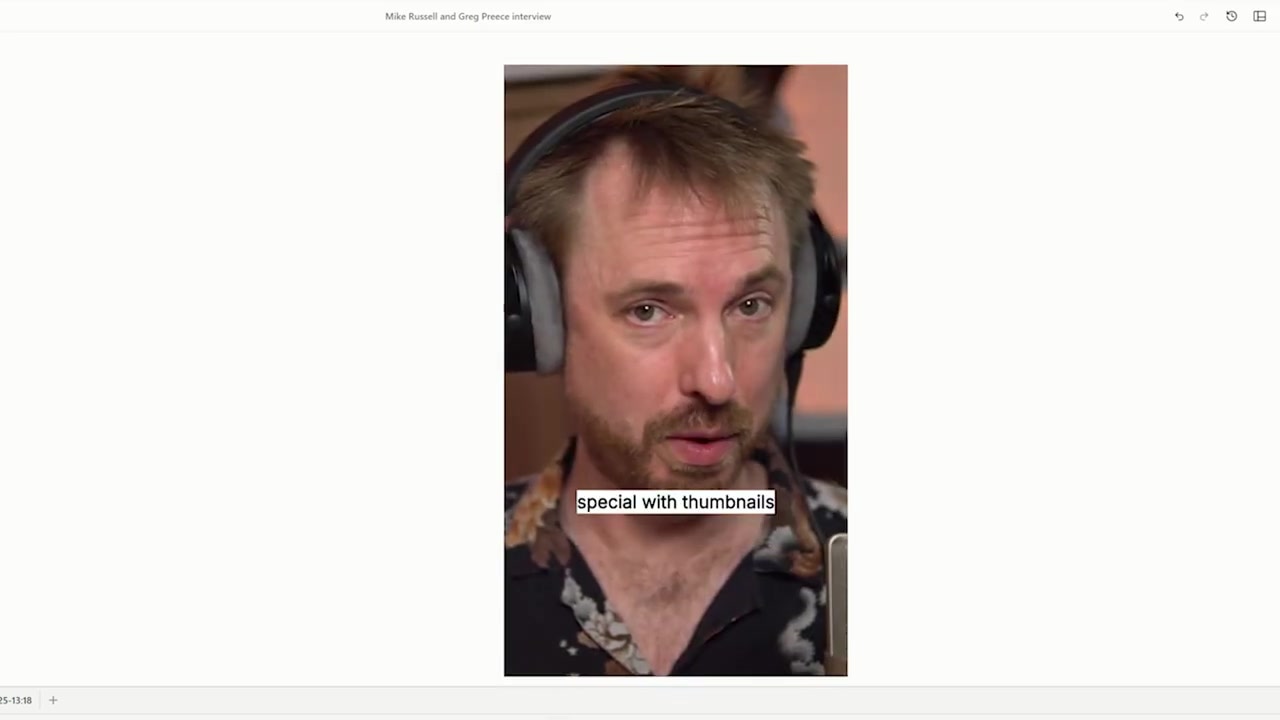
Caption: Distinct caption styling automatically assigned based on speaker identity.
I searched for the Caption Styling skill and instructed ChatCut to apply distinct visual identities for each speaker.
ChatCut automatically identified my voice and Mike's voice without manual layer tagging. It assigned white text on a dark box for my dialogue and black text on a light box for Mike's dialogue. During moments where we spoke over each other, both caption styles rendered simultaneously on screen, making multi-speaker dialogue easy to follow.
Convert Long-Form Podcasts into Vertical Shorts
Repurposing horizontal podcasts into vertical video clips for TikTok, YouTube Shorts, or Instagram Reels is typically a separate post-production workflow.
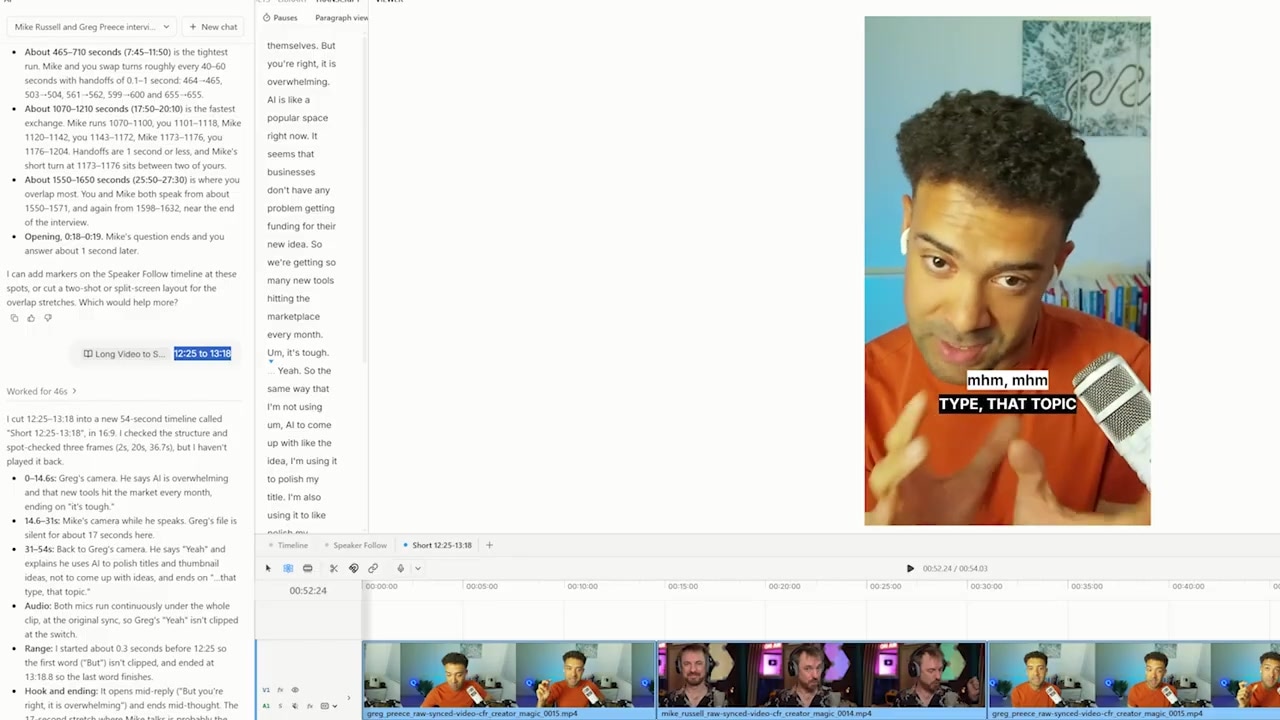
Caption: ChatCut converting horizontal 16:9 podcast footage into framed 9:16 vertical social clips.
How to extract vertical Shorts automatically
- Select the Long Video to Shorts skill in ChatCut.
- Choose your workflow:
- Manual Selection: Prompt the specific timestamp range you want isolated.
- AI Selection: Instruct the AI to analyze the full timeline (e.g., a 25-minute recording) and auto-select high-impact soundbites.
- Specify the
9x16vertical format in your prompt instructions.
ChatCut framed both speakers cleanly inside the vertical crop, identified three distinct conversational hooks, and produced three ready-to-export vertical clips complete with dynamic captions.
ChatCut Workflow Summary
| Feature | Key Capability | Primary Benefit |
|---|---|---|
| Fix Spoken Mistakes | Clones voice to replace awkward stutters and misspoken phrases | Corrects speech errors without re-recording |
| Thumbnail Generator | Pulls face grabs & thematic text matching reference layouts | Creates episode thumbnails in seconds |
| Agent Switching | Toggles between ChatCut, ChatGPT/Codex, and Claude engines | Gives creators flexibility over AI logic |
| AI Multicam Editor | Detects active dialogue to switch raw camera angles | Replaces hours of manual multi-cam cutting |
| Speaker-Aware Captions | Assigns unique visual styles per speaker automatically | Improves social clip readability |
| Long Video to Shorts | Selects highlights and crops 16:9 footage into 9:16 clips | Automates social repurposing workflows |
Frequently Asked Questions
What is ChatCut AI?
ChatCut is an AI-powered desktop video editor designed for creators and podcasters. It uses conversational prompts and specialized AI skills to automate video cutting, multicam editing, voice correction, dynamic captioning, and social clip generation.
Can ChatCut edit multi-camera podcast footage automatically?
Yes. By using the AI Multicam Editor skill, ChatCut detects active speaker audio across synchronized tracks and cuts between camera angles automatically.
Does ChatCut work on desktop computers?
Yes, ChatCut operates as a desktop application, allowing local control over your video files while leveraging cloud or connected AI models.
Can I connect my own AI models to ChatCut?
ChatCut allows users to switch between its native ChatCut agent and ChatGPT/Codex models, or connect external AI accounts such as Anthropic Claude.