Descript AI: 5 Automations That Cut My Editing Time in Half
Last updated: February 2026
By Greg Preece — I test AI video tools weekly and turn them into practical, repeatable editing workflows.
Disclosure: This article contains affiliate links. If you use them, I may earn a commission at no extra cost to you.
If you’ve used Descript before, you might still be missing the newer AI automations that cut out the repetitive parts of video editing. This guide walks through five practical Descript AI workflows you can copy to move faster without learning animation, re-recording lines, or manually chopping timelines.
TL;DR (what you’ll learn)
- Generate title screens in a matching style, then animate them.
- Fix spoken mistakes by swapping words and regenerating the video lip sync.
- Run bulk editing actions (silence removal, audio cleanup, background blur) from one prompt.
- Translate + dub a video into another language while keeping a consistent voice.
- Auto-create vertical short-form clips with captions and layout.
Table of contents
- What “Descript AI” means in this guide
- Quick link
- 1) Automated title screens from a reference style
- 2) Fix spoken mistakes without re-recording
- 3) Bulk editing actions with one prompt
- 4) Translate and dub your video
- 5) Automatically create short-form clips
- What I tested and what I found
- FAQ
Prefer to watch? Here’s the video. Prefer to skim? The full breakdown is below.
What “Descript AI” means in this guide
In this article, “Descript AI” refers to the AI features inside Descript that automate editing tasks from natural-language prompts and script-based editing—especially Underlord, Regenerate (including video regeneration), translation/dubbing, and clip creation.
Quick link
- Descript: Try it here: Try Descript →
1) Automated title screens from a reference style
This workflow creates a set of title-screen images in a consistent style (based on a reference image you upload), then turns those into short animated clips you can drop into your edit.
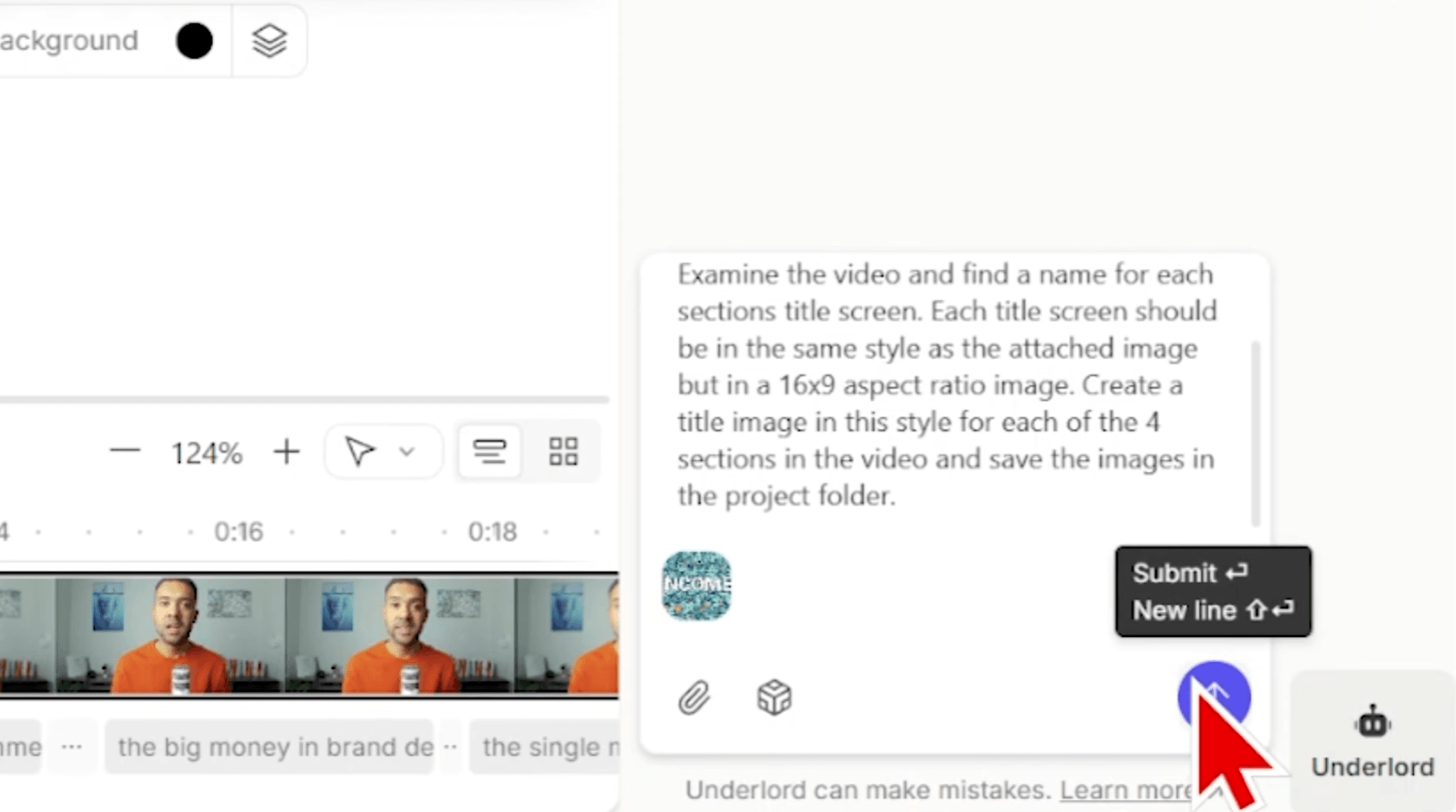
Caption: Upload a reference style image, then ask Underlord to generate matching title visuals.
Steps (the “copy this” version)
- Create a new project and import your video into Descript.
- Open the Underlord chat (the Underlord button in the editor).
- Upload a reference image that shows the design style you want to match.
- Ask Underlord to create title visuals for the sections of your recording (based on the transcript/structure of the edit).
- Go to AI Tools and choose Generate a video.
- Pick one of the generated images from your project files, add a prompt describing the animation you want, then generate.
- Insert the generated animated title clip into your timeline where it belongs.
Why this is useful
- You’re not hand-animating titles.
- You’re not hiring a motion designer for every video.
- Your titles stay visually consistent because you’re anchoring to a reference style.
2) Fix spoken mistakes without re-recording
If you said the wrong word/name on camera, you can replace the word in the transcript and use Regenerate to update the audio—and then regenerate the video so your mouth movement matches.
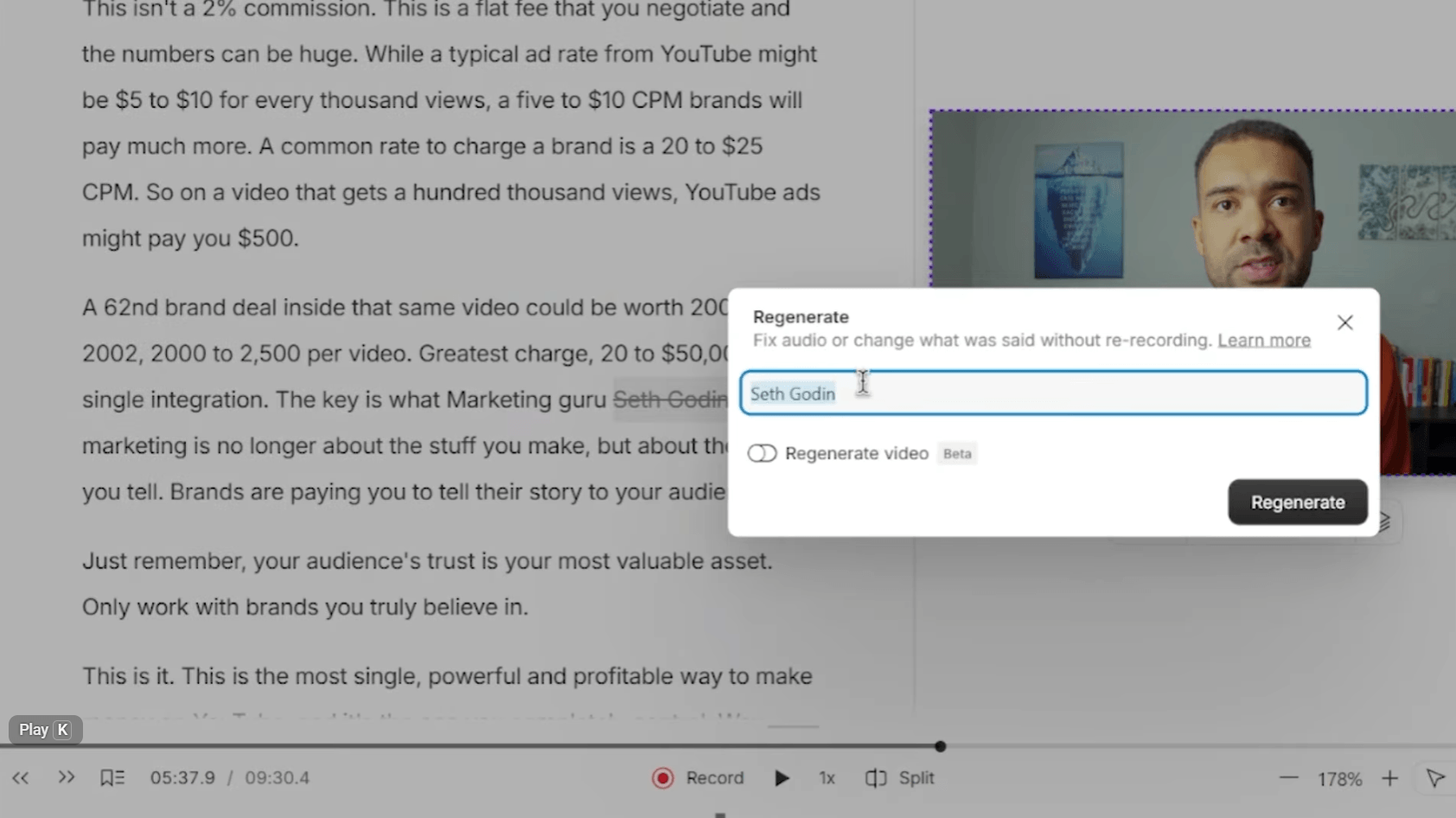
Caption: Highlight the word/phrase, change it in the script, then Regenerate so the spoken line updates.
Steps
- Find the mistake in the transcript (the script panel).
- Highlight the word/phrase you want to change.
- Replace it with the correct text.
- Click Regenerate to update the audio for that moment.
- Run Regenerate video so the lips sync to the updated speech.
- Replay the sentence and sanity-check the result before moving on.
What this replaces
- Re-recording a line.
- Re-cutting the timeline around a flub.
- Living with the mistake because “it’s too annoying to fix.”
3) Bulk editing actions with one prompt
Instead of doing multiple repetitive edits one by one (trim pauses, clean audio, blur background, etc.), you can ask Underlord to run them as a batch.
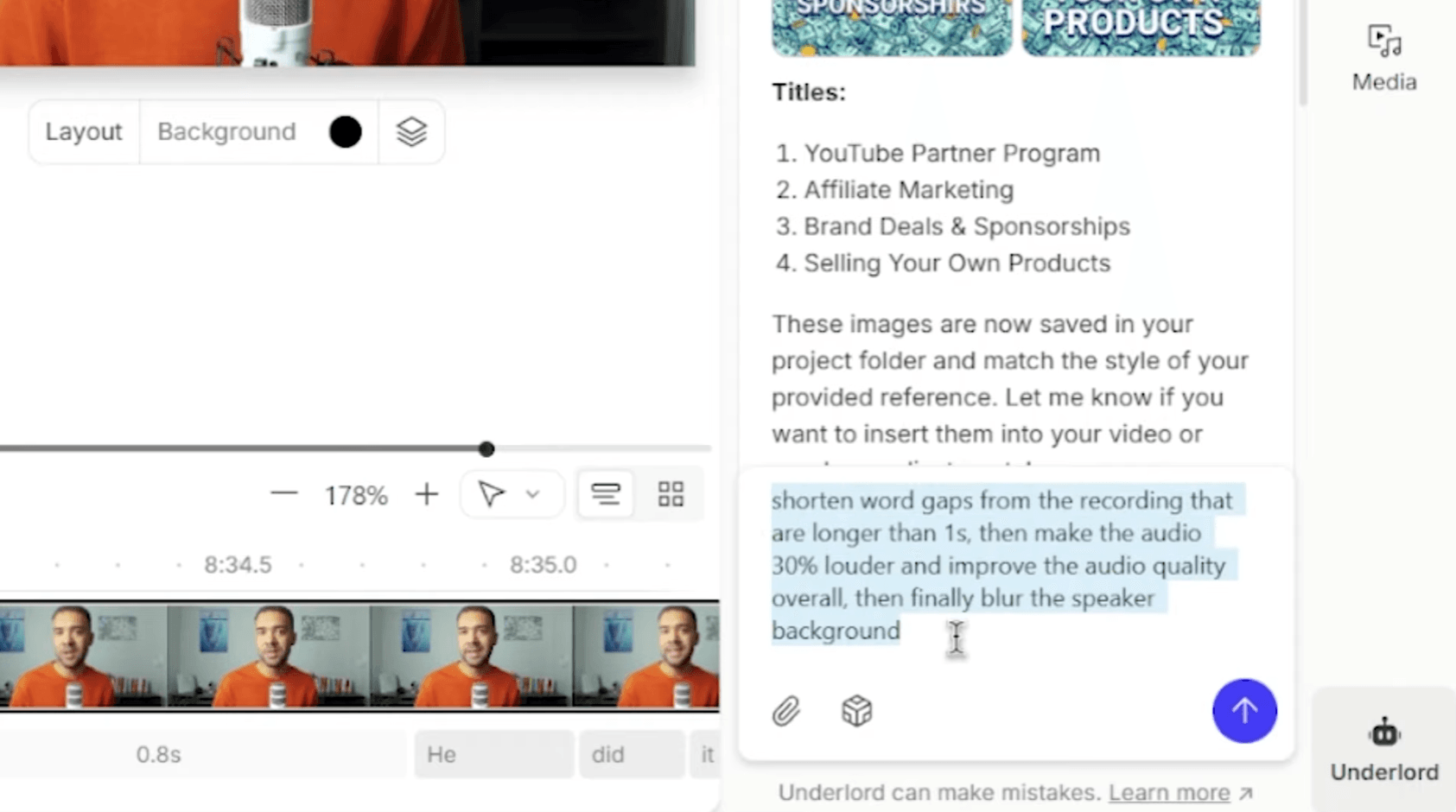
Caption: Put multiple instructions into one prompt so the edits run in a single pass.
Example batch actions shown in the workflow
- Remove silences longer than a chosen threshold (example shown: over 1 second).
- Improve/clean up the audio.
- Blur the background behind the speaker.
Steps
- Open Underlord.
- Write one prompt that lists every action you want done (be explicit).
- Run it and wait for the changes to apply.
- Scrub the timeline to spot-check:
- pauses removed where expected
- audio improved
- blur applied consistently
- If something’s off, undo and re-run with a clearer prompt (or split into two prompts).
Practical tip
The key is treating this like a “bulk edit checklist”: include everything you want done in the prompt up front, instead of stopping to do tasks individually.
4) Translate and dub your video
This workflow creates a translated version of your video by translating the script and generating dubbed speech—so you can republish for another audience without sending the project to an external dubbing service.
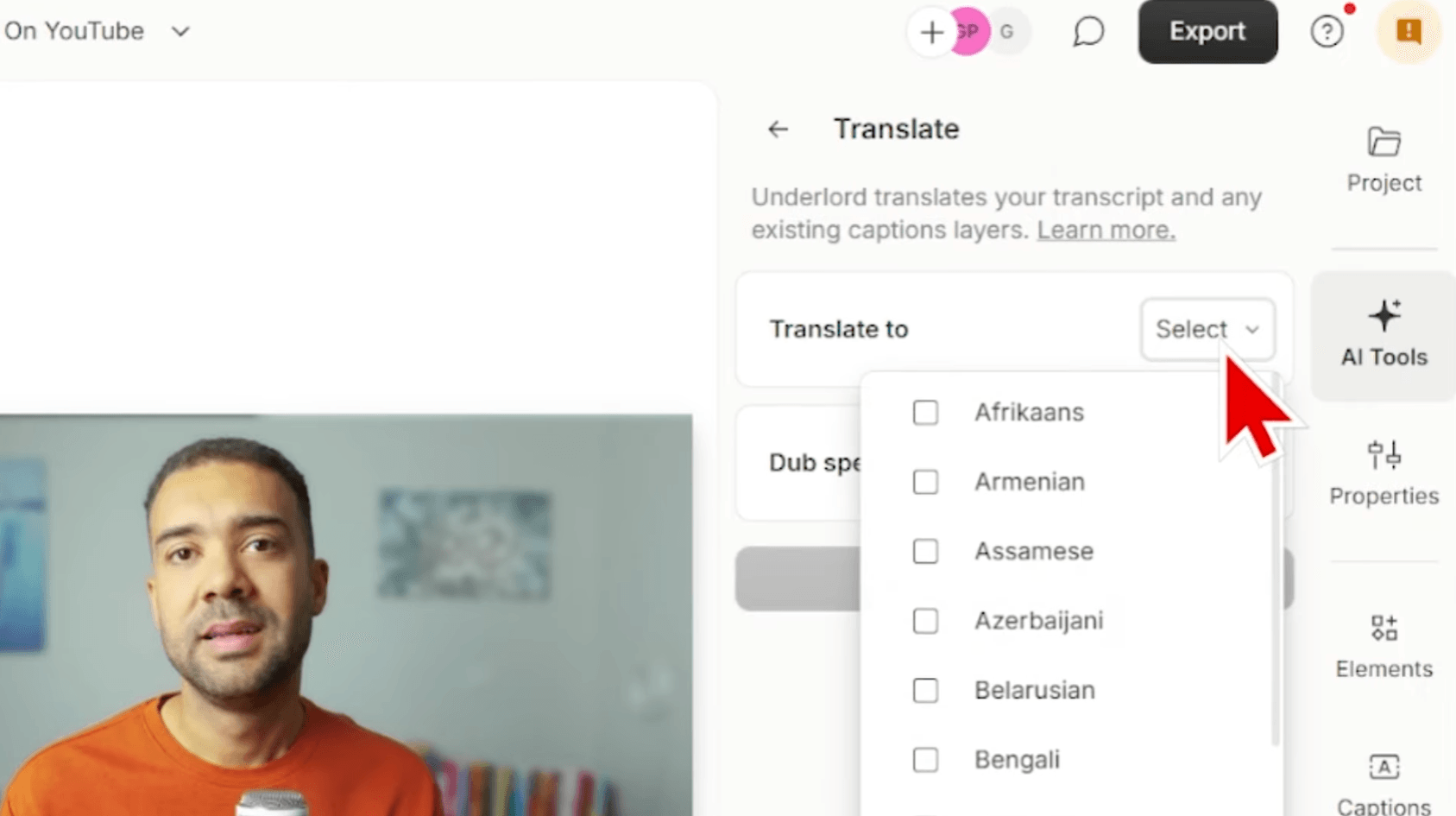
Caption: Choose a target language, enable dubbing, and confirm the voice option before submitting.
Steps (as shown)
- Go to Translate.
- Choose the target language (example shown: German).
- Enable Dub speech so you get spoken audio in the new language (not just text).
- Select the voice option you want to use for the dub (the workflow shows selecting a voice replica).
- Submit the translation.
- When it’s ready, play it back end-to-end and check for:
- name/brand term accuracy
- pacing that still matches the visuals
- any lines that need manual tweaks
When this is worth it
- You already know a video performs well in English.
- You want to repurpose it for another market quickly.
- You’d rather keep everything inside one editing environment.
5) Automatically create short-form clips
If you’re publishing long-form, you’ll eventually want Shorts/TikTok-style clips. Descript can generate clips, crop them to vertical, and add captions—so you’re not manually hunting timestamps.
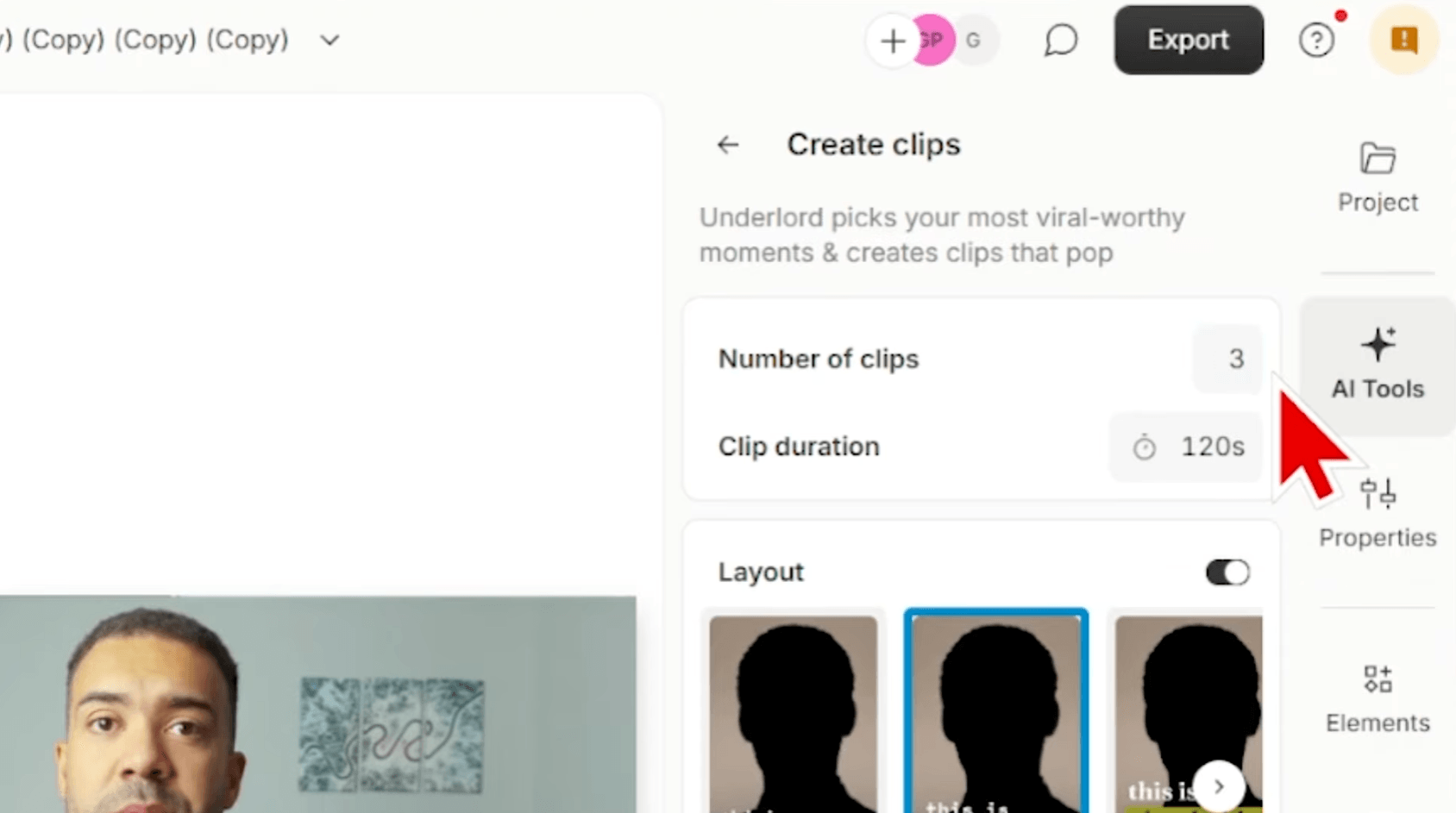
Caption: Set a target number of clips, an average length, and a layout—then let Descript propose highlights.
Steps
- Open AI Tools → Create clips.
- Choose roughly how many clips you want (note: the workflow mentions it may not always hit the exact number).
- Set an average clip length (example shown: 120 seconds).
- Choose a layout for the vertical version.
- Submit and review what Descript returns.
- For each clip, quickly check:
- Is the hook strong enough?
- Are captions accurate?
- Is the crop framing the subject correctly?
- Customize fonts/colors to match your brand if needed.
What you get “for free”
- A suggested moment cut from the long video.
- Vertical cropping suitable for Shorts/TikTok.
- Captions/subtitles added as a baseline.
What I tested and what I found
Based on the workflows shown in the video:
- Title screens: Underlord generated a set of images matching the reference style, and “Generate a video” turned an image into an animated title clip you can insert into the timeline.
- Mistake fixes: Swapping words in the script and regenerating updated both the audio and the on-camera mouth movement for the edited phrase.
- Bulk actions: Running multiple instructions in one Underlord prompt removed longer silences, improved audio, and applied background blur across the edit in one pass.
- Translation/dubbing: The translate + dub workflow produced a new language version quickly enough to feel like a “single-click” operation once the settings were chosen.
- Clips: The clip generator produced fewer clips than requested in the example, but returned usable vertical clips fast—complete with captions and auto-framing.
FAQ
Do I need to be an animator to make title screens in Descript?
No. The workflow shown uses a reference style image plus AI-generated visuals, then turns those visuals into short animated clips you can place in your edit.
Can Descript AI really fix a spoken mistake on camera?
In the workflow demonstrated, yes: the script text is replaced, the audio is regenerated, and then the video is regenerated so the lips sync to the new words. Always replay and verify the result.
Will “Create clips” always make the exact number I request?
Not necessarily. The example shown requests three clips and returns two. Treat the number as a target, then review what you get back.
Is this the same as YouTube’s own translation features?
YouTube is experimenting with more translation/dubbing capabilities. The workflow here is about doing translation and dubbed speech inside Descript, with your chosen voice option—so you can control the result in your edit. If you’re comparing approaches, verify what YouTube currently supports in your account.