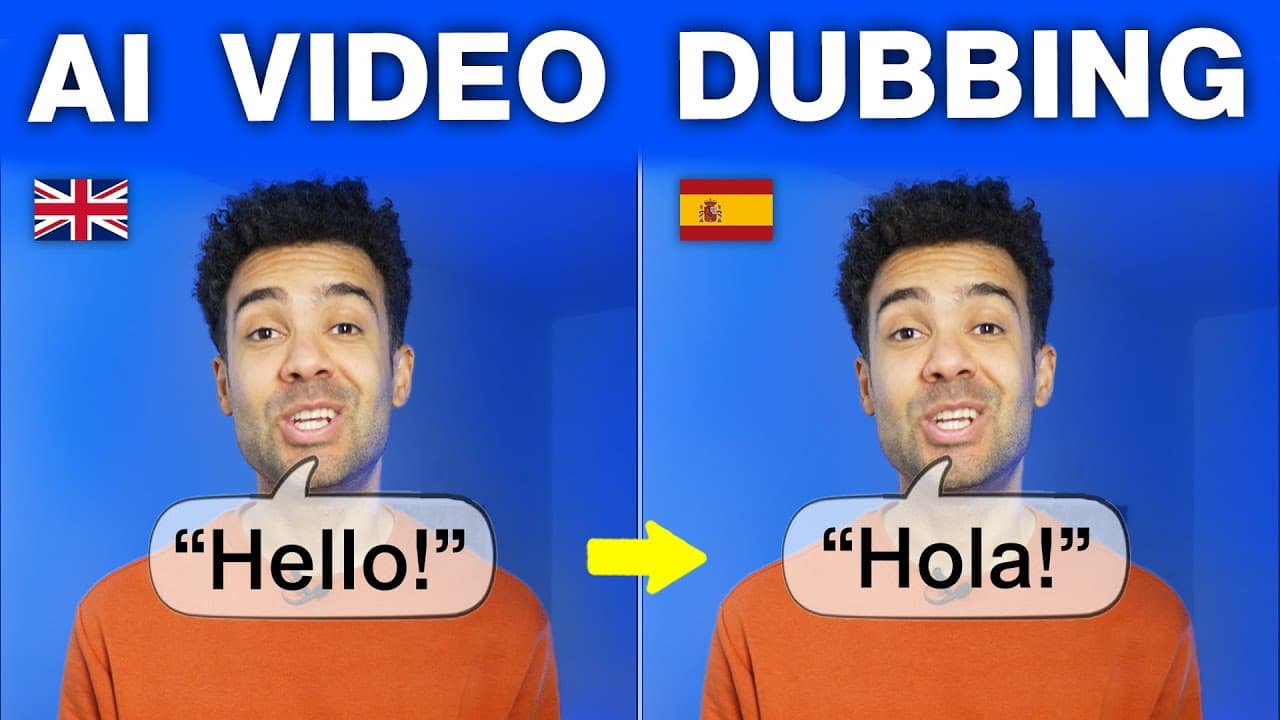
Dubbing Lip Sync AI: 10 Languages in 5 Minutes
Last updated: February 2026
Author: Greg Preece
I test AI video tools weekly to find workflows that actually save time (and avoid the settings that quietly ruin your results).
If you’re trying to reach a global audience without re-filming, dubbing with convincing lip sync is the fastest win. Below is the exact workflow I use in HeyGen to translate a video, plus the one “advanced” checkbox that fixes the timing issues most people accept as “good enough.”
If you are dubbing a full online course rather than a single video, see my guide to HeyGen for course creators.
TL;DR
- Use Hyper-realistic translation (not audio-only dubbing) for lip sync.
- Before you hit Translate, enable Dynamic Duration to improve timing.
- Upload → pick source language → pick target language → Advanced options → Translate → Download.
Table of contents
- Video walkthrough
- Quick link
- What you need before you start
- Step-by-step: translate with lip sync in HeyGen
- The one setting most people miss: dynamic duration
- What I tested and what I found
- Hyper-realistic translation vs audio-only dubbing
- Cost and ROI note
- FAQ
Video walkthrough
Prefer to watch? Here’s the video. Prefer to skim? The full breakdown is below.
Quick link
HeyGen: Try it here: Try HeyGen →
What you need before you start
- A finished video file you want to translate (the workflow works best when the speaker’s face is visible for lip sync).
- A clear idea of:
- your source language (the language in the original video)
- your target language (the language you want to publish)
Step-by-step: translate with lip sync in HeyGen
This is the clean “do it once, do it right” workflow.
- In your HeyGen dashboard, go to Translate Video (or similar wording).
- Choose Hyper-realistic translation (this is the option that includes lip sync).
- Upload the video you want to translate.
- Set the original video language (e.g., English).
- Choose the target language from the dropdown (e.g., Chinese).
- Open Advanced options and enable Dynamic Duration.
- Click Translate and let it process.
- Review the result (look for natural pauses and mouth timing).
- Hit Download to export the translated version.
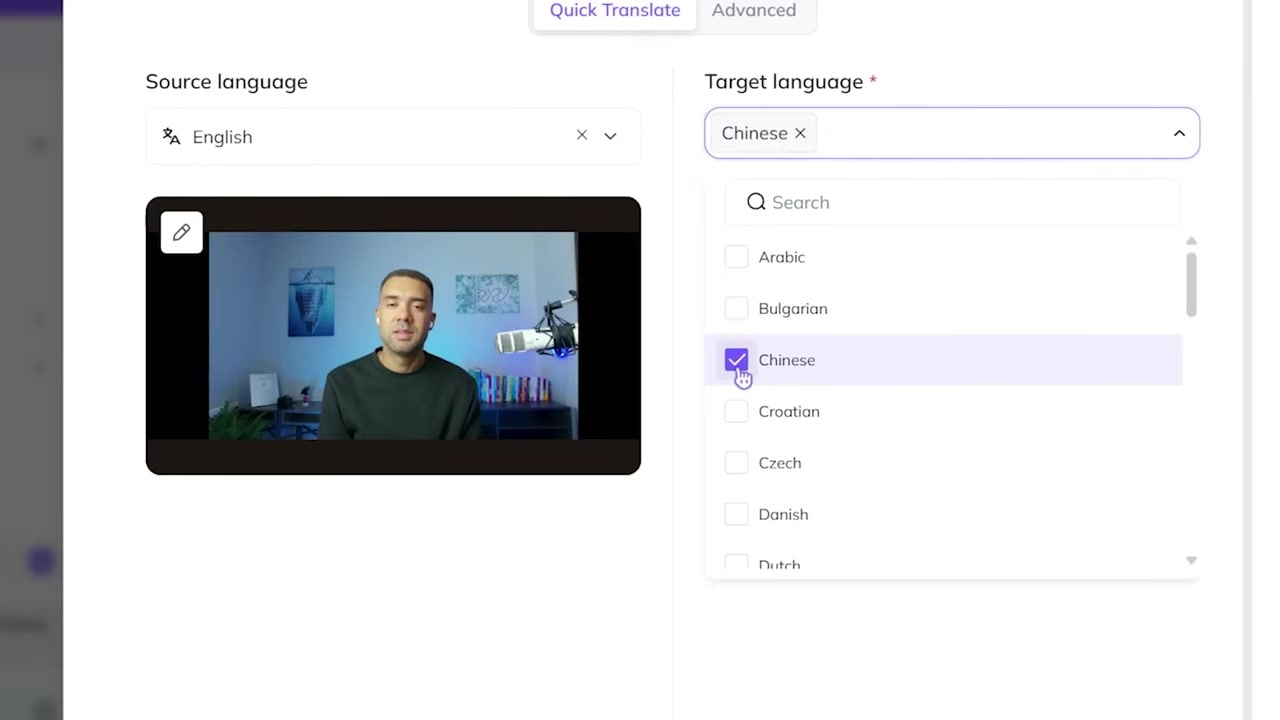
Caption: The “Translate Video” flow—upload your file, set source/target languages, then open Advanced options before translating.
The one setting most people miss: dynamic duration
Here’s the mistake I see creators make: they upload the video, pick a language, and hit Translate immediately.
That usually produces results that are good, but the pacing can be slightly off—tiny pauses land weirdly, or mouth movement drifts from the words.
The fix is simple: in Advanced options, make sure Dynamic Duration is enabled. The point of this setting is to let the system slightly shorten or lengthen segments so the translated speech feels natural and the lip sync looks cleaner.
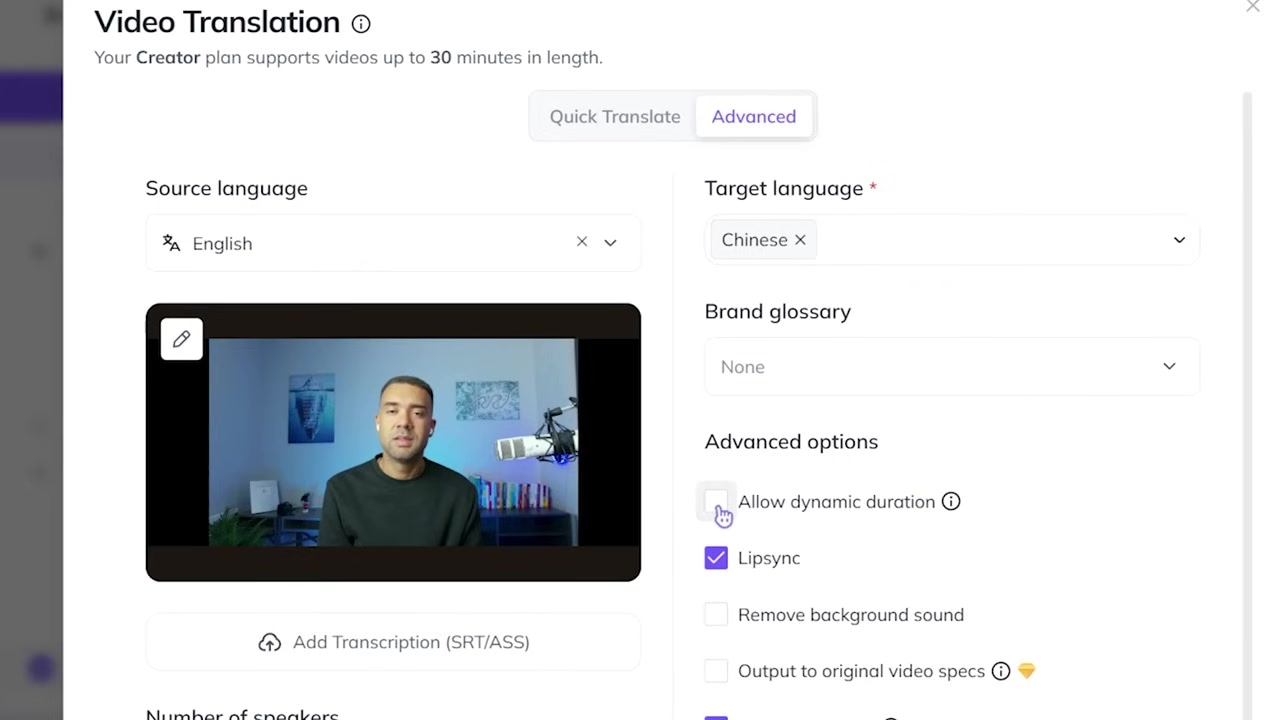
Caption: Enable Dynamic Duration in Advanced options to reduce “off-by-a-beat” timing in translated speech.
What I tested and what I found
In the video, I translated the same clip into another language and focused on the things that normally break immersion:
- Lip movement: does it match the syllables?
- Pauses: do they land where a human would pause?
- Overall flow: does it feel “performed,” not pasted on?
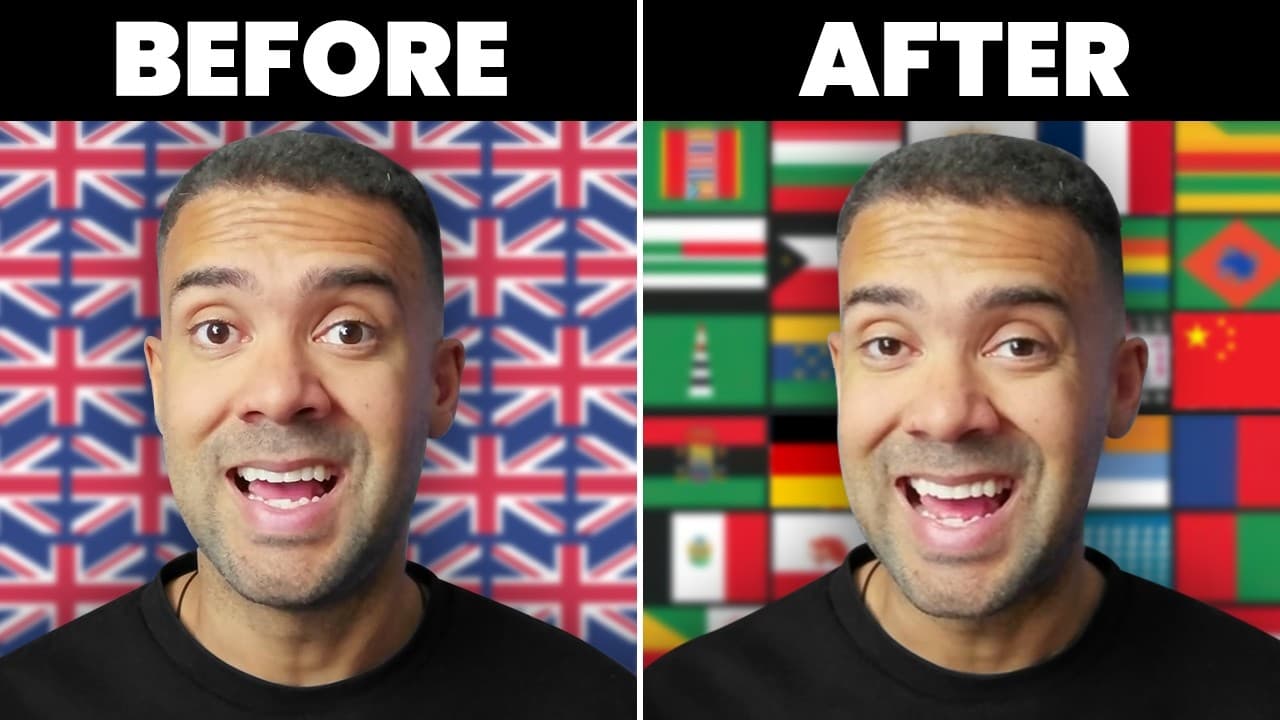
With Dynamic Duration enabled, the timing looked seamless in my test. Without it, the translation can still be usable—but it’s more likely to have those small pacing issues that make it feel AI-generated.
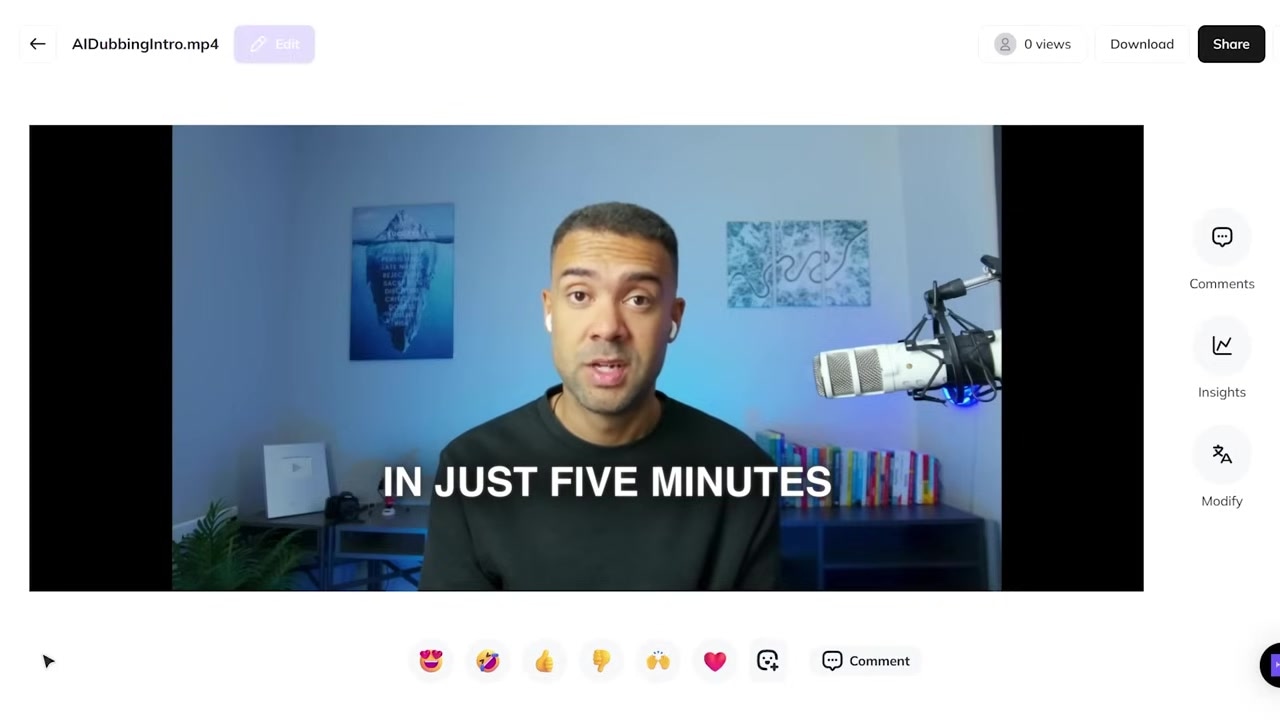
Caption: When reviewing your output, watch the mouth on plosive sounds and short pauses—those are where timing issues show up first.
Hyper-realistic translation vs audio-only dubbing
If you only need translated audio (and the speaker’s face isn’t on screen), audio-only dubbing can be fine.
But if you’re publishing talking-head content (YouTube, tutorials, explainers), hyper-realistic translation is the option to pick because it’s designed for lip sync—meaning the visuals and the new audio are meant to work together.
Cost and ROI note
In the video, I show HeyGen’s pricing screen and mention a creator plan price as displayed at the time of recording. Pricing and plan details change, so verify on HeyGen’s official pricing page inside your account.
The practical way to think about it: if dubbing lets one strong video perform in multiple languages, you’re buying reach without re-shooting.
FAQ
Does Dynamic Duration change the content of what I’m saying?
It’s described as adjusting pacing (segment duration) to improve the naturalness of the translated delivery. You should still review the final output for accuracy and tone before publishing.
Can I translate into multiple languages?
Yes—this workflow repeats per language. In the video, I mention translating into multiple languages quickly, but processing time depends on your video length and current system load.
What should I check before I upload the translated video?
Watch for (1) mouth timing, (2) awkward pauses, and (3) any translation oddities around names, brands, or technical terms. If something looks off, re-run with Dynamic Duration enabled and consider editing the script/terms if your interface offers that.