ElevenLabs Voice Cloning: Clone Your Voice (Step-by-Step)
Last updated: February 2026
By Greg Preece — I test AI video tools weekly and use them in real creator workflows to save recording time without sacrificing clarity.
If you record voiceovers for YouTube (or any content), you already know the pain: retakes, fluffed lines, and that one sentence you wish you could re-record after you’ve edited the whole video. This workflow shows how I clone my voice in ElevenLabs, then generate (or fix) voiceovers by typing.
TLDR
- Create an Instant Voice Clone from a short, clean recording.
- Use Text to Speech / Speech Synthesis to type scripts and generate audio in your voice.
- If it sounds slightly “off,” a small tweak to similarity can push it closer to you.
Prefer to watch? Here’s the video. Prefer to skim? The full breakdown is below.
Quick link
ElevenLabs: Try it here: Try ElevenLabs →
Table of contents
- What ElevenLabs voice cloning is
- What I tested and what I found
- Before you start: record the right audio sample
- Step 1: create an Instant Voice Clone in ElevenLabs
- Step 2: generate voiceovers from typed text
- Step 3: tweak settings to sound more like you
- Common issues and quick fixes
- FAQ
What ElevenLabs voice cloning is
ElevenLabs voice cloning is a way to create a digital version of your voice so you can generate voiceovers from text — in your own sound — without recording every line again.
In practice, it’s perfect for:
- Fixing a single sentence after you’ve already edited.
- Bulk-generating variations (hooks, intros, CTAs).
- Creating new voiceovers when you don’t want to set up a mic.
What I tested and what I found
Here’s what happened in my demo workflow:
- The clone creation felt instant after I clicked the final “add voice” button.
- I got the best result by uploading a clean, noise-free recording.
- The default clone was already close — but nudging similarity to ~95% made it sound even more like me.
Before you start: record the right audio sample
This is the part that decides whether your clone sounds “like you” or “like you… after a bad phone call.”
What I did:
- Generated a short script of diverse sentences (so the model hears lots of different sounds).
- Recorded myself reading it in a quiet space (no hums, no room echo).
- Kept it clean and consistent — same mic distance, same tone.
What to aim for:
- Clear voice, minimal background noise.
- Natural pacing (don’t rush).
- No music, no “live room” reverb if you can help it.
Step 1: create an Instant Voice Clone in ElevenLabs
In the video, I start in the area labeled like VoiceLab / Voices / My Voices (UI naming can vary), because that’s where you create the clone.
 Caption: This is the “start here” screen — where you add a new voice and choose Instant Voice Cloning.
Workflow:
- Go to the voices section (VoiceLab/Voices/My Voices).
- Click the add voice button/icon.
- Select Instant Voice Cloning.
- Name the voice/project.
- Upload your voice recording (the upload screen in my demo shows guidance like file size limits and that you don’t need a long sample).
- Add labels (in my case: British accent, male) and a short description.
- Tick the consent checkbox (only clone voices you have permission to clone).
- Click Add voice (or the equivalent) to create the clone.
The bit that surprised me: as soon as I clicked the final button, the cloned voice was available immediately on the right side — ready to use.
Step 2: generate voiceovers from typed text
Once the voice exists, the rest is simple: pick the cloned voice, type your script, generate audio.
In my video, I do this from a menu option labeled Speech Synthesis (you may also see it called Text to Speech in the UI).
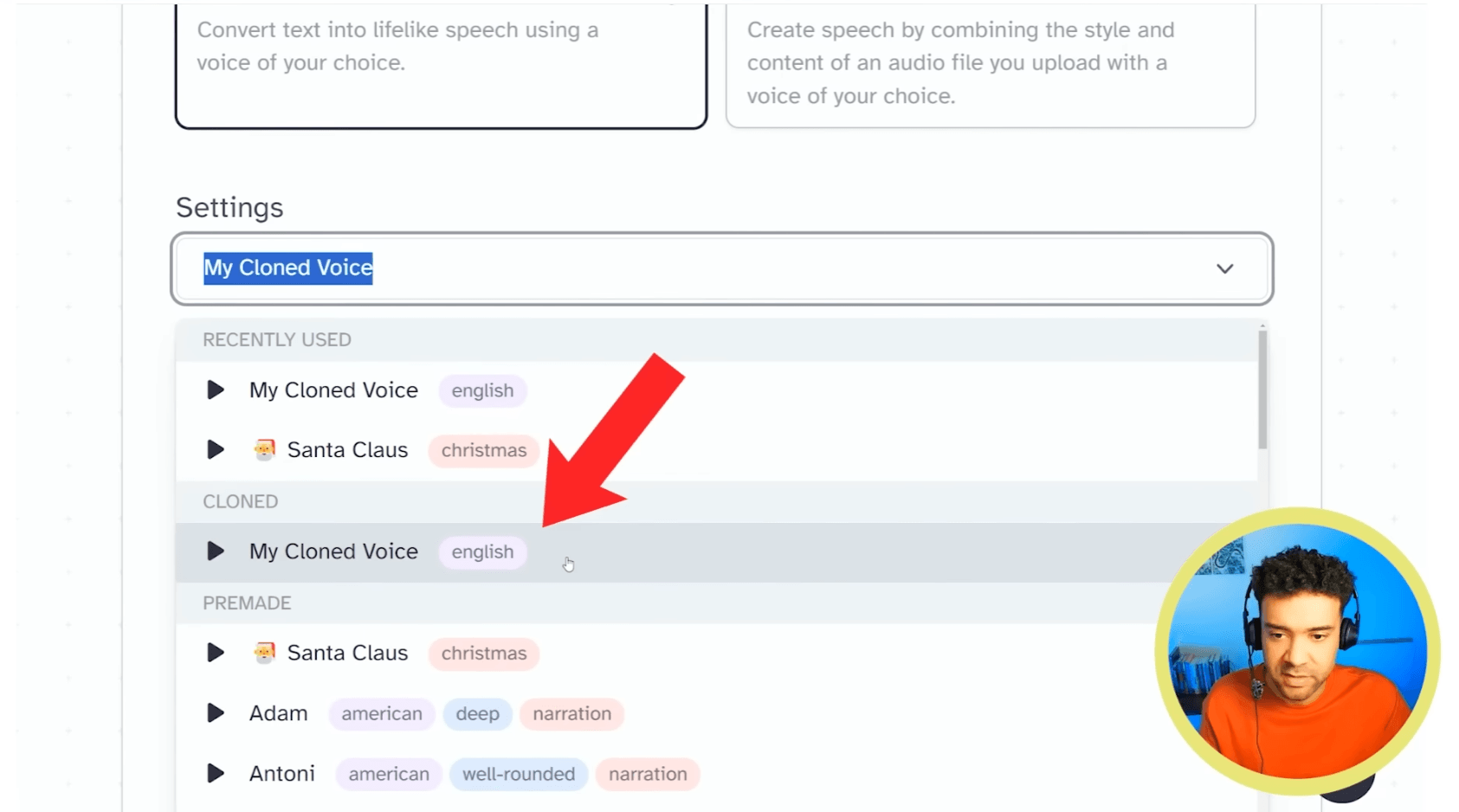
Caption: Select your cloned voice, type your script, then generate. This is where voiceovers become “typing” instead of recording.
Workflow:
- Open Speech Synthesis / Text to Speech.
- In settings, choose your newly cloned voice.
- Type what you want the voiceover to say.
- Click Generate.
- Download the audio and drop it into your edit.
This is where the time saving is real: you can fix a mistake or add a new line without re-recording, re-exporting, and re-editing around your old take.
Step 3: tweak settings to sound more like you
If your clone sounds a little “close but not quite,” don’t instantly scrap it. Try a small tuning pass.
What I changed:
- I went into the voice settings and nudged the similarity up slightly — to about 95% — which made it sound more like me than the default.
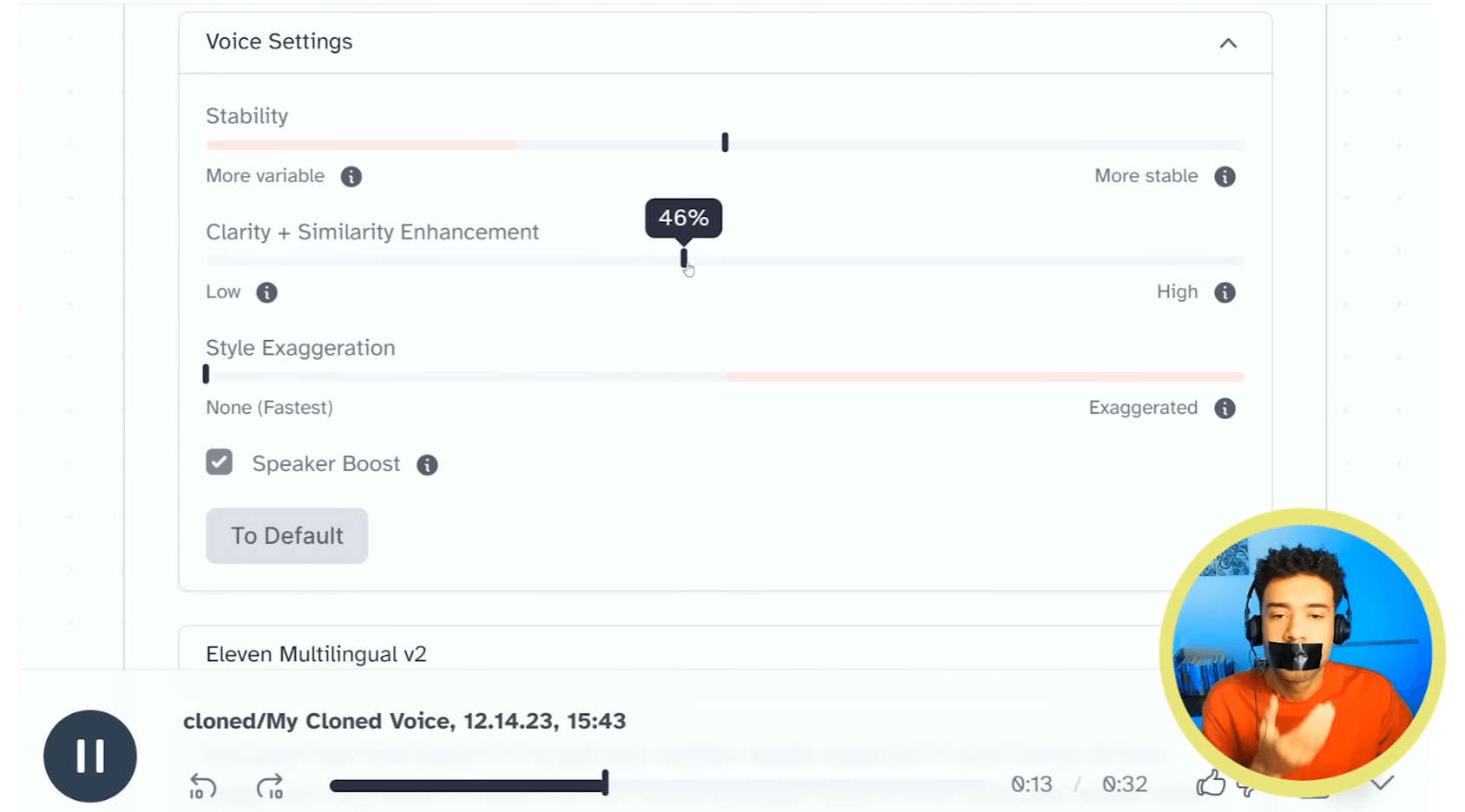
Caption: A small similarity tweak can make the clone lean harder into your original sample.
Practical tip: do one short test sentence, adjust one setting, regenerate, compare. Small moves beat random slider-dragging.
Common issues and quick fixes
-
It sounds robotic or “thin.”
Re-record your sample in a quieter space and reduce echo. Noisy samples absolutely drag the result down. -
It doesn’t quite sound like you.
Try raising similarity a bit (like I did). If it still misses, your sample may not include enough variety of sounds. -
Pronunciations feel off on certain words.
Rewrite the line the way you’d naturally say it, or add punctuation to force pauses. -
You can’t find “Voice Lab.”
Look for the voices area labeled Voices or My Voices — UI labels can shift, but the concept is the same: add a voice, clone it, then use it in Text to Speech.
Before you rely on any promo/plan requirement mentioned in a video (including mine), double-check the current plan and pricing details on ElevenLabs, because offers can change.
If you want to try the exact workflow I used: Try ElevenLabs →
FAQ
How much audio do I need to record?
In my demo, the upload screen indicates you don’t need a long recording, and I personally used a short read-through that took only a few minutes. The key is clean audio, not length.
Can this replace recording voiceovers entirely?
It can for a lot of use cases (quick corrections, bulk variations, “good enough” narration). For high-emotion delivery, you may still prefer a real take — but this is brilliant for edits and speed.
Is this mainly for YouTube?
Not at all. The same workflow works for courses, ads, product demos, internal training, and any content where rewriting a line is faster than re-recording.
What’s the number one thing that improves quality?
Recording a clean sample with minimal background noise. If the input is messy, the clone will be messy.