ElevenLabs Voice Tips: How I Fix Robotic AI Audio (Tested)
Last updated: July 2026
Author: Greg Preece — I test AI voice and video tools hands-on to help creators bypass the learning curve and get professional results.
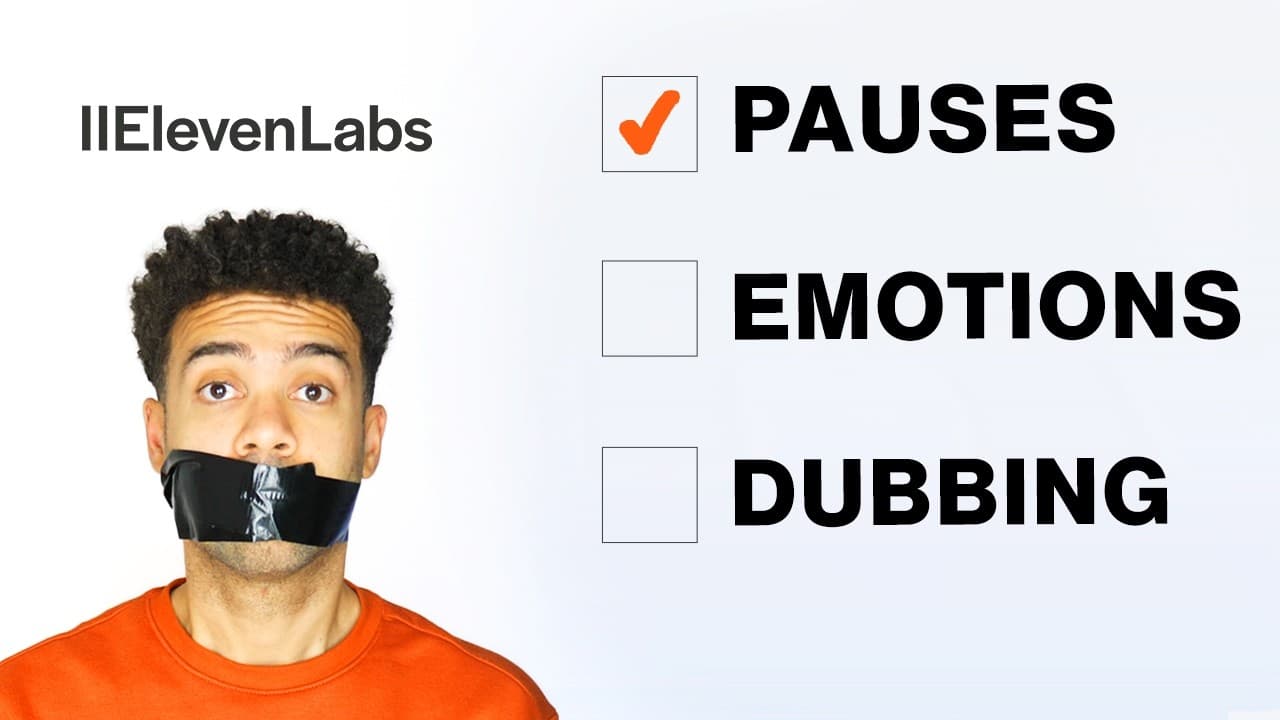
If you are using ElevenLabs for video voiceovers or audio narration, you have probably noticed that the default settings can sound flat, robotic, or rushed. In this guide, I will share the four advanced ElevenLabs voice tips I use to add natural pauses, inject expressive emotion, and localize videos seamlessly.
TL;DR: How to Make ElevenLabs Sound Human
- Pacing: Stop using periods/dashes to force pauses. Use the
<break time="1.5s" />XML tag for precise, realistic timing. - Emotion: Write prompts like a novel (e.g., adding
he said angrilyat the end), generate the speech, then edit out the text-prompt cue in post-production. - Fine-Tuning: Adjust Stability (50%–100%) and Style Exaggeration (0%–50%) to find the perfect vocal cadence.
- Translation: Use the Dubbing Studio to clone and translate your video's voice into other languages instantly.
Table of Contents
- Tip 1: Use SSML Break Tags for Natural Pauses
- Tip 2: Use Book-Style Writing to Prompt Emotion
- Tip 3: Fine-Tune Advanced Sliders for Voice Variation
- Tip 4: Translate with the Dubbing Studio
- Summary: Upgrading Your AI Audio Workflow
- Frequently Asked Questions
Prefer to watch? Here's the video. Prefer to skim? The full breakdown is below.
Try it here: Try ElevenLabs →
When I first started generating voiceovers with ElevenLabs, I was frustrated by the delivery. It sounded impressive at first, but when I tried using it for actual video scripts, the voices ran through sentences without taking a breath. I set up a few test scripts to find a reliable fix, and these four techniques completely changed my workflow.
Tip 1: Use SSML Break Tags for Natural Pauses
Beginners often try to force pauses in ElevenLabs by adding multiple periods (...), commas, or hyphens (-). I tested this approach and found that it often ruins the voiceover. Punctuation tricks can cause unnatural cadence shifts, awkward clicks, or sudden, strange changes in tone right before the pause.
Instead, use ElevenLabs' native SSML <break /> tag to control exact timing.
 Caption: Inserting a
 <break time="1.5s" /> tag inside the ElevenLabs editor gives the AI voice a natural, realistic pause without affecting the tone of the surrounding text.
How to use break tags:
- Insert your script: Paste your text into the ElevenLabs Text-to-Speech editor.
- Add the XML code: Locate the exact spot where a natural pause should happen and paste
<break time="1.5s" />(or<break time="1.0s" />). You can change the numerical value to whatever duration you need. - Generate your audio: Hit generate. The output will sound perfectly paced, giving your audience a natural second to digest the message.
Tip 2: Use Book-Style Writing to Prompt Emotion
ElevenLabs can struggle with conveying complex emotions like humor, excitement, or anger on default settings. For example, if you generate a simple line like "That is funny!", the delivery can sound flat and unconvincing.
The official ElevenLabs recommendation to fix this is brilliant: write your text exactly how a book author would write a novel. By describing the emotion directly in the text, you force the AI model to adopt that inflection.
 Caption: Writing your sentence with narrative context like "she laughed hysterically" coaxes a highly expressive delivery from the AI.
 Caption: Adding "he said angrily" shifts the AI voice into a tense, realistic angry tone. Simply crop out the description in post-production.
How it works:
- Write book-style descriptions: Add descriptive phrasing to the end of your sentence, just like a novelist writing dialogue (e.g.,
"That is funny!" she laughed hysterically.or"Are you sure about that?" he said angrily.). - Generate the audio: Let ElevenLabs render the text. Because of how the model processes language, it will deliver your target sentence with natural, dramatic emotion.
- Download and crop: Download the generated file, drop it into your timeline or DAW (like Audacity, Premiere Pro, or DaVinci Resolve), and crop out the trailing spoken description—leaving behind only the highly expressive line you wanted.
Tip 3: Fine-Tune Advanced Sliders for Voice Variation
If you need to make slight tweaks to your voice outputs without changing your text prompts, ElevenLabs has built-in advanced settings.
In the Text-to-Speech panel, click on Advanced Settings to reveal two critical sliders that control variation:
 Caption: Use the advanced settings panel to adjust Stability and Style Exaggeration to generate slight variations of your chosen voice.
- Stability (50% to 100%): Lower stability makes the voice more expressive and dynamic, but setting it too low can make it sound erratic. Higher stability makes the performance highly consistent and steady, but can sound monotonous.
- Style Exaggeration (0% to 50%): This setting amplifies the unique stylistic elements of the chosen voice. Keep it lower for a more grounded, realistic read, or push it higher to emphasize extreme character quirks.
Tip 4: Translate with the Dubbing Studio
Once you have perfected your script, pacing, and tone, you don't have to limit your reach to English-speaking audiences. You can localize your entire video with the Dubbing Studio in ElevenLabs.
Instead of just translating text into on-screen subtitles, ElevenLabs actually translates the spoken audio itself while preserving the original speaker's vocal characteristics.
 Caption: The ElevenLabs Dubbing Studio lets you translate video speech while keeping the original speaker's unique voice profile.
How to use the Dubbing Studio:
- Access the Studio: Navigate to the Dubbing Studio from the ElevenLabs sidebar.
- Upload your media: Upload your completed video file or paste a public video URL.
- Select target languages: Pick the language you want to translate your video into (e.g., German, Spanish, French, Japanese, etc.).
- Generate and export: Let the model translate the spoken audio. ElevenLabs will render a new, fully translated vocal track that matches the original speaker's vocal traits.
Ready to start producing ultra-realistic voiceovers? Try ElevenLabs for free: Try ElevenLabs →
Summary: Upgrading Your AI Audio Workflow
By moving past basic copy-pasting and applying these four advanced ElevenLabs voice tips, you can take your voiceovers from robotic and generic to human and emotionally engaging. Use SSML break tags for perfect pauses, prompt with narrative descriptions to get real emotion, use the advanced settings menu to find unique styles, and expand your audience globally with the Dubbing Studio.
Frequently Asked Questions
Can I use XML break tags with all ElevenLabs models?
The <break time="Xs" /> SSML tag is fully supported in most modern ElevenLabs speech synthesis models, including the Multilingual v2 model. However, note that support may vary across experimental or v3 versions, so always verify on the official ElevenLabs site or test with a short text line before generating long scripts.
Does writing book-style descriptions charge me extra credits?
Yes. ElevenLabs charges credits based on the number of text characters typed into the generation box. Because book-style descriptions (like "he said angrily") add characters to your text, they will use slightly more credits. However, the emotional payoff is usually worth the minor credit cost.
How do I edit out the extra text cues from my downloaded audio?
You can use any free audio editor like Audacity, or a video editing program like Adobe Premiere Pro or DaVinci Resolve. Simply import your generated audio file, look at the visual waveform, highlight the silent gap and the spoken "book-style" description at the end, and delete/cut that section out.