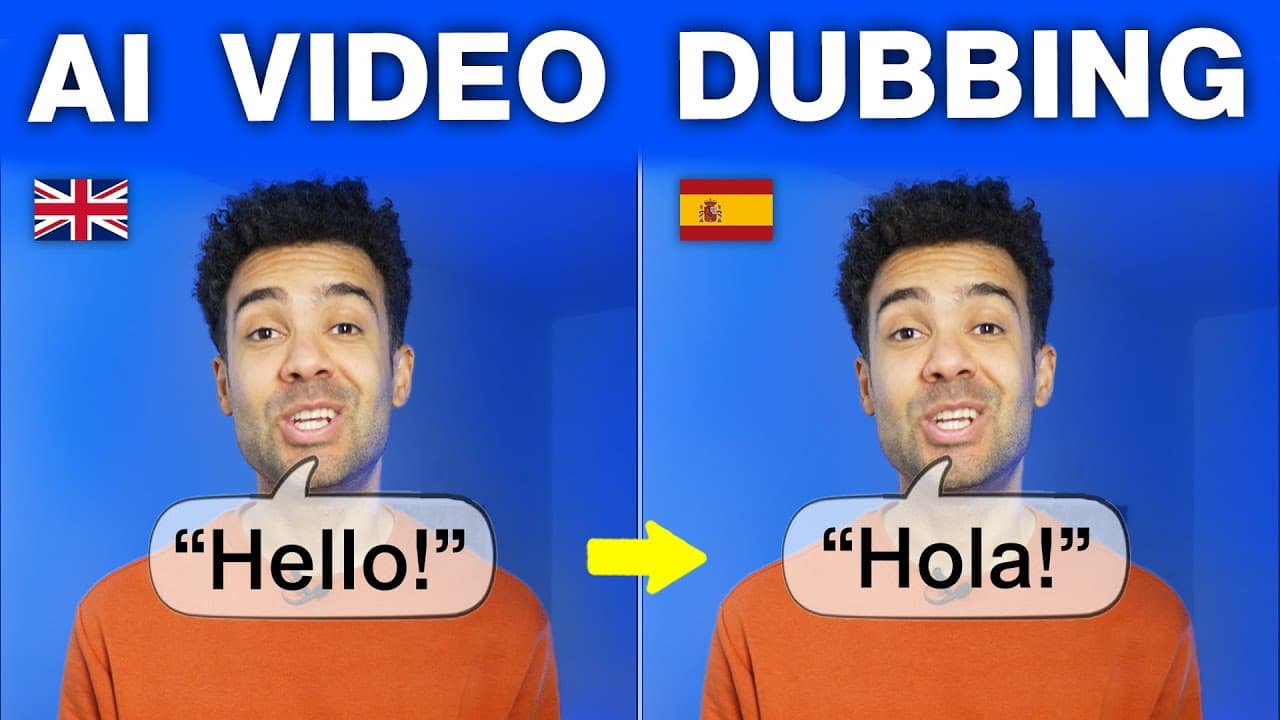
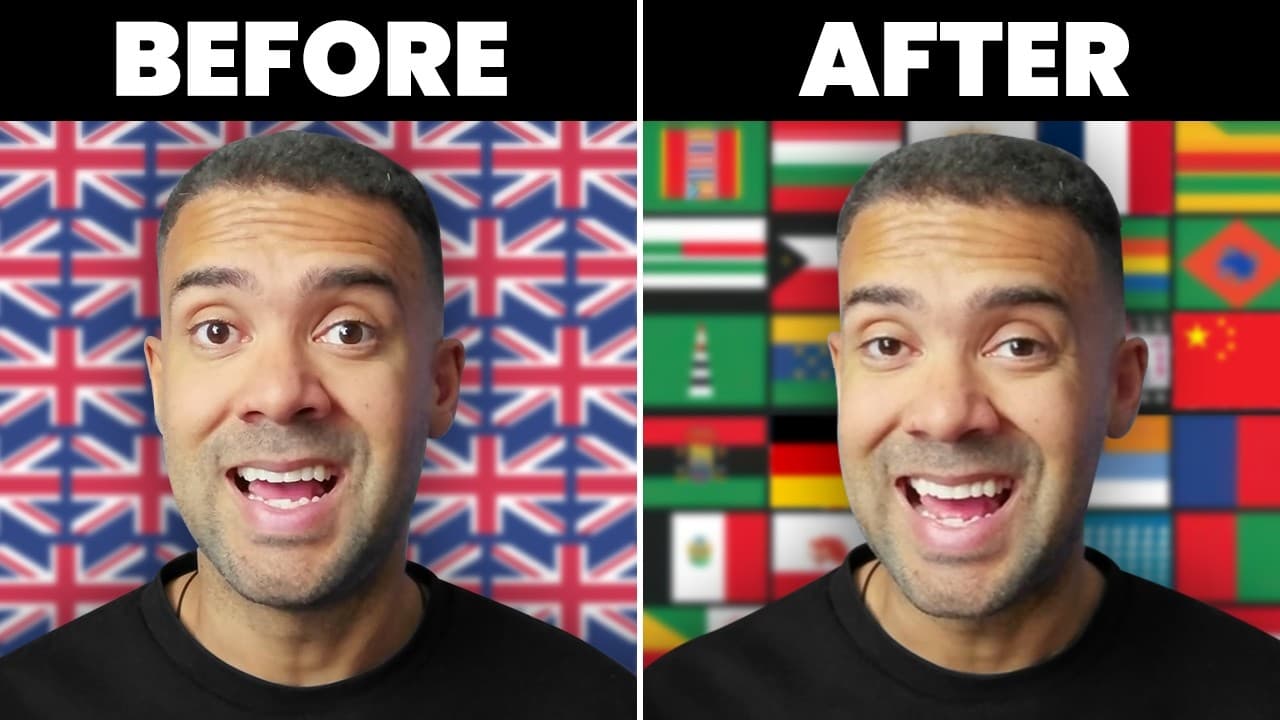
How I Translate Video with AI (In My Cloned Voice)
Last updated: July 2026
Author: Greg Preece — I test AI video tools hands-on to help creators and professionals get seamless, high-quality translation and editing results.
Translating your videos into multiple languages used to mean hiring expensive voice actors and manual translators. Now, you can automatically translate subtitles and dub your videos into foreign languages using your own cloned AI voice. In this guide, I’ll show you my exact workflow for localized video editing using Descript.
If you have already filmed an on-camera course, HeyGen's course-dubbing workflow is the closer fit because it keeps lip sync in the process.
TL;DR: AI Video Translation Quick Summary
- The Tool: Descript (utilizing the AI-powered Underlord assistant).
- The Goal: Take any video, translate captions automatically, and dub it into foreign languages.
- Key Workflow Steps:
- Generate original subtitles and apply styled caption designs.
- Use Underlord to instantly translate the text into languages like German.
- Dub speech using pre-configured stock AI voices like Bernard.
- Create a custom voice clone to dub the translation in your own voice.
Prefer to watch? Here's the video. Prefer to skim? The full breakdown is below.
Quick Link
Try it here: Try Descript →
Table of Contents
- Step 1: Add and Style Your Original Captions
- Step 2: Translate Subtitles to Any Language
- Step 3: Dub Videos with Stock AI Voices
- Step 4: Clone Your Voice to Dub in Your Own Voice
- Best Practices for AI Video Translation
- Frequently Asked Questions
Step 1: Add and Style Your Original Captions
When I upload a video to Descript, the tool uses automatic speech-to-text to build a highly accurate transcript. Before doing any translation work, I always make sure the base text and captions are completely styled and timed correctly in English. This is crucial because Descript handles translation as a destructive, secondary step that creates a brand-new composition.
To add captions to your video:
- Go to the sidebar and click on Captions.
- Select a pre-made caption style design from the template options.
- Observe how the captions instantly sync to your video's audio track.
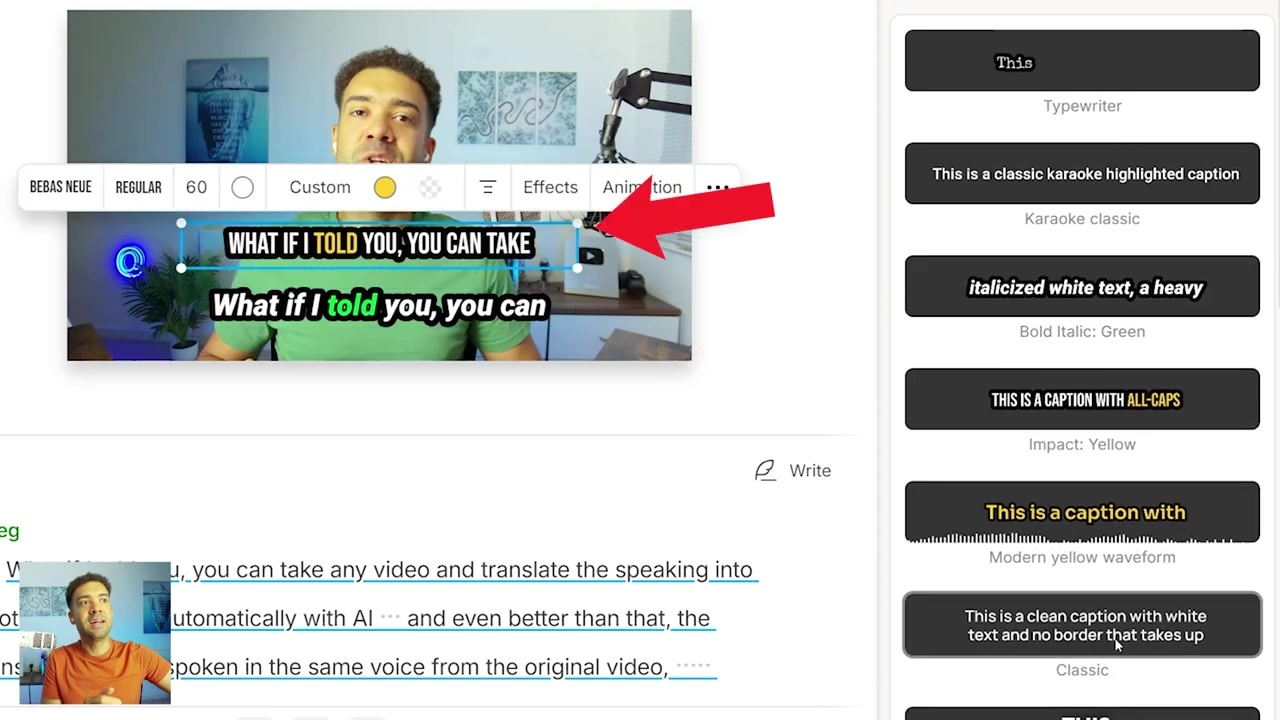
Caption: Applying styled captions from the sidebar to auto-generate subtitles.
You can swap between different styles instantly, but our main goal is to take this video and translate both the text and the voice.
Step 2: Translate Subtitles to Any Language
Now that the original captions are in place, the next step is translating the text. I use Descript's AI assistant, Underlord, which automates the process in seconds.
Here is the quick workflow I used to translate my subtitles into German:
- Click on the Underlord icon in the top toolbar.
- Scroll down and select Translate.
- Choose your target language (such as German) from the dropdown list.
- Leave the "Dub Speech" option disabled for now.
- Click Submit.
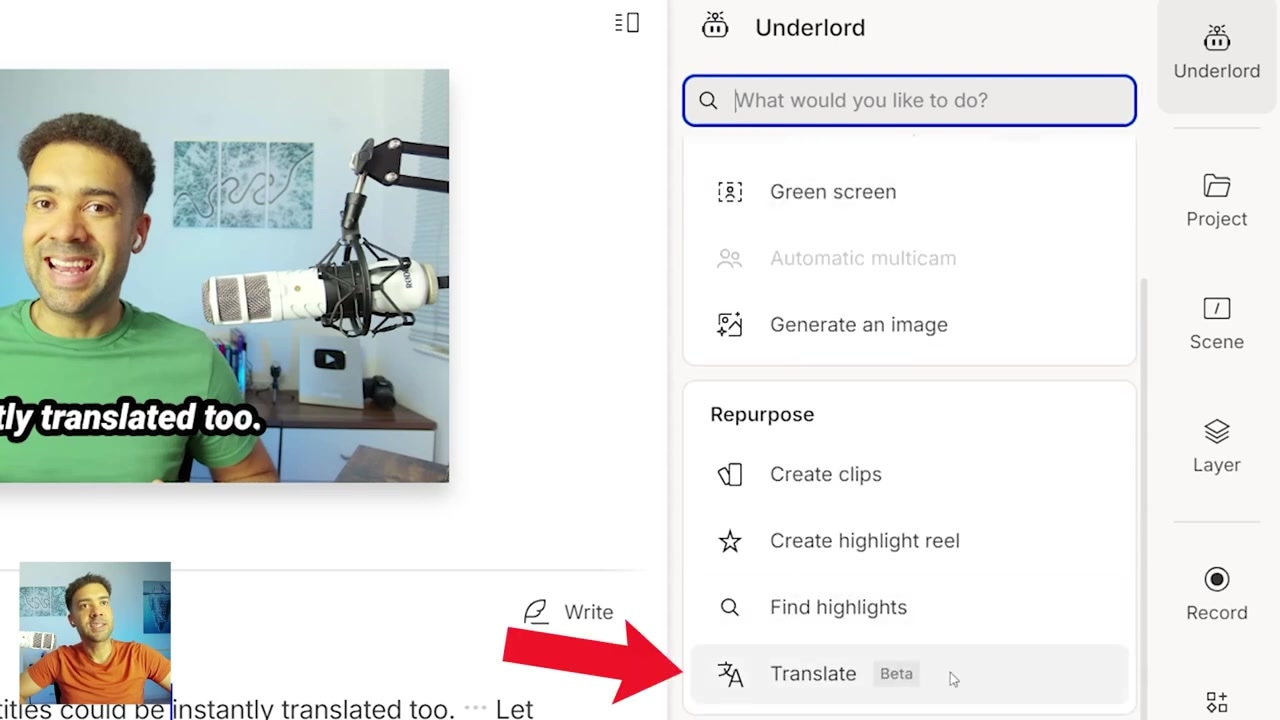
Caption: Using Descript's Underlord menu to set up caption translation.
Literally three seconds later, the entire transcript is translated into German. The timeline preview immediately updates to display the translated captions. If there are any minor localization errors, you can edit the translated transcript directly.
To export your translated version:
- Click Publish in the top-right corner.
- Select the translated version of your video (e.g., German).
- Click Publish again to export.
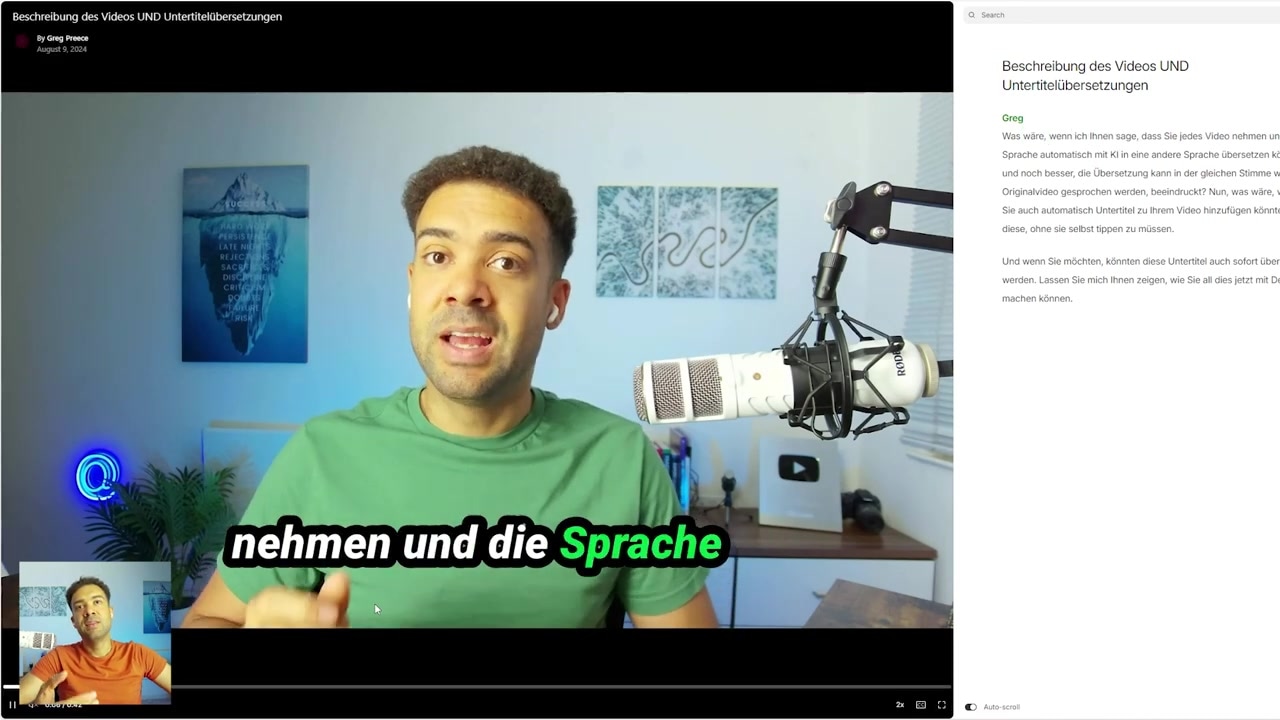
Caption: The output preview showing the original English audio with translated German subtitles.
After about 60 seconds, you’ll have a clean, hosted video featuring your original English audio paired with perfectly synchronized German subtitles.
Step 3: Dub Videos with Stock AI Voices
But what if you don't just want subtitles? What if you want the actual speaker to speak a foreign language? That's where AI dubbing comes in.
To show you how this works, I decided to translate my original English video into spoken Italian. Here's how I did it using one of Descript's built-in stock AI voices:
- Click Underlord and go to Translate.
- Choose Italian from the target language dropdown list.
- Toggle the Dub speech checkbox to active. This tells Descript to replace your original spoken audio.
- Under the speaker's name, choose a pre-configured AI Voice (I selected a stock voice named Bernard).
- Click Submit.
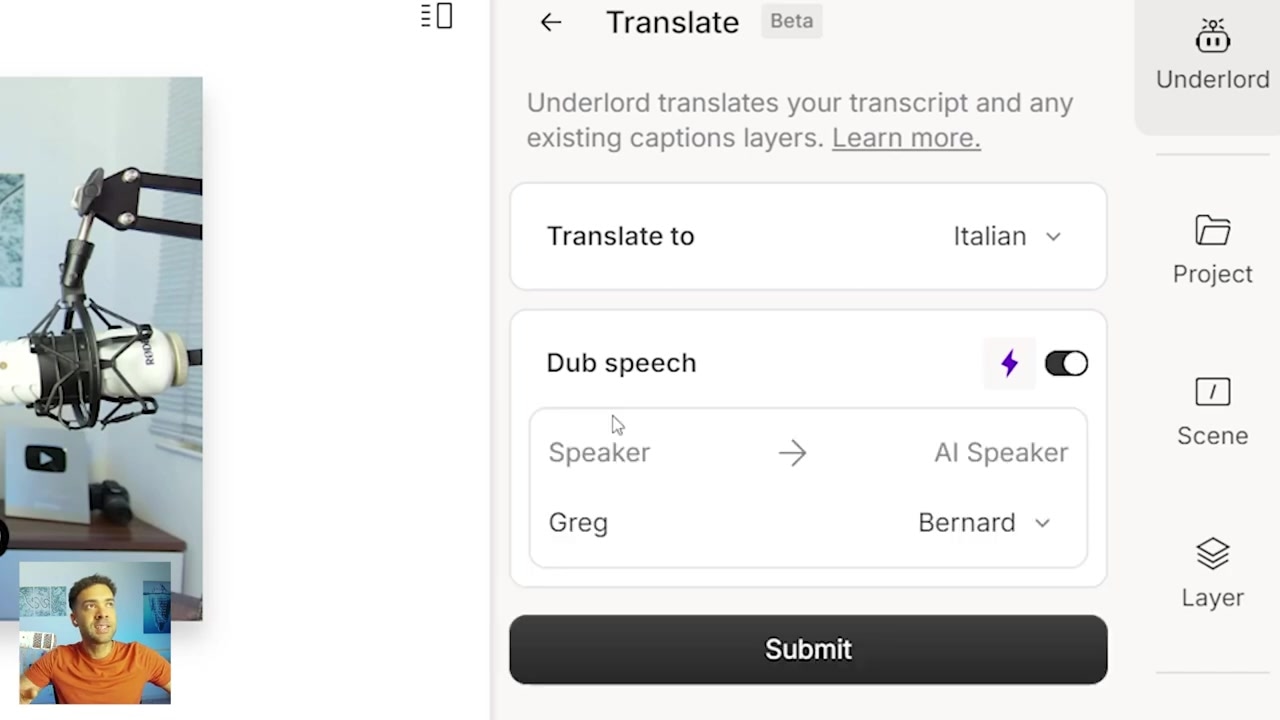
Caption: Setting up dubbing to replace the speaker's voice with a stock AI speaker in a foreign language.
The text translation generates instantly, and after a few additional seconds, the AI dubbing engine creates the Italian audio tracks. The spoken voiceover sounds incredibly professional, matching the pacing of the original timeline. To export, simply click Publish and select the Italian composition.
Step 4: Clone Your Voice to Dub in Your Own Voice
While using a stock AI speaker is highly effective, it doesn't sound like you. The ultimate localization trick is cloning your own voice and having the AI speak the foreign translation in your unique vocal print.
I tested this by translating my voice into French, and the results were mind-blowing. Here is how you can set up voice cloning in Descript:
- Locate the speaker name assigned to your project.
- Click the three dots next to your speaker profile and select Enable speech generation.
- Click Record and read the short training prompts displayed on your screen to authorize the clone.
- Submit your recording to Descript's background processing engine.
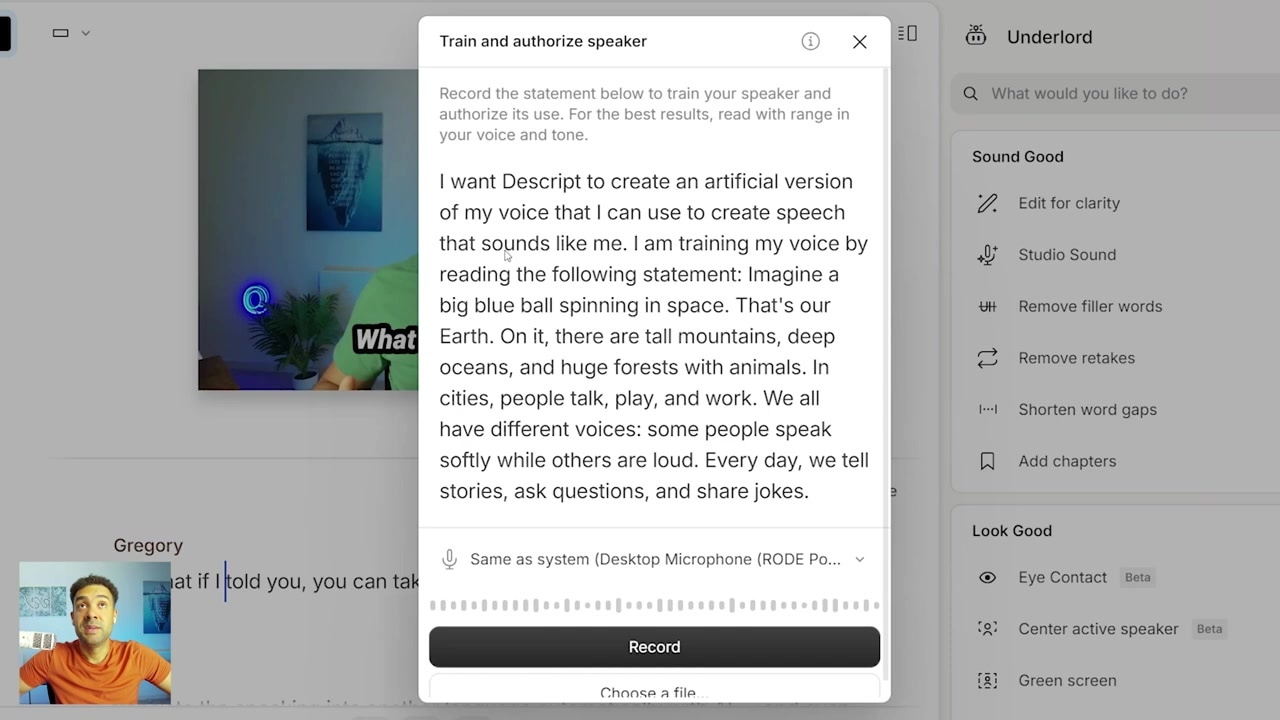
Caption: Cloning your own voice by reading the prompts on screen in Descript.
Once the voice clone is approved and active, we can run our dubbing pipeline:
- Open Underlord -> Translate.
- Choose your target language (I chose French).
- Ensure Dub speech is checked.
- From the speaker dropdown, select your newly created custom voice clone.
- Click Submit.
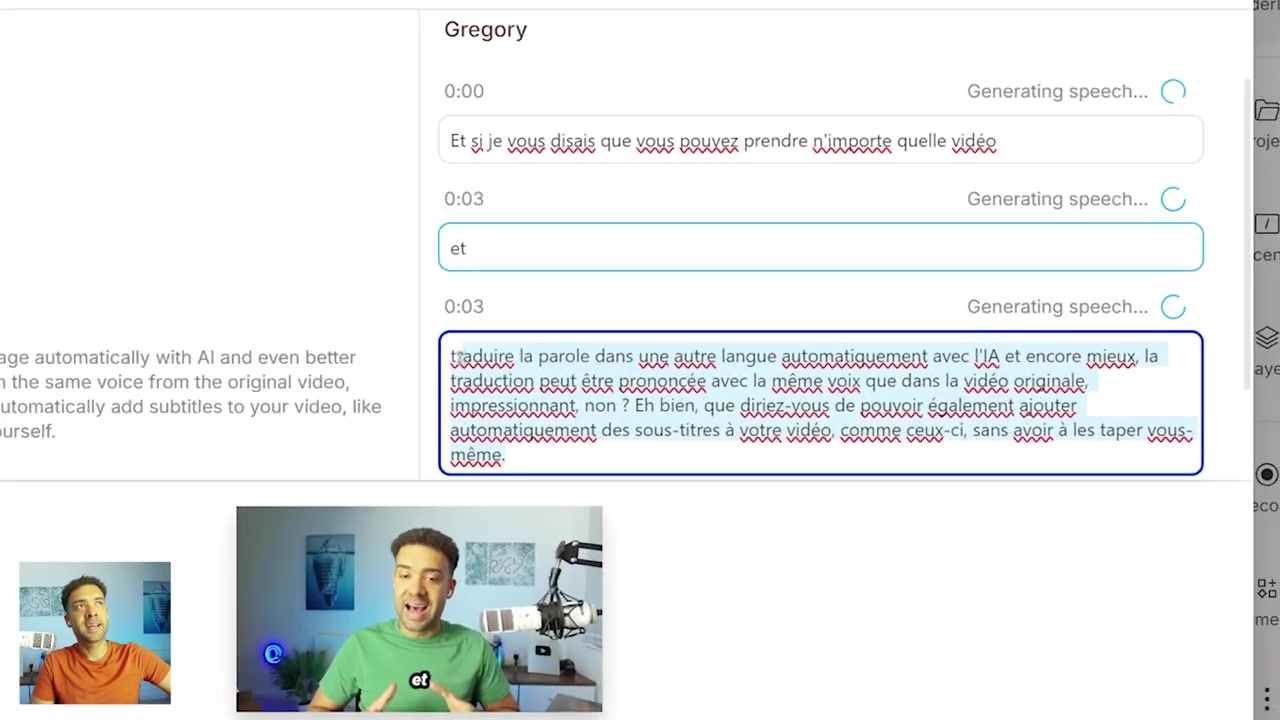
Caption: The progress bar showing Descript generating the final French voiceover using your cloned voice.
The system will take a moment to generate the synthesized audio layers. When you play the preview, you'll hear yourself speaking French fluently with your precise tone, pitch, and voice characteristics. It is an incredibly powerful tool for content creators looking to break into international markets.
Best Practices for AI Video Translation
To get the absolute best results when translating videos with AI, keep these workflow tips in mind:
- Finalize your edit first: Descript translation creates a new, independent composition. Fix any edits, cuts, and original text mistakes in your primary language composition before translating. Editing translated files consumes extra AI credits if you need to regenerate the audio.
- Review and edit translated transcripts: While Underlord is highly accurate, slang, idioms, or industry terms may need minor manual adjustments. You can type directly into the translated script to polish the translation.
- Name your speakers: Always ensure you have correctly labeled your speaker tracks in the main project before initiating dubbing or voice cloning. This makes assigning custom voices effortless.
Ready to scale your content globally? Try it here: Try Descript →
Frequently Asked Questions
Can I edit a translated transcript manually in Descript?
Yes. If you are on an eligible plan, you can edit any translated captions or dubbed scripts directly within the editor just by typing changes in the transcript window.
How many languages does Descript support for translation?
Descript supports caption translation for over 30 languages (including Spanish, French, German, Italian, and Mandarin) with a growing list of supported dubbing options.
Do I need to record hours of audio to clone my voice?
No. You only need to record a few quick prompt sentences directly within the app, and Descript will generate a highly accurate voice clone within minutes.