Opus Clip vs Klap: I Tested Both With a 44-Minute Video (Here's the Winner)
Last updated: July 2026
Author: Greg Preece — I test AI video tools hands-on to help creators streamline their workflows and get real, usable results fast.
Both Opus Clip and Klap make a simple promise: upload a long-form video, and their AI will chop it into viral-worthy, highly engaging YouTube Shorts, TikToks, and Reels. To find out which tool actually delivers, I put them head-to-head using my own 44-minute video to test their speed, interface design, editing flexibility, and clip yield.
The results weren't even close—one of these tools is significantly better than the other. Below is my honest breakdown of how they compare.
TL;DR: The Quick Verdict
If you want the fastest route to high-volume, high-quality shorts, Opus Clip is the clear winner. In my hands-on test, Opus Clip generated 18 usable shorts from a 44-minute video, whereas Klap only generated 3 clips. Furthermore, Opus Clip features a far cleaner, text-based editing workflow and supports multiple import sources (like Google Drive, Zoom, and Rumble), while Klap is limited to YouTube links and direct uploads.
| Feature / Metric | Opus Clip | Klap |
|---|---|---|
| Input Sources | Zoom, Google Drive, YouTube, Rumble, local upload | YouTube, local upload |
| Guided Topic Prompting | Yes (Tell the AI what to look for) | No |
| Processing Speed (44 min) | 12 minutes | 8 minutes |
| UI & Preset Quality | Clean, visual animation previews | Cluttered, confusing presets |
| Clipping Interface | Interactive text/transcript-based | Timeline slider |
| Clip Yield (44-min source) | 18 clips | 3 clips |
| Starting Price | $15/month (Starter) | $14/month (billed yearly) |
| Overall Verdict | Highly Recommended | Not Recommended |
Prefer to watch? Here's the video. Prefer to skim? The full breakdown is below.
Quick Links to Try Them Yourself
- Try Opus Clip: Try Opus Clip →
- Try Klap: Try Klap →
The Test Setup: Processing a 44-Minute Video
To keep things completely fair, I initiated the exact same processing job on both websites using my own 44-minute talk video. Both tools allow you to paste a video URL or upload a file directly from your computer, but their initial upload flexibility quickly diverges.
Uploading Options: Opus Clip Offers Superior Flexibility
When you want to import your video, Opus Clip allows you to import from Zoom, Google Drive, YouTube, or Rumble [3Too39nBe9o]. Klap, on the other hand, only supports direct video uploads or importing links directly from YouTube [3Too39nBe9o]. If you host your raw recordings in cloud storage or stream to alternative platforms, Opus Clip saves you the tedious step of downloading and re-uploading massive files.
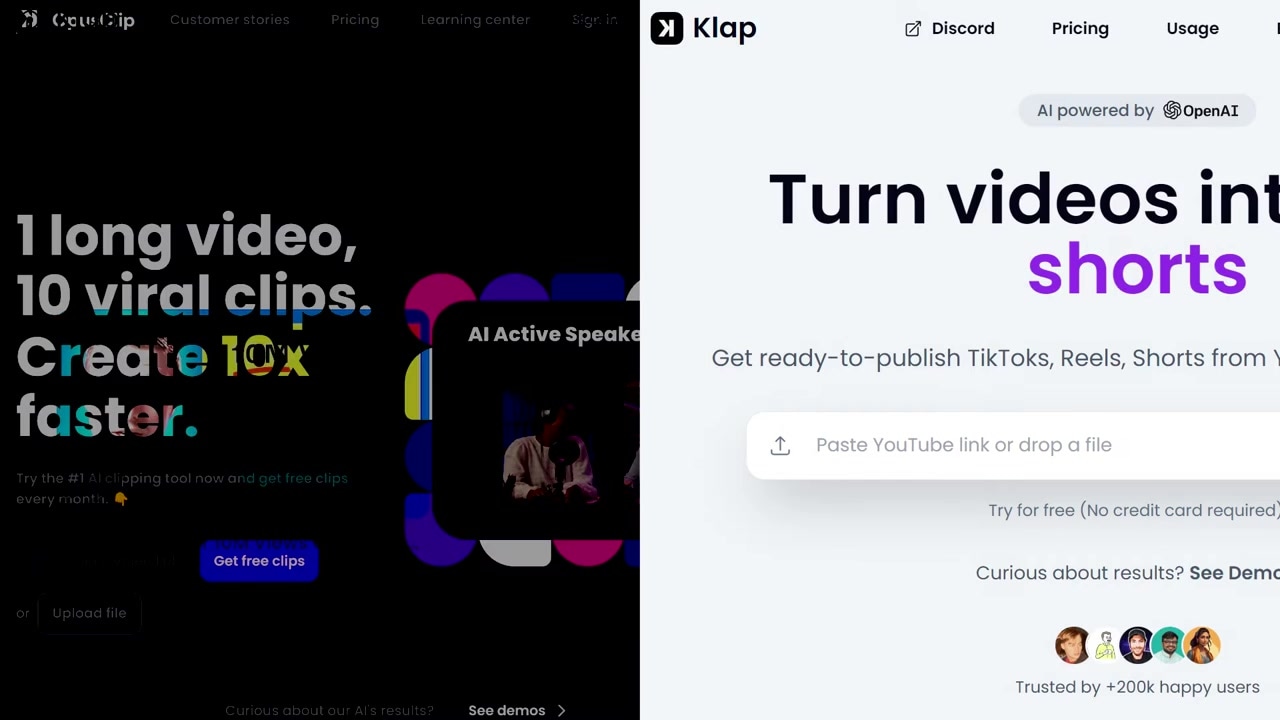
Caption: Side-by-side comparison of the video import dashboards. Opus Clip accepts multiple cloud storage and streaming inputs, whereas Klap is restricted to direct files and YouTube links.
Guiding the AI: Custom Prompting vs. Zero Input
Once you paste your video link into Opus Clip, you can input specific topic suggestions or keywords discussed in the original video [3Too39nBe9o]. This prompt box allows you to direct the AI toward specific, interesting hooks you want it to look for [3Too39nBe9o].
In contrast, Klap does not give you any creative input at this stage [3Too39nBe9o]. You simply paste the link and let the AI make all the decisions blindly.
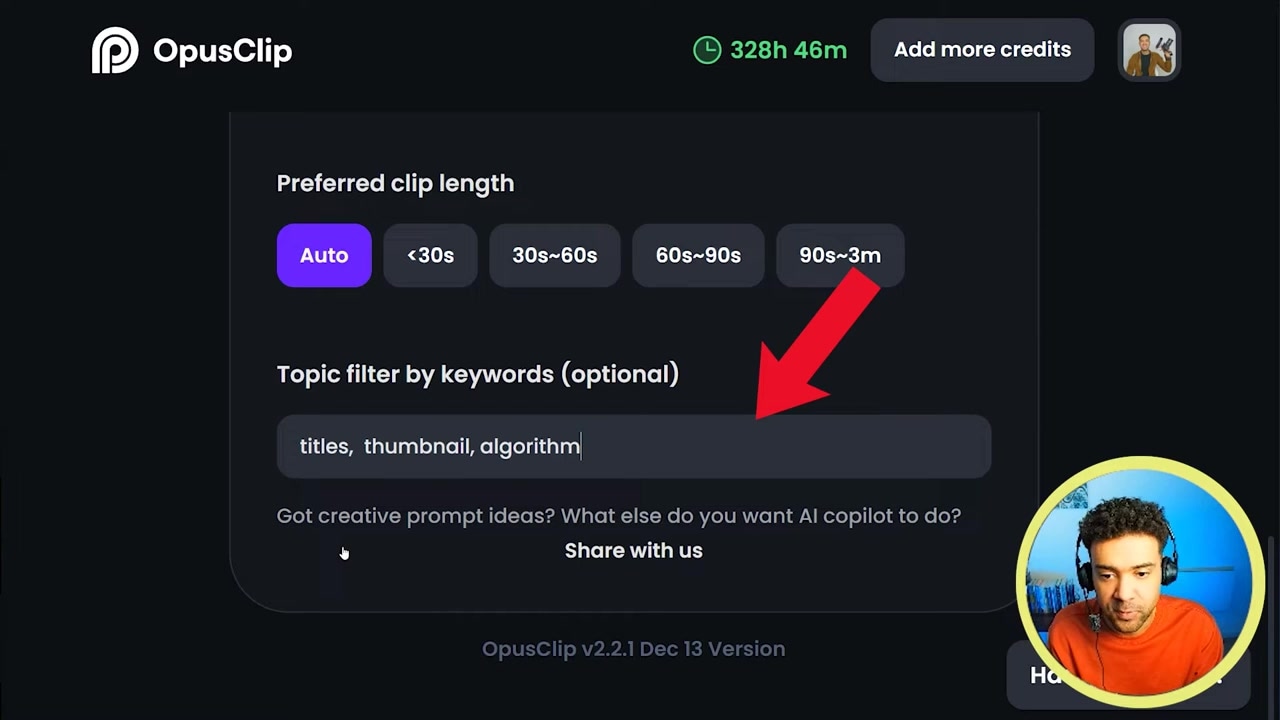
Caption: Opus Clip lets you input custom topics for the AI to prioritize, which helps filter out boring segments and locate specific highlight moments.
Speed Test: How Fast Do They Render?
Both platforms processed my 44-minute video relatively quickly:
- Klap: Took 8 minutes to generate its clips [3Too39nBe9o].
- Opus Clip: Took 12 minutes to deliver the finished assets [3Too39nBe9o].
While Klap was slightly faster out of the gate, a four-minute difference on a nearly hour-long file is negligible—especially when you look at the quality and quantity of the results.
The Editing Interface: Hands-On with Klap
Klap is designed to take long-form videos, podcasts, and webinars and repackage them into vertical short-form content. It is ideal for creators who publish extensively to TikTok, YouTube Shorts, and Instagram Reels and want automated framing and dynamic captions with minimal manual setup.
Try it here: Try Klap →
When I jumped into Klap’s editor to customize the generated clips, the user experience immediately felt lacking.
Cluttered Customization Screen
The first thing I noticed inside Klap's customizer screen is that the layout is incredibly messy [3Too39nBe9o]. The left panel is crowded with options, many of which aren't explained clearly. For example, the typography and layout presets look quite dated [3Too39nBe9o]. There are styling controls like "animation: spring," but without any visual preview or tooltips, it's difficult to know what "spring" actually does without exporting the video to find out [3Too39nBe9o].
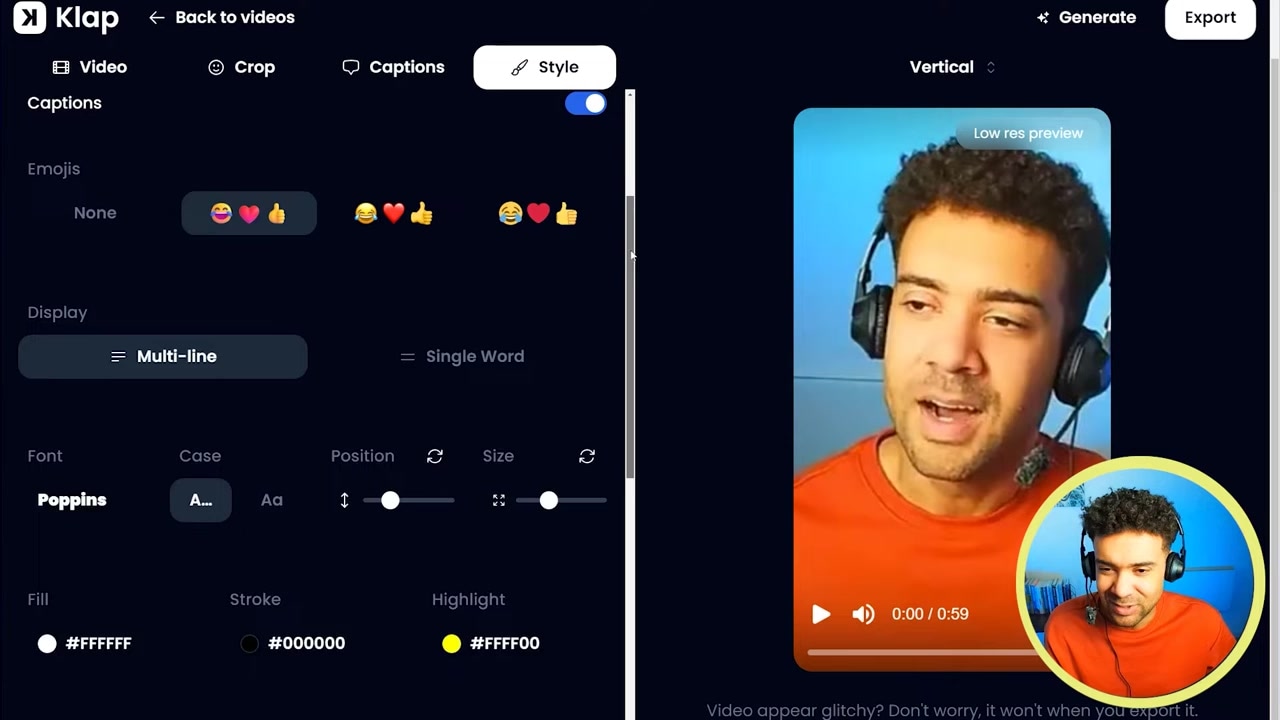
Caption: Klap's workspace features a crowded left-hand sidebar containing dynamic adjustments that lack visual previews.
The Frustrating Drag-and-Drop Timeline Trimmer
Trimming and adjusting the duration of your clips in Klap is managed via a traditional drag-and-drop slider timeline [3Too39nBe9o]. If you need to make minor adjustments to the start or end of your clip, you have to drag the handles manually [3Too39nBe9o].
During my test, I found this process highly irritating. When dealing with a long 44-minute timeline, scrolling using the timeline slider to find the exact start of a generated clip felt incredibly slow and clunky [3Too39nBe9o]. It took far too much trial and error to land on the correct moment.
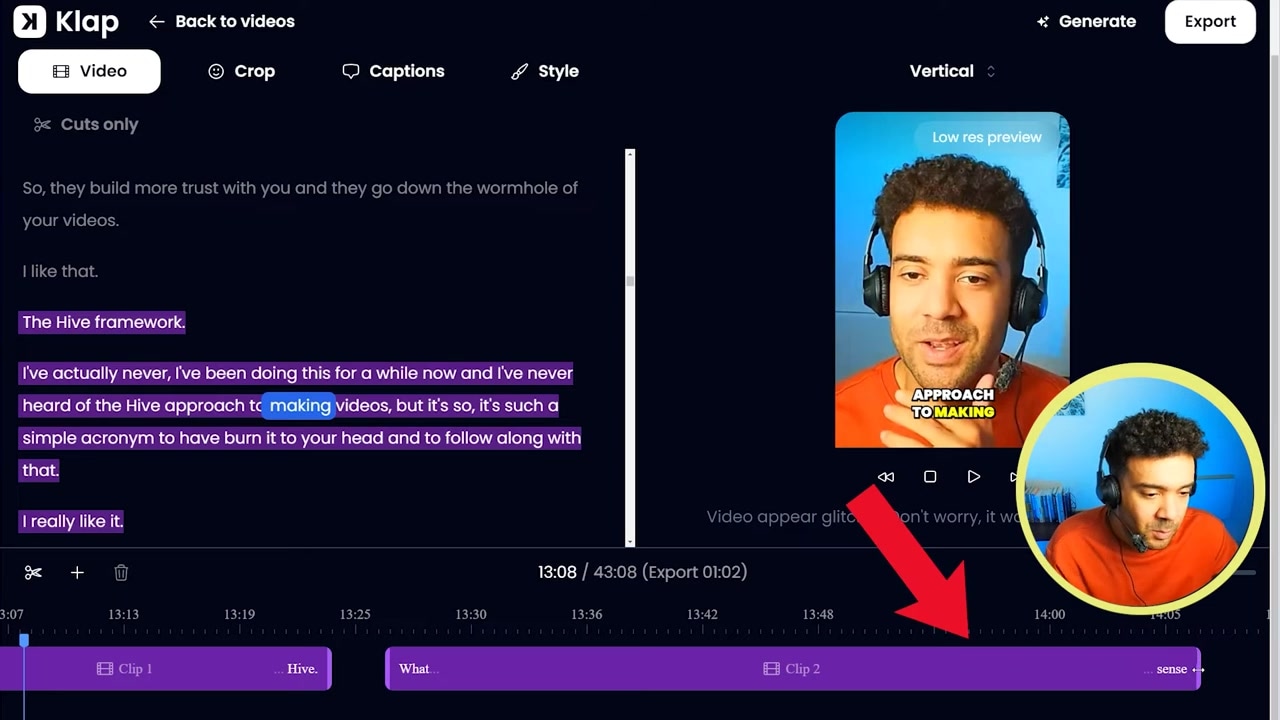
Caption: The timeline trimmer in Klap requires you to manually drag sliders, which can be highly imprecise for long video source files.
The Editing Interface: Hands-On with Opus Clip
Opus Clip is an AI-powered video repurposing tool that detects high-impact moments in your long-form footage, automatically crops them for vertical layouts, and applies highly customizable, stylized captions. It's built for podcasters, educators, and video creators looking to maximize their social media reach from single, long-form uploads.
Try it here: Try Opus Clip →
Switching over to Opus Clip immediately felt like a breath of fresh air.
Clean Layout with Visual Animation Previews
Opus Clip’s user interface is beautifully laid out [3Too39nBe9o]. Instead of bombarding you with lists of text settings, it displays clear, visual previews of the animations before you select them [3Too39nBe9o]. You know exactly what a caption style or transition looks like before you click on it, resulting in a much faster and more satisfying editing session.
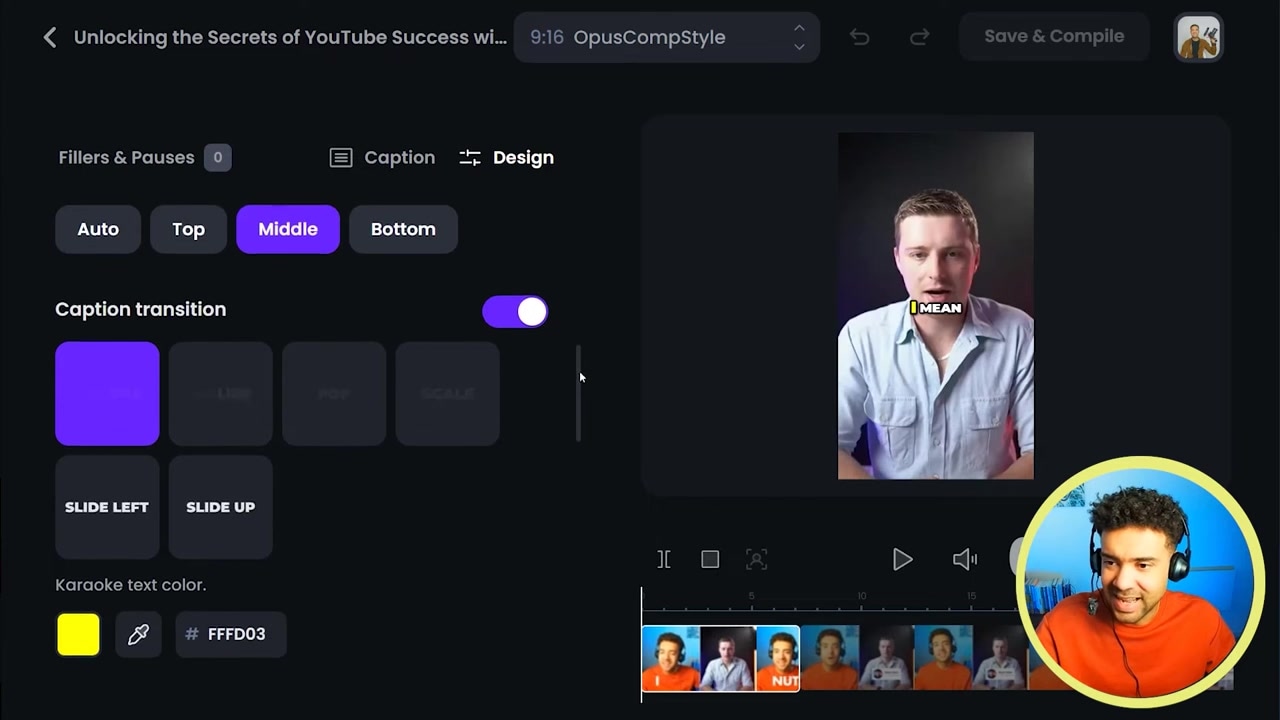
Caption: Opus Clip's customization dashboard shows clear visual presets for text templates and transition animations before you apply them.
Word-by-Word Text Trimming (The Game Changer)
Opus Clip completely rejects the frustrating drag-and-drop timeline model. Instead, it offers transcript-based editing [3Too39nBe9o].
On the left side of your editor, you see the full transcribed text of the clip [3Too39nBe9o]. The active part of the YouTube Short is highlighted, while the unused parts of the source video are grayed out with a strike-through [3Too39nBe9o].
If you want to change where the video starts or ends, you simply:
- Find the exact word where you want your Short to start [3Too39nBe9o].
- Click that word and select "Set as start" [3Too39nBe9o].
- Scroll to the word where you want it to finish, click it, and select "Set as end" [3Too39nBe9o].
This text-based approach is incredibly fast and highly precise. There is no guesswork or back-and-forth scrubbing like you experience with Klap’s timeline sliders.
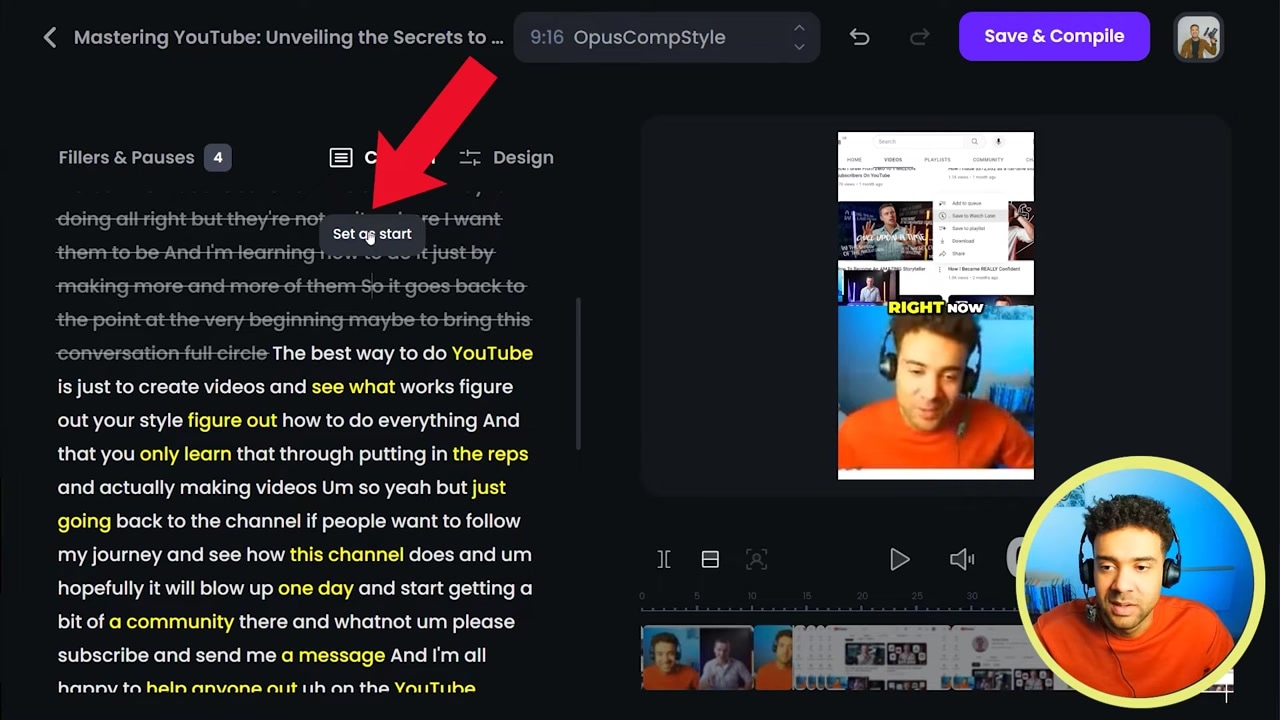
Caption: The transcript-based editor in Opus Clip lets you set clip boundaries instantly by clicking on words.
The Yield Test: How Many Clips Do You Actually Get?
Beyond the interface, the absolute most critical metric for any AI clipper is its clip yield—how many high-quality, usable shorts it can extract from a single piece of long-form content.
This is where the competition completely ended:
- Opus Clip: Generated a massive 18 YouTube Shorts [3Too39nBe9o].
- Klap: Generated a highly disappointing 3 YouTube Shorts [3Too39nBe9o].
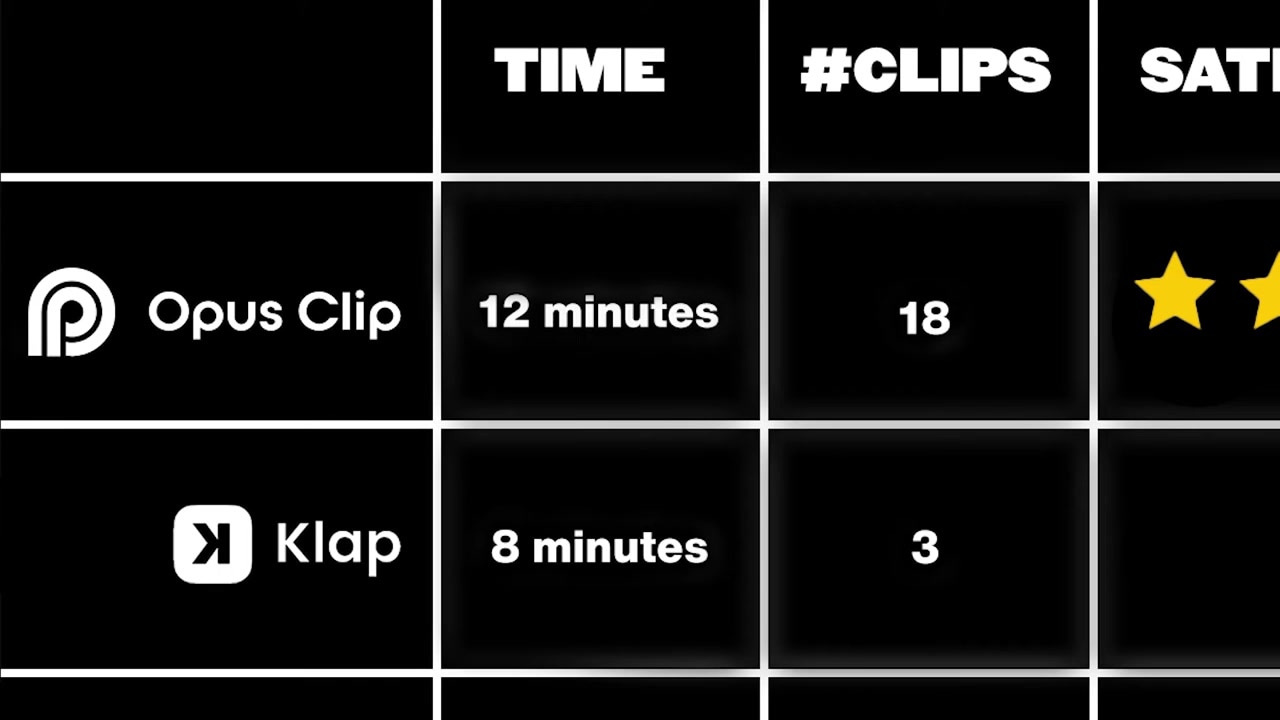
Caption: The output difference in my side-by-side test. Opus Clip yielded 18 short-form videos compared to Klap's 3 videos from the exact same file.
This difference has a massive impact on your channel's growth. Short-form video is largely a volume game; you need consistent, high-quality uploads to satisfy the algorithm, get views, and build your subscriber base.
Going by this test, every 10 minutes of processing time with Opus Clip yields roughly 18 videos, compared to just 3 with Klap [3Too39nBe9o]. Over weeks and months, using Opus Clip will give you an exponentially larger content library to post and monetize.
Pricing & Value: Which Offers More For Your Money?
Both tools offer free trials to test the features yourself [3Too39nBe9o]. However, when you are ready to upgrade to a paid subscription, the pricing further simplifies your decision:
- Opus Clip: Starts at $15/month on Starter, with Pro at $29/month [3Too39nBe9o].
- Klap: Starts at $14/month billed yearly [3Too39nBe9o].
(Note: Pricing and plans may change over time; check the official websites for the most up-to-date details.)
Because the two sit at a near-identical entry price, Klap offers a fraction of the value. For a comparable monthly outlay, Klap gives you fewer clips, a cluttered interface, and tedious editing tools [3Too39nBe9o].
The Final Verdict: Why Opus Clip Wins
If you want to save hours of manual editing and build a repeatable short-form video system, Opus Clip is the clear winner [3Too39nBe9o].
It gives you:
- 6x more clips from the same input video [3Too39nBe9o].
- More flexible cloud and platform import options [3Too39nBe9o].
- Crucial creative control over what the AI searches for [3Too39nBe9o].
- An incredibly fast, interactive transcript trimmer [3Too39nBe9o].
At a comparable monthly price, Opus Clip is a no-brainer decision for content creators [3Too39nBe9o]. Skip the headache of Klap's clunky slider timeline and start scale-producing your shorts with Opus Clip today.
FAQ: Common Questions About Opus Clip vs. Klap
Can I prompt the AI to look for specific topics in both tools?
No. Only Opus Clip features a topic prompt input box where you can tell the AI what highlights to target [3Too39nBe9o]. Klap analyzes your video and makes clipping selections automatically without any custom user prompts [3Too39nBe9o].
What video platforms are supported for imports?
Opus Clip supports importing links from Zoom, Google Drive, YouTube, and Rumble, alongside local file uploads [3Too39nBe9o]. Klap is much more limited, only supporting direct file uploads and links from YouTube [3Too39nBe9o].
Is there a free trial for both Opus Clip and Klap?
Yes. Both platforms offer free trials so you can test their clipping capabilities on your own videos before committing to a monthly paid plan [3Too39nBe9o].