I Tested the OpusClip MCP in Claude: Setup & Honest Verdict
I Tested the OpusClip MCP in Claude: Setup & Honest Verdict
Last updated: July 2026
Author: Greg Preece — I test AI video tools hands-on to help creators streamline their production workflows and get usable results fast.
Model Context Protocol (MCP) is currently one of the most exciting developments in AI automation, allowing large language models to interact directly with external applications. If you are already using Anthropic’s Claude to outline scripts or manage content, the ability to trigger video clipping workflows without leaving your chat window is a massive time-saver.
I recently discovered that the OpusClip MCP is officially live, allowing you to convert long-form videos into short clips using natural language commands directly inside Claude. I set up the server and ran a full podcast clipping project to see if it lives up to the hype—and where the integration still falls short.
Table of Contents
- How the OpusClip MCP Works
- Step-by-Step: How to Set Up the OpusClip MCP in Claude
- Hands-On Test: Running a Clipping Project in Claude
- The Downside: Major Limitations I Encountered
- Is It Worth It? OpusClip MCP vs. The Mobile App
- Frequently Asked Questions
Prefer to watch? Here's the video. Prefer to skim? The full breakdown is below.
Try it here: Try OPUS_CLIP →
How the OpusClip MCP Works
The Model Context Protocol (MCP) functions as an open standard that allows AI assistants like Claude to read data from and execute actions in third-party software. In this case, the OpusClip MCP allows you to execute typical video curation tasks—like trimming, transcribing, and generating vertical clips—using plain-English commands.
However, many creators struggle to find the OpusClip MCP because it isn't hosted directly as a standalone app on the OpusClip website. Instead, it is bundled inside the Zapier MCP server.
By utilizing Zapier's MCP wrapper, Claude gains access to a robust execution environment that can connect to over 9,000 apps (including Google Docs, Gmail, and Notion), with OpusClip serving as one of the key integrations.
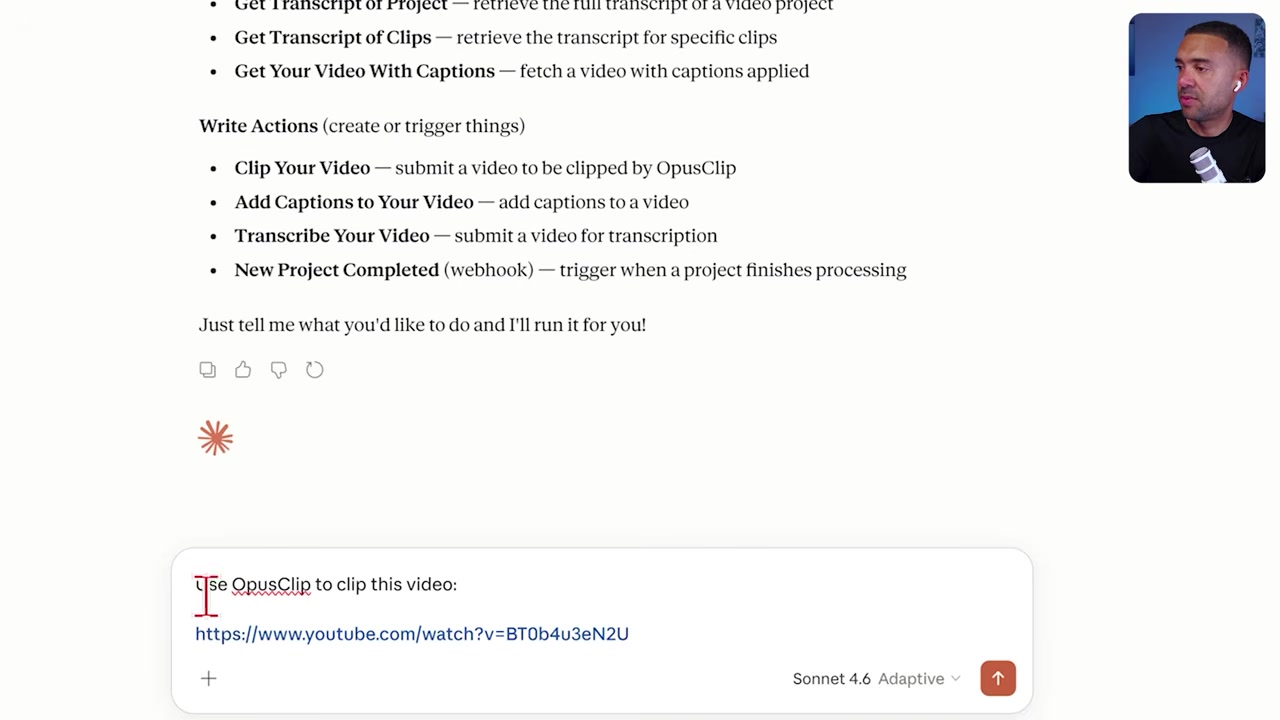
Caption: Initiating a clipping project inside Claude by asking it to use the OpusClip MCP tool.
Step-by-Step: How to Set Up the OpusClip MCP in Claude
Setting up the server requires three pre-requisites: an active OpusClip account, a Zapier account, and access to Claude.
Here is the exact setup workflow I used to connect the tools:
Step 1: Connect OpusClip inside Zapier
First, log in to your Zapier account and navigate to the App Connections tab. Because your Zapier account acts as the gateway, you must authenticate OpusClip before Claude can call its actions. Click Add connection, search for OpusClip, and follow the authorization prompts to securely connect your accounts.
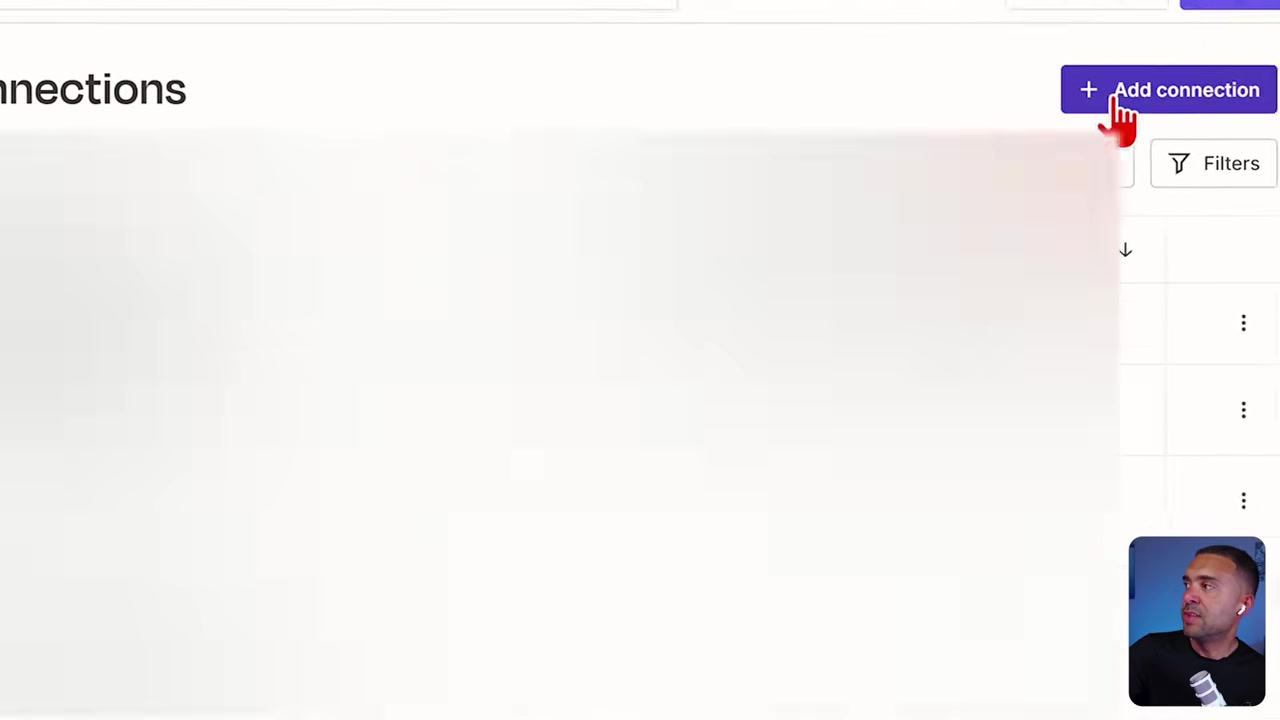
Caption: Adding your OpusClip credentials directly inside your Zapier App Connections dashboard.
Step 2: Configure the MCP Server in Zapier
Go to the Zapier MCP developer page and create a new server.
- Click New MCP server on the dashboard.
- Select Claude as your target AI client.
- Zapier will automatically generate a custom server configuration prompt containing setup code. Copy this snippet to your clipboard.
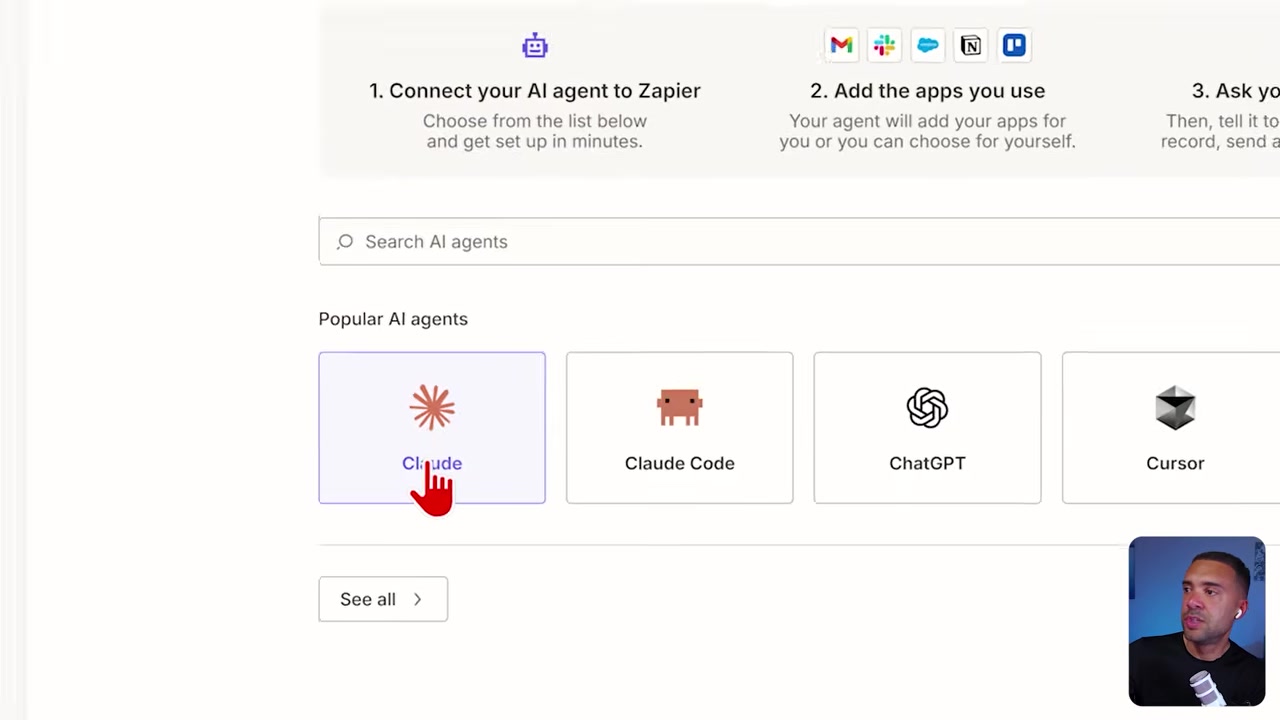
Caption: Setting up Claude as your MCP client in Zapier and generating the integration code.
Step 3: Authorize the Connection inside Claude
Open a brand-new chat interface in Claude. Paste the setup code you copied from Zapier directly into the chatbox and hit enter. Claude will read the configuration instructions and guide you through the final connection steps. Once finished, Claude will be fully integrated with your Zapier MCP server and ready to run OpusClip commands.
Hands-On Test: Running a Clipping Project in Claude
To test the integration, I wanted to see if I could trigger a high-quality video clipping workflow entirely through chat commands.
Starting the Project
I pasted a link to a long-form podcast into Claude and typed:
"I want Claude to use OpusClip to clip this video."
Claude immediately recognized the command, called the Zapier-bridged OpusClip action, and confirmed that the project had started.
To verify this, I opened my web browser and checked my actual OpusClip dashboard. Sure enough, a brand-new project was active and rendering in the background, entirely triggered by my single text prompt in Claude.
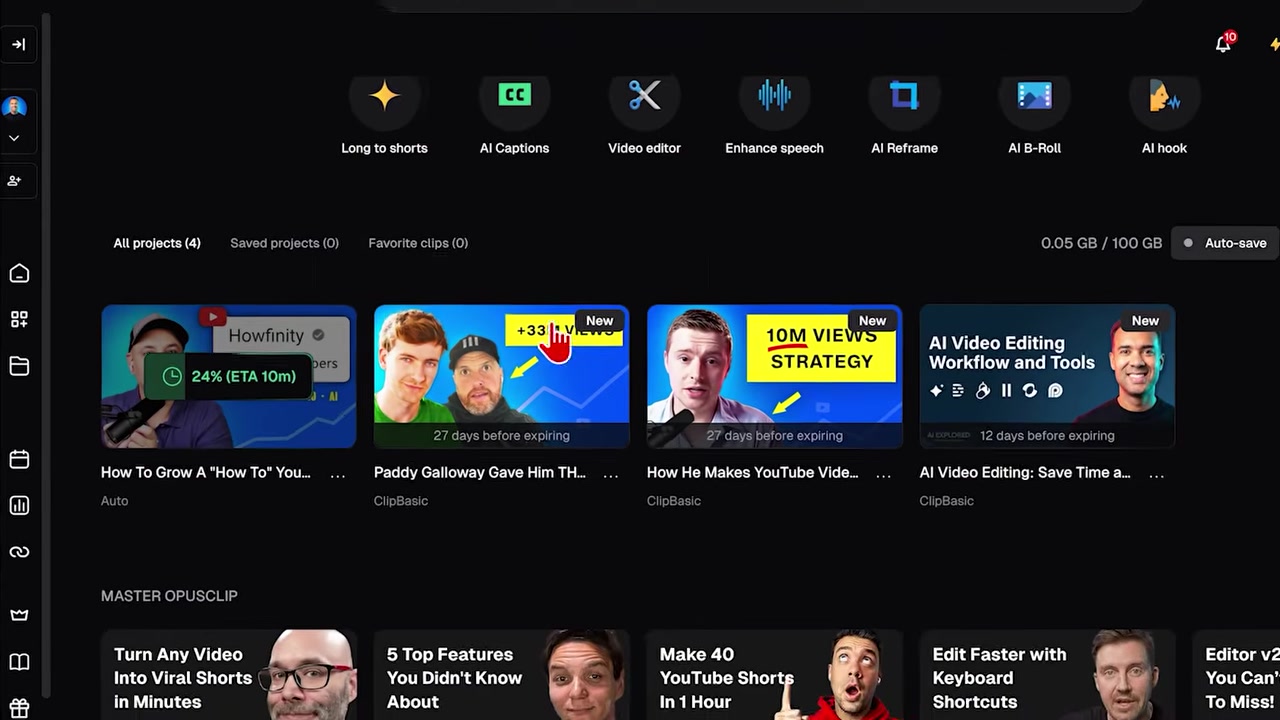
Caption: Instantly verifying that the clipping project has kicked off inside your main OpusClip account.
Pulling the Results in Claude
While video rendering usually takes around 20 minutes, my testing project completed in exactly 15 minutes, generating 38 short vertical clips.
Instead of jumping over to the web browser to review them, I stayed inside Claude and ran two post-completion prompts:
- Pull the Transcript: I asked Claude to retrieve the transcript of the source video. The MCP immediately started pulling and printing the text inside the chat box. (Note: For exceptionally long podcasts, this process can take a while to print, so you may need to stop the output if you only need a segment).
- List the Generated Clips: I typed a command asking for the finished video clips. Claude instantly generated a numbered list of all 38 short clips, complete with metadata and direct links to view them.
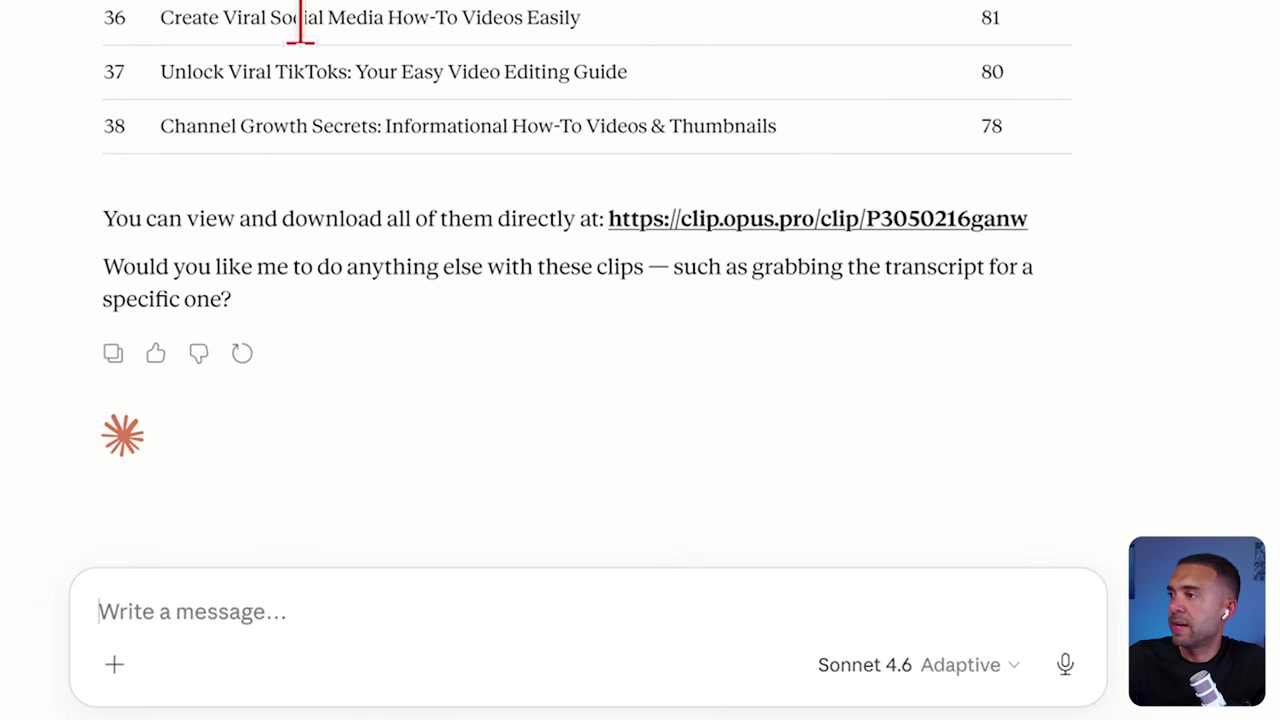
Caption: Claude displaying a comprehensive list of all 38 generated clips along with direct links to view them.
The Downside: Major Limitations I Encountered
While triggering the project from Claude is incredibly slick, my hands-on testing revealed two critical technical limitations that create friction in a professional workflow.
1. You cannot download files directly through Claude
The biggest disappointment is that you cannot ask Claude to download the completed video files directly to your computer. When you ask Claude to retrieve the clips, it provides web links. To actually download the files, you have to click those links, leave Claude, navigate to the OpusClip website, and click download manually. This limitation somewhat breaks the "all-in-one app" workflow.
2. You cannot upload local raw video files
You cannot use Claude’s file attachment button to upload an .mp4 file from your hard drive and ask the OpusClip MCP to process it. The current integration restricts you to hosted links. You must feed Claude a URL from platforms like YouTube, Twitch, or Dropbox for the tool to work.
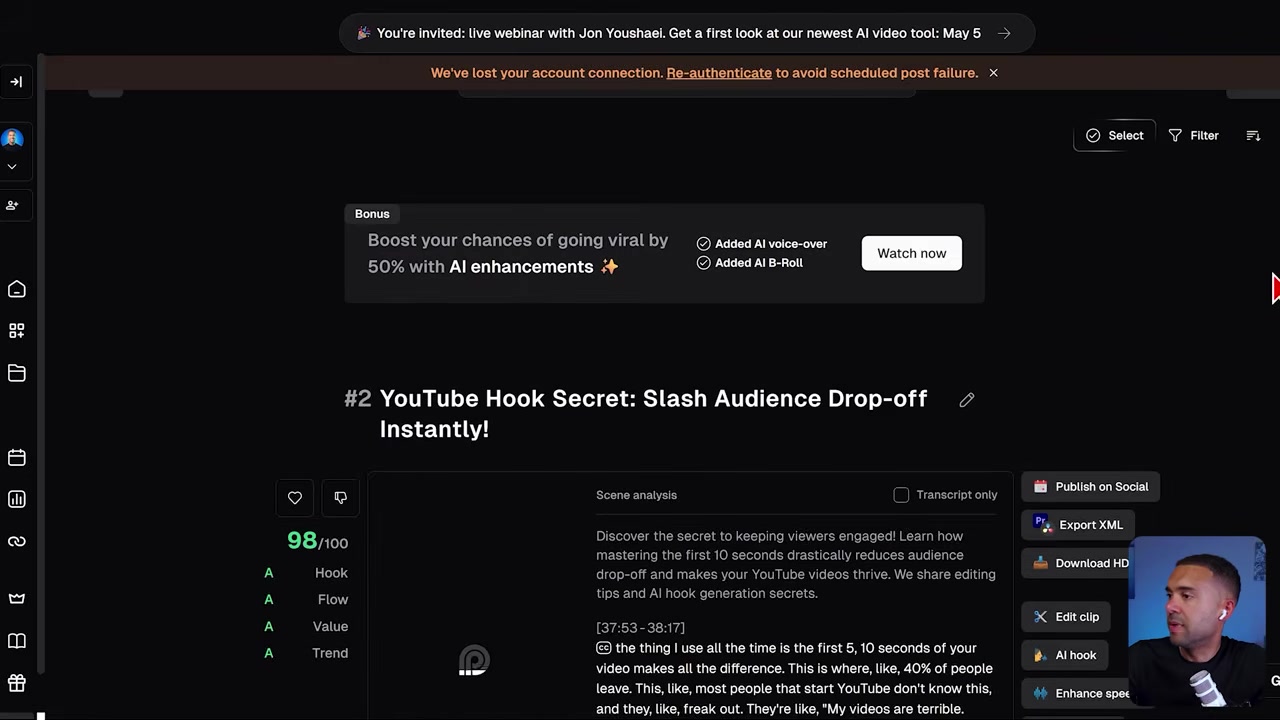
Caption: Transitioning from Claude to the OpusClip web interface to review the finished clips.
Is It Worth It? OpusClip MCP vs. The Mobile App
If your goal is to stay 100% hands-off and run your entire production process inside a single chat window, the OpusClip MCP is a fascinating proof-of-concept. However, in its current state, you are likely better off using the OpusClip mobile app instead.
The table below breaks down how the two experiences compare for daily content creation:
| Feature | OpusClip MCP (in Claude) | OpusClip Mobile App |
|---|---|---|
| Trigger Projects via Links | Yes (YouTube, Twitch, Dropbox) | Yes |
| Direct Local Uploads | No (restricted to web links) | Yes (upload from phone camera roll) |
| In-App Downloads | No (must visit website) | Yes (save directly to device) |
| Workflow Friction | High (must switch apps to download) | Low (completely self-contained) |
If you frequently generate content on your phone, the mobile app allows you to upload footage directly from your camera roll, let the AI compile the clips, and download the finished MP4s straight back to your device. By contrast, the Claude MCP forces you to use web links and jumps you out to a browser to complete your downloads, defeating much of the automated convenience.
However, don't dismiss the setup entirely. Setting up the Zapier MCP in Claude is highly recommended because it gives you access to thousands of other productivity integrations. Additionally, if you want a more robust, media-centric AI workspace inside Claude, I highly suggest exploring the Higgsfield MCP, which is excellent for generating highly engaging social media images and short video clips directly from text.
Try it here: Try OPUS_CLIP →
Frequently Asked Questions
Do I need to be a developer to set up the OpusClip MCP?
No. You do not need any coding skills. While it uses the "Model Context Protocol" framework, the connection is handled visually through Zapier's developer dashboard. You simply authorize your accounts, copy a generated prompt, and paste it into Claude to complete the setup.
Can I run OpusClip MCP without a Zapier account?
According to my testing, the easiest way to access the OpusClip actions in Claude is through the Zapier MCP server. You will need active accounts on both platforms to authorize the bridge.
Does using the OpusClip MCP cost credits?
Yes. Triggering clipping projects via Claude's MCP commands calls the official OpusClip backend, which deducts processing minutes or credits from your active OpusClip account just like using the website would.