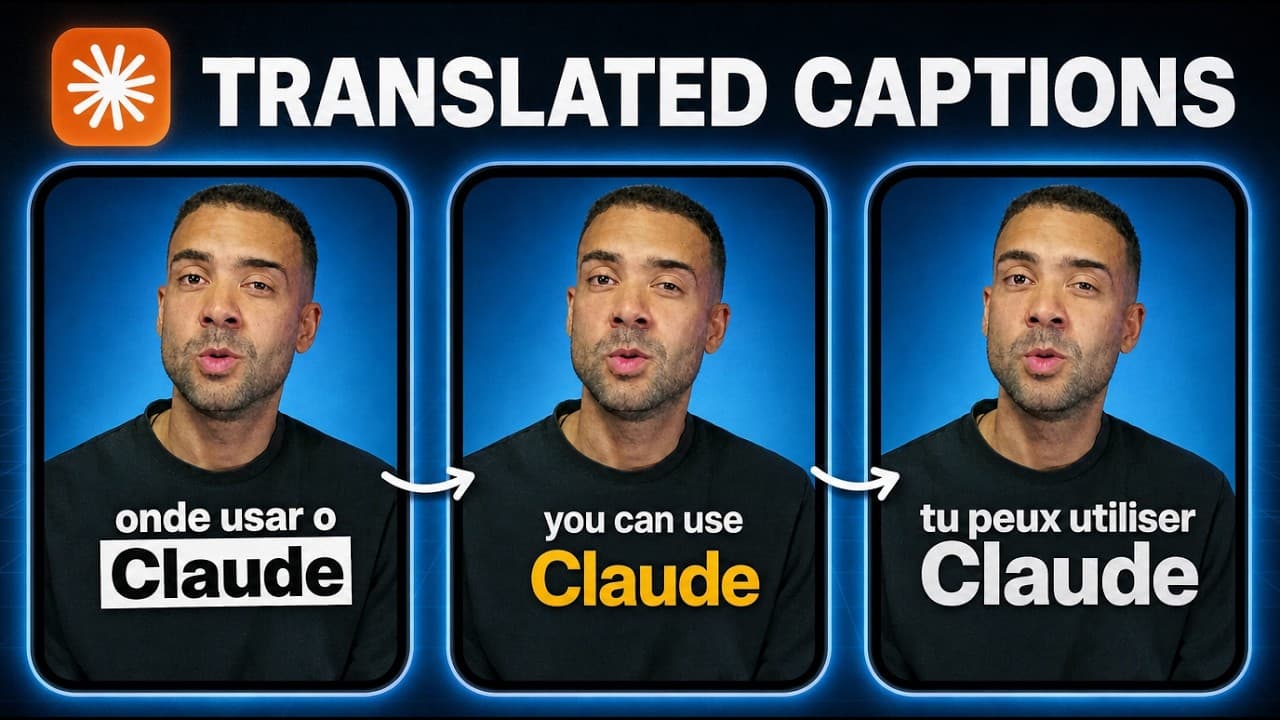
I Tested Automatic Talking Head Video Editing (Async AI Workflow)
Last updated: November 2026
Author: Greg Preece — I test AI video editing software hands-on to help creators streamline production and edit faster.
Filming yourself talking to a camera and trimming out mistakes is only half the battle. The tedious work begins in post-production when you have to manually add text overlays, source B-roll, apply subtle zooms, and manage screen recordings.
I tested Async, a chat-based AI video editor, to see if its automated prompt system and prebuilt skills could replace hours of manual timeline tweaking for talking head videos.
TL;DR: Post-production on talking head videos is usually repetitive and time-consuming. Async uses text prompts and prebuilt AI "skills" to automate tedious steps—including rendering animated text behind your body, inserting context-aware B-roll, correcting off-camera eye contact, adding slow camera zooms, and auto-switching multi-layer screen share layouts.
Quick Links
- Async: Try it here: Try Async →
Prefer to watch? Here's the video. Prefer to skim? The full breakdown is below.
- What I Tested
- 1. Text Behind Subject (Prompt-Based Styling)
- 2. Context-Aware AI B-Roll Insertion
- 3. Eye Contact Fix for Off-Camera Script Reading
- 4. Subtle Camera Zoom Animation
- 5. Automated Screen Share and Camera Layout Switching
- My Verdict: Is Async Worth It for Talking Head Videos?
- Frequently Asked Questions
What I Tested
I loaded raw talking head footage into Async to test how effectively its prompt interface handles repetitive editing tasks. Rather than relying entirely on manual timeline adjustments, Async operates through a conversational prompt box backed by prebuilt AI "skills."
Here is the exact breakdown of the five automated workflows I ran through the editor.
1. Text Behind Subject (Prompt-Based Styling)
Adding depth by placing animated captions behind a presenter normally requires rotoscoping or manual masking layers in software like Premiere Pro or After Effects.
In Async, I typed a simple text prompt instructing the AI to determine key words from my talking head audio, generate those words as animated text, and depth-map them directly behind my body for specific durations.
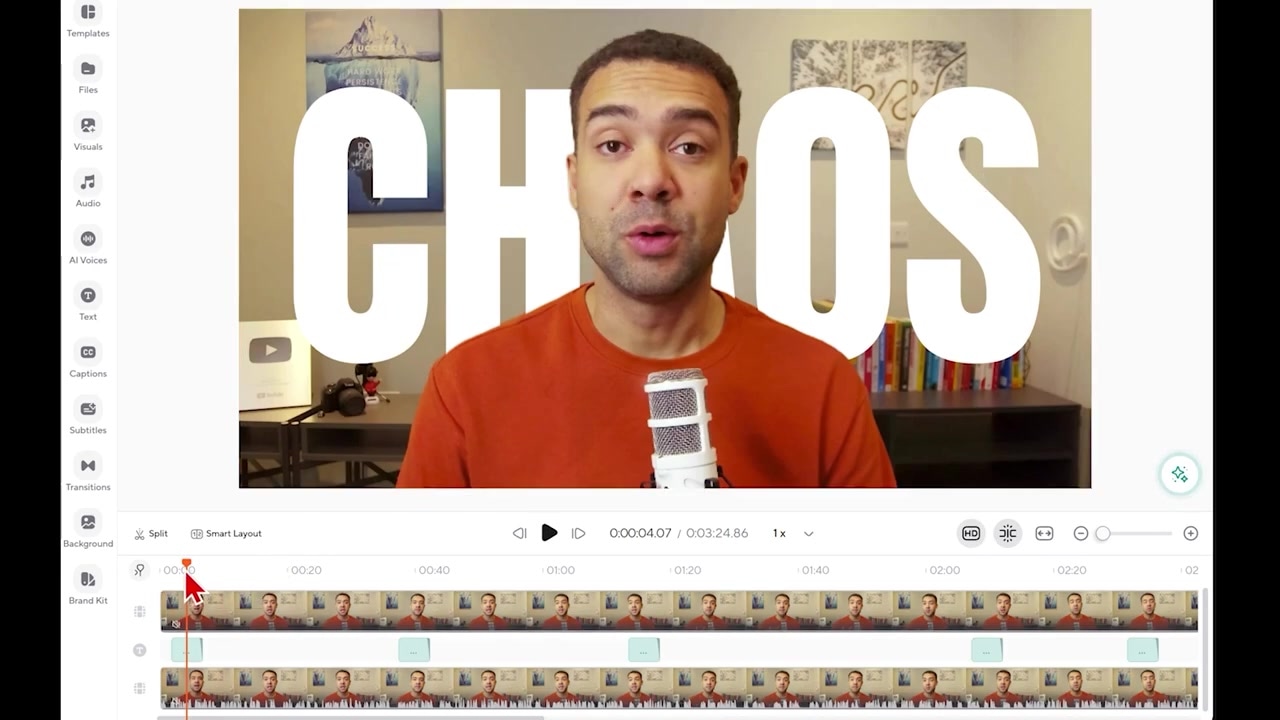
Caption: Prompting Async to generate and depth-map animated text behind the presenter, with instant chat-based styling updates.
How it worked:
- I entered a command requesting automated text keyword generation.
- The AI analyzed the audio track and rendered depth-aware text behind me in the video frame.
- To alter font styles or visual weight, I typed a follow-up prompt requesting a style change.
- After processing for roughly one minute, Async automatically updated every text instance across the timeline.
2. Context-Aware AI B-Roll Insertion
Long stretches of uninterrupted talking head footage quickly lose viewer engagement. Typically, sourcing and placing matching B-roll requires scouring stock libraries or generating clips individually.
Using Async's B-roll maker skill, I asked the AI to scan my video for long gaps without graphics and automatically insert relevant B-roll clips.
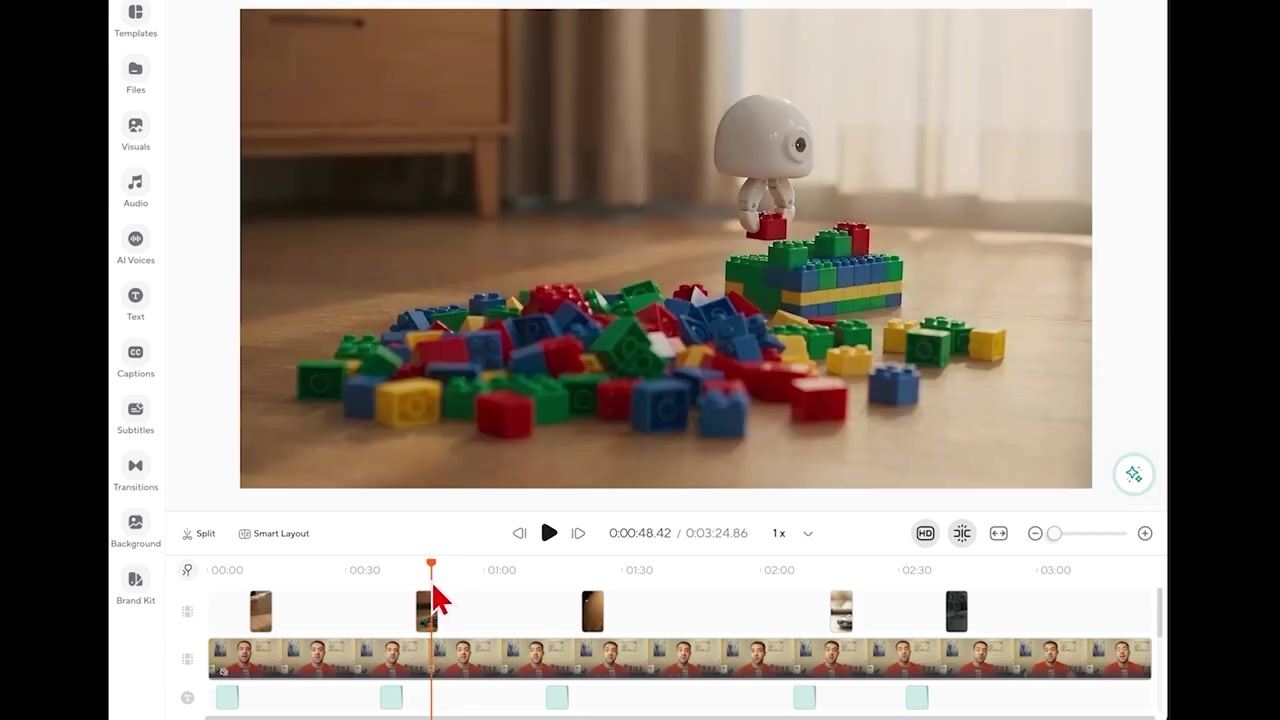
Caption: The B-roll maker skill analyzes the transcript context to generate and overlay matching video clips automatically.
How it worked:
- I opened the prompt box and selected the B-roll maker skill.
- I submitted a command asking it to fill plain talking-head segments with visual footage.
- The AI transcript engine analyzed my spoken topic and auto-generated matching B-roll overlays across the timeline.
- If a specific generated clip didn't fit, I selected the clip layer on the timeline and typed a quick chat prompt to replace it.
Note: You can specify an external AI video model in your prompt command, or let Async select the underlying generator automatically.
3. Eye Contact Fix for Off-Camera Script Reading
If you read from a script or teleprompter mounted slightly off-axis from your camera lens, your eye gaze off-camera can break connection with the audience.
I selected a clip segment where I was visibly glancing to the side of the lens and applied Async's AI effects skill targeted at eye contact correction.
How it worked:
- I highlighted the exact video clip segment where my gaze strayed off-camera.
- I selected the AI effects skill and commanded the chat assistant to fix eye contact.
- The AI modified the pupil orientation on the selected frame range, locking my gaze onto the camera lens while preserving natural facial expressions.
4. Subtle Camera Zoom Animation
Automated zoom tools often create sharp, abrupt cuts that feel jarring and distract from the speaker's message.
I tested Async's keyframe animation skill by instructing it to apply gradual zoom-ins and zoom-outs across my primary camera track.
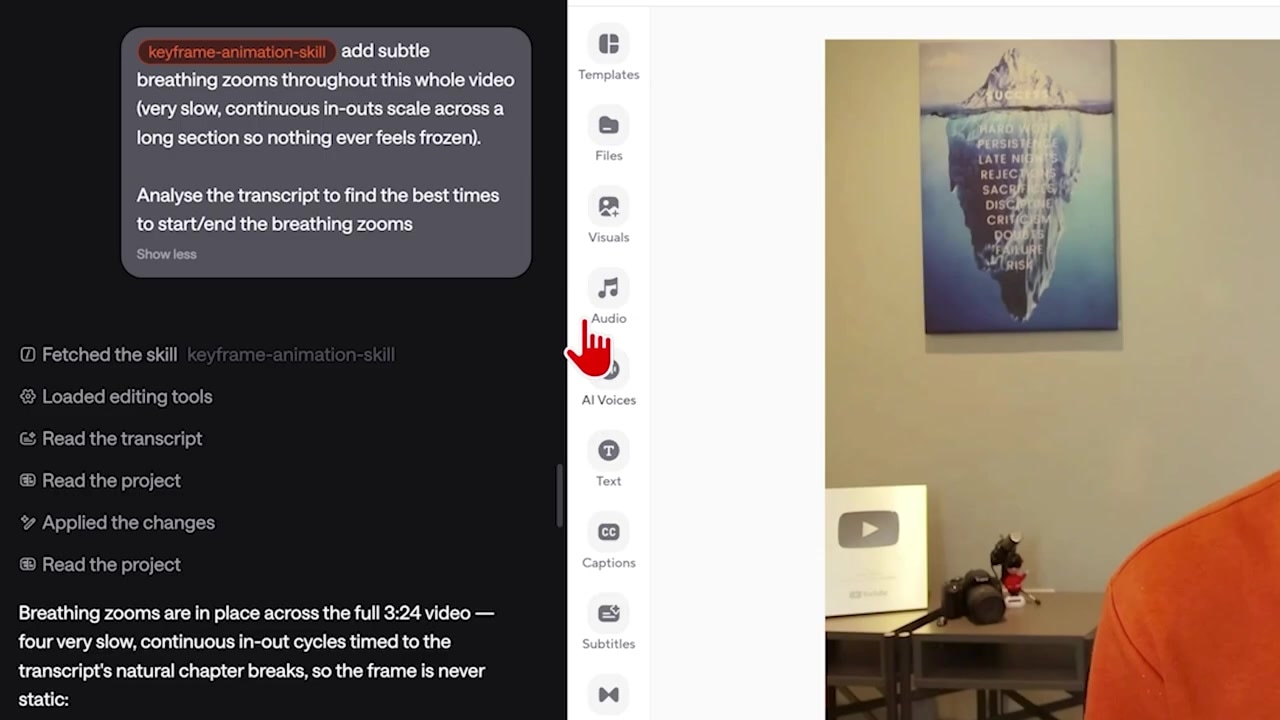
Caption: Applying subtle, slow keyframe zooms to add visual rhythm without jarring transitions.
How it worked:
- I invoked the keyframe animation skill in the prompt window.
- I explicitly commanded the AI to keep camera zooms "subtle and slow."
- The AI applied gentle scale adjustments across longer talking segments, maintaining energy without pulling focus from the narrative.
- I applied the same skill to a multi-speaker podcast recording; the AI automatically added gentle camera pushes whenever the active speaker switched.
5. Automated Screen Share and Camera Layout Switching
For software tutorials and product demos, managing a multi-track timeline—switching between a full-screen presenter view and a picture-in-picture (PIP) screen recording—is often the most tedious part of editing.
I set up a two-layer timeline: raw talking head footage on the top track and a full-screen software recording on the bottom track.
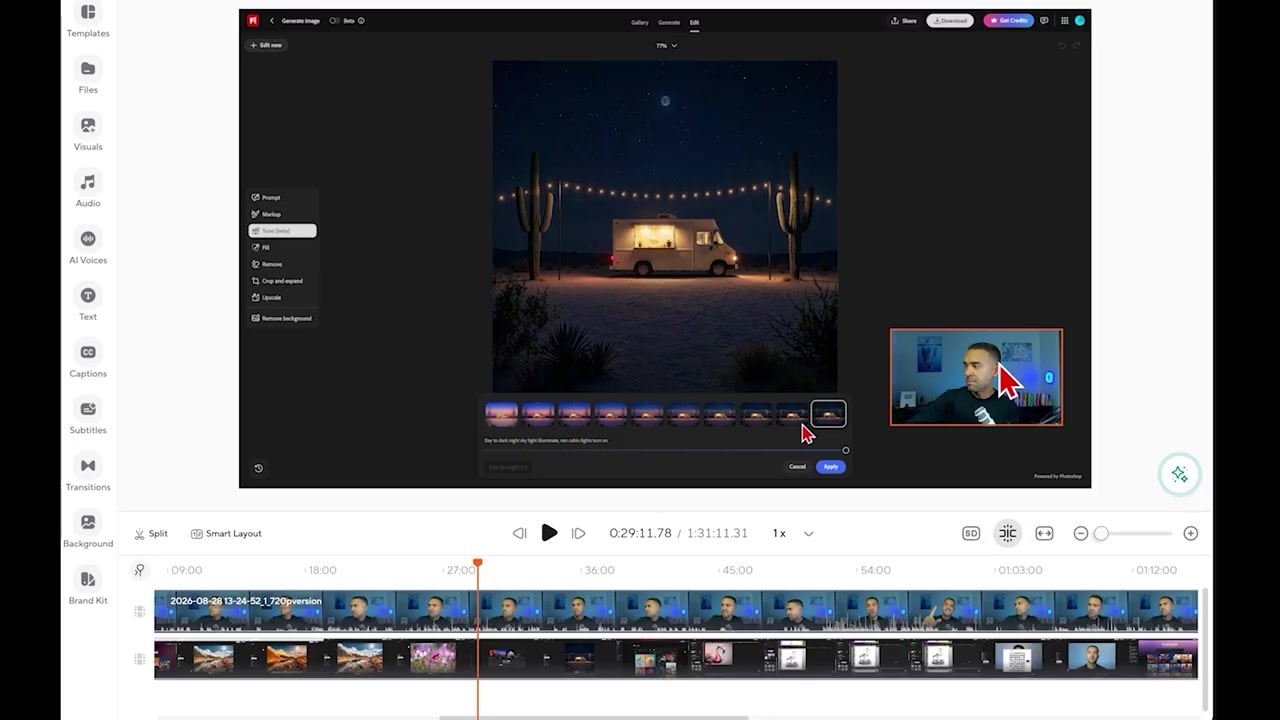
Caption: The screen share layout skill automatically detects when to show full-screen camera footage versus picture-in-picture screen overlays.
How it worked:
- I placed my presenter video on Track 1 and my software screen capture on Track 2.
- I activated the screen share layout skill and ran the layout detection prompt.
- Async scanned both tracks to determine when I was speaking directly to the audience versus explaining the on-screen software.
- The AI automatically generated full-screen camera cuts during direct commentary and scaled the camera footage down into a clean picture-in-picture frame whenever on-screen application workflow occurred.
My Verdict: Is Async Worth It for Talking Head Videos?
If you create solo talking head content, software walk-throughs, or remote podcasts, post-production friction often slows down your publishing schedule.
Async solves this by turning complex manual editing tasks into conversational text prompts and prebuilt skills. The standout feature is the automated screen share layout tool, which eliminates the tedious manual clipping needed to balance screen captures with facecam footage.
Try it here: Try Async →
Frequently Asked Questions
What makes Async different from standard timeline video editors?
Async combines a traditional timeline view with a chat prompt interface and prebuilt AI skills. Instead of manually keyframing zooms or rotoscoping subjects, you describe the desired edit in plain text or run dedicated skills to perform automated post-production tasks.
Can Async generate B-roll based on what I say in the video?
Yes. The B-roll maker skill reads your spoken transcript, understands the topic context, and generates corresponding video clips to overlay on top of long, uninterrupted talking segments.
Does Async support multi-camera or podcast editing?
Yes. Prebuilt skills like keyframe animation and conversational layout switching can detect speaker changes in multi-person podcast recordings and automatically manage camera transitions and slow camera pushes.