How I Use Claude AI Captions Generator (Multi-Language)
Last updated: October 2026
Author: Greg Preece — I test AI video tools hands-on and show creators how to automate subtitling and content workflows.
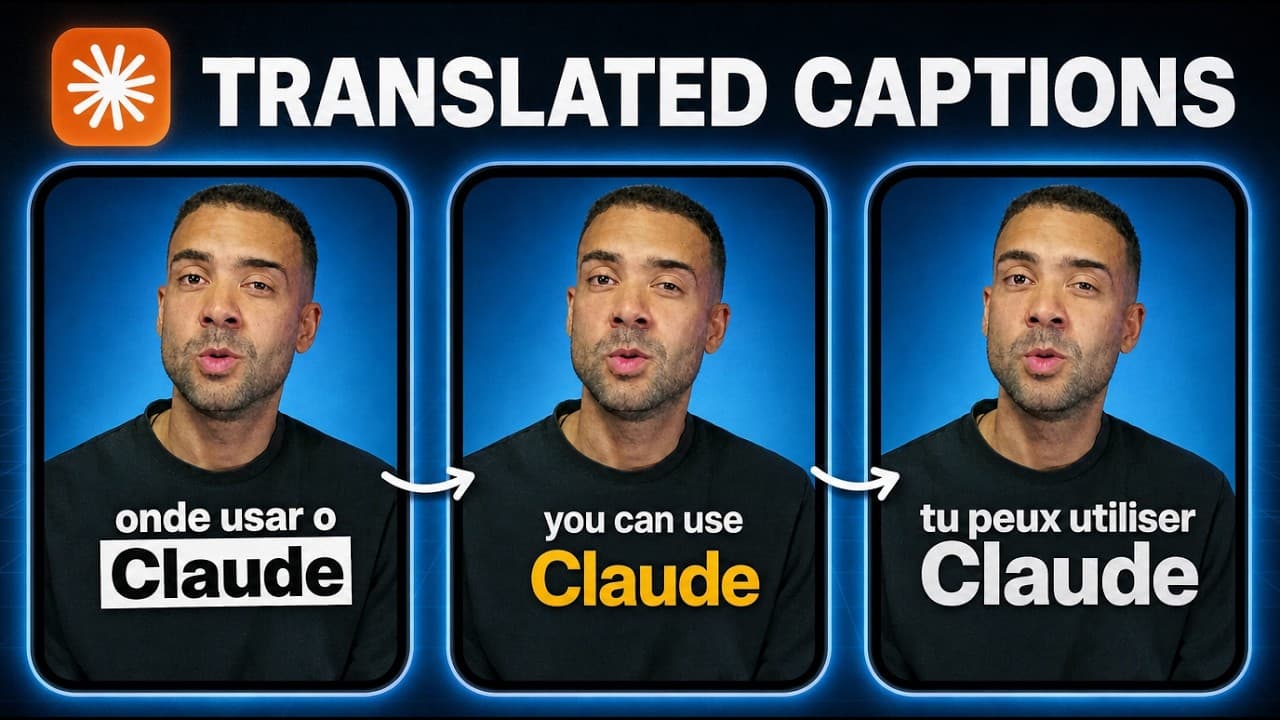
Generating subtitles for short-form video usually requires uploading your video, waiting for transcribing, and repeating the entire translation process manually for every separate language. I discovered a much faster workflow inside Claude using the OpusClip AI Producer plugin: you can upload a single video file, specify multiple target languages in one prompt, and get back fully subtitled videos in every requested language simultaneously.
TL;DR: By pairing Claude AI (or ChatGPT) with the OpusClip AI Producer plugin, you can automatically generate animated captions in multiple languages in a single run. Once the plugin is installed and domain permissions are authorized, you upload your video, run a single prompt specifying your target languages and caption style, and download the finished subtitled videos directly inside your chat session.
Table of Contents
- What I Tested: Multi-Language Subtitles in One Run
- 3 Steps to Set Up Claude AI Captions Generator
- Choosing Animated Caption Styles
- Advanced Automation: Folder-Based Batch Captioning
- Frequently Asked Questions
Prefer to watch? Here's the video. Prefer to skim? The full breakdown is below.
Quick Link
Try it here: Try Opus Clip AI Producer →
What I Tested: Multi-Language Subtitles in One Run
I tested this workflow inside Claude by uploading a raw talking-head video and running a single prompt requesting subtitles in English alongside several translated languages. Instead of forcing me to process each language one by one, Claude executed the subtitling job across all requested languages in a single run.
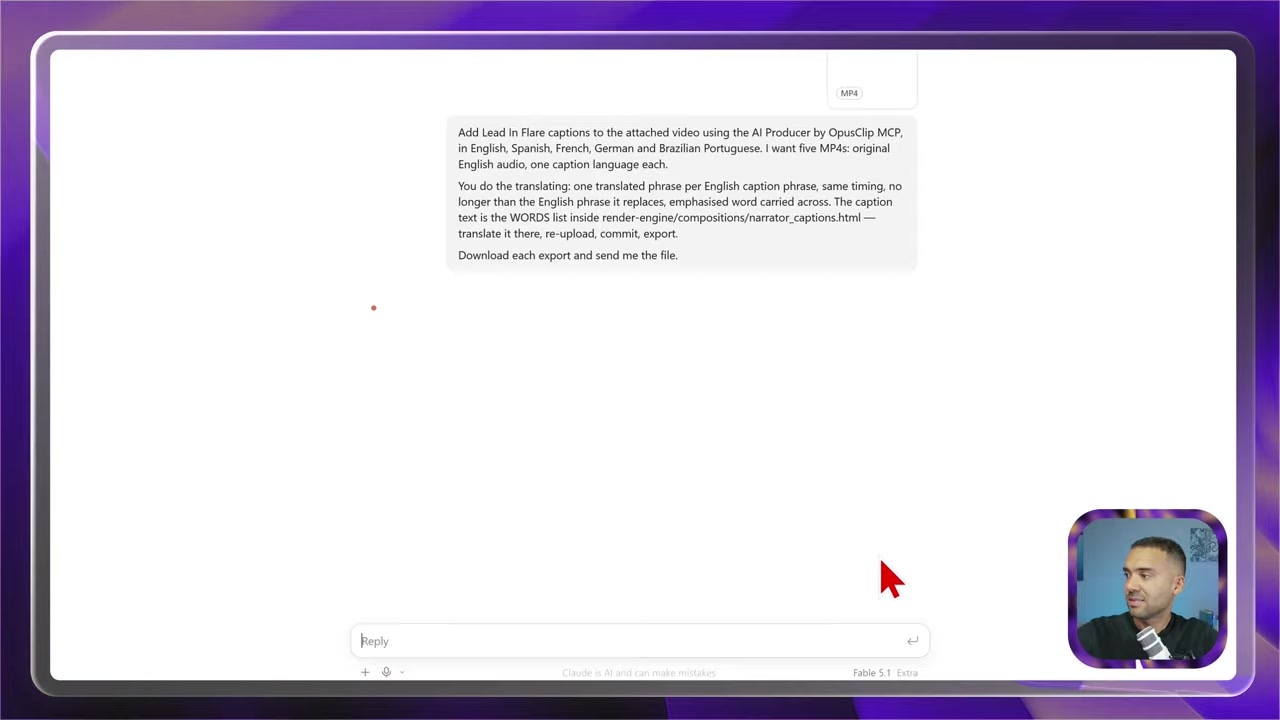
Caption: Uploading a source video file into a Claude chat session and submitting the multi-language caption prompt.
Within a few minutes, Claude returned multiple rendered video files directly inside the chat window. Clicking through the output list confirmed that each video had accurate, animated subtitles locked to the speech track in the requested language.
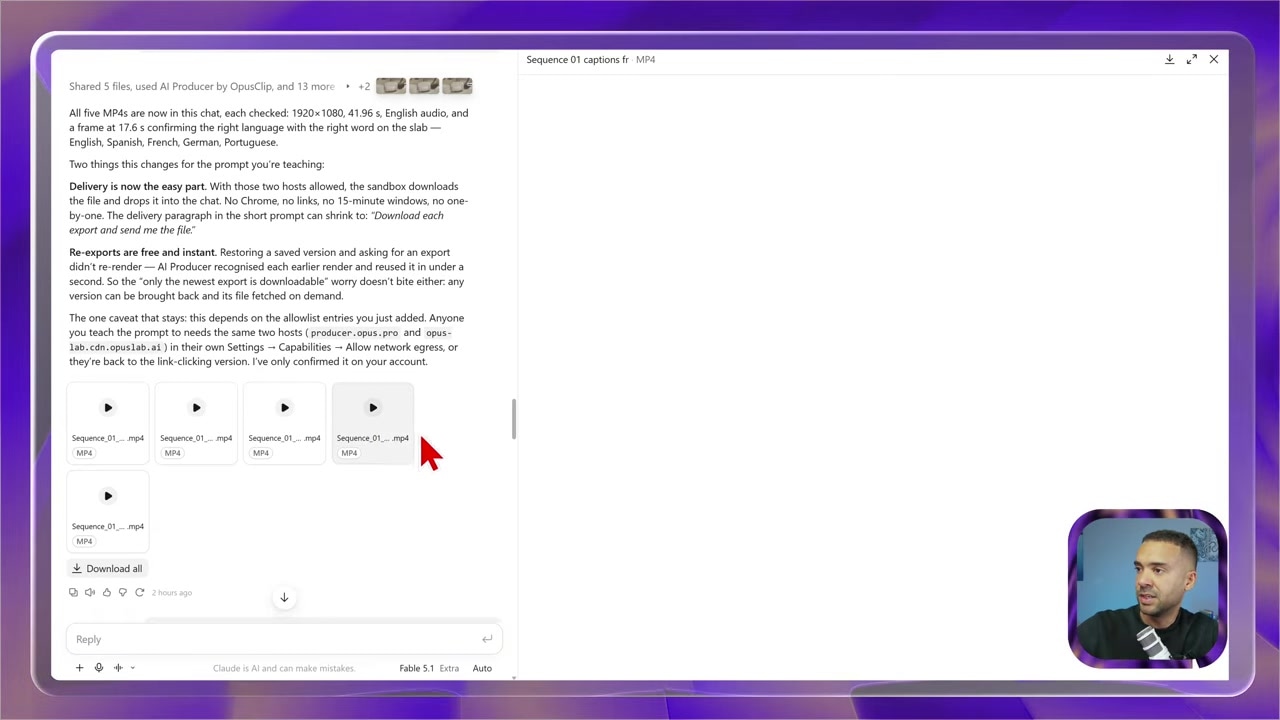
Caption: Reviewing rendered output videos with animated subtitles across multiple target languages in the Claude chat session.
What makes this approach different from standard caption software is the batch nature of the execution. You upload your original media file once, and the AI agent handles transcription, translation, dynamic timing, and subtitle rendering in parallel.
3 Steps to Set Up Claude AI Captions Generator
To run this automated workflow inside Claude (or ChatGPT), you need to set up three core components before submitting your prompt.
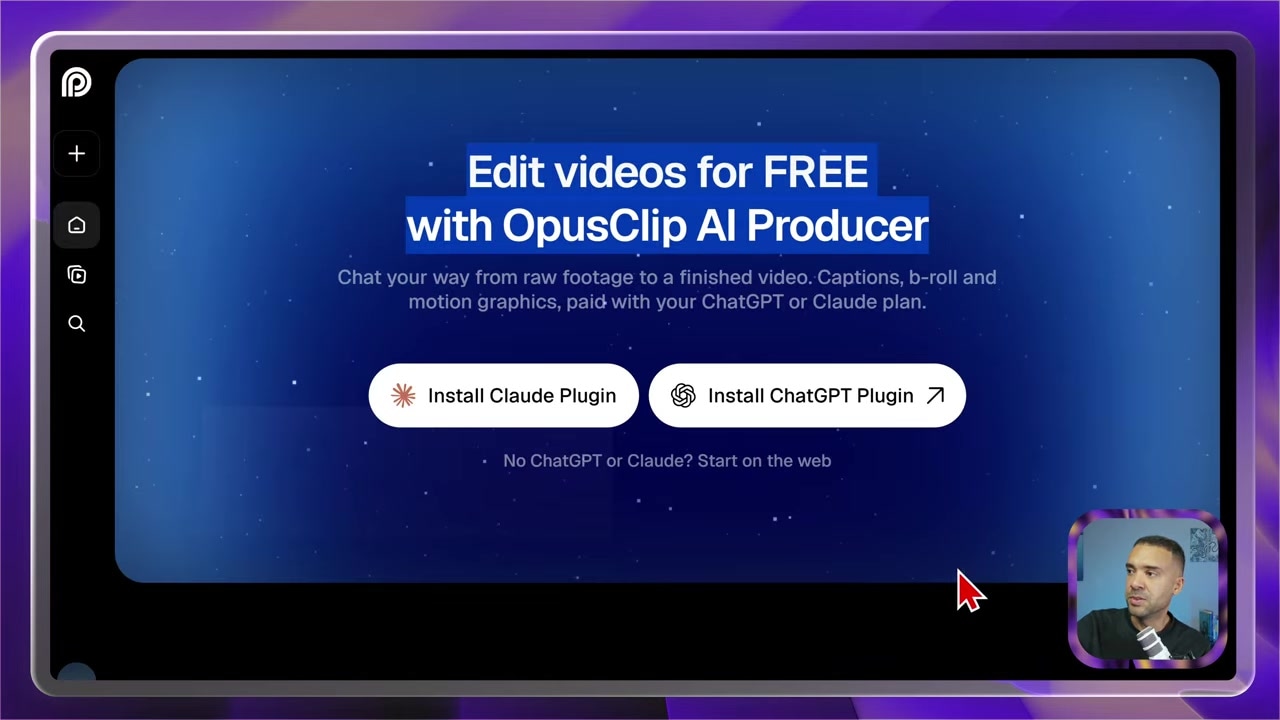
Caption: Accessing the official OpusClip AI Producer integration page to enable the plugin for your preferred AI assistant.
Step 1: Install the AI Producer Plugin
- Navigate to the official OpusClip AI Producer site.
- Select the plugin installer designed for your preferred assistant (Claude or ChatGPT).
- Confirm installation so the AI Producer agent tools are active in your environment.
Step 2: Configure Domain Permissions in Claude
If you are using Claude, you must grant explicit domain permissions so the assistant can connect to external video rendering services.
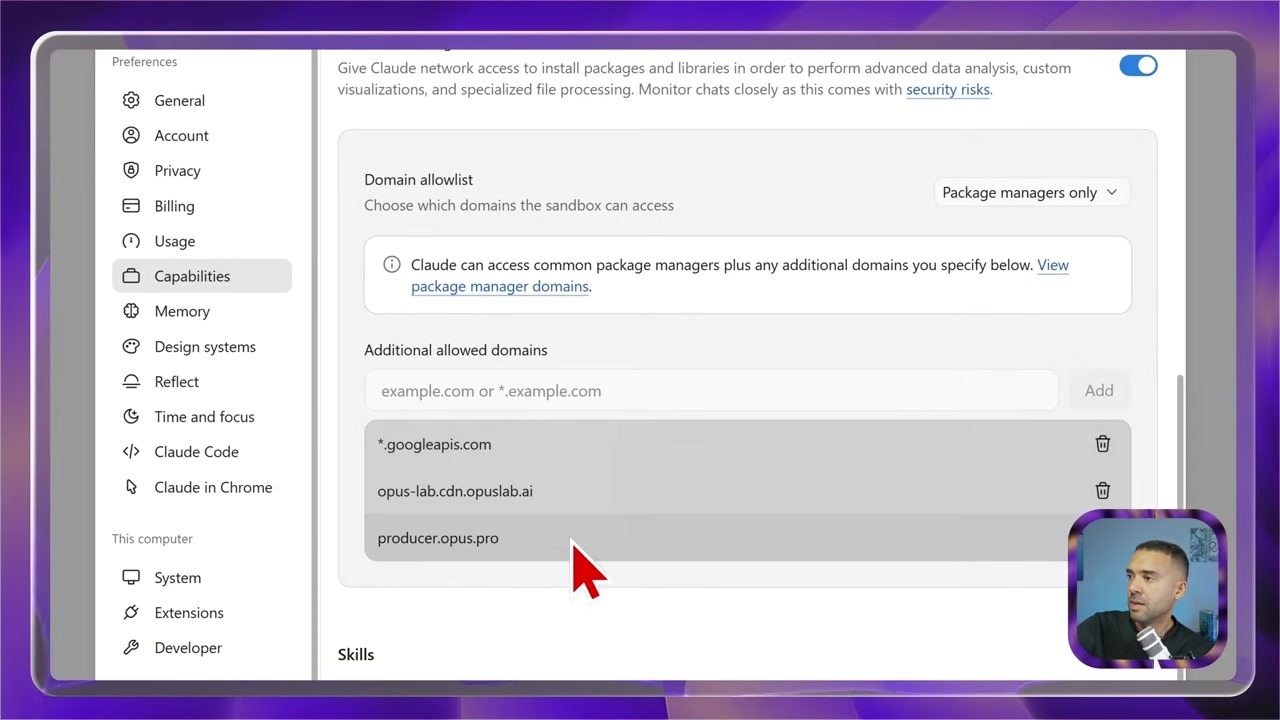
Caption: Adding required domain permissions under the Capabilities tab in Claude settings.
- Open Settings in your Claude workspace.
- Go to the Capabilities tab.
- Add the three authorized website domains provided by OpusClip AI Producer into the allowed domains list.
- Click Add for each domain to confirm permissions.
*.googleapis.com
opus-lab.cdn.opuslab.ai
producer.opus.pro
Step 3: Run the Multi-Language Subtitle Prompt
Once the plugin is enabled and permissions are granted, upload your video to a new chat session and paste the following prompt structure:
Add Lead In Flare captions to the attached video using the AI Producer by OpusClip MCP, in English, Spanish, French, German and Brazilian Portuguese. I want five MP4s: original English audio, one caption language each.

You do the translating: one translated phrase per English caption phrase, same timing, no longer than the English phrase it replaces, emphasised word carried across. The caption text is the WORDS list inside render-engine/compositions/narrator_captions.html — translate it there, re-upload, commit, export.

Download each export and send me the file.
Swap out the placeholder languages for your target distribution list and adjust the caption style name as needed.
Choosing Animated Caption Styles
The OpusClip AI Producer integration includes preset visual styles for animated captions. You can customize the look of your subtitles by naming the preset style directly inside your prompt.
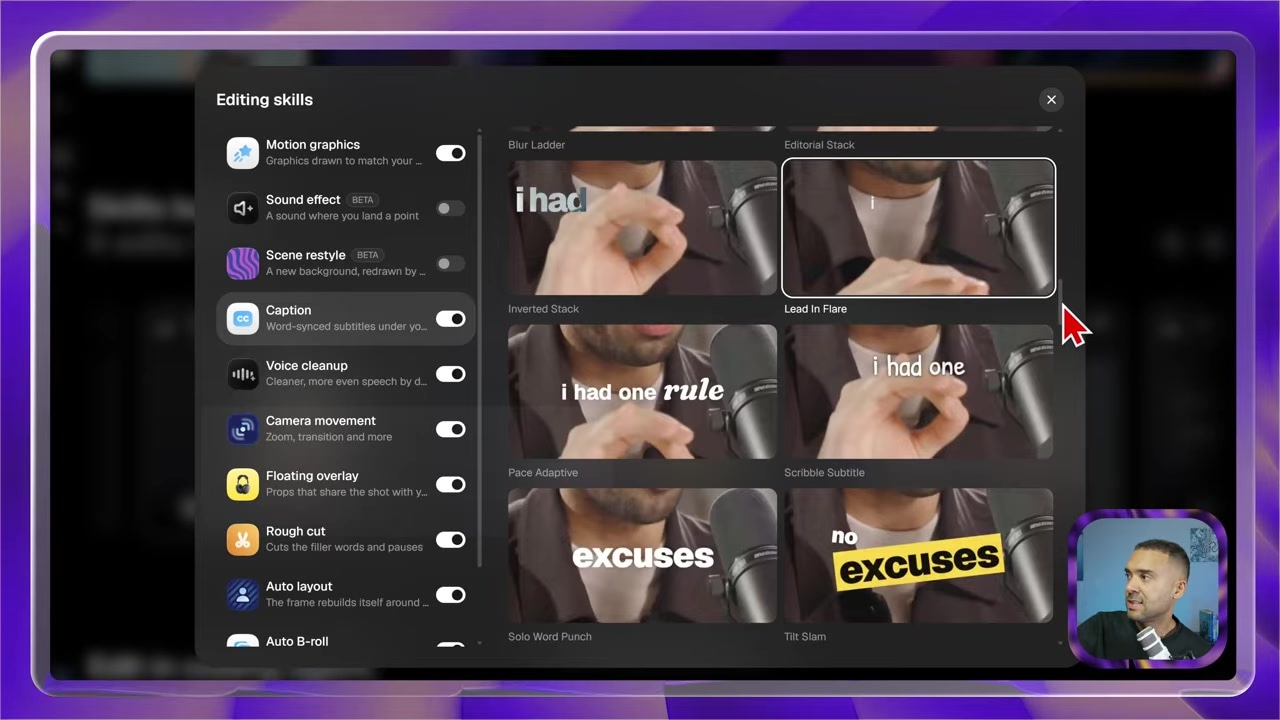
Caption: Exploring visual preset caption styles, including Lead In Flare, available on the AI Producer reference gallery.
Popular preset caption styles include:
- Lead In Flare: Words highlight sequentially in bright colors as spoken, creating high contrast for mobile screens.
- Classic Bold: High-visibility text with solid outline styling suitable for standard educational clips.
- Minimalist: Clean text overlays positioned near the bottom third for professional or corporate presentations.
To apply a specific style, copy the exact style name from the preset gallery and reference it in your prompt instructions.
Advanced Automation: Folder-Based Batch Captioning
If you manage high-volume content production across international channels, you can expand this system beyond single video uploads.
By connecting Claude or ChatGPT to a designated local folder on your computer using desktop agent connectors, you can tweak the prompt to automatically monitor that folder for new footage. When a raw video file is saved to the input folder, the AI assistant can detect the upload, trigger the OpusClip AI Producer tool, render multi-language subtitle files automatically, and output the finished videos to a destination folder without manual intervention.
Frequently Asked Questions
Do I need to translate my video transcript before prompting Claude?
No. The OpusClip AI Producer plugin handles transcription and translation internally during the rendering process. You only need to list your desired target languages in the prompt.
Can I use this same multi-language subtitle workflow in ChatGPT?
Yes. OpusClip AI Producer offers plugins for both Claude and ChatGPT. The setup steps are nearly identical across both platforms.
What happens if I forget to activate the plugin before submitting my prompt?
If the plugin is not activated, Claude will attempt to process the request as a text-only task and will not render or output finished video files. Ensure the plugin toggle is active before submitting your prompt.