How to Use Agent Opus: My Step-by-Step Claude Ad Automation Guide
Last updated: September 2026
Author: Greg Preece — I test AI video tools hands-on to help creators and marketers automate high-converting content workflows.
Ever wanted to generate an unlimited stream of product video ads on autopilot without constant manual brainstorming and prompting? Using Claude Cowork paired with Opus Clip's "Agent Opus" connector, you can now produce highly contextual, trend-driven ads from a single product photo in minutes.
TL;DR: This guide walks you through how to connect the Agent Opus tool inside Claude Cowork to build an automated, trend-driven product ad generation pipeline. By uploading a single image of your product and applying a master prompt, Claude analyzes current world events, pitches ad concepts, and utilizes Agent Opus to produce and schedule finished video ads on autopilot.
Prefer to watch? Here's the video. Prefer to skim? The full breakdown is below.
Agent Opus: Try it here: Try Agent Opus →
Table of Contents
- Step 1: Switch Claude to Cowork Mode
- Step 2: Connect the Agent Opus Tool
- Step 3: Upload Your Product Image and Paste the Master Prompt
- Step 4: Select Your Trend-Based Ad Concepts
- Step 5: Pick and Apply Your Visual Design Styles
- Automating the Entire Workflow (Scheduling & Folders)
- Frequently Asked Questions
Step 1: Switch Claude to Cowork Mode
This automated system runs entirely on Claude's agentic architecture. Standard chat mode cannot interface with local folders or run background automated workflows. To make this work, you must use Claude Cowork.
Open your Claude desktop app and look at your message box. Toggle your environment selection from Chat to Cowork.
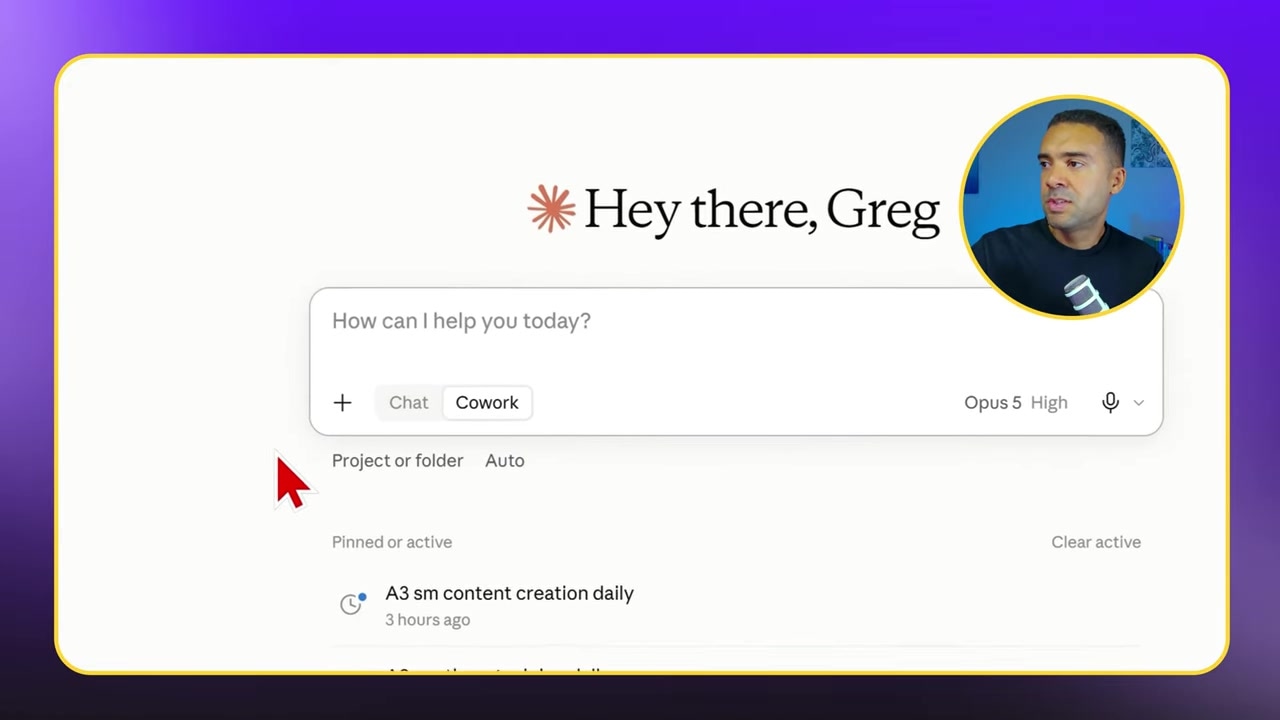
Caption: Make sure Claude is switched from standard Chat mode to Cowork mode to enable computer-use and tool connector features.
Step 2: Connect the Agent Opus Tool
Next, you need to grant Claude permission to use Opus Clip's AI generation engine.
To do this, navigate to the Connectors menu located in the bottom menu bar of the Claude workspace. Look for the Agent Opus tool (created by Opus Clip) and make sure it is connected and toggled on.
Caption: Access the Connectors menu at the bottom of your Claude workspace and ensure the Agent Opus tool is connected and active.
Step 3: Upload Your Product Image and Paste the Master Prompt
With the workspace configured, you are ready to feed Claude your product data.
First, upload a clear photo of your product into the prompt box. In my setup, I uploaded a high-quality product image of a watch.
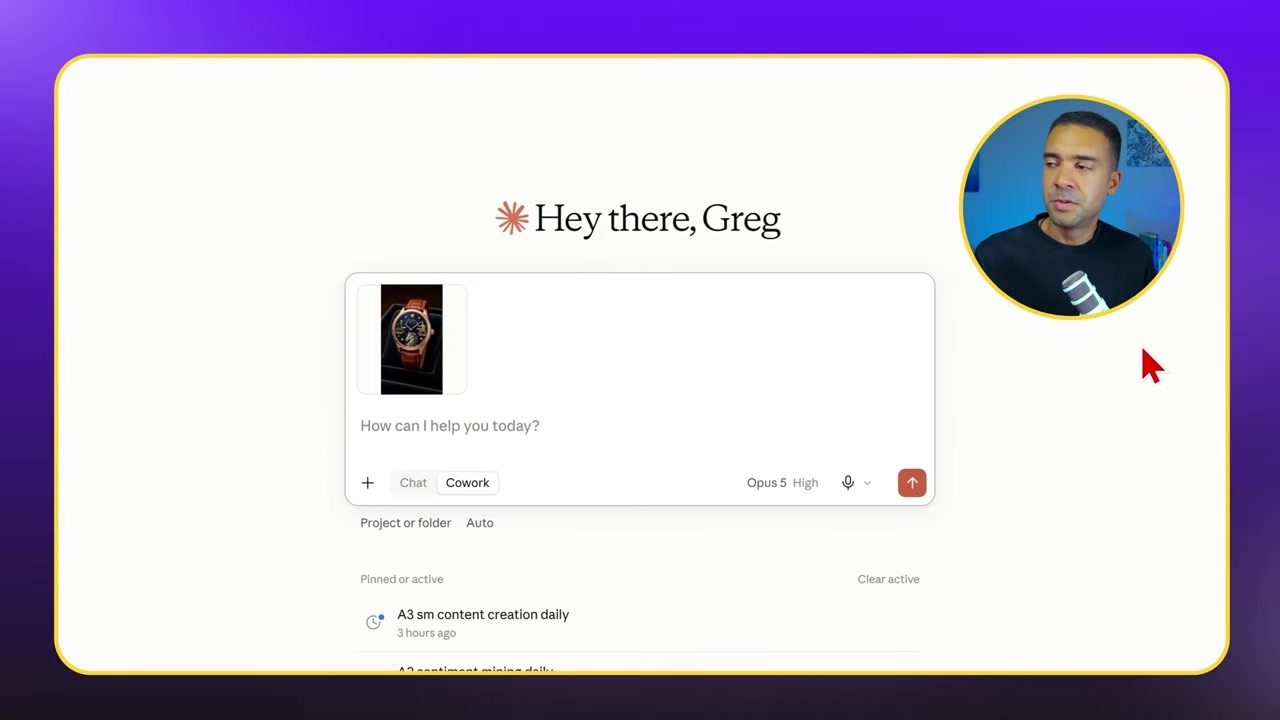
Caption: Upload a clear image of your product directly into the Claude prompt box.
Next, you need to copy and paste a master prompt. This prompt establishes the boundaries for Claude and Agent Opus, instructing the AI on:
- Target Audience: Who the product is designed for.
- Ad Length: The target duration of the video assets.
- Design Presets: The starting visual styles for the finished video.
Pasting this extensive layout takes only a second, and you can customize these three parameters inside the text to match your specific brand.
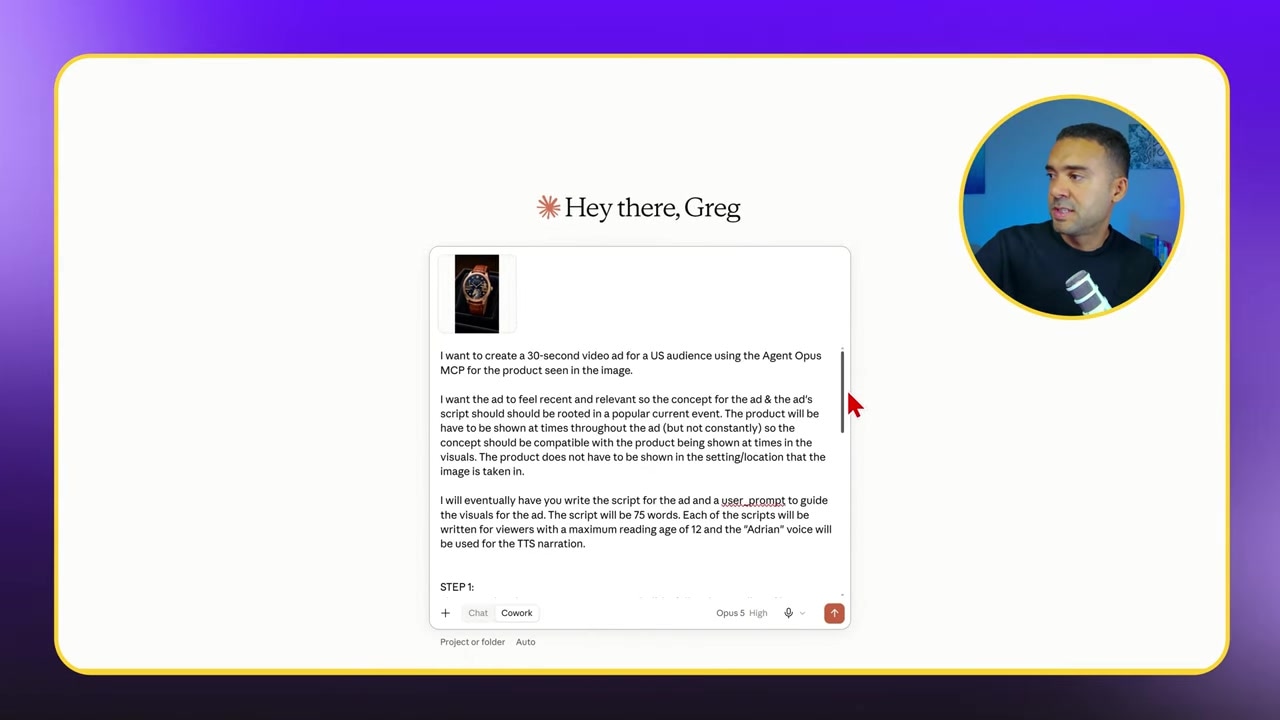
Caption: Paste your master prompt detailing your target audience, video length, and design parameters, then click Start Task.
Once the prompt is ready, hit Start Task. Claude will analyze your uploaded photo, identify the product type, and scour the web for current, real-time trending events that align with it.
Step 4: Select Your Trend-Based Ad Concepts
Claude's analysis is highly context-aware. Because Claude connects to the live web, it pitches ad campaigns based on real-time news. For instance, if New York Fashion Week or a major lunar space race is currently trending, Claude will pitch ad hooks incorporating those specific themes.
After running the task, Claude returns with a numbered list of trend-based ad angles.
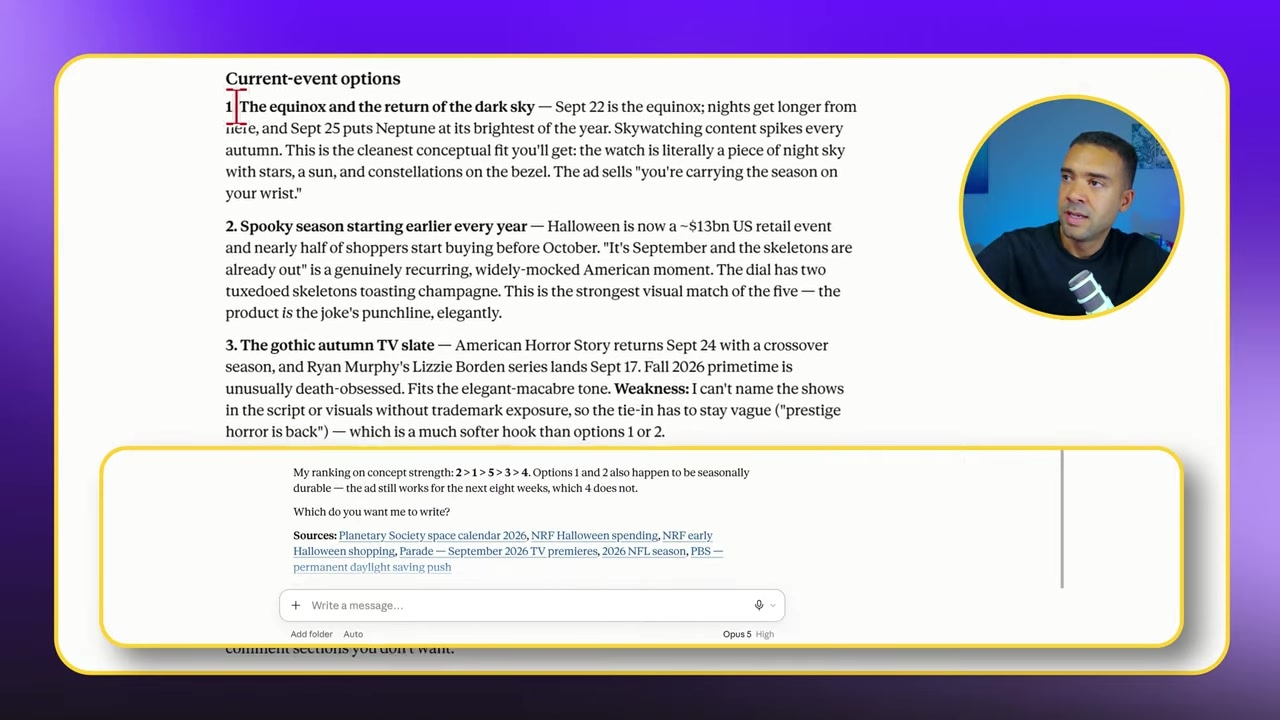
Caption: Claude identifies your product from the photo and brainstorms trend-based ad angles aligned with current events.
All you need to do is select the angles you want to generate. In my test, Claude pitched several ideas, including one about nights drawing in, early Halloween prep, and the NFL kickoff.
To select them, simply type your preferred numbers (e.g., `1, 2, 4`) into the message box and hit Send.
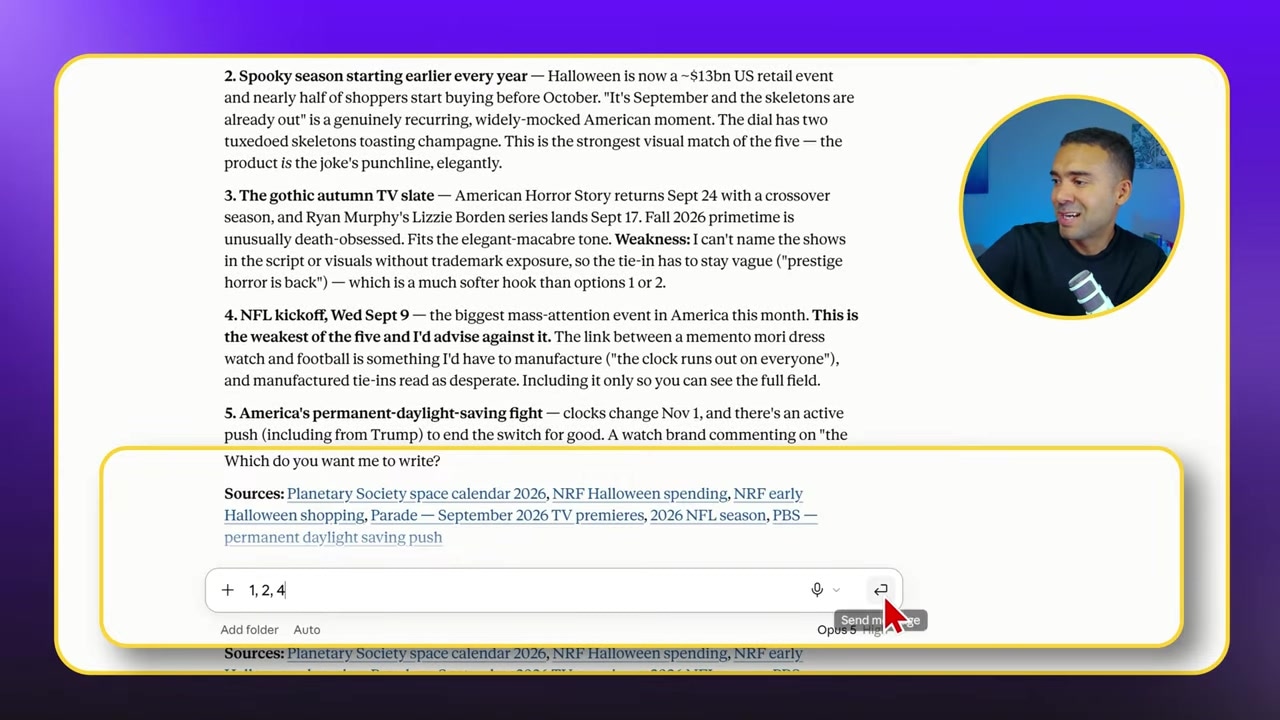
Caption: Simply reply with the numbers corresponding to the ad concepts you want to generate, and hit Send.
Claude immediately deploys Agent Opus to generate, edit, and assemble these physical short-form video ads in the background.
Step 5: Pick and Apply Your Visual Design Styles
If you want to customize how your video ads look, you can select customized visual templates. Head over to the Agent Opus website and navigate to the Choose Style dashboard.
Here, you can hover over individual style presets to watch active video previews. This gives you a clear visual idea of how the final text layout, transitions, and graphics will translate to your product ad.
Once you find a style that matches your aesthetic, copy its exact name and paste it into your Claude master prompt under the design field. Claude will pass this style instruction straight to Agent Opus during generation.
Caption: Visit the Agent Opus web dashboard to hover over and preview different video styles, then copy your preferred style name into your Claude prompt.
Automating the Entire Workflow (Scheduling & Folders)
Generating ads on demand is powerful, but you can automate this entire sequence to be hands-off.
1. Daily Scheduled Tasks
Using Claude Cowork's built-in automation scheduler, you can configure this master prompt to run automatically every morning (e.g., at 7:00 a.m.). When you open your desktop app later, you'll be greeted by fresh pitches based on that morning's trending news. Just enter your choice of numbers, and walk away as your video ads are made.
2. Connect Your Social Feeds
If you navigate to the Agent Opus website, you can link your TikTok, Instagram Reels, and YouTube Shorts accounts. By adding a line at the bottom of your Claude master prompt instructing the AI to "auto-upload," Agent Opus will schedule and publish the finished videos to your social media channels the moment they finish generating.
Note: I personally prefer to download and manually review the generations first to ensure quality control, but the hands-off auto-publishing option is entirely available if you want a complete set-and-forget pipeline.
3. Folder Integration via Computer Use
Because Claude Cowork runs locally on your desktop with folder permissions, you can point Claude directly to a local directory packed with images of various inventory items. Claude can grab a new product image every day and cycle through your store catalog systematically.
Agent Opus: Try it here: Try Agent Opus →
Frequently Asked Questions
Do I need a paid Claude account to use this? Yes. To utilize Claude Cowork, connectors, and computer-use automation features, you typically need an active paid Claude plan (such as Pro, Team, or Enterprise) alongside the Claude Desktop App. You can verify the latest requirements and account tiers on the official Anthropic site.
Can Agent Opus post directly to my social media accounts? Yes. You can link your target social accounts directly within your dashboard on the Agent Opus website. When connected, you can configure your Claude prompt to instruct Agent Opus to auto-schedule and publish completed video generations.
What file formats does Agent Opus support for direct input? According to official Agent Opus documentation, the system natively accepts raw text prompts, video scripts/transcripts, and non-instrumental audio files (such as a voice memo). It does not currently support importing public URLs or PDFs directly as script sources.