I Tested the Best AI Video Editing Apps (to Save Hours of Work)
Last updated: July 2026
Author: Greg Preece — I test AI video tools hands-on to find workflows that save creators hours of tedious, repetitive editing.
Are you tired of spending hours slicing out bad takes, manually generating subtitles, or digging for matching B-roll? As a video editor, I used to dread the repetitive, time-consuming tasks that came with every new project. Over the past year, I tested dozens of AI video editors to see which ones actually deliver on their promises of cutting editing time.
Here are the only six AI video editing tools you need in your workflow to automate the boring parts of your edit and save hundreds of hours.
Quick Summary
If you are looking to reclaim your time, here is a breakdown of the best AI video editing apps for different needs:
| App | Best For | Standout Feature | Platform |
|---|---|---|---|
| Captions | Beginners & mobile content | 1-click full auto-edit & stylish subtitles | iOS / Android / Desktop |
| Descript | Fixing speaking mistakes | Text-based editing, voice cloning, & eye contact fix | Desktop / Web |
| Adobe Podcast | Studio-quality audio | Instant clean up of phone and noisy recordings | Web |
| Gling | Automating rough cuts | Automatic silence and bad take removal | Desktop |
| FireCut | Visual polish & B-roll | Smart zooms, chapters, and contextual b-roll | Premiere / DaVinci Extension |
| Opus Clip | Repurposing content | Long-to-short viral vertical clipping | Web |
Prefer to watch? Here's the video. Prefer to skim? The full breakdown is below.
Quick Links
- Captions: Try it here: Try Captions →
- Descript: Try it here: Try Descript →
- Adobe Podcast: Try it here: Try Adobe Podcast →
- Gling: Try it here: Try Gling →
- FireCut: Try it here: Try FireCut →
- Opus Clip: Try it here: Try Opus Clip →
Table of Contents
Captions
If you are intimidated by the steep learning curve of traditional video editing software, Captions is a complete lifesaver. This AI video editor handles the entire editing process for you automatically. You upload your raw video, and the app adds stylish animations, context-relevant backgrounds, and dynamic captions in one click, outputting a fully finished video. It is the perfect tool for beginners who want highly engaging short-form content without spending weeks learning complex timeline mechanics.
Try it here: Try Captions →
When I tested Captions, I was amazed at how far automated video editing technology has come. The app is highly versatile and works smoothly whether you are on your mobile phone or editing on your computer. It gives you a highly polished result without requiring you to split a single clip manually.
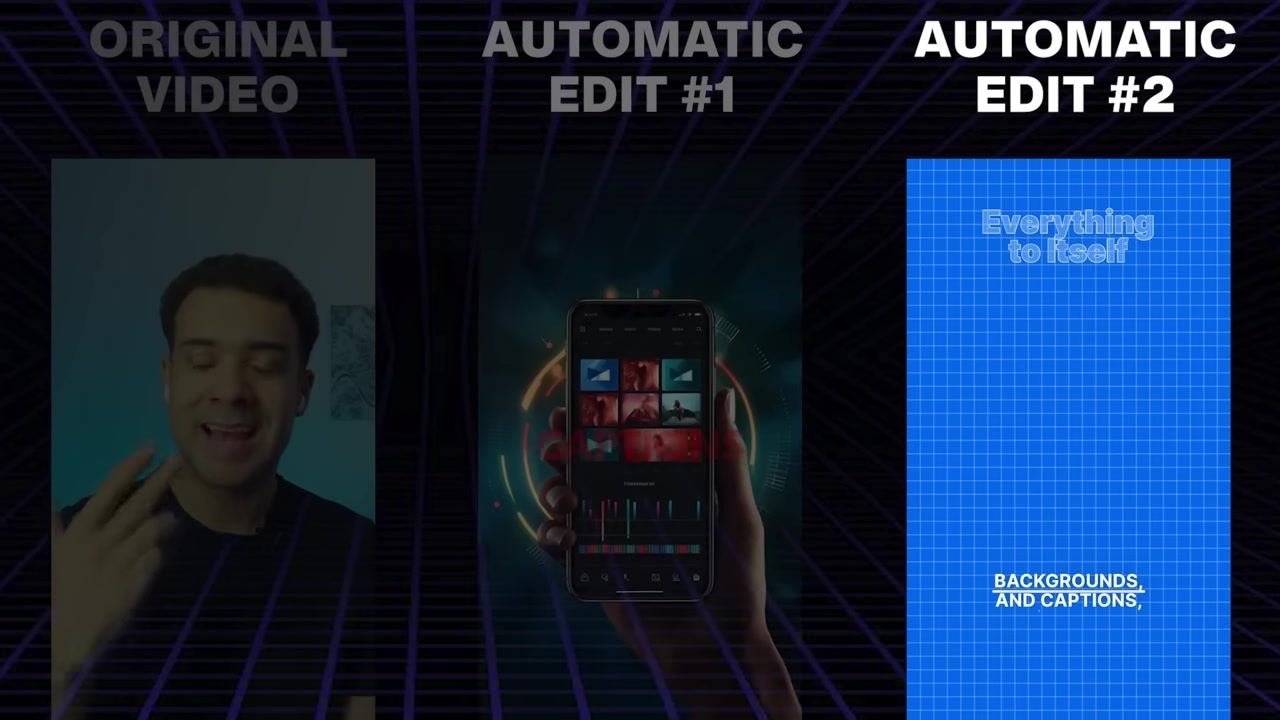
Caption: Captions automatically cuts, designs, and subtitles your video in one click, making it perfect for rapid social media content creation.
Descript
Descript is the go-to workspace if you need to clean up and edit speech-heavy videos. Instead of slicing files on a traditional timeline, Descript transcribes your footage so you can edit the video simply by editing the text script. If you delete a sentence in the transcript, Descript cuts that exact moment from your video timeline instantly. It also acts as a massive safeguard against client errors, saving you from having to ask speakers to re-record parts of their video.
Try it here: Try Descript →
When editing talk-centric footage, I rely on Descript's specific AI-powered video editing tools to repair common recording mistakes:
- Filler Word Removal: The AI scans your footage and instantly deletes moments of hesitation like "um," "ah," or "hum" with one click.
- Voice Cloning (Overdub): If a speaker makes a mistake or says the wrong thing while recording, Descript creates a digital replica of their voice. You simply type what they were supposed to say, and the AI corrects the vocal track seamlessly.
- Eye Contact Correction: If the speaker looked away from the lens to check notes or lost focus, Descript adjusts their gaze in post-production, making it look like they maintained eye contact with the camera the entire time.
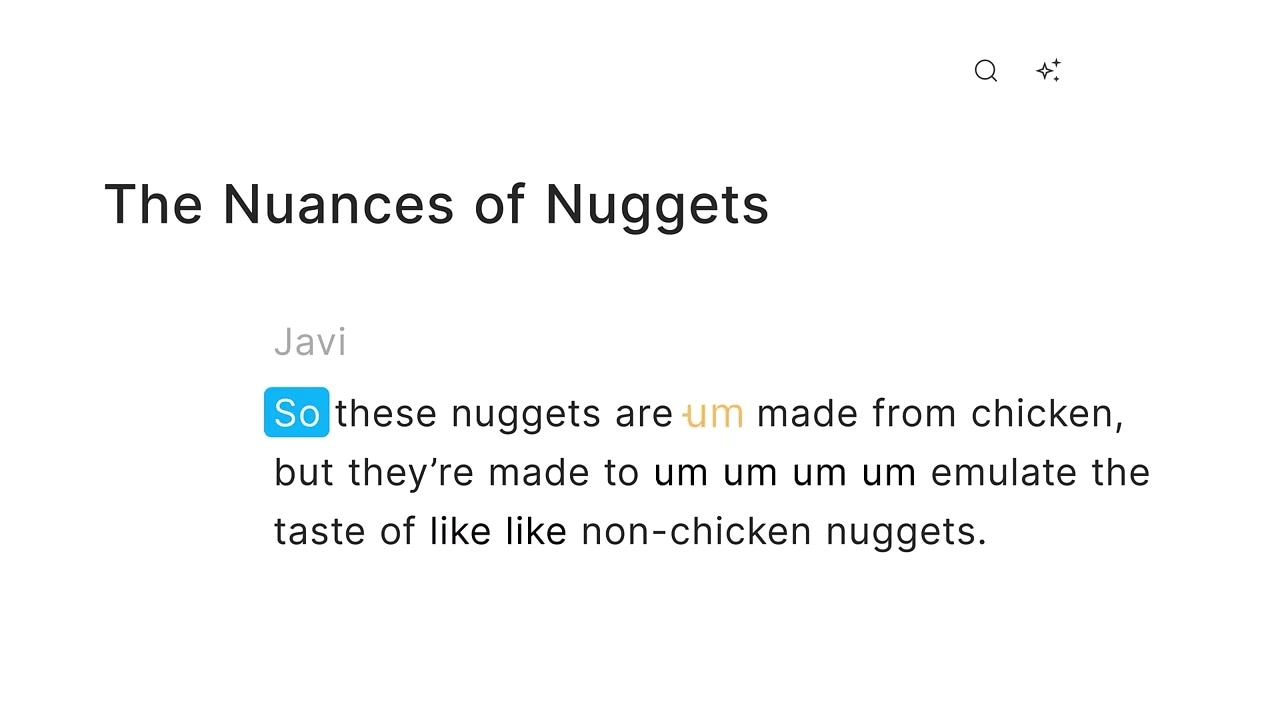
Caption: Descript's text-based video editor lets you edit clips by treating your transcript like a word document.
Adobe Podcast
You don't need a professional recording studio to get crisp, high-quality audio. If your footage was captured on a cheap phone microphone, in a bad recording environment, or in a room with severe background noise, Adobe Podcast will make it sound like it was recorded on high-end studio gear.
Try it here: Try Adobe Podcast →
How to Clean Up Messy Audio in Seconds
I tested this tool using a voice memo recorded on my phone in a room with an annoying vacuum cleaner running directly in the background. Here is exactly how to do it:
- Access the Website: Open the web platform and scroll down to locate the Enhance Speech tool.
- Upload Your Audio: Click upload to select your raw audio file.
- Wait for Processing: Let the AI analyze and filter your track. It takes less than 30 seconds to clean the entire vocal profile.
- Compare the Difference: Hit play on the output and toggle the "Enhance Speech" switch on and off to hear the original track instantly transform into a crisp, background-noise-free vocal cut.
Caption: The web-based Adobe Podcast tool processes raw audio tracks and strips out intense background noise like vacuums and echo.
Gling
If you are like me and hate the mind-numbing process of weeding out mistakes at the very start of your editing process, Gling is a must-have. Gling is a specialized desktop app that automates the raw cutting phase of editing by identifying and deleting silent pauses and duplicate, failed takes.
Try it here: Try Gling →
Before I added Gling to my workflow, it would take me one to two hours at the beginning of every single project to manually find and delete bad takes, pauses, and mistakes. With Gling, this entire sequence is automated and takes less than five minutes. It has one of the smartest algorithms on the market for analyzing which take was the correct one to keep.
How to Use Gling for Instant Rough Cuts
- Import Raw Clips: Drag and drop your raw video or voiceover file directly into the Gling desktop dashboard.
- AI Analysis: Gling transcribes your entire video file and runs its cut-detection algorithm.
- Automatic Slicing: The tool instantly flags and deletes every silent gap and failed attempt.
- Review and Export: Fine-tune any of the cuts inside Gling's interface, then export your clean rough cut directly to your main timeline editor.
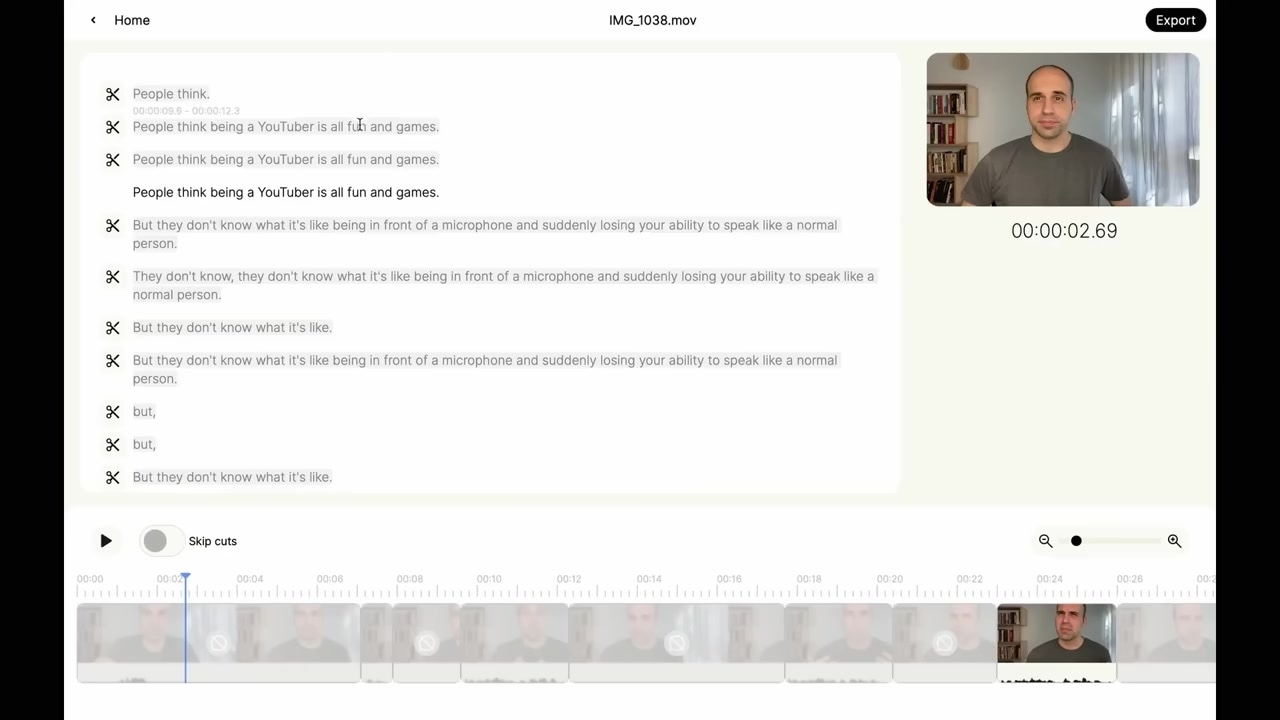
Caption: Gling analyzes your audio transcript, highlights incorrect takes and silences, and lets you cut them all out in one click.
FireCut
FireCut is a powerful AI video editing plugin that operates directly inside Adobe Premiere Pro and DaVinci Resolve. Rather than editing in an isolated external app, FireCut lets you keep your existing project file open and automates the visual styling and editing tasks that typically take hours of manual clicking.
Try it here: Try FireCut →
I use FireCut to apply professional, high-energy finishing touches to my videos. Some of my favorite features include:
- Auto Zoom Cuts: It automatically zooms in on a speaker's face during key moments to emphasize important statements and inject energy into the edit.
- Smart Chaptering: The AI reads the context of your video and generates accurate chapter title screens, cutting them directly into the timeline at the perfect structural transition points.
- Automated B-Roll Finder: FireCut can analyze your voiceover context and automatically select and overlay secondary video clips to keep viewers engaged.
My FireCut B-Roll Workflow
When testing FireCut with a raw, 30-minute podcast project in Premiere Pro, here is how I automated the b-roll overlay process:
- Open the Panel: Open the FireCut extension on the left-hand side of your Premiere Pro interface.
- Find B-roll: Select the Find B-roll tool from the menu options.
- Contextual Analysis: Wait for the AI to analyze your audio track to understand what you are talking about.
- Automatic Timeline Overlay: The tool hand-picks and cuts context-relevant B-roll footage directly onto your timeline at strategic moments.
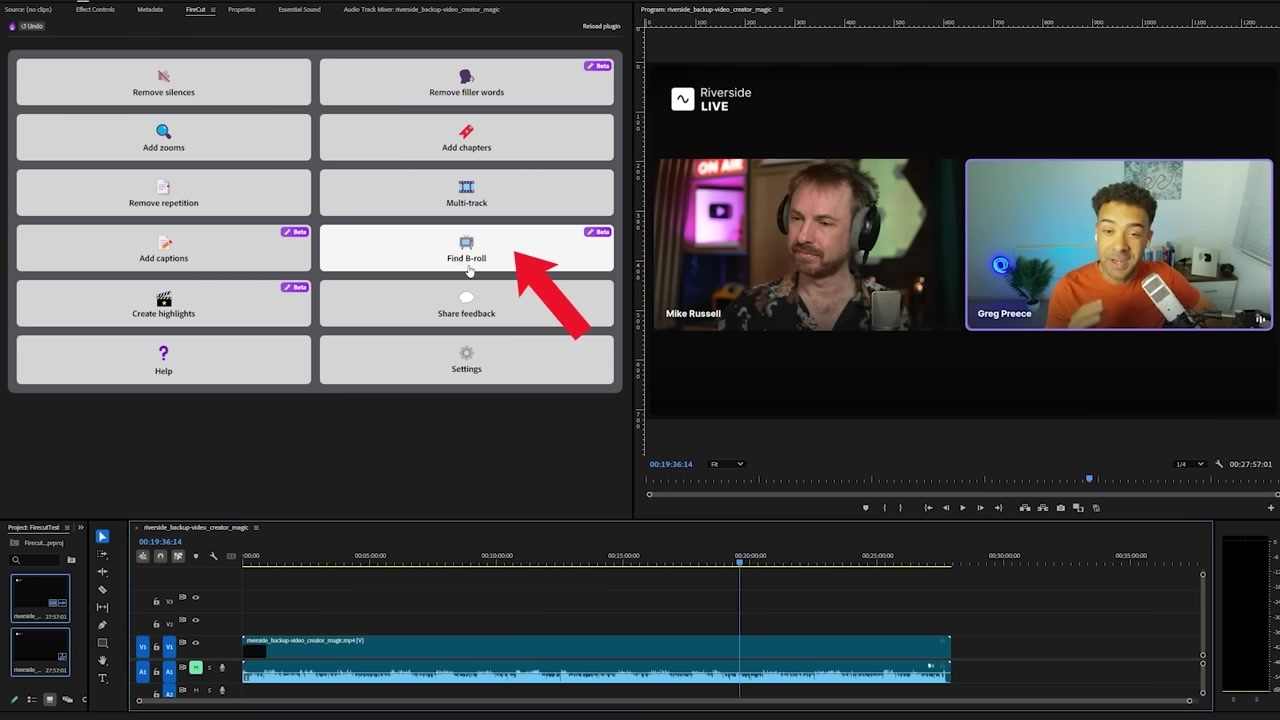
Caption: FireCut integrates directly inside your editing software, allowing you to add zoom transitions, chapters, and b-roll clips without leaving your timeline.
Opus Clip
If you edit podcasts, talk shows, or live streams, Opus Clip is the ultimate tool for turning massive long-form recordings into viral social clips. The AI acts as an automated content strategist, extracting key highlights and formatting them for vertical viewing formats. It's a high-leverage tool that can help editors land a ton of client work because creators are always desperate for short-form video assets.
Try it here: Try Opus Clip →
How to Generate Social Clips with Opus Clip
- Pasting or Uploading: Paste a long-form YouTube link or upload a video file directly into the Opus Clip URL bar.
- Viral Highlight Detection: The AI analyzes your footage and uses conversational signals to identify the most engaging, hook-driven moments, assigning a "virality score" to each.
- Automated Reframing: Opus Clip automatically crops your video to a vertical format and pans to keep the active speaker perfectly centered in the frame.
- Polishing & Exporting: It automatically adds animated captions, and allows you to download your clips or schedule them to post to TikTok, YouTube Shorts, or Instagram Reels in a single click.
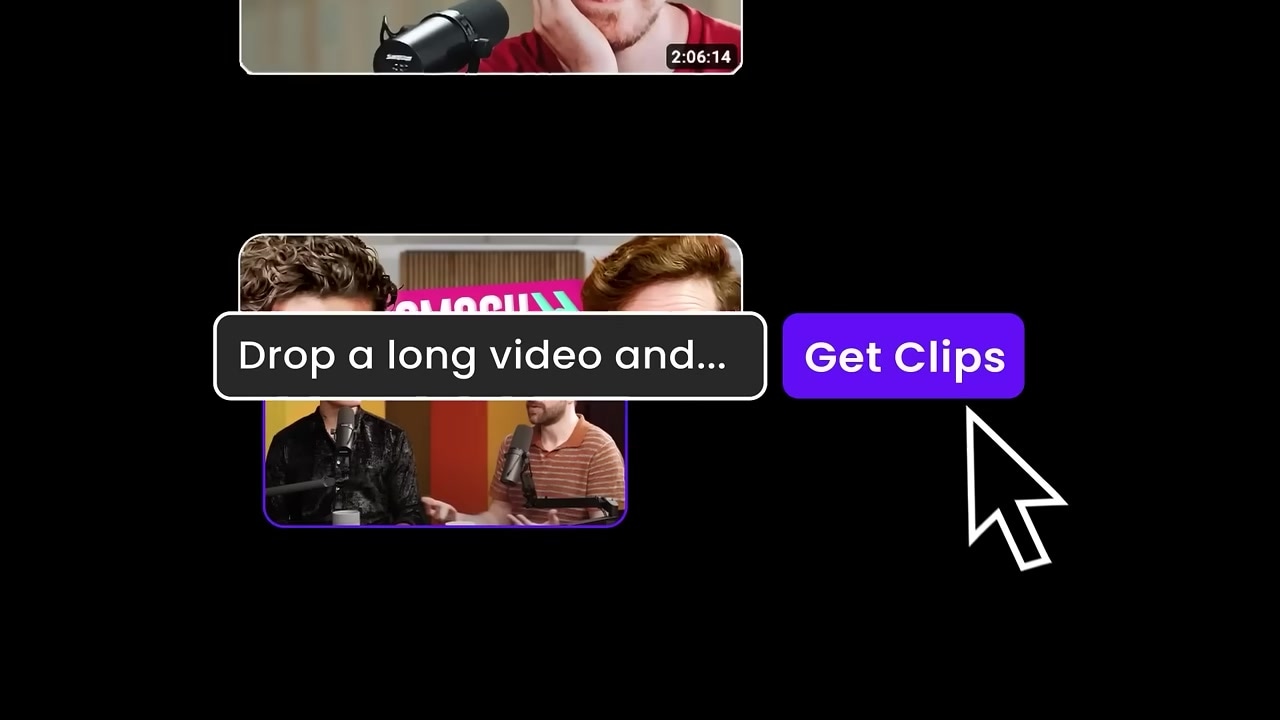
Caption: Opus Clip crops horizontal recordings to vertical, centers the active speaker, and renders animated subtitles automatically.
Frequently Asked Questions
Which AI tool is best for beginners?
Captions is the easiest tool for absolute beginners because it uses a single-click automation process to edit your video, apply captions, and add backgrounds without requiring traditional editing knowledge.
Can Gling export files to my main editing software?
Yes, Gling is designed to fit into professional workflows and allows you to export your cleaned-up timeline XML file directly to tools like Adobe Premiere Pro, Final Cut Pro, and DaVinci Resolve.
Is Adobe Podcast Enhance Speech completely free?
Adobe Podcast offers its core Enhance Speech tool for free on its web platform, allowing you to clean up voice recordings with standard daily limits on file sizes and durations.