I Tested the Best AI Video Editing Apps (That Save Me Hours)
Last updated: July 2026
Author: Greg Preece — I test AI video tools hands-on to find workflows that save creators hours, and I show people how to get professional results fast.
Video editing allows you to work from anywhere, but the manual grind of cutting, polishing, and formatting can eat up your entire day. If you want to increase your output and scale your income, utilizing automated video editing tools is no longer optional—it is essential.
After trying nearly all of the AI video editors on the market, I have narrowed down the list to the four absolute best tools that speed up video editing with AI, saving me hours on every project.
TL;DR: Which AI Video Editing App Is Right for You?
If you are looking for a quick breakdown, here is how these top-tier AI video editors stack up based on my hands-on testing:
| Tool | Core Strength | Key AI Feature | Best For |
|---|---|---|---|
| Descript | Fixing recording mistakes & eye contact | Voice cloning, Studio Sound, Eye Contact correction | Talking-head creators & podcasters |
| FireCut | Dynamic timeline edits & visual pacing | Auto-zooms, automated chapter screens | Premiere Pro & DaVinci Resolve editors |
| Opus Clip | Long-to-short form repurposing | Viral hook detection, auto-reframing | Content repurposers & social managers |
| Gling | Rapid rough cuts & mistake removal | Bad take deletion, silence cleaning | Solo creators recording multiple takes |
- Descript: Best for document-style editing, fixing audio, and correcting gaze direction.
- FireCut: Best plugin-based editor for adding visual energy and chapters.
- Opus Clip: Best for automated short-form vertical video generation.
- Gling: Best for cutting bad takes and silences in seconds.
Prefer to watch? Here's the video. Prefer to skim? The full breakdown is below.
Quick Links to the Tools
- Descript: Try it here: Try Descript →
- FireCut: Try it here: Try FireCut →
- Opus Clip: Try it here: Try Opus Clip →
- Gling: Try it here: Try Gling →
1. Descript: The Text-Based Editor for Fixing Audio & Eye Contact
Descript is a brilliant choice for creators and editors who dread dealing with mistakes in their raw recordings. Instead of hacking away at a traditional video timeline, Descript transcribes your footage and allows you to edit the video by editing the text transcript.
If you say "um" or "ah" twenty times, the AI identifies and removes those filler words automatically. It also features a one-click audio cleanup tool called Studio Sound, which takes low-quality audio recorded on cheap microphones or in noisy rooms and boosts the quality to sound like it was captured in a professional studio.
But where Descript truly shines is its ability to create digital voice clones. If a speaker makes a factual mistake, you do not need to schedule a re-shoot. You can simply highlight the wrong word in the transcript, type in what they meant to say, and the AI will insert a realistic cloned version of their voice to fix the mistake.
Additionally, Descript's Eye Contact effect automatically adjusts the speaker's gaze. If you read your script off to the side, Descript redirects your pupils so you appear to be looking directly at the lens.
Try it here: Try Descript →
How to Use Descript's AI Features
- Import your footage: Drop your video file into Descript to automatically generate an accurate text transcript.
- Remove filler words: Navigate to the AI actions menu and click to delete all "ums," "ahs," and repetitive verbal clutter instantly.
- Enhance audio: Click "Studio Sound" to remove background noise and apply professional audio leveling.
- Fix script mistakes: Highlight a misspoken word, select the voice generation tool, and type the correction to generate cloned audio that matches the original speaker.
- Apply Eye Contact correction: Select the video track and turn on the Eye Contact effect to look directly at the camera.
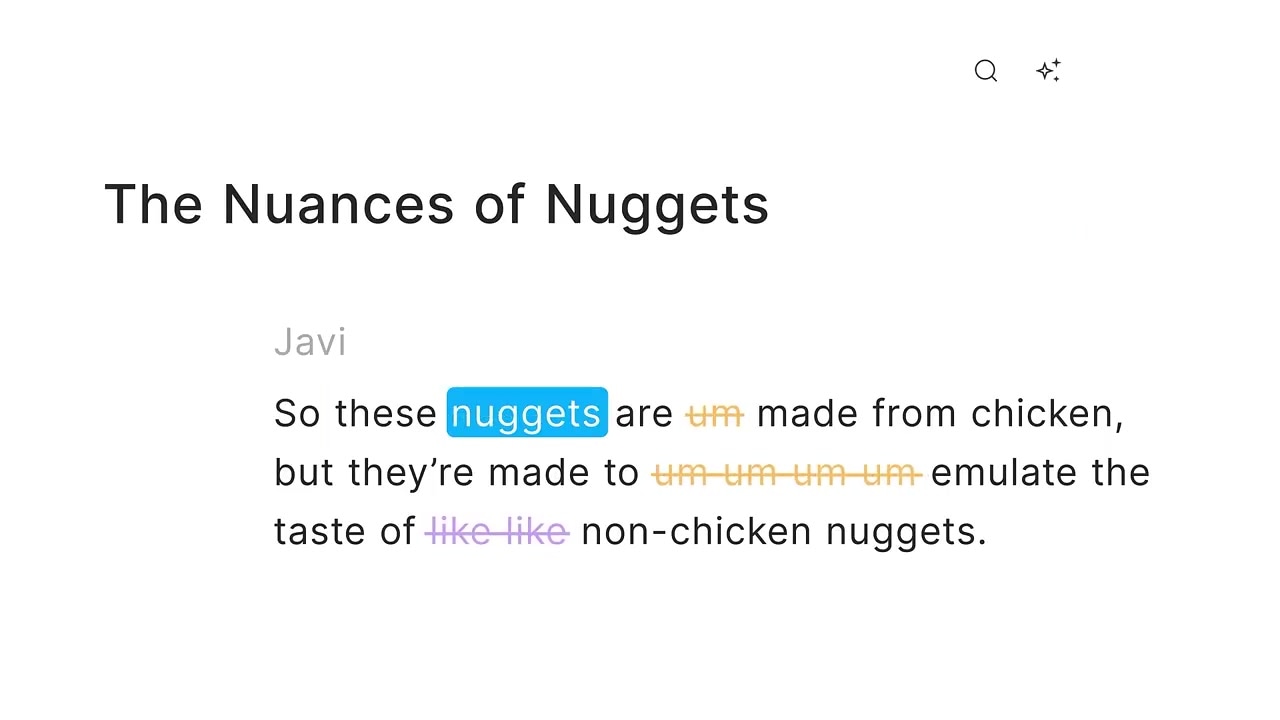
Caption: Descript's text-based video editor lets you trim footage and fix misspoken words by editing the transcript like a document.
2. FireCut: The Best Plugin for Auto-Zooms and Chapters
FireCut is an indispensable assistant that integrates directly into your existing video editing workflow. Rather than operating as a standalone application, it functions as a highly capable plugin for Adobe Premiere Pro and DaVinci Resolve.
I love using FireCut to apply the final, energy-boosting touches to an edit. The tool automatically detects highlights and critical talking-head moments, then applies subtle camera zooms to add visual variety. This mimics a multi-camera setup and keeps viewers engaged.
FireCut also analyzes the subject matter of your footage and automatically generates beautifully animated chapter screens. This divides long videos into structured, digestible parts, which keeps viewers watching longer. It handles the highly repetitive, tedious visual adjustments that normally eat up the end of your workflow, making it a stellar time saver.
Try it here: Try FireCut →
How to Use FireCut
- Open the plugin: Launch FireCut inside Adobe Premiere Pro or DaVinci Resolve.
- Set up Auto-Zooms: Select your talking-head track and choose the intensity of your cuts; the AI will slice and scale your footage at key talking points.
- Generate chapters: Run the chapter generator to let the AI analyze the audio, segment the timeline, and insert customized text chapter graphics automatically.
3. Opus Clip: Turn Long-Form Content into Viral Shorts
If you need to repurpose landscape videos into highly shareable, vertical micro-content, Opus Clip is unmatched. This cloud-based tool is a favorite for podcasters, live streamers, and video editors looking to deliver short-form assets to clients.
The AI analyzes your long video, extracts the most engaging highlights, and packages them into standalone clips. It handles the reframing automatically—even with multiple speakers, the camera dynamically tracks who is talking to keep them in focus.
Opus Clip also auto-generates animated subtitles, which are essential for silent-scrolling feeds like TikTok, Instagram Reels, and YouTube Shorts. You can export clips in both standard horizontal or vertical 9:16 aspect ratios, making content distribution simple and scalable.
Try it here: Try Opus Clip →
How to Use Opus Clip
- Upload your media: Paste a YouTube link or drag your raw landscape video file into the Opus Clip dashboard.
- Choose your format: Specify whether you want vertical clips for TikTok/Shorts or standard horizontal clips.
- Analyze and review: Let the AI index the footage, assign virality scores, crop the frame to track speakers, and generate styled captions.
- Export: Tweak individual captions if needed, then export the finished clips directly or schedule them to post.
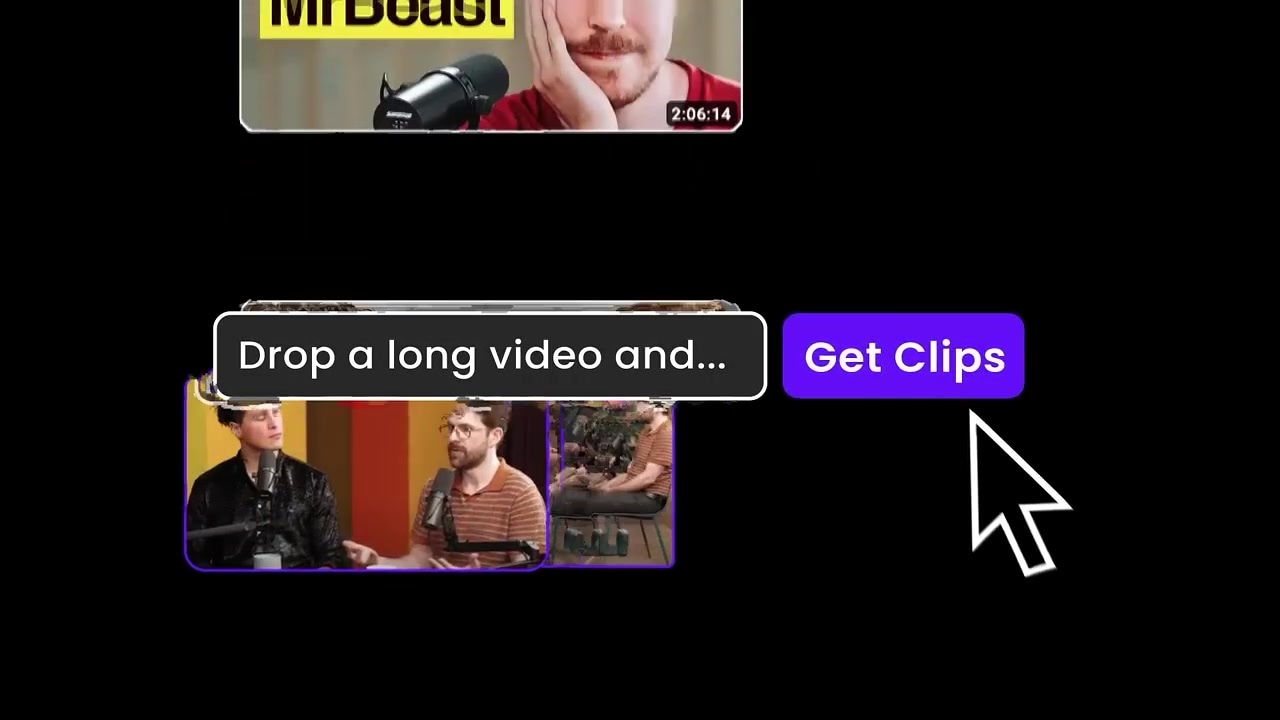
Caption: Opus Clip automatically reframes landscape video to a vertical format while keeping the speaker centered and generating smart, animated subtitles.
4. Gling: The Best Silence and Bad Take Remover
Saving the best for last, Gling is the application that saves me the absolute most time of all. If you are a solo creator who makes talking-head videos, you know how exhausting it is to record a script, make mistakes, pause, and try again.
Gling resolves this problem. It is a standalone app designed specifically to handle your rough cut. It scans your footage and automatically removes all of your unwanted long silences, pauses, and—most importantly—your failed takes.
If you mess up a line three times, Gling identifies the bad takes, keeps the final correct one, and deletes the rest.
It is incredibly accurate and has completely changed my editing workflow. Gling saves me around two to three hours on every video I edit. It is so efficient that it has effectively replaced Adobe Premiere Pro for my initial rough cut.
Try it here: Try Gling →
How to Use Gling
- Upload raw footage: Drag your unedited recording directly into the Gling desktop application.
- Review the cuts: The AI automatically identifies silences and bad takes, highlighting them on the timeline for review.
- Clean in one click: Confirm the cuts and let the AI remove all unwanted empty space and failed attempts.
- Export your timeline: Export your polished rough cut as a completed video, or send it directly to your NLE of choice (Premiere Pro, DaVinci Resolve, or Final Cut Pro) via an XML file.
Frequently Asked Questions
What is the best AI video editing app for beginners?
Descript is highly recommended for beginners because its text-based interface operates just like editing a text document. If you can edit a word file, you can edit video with Descript.
Can Gling export files to professional video editing software?
Yes. Gling is not meant to lock you in. Once Gling finishes removing your bad takes and silences, you can export your clean timeline as an XML file directly into Adobe Premiere Pro, DaVinci Resolve, or Final Cut Pro to complete your creative edits.
Does Opus Clip support horizontal video?
Yes. While Opus Clip is highly popular for generating vertical 9:16 videos for TikTok and YouTube Shorts, it also allows you to extract short highlights in standard 16:9 horizontal formats.