AI Video Editing Hacks: How I Cut My Editing Time by 90%
Last updated: July 2026
Author: Greg Preece — I test AI video tools hands-on to help creators streamline their post-production workflows and get professional results fast.
Manual video editing is a massive time sink that drains creator energy before their videos even go live. By shifting your workflow to document-style, AI-driven editing, you can slash hours of tedious timeline dragging into minutes. Here are the five exact AI video editing hacks I used to trim my editing process from 10 hours down to less than one.
Quick Summary: The 90% Time-Saving Cheat Sheet
If you are still cutting waveforms frame-by-frame, you are wasting valuable hours. By utilizing an automated video editing workflow, you can handle complex edits with simple text commands.
| AI Video Editing Hack | What It Replaces | Real-World Time Saved | Key Feature to Use |
|---|---|---|---|
| Text-Prompt Fixes | Manual gaze matching & multi-band EQ adjustments | Minutes per clip | Descript Underlord & Eye Contact AI |
| Instant Speech Correction | Costly audio punch-ins and video reshoots | 10–15 minutes per mistake | Overdub / Regenerate |
| Automated B-Roll Sourcing | Hours searching through stock video websites | 1–2 hours per project | Underlord Generative Visuals |
| One-Click Filler Word Removal | Slicing out "ums," "ahs," and "likes" manually | 30–60 minutes per video | Remove Filler Words tool |
| Blazing-Fast Silence Cutting | Manually trimming gaps and dead air pauses | 4 minutes cut in seconds | Shorten Word Gaps |
Prefer to watch? Here's the video. Prefer to skim? The full breakdown is below.
Descript: Try it here: Try Descript →
How I Discovered These AI Video Editing Hacks
Editing can't be avoided when creating high-quality videos, but the process of building a rough cut always seems to take hours. That is why integrating AI into your video editing toolkit is so critical—it makes post-production incredibly fast.
There are hundreds of AI editing tools available today. After testing dozens of them hands-on, I've narrowed down my workflow to five time-saving techniques that deliver a 900% increase in editing efficiency. Here is exactly how to execute each of them.
Hack 1: Text-Prompt Eye Contact and Audio Correction
One of the most frustrating parts of recording video is looking away from the camera—whether you are reading a script, looking at notes, or simply letting your eyes wander. Traditionally, this required doing an entirely new take or trying to cover the jump cut with B-roll.
By using an AI eye contact tool, you can automatically redirect your gaze back to the camera lens.
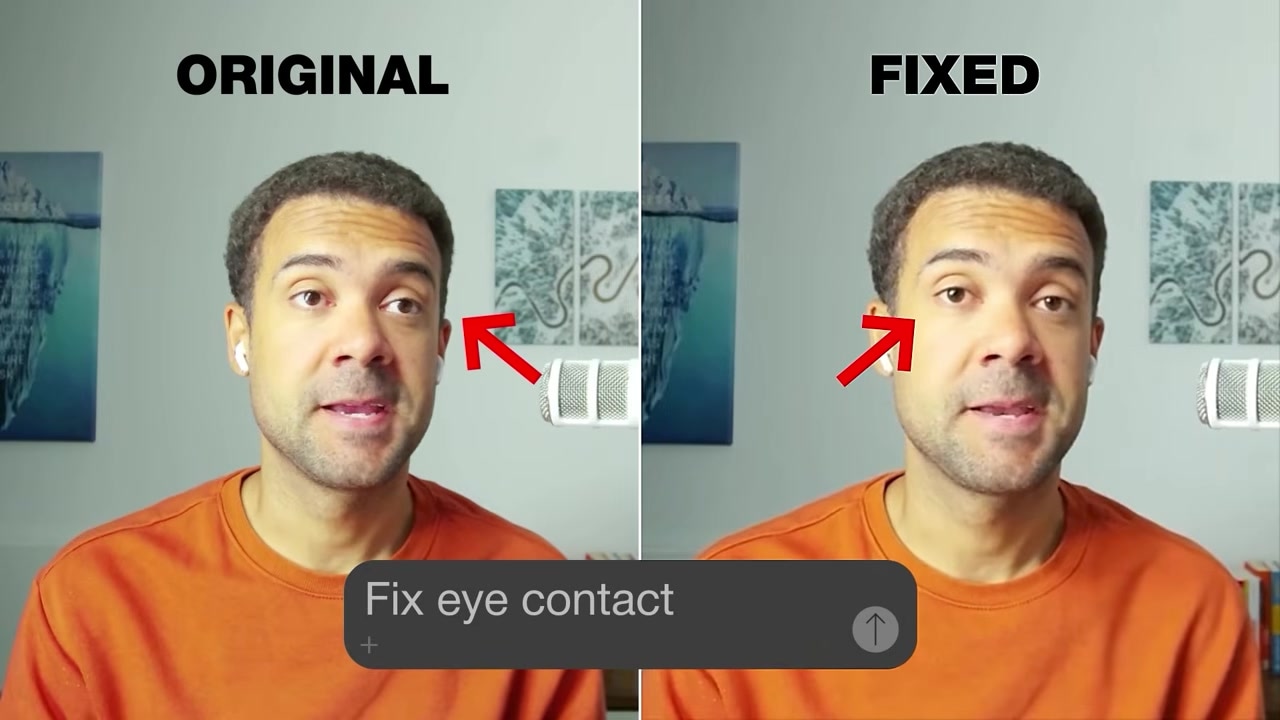
Caption: Adjusting an off-camera gaze to look directly at the viewer with a single command.
Additionally, you can use conversational text prompts to clean up low-quality audio. Instead of loading complex compressor, limiter, and EQ plugins, you can direct the AI to clean up the sound profile for you.
How to do it:
- Open your project inside the Descript Underlord sidebar.
- Type a natural language command into the prompt box (e.g., "Fix my eye contact").
- To repair poor audio, type: "Improve the quality of the audio and increase the volume by 50%".
- Press submit and let the AI process the changes in the background.
Within seconds, the AI redirects your gaze and automatically applies studio-quality background noise removal and volume leveling.
Hack 2: Instant Speech Correction (No More Reshoots)
We all make speaking mistakes. If you accidentally say the wrong word or mispronounce a crucial term, correcting it usually means setting up your camera again, matching the lighting, and recording a punch-in line.
Instead, you can use generative voice cloning to edit video with text prompts directly on the transcript.
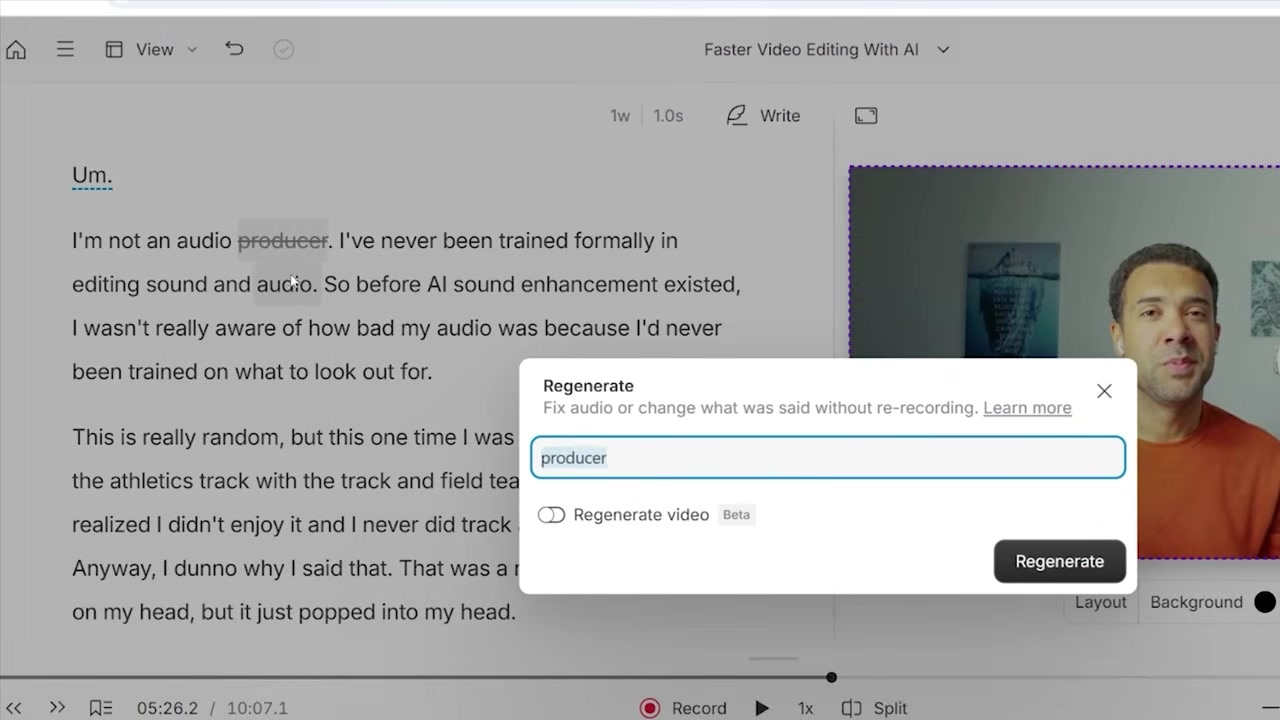
Caption: Swapping out spoken mistakes by typing the correct words directly into the text transcript.
How to do it:
- Highlight the incorrect word in your generated transcript (for example, if you said "producer" but meant "editor").
- Choose the speech replacement option.
- Type the correct word into the text-entry field.
- Let the AI generate the corrected speech using your cloned voice profile (using Descript's Overdub or Regenerate technology).
While the synthetic speech generation may not always be 100% flawless for long paragraphs, it is incredibly realistic for quick single-word corrections. It prevents you from having to slice, cut, and paste audio patches manually.
Hack 3: Hands-Free B-Roll Sourcing
Adding B-roll is essential for keeping viewers engaged, but finding the right visual assets is tedious. It traditionally requires filming extra footage or spending hours sorting through paid stock video libraries.
With a modern AI workflow, you can delegate the visual search to an AI agent.
Caption: Descript Underlord analyzing the video script to automatically populate placeholder slots with matching stock footage.
How to do it:
- Highlight sections of your script or set visual placeholders where you want B-roll to appear.
- Ask the AI co-editor: "Add stock footage everywhere there's a placeholder in my edit".
- Click submit.
The AI analyzes the context of your spoken words, finds highly relevant clips, and drops them directly onto your video timeline. No manual searching or licensing required.
Hack 4: One-Click Filler Word Removal
Unwanted filler words like "um," "uh," "like," and "so" clutter your delivery and make your videos drag. Manually slicing out hundreds of these micro-gaps can easily eat up an hour of your editing session.
With a document-style video editing interface, removing these hesitations takes exactly one click.
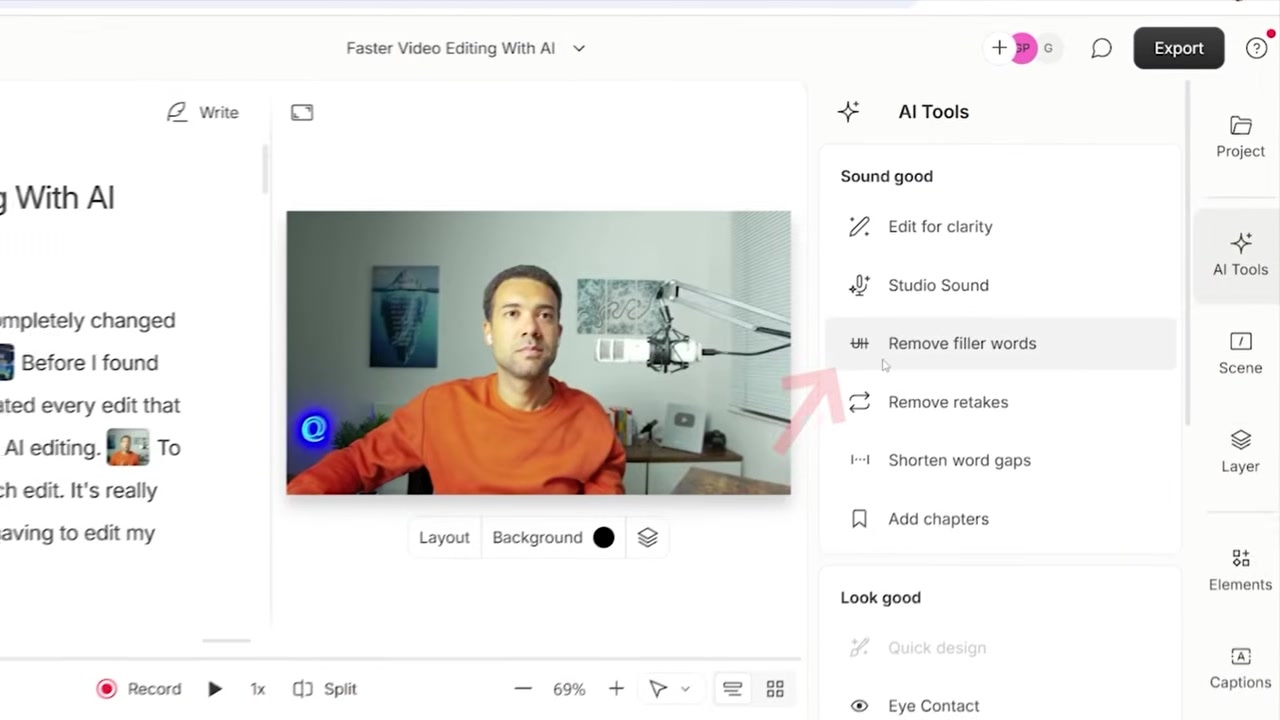
Caption: Identifying and bulk-deleting repetitive filler words to clean up your video pacing instantly.
How to do it:
- Navigate to the AI Actions menu or click the dedicated Remove Filler Words tool.
- Review the list of detected filler words highlighted by the software.
- Select "Remove All."
The AI cuts the filler words and cleanly joins the remaining video clips together, leaving you with a tight, fast-paced, professional cut in seconds.
Hack 5: Blazing-Fast Silence Cutting
Cutting out silent pauses is one of the most repetitive tasks in video post-production. Trimming a single awkward pause takes about 15 seconds. If you have 300 to 400 silences in a raw 10-minute file, you are looking at hours of manual timeline slicing.
By leveraging an AI assistant, you can automate this entire cleanup process with a text prompt.
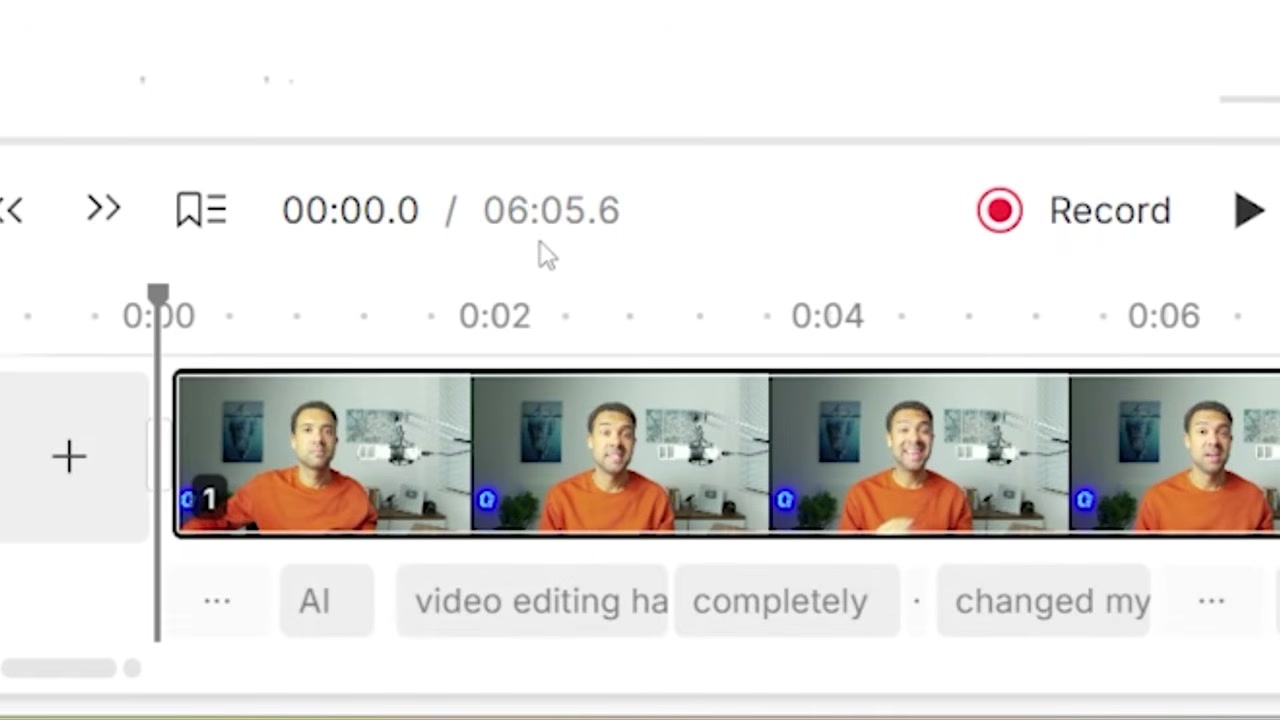
Caption: Trimming down a 10-minute raw cut to a concise 6-minute edit by letting the AI remove dead space.
How to do it:
- Open the conversational AI co-editor.
- Enter the prompt: "Remove all the silences".
- Press submit.
In my test, the AI analyzed a raw video that was 10 minutes and 7 seconds long. Within moments, it automatically slashed 4 minutes of dead space, resulting in a tight 6-minute and 5-second rough cut. Doing this manually would have taken dozens of tedious timeline cuts.
Step-by-Step: Setting Up Your First AI-Assisted Edit
If you want to start saving hours on your edits, transitioning to an AI-assisted workspace is incredibly straightforward.
[Import Raw Footage]
       │
       ▼
[Auto-Transcribe to Text]
       │
       ▼
[Open Descript Underlord Sidebar]
       │
       ▼
[Run Bulk Actions: Remove Filler Words & Silences]
       │
       ▼
[Refine with Prompts: Fix Eye Contact & Squeeze Audio]
       │
       ▼
[Export Finished Cut]
1. Upload Your Media
Drag and drop your raw video or audio files directly into the editor. The software will automatically transcribe your video into an interactive document.
2. Run the Cleanup Scripts
Use the quick actions menu to execute filler word and silence removal. This instantly strips out the baseline fluff from your video.
3. Polish Your Delivery Using Text Prompts
Open the conversational sidebar and use natural language prompts to fix mistakes. If you misspoke, type in the corrected text. If your gaze wandered, let the AI adjust your eyes.
4. Let the AI Source Your Visuals
Use the prompt box to automatically add context-aware B-roll, templates, or captions to make your video highly engaging.
If you are ready to stop dragging audio blocks on a timeline, try it for yourself: Try Descript →
Frequently Asked Questions
Does AI video editing replace the need for professional editors?
No. AI is exceptional at automating the highly repetitive, tedious tasks of editing—like removing silences, cutting filler words, and sourcing basic stock footage. However, human editors are still vital for creative storytelling, pacing, emotional nuance, and high-level structural decisions.
How accurate is the speech correction feature?
The generative speech replacement (voice cloning) is highly accurate for short phrases or single-word corrections. While it may occasionally sound slightly synthetic on longer blocks of text, it is more than adequate for fixing minor speaking mistakes without requiring a full reshoot.
Can I run these text-prompt edits on other editing suites like Premiere Pro or DaVinci Resolve?
While tools like Premiere Pro and DaVinci Resolve have introduced basic text-based editing and AI transcriptions, the advanced, agentic, conversational text-prompt capabilities (where you can instruct an AI assistant to apply multiple complex edits via chat) are currently best executed inside platforms like Descript.