I Tested the Best AI Video Editor for Social Media: My Descript Workflow
Last updated: July 2026
Author: Greg Preece — I test AI video tools hands-on to help creators and businesses build automated, scalable content workflows.
If you want to grow a business online today, posting video content once a month won't cut it. To build a system that allows you to publish high-quality social media videos daily, you need an editor that handles repetitive, time-consuming tasks automatically. Here is how I use Descript to cut my editing time by up to 95% and put my production on autopilot.
Quick Summary
- What is it? Descript is an AI-powered, text-based video editing software designed for businesses and creators.
- Key Outcome: By editing your video like a text document and utilizing AI automation (like automatic multicam, eye contact correction, and instant translation), you can save up to 95% of your editing time.
- Who is it for? Social media marketers, podcasters, and content teams who need to scale their output to daily publishing without hiring massive editing agencies.
Table of Contents
- Why Daily Video Publishing Demands AI Automation
- 1. Automatic Multicam: Edit Podcasts in One Click
- 2. Prompt-Based Editing: Run Bulk Edits with AI Instructions
- 3. AI Eye Contact: Realign Your Gaze to the Lens
- 4. Video Regenerate: Fix Verbal Slips and Lip-Sync Instantly
- 5. AI Video Translator: Dub and Lip-Sync Into 25+ Languages
- 6. One-Click Repurposing: Convert Video to Blog and Social Posts
- Is Descript Worth It? The Verdict
- Frequently Asked Questions
Prefer to watch? Here's the video. Prefer to skim? The full breakdown is below.
Quick Link
Try it here: Try Descript →
Why Daily Video Publishing Demands AI Automation
Social media marketing advice constantly repeats the same baseline: if you only post once a month, you are invisible. To get noticed, build momentum, and drive leads, you need to publish content consistently—ideally every single day.
But daily video creation is an absolute grind if you are stuck with manual, timeline-based editing software.
This is where AI-powered automation changes the game. Modern AI-powered video editing software isn't just about novelty filters; it is about completely taking over the repetitive, time-sucking parts of the post-production pipeline. When I edit my marketing videos, I look for tools that don't just speed up my work, but completely systemize it.
After testing multiple video editors, I've found that Descript offers the most practical, beginner-friendly AI tools to automate editing tasks completely. By editing your video by editing text transcripts, you can bypass the traditional timeline entirely.
Here is exactly how I use Descript's primary AI features—powered by its built-in AI assistant, Underlord—to edit my recordings and podcasts up to 95% faster.
1. Automatic Multicam: Edit Podcasts in One Click
When you record a multi-person video podcast, syncing and switching between cameras manually is a tedious process. Traditionally, you would have to lay down multiple video tracks, synchronize the audio, and manually cut back and forth between speakers throughout the entire recording.
I loaded a podcast project into Descript featuring myself and my co-host Mike to see how the software handles this. On import, Descript placed our recordings side-by-side on the canvas and synced the timing automatically. However, a split-screen is not how modern podcasts are formatted.
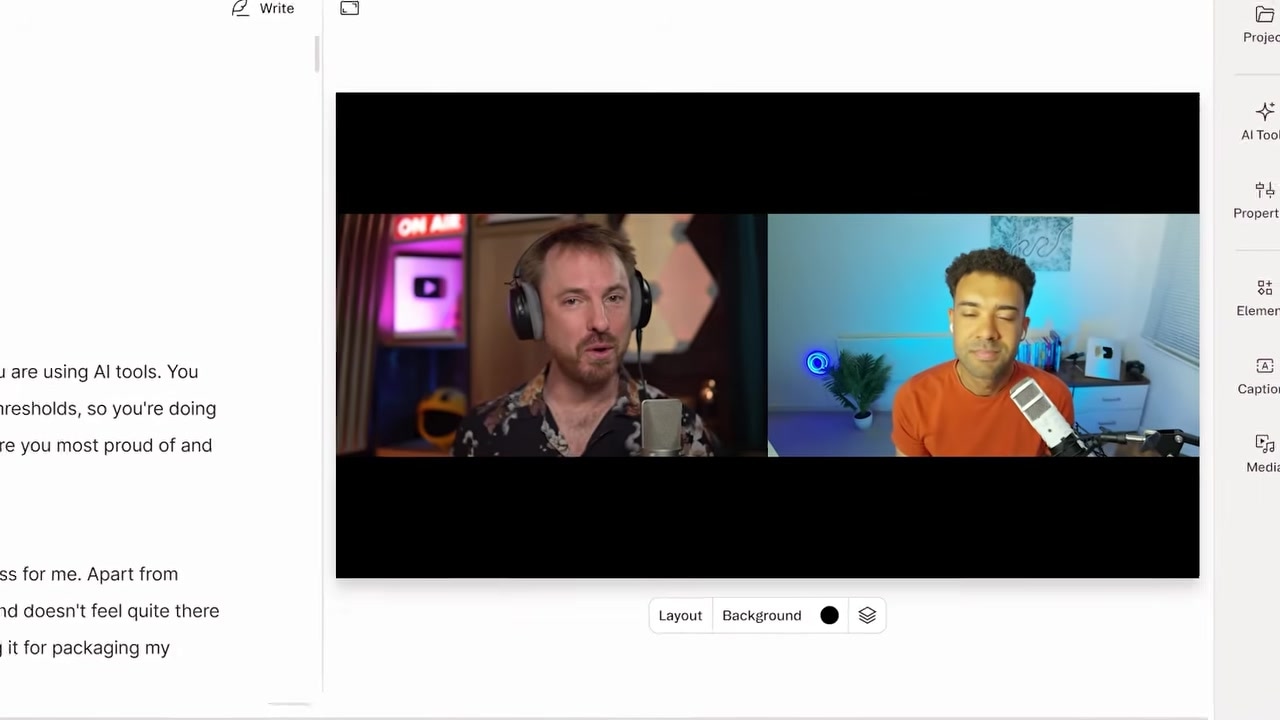
Caption: The raw podcast recording loaded side-by-side in Descript before running any automations.
To clean this up automatically, I used Descript's Automatic Multicam tool:
- Click on the AI Tools icon (or access Underlord's actions menu) in the editor window.
- Select Automatic Multicam.
- Confirm your selection.
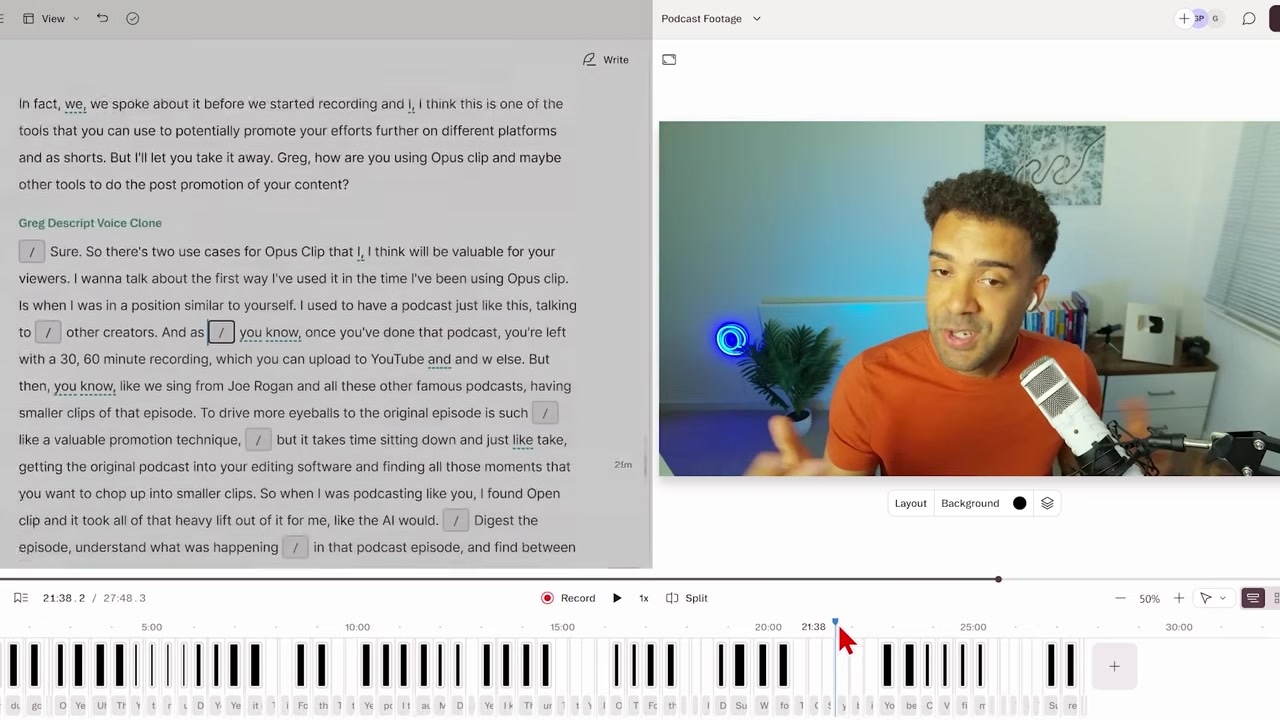
Caption: Running Automatic Multicam dynamically cuts the video to focus on whoever is speaking.
The Outcome: Almost instantly, Descript analyzed the audio, identified who was speaking at any given moment, and dynamically edited the video to jump between camera angles. It replaces the split-screen view with a clean, professional podcast format where only the active speaker is on screen.
2. Prompt-Based Editing: Run Bulk Edits with AI Instructions
Most of your post-production time is lost to small, repetitive edits: cutting out long pauses, slicing out bad takes, removing verbal filler words, and manually balancing your audio quality.
Instead of scrubbing through a timeline to make these cuts, I use Descript's prompt-based chat interface. I imported a raw five-minute recording and tested my standard bulk editing template.
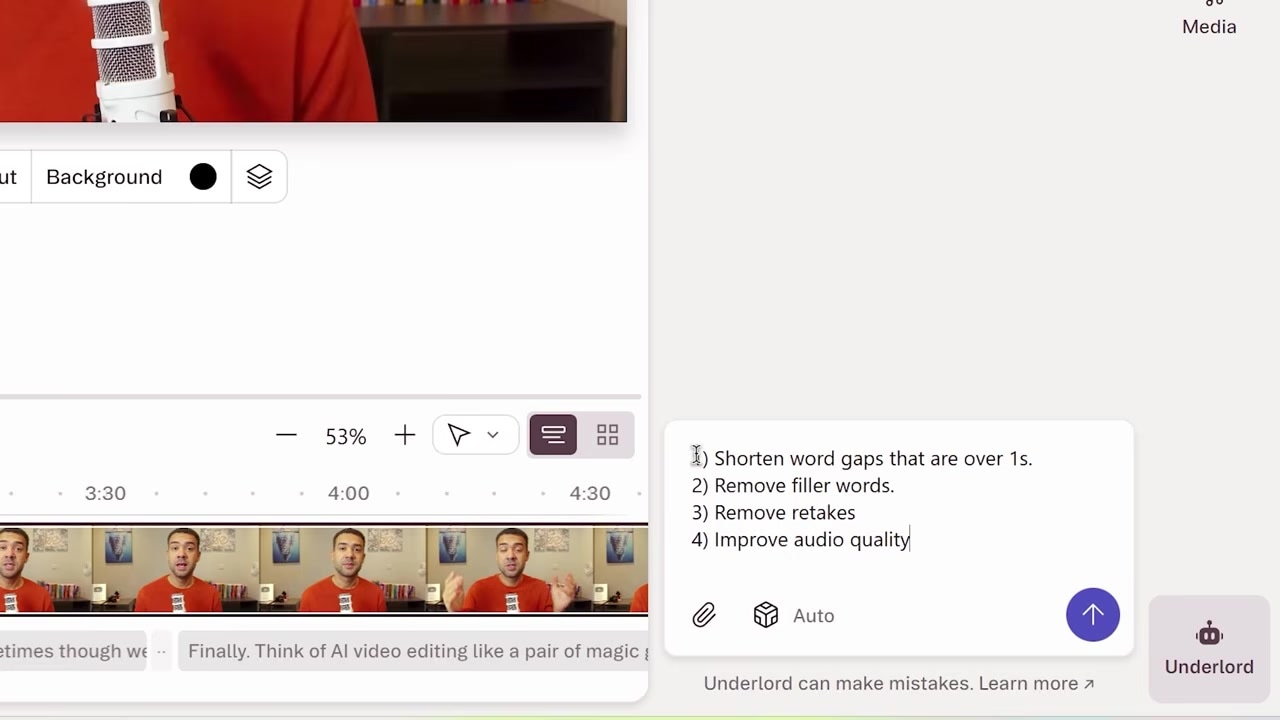
Caption: Pasting a pre-saved list of prompt instructions into the AI chat box to automate bulk edits.
Here is how you can use this prompt-based editing workflow:
- Open your raw project and locate the chat input box at the bottom of the script interface.
- Paste in your custom, pre-saved list of editing instructions. My go-to template looks like this: "Remove any pauses, remove any mistakes, and fix the audio quality."
- Press enter and let the AI process the file.
Within 60 seconds, Descript ran through my entire instruction list. It cleaned up the background noise (using Studio Sound), automatically stripped out filler words like "um," and trimmed the five-minute clip down to a tight, polished three-minute video.
Best of all, this editing process is completely non-destructive. If the AI cuts a word or phrase you wanted to keep, you can simply highlight the strike-through text in your transcript and click the Undo button to restore it.
3. AI Eye Contact: Realign Your Gaze to the Lens
When you are recording marketing videos or tutorials, it is highly common to look away from the camera to check your script or reference notes. Normally, when you catch yourself doing this in post-production, your only option is to set up your gear and re-film that entire section.
I tested a moment in my raw clip where I was clearly looking down and away from the lens to read my script.
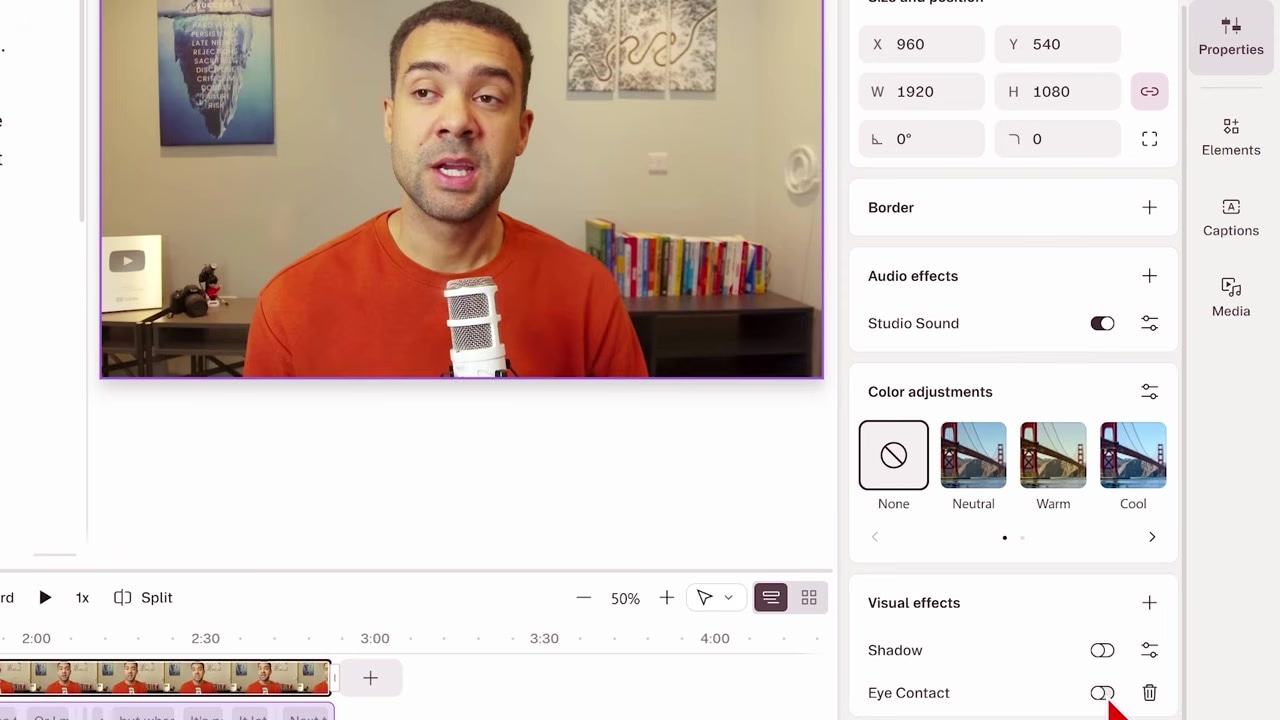
Caption: The before-and-after of the AI Eye Contact tool, which digitally realigns your gaze back to the lens.
To fix this with one click:
- Navigate to the AI Tools section on the right side of the screen.
- Toggle on the Eye Contact effect.
The Outcome: The AI instantly adjusted my gaze, shifting my pupils so that I appeared to be looking directly into the camera lens. Even though my raw expression in that exact frame was tired (making me look a little half-sleeping), the eye alignment was incredibly accurate. It completely eliminated the need for a re-shoot.
4. Video Regenerate: Fix Verbal Slips and Lip-Sync Instantly
If you slip up on a single word during an otherwise flawless video take, fixing it manually is nearly impossible. You either have to accept the mistake or re-record the entire section.
In my recording, I accidentally said "a great way to save mountain" when I meant to say "a great way to save money."
Rather than re-filming, I used Descript's Video Regenerate feature to fix both the audio and my facial movements:
- Double-click the incorrect word ("mountain") in your transcript.
- Select Regenerate from the context menu.
- Type the correct word ("money").
- Click submit and let the AI process the change.
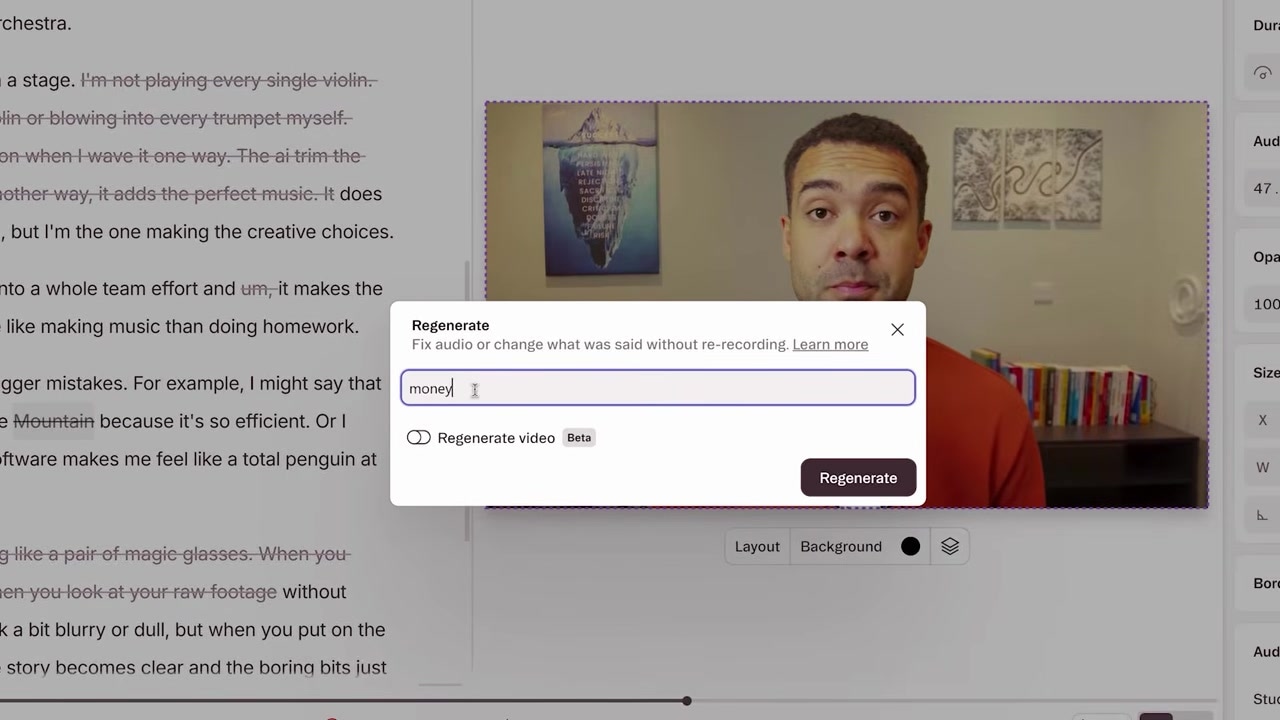
Caption: Highlighting a verbal slip-up, typing the correction, and regenerating the voice and lip-sync seamlessly.
The Outcome: The AI generated a near-perfect clone of my voice to speak the word "money" in my exact cadence. At the same time, it dynamically edited my mouth movements on screen, morphing my lips to match the new word. While it might not be 100% physically flawless under microscopic scrutiny, it is highly convincing and more than good enough to prevent a costly and tedious re-shoot.
5. AI Video Translator: Dub and Lip-Sync Into 25+ Languages
Expanding your business into international markets has historically been incredibly expensive. You had to pay high-ticket agencies to translate scripts, hire local voice actors for dubbing, or hire actors to re-shoot the videos entirely.
To bypass this cost, I tested Descript's translation suite to translate my English video into Chinese.
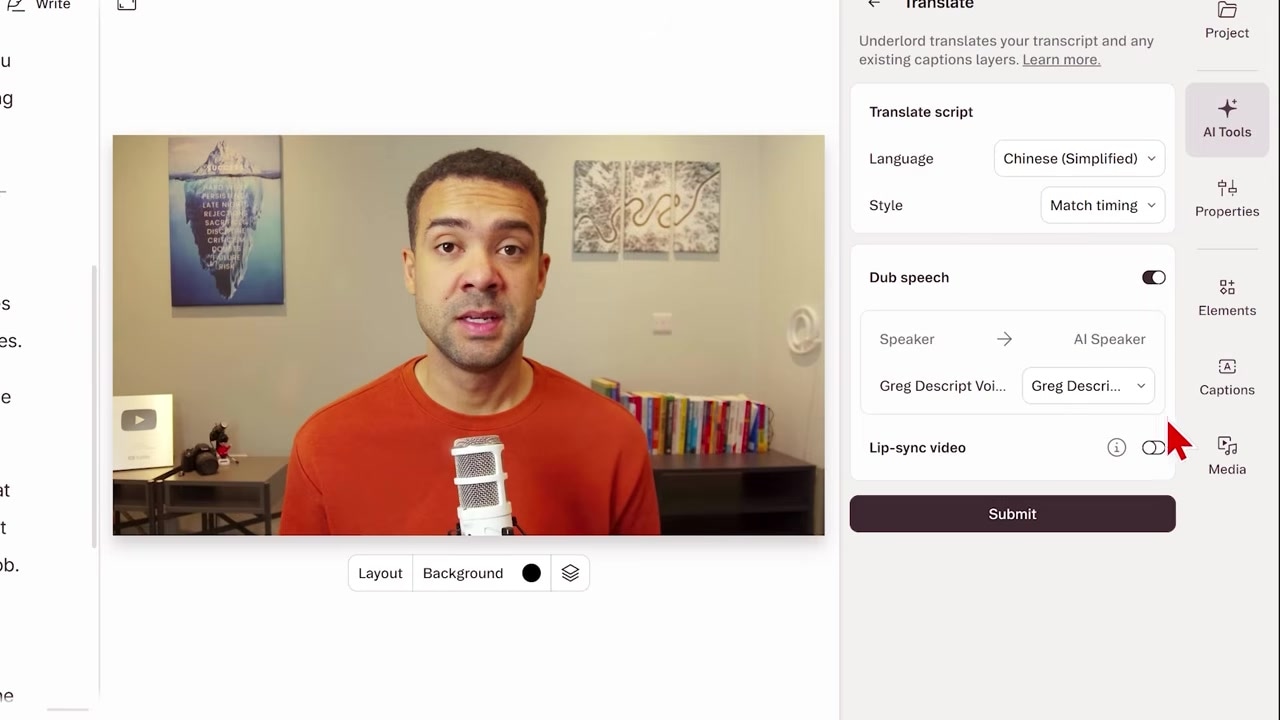
Caption: Setting up the AI video translator to dub and lip-sync the video into a new language like Chinese.
To translate your video in one click:
- Go to the AI Tools panel and select Translate.
- Select your target language (Descript supports over 25 languages).
- Check the boxes to dub speech (which clones your voice in the target language) and lip-sync (which morphs your mouth to match the new translation).
- Click submit to process.
The Outcome: Descript generated a translated script, dubbed the video using an AI voice clone that sounds remarkably like me speaking Chinese, and realigned my lip movements to fit the translated pacing. For businesses trying to chase a global audience, this is an incredible way to localize content at a fraction of the cost of traditional localization agencies.
6. One-Click Repurposing: Convert Video to Blog and Social Posts
Once you finish editing your video, your marketing job is only half done. You still have to write social media captions, format the transcript, and draft a blog post to distribute the content across multiple channels.
I have personally lost both my own time doing this manually, and serious money hiring marketing agencies to repurpose my video content. Descript resolves this with built-in text-repurposing tools.
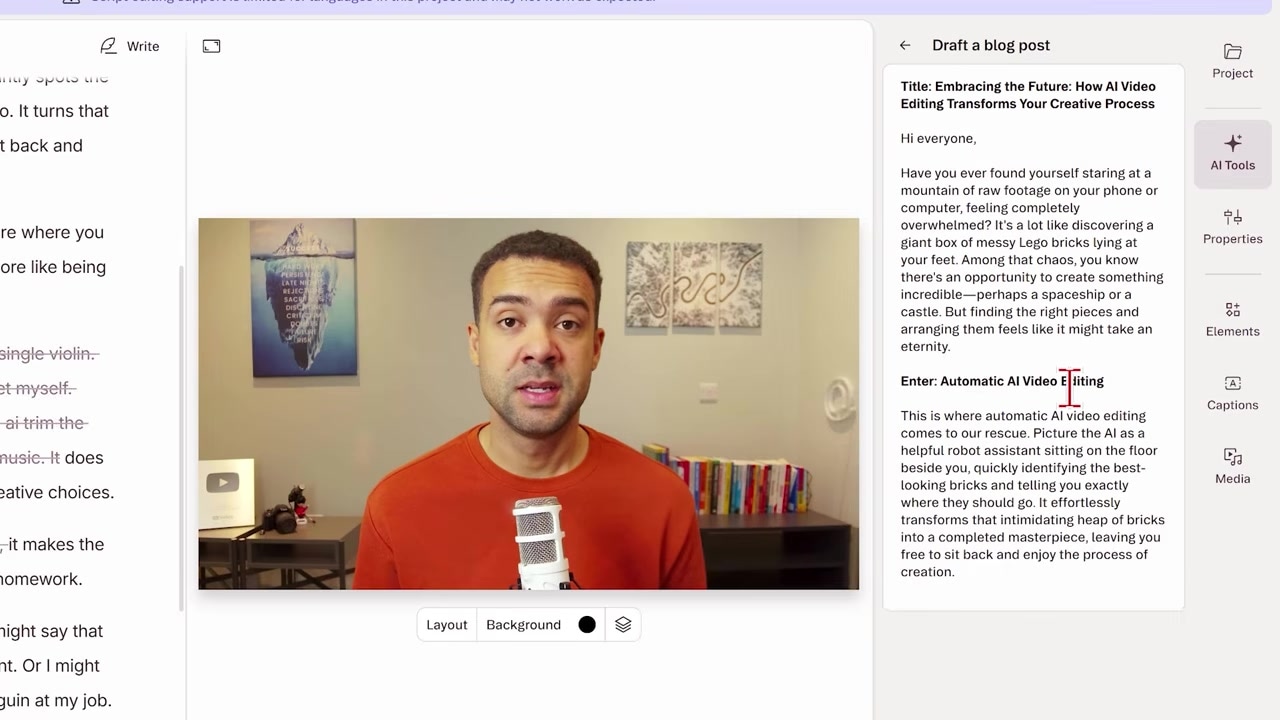
Caption: Generating a complete SEO-optimized blog post from the video script with one click.
Directly from your finished video project:
- Click on the AI Tools icon and scroll to the bottom.
- Select Convert to social media post (for LinkedIn or Facebook) or Convert to blog post.
- Leave the optional instructions prompt blank (or add custom style rules) and run the generator.
The Outcome: Almost instantly, Descript's AI converted my spoken video script into a fully formatted, readable blog post. I was able to simply click the copy button and paste the article directly onto my website, giving me a video, a written article, and social copy from a single raw recording.
Is Descript Worth It? The Verdict
If you want to maintain a daily social media presence, you cannot afford to waste hours on manual editing. Descript is easily the best AI video editor for social media marketing because it tackles the structural bottleneck of content creation: repetitive manual tasks.
By transitioning from a traditional timeline to a text-based video editor, and combining that with Underlord's suite of automations, you can save massive amounts of time on every edit. Whether you are running automatic multicam on a podcast, fixing minor verbal slip-ups without a re-shoot, or translating your message to a global audience, Descript turns hours of manual work into a single-click workflow.
If you are ready to automate your content pipeline and start scaling your social media presence, try Descript today: Try Descript →
Frequently Asked Questions
Can I edit video in Descript if I have zero traditional editing experience?
Yes. Descript is designed specifically to be beginner-friendly. If you can edit a Google Doc or a Word document, you can edit video in Descript. Striking out text in your transcript deletes the corresponding video frames automatically, making the learning curve incredibly flat.
Is the AI voice cloning and lip-syncing realistic?
Yes, it is surprisingly high-quality. While it is not always 100% identical to a natural recording under close scrutiny, features like "Regenerate" and "Translate" are highly convincing and perfectly suited for fast-paced social media platforms where minor edits go entirely unnoticed.
How does Descript's translation feature work?
Descript's AI translates your transcribed text into your chosen language, uses an AI voice clone of your voice to dub the speech, and then visually alters your mouth movements on screen to match the translated phonemes. It supports over 25 languages.