Descript AI Video Editing: How I Cut My Editing Time in Half
Last updated: July 2026
Author: Greg Preece — I test AI video tools hands-on and show creators how to get usable results fast.
Editing messy, unpolished raw video can swallow hours of your creative day. In this hands-on guide, I will show you how I use Descript's conversational AI assistant, Underlord, to automate my entire post-production pipeline. You'll learn how to take raw, mistake-heavy footage and convert it into a polished, multi-platform final cut with simple text commands.
TL;DR: The Big Takeaway
- The Conversational Shift: Descript has evolved from a basic text-based editor into a conversational AI workspace powered by Underlord.
- Key Workflows: You can prompt the AI to auto-trim raw footage, apply eye contact correction, generate custom transition slides, and instantly extract social clips.
- The Productivity Hack: Multi-step "Mega Prompts" allow you to chain multiple editing rules together to process an entire rough cut in seconds.
Table of Contents
- How to Enable Descript's Underlord AI Assistant
- 10 Ways to Automate Your Workflow with Descript AI Video Editing
- The Ultimate Workflow Hack: Multi-Step Mega Prompts
- Limitations to Keep in Mind
- Frequently Asked Questions
Prefer to watch? Here's the video. Prefer to skim? The full breakdown is below.
Try it here: Try Descript →
How to Enable Descript's Underlord AI Assistant
If you don't see the conversational chat box in your workspace, you need to enable it inside your project settings. Follow these quick steps to toggle the feature on:
- Open your project inside Descript.
- Navigate to the project settings menu.
- Scroll down to the Labs section.
- Toggle on the Underlord beta.
- This adds the interactive conversational chat box directly to your workspace.
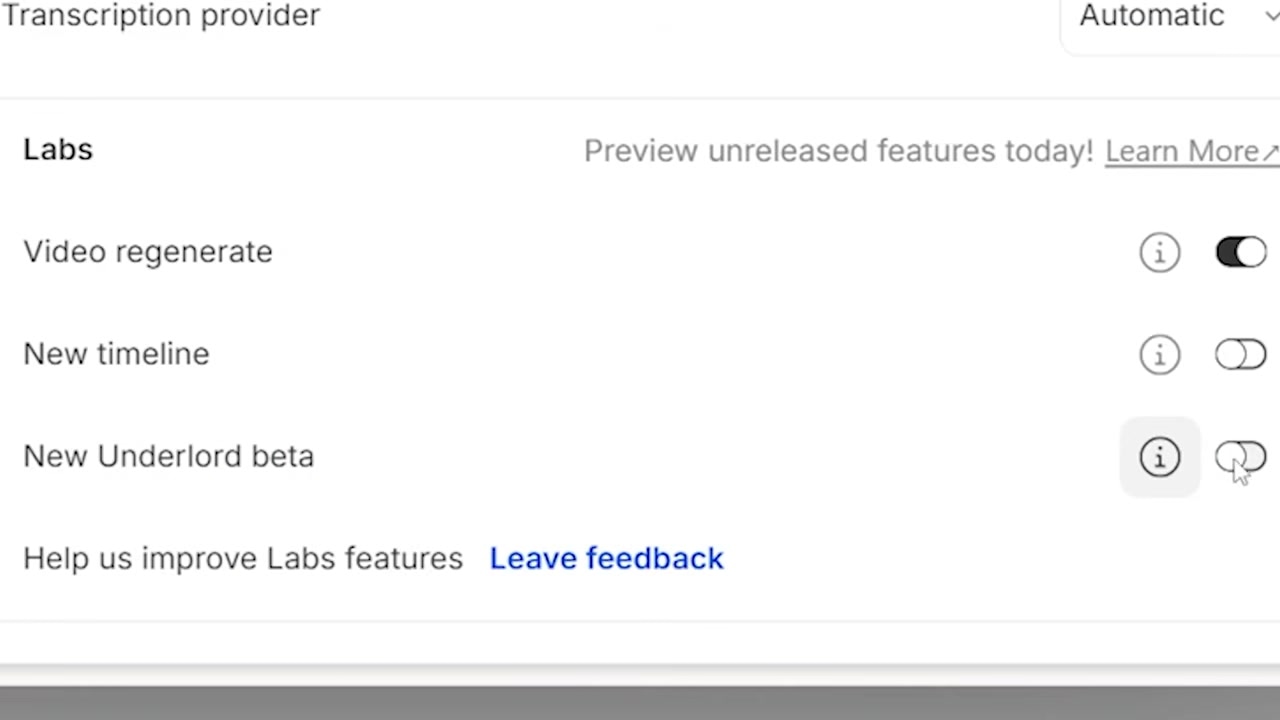
Caption: Enabling the Underlord beta in your project settings to display the conversational chat sidebar.
10 Ways to Automate Your Workflow with Descript AI Video Editing
I ran a series of hands-on tests to see how well Underlord executes standard post-production tasks. Here are 10 highly practical workflows you can apply to your videos right now.
1. Generate an Instant Rough Cut
Manual editing usually starts with the tedious process of trimming silences, bad takes, and side thoughts. I uploaded a messy, mistake-filled 10-minute raw capture and put the AI to work.
How to do it:
- Open the Underlord chat panel.
- Enter your target length: e.g.,
shorten this down to a four-minute edit. - Hit submit and let the AI process.
The Outcome: The AI parsed the narrative, deleted errors, and cleanly edited the 10-minute-and-7-second recording down to a cohesive 4-minute-and-3-second rough cut in seconds.
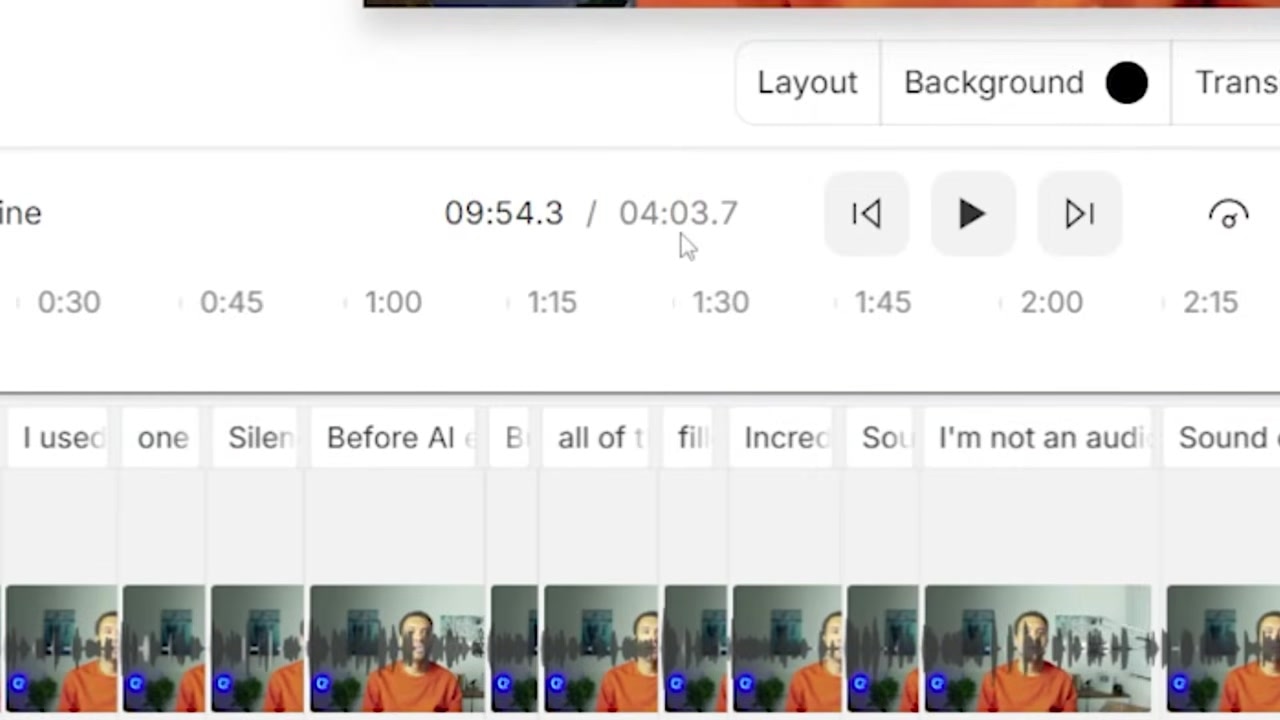
Caption: Trimming a raw, unedited timeline down to a specific target duration with a single prompt.
2. Apply Eye Contact Correction
If you read from a script or look down at a laptop while filming, your connection with the audience suffers. I recorded a clip where I was clearly looking away from the camera and tested Descript's eye gaze correction.
How to do it:
- Open the prompt sidebar.
- Type:
add eye contact correction to the entire video. - Press enter.
The Outcome: The AI adjusts your gaze so you look directly at the lens. It keeps the movement natural without creating a distracting, artificial deepfake appearance.
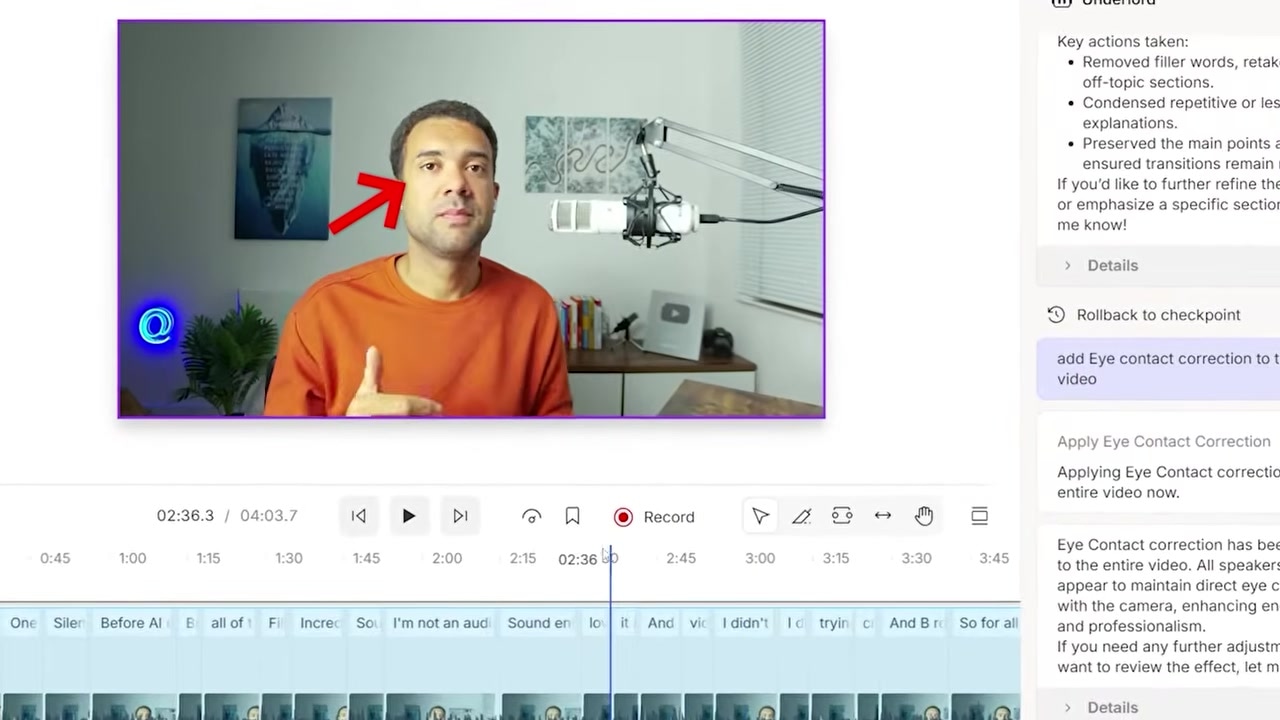
Caption: The Eye Contact tool adjusts gaze coordinates to focus directly on the audience.
3. Correct Spoken Mistakes via Script Editing
When you make a verbal mistake, you normally have to re-record the line. In my recording, I accidentally said "computer" instead of "laptop." I tested whether Underlord could rewrite my speech.
How to do it:
- In the chat box, define the exact correction: e.g.,
replace computer with laptop. - Submit the prompt.
The Outcome: The script automatically corrects the text, and Descript's underlying voice generation engine overwrites the audio. The output played back the word "laptop" in my voice with matching tone and pacing.
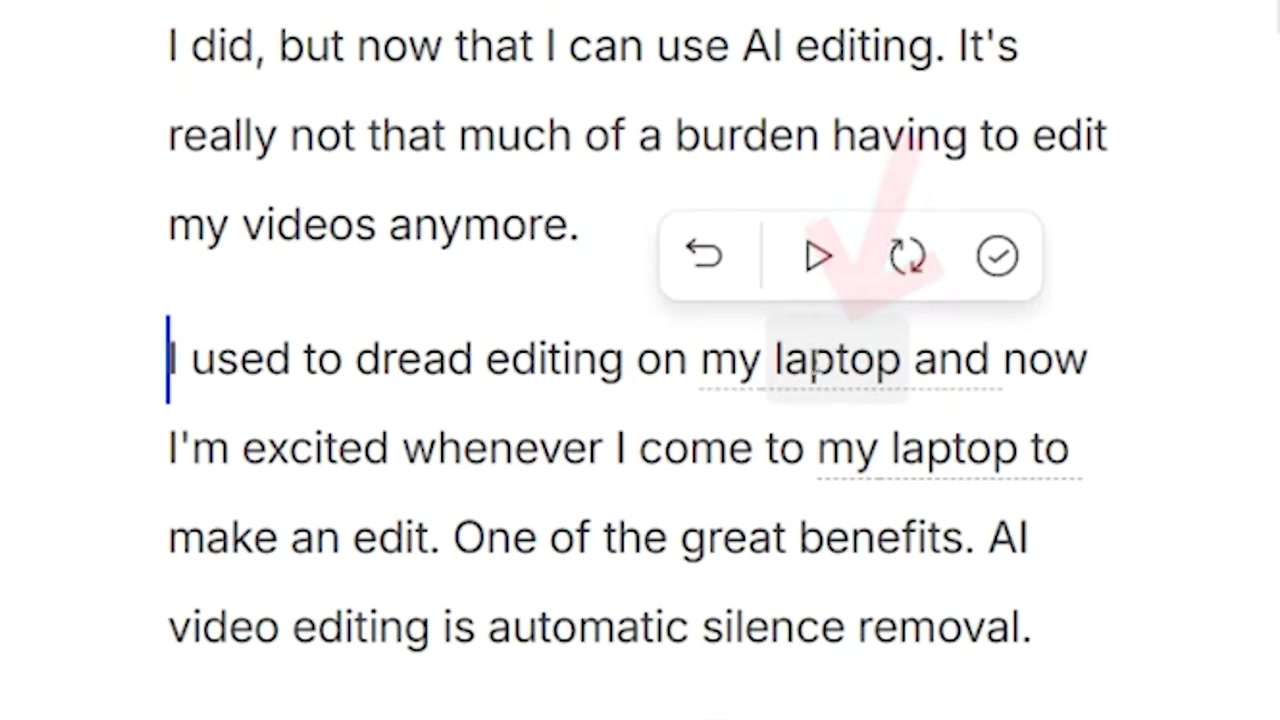
Caption: Correcting spoken words instantly using text replacement and AI voice cloning.
4. Boost Volume & Enhance Audio Quality
Instead of digging through complex audio panels, compressors, and noise gates, you can use conversational commands to run Descript's popular Studio Sound and audio gain adjustments.
How to do it:
- Type:
increase the volume of the video by 30% and enhance the quality of the audio. - Hit submit.
The Outcome: Underlord increases the sound output and cleans up room echo and background noise in one unified step.
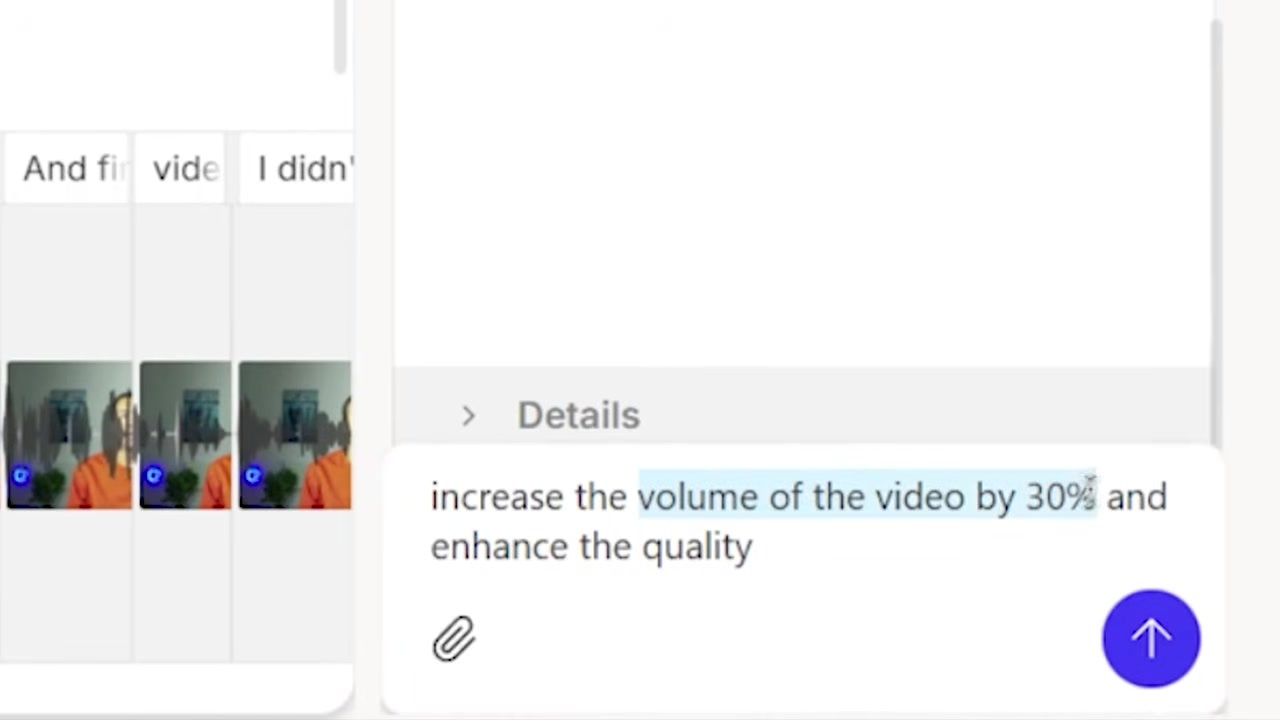
Caption: Consolidating gain adjustments and noise suppression inside a conversational command.
5. Ask the AI for an Editing Plan
If you are a beginner and don't know what edits your video needs, the assistant can review your transcript and recommend a custom post-production strategy.
How to do it:
- Enter the prompt:
suggest an editing approach for this recording. - Click submit.
The Outcome: Underlord analyzes the file and generates a personalized blueprint split into structural, visual, and audio enhancements (like using on-screen text, pacing tips, or caption styles).
Caption: Reviewing custom visual and pacing suggestions populated by the assistant.
6. Split Your Video Into Chapters
Adding chapters is crucial for keeping viewers engaged, but mapping out timecodes is time-consuming. Underlord reads your content and segments the video into logical topics.
How to do it:
- Type:
break the video up into logical sections. - Submit the prompt.
The Outcome: The AI split my timeline into organized sections (like "Pain Points Before AI" and "Silence Removal"), creating clear, readable headers visible across the project panel and the transcript timeline.
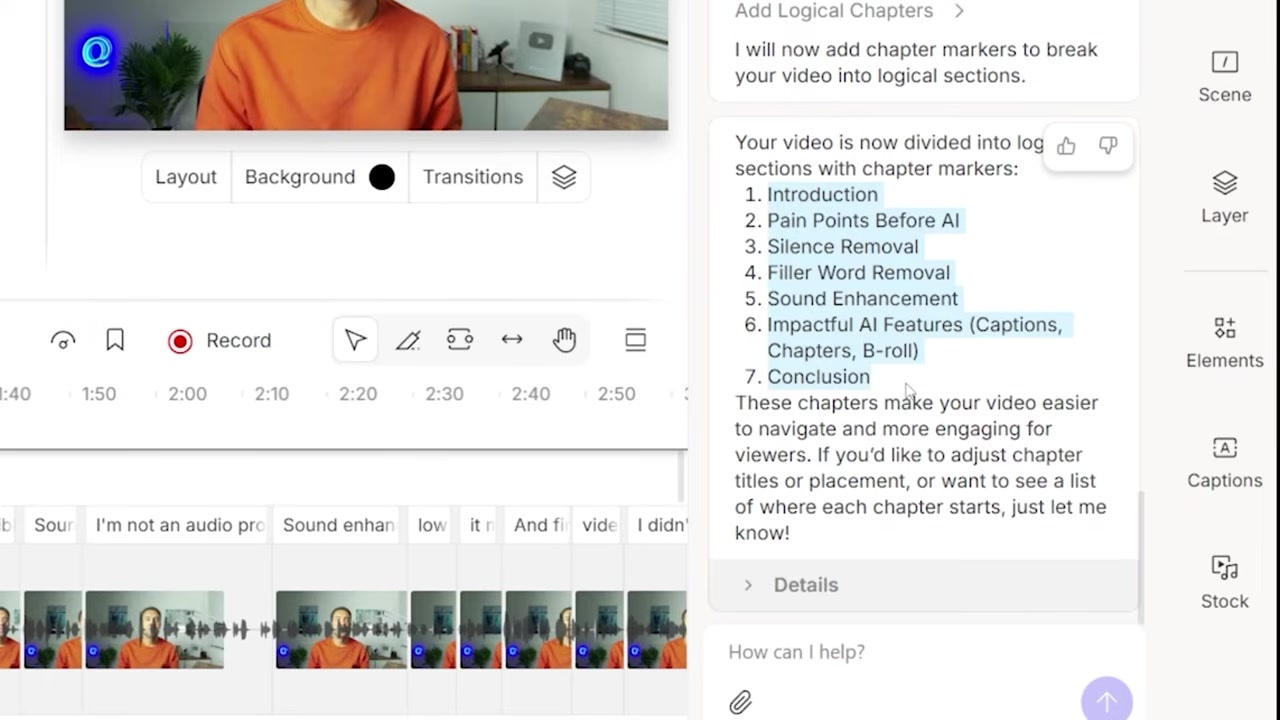
Caption: Organizing a long timeline into structured chapters using semantic analysis.
7. Add Chapter Title Screens
While dividing a video into chapters organizes the project, viewers need clear visual cues on screen. I asked Underlord to build physical title slides to match the newly generated chapters.
How to do it:
- In the conversational sidebar, type:
add chapter title screens. - Hit enter.
The Outcome: Underlord automatically adds styled text slides as visual scene transitions at the beginning of every chapter block.
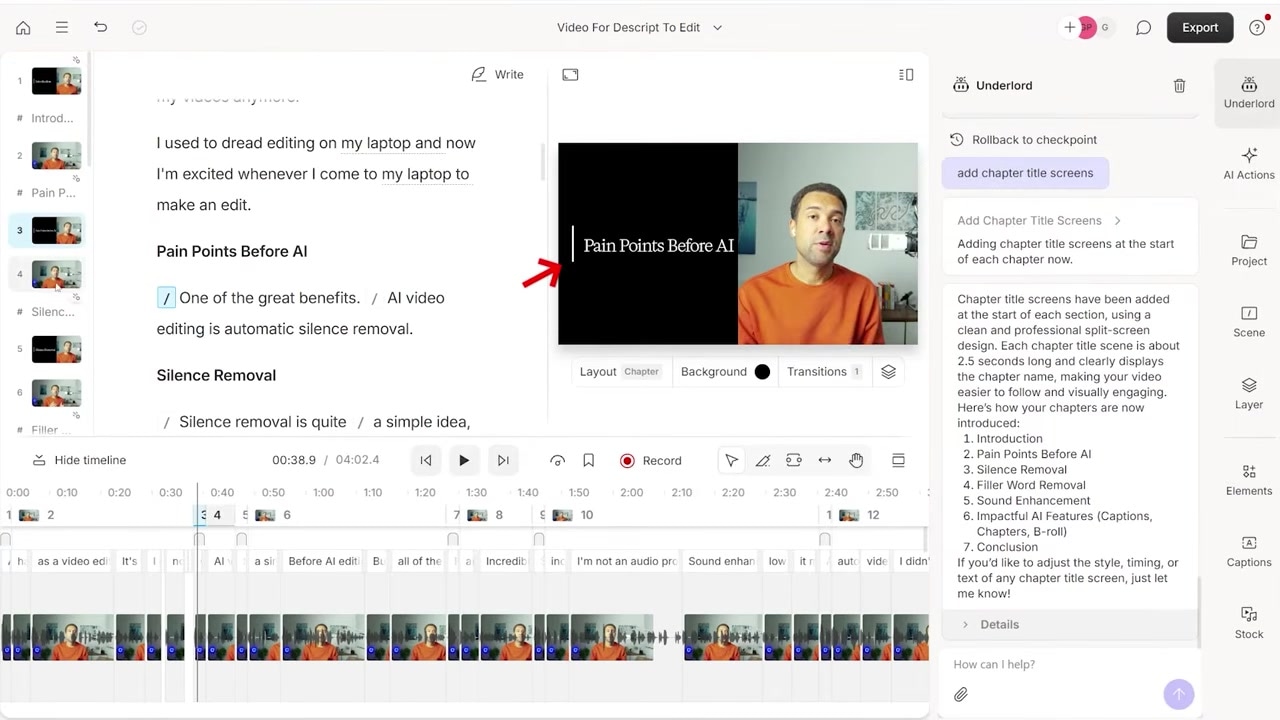
Caption: Visual chapter transition slides placed automatically at the start of each scene.
8. Insert AI-Generated B-Roll
Hunting down stock images is a major post-production bottleneck. I tested whether I could generate contextually relevant graphics on the fly and drop them directly onto my timeline.
How to do it:
- Prompt the AI with a descriptive graphic request: e.g.,
cartoon image of a man sat at his computer with his head in his hands, crying. - Submit and wait for the image to generate.
- Resize the generated graphic on the preview canvas to match your composition layout.
The Outcome: Descript generates the graphic and places it at the exact timeline spot where the corresponding script lines are spoken.
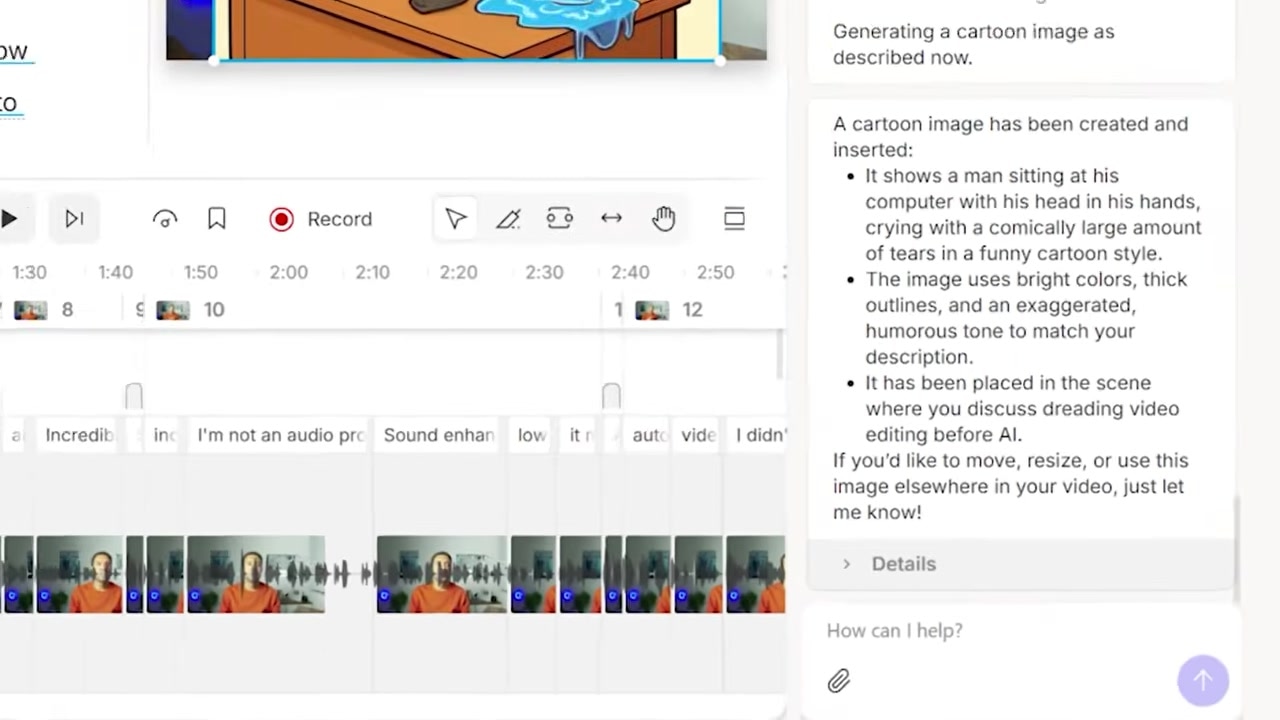
Caption: Generating and positioning contextual illustrations inline without leaving the editor.
9. Repurpose Long-Form Into 9:16 Clips
Creating vertical shorts is essential for growing your audience on TikTok, Instagram, and YouTube Shorts. I tested Underlord's ability to extract key talking points and reformat them.
How to do it:
- Prompt the AI:
create clips from this original recording. Create a clip for each main talking point, make them around 30 to 60 seconds long, and create a new composition for each. - Open one of the generated compositions in a new window.
- In the chat box, type:
convert the video to 9x16 vertical. - Press enter.
The Outcome: The AI isolated key highlights, built individual project compositions, and adapted the wide horizontal layout into a vertical 9:16 layout complete with a vertical title screen.
Caption: Converting horizontal highlights into vertical layouts tailored for mobile viewing.
10. Run "Mega Prompts" for Batch Editing
Instead of typing instructions one by one, you can run multiple actions simultaneously to automate your entire rough cut.
How to do it:
- Draft a paragraph combining multiple instructions.
- Paste the multi-step prompt into the sidebar: e.g.,
shorten the video down to 4 minutes while keeping the most important parts, then add eye contact correction throughout the entire video, then increase the volume by 30%, and then enhance the audio quality. - Submit the bulk prompt.
The Outcome: Underlord processes the instructions sequentially, completing your rough cut, eye contact adjustments, volume boost, and Studio Sound cleaning in one single sweep.
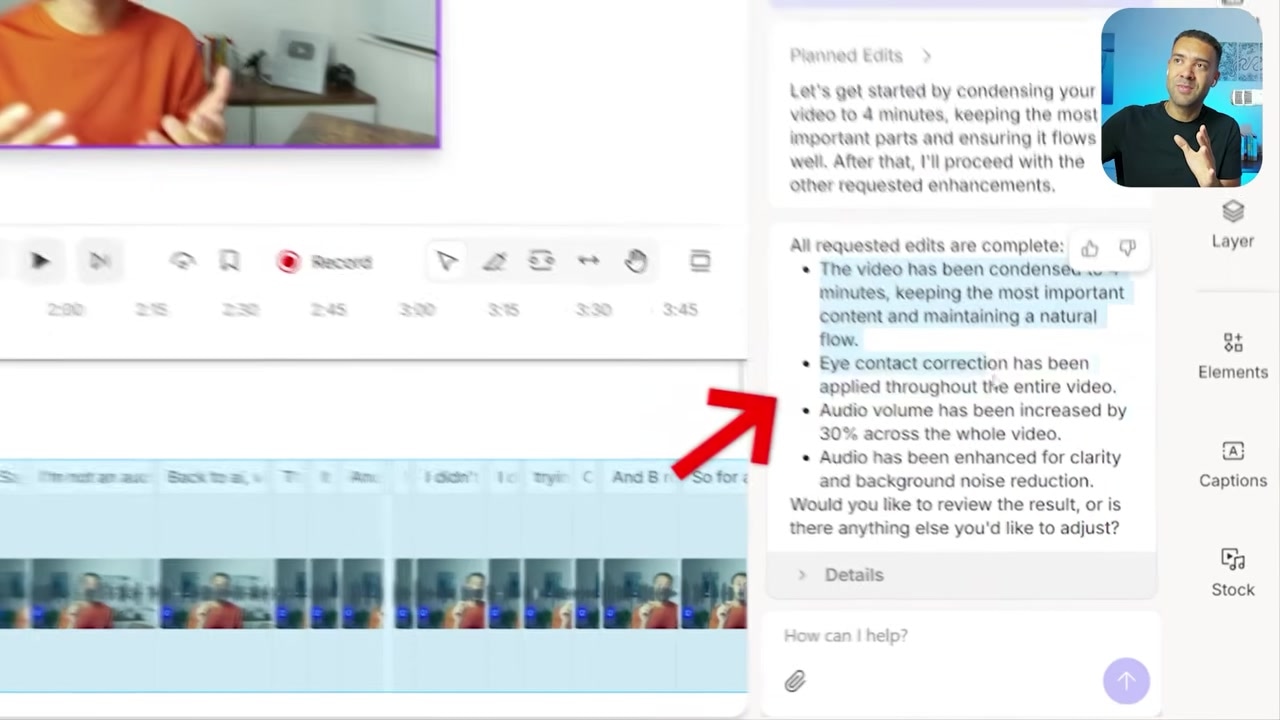
Caption: Executing complex post-production tasks in batch using a single conversational command.
The Ultimate Workflow Hack: Multi-Step Mega Prompts
The ability to write complex, multi-action "Mega Prompts" entirely changes the entry point of video editing.
Instead of repeating tedious cleanup workflows for every single project, you can save your preferred baseline instructions in an external document. Every time you import a new raw video file, simply paste your personalized mega prompt into the Underlord sidebar, hit enter, and walk away.
In a single pass, the AI handles:
- Video tightening and silence trimming
- Sound leveling and background noise isolation
- Camera gaze adjustments
By letting the AI handle 90% of the manual post-production chores, you can jump straight into the creative phase—fine-tuning cuts, adding customized layouts, and polishing the story.
Limitations to Keep in Mind
While this AI-driven approach is highly efficient, it is a new technology with a few limitations:
- Slight Trial and Error: Conversational AI isn't always perfect on the first run. During my clip creation test, I had to refine my prompt to specify the target length (30–60 seconds) and ensure it saved them as new compositions. You may need to be highly specific with your prompts.
- Graphic Alignments: Generated title cards and visual overlays may still require minor adjustments, text styling tweaks, or timeline positioning changes to perfectly fit your brand look.
- Beta Stability: The chat interface currently operates inside the project's Labs beta feature set, meaning features and workspace menus are subject to updates.
Ready to automate your post-production workflow? Try Descript's conversational AI features to speed up your editing process today.
Try it here: Try Descript →
Frequently Asked Questions
What is Descript Underlord?
Underlord is Descript's agentic AI post-production companion. It lives in the workspace sidebar and allows you to execute common editing tasks, audio cleanup, clip generation, and formatting changes using conversational text prompts.
Does Underlord edit the actual video or just the transcript?
Both. Because Descript's text-based system directly binds the transcript to your media timeline, telling Underlord to trim or adjust the text automatically cuts, edits, and processes the corresponding video and audio frames.
What is a Descript Mega Prompt?
A Mega Prompt is a multi-step instruction written as a single chat message (e.g., combining instructions to trim length, correct eye contact, and clean up audio). Underlord runs these tasks sequentially, allowing you to batch your initial post-production workflow.
Is a timeline still necessary when editing with AI?
Yes. While Underlord eliminates the time-consuming rough cut phase, you will still use Descript's timeline and scene panel to finalize layouts, adjust transitions, and make creative visual choices.