The Best AI Video Editor for Nonprofit and Education Teams

Last updated: 27 August 2026
Author: Greg Preece — I cover AI video tools and practical creator workflows.
I have made video for a living for 10 years and run a YouTube channel of over 130,000 subscribers, and I have edited my own talking-to-camera and podcast footage in Descript. Here is why I would point a small nonprofit or education team at it.
If your team publishes interviews and talking-to-camera video and nobody on staff is an editor, Descript is the right tool. It transcribes your footage and then lets you edit the video by editing that transcript. Delete a sentence of text and the picture goes with it.
That single idea is what makes it fit your team rather than any team. The person who ends up editing already has three other jobs, and the thing standing between them and a finished video is not taste, it is a timeline they have never used. Descript removes the timeline from the job. Everything below follows from that.
Other tools do this job and are not covered here. This page argues for one.
In short
- Best for a small education or nonprofit team publishing interviews, talks, lessons and appeals, with nobody whose job is editing.
- You edit by editing text, so there is nothing to learn before the first video ships.
- It removes filler words and dead air on its own, which is most of the work on a talking-head recording.
- Eye Contact fixes the eye line when somebody reads a script off camera. It only works on one face at a time.
- Zoom recordings open in it directly, already transcribed.
- The discounted nonprofit and education plan is the individual plan. A team of 3 does not get a discounted team plan.
On this page
- Who Descript is for
- The problem a small team with no editor has
- Why Descript solves it
- What I found using Descript
- Where Descript falls short
- What else I considered
- What Descript costs
- Getting started with Descript
- Method and freshness
Who Descript is for
This is for you if:
- You publish interviews, talks, lessons, case studies or appeal videos.
- The footage is mostly people speaking to camera or to each other.
- The person who edits also runs your social accounts, or your fundraising, or a classroom.
- You record on Zoom, or on one camera in a room.
This is not for you if:
- Your videos are motion graphics, animation or heavily designed pieces. Text editing has nothing to grip.
- You need frame-accurate control over cuts. You will fight it.
- Your interviews put 2 or more people in the same shot. The tools that save you the most time expect one face.
- Your recordings are not in English. Filler word removal reads English transcripts only, so the part that does the most work does the least for you.
The problem a small team with no editor has
The work is funded. It is the editing that is not.
A charity posted a job on Upwork on 14 August looking for a professional video editor for one non-profit appeal, at $3,500 fixed. The day before, another poster wanted 26 premium 4K education videos produced for $1,000 fixed. Both of those are real budgets from real organisations in the same week, and they point in opposite directions. One appeal film is worth paying properly for. 26 teaching videos are not, and never will be.
That second number is your actual problem. Nobody is going to fund an editor for the ordinary stuff. The interview with the new trustee, the 6 minute explainer, the recording of last week's talk. Those pile up, and they get published badly or they do not get published at all.
So the job is not finding an editor. It is making the ordinary stuff finishable by whoever is already there.
Why Descript solves it
You edit the words, not the picture. Descript writes a transcript and the transcript is the edit. Cut a paragraph out of the text and that section of video is gone. Somebody who can use a word processor can use it on day one, which matters when the person editing changes every time somebody leaves.
The boring pass happens on its own. Removing filler words and cutting the silences is most of the work on a recording of somebody talking, and it is the part that makes people give up. Descript does that pass by itself.
Zoom recordings open directly. If your interviews happen on Zoom, the cloud recording opens in Descript already transcribed. There is no export, no import, no waiting for a transcript to come back from somewhere else.
Eye Contact fixes the read. Almost nobody in a small team can deliver to camera without a script somewhere off to the side, and it shows. Descript can correct the eye line afterwards.
It knows who is speaking. On a multi-track recording it detects speaker changes on its own, which is the difference between a two-person interview taking an afternoon and taking 20 minutes.
What I found using Descript
Edit for Clarity does more than you expect. I put a 10 minute recording through it and got back 4 minutes 9 seconds. That is not a trim, it is a different video. Watch the result before you accept it, because it will cut things you meant to keep.
It replaced the slowest job I had. Slicing waveforms to pull out the pauses used to take me 30 to 60 minutes on a recording like that. In Descript it took under a minute. The full write-up is in Descript — automatic editing and Eye Contact test.
Eye Contact worked on a whole video in seconds. I recorded a piece reading a script off camera for the entire take, which normally makes the footage unusable. Descript corrected my eye line across the whole thing in a few seconds.
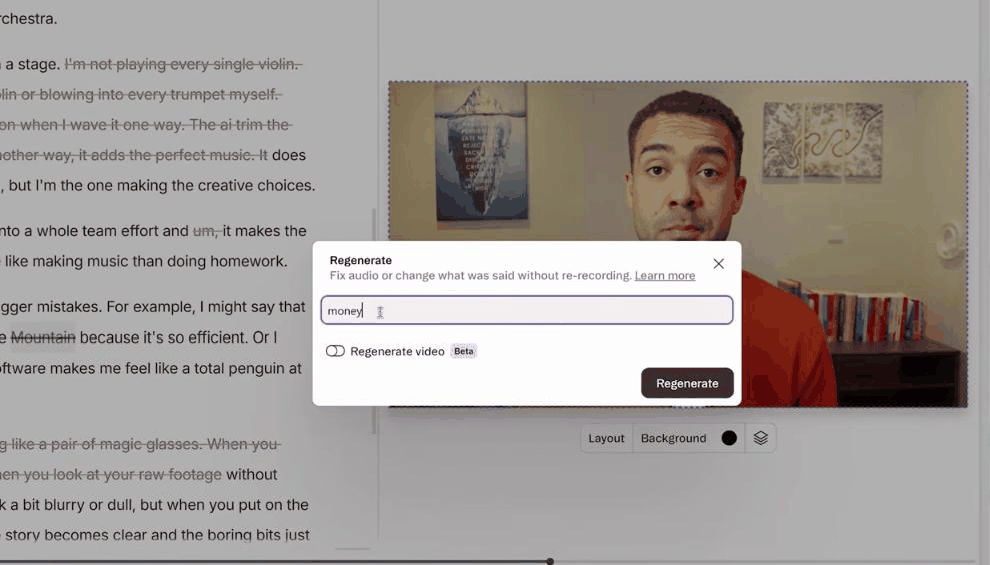
Fixing a misheard word by typing the replacement over it. Descript puts the corrected word back in the same voice rather than asking for a new take.
It handled a two-hander without being told. I loaded a podcast project with my co-host Mike and Descript worked out who was speaking at each moment on its own. I also corrected a misheard word by typing it, and it came back in my own cloned voice rather than a patch. That one is written up in Descript — editing a two-person podcast.
Where Descript falls short
Eye Contact needs one face. Descript's own help page is blunt about it. The effect works when one clear face is in frame. If your interviews put the interviewer and the guest in the same shot, the single most useful feature for a nervous presenter does not apply to you.
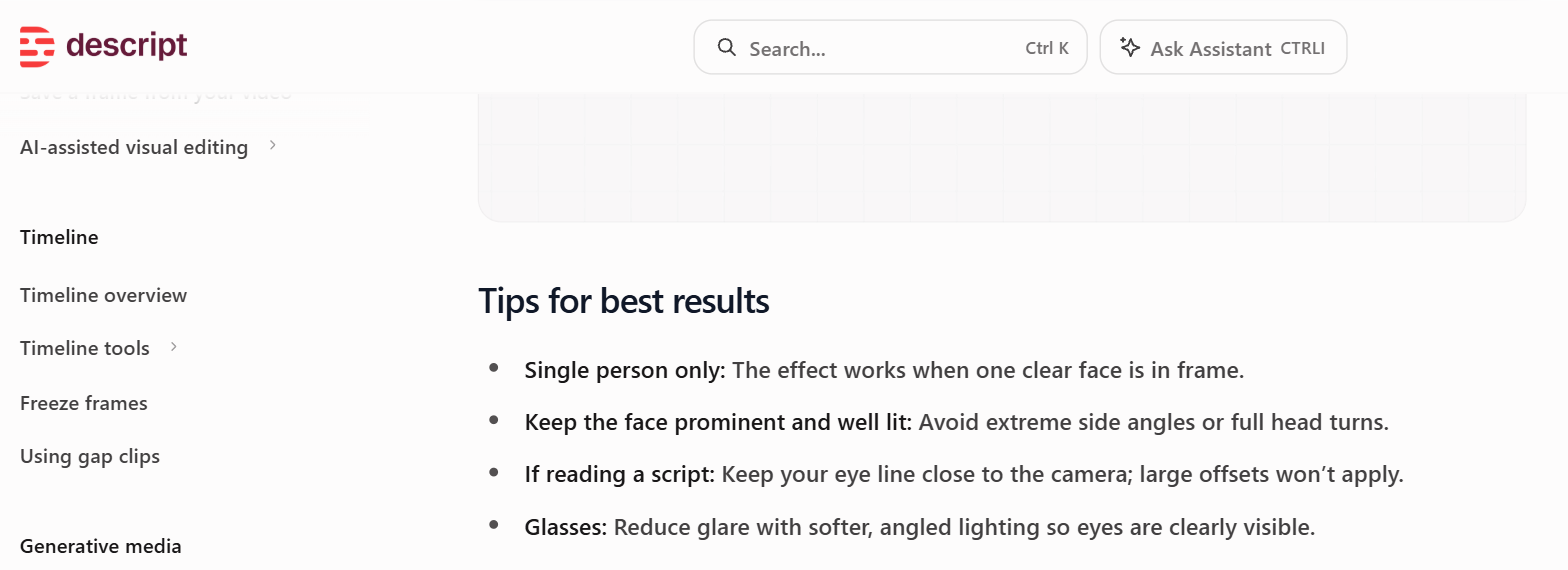
Descript’s Eye Contact help page, captured 7 September 2026, stating that the effect works when one clear face is in frame.
The discount is for one person, not for your team. This is the one that catches nonprofits out. The discounted plan is the individual plan, and Descript says so plainly on its own help page. If you need more seats, you pay the normal rate for a normal plan. A team of 3 sharing the work does not get a discounted team plan, and that changes the sum you did in your head when you read the word nonprofit.
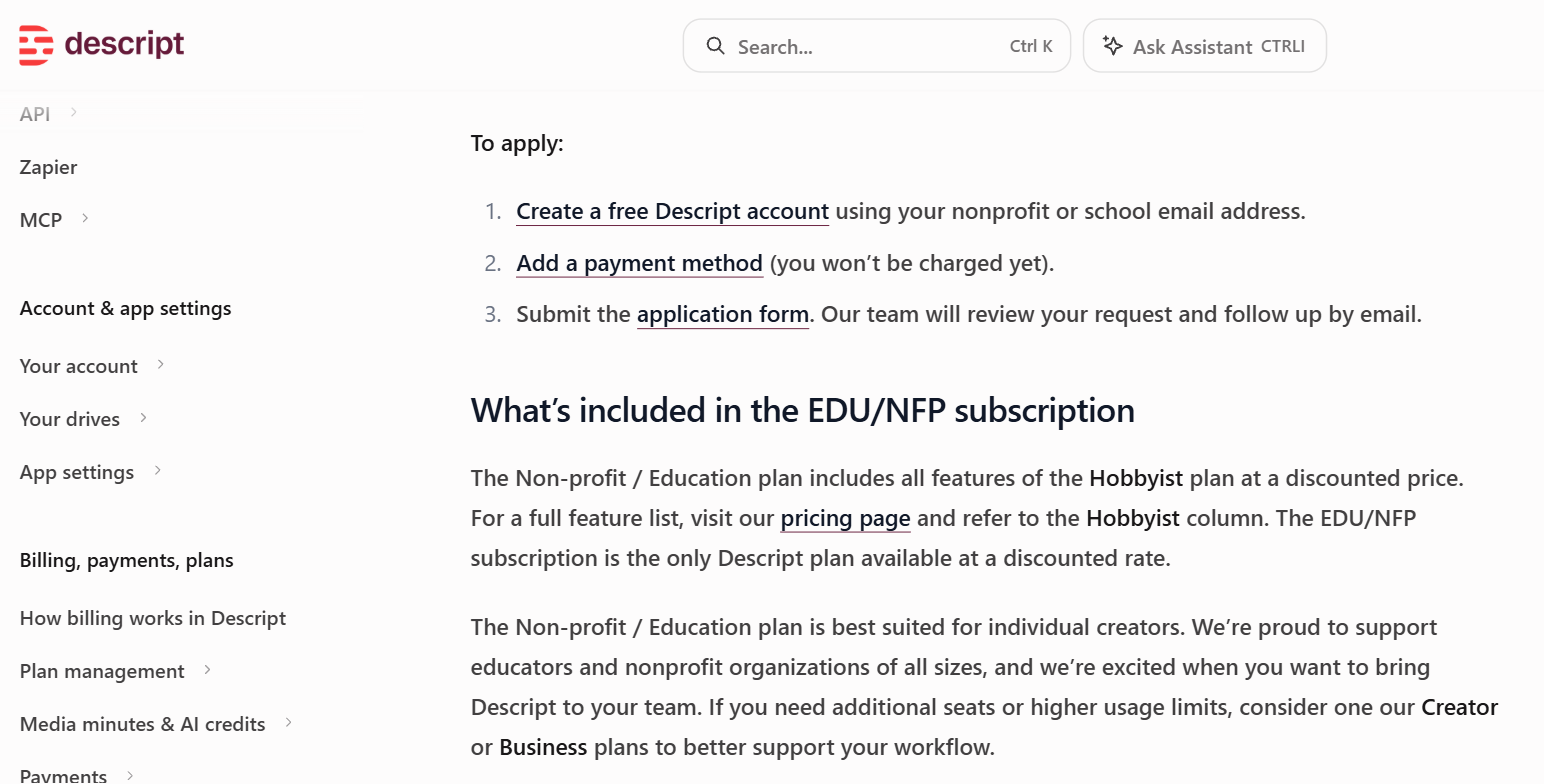
Descript’s non-profit and education subscription page, captured 7 September 2026. It states that the plan carries the Hobbyist feature set, that it is the only discounted plan, and that it is best suited for individual creators.
Filler word removal is English only. If you publish in more than one language, the tool that does the most work does it for one of them.
Everything is metered twice. Descript counts media hours and AI credits separately, and both are counted per editor. Two people editing is not two people sharing an allowance.
It is the wrong tool for designed video. If your appeal film is the one with the music, the archive photos and the motion titles, you are going to finish that somewhere else. Descript is for the other 25 videos.
What else I considered
Riverside is aimed at recording remote interviews at good quality rather than at editing them afterwards, judging by how it describes itself. If your problem is that your Zoom recordings look bad, that is a different problem to the one this page is about, and a different tool.
CapCut positions itself around short social video, which is a real job and a common one. It is the better fit if most of what you publish is going to Instagram or TikTok rather than a website or a funder.
Adobe Premiere Pro and DaVinci Resolve will do everything Descript does and more, and they will do it properly. They also assume somebody on your team is going to learn them. That assumption is exactly the one that does not hold here.
I have not tested Riverside, CapCut or the two timeline editors on this job, and I am not claiming a comparison I have not run.
What Descript costs
Descript sells monthly plans with a free tier, and it meters two separate things. One is hours of media, the other is credits for the AI features. Both are counted per editor rather than per organisation, so the number of people touching the work changes the cost more than the number of videos does.
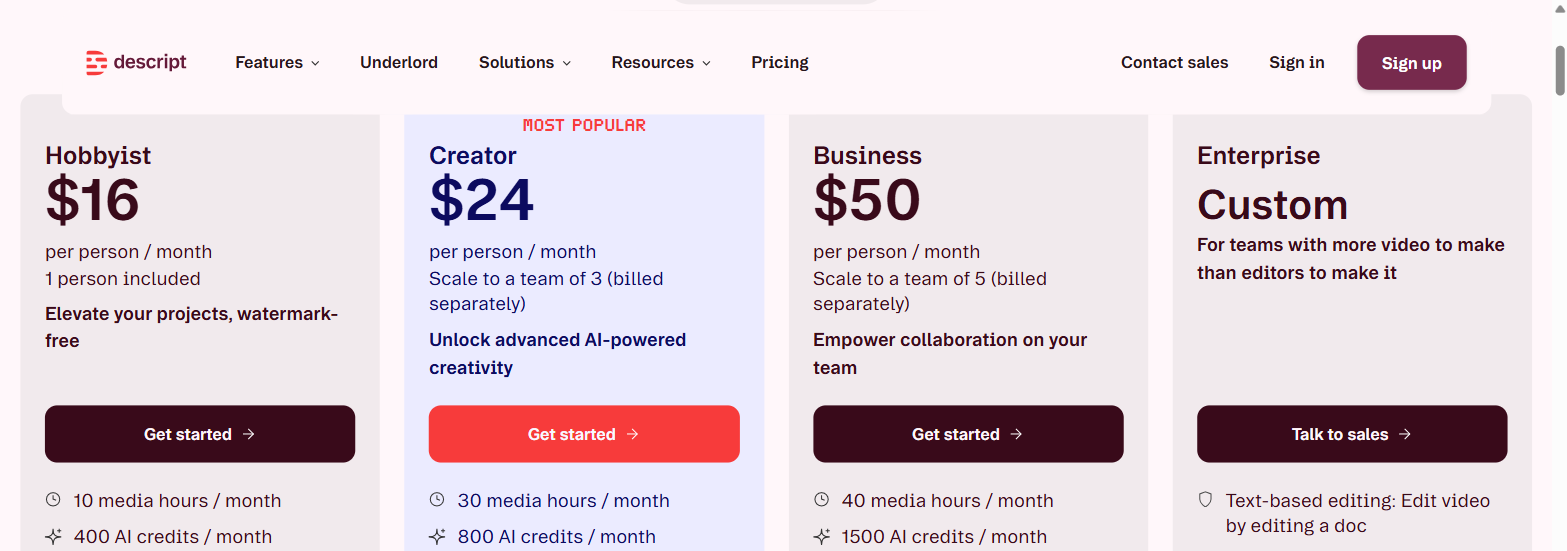
Descript’s pricing page, captured 7 September 2026. Every tier is priced per person, and each one lists two separate meters, media hours and AI credits.
Current figures are on Descript.
Getting started with Descript
- Take your most recent recording of somebody talking, not your best one. You want to know what it does with ordinary footage.
- Drop it in and read the transcript before you touch anything. If the transcript is wrong, everything downstream is wrong.
- Run the filler word and silence removal, then watch it end to end. Decide whether you would have published that.
- Only then try Edit for Clarity, and treat the result as a first draft rather than an answer.
- If somebody in your team reads off camera, run Eye Contact on that take and look at it full screen.
The free tier is enough to get through all 5 steps on one recording, which is all you need to decide. You can start at Try Descript →.
Method and freshness
The first-hand parts of this page come from my own editing, linked above. Descript's pricing page, its non-profit and education subscription page and its Eye Contact page were read on 27 August 2026 to confirm how it meters usage, who the discounted plan covers and the single-face limit on Eye Contact. I have not used Descript inside a nonprofit or a school, and nothing above should be read as a comparison I have run against Riverside, CapCut, Premiere Pro or Resolve.