OpusClip MCP Tutorial: How I Connected It to Claude for Automation
Last updated: August 2026
Author: Greg Preece — I test AI video tools hands-on and show creators how to automate their content workflows for maximum organic growth.
The release of the Model Context Protocol (MCP) for OpusClip marks a massive shift in how we manage social media video production. In this guide, I'll walk you through how to connect OpusClip directly to AI agents like Claude, allowing you to automate your entire short-form content pipeline using natural language commands.
TL;DR: Automated Video Clipping at Scale
- The Core Feature: The OpusClip MCP allows compatible AI agents (including Claude, ChatGPT, and Cursor) to execute video clipping, captioning, and reframing tasks.
- Why It Matters: Instead of jumping back and forth between tools, you can control your video-editing pipeline with simple prompts inside your AI chat dashboard.
- Top Use Cases: Bulk-captioning folders, syncing clips with real-time YouTube analytics, and automatically clipping high-activity livestream moments.
Table of Contents
- What is the OpusClip MCP?
- Why Connect OpusClip to Your AI?
- How to Set Up the OpusClip MCP in Claude: A Step-by-Step Guide
- 4 Advanced Automation Use Cases for OpusClip MCP
- Automate Your Content Pipeline Today
Prefer to watch? Here's the video. Prefer to skim? The full breakdown is below.
Try OpusClip
Try it here: Try OpusClip →
What is the OpusClip MCP?
Model Context Protocol (MCP) is an open standard that allows AI models to connect securely to external tools and data sources.
By utilizing the OpusClip MCP, you are essentially giving your AI assistant (like Claude or ChatGPT) the ability to "talk" to OpusClip behind the scenes. Instead of logging into the website, uploading a video file, setting up your templates, and waiting for renders, you can simply ask your AI to handle those tasks using natural language prompts.
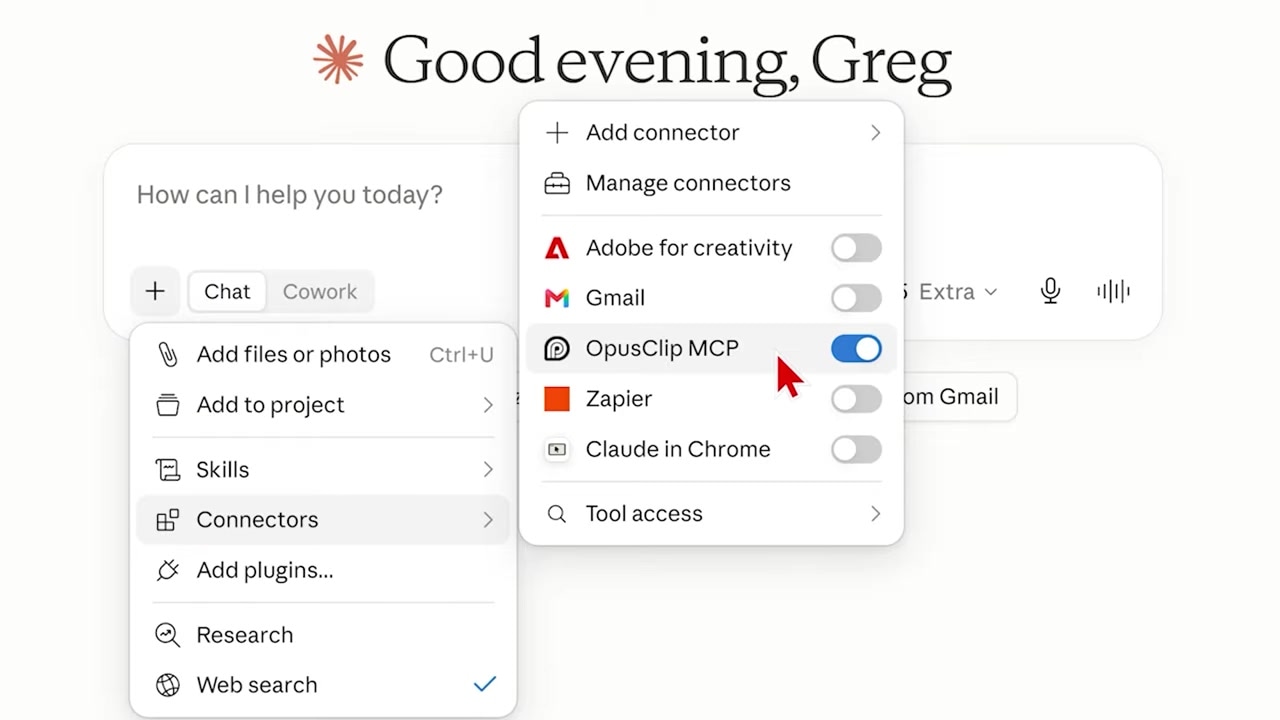
Caption: Inside Claude's connectors menu, you can see the active OpusClip MCP connector.
When the connection is configured, your AI can perform a variety of video tasks directly, including:
- Submitting video URLs or files to OpusClip for clipping.
- Editing existing OpusClip clips.
- Bulk-rendering captions.
- Publishing generated clips directly to your social media accounts.
Why Connect OpusClip to Your AI?
You might wonder why you would set up OpusClip inside an LLM when you can just use the official OpusClip website. The answer boils down to two key advantages: automation and context-sharing.
1. Autonomous Automation
With the MCP, you can instruct your AI assistant to handle video workflows on a schedule without you needing to sit at your computer. For example, you can tell Claude to scan a specific folder every Monday morning, send any new video files it finds to OpusClip, style them, and prepare the short-form outputs.
2. Real-Time Data Syncing
Because your AI can access the wider web, it can send valuable external information directly to OpusClip to trigger actions. For instance, you can configure your AI to monitor viral trends in your niche. When it identifies a breakout topic, it can automatically search your existing content library for transcripts matching that topic and direct OpusClip to cut new clips highlighting those specific talking points.
How to Set Up the OpusClip MCP in Claude: A Step-by-Step Guide
Setting up the integration inside your AI tools takes only a couple of minutes. Here is how I set up the connection inside my own Claude.ai account.
Step 1: Visit the Setup Page
Navigate to the MCP section of the official OpusClip website.
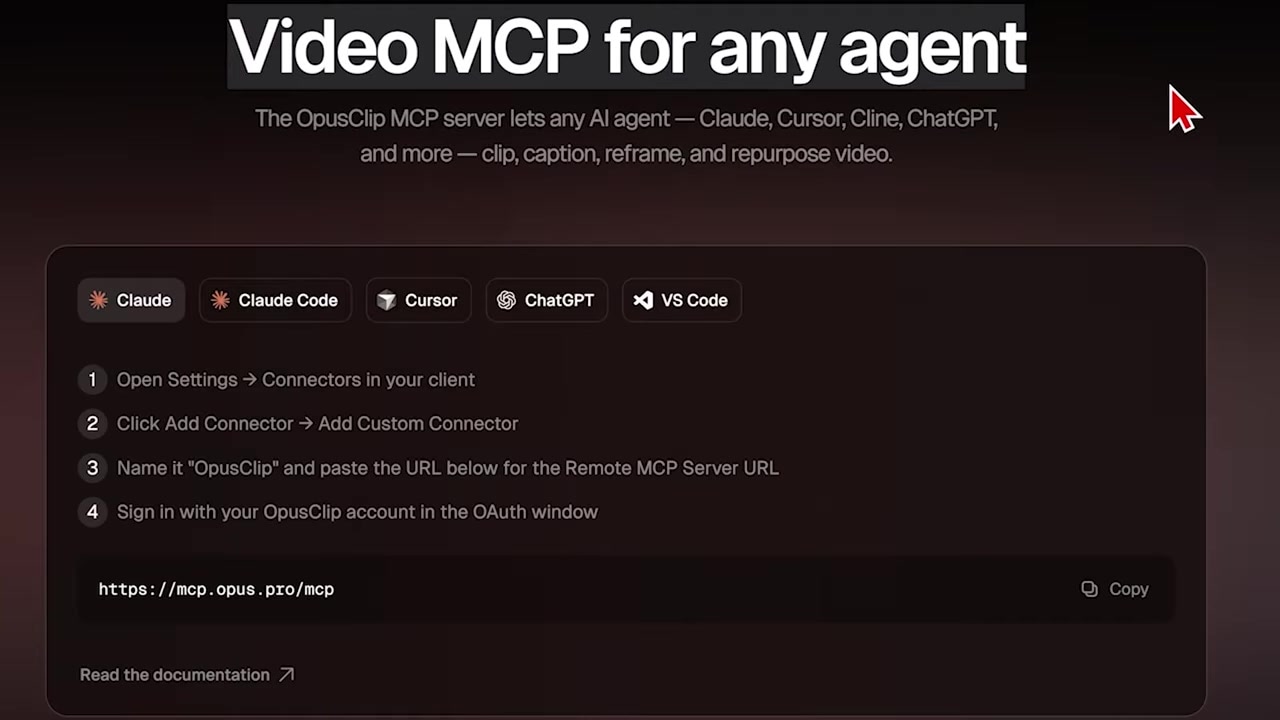
Caption: The setup page on the OpusClip website where you can select your AI client, such as Claude or ChatGPT.
Step 2: Choose Your AI Client
Click on the icon for the AI tool you want to integrate. For this tutorial, we will select Claude. The website will provide you with a specific setup code block or connector URL. Copy this line of code.
Step 3: Access Claude's Connectors Menu
Head over to Claude.ai and open your account settings. Navigate down to the Connectors section.
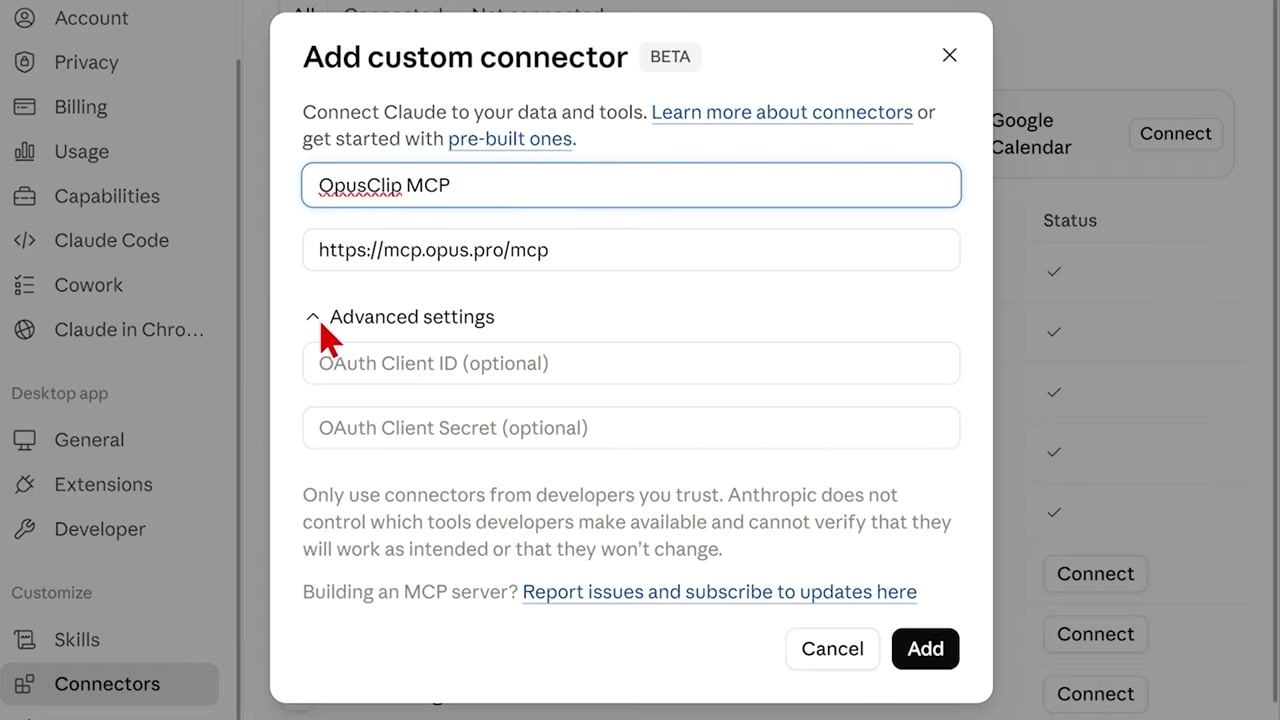
Caption: Selecting 'Add Custom Connector' in Claude's settings and pasting the integration code.
Step 4: Add the Custom Connector
Click on Add Custom Connector in the top-right corner.
- Paste the code you copied from the OpusClip website into the input box.
- Name the connector something easily identifiable, such as
OpusClip MCP. - Click Add to finalize.
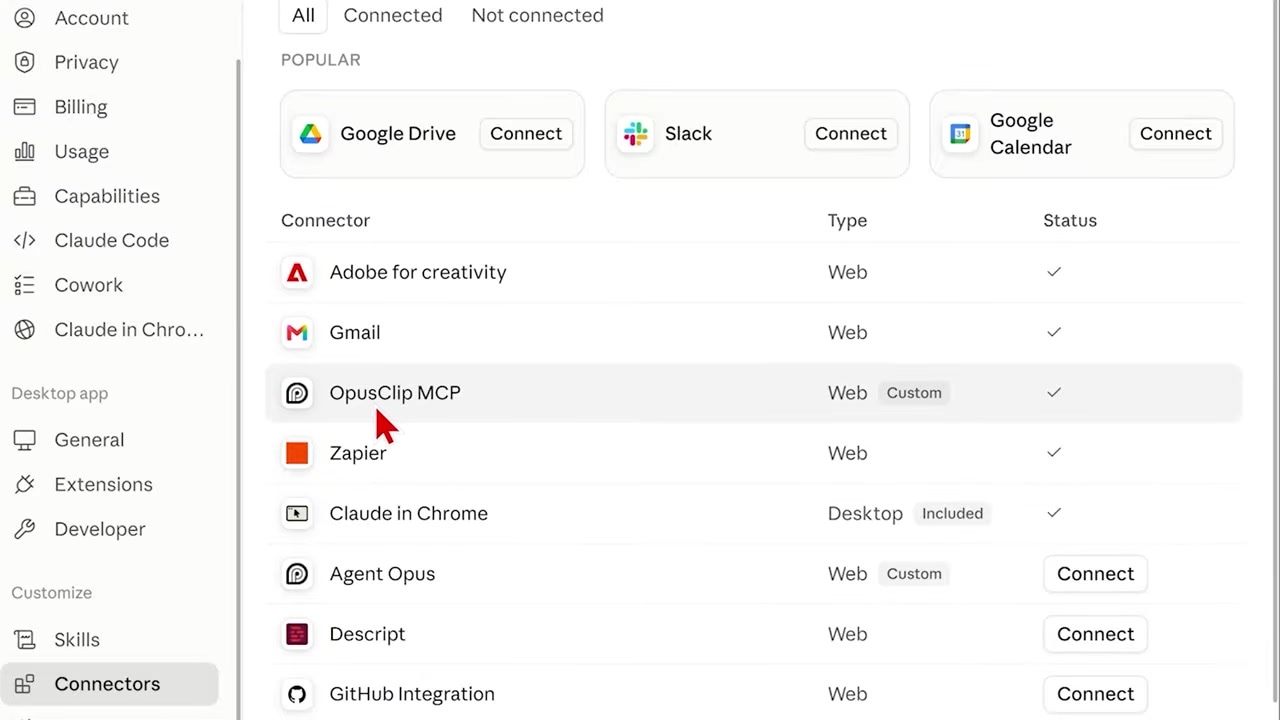
Caption: The completed OpusClip MCP connector ready to process prompts directly inside your AI conversation.
Once saved, the connector will appear in your active list, and Claude will immediately have access to the full suite of OpusClip processing tools.
4 Advanced Automation Use Cases for OpusClip MCP
Once your connector is live, you can start building powerful workflows. Here are four advanced ideas you can implement:
1. Bulk Captioning Local Folders
Instead of uploading files individually, you can point your AI to a folder on your computer. Prompt Claude to apply captions to every video in that folder using your pre-saved brand template in OpusClip, keeping the clips at their original length.
2. Analytics-Driven Retroactive Clipping
If you connect your AI to your YouTube analytics, you can design a workflow where the AI monitors your back catalog. If an older video starts suddenly gaining traction, the AI can detect the spike and automatically instruct OpusClip to generate fresh short-form clips from that specific video to maximize its algorithmic momentum.
3. High-Engagement Livestream Triggers
By feeding livestream chat data or video engagement heatmaps into your AI, you can identify exactly which parts of a broadcast generated the most audience interaction. Your AI can then feed those precise timestamps into OpusClip to clip out the high-energy moments.
4. Audience-Interest Clipping
The true power of MCP is building an editing pipeline based on what viewers actually want. Since your AI can process analytics, chat sentiment, and viral trends, it bridges the gap between raw viewer data and video post-production—automating decisions that previously took hours of manual research.
Automate Your Content Pipeline Today
The Model Context Protocol makes it easier than ever to build an autonomous video-editing pipeline that acts on real-world data. Start experimenting with these prompts to see how much time you can save on your content workflow.
Ready to connect your video-clipping pipeline directly to your AI agents?
Try it here: Try OpusClip →