I Tested Higgsfield MCP: What Is It and How to Set It Up
Last updated: July 2026
Author: Greg Preece — I test AI video tools hands-on to help creators and marketers build highly efficient content generation workflows.
Model Context Protocol (MCP) is completely reshaping how we construct digital media. By connecting Higgsfield directly to your favorite AI models like Anthropic Claude or OpenAI ChatGPT, you can generate cinematic images, edit files, and render video ads without ever leaving your chat interface.
In this guide, I will explain what Higgsfield MCP is, show you exactly how I set it up, and walk you through real-world workflows to automate your content creation pipeline.
| Feature / Detail | Overview |
|---|---|
| What is Higgsfield MCP? | An open standard protocol connecting Higgsfield's AI visual generation engine directly inside Claude or ChatGPT. |
| Primary Use Cases | Generating and upscaling images, creating text-to-video assets, audio translation, and fully automated social campaigns. |
| Who is it For? | Video editors, content creators, and marketing teams who want to consolidate their toolstack into a single window. |
| Supported Clients | Claude (Web, Desktop, and Claude Code), ChatGPT, Cursor, and other agentic platforms. |
Prefer to watch? Here's the video. Prefer to skim? The full breakdown is below.
Quick Link
Try Higgsfield here: Try Higgsfield →
Table of Contents
- What Is Higgsfield MCP?
- Why Connect Higgsfield to Your LLM?
- How to Set Up Higgsfield MCP in Claude (Step-by-Step)
- What Can You Create with Higgsfield MCP?
- Automated Marketing & YouTube Channel Workflows
- Frequently Asked Questions
What Is Higgsfield MCP?
The Model Context Protocol (MCP) is an open standard developed by Anthropic that allows large language models (LLMs) to securely read from and write to external tools.
Higgsfield MCP is a technology that bridges Higgsfield's visual AI generation engine directly into your chat interface. Once this connection is active, you don't need to jump back and forth between different browser tabs to write scripts, copy prompts, and render video clips.
Instead, your AI chat window behaves like a central operating dashboard. The assistant calls Higgsfield behind the scenes, processes your prompt, initiates the image or video generation, and returns the final files straight to your chat.
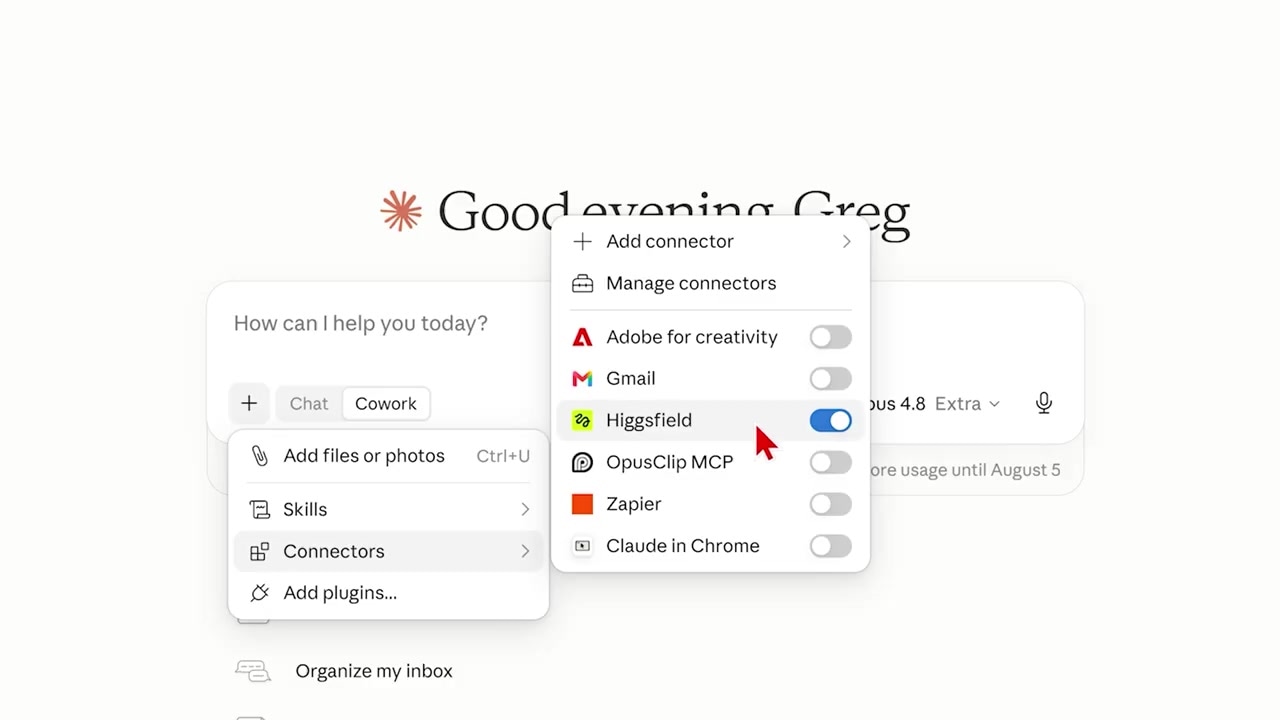
Caption: The Claude interface showing Higgsfield MCP successfully integrated and ready to execute media commands directly in chat.
Why Connect Higgsfield to Your LLM?
When I first started hearing about Model Context Protocols, I ignored them because they seemed too technical. But as top-tier creation suites like Adobe, CapCut, and Higgsfield started rolling out their own connectors, I realized how powerful they actually are.
Here is why I now use Higgsfield MCP for my content creation workflows:
- Eliminate Context Switching: Instead of jumping across three different websites to write a script, generate voiceovers, and render videos, you can manage the entire creative sequence inside one browser window.
- Context-Aware Ideation: Your LLM is excellent at competitor research, niche identification, and marketing strategy. Because the AI is connected directly to Higgsfield, it can automatically translate its research insights into highly specific image and video prompts.
- On-The-Go Creation: Because the integration works at the system level, you can log into the Claude or ChatGPT app on your mobile phone, submit a quick prompt while away from your desk, and let Higgsfield build your visual assets remotely.
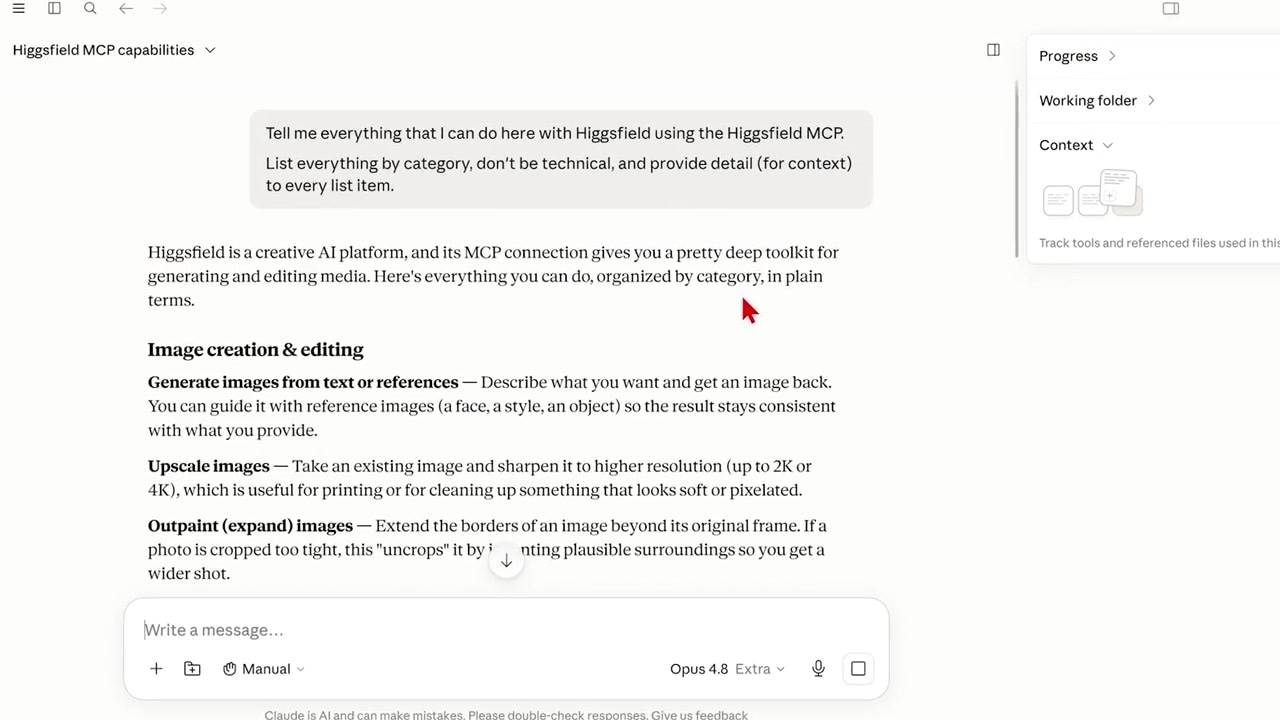
Caption: Asking Claude about the newly active connection returns a comprehensive list of generation capabilities, including text-to-video and audio dubbing.
How to Set Up Higgsfield MCP in Claude (Step-by-Step)
Setting up the connection is incredibly simple and takes less than two minutes. I've broken down the setup process using the Claude integration:
Step 1: Find the Integration Settings
Head over to the official Higgsfield website. In the top navigation bar, click the MCP link (or scroll down to the dedicated MCP section on the homepage).
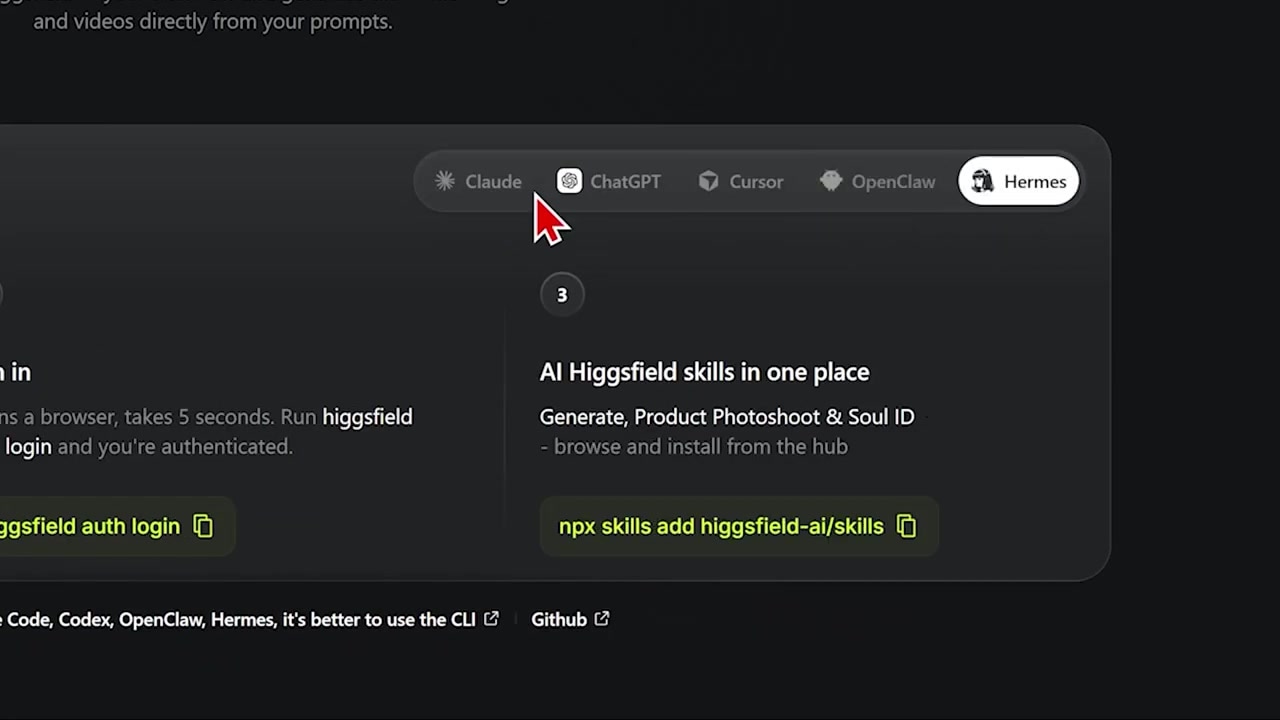
Caption: Finding and selecting Claude as the primary client on Higgsfield's MCP installation page.
Step 2: Select Your AI Platform and Copy the Code
Choose the button matching the AI tool you use—such as Claude. Under the MCP tab, Higgsfield will display a specific snippet of code. Click the button to copy this connector code to your clipboard.
Step 3: Add a Custom Connector in Claude
Open your Claude account and click into your account settings. Navigate down to the Connectors (or custom tools) section. In the top-right corner, click Add and choose Add custom connector.
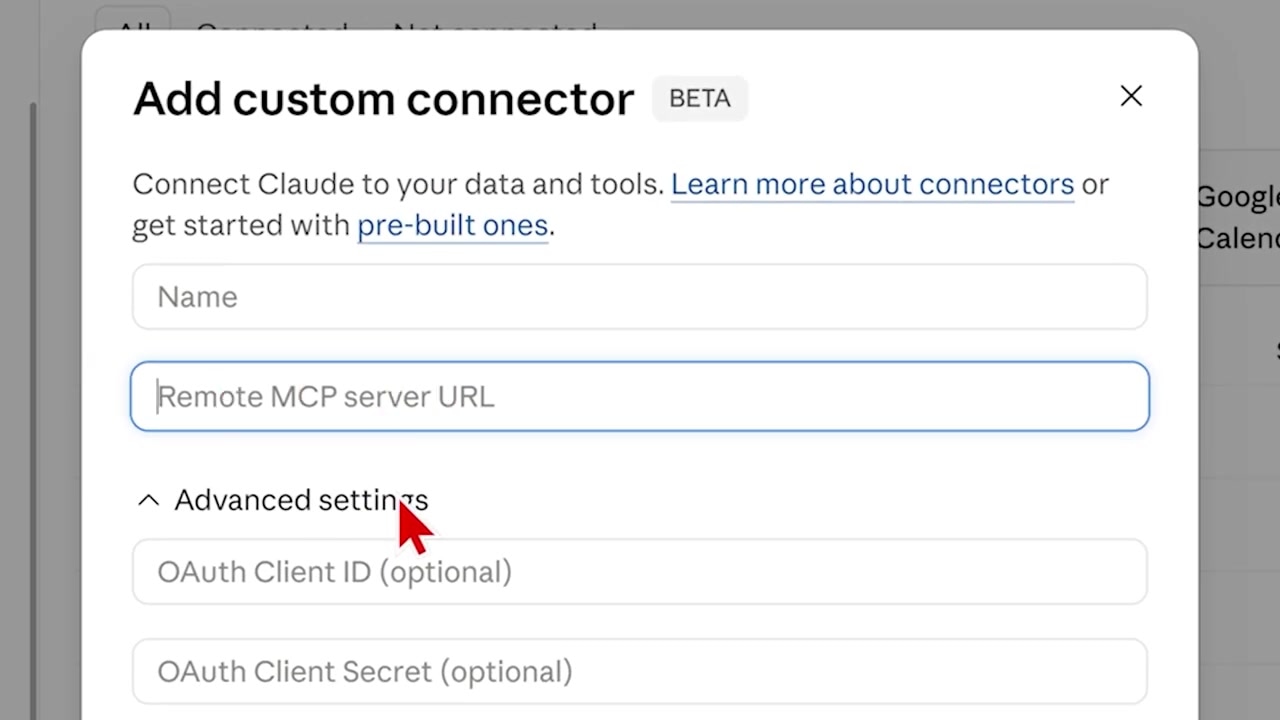
Caption: Pasting the custom integration code directly inside Claude's custom connector menu to establish the secure link.
Step 4: Paste, Name, and Activate
Paste the copied code snippet directly into the provided custom connector field. Name your connection something easily identifiable—like Higgsfield MCP—and hit Add. Once added, make sure to toggle the Higgsfield connector ON inside your active connectors list.
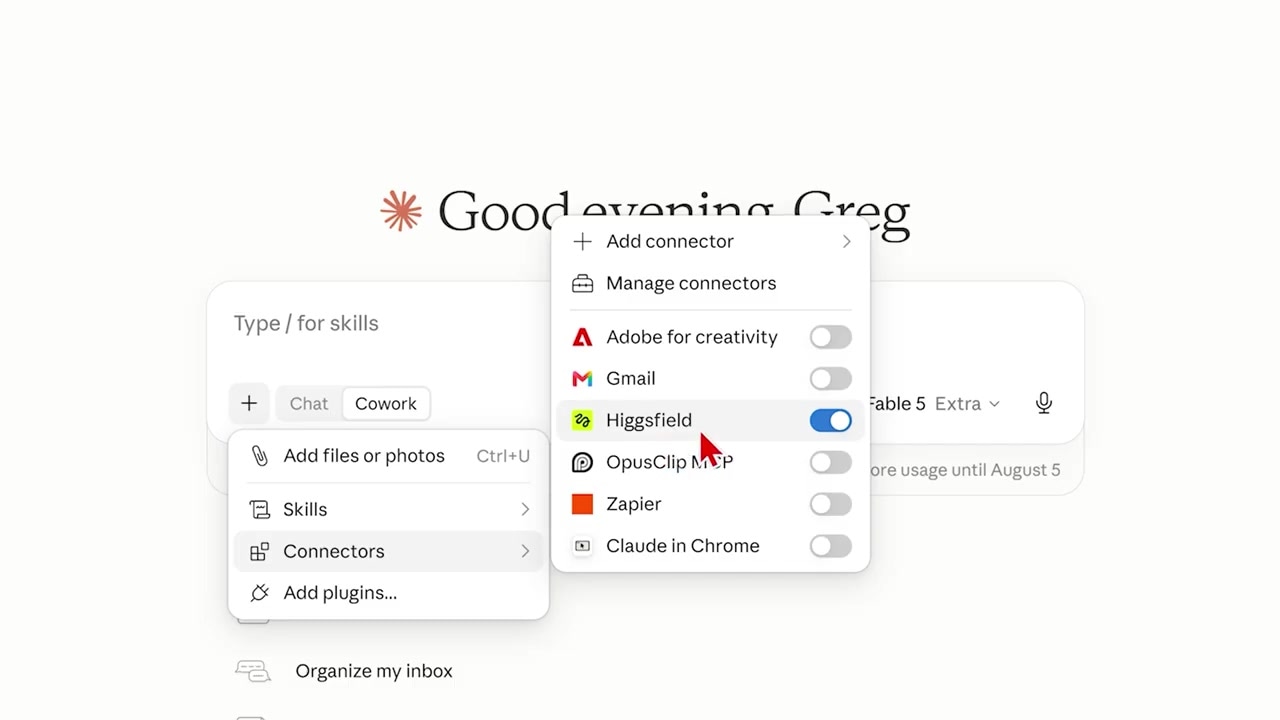
Caption: Toggling the custom Higgsfield MCP connector to the active state in Claude's settings panel.
What Can You Create with Higgsfield MCP?
Once the bridge is active, you don't even have to guess what commands are supported. You can ask Claude directly in the chat: "What does the Higgsfield MCP let me do?"
Because your LLM can talk directly to the integration, it will supply a list of available actions. Key functionalities include:
- Image Creation & Editing: Generate high-quality static assets, upscale existing pictures, or edit prompt elements.
- AI Video Generation: Instruct the engine to create promotional video clips directly from text descriptions.
- Audio & Translation: Create vocal tracks, translate audio into different languages, and apply realistic voice dubbing.
As an experiment, I instructed Claude to write a script and trigger the Higgsfield video generator to build a promotional commercial for a physical toy product (a yo-yo). The asset was rendered beautifully right inside my chat session.
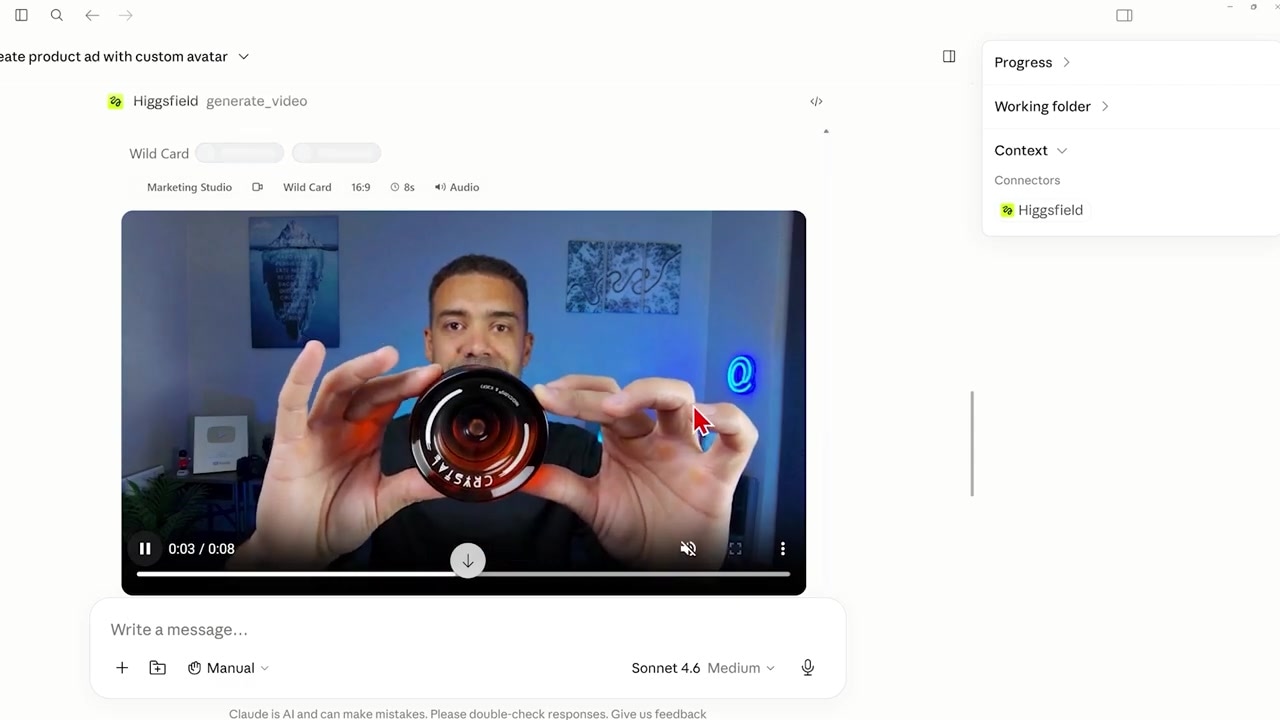
Caption: A close-up of a promotional yo-yo ad created end-to-end inside the chat console using the Higgsfield generate video command.
Automated Marketing & YouTube Channel Workflows
By linking an intelligent reasoning engine like Claude with a high-performance rendering tool like Higgsfield, you unlock completely hands-off creation systems. Here are two of my favorite workflows:
1. The E-Commerce Product Launch Pipeline
If you sell physical products, you can run an entire marketing operation with a single chat prompt:
- Research: Instruct Claude to analyze your target niche, research competitor strategies, and identify viral hooks.
- Strategy: Let the AI draft a comprehensive content calendar and advertising plan.
- Execution: Direct Claude to trigger Higgsfield MCP to construct custom product image ads and short-form video creatives.
- Distribution: Ask Claude to compile the assets and schedule the content across your social channels.
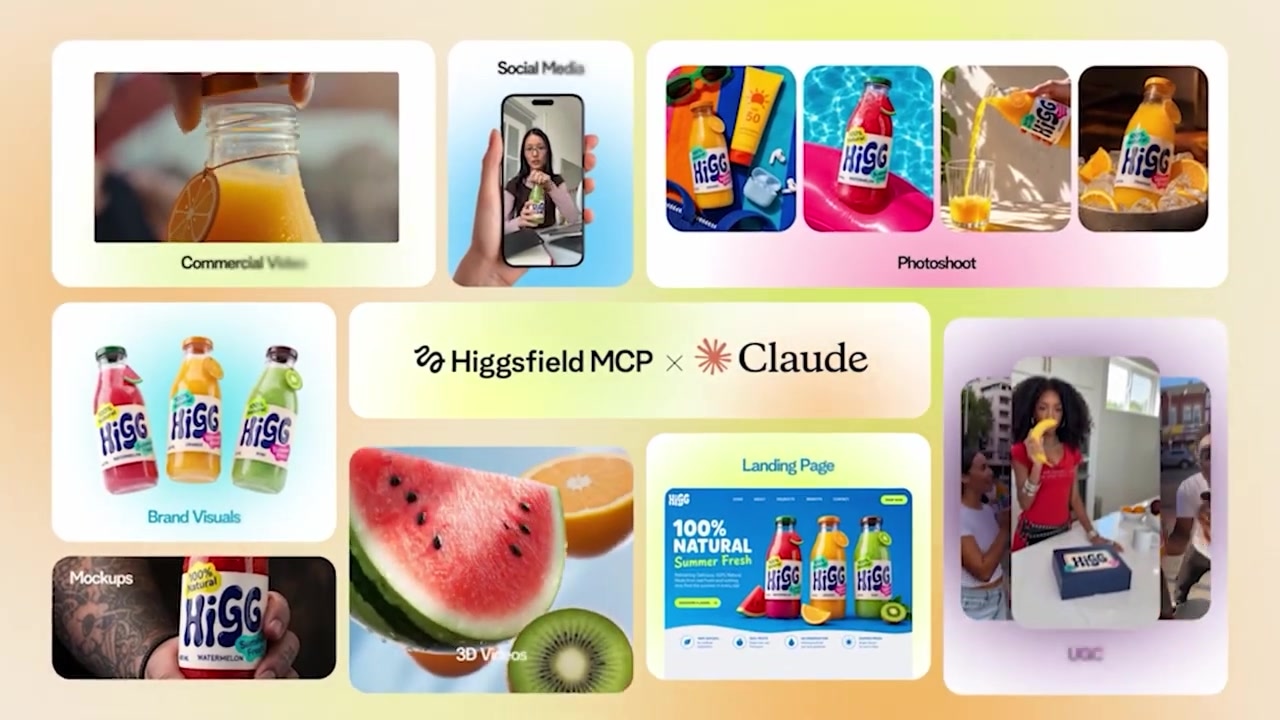
Caption: Marketing assets and visual campaign drafts generated sequentially inside Claude via the Higgsfield integration.
2. The Faceless YouTube Channel Automator
Creating video content at scale can be incredibly time-consuming. Using Higgsfield MCP, you can automate this entire cycle:
- Topic Selection: Let Claude scour YouTube to find trending, high-interest topics in your niche.
- Scriptwriting: The AI drafts a highly engaging, original, research-backed script.
- Visual Production: Claude automatically instructs Higgsfield to generate continuous video segments (supporting final videos up to 10 minutes long).
- Upload: Package the video alongside auto-generated descriptions, tags, and thumbnails, then schedule it for upload.
If you are ready to connect your LLM with a professional AI video and image engine, you can start right now.
Try Higgsfield here: Try Higgsfield →
Frequently Asked Questions
What is Higgsfield MCP?
Higgsfield MCP is a connector built on Anthropic's Model Context Protocol (MCP) standard. It allows AI assistants like Claude or ChatGPT to access Higgsfield's image, video, and audio generation capabilities directly inside a single chat window.
Do I need developer experience to set up Higgsfield MCP?
No. The setup is designed for non-technical users. You simply copy a custom code block from the Higgsfield setup dashboard, open your AI tool's connector settings, paste the code, name the connection, and toggle it on.
Can I run Higgsfield MCP on my mobile phone?
Yes. Since the MCP server processes requests remotely, once you have connected the Higgsfield MCP tool in your desktop settings, you can trigger video and image generations directly through the official ChatGPT or Claude mobile apps.
How long of a video can I generate using this setup?
The integrated workflow supports creating long-form video campaigns, with capabilities designed to piece together up to 10-minute long faceless videos for social channels like YouTube.