Higgsfield Marketing Studio in Claude: How I Create AI Ads in Seconds
Last updated: July 2026
Author: Greg Preece — I test AI video tools hands-on and show creators how to build automated content pipelines that get real results.
Being able to generate premium video ads inside Claude AI without ever switching tabs is a complete game-changer. After thoroughly testing the new Higgsfield MCP integration, I've mapped out the exact workflow to link your product catalog to Claude and generate highly engaging video ads in bulk. Here is how to set up and use Higgsfield Marketing Studio directly inside your Claude workspace.
Prefer to watch?
Prefer to skim? The full breakdown is below.
Quick Links
- Try Higgsfield: Try it here: Try Higgsfield →
Table of Contents
- What is the Higgsfield MCP?
- Step-by-Step: How to Connect the Higgsfield MCP to Claude
- The Website Interface vs. The Claude Chat Interface
- How to Prompt Higgsfield From Inside Claude
- Frequently Asked Questions
What is the Higgsfield MCP?
The Model Context Protocol (MCP) allows you to connect external applications and databases directly to your Claude AI chat. Instead of hopping back and forth between browser tabs to copy prompts, upload product photos, and render files, you can run entire workflows from a single text interface.
By connecting the Higgsfield MCP to Claude, you can use text instructions to command Higgsfield Marketing Studio. This means you can hook Claude up to a spreadsheet or product database to automatically batch-generate ads, edit creative on the fly, or even run marketing campaigns from the Claude mobile app.
Step-by-Step: How to Connect the Higgsfield MCP to Claude
Setting up your connection takes less than two minutes. Follow these simple steps to link your accounts:
Step 1: Set Up Your Higgsfield Account
Before configuring Claude, you must have an active Higgsfield account. Head to the official Higgsfield website and register an account if you do not already have one.
Step 2: Grab the MCP Connector Code
On the Higgsfield website, locate and click on the Higgsfield MCP section. Under the setup instructions, copy the custom connector code block or URL (which routes through https://mcp.higgsfield.ai/mcp).
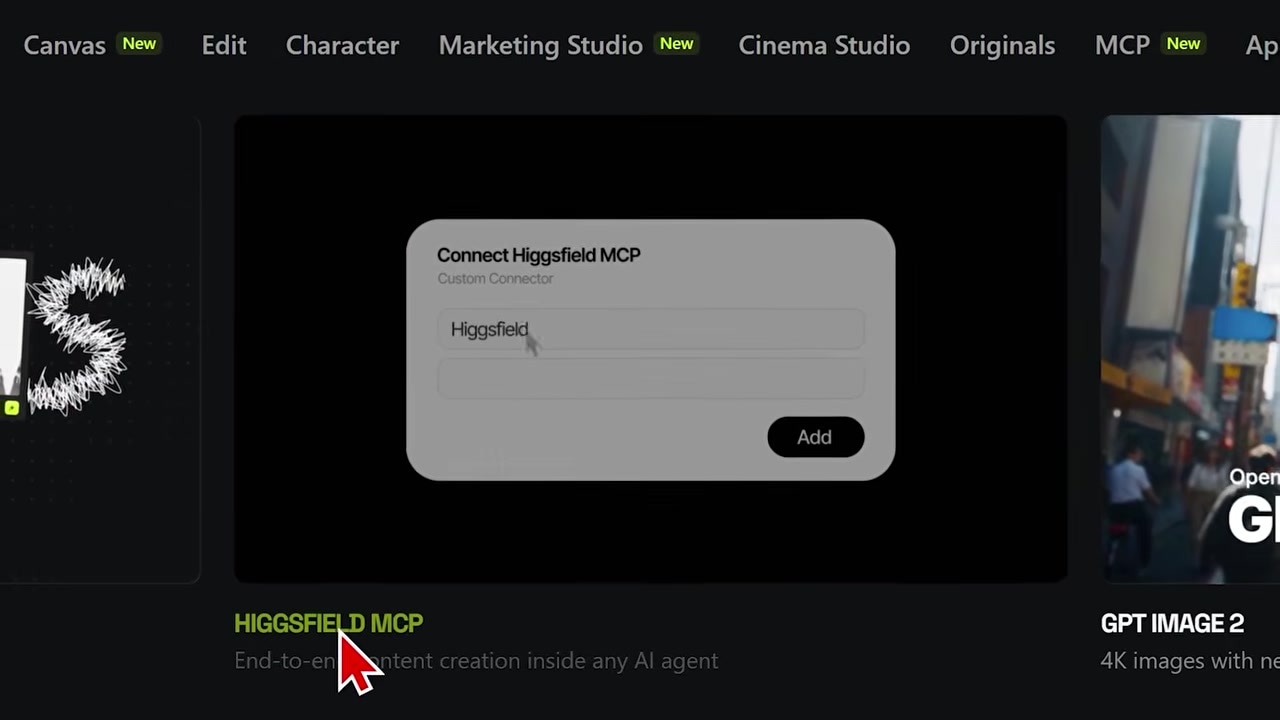
Caption: The Higgsfield MCP page containing the connector instructions and code.
Step 3: Add the Custom Connector in Claude Settings
Open your Claude AI app (or use it via browser) and navigate to your workspace settings:
- Click on your profile menu in the bottom-left corner.
- Select Settings.
- Click on Connectors on the left menu.
- Click Add custom connector.
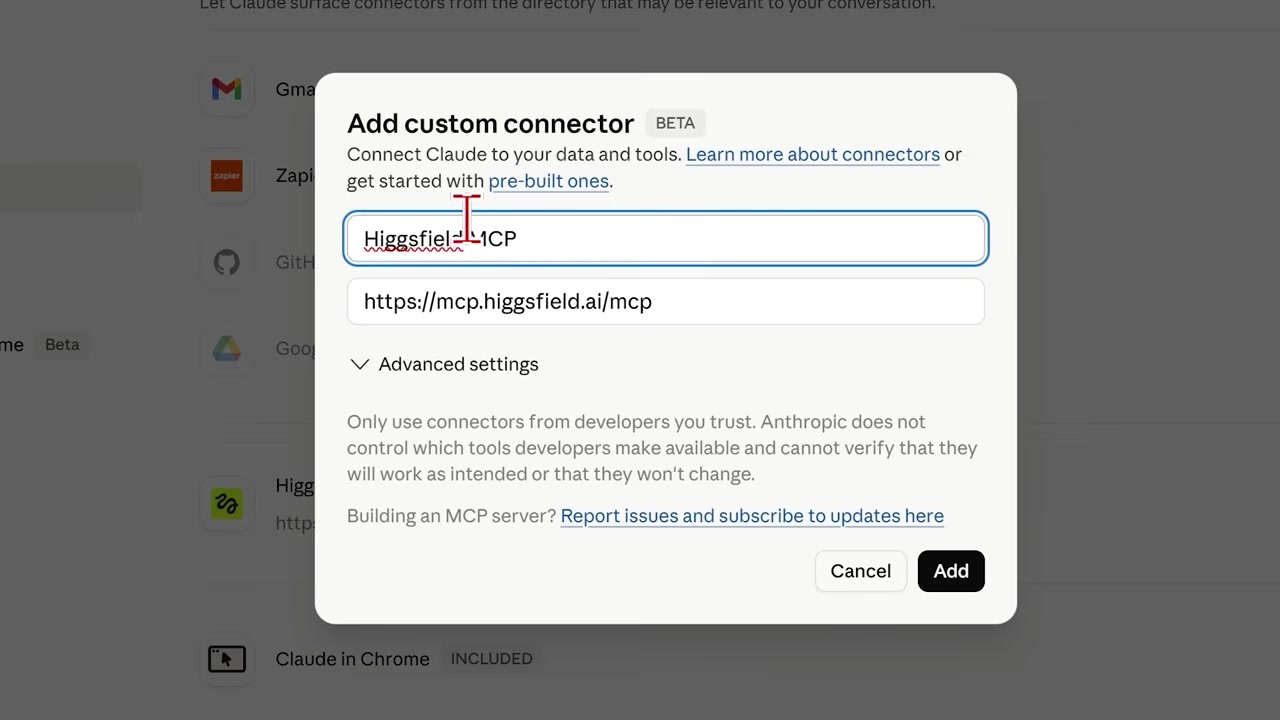
Caption: Adding a custom connector within the Claude settings dashboard.
Step 4: Paste and Log In
Paste the code you copied from the Higgsfield MCP page into the connector field, type in a name you'll recognize (e.g., Higgsfield MCP), and click Add. Once added, a pop-up window will prompt you to authorize and log into your Higgsfield account.
The Website Interface vs. The Claude Chat Interface
Previously, to build high-converting product ads, you had to manually navigate through the web-based Higgsfield Marketing Studio.
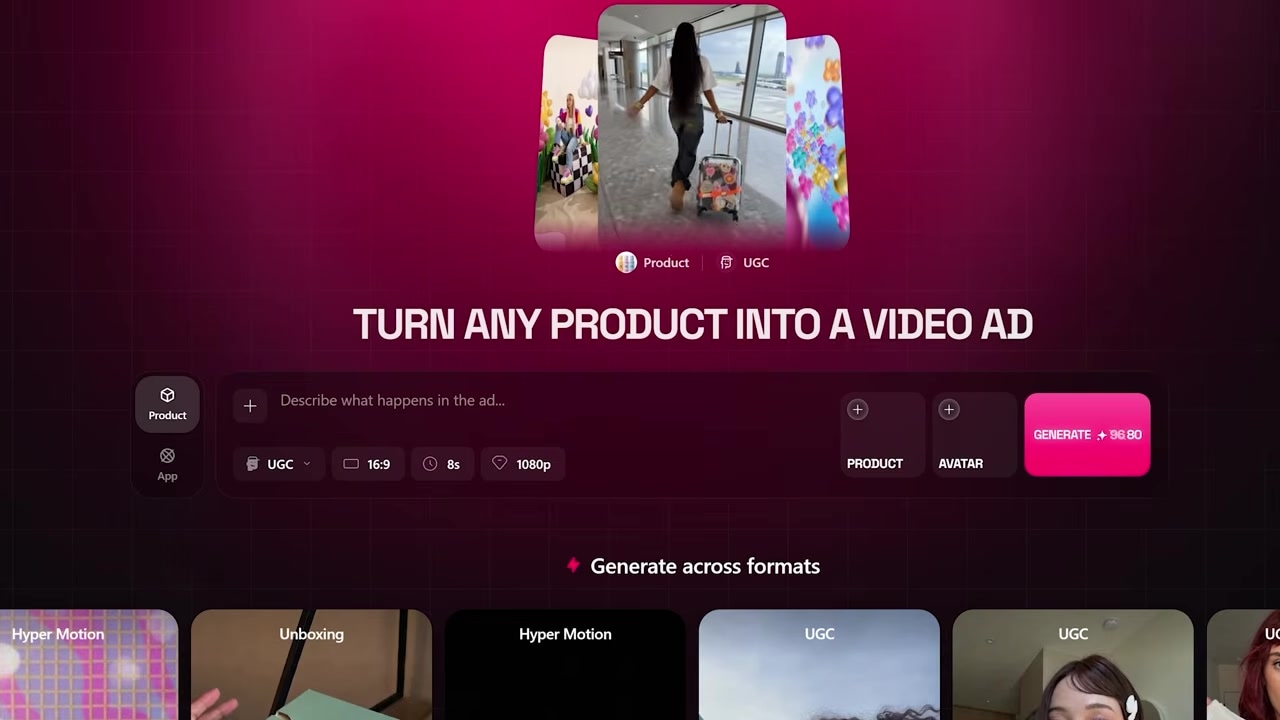
Caption: The original web platform where product photos, links, and avatar assets are compiled.
While the manual dashboard is incredibly fast and only takes a few minutes, bringing it into Claude unlocks serious automation potential.
| Feature / Metric | Web-Based Higgsfield Marketing Studio | Higgsfield MCP in Claude AI |
|---|---|---|
| Workflow Friction | Requires switching tabs, manually uploading image references, and selecting UI dropdowns. | 100% text-prompted directly inside your ongoing Claude conversation. |
| Bulk Generation | Manual process; you must render one ad sequence at a time. | Highly automated; you can point Claude to a product database to generate ads in bulk. |
| Mobile Capability | Best suited for desktop browsers. | Can be used seamlessly on the go via the Claude mobile app. |
How to Prompt Higgsfield From Inside Claude
Now that your accounts are connected, you can generate cinematic clips right in your chat. However, through my hands-on testing, I discovered a few critical constraints and rules you must follow to avoid error messages.
1. Always Use the Claude CoWork Tab
I found that attempting to run Higgsfield video generations inside the standard Claude chat interface often fails. To get consistent results, ensure you are working within the Claude CoWork tab.
2. Set Up Your Avatar on the Web First
To put yourself or a custom model inside your ads, you must upload your source photo and name your avatar on the Higgsfield web dashboard first. Once named (for example, MyAvatar), you can call it inside Claude by typing that exact name. You cannot create a brand-new avatar from scratch inside the Claude text window.
3. Write an Explicit Prompt
Your prompt needs to be highly detailed so Claude knows to call the custom connector rather than trying to generate text.
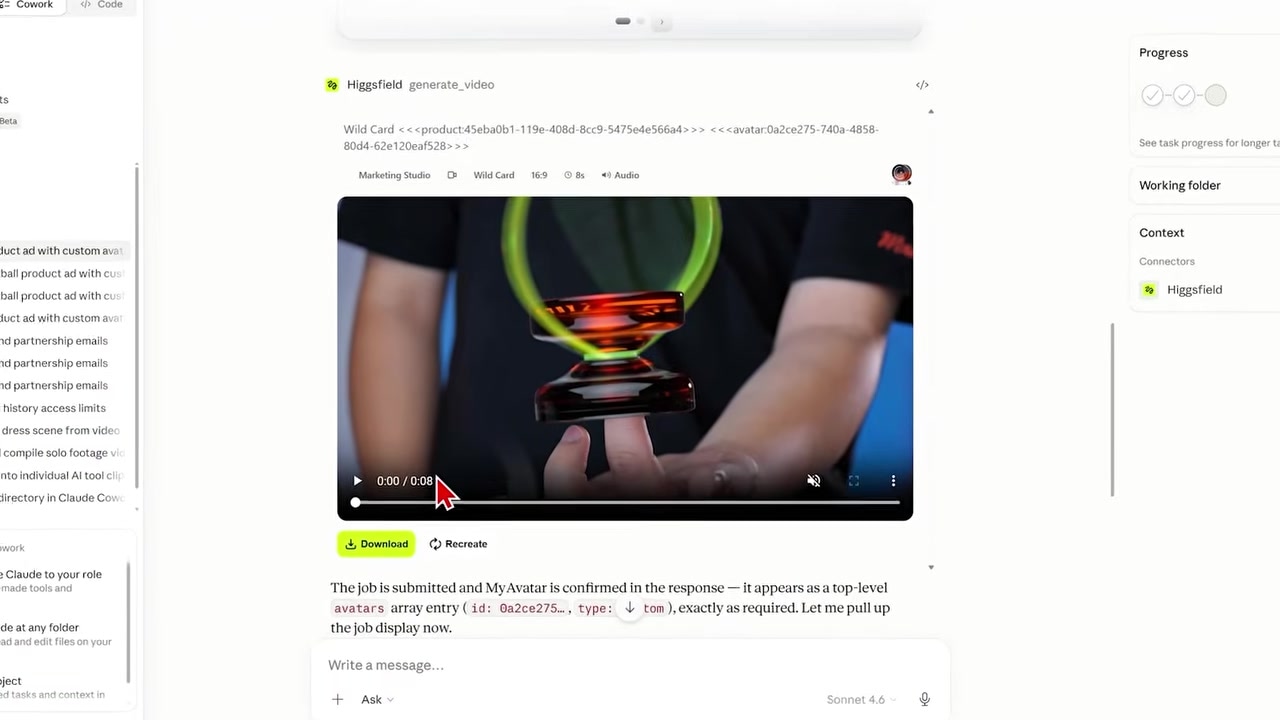
Caption: An 8-second product ad generated completely inside the Claude CoWork interface.
To get reliable results, copy, paste, and customize this exact prompt template:
Please generate an 8-second long horizontal video at 720p quality for this product: [INSERT PRODUCT LINK].

It is important to use the Higgsfield Marketing Studio custom connector to generate this ad.

Use the [INSERT PRESET] ad type preset and make sure to include my custom avatar named [INSERT AVATAR NAME].
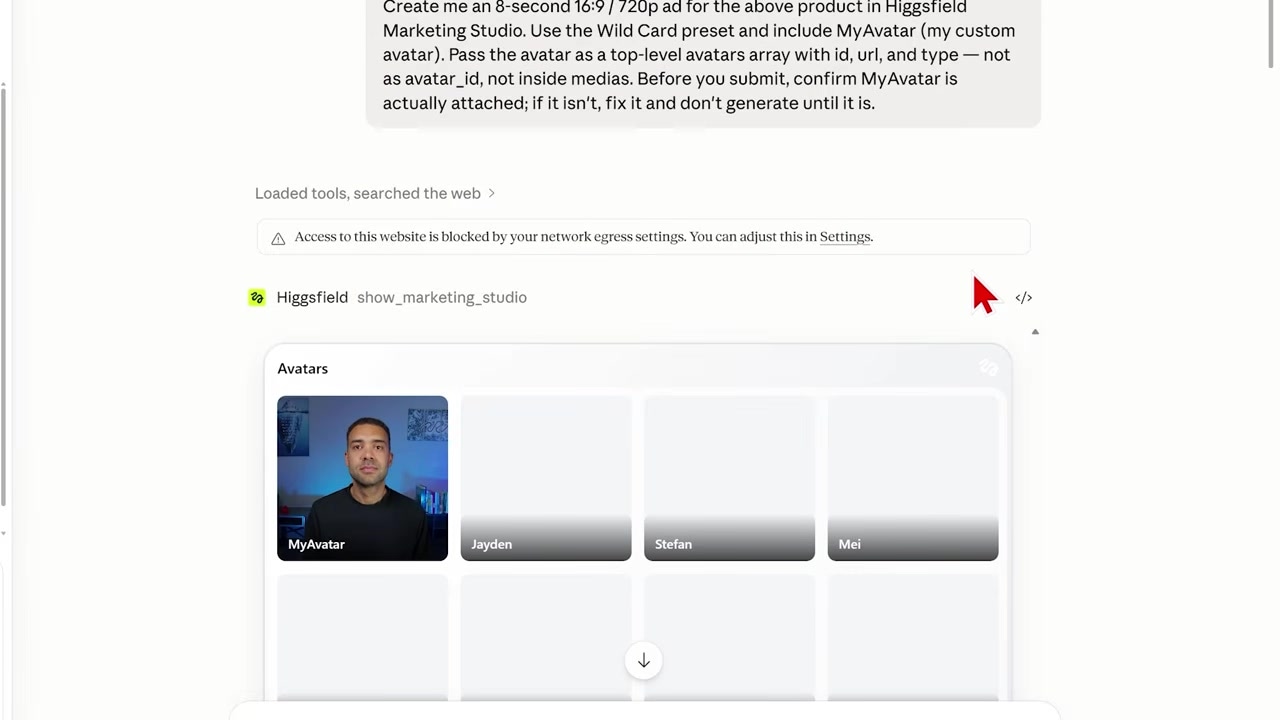
Caption: The raw prompt template constructed inside the chat, pointing to the Amazon product page.
My personal favorite preset ad styles to run are Wild Card, TV Spot, and Hyper Motion. They consistently deliver the cleanest cinematic motion and grab a viewer's attention quickly.
Ready to automate your marketing assets directly inside your chat workspace? Try it here: Try Higgsfield →
Frequently Asked Questions
Can I create a new avatar directly within Claude?
No. You must upload your reference photo and set up your avatar on the web dashboard first. Be sure to save it with a clear, recognizable name (like MyAvatar) so you can reference it inside your Claude prompts.
Why is Claude failing to trigger the custom connector?
Double-check that you are working in the Claude CoWork tab. In my testing, the standard chat window does not consistently trigger custom MCP connections. Also, ensure you are explicitly naming "Higgsfield Marketing Studio" inside your prompt text.
Can I use my own store's product links?
Yes. You can paste Amazon URLs, Shopify links, or any direct product link from your online store. Claude will read the product details from the URL and pass them directly to the Higgsfield renderer.