Higgsfield MCP: How I Create AI Images and Videos Inside Claude
Last updated: 29 September 2026
Author: Greg Preece — I test AI video and marketing tools hands-on to help creators build faster, automated workflows.
If you are a Claude power user, you already know the biggest friction point: there is no native way to generate images or videos within your chats. But thanks to Higgsfield’s newly released Model Context Protocol (MCP) custom connector, you can now generate, edit, and animate high-quality visual assets directly inside your conversations. I’ve been testing this integration hands-on, and it is a massive step forward for social media content creation and product marketing.
TL;DR: Higgsfield Claude Integration At a Glance
- What it is: A custom Model Context Protocol (MCP) connector that links Claude directly to Higgsfield's creative library of image and video models.
- Why it matters: You can create social media visuals, consistent character graphics, horizontal/vertical videos, and marketing ads inside a single Claude chat window.
- Key models used: GPT Image 2 (best for multi-slide carousels and text insertion), Nano Banana 2 (for fast image generation), and Seedance 2.0 (for cinematic video motion).
- Ease of Setup: Under a minute—just paste a custom connector URL into Claude's native settings panel and authorize.
Table of Contents
- The New Way to Create Content in Claude
- How to Connect the Higgsfield MCP to Claude
- Prompting Higgsfield Inside Claude
- Creating Product Ads with Higgsfield Marketing Studio
- Why the Model Context Protocol (MCP) is a Game-Changer
Prefer to watch? Here's the video. Prefer to skim? The full breakdown is below.
Quick Link
Try it here: Try Higgsfield →
The New Way to Create Content in Claude
Previously, if I wanted to pull off a complete brand or social campaign, I’d have to bounce across multiple tools. I would write the copy in Claude, jump to an image generator to create product shots, move to a video tool to animate those shots, and head to another editor to piece together text overlays.
With the Higgsfield MCP connector, that painful back-and-forth is gone. I’ve been testing this myself to build out visual content sets. I generated a photorealistic image of myself holding a mock orange drinks product, turned that still image into an animated video clip, and built a consistent five-slide LinkedIn carousel featuring facts about the drink. I even pulled a real toy product link from Amazon and generated a complete video ad—all inside Claude.
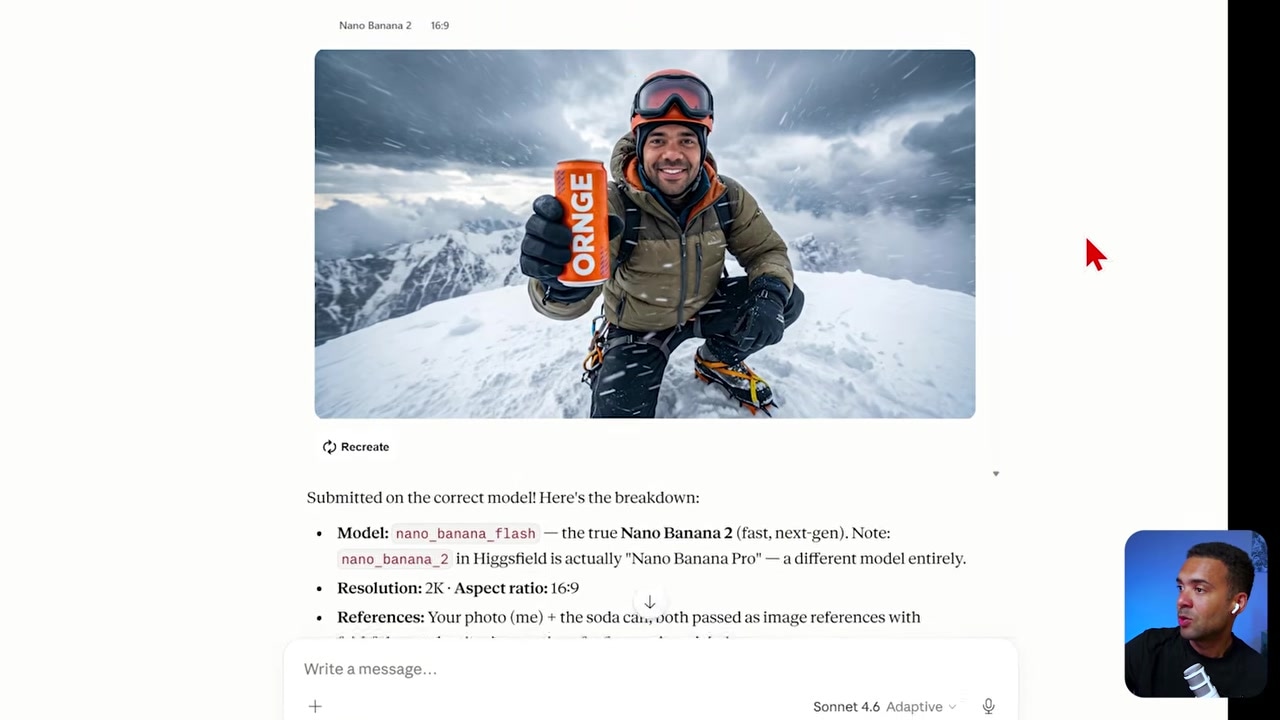
Caption: The initial product image I generated inside Claude using Higgsfield's image generation tools.
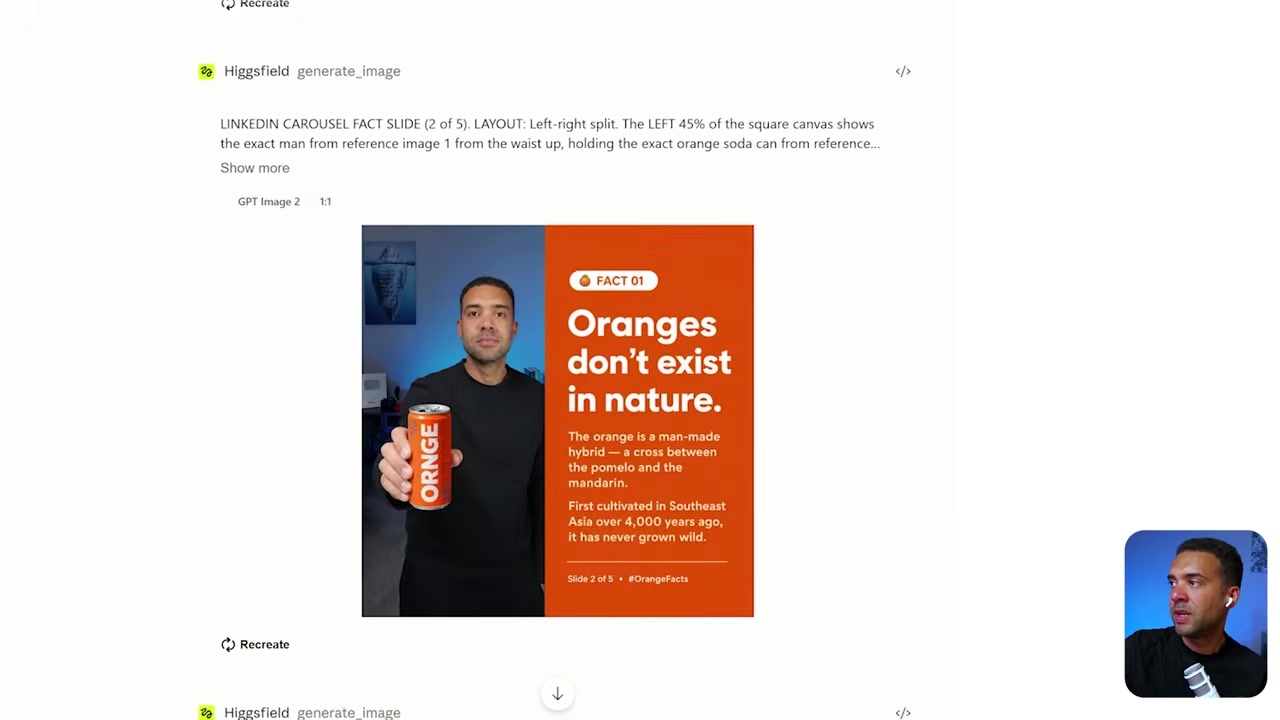
Caption: A multi-slide carousel where the AI maintains consistency of my character holding the drinks can across slides.
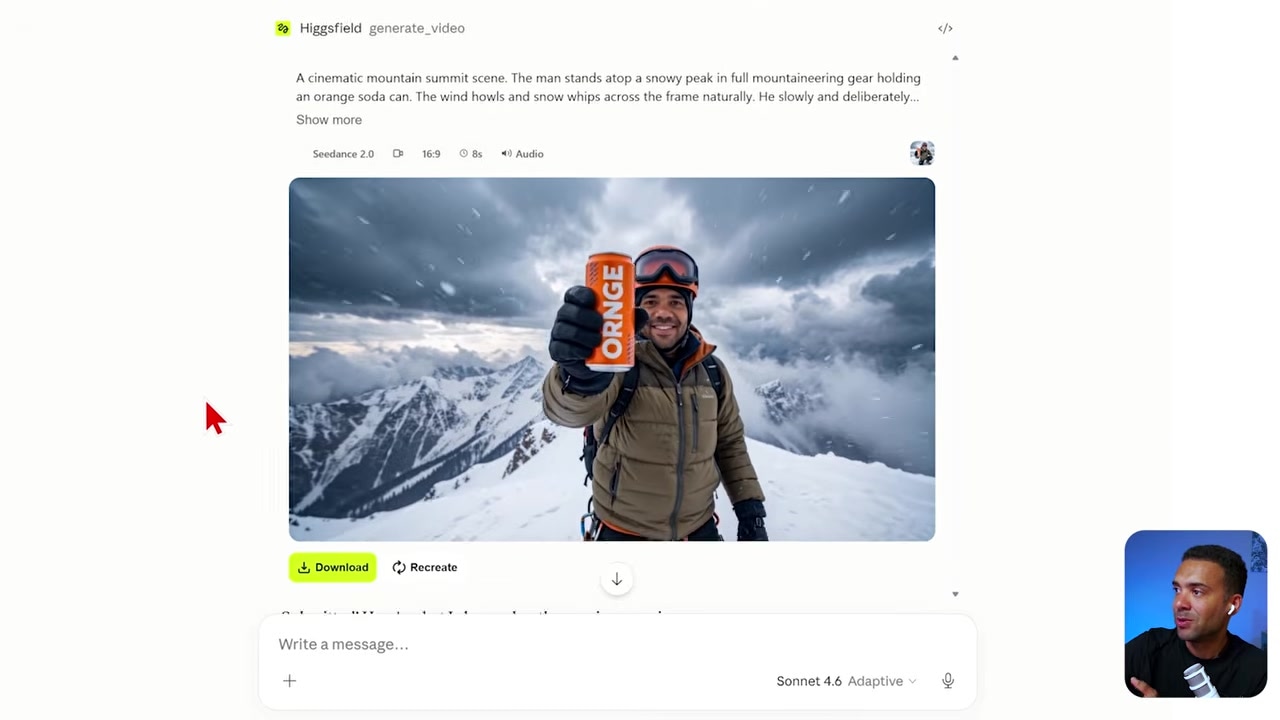
Caption: Converting the static generation into an animated video clip directly inside the same Claude conversation.
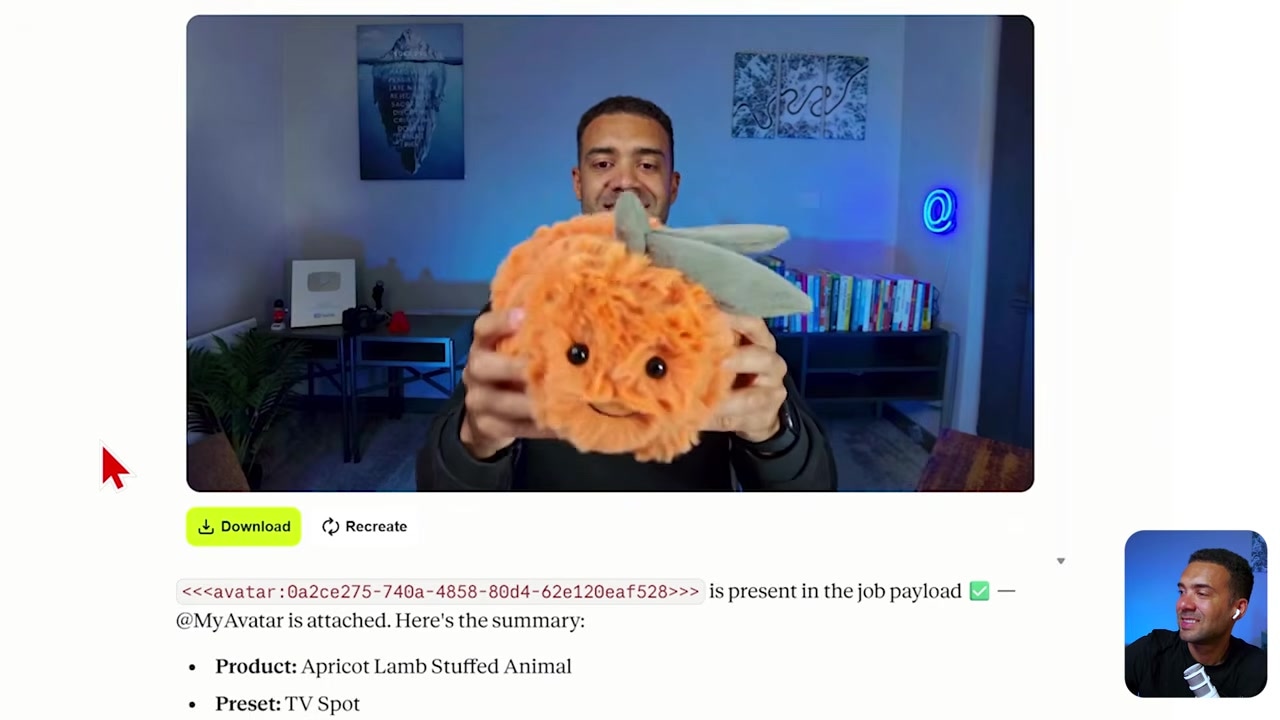
Caption: An automated ad video concept created for a product link sourced from Amazon.
How to Connect the Higgsfield MCP to Claude
Connecting Higgsfield to Claude takes less than a minute. Since Claude supports custom connectors natively, you don’t need any coding experience or developer keys.
Here is the step-by-step setup workflow:
- Open Claude on your web browser or desktop app.
- Click on your profile icon in the bottom-left corner and go to Settings.
- Navigate to the Connectors tab.
- Click the Add Custom Connector button.
- Paste the Higgsfield MCP connector URL:
https://mcp.higgsfield.ai. - Name the connection (e.g., "Higgsfield Connector") so you can recognize it.
- Click Add (you can ignore the advanced settings fields).
- A secure pop-up window will appear asking you to log into your Higgsfield account. Once authorized, the custom connector will be live in your sidebar.
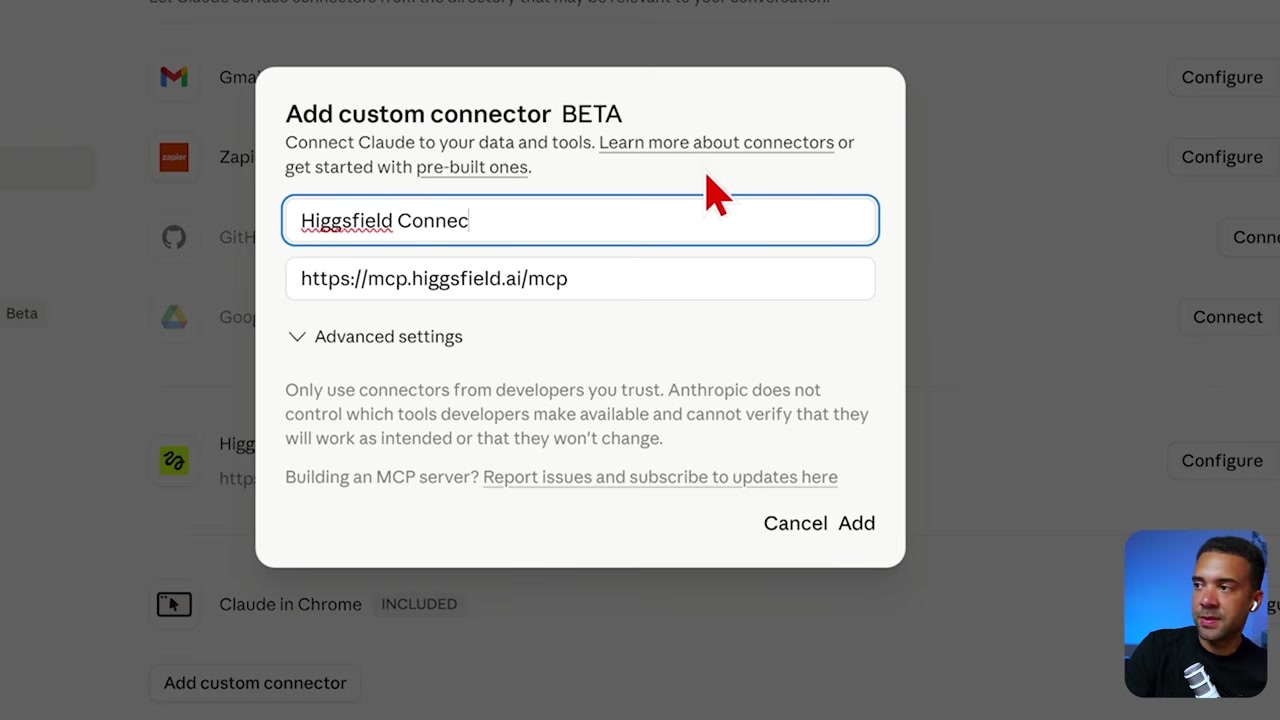
Caption: Adding the Higgsfield custom MCP connector only takes a minute inside Claude’s native settings panel.
Prompting Higgsfield Inside Claude
Once connected, Claude knows how to speak to Higgsfield behind the scenes. However, you need to structure your initial prompts carefully so Claude knows to trigger the integration rather than attempting a native text-only output.
Generating Product Images with Nano Banana 2
To start an image generation task, you must explicitly state that you want Claude to use Higgsfield in your opening line. For example:
"Using the Higgsfield MCP, generate an image of..."
For basic image generation, you can let Higgsfield choose the backend AI model automatically, or you can request a specific model like Google's Nano Banana 2 technology (which is great for fast, stylized shots).
Crucial tip for consistent assets: If you want Claude to place your face or your specific product inside the generated image, you must include the direct URLs of those assets in your prompt.
If you aren't sure where to find your past uploads, simply ask Claude:
"Show me my media uploaded to Higgsfield."
This will pull up an asset panel directly in your chat sidebar. You can browse your historical face swaps or product photos, and click Use to instantly grab the direct image link to insert into your prompt.
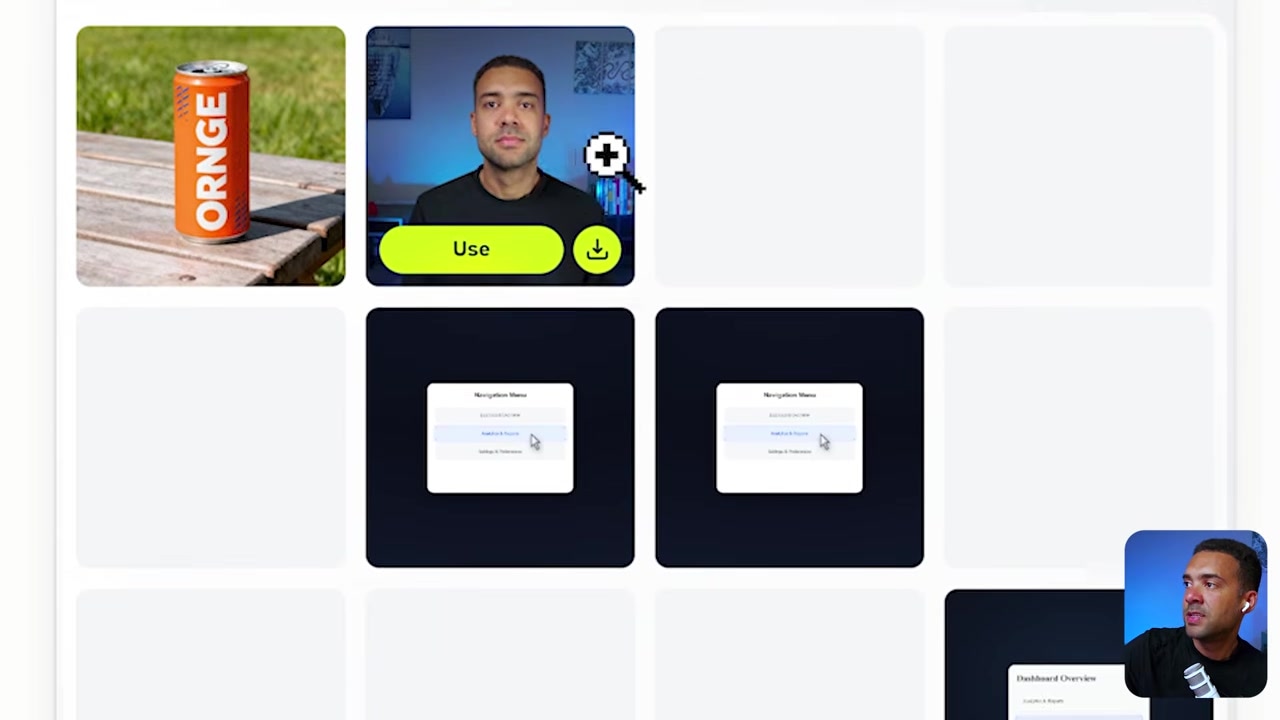
Caption: Running a quick command lets you browse your historical Higgsfield uploads and instantly fetch direct image links.
Creating Multi-Slide Carousels with GPT Image 2
If you want to create multi-image sequences (like a 5-slide carousel for LinkedIn or Instagram) that include specific text overlays, I highly recommend directing Higgsfield to use the GPT Image 2 model.
GPT Image 2 is highly optimized for maintaining layout structure and rendering readable text without gibberish.
To prompt a carousel, structure your prompt like this:
- The Command: Start by asking for Higgsfield and specifying the GPT Image 2 model.
- The Requirements: Detail the exact text, messaging, or facts you want written on each individual slide.
- The Links: Include the direct asset links for any consistent elements (such as your face or product packaging) at the bottom of the prompt.
This allows you to automate highly tedious social media image packs in seconds.
Converting Still Images to Video with Seedance 2
Turning a still image into a video is incredibly easy once you’re inside an active chat thread. By this stage, you don’t even need to prefix your prompt with "Using Higgsfield MCP"—Claude will remember the active context.
To animate an image:
- Ask Claude to generate a video clip.
- Specify the Seedance 2.0 video model (which, in my opinion, produces strong cinematic physics and camera motion, though Seedance 2.5 has since landed on Higgsfield).
- Reference the image generated earlier in the chat thread and instruct the model to use it as the first frame.
This setup prevents the AI from shifting your character’s appearance, giving you a smooth transition from a static photo to a high-quality video clip.
Creating Product Ads with Higgsfield Marketing Studio
If you want to create full marketing ads, you can access Higgsfield Marketing Studio directly through the Claude integration.
Marketing Studio operates slightly differently because it utilizes structured ad presets—such as UGC, TV spot, hyper-motion, unboxing, and "Wild Card" formats.
To test this, I grabbed a random stuffed orange toy listing from Amazon and pasted the product URL directly into Claude. I then prompted:
"Create me a horizontal video ad for the above product link using Higgsfield Marketing Studio. Use the Wild Card preset."
The integration automatically scraped the Amazon listing to understand the product, applied the Wild Card marketing template, and compiled a video ad complete with a custom avatar and voiceover. While my first-pass generation ("Highly recommended, a great choice for your little one") was a bit rough and needed another iteration, the speed of turning a raw Amazon link into a structured ad is insanely powerful for e-commerce brands and agencies.
Why the Model Context Protocol (MCP) is a Game-Changer
The launch of Model Context Protocol (MCP) integrations marks a massive shift in how we use AI. Up until now, our workflows have been highly fragmented—requiring us to log into dozens of single-purpose web applications to get a single job done.
With Higgsfield MCP:
- Zero App-Switching: You can run competitor research, draft a social media campaign, design the image assets, and generate the final video ads in one continuous chat window.
- Mobile-Friendly: Because the custom connector attaches to your Claude account settings, the media generation features carry over to the Claude mobile app on your phone, letting you create high-end content on the go.
- Developer Friendly: If you are building custom tools, you can even integrate this Higgsfield connector into Claude Code to invoke cinematic video generation inside your own software pipelines.
Ready to run your entire video and image workflow without leaving Claude?
Try it here: Try Higgsfield →
Frequently Asked Questions
Do I need a paid Higgsfield account to use the Claude connector? Yes, you will need a Higgsfield account to authorize the integration. The custom connector uses your existing Higgsfield plan credits to run generations — here is what every Higgsfield plan actually costs.
Can I run the Higgsfield MCP on the Claude mobile app? Yes. Once you add the custom connector to your Claude settings on desktop, the configuration syncs with your account and is fully operational on your phone's Claude app.
Which AI models are supported through the Higgsfield connector? The connector links Claude to over 30 image and video models, including Nano Banana 2, GPT Image 2, Seedance 2.0, and the specialized templates inside Higgsfield Marketing Studio.