How I Generate Higgsfield MCP Motion Graphics (Vox & Johnny Harris Style)
Last updated: 29 September 2026
Author: Greg Preece — I test AI video tools hands-on and show creators how to get usable results fast.
Creating professional motion graphics has always been a major bottleneck for video creators. If you want to explain a complex topic in the clean, editorial style of a Vox documentary, or navigate dynamic, animated maps like YouTuber Johnny Harris, you typically need high-level After Effects skills or a massive budget.
But what if you could outsource the entire design and rendering process to an AI assistant directly inside your chat window?
By connecting the Higgsfield Model Context Protocol (MCP) directly to Anthropic's Claude (using the powerful Claude Fable 5 model), you can generate premium-tier motion design sequences automatically from simple text prompts. In this hands-on guide, I will walk you through exactly how I set up this connection, write the prompts, and render high-quality visual assets without touching a keyframe.
TL;DR: The Easiest Way to Automate Motion Design
- The Tech: Connect the Higgsfield MCP server to Claude (or ChatGPT) to bridge natural-language prompting with professional video generation models.
- The Workflow: Use Claude's research capabilities to analyze a visual style (e.g., Vox), draft a optimized prompt, and render the motion graphics inside a fresh chat.
- Best Practice: For strong spatial accuracy and layout styling, run the workflow using the Claude Fable 5 model with the Higgsfield connector toggled on.
Table of Contents
- What Is Higgsfield MCP?
- Step-by-Step Setup: Connecting Higgsfield to Claude
- Phase 1: Researching and Drafting the Style Prompt
- Phase 2: Generating the Final Motion Graphic in Claude
- Generating Custom Styles Without Replicating Channels
- Frequently Asked Questions
Prefer to watch? Here's the video. Prefer to skim? The full breakdown is below.
Try it here: Try Higgsfield →
What Is Higgsfield MCP?
The Model Context Protocol (MCP) is an open-standard connection that gives AI assistants direct access to external development tools and APIs. The Higgsfield MCP acts as a bridge: instead of jumping to a separate website, downloading assets, and trying to stitch things together yourself, you can run the entire design pipeline directly inside Claude.
Claude acts as the creative brain (planning layout, analyzing style references, and managing context), while Higgsfield acts as the production workhorse, calling on its video and image generation models to render custom animations right inside your conversation.
Step-by-Step Setup: Connecting Higgsfield to Claude
Getting started takes less than five minutes. Here is the exact path I followed to link the Higgsfield backend to my Claude account:
- Set Up a Higgsfield Account: Head to the official Higgsfield website and register an account (it is free to set up).
- Navigate to the MCP Section: Look for the link at the top of the menu titled MCP & CLI. This page houses the specific instructions and configuration codes for your setup.
- Choose Your Chat Platform: The Higgsfield website provides tailored integration instructions for both Claude and ChatGPT. I use Claude because of its superior reasoning and spatial layout capabilities.
- Add the Connector: In Claude, follow the steps provided on the Higgsfield site to link the Higgsfield server to your interface. Once complete, you will see Higgsfield listed in your Claude connections alongside your other active connectors.
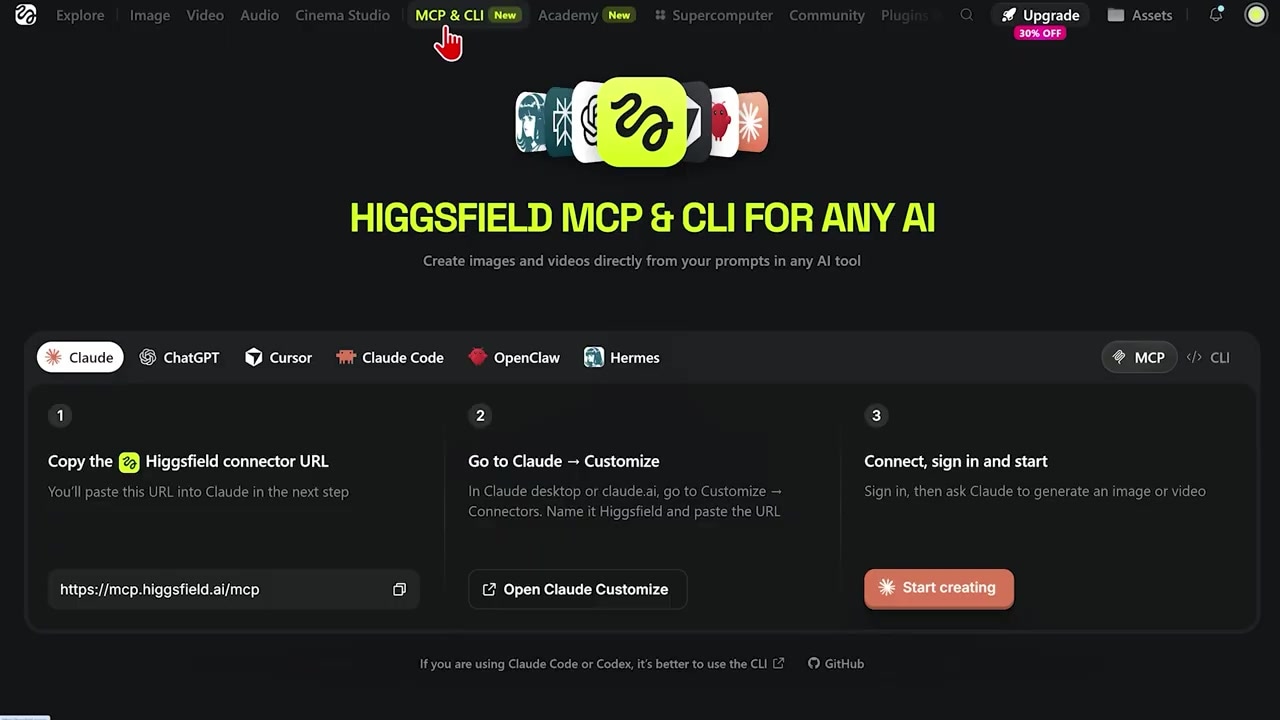
Caption: The "MCP & CLI" instruction portal on the Higgsfield website, displaying setup configurations for connecting to popular LLM clients.
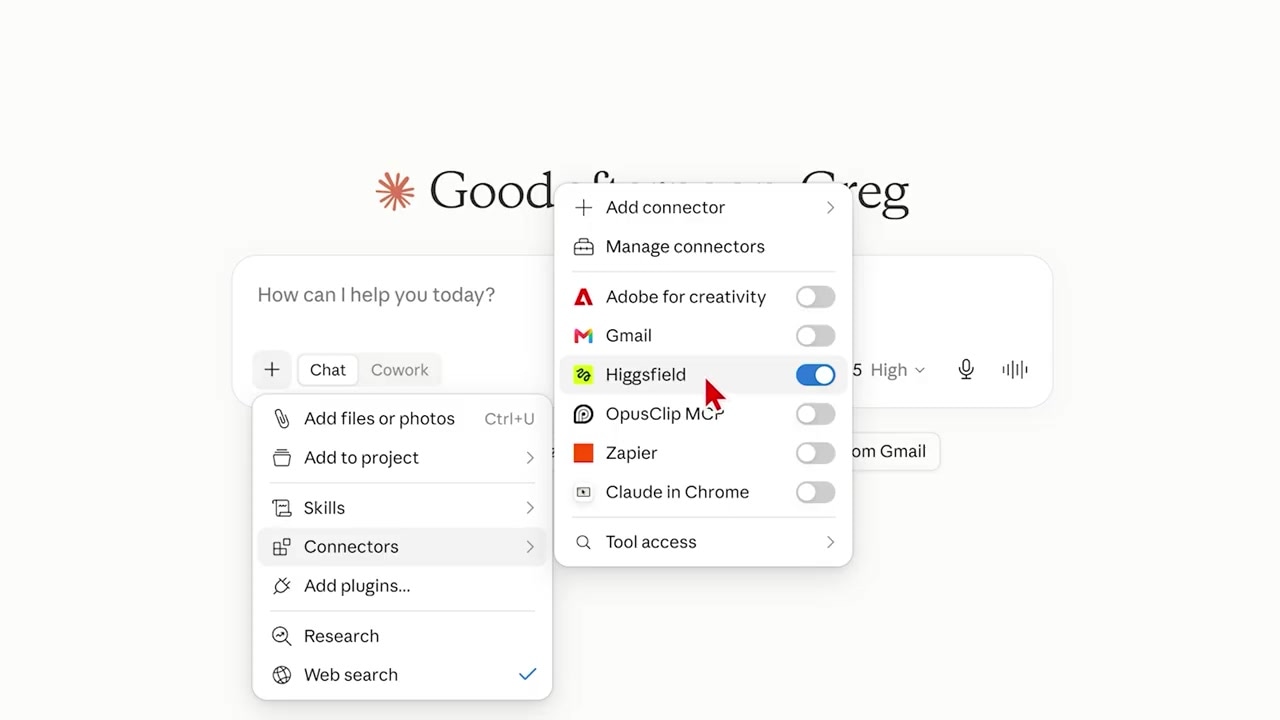
Caption: Claude’s customization interface showing the Higgsfield MCP connector successfully integrated and authorized.
Phase 1: Researching and Drafting the Style Prompt
Once your connector is active, the first objective is to have Claude research a targeted channel or design style.
Why Use Claude Fable 5?
I highly recommend selecting Claude Fable 5 for this phase. While it is a premium model, its advanced reasoning capabilities mean it is far better at analyzing video styles, organizing layout spatial data, and producing prompts that align with Higgsfield's generation parameters.
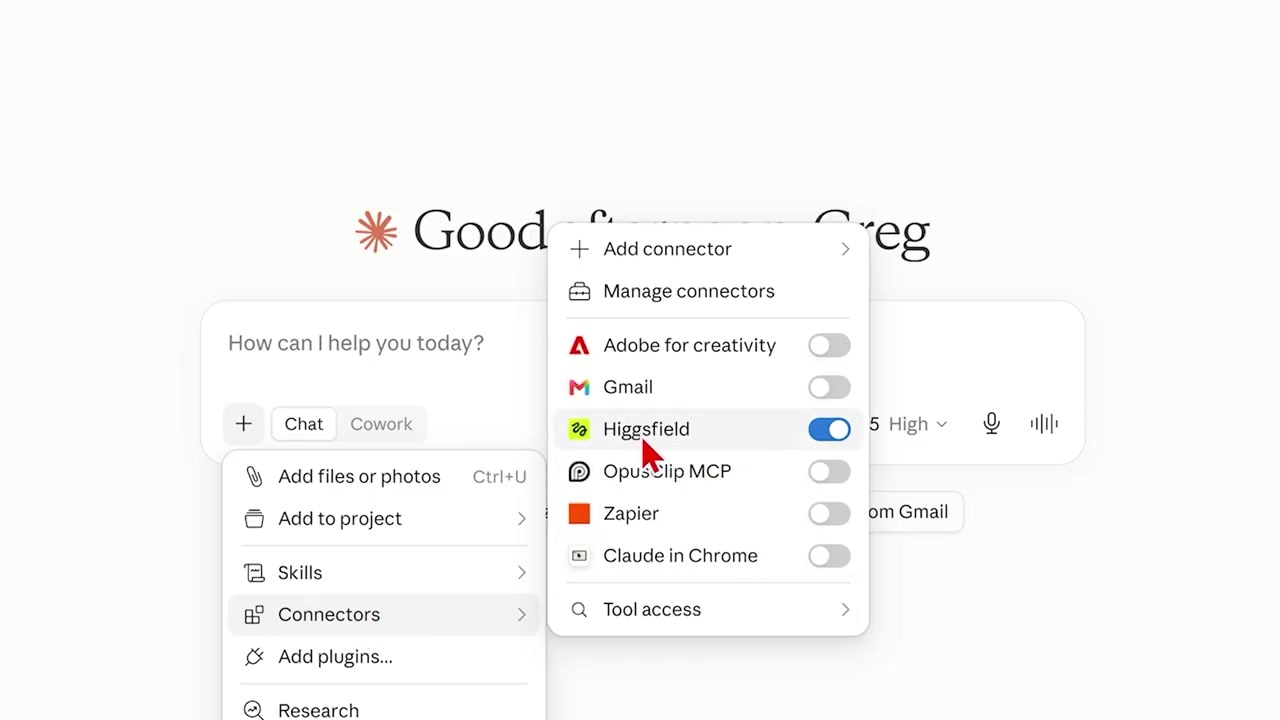
Caption: The Claude chat interface with Fable 5 selected and the Higgsfield connector toggled on.
The Research Prompt
To build a motion graphic that mimics a specific creator's style (like Vox or Johnny Harris), type a variation of this prompt into Claude:
"Research the YouTube channel [Channel Name, e.g., Vox] so you can replicate that channel's style in the prompt you are going to create for me. Draft a motion graphic prompt for a video that should be [Number] seconds long. Make sure you structure this specifically for the Higgsfield MCP generator."
Claude will analyze the stylistic traits of your target channel, break down the key design markers, and generate a highly detailed prompt optimized for Higgsfield's video engine in under a minute.
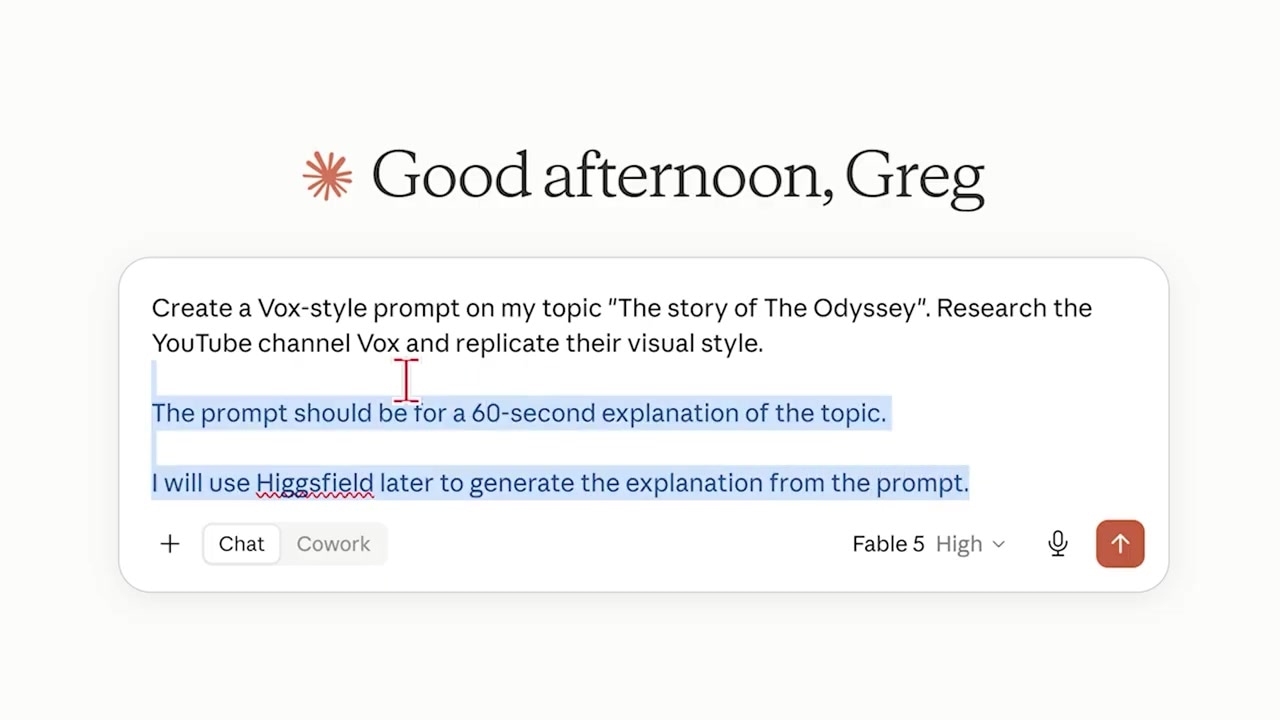
Caption: Prompting Claude Fable 5 to research the aesthetic details of a specific channel to form an optimized video prompt.
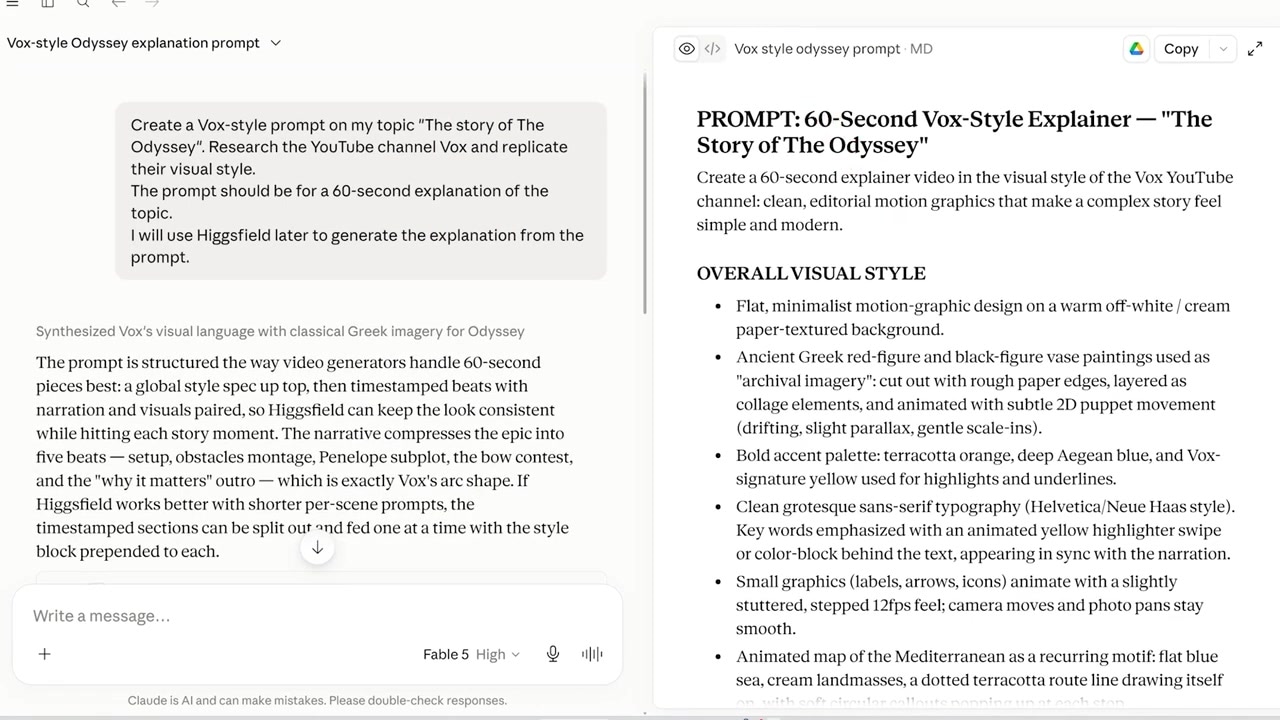
Caption: The detailed visual prompt generated by Claude in under a minute, ready for the rendering phase.
Phase 2: Generating the Final Motion Graphic in Claude
Once you have your custom, researched prompt, do not just press enter in the same window.
The Execution Workflow
- Start a Brand-New Chat: I've found that beginning with a clean conversation slate prevents any context bleed from the research phase and keeps the generation fast.
- Paste the Generated Prompt: Copy the prompt Claude wrote for you in Phase 1 and paste it into the new window.
- Add Crucial Constraints: Directly below the pasted prompt, copy and paste these exact instruction lines to ensure the render layout remains clean and professional:
"Please turn this prompt into a motion graphic using Higgsfield. Ensure that you instruct the model to use correct spelling, clear directions, and precise spatial positioning for all elements in the frame."
- Render and Download: Submit the prompt. Within a few minutes, Higgsfield will compile the instructions, generate the sequence, and render the completed video asset right inside your chat window. You can download the video straight to your machine to import into your editing timeline.
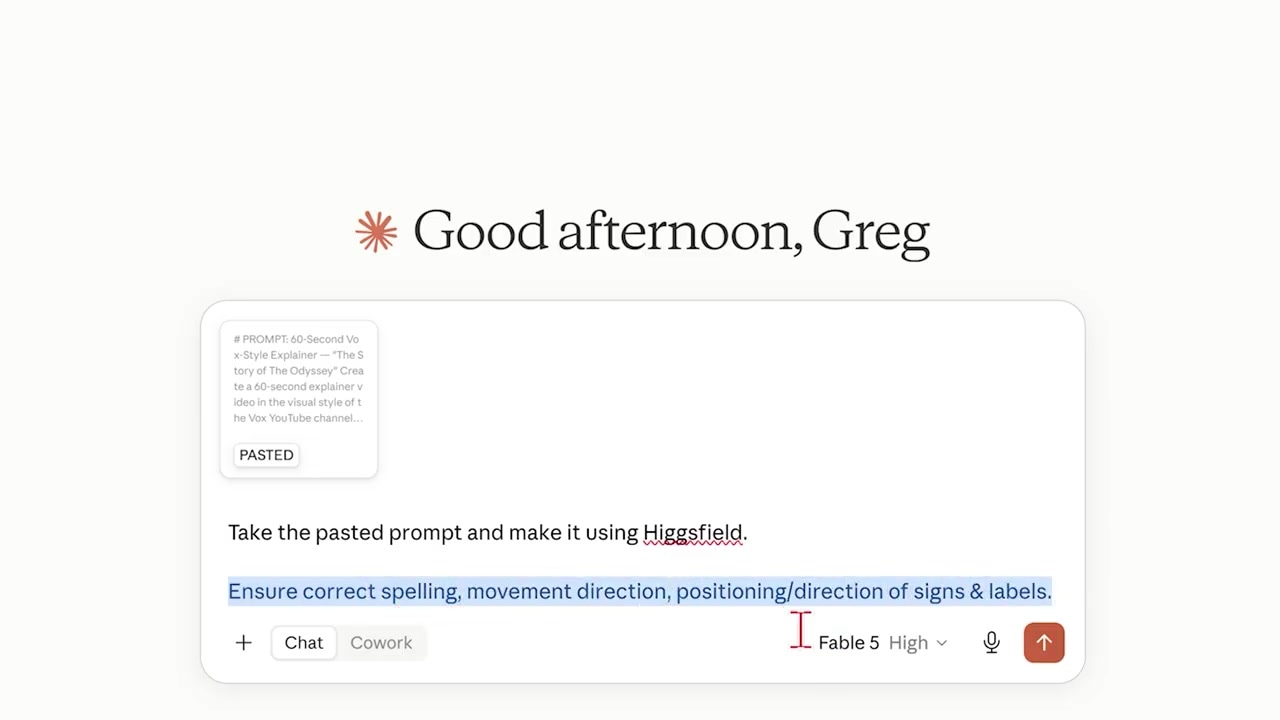
Caption: Entering the generated prompt in a new chat window with explicit instructions for correct spelling and spatial composition.
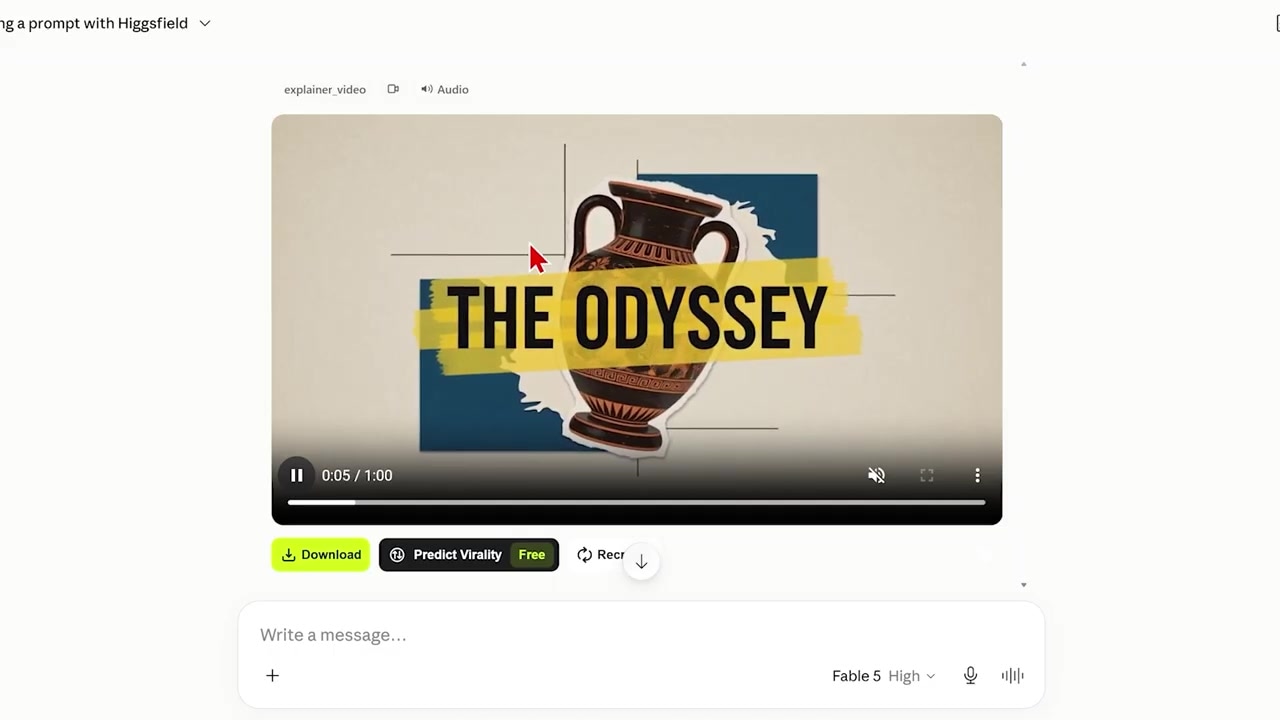
Caption: The completed motion graphic rendering directly in Claude's interface, displaying professional layouts and clear visual design.
Generating Custom Styles Without Replicating Channels
You don't have to limit yourself to copying popular channels. If you want to create a generic artistic style—like a stylized paper cutout or 3D vector aesthetic—the process is just as simple.
The key change is instructing Claude to focus on specific, named visual disciplines:
- Draft a Visual Style Prompt: Open Claude and prompt it to trigger Higgsfield's motion design capabilities.
- Declare Your Aesthetic: Explicitly name the visual style you want in your parameters. For example:
"Instruct Higgsfield to use its motion design skills to build an animation in a premium paper cutout style. The visual should depict [describe scene, e.g., a hand placing a coin into a piggy bank with clean drop shadows and high-contrast layers]."
- Submit and Render: Just like before, Higgsfield will bypass complex rigging steps and render a completed animation matching your stylistic choice.
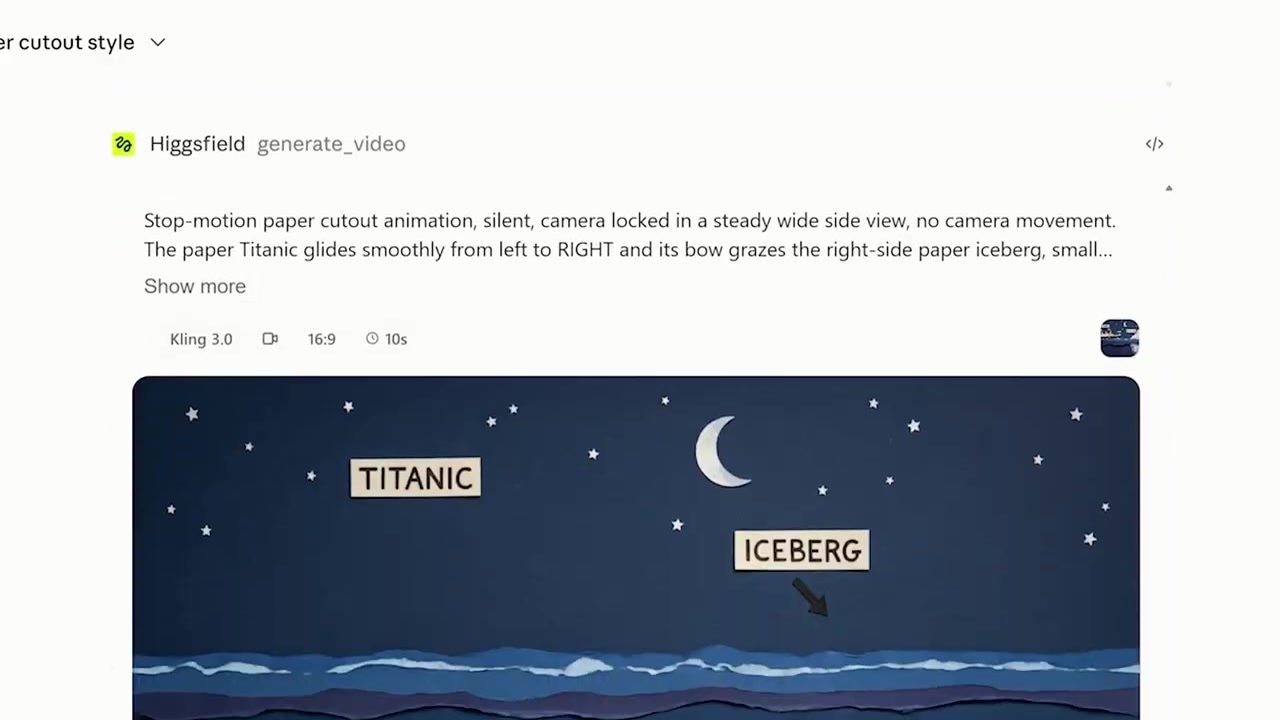
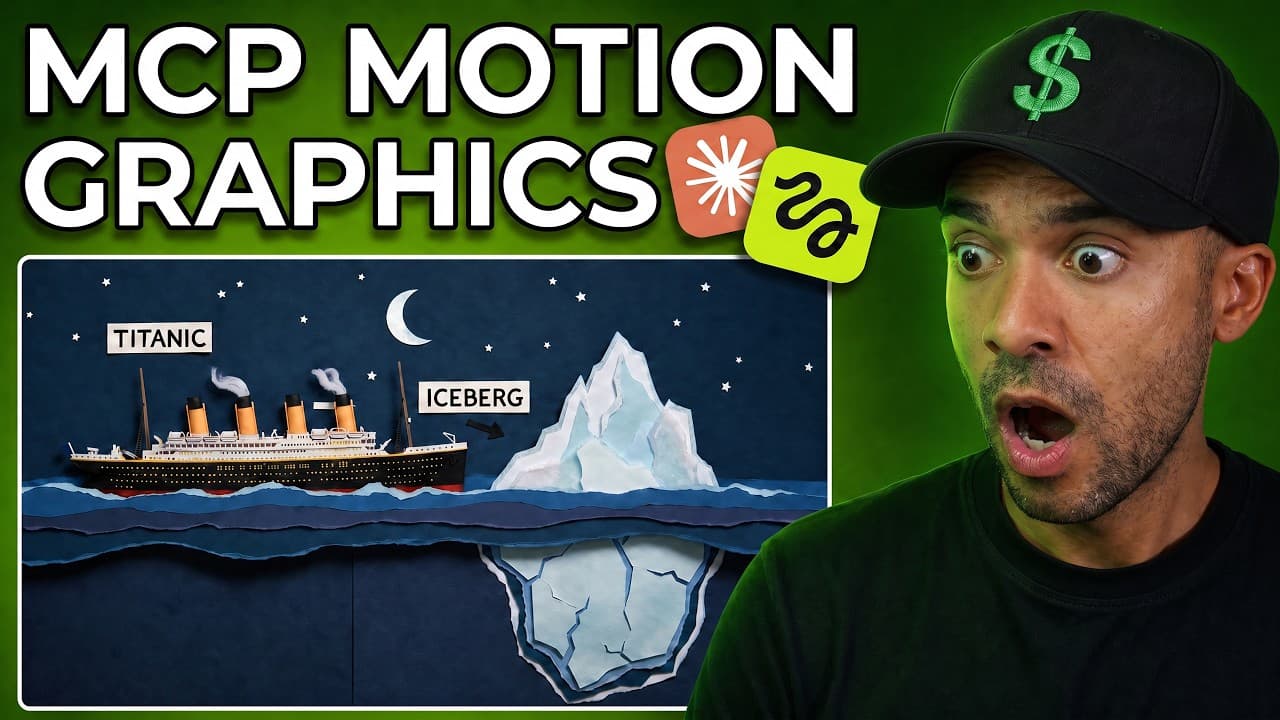
Caption: The design prompt and rendered paper-cutout motion graphic delivered straight to the Claude chat panel.
Try Higgsfield for yourself: Try Higgsfield →
Frequently Asked Questions
Which chat models support Higgsfield MCP?
The Higgsfield MCP connector is fully compatible with any system utilizing the Model Context Protocol. It is most commonly run inside Anthropic's Claude desktop/web clients or OpenAI's ChatGPT interface. It can also be integrated into custom agent frameworks like OpenClaw or Manus.
Why is Claude Fable 5 recommended for this workflow?
Claude Fable 5 is Anthropic's model built for complex reasoning and long-horizon tasks. In video generation workflows, it performs better at computing layout details, aligning text overlays correctly, and handling the multi-step prompting needed to extract exact artistic styles from Higgsfield's video models.
Can I fix typos in the generated text?
While Higgsfield is highly capable, text rendering in AI videos can still yield occasional errors. To minimize this, always include the constraint: "always use correct spelling, directions, and positioning" in your execution prompts. If a typo occurs, you can re-prompt Claude to adjust the specific layer and regenerate the graphic.