How to Create AI Videos of Yourself: I Tested Envato’s Easiest Method
Last updated: September 2026 | Sponsored by Envato
Author: Greg Preece — I test AI video tools hands-on to help creators and designers find the most efficient, realistic, and practical workflows for high-quality video content.
If you have ever wanted to create high-quality, realistic AI videos of yourself, you probably know the main hurdle: AI video generators are notoriously difficult to control. Typically, you need to be a prompting expert, guessing the perfect combinations of camera angles and movement commands just to get a usable shot.
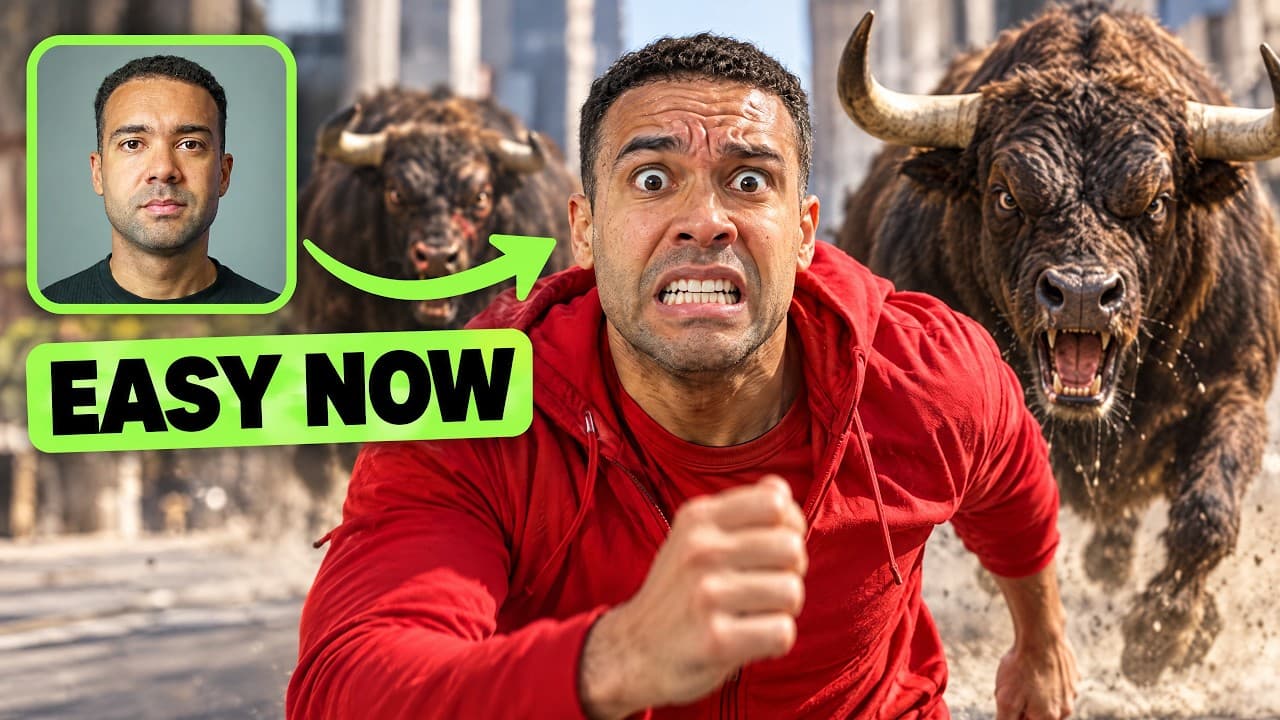
Envato recently sponsored me to test a new workflow on their AI platform which solves this. By combining personal photo references with stock video clips, you can easily force the AI to copy exact movements, backgrounds, and settings. Whether you want to make quick content for social media or send fun videos to friends, here is the easiest step-by-step method to create custom AI videos of yourself.
TL;DR: Creating realistic AI videos of yourself usually requires complex text prompting. Envato’s AI Video Generator changes this by allowing you to upload reference photos of yourself and select a "motion reference" stock video. The AI then swaps the subject of the video with your likeness, giving you precise control over the action, camera movement, and environment.
Table of Contents
- The Traditional AI Video Problem
- How Envato's Reference-Based AI Video Generator Works
- Step-by-Step Guide: How I Generated an AI Video of Myself
- Taking Control: Custom Backgrounds and Multi-Reference Images
- Why Direct Reference Control Beats Pure Prompting
- Frequently Asked Questions
Prefer to watch? Here's the video. Prefer to skim? The full breakdown is below.
Try it here: Try Envato →
The Traditional AI Video Problem
Historically, creating custom AI videos of yourself has required either deep technical knowledge of open-source tools (like ComfyUI or Stable Diffusion) or an endless loop of trial-and-error with text-to-video generators.
If you ask a standard AI video generator to "make a video of me doing a backflip," the AI has to guess:
- How your body moves through space.
- What camera motion to apply (pan, tilt, or zoom).
- The lighting and layout of the background.
The result is almost always a chaotic, unusable clip with weird visual glitches. Unless you know the precise terminology for camera physics and motion prompting, you have to accept whatever the AI decides to generate.
How Envato's Reference-Based AI Video Generator Works
Envato has built its AI Video Generator directly alongside its world-class stock asset catalog. Instead of relying strictly on text, this tool uses Visual References:
- Subject Reference (Images): You upload photos of yourself to tell the AI exactly what you look like.
- Motion Reference (Video): You select an existing video (either your own or a stock video) showing the exact movement you want to copy.
- The Prompt: A short text description tells the AI to fuse the two, replacing the original actor in the video with your face and likeness.
By feeding the model both a subject and a motion guide, you take away the AI's guesswork.
Step-by-Step Guide: How I Generated an AI Video of Myself
I tested this workflow by trying to make a video of myself breakdancing—a physical movement I certainly can't do in real life! Here is the exact process I used.
Step 1: Access the Envato Generate Tab
First, go to the official Envato website and locate the creator tools.
 Caption: Navigating to the Generate section on the left-side navigation bar of the Envato interface.
- Log in to your Envato account.
- Look at the left sidebar menu and click on the Generate section.
- Ensure that the Video tab is selected at the top of the generator window.
Step 2: Upload Your Subject Photos
Before diving into the generator, I took a few quick selfie photos from different angles (front, profile, three-quarter view) to give the AI an accurate map of my face and hair.
 Caption: Uploading multiple reference photos of yourself to ensure facial consistency in the generated video.
- Click the Add References button in the generator console.
- Upload your images. While you can use a single photo, uploading 2 to 3 photos from different angles will dramatically improve the likeness and accuracy of your final AI video.
- Once uploaded, select the images and attach them to the job.
Step 3: Choose and Trim a Motion Reference Video
This is where the magic happens. Instead of trying to write a complex prompt describing a breakdance, we are going to find a video of someone else doing it and tell the AI to copy their movement.
 Caption: Searching Envato's extensive stock library directly within the tool to find your motion reference video.
- Inside the reference panel, click Add References again.
- Click on the Search Creative Assets tab.
- Type in the action you want to mimic (for my test, I typed in "breakdancing"). Make sure your search filter is set to Videos.
- Browse the library and click on the video that features the exact physical action and camera movement you want to copy.
 Caption: Selecting and trimming the exact clip duration (under 10 seconds) for your motion transfer.
Once you select your video, trim it down to the exact section you want to replicate. I trimmed mine to the first six seconds to capture the dancer starting on the floor and standing up at the end. Click Attach to lock it in.
Step 4: Prompt Envato to Replace the Subject
Now you need to tell the AI to swap the dancer in the stock video with you, using the photos you uploaded in Step 2.
 Caption: Writing a clear subject-replacement prompt in the generation window.
In the prompt box, describe the subject swap. To make things easy, here is the exact style of prompt I used:
Replace the man in the video with the man in the images
Click Generate. In just a few minutes, the AI will process the video and output a clip of your likeness performing the exact, realistic actions of the breakdancer.
Taking Control: Custom Backgrounds and Multi-Reference Images
Getting a clean copy of the original video is impressive, but you can take this concept much further by changing the location or adding specific details to the scene.
Adding Custom Background Environments
If you don't want to use the background from the original stock video, you can force the AI to place you somewhere else entirely simply by modifying your text prompt.
 Caption: Generating the same physical motion but placing yourself in a completely customized setting.
For example, I wanted to take my breakdancing video and move it from the original street setting to a different location. I used this prompt:
The man in the image does the exact same action as the man in the video but in the same location as the image.
The AI successfully extracted my physical motion from the reference clip but generated a completely new, highly detailed background.
The Extreme Test: Combining Multiple Stock Image References
What if you want to add highly specific objects, characters, or assets into the video, but text prompts aren't giving you the exact look you want?
You can use Multi-Reference Images. Envato allows you to attach additional stock photos to the job as visual guides for the AI.
To test the absolute limits of this, I gathered a highly chaotic mix of references:
- An image of a wooden pier.
- An image of a clown.
- An image of wild parrots.
 Caption: Attaching multiple distinct stock images as reference layers to dictate specific details of the video.
I attached all of these stock images alongside my personal photos and the breakdancing motion reference. I then wrote a prompt telling the AI to integrate all of these attached elements into a single scene.
The resulting video contained all of those highly specific elements rendered exactly like the reference photos.
By comparison, when I ran the exact same text prompt without attaching the reference images, the AI still included a pier, a clown, and parrots—but they looked generic and didn't match the specific visual style I had in mind. Having physical images to guide the AI guarantees you get the exact aesthetic you want.
Why Direct Reference Control Beats Pure Prompting
The biggest takeaway from my hands-on testing is how much time this workflow saves.
- No "Prompt Guessing": You don't have to spend hours searching for magic prompt words to control camera pans, lighting, or body mechanics. The reference video handles 100% of the movement.
- Predictable Visuals: By uploading specific images of environments, products, or clothing, you prevent the AI from generating random, generic-looking items.
- Seamless Workflow: Having an entire library of high-quality stock video and photography built directly into the AI tool means you never have to leave your browser to search for assets.
If you are a content creator looking to generate engaging B-roll of yourself, or a designer prototyping video concepts, utilizing Envato's reference-based generator is easily the fastest, most predictable way to get high-quality results.
Ready to try this workflow yourself?
Try it here: Try Envato →
Frequently Asked Questions
Do I need professional photos of myself to use this tool?
No. Standard smartphone selfies work perfectly. Just make sure you upload 2 to 3 photos from a few different angles (front, side, three-quarter) with clear lighting so the AI can easily capture your facial structure.
Can I change the clothing I am wearing in the AI video?
Yes. In your prompt, simply describe the outfit you want to be wearing (e.g., "a man with short brown hair wearing a blue hoodie and white sneakers"). The AI will apply those clothing details to your character while maintaining your facial features and the reference movement.
How long does it take to generate an AI video on Envato?
Most standard 5-to-10 second video generations take just a few minutes to process and render directly in your web browser.
(This article was sponsored by Envato)