Google AI Tools for YouTubers: I Tested 9 Tools to Grow My Channel
Update, 18 August 2026: Google retired MusicFX on 31 July 2026 and replaced it with Flow Music. The MusicFX section below is kept for reference; use Flow Music for the same job.
Google AI Tools for YouTubers: I Tested 9 Tools to Grow My Channel
Last updated: 29 September 2026
Author: Greg Preece — I test AI video tools hands-on to help creators streamline their scripting, editing, and thumbnail design workflows for maximum views.
Google is quietly building an incredibly powerful suite of AI tools designed specifically for video creators. Many of these features are built directly into YouTube, Google Workspace, and developer dashboards that most YouTubers aren’t even utilizing yet.
I’ve spent months testing these tools in my daily production workflow. In this guide, I'll show you exactly how to use them to automate your scripting, speed up B-roll generation, design high-CTR thumbnails, and optimize your channel's growth.
TL;DR: The Best Google AI Tools for Creators
| Google AI Tool | Core Creator Use Case | Best For |
|---|---|---|
| Flow Music (formerly MusicFX) | Copyright-free background music generator | Fast, customized B-roll audio tracks |
| Google Vids | Workspace presentation builder with AI presenters | Scaling faceless YouTube channels |
| Ask Studio | Built-in YouTube Studio analytics partner | Deep viewer insights and performance summaries |
| Google AI Studio | Frame-by-frame visual video analytics | Visual feedback and competitor style analysis |
| Nano Banana Pro | 4K image generation & advanced canvas editing | Designing professional YouTube thumbnails |
| Google Veo 3.1 | Cinematic text-to-video with synced audio | Creating custom stock video B-roll clips |
| NotebookLM | Multi-source research synthesis engine | Fact-checking and structuring heavy-research scripts |
| Google Gemini | YouTube script writing & video-to-blog translation | Multi-format content repurposing |
| YouTube Create | Automated mobile timeline editing | Fast first-draft cuts and automated captions |
Prefer to watch? Here's the video. Prefer to skim? The full breakdown is below.
Quick Links to Google AI Tools
- MusicFX: Try it here: Try Flow Music →
- Google Vids: Try it here: Try Google Vids →
- Google AI Studio: Try it here: Try Google AI Studio →
- Nano Banana Pro: Try it here: Try Nano Banana Pro →
- Google Veo 3.1: Try it here: Try Google Veo 3.1 →
- AI Video: Try it here: Try AI Video →
- NotebookLM: Try it here: Try NotebookLM →
- Google Gemini: Try it here: Try Google Gemini →
- YouTube Create: Try it here: Try YouTube Create →
Table of Contents
- 1. MusicFX: Copyright-Free Music in Seconds
- 2. Google Vids: Create Faceless Content with AI Avatars
- 3. Ask Studio: Your Built-In YouTube Creative Partner
- 4. Google AI Studio: Visual Feedback on Your Footage
- 5. Nano Banana Pro: Thumbnail Design Without Photoshop
- 6. Google Veo 3.1: High-Fidelity B-Roll Generation
- 7. NotebookLM: Turn Hours of Research Into Minutes
- 8. Google Gemini: Fast Scriptwriting & Repurposing
- 9. YouTube Automatic Dubbing: Instantly Double Your Reach
- 10. YouTube Create: Edit Your First Draft with AI
- New AI Features Coming Soon to YouTube
- Frequently Asked Questions
1. MusicFX: Copyright-Free Music in Seconds
Flow Music, which replaced MusicFX in July 2026, is a Google DeepMind tool that generates looping, high-quality audio tracks from simple natural language prompts. If you've ever faced a copyright strike on YouTube or paid high subscription fees to music library websites, this tool is the perfect alternative. It is ideal for creators who need quick, unique background tracks for their B-roll.
Try it here: Try MusicFX →
How to Use MusicFX
- Navigate to the MusicFX interface.
- In the text field, type a detailed prompt describing the style of music you want (e.g., "subtle looping lofi beat with energy").
- Click the Generate button.
- Preview the generated tracks by hitting Play, and click Download to save the track as an audio file.
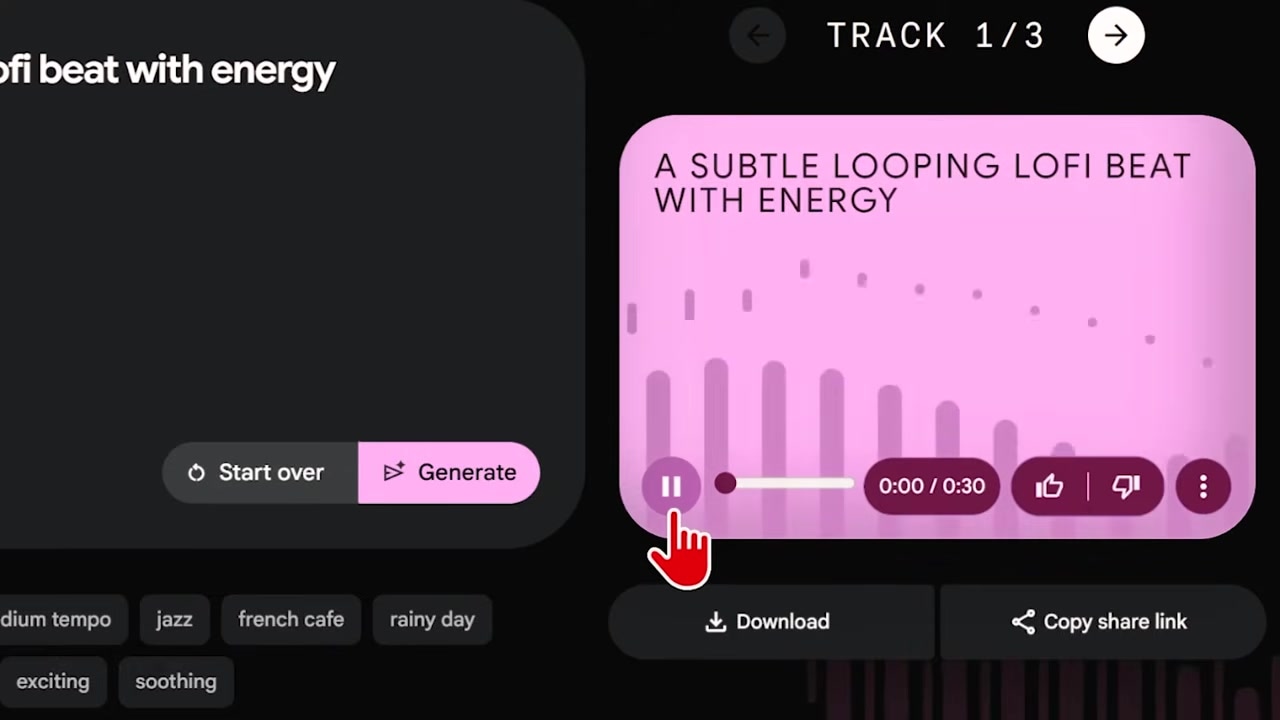
Caption: Enter your prompt, click generate, and instantly preview your copyright-free soundtrack.
2. Google Vids: Create Faceless Content with AI Avatars
Google Vids is a collaborative video creation application integrated into Google Workspace. Its standout feature for creators is the built-in library of AI avatars, allowing you to generate presenters and voiceovers directly inside your project workspace. This makes it an incredibly powerful platform for scaling faceless YouTube channels without paying for separate, expensive avatar generators.
Try it here: Try Google Vids →
How to Use Google Vids Avatars
- Access Google Vids (available with a Google AI Pro subscription, which is roughly $20/month).
- Open the video builder and select the AI Avatars panel.
- Choose your preferred avatar preset from the visual list.
- Enter the text script you want the avatar to speak.
- Click Preview to generate the presenter scene in seconds.
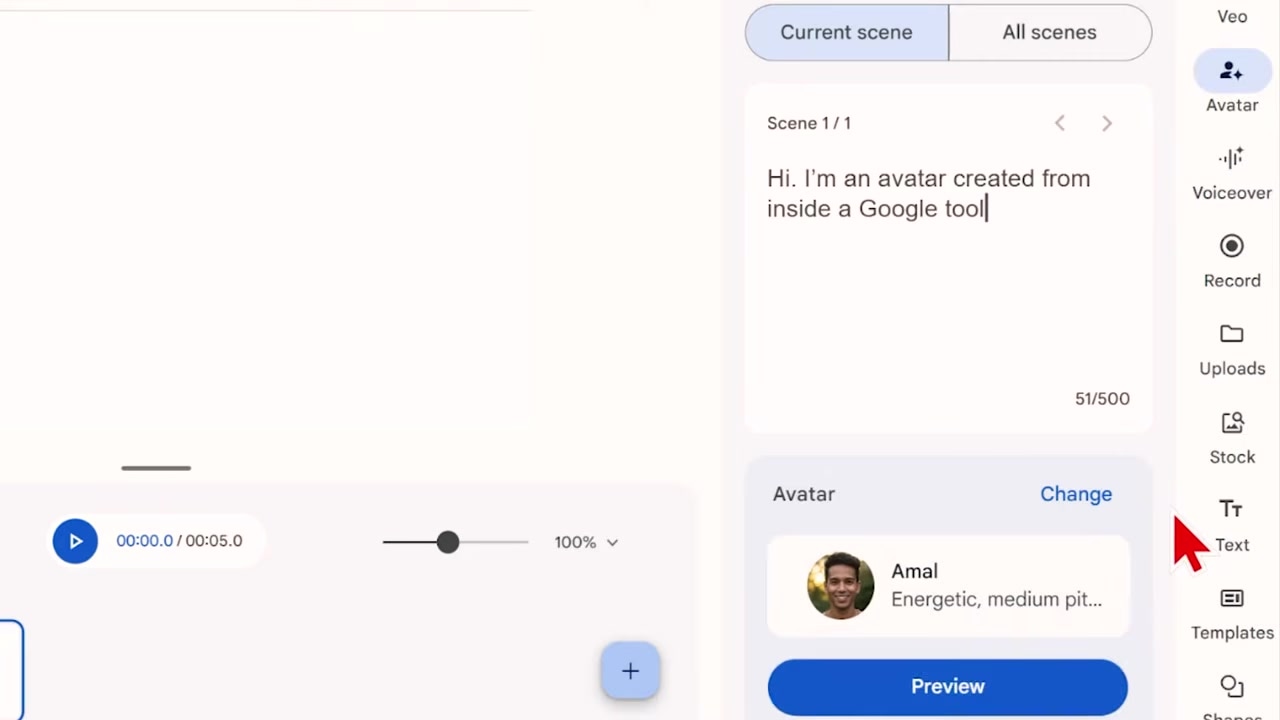
Caption: Choose an avatar preset and input your script to render a complete virtual presenter.
3. Ask Studio: Your Built-In YouTube Creative Partner
Ask Studio is an AI-powered assistant integrated directly into YouTube Studio. Developed by Google, this tool serves as your personal channel analyst and content strategist. It uses your actual channel data to answer custom questions, summarize comments, and offer recommendations to optimize video retention.
Note: This feature is rolling out natively to YouTube Studio dashboards and does not require an external registration link.
How to Use Ask Studio
- Sign in to your YouTube Studio dashboard.
- Click the Ask Studio button on the top right of your panel.
- Select a pre-built prompt like Summarize Comments to extract sentiment, inspiring remarks, and viewer video requests from your audience.
- To analyze content performance, click the + icon to select a specific video from your channel and type custom questions like "Why did viewers drop off in this video?" to pull insights from your analytics.
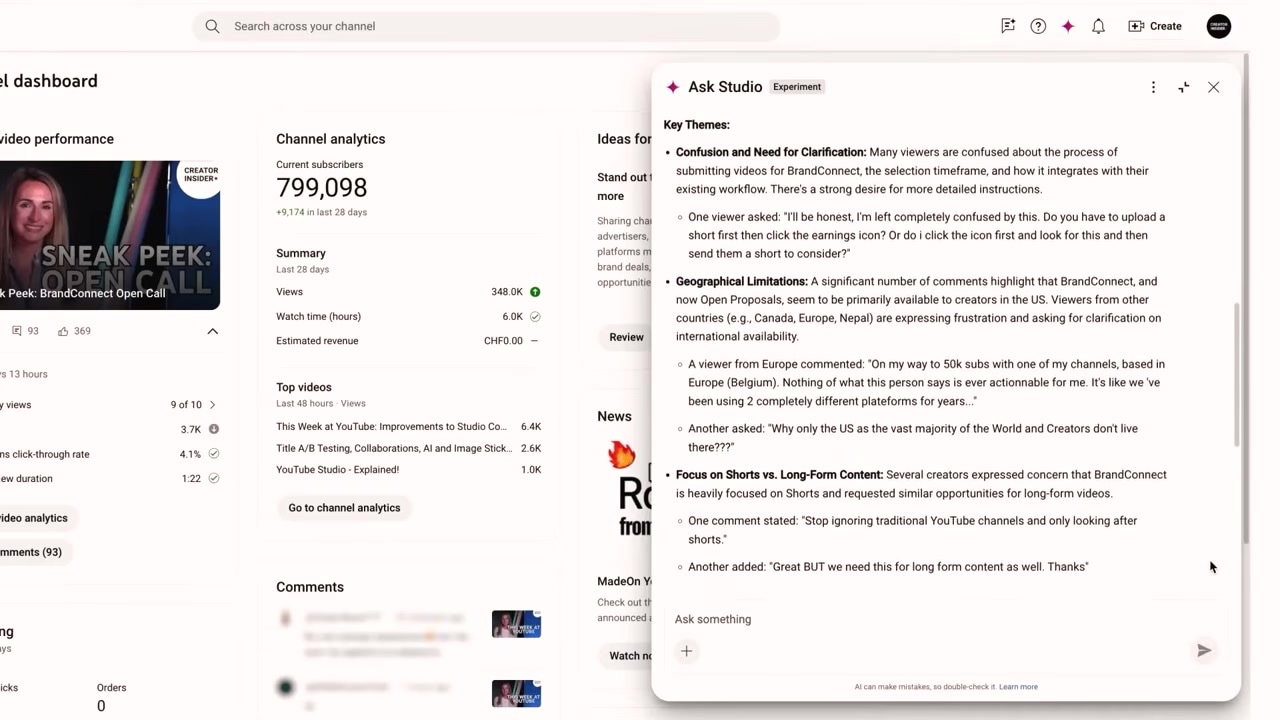
Caption: Prompt Ask Studio to instantly break down audience metrics and comment sentiment.
4. Google AI Studio: Visual Feedback on Your Footage
Google AI Studio is the primary development hub for Google's most powerful AI models. For creators, it offers a revolutionary visual reasoning feature: the ability to upload or paste a YouTube link and get direct, visual feedback on what is happening frame-by-frame. I use this to analyze competitor layouts, identify pacing issues, and figure out exactly why a video format is succeeding.
Try it here: Try Google AI Studio →
How to Use Google AI Studio for Video Analysis
- Open Google AI Studio and locate the chat prompt interface.
- Paste the link of any public YouTube video into the text input area.
- Wait a few seconds for the workspace to retrieve and analyze the video container.
- Ask a specific question about the video's visual content (e.g., "Describe what you see in the first 30 seconds of this video").
- Review the frame-by-frame visual breakdown returned by the model.
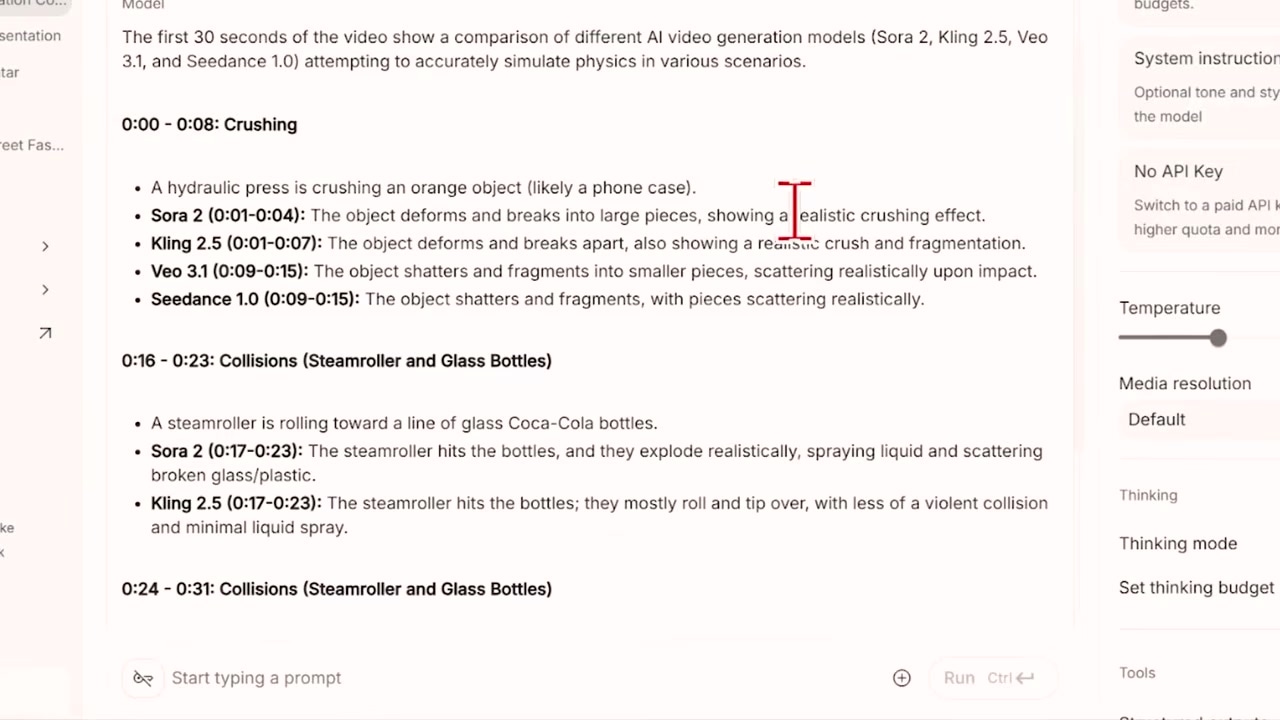
Caption: Paste a YouTube link into Google AI Studio to analyze pacing, visual elements, and graphics.
5. Nano Banana Pro: Thumbnail Design Without Photoshop
Nano Banana Pro is Google DeepMind's high-fidelity image generation and editing model, built on Gemini 3 Pro. Nano Banana 2 took over as the default in the Gemini app in February 2026, so reach for Pro when you need the most accurate result. It features perfect text rendering, multi-image composition, and precise photo-editing capabilities. I've been using it as a complete Photoshop replacement for months to design professional-grade thumbnails.
Try it here: Try Nano Banana Pro →
How to Use Nano Banana Pro
- Access the model via Google AI Studio or within your Google Gemini workspace.
- Input your text prompt to generate high-CTR thumbnail elements from scratch (e.g., "Create a high-contrast graphic with clean text").
- Use style transfer and image editing prompts to edit existing photos of yourself (e.g., changing clothing, shifting background lighting, or swapping camera angles).
- Export the design-ready, 4K resolution output directly into your graphic assets.
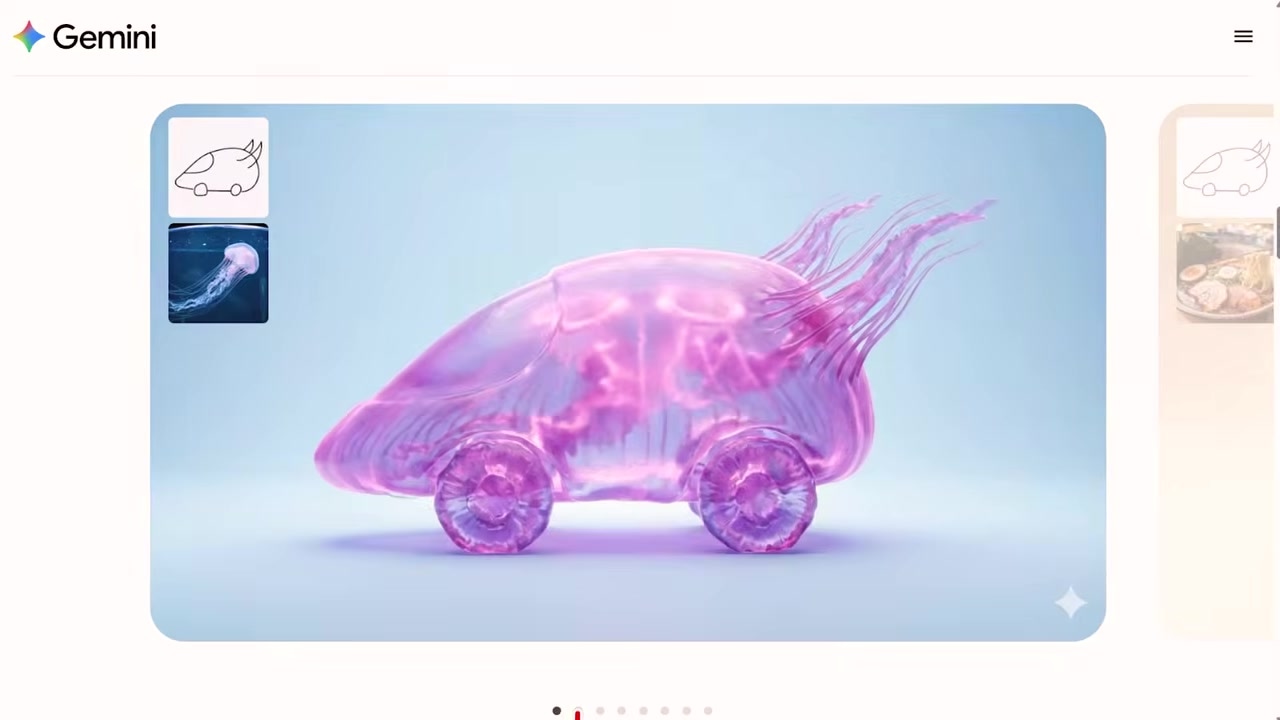
Caption: Use Nano Banana Pro to render high-contrast graphic assets and flawless text overlays.
6. Google Veo 3.1: High-Fidelity B-Roll Generation
Google Veo 3.1 is an advanced AI video generator built to render high-fidelity, cinematic clips. Unlike standard video generators, Veo 3.1 produces high-quality video alongside synced audio. It is a massive money-saver for creators looking to avoid paying for Stock B-roll subscriptions.
Try it here: Try Google Veo 3.1 →
How to Use Google Veo 3.1
- Open Google AI Studio, Google Flow, or the Google Gemini workspace.
- Describe the exact action, camera angle, and audio environment you want to create.
- Click generate to render high-resolution B-roll clips.
- (Alternative) If you run out of credits, use AI Video (aivideo.com) to continue rendering Google Veo 3.1 clips, alongside other popular AI models.
Try AI Video: Try AI Video →
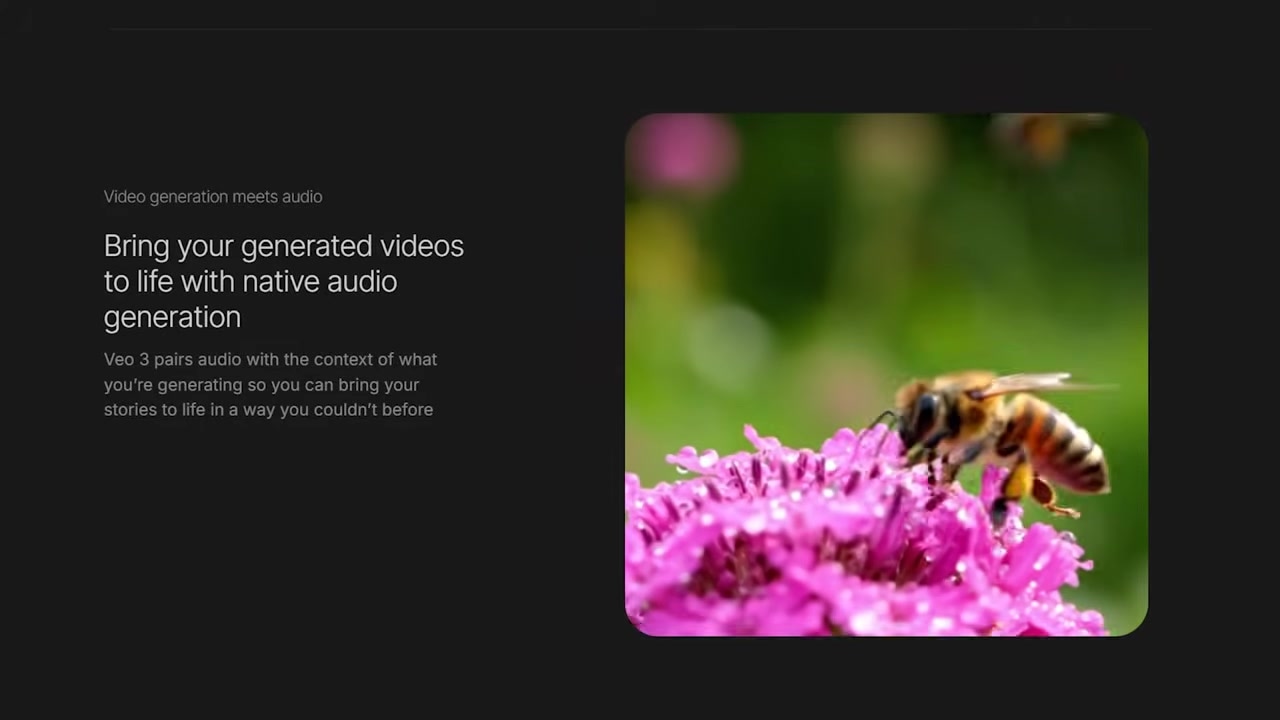
Caption: Generate cinematic B-roll scenes with highly realistic audio directly from text.
7. NotebookLM: Turn Hours of Research Into Minutes
NotebookLM is a highly personalized AI research assistant that acts as a secure knowledge base for your content. By importing up to 50 YouTube links or text documents, the tool synthesizes vast research into clear outlines, generates customized podcasts discussing the topic, and answers questions grounded in your sources. It is the ultimate tool for heavy-research channels.
Try it here: Try NotebookLM →
How to Use NotebookLM for Script Research
- Open NotebookLM and create a new notebook workspace.
- Under the sources panel on the left, paste up to 50 YouTube video URLs (or upload PDF articles) relevant to your topic.
- Review the summarized themes, key takeaways, and source guides compiled by the platform.
- Ask specific custom questions in the chat window (e.g., "What did source 3 say about World War II?").
- Generate an automated AI podcast or explainer to listen to and digest the research on the go.
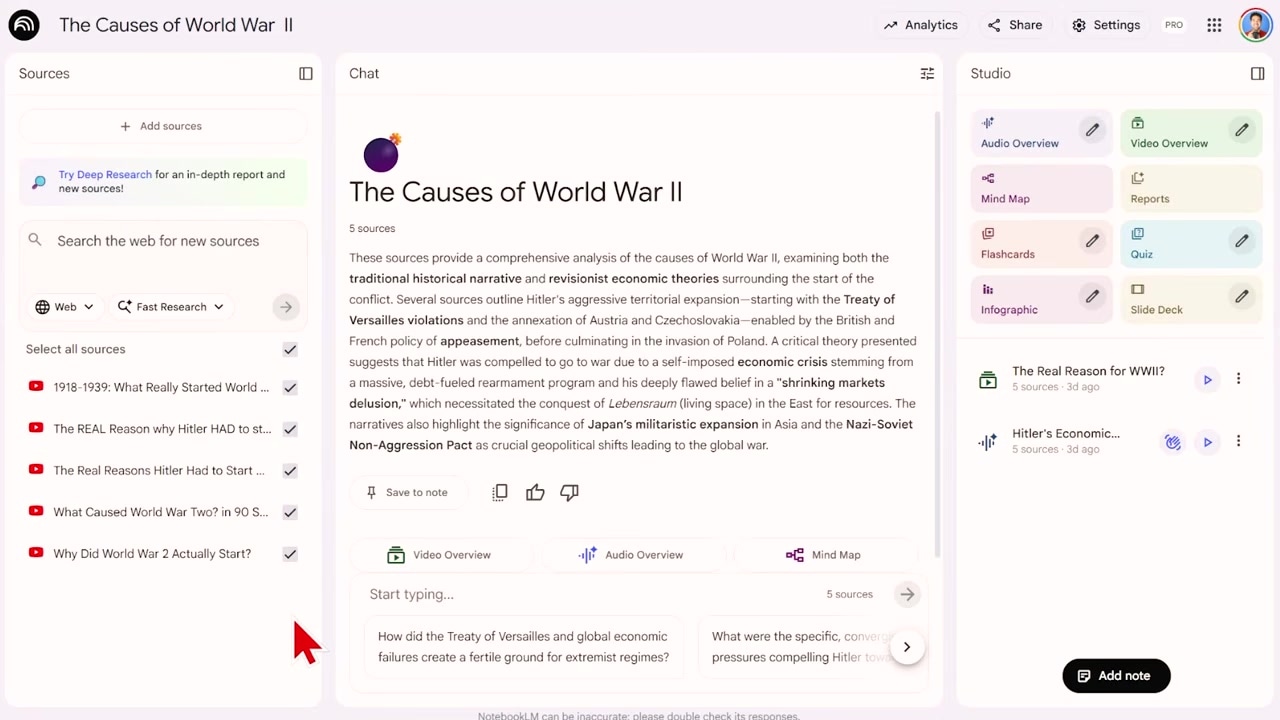
Caption: Import multiple YouTube video sources and let NotebookLM summarize key facts with zero hallucinations.
8. Google Gemini: Fast Scriptwriting & Repurposing
Google Gemini (powered by the Gemini 3 model) is Google's primary conversational AI. Because Google owns YouTube, Gemini is uniquely trained on YouTube data, making it far superior to ChatGPT for writing video scripts, suggesting attention-grabbing video hooks, and turning long-form video content into fully-formatted, SEO-optimized blog posts.
Try it here: Try Google Gemini →
How to Repurpose Video Content with Gemini
- Copy the public link to your uploaded YouTube video.
- Open Google Gemini and enter the prompt: "Turn this YouTube video link into a detailed SEO blog post: [Your Link]".
- Review the draft, which is formatted with headings and clear paragraphs in seconds.
- (Bonus) Use Gemini natively inside Google Docs by clicking the AI writing icon, entering your outline, and letting it draft your script directly on the page.
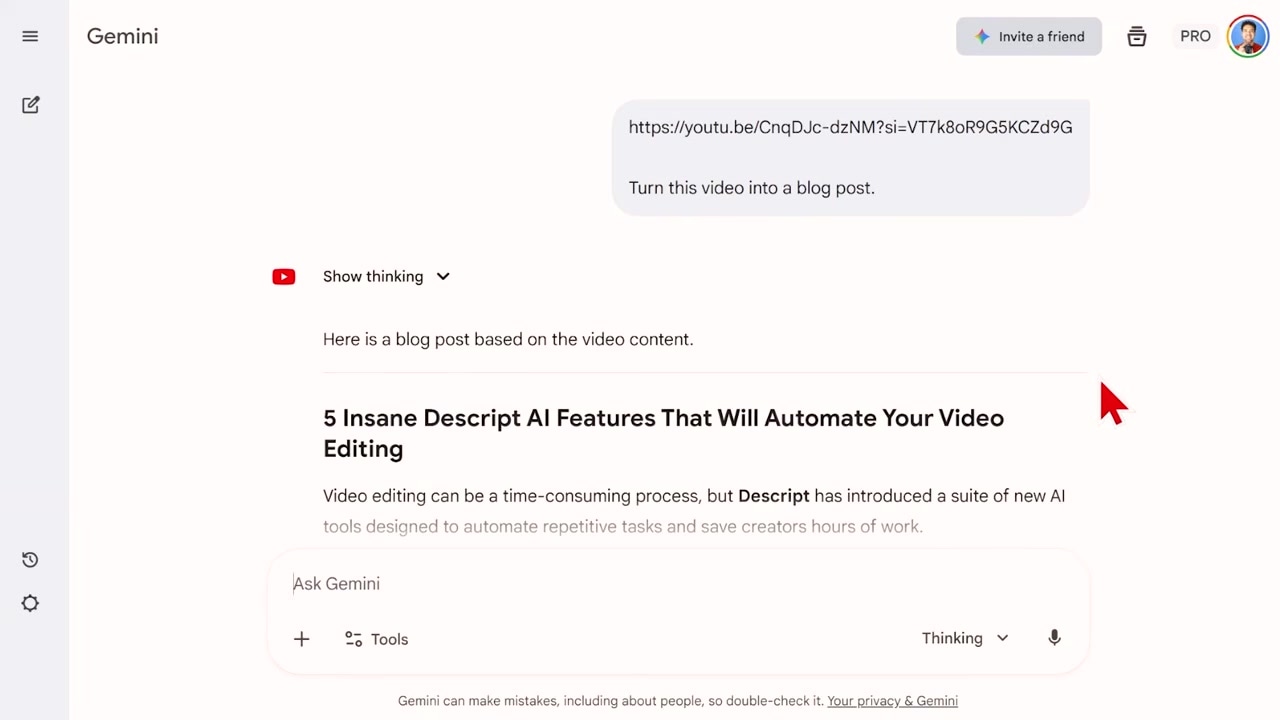
Caption: Convert your uploaded video into a structured blog post using Gemini.
9. YouTube Automatic Dubbing: Instantly Double Your Reach
Tucked away in YouTube’s advanced upload settings, this built-in translation tool automatically dubs your video's audio track into foreign languages like Italian, Spanish, or Portuguese. This allows you to easily double your audience reach and gain global views without recording any extra footage or paying expensive third-party translation studios.
(No external affiliate link needed — this is a native YouTube Studio setting)
How to Enable Automatic Dubbing
- Log into your YouTube Studio dashboard.
- Select your uploaded video, navigate to the Advanced Settings area, and scroll down to the languages section.
- Check the box labeled Automatic Dubbing.
- Save your changes to allow YouTube to sync high-quality foreign audio tracks.
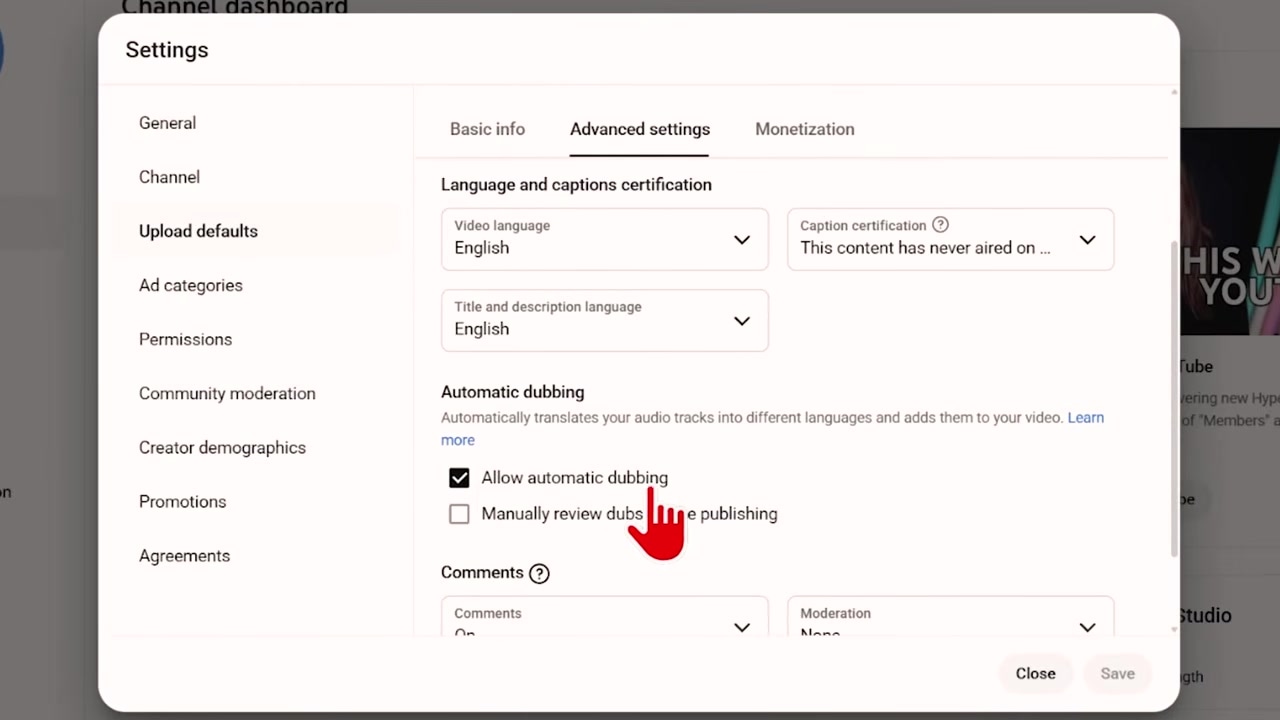
Caption: Check the automatic dubbing option in your YouTube Studio backend to automatically sync translated audio.
10. YouTube Create: Edit Your First Draft with AI
YouTube Create is a mobile video editing app developed by Google. Its built-in "Edit with AI" feature completely automates the tedious first edit of raw footage, arranging your clips into a cohesive story complete with AI transitions, synced music, and automatic captions. It's the ideal mobile companion for short-form creators and vloggers on the go.
Try it here: Try YouTube Create →
How to Edit Your Draft in YouTube Create
- Open the YouTube Create app on your mobile device.
- Import your raw camera clips.
- Tap the Edit with AI option.
- Let the app process your footage, select the best moments, and stitch them into a cohesive story draft.
- Refine the output by selecting custom AI voiceovers, captions, and background music before exporting.
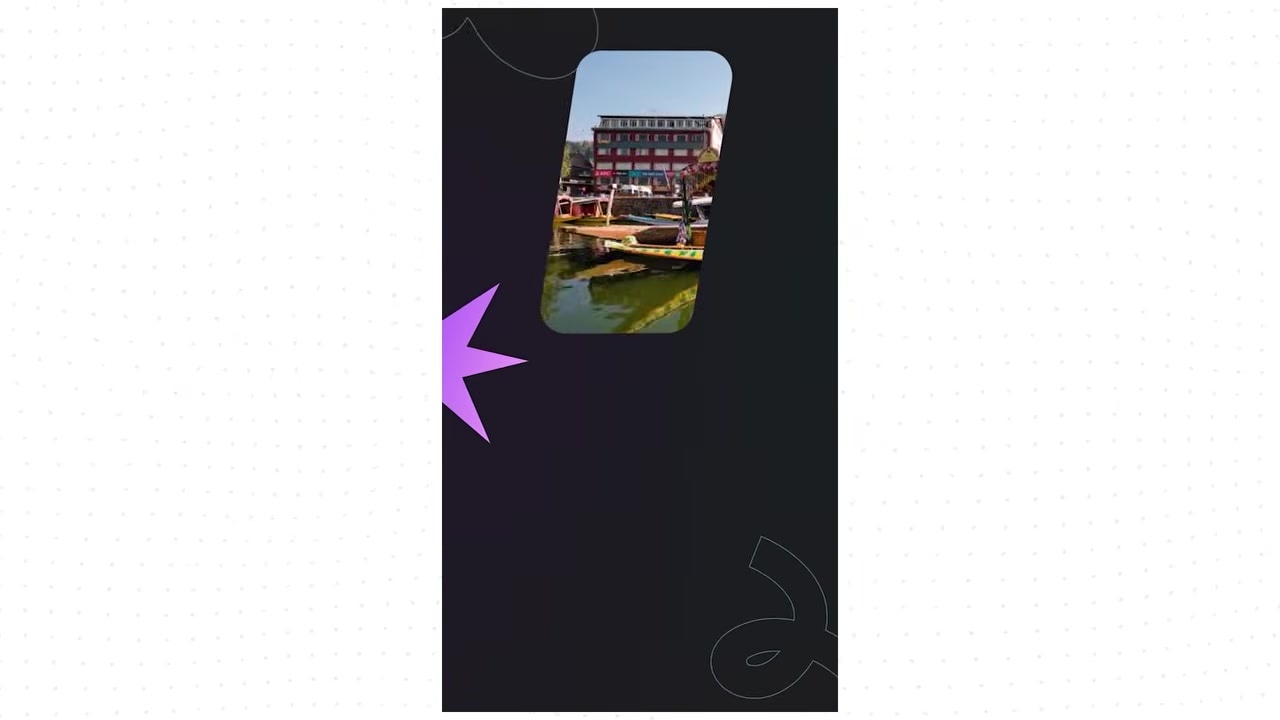
Caption: Select your clips and tap 'Edit with AI' to let YouTube Create assemble your first draft.
New AI Features Coming Soon to YouTube
Google is actively rolling out additional AI integrations directly into the YouTube platform to streamline content production for both audio-first creators and live streamers:
- Audio-to-Video Podcast Tool: Podcasters who are audio-first can easily generate custom, visually appealing videos from their audio files using AI suggestions to ease platform distribution.
- Podcast-to-Shorts Generator: This AI engine analyzes your video podcast and suggests engaging, high-retention clips, letting you cut long-form content into YouTube Shorts instantly.
- AI Live Highlights: The platform automatically crops high-energy clips and key moments from finished live stream recordings to repurpose them into Shorts for review and upload.
Frequently Asked Questions
Are these Google AI tools free to use?
Yes! Many of these tools (including Flow Music, Gemini Notebook, Gemini, and Google AI Studio) are free to start using on standard Google accounts, with paid Google AI plans raising the limits. Premium features like Google Vids' AI avatars are accessible with a Google AI Pro subscription.
Can Google AI Studio actually watch my YouTube videos?
Yes. Unlike most AI tools that only analyze video transcripts or audio, Google AI Studio uses advanced visual reasoning models to actually analyze the frame-by-frame visual data, graphic design, and edits in any public YouTube video.
How do I turn on automatic translations for my YouTube videos?
To enable automatic audio translation, open your video settings in the advanced uploads area of YouTube Studio, and verify that the "Automatic Dubbing" checkbox is ticked.
What is the advantage of using Google Gemini over ChatGPT for YouTube?
Because Google owns YouTube, Gemini is trained directly on YouTube performance data and visual structures. When testing both platforms side-by-side, Gemini consistently generates more effective titles, scripts, and video hooks specifically optimized for the platform's algorithm.