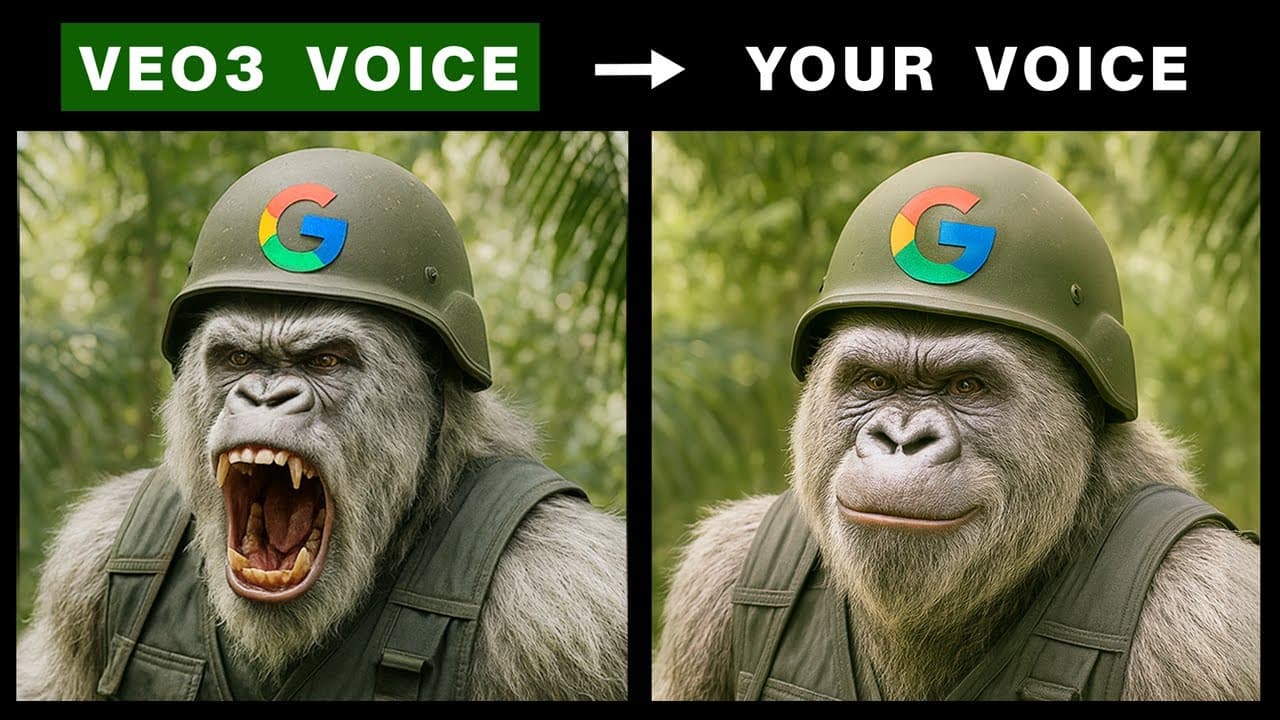
How I Change Veo 3 Voices (And Swap to My Own)
Last updated: July 2026
Author: Greg Preece — I test AI video tools hands-on to help creators swap default AI voices for highly realistic custom clones.
Google Veo 3 can generate incredible cinematic video clips with native audio, but there is a major problem: it relies on a very small set of default voice models. When every creator is using the same voices, your high-quality generations start to sound exactly like everyone else's.
Fortunately, you do not have to settle for those repetitive defaults. In this guide, I will show you how I use a simple voice changer workflow to swap out Google Veo 3 voices for any character voice you can think of—including your very own custom voice clone.
TL;DR: The Quick Voice Swap Workflow
- The Problem: Google Veo 3's default native voices are highly recognizable and lack custom variety.
- The Solution: Use ElevenLabs' Speech-to-Speech tool to convert the original dialogue track.
- Step-by-Step:
- Download your Veo 3 clip.
- Drag it into ElevenLabs to run the Voice Changer.
- Select your new voice (like "Robert" the Austrian male voice, a custom character, or your own cloned voice).
- Generate and sync the new audio with the original video in CapCut.
Prefer to watch? Here's the video. Prefer to skim? The full breakdown is below.
Try it here: Try ElevenLabs →
Table of Contents
- Why You Need to Change Your Veo 3 Voices
- How to Change Veo 3 Voices in ElevenLabs (Step-by-Step)
- How to Swap a Veo 3 Voice for Your Own Voice
- Wrapping Up: Finalizing Your Voice Swap in CapCut
- Frequently Asked Questions
Why You Need to Change Your Veo 3 Voices
When I tested Veo 3, I found the video graphics and native sound effects were outstanding, but the dialogue capabilities quickly hit a roadblock.
Whenever you generate talking characters, Veo 3 cycles through the same few voice models. This means a sci-fi character in your video will sound identical to a historical character in someone else's. To create unique, engaging AI films, you need full creative control over your audio.
 Caption: The default voice generated by Veo 3 is highly recognizable and repetitive across multiple creators' projects.
How to Change Veo 3 Voices in ElevenLabs (Step-by-Step)
The easiest way to break free of default voices is by using ElevenLabs. It acts as an incredibly powerful AI voice swapper that takes the exact inflection, speed, and emotion of your original clip and translates it into a brand-new voice.
Here is the exact step-by-step process I use to change my Veo 3 voices:
Step 1: Export Your Video
Generate your video in Google Veo 3. Even though you plan on replacing the voice, make sure the generated character's speech delivery has the pacing and emphasis you want. Download the final .mp4 file to your local drive.
Step 2: Upload to ElevenLabs
Log into your ElevenLabs dashboard and navigate to the Voice Changer (Speech-to-Speech) workspace. Drag your downloaded Veo 3 video file directly into the interface.
 Caption: Drag and drop your original Veo 3 video directly into the ElevenLabs workspace to start the voice replacement process.
Step 3: Select Your Target Voice
ElevenLabs provides hundreds of diverse pre-made voice options. In my testing, I tried a few different styles to completely alter the scene's mood:
- The Austrian Accent ("Robert"): Perfect for action hero roles (like swapping a generic warning to a classic Arnold-style line: "The jungle's crawling, get to the chopper!").
- A High-Energy Male Voice: Shifts the pacing to feel more casual and direct.
- A Female Voice: Swaps the gender of the character seamlessly while retaining the dynamic range of the original performance.
 Caption: Select from a wide variety of character voices, like "Robert" the Austrian male voice, to instantly transform your video's audio style.
Step 4: Generate the Audio
Once your target voice is selected, click Generate. Within a few seconds, the AI output will be ready. Play it back to ensure the emotion matches the visual movement of the character's lips, then download the newly generated audio track.
How to Swap a Veo 3 Voice for Your Own Voice
If you want the character in your Veo 3 generation to sound exactly like you, you can use a custom voice clone instead of the default library. Here is how I set it up:
- Clone Your Voice: Inside ElevenLabs, open the Voice Lab and upload a clean sample of your speaking voice to create an instant or professional voice clone.
- Load Your Original Clip: Drag your original Google Veo 3 video into ElevenLabs.
- Choose Your Custom Clone: From the voice selection dropdown, select your newly created voice clone.
- Convert and Generate: Click generate to let the AI process the audio. The tool will convert the generic speaker's voice to match your exact natural pitch, tone, and accent.
 Caption: Apply your own custom cloned voice inside the ElevenLabs Voice Changer to make the characters sound exactly like you.
Wrapping Up: Finalizing Your Voice Swap in CapCut
Once you have downloaded your newly generated custom voice file, you need to combine it with your original video. To do this, I use a simple editor like CapCut:
- Import Files: Import both your original Veo 3 video and your downloaded ElevenLabs custom audio file into CapCut.
- Align the Tracks: Drag both assets onto your timeline. Line up the start of the audio track precisely with the starting frame of your video's original dialogue.
- Mute Original Audio: Right-click on the original video track, separate the audio, and delete or mute the default Veo 3 audio track.
- Export Your Masterpiece: Play the timeline back to double-check that the lip sync matches. Once satisfied, export the final video.
 Caption: Import the final audio and video into CapCut to sync up the timeline and replace the original audio track.
By integrating ElevenLabs with your video editing timeline, you can easily rescue your Google Veo 3 videos from repetitive AI voices and make them sound truly unique.
Try it here: Try ElevenLabs →
Frequently Asked Questions
Can I change Veo 3 voices directly inside the Google platform?
Not any more. Since Veo 3.1, Flow has an Add Voices control that lets you reference a chosen voice in the prompt. You can still export the clip and process the audio through an external tool like ElevenLabs for finer control.
Is it free to start using ElevenLabs for voice swapping?
Yes! ElevenLabs is free to start. You can sign up, access a generous selection of predefined voices, and test the Speech-to-Speech tool to replace your first few AI clips without any upfront cost.