AI Voice Cloning Tutorial: How I Built a Perfect Replica of My Voice
Last updated: 29 September 2026
Author: Greg Preece — I have spent over 200 hours testing every voice cloning tool on the market to help creators build hyper-realistic digital personas and streamline content workflows.
Voice cloning has officially entered a golden age, making it possible to generate human-sounding replicas in a matter of seconds. Whether you need a quick prototype or a studio-grade professional voice clone that can seamlessly narrate audiobooks and host podcasts, this guide shows you how to achieve flawless results using ElevenLabs.
Instant Voice Clone vs. Professional Voice Clone
| Feature | Instant Voice Clone (IVC) | Professional Voice Clone (PVC) |
|---|---|---|
| Minimum Audio Required | 10 seconds | 30 minutes (2 hours recommended) |
| Setup & Processing Time | Immediate | 2 to 6 hours |
| Microphone Requirements | Any built-in microphone | High-quality pro mic in a quiet space |
| Ideal Use Case | Fast experimentation, quick drafts, personal projects | Professional audiobooks, podcasts, video dubbing |
| Required ElevenLabs Plan | Starter Plan (Normally $6/mo, often discounted for the first month) | Creator Plan (Normally $22/mo, first month 50% off at $11) |
Table of Contents
- 1. Create a 10-Second Beginner Voice Clone
- 2. Upgrade Your Voice to an Intermediate Level
- 3. Create a Professional-Level Voice Clone
- 4. Advanced Voice Cloning Workflows
- ElevenLabs Models: Emotion Control with V3
- Frequently Asked Questions
Prefer to watch? Here's the video. Prefer to skim? The full breakdown is below.
Try it here: Try ElevenLabs →
1. Create a 10-Second Beginner Voice Clone
If you are new to voice cloning, the fastest way to start is with an Instant Voice Clone. It only takes 10 seconds of spoken audio to generate a working replica of your voice that you can begin testing immediately.
Step-by-Step Instant Voice Clone Setup:
- Access the Dashboard: Log into ElevenLabs and navigate to the voice creation dashboard.
- Select Voice Clone Type: Click the button to create a new voice, and choose the Instant Voice Clone option.
- Record Your Audio: Press the "Record" button, select "Start," and speak naturally into your microphone for at least 10 seconds.
- Generate Your First Audio: Once recorded, your beginner-level voice clone is saved. Type any text into the text-to-speech box and click "Generate" to hear your AI voice speak.
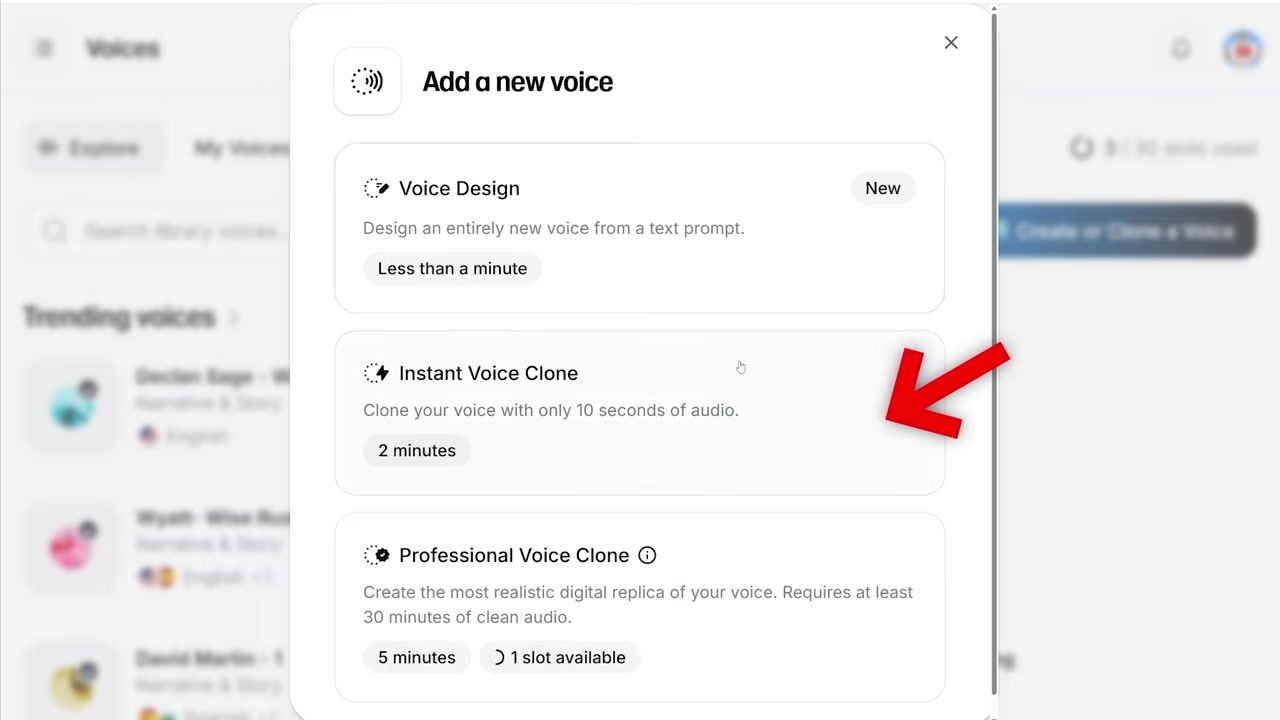
Caption: Selecting the "Instant Voice Clone" option inside the ElevenLabs voice setup screen.
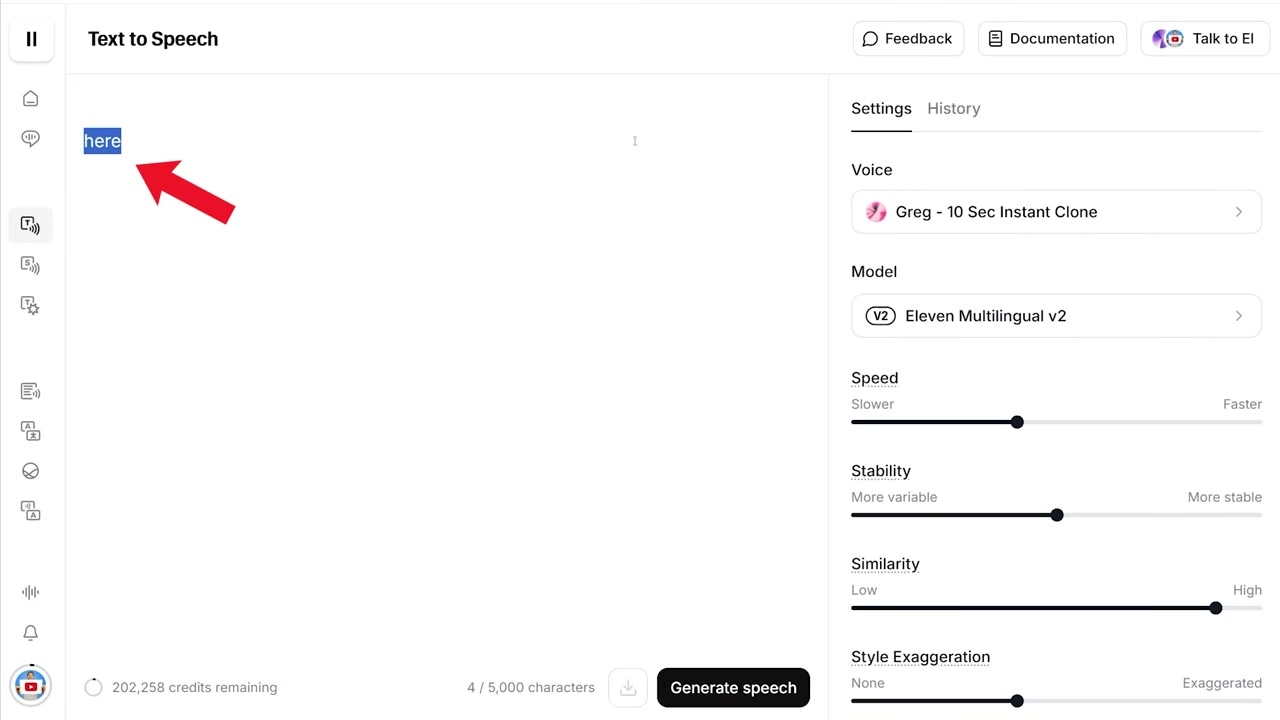
Caption: Testing the newly created beginner voice clone by typing text and clicking generate to hear the immediate results.
2. Upgrade Your Voice to an Intermediate Level
While a 10-second clone is impressive for quick tests, it can occasionally sound flat or robotic. If you want your clone to sound highly realistic, you can make several targeted adjustments to elevate your setup to an intermediate level.
Step 1: Record a Longer Source Sample
The 10-second setup is a bare minimum. By recording or uploading a 30-second sample during the setup phase, you give the AI significantly more vocal data to work with, resulting in a much richer, less robotic tone.
Step 2: Fine-Tune the Speed Slider
Speech cadence plays a massive role in whether a voice clone sounds human. Adjust the pacing of your clone using the speed slider.
- Slow speech: Dragging the slider to the left will add dramatic emphasis.
- Fast speech: Dragging to the right speeds up delivery.
- The Sweet Spot: Through my hands-on testing, I found that setting the speed slider to 0.95 delivers the most natural conversational pacing.
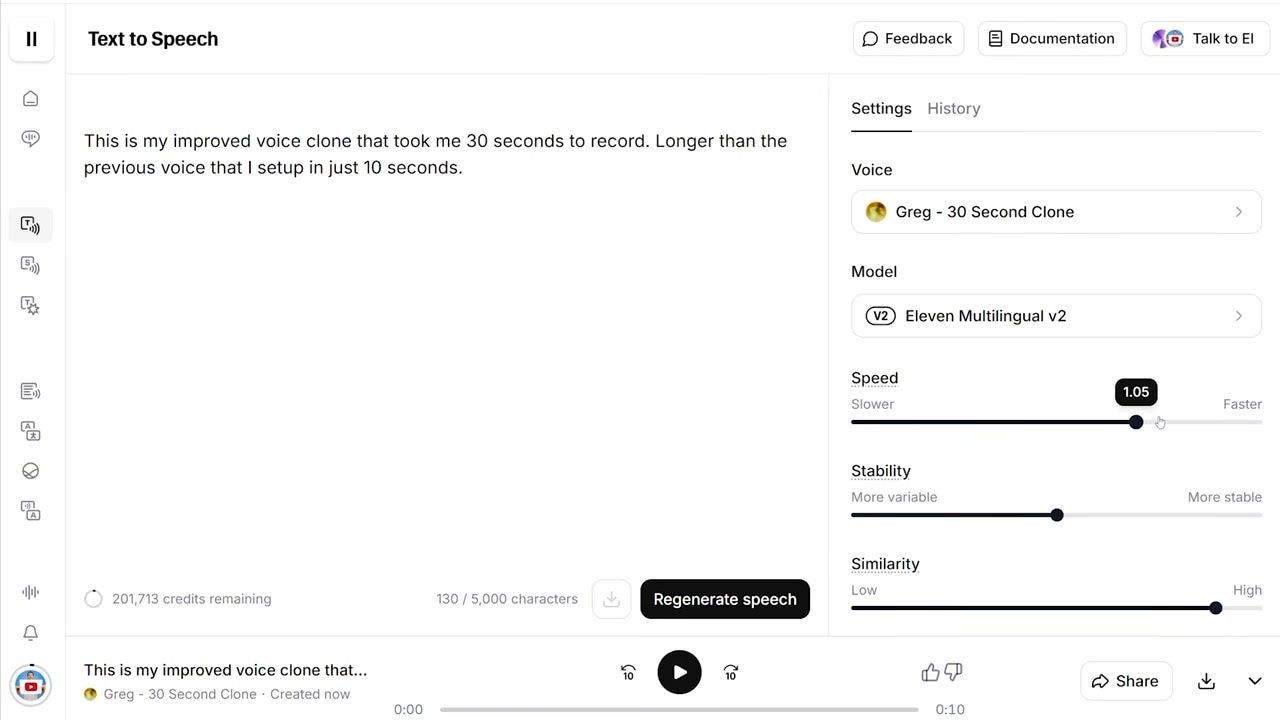
Caption: Adjusting the speed slider in the settings panel to capture your natural speaking tempo.
Step 3: Insert Pauses Using Punctuation
AI models read punctuation cues to determine when to take a breath. You can guide your clone's pacing by using specific formatting inside your scripts:
- Short pause: Use commas (
,) to add minor, conversational breaks. - Medium pause: Use dashes (
-) to introduce a distinct transition. - Long pause: Use ellipses (
...) to command a longer, dramatic pause before continuing.
Step 4: Configure Advanced Voice Sliders
For the best intermediate output, click on the advanced settings panel and adjust the performance sliders to these exact benchmarks:
- Stability: 50% (Balances consistency with natural human variation).
- Similarity: 90% (Ensures the clone stays highly accurate to your original tone).
- Style Exaggeration: 40% (Injects dynamic range and emotion without making the delivery sound erratic).
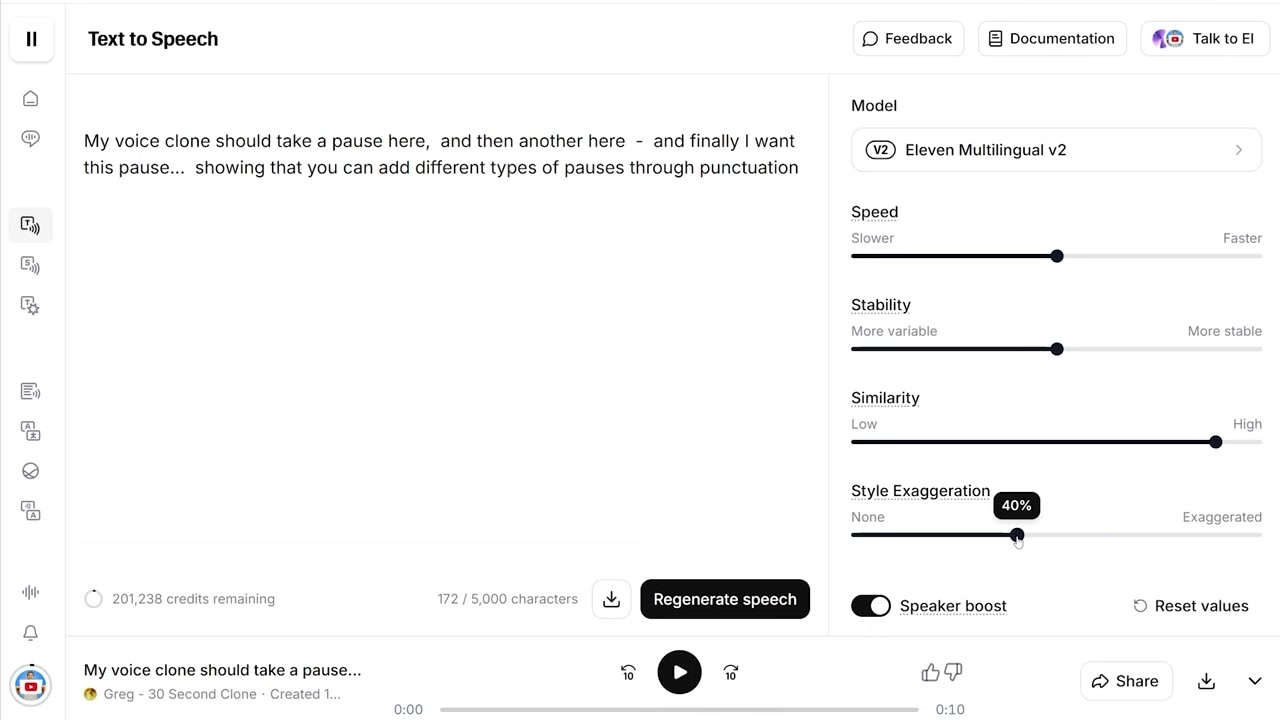
Caption: Configuring the optimal intermediate settings for stability, similarity, and style exaggeration.
3. Create a Professional-Level Voice Clone
If you need a perfect replica of your voice to replace you in professional projects—such as narrating audiobooks, hosting digital podcasts, or dubbing videos—you must create a Professional Voice Clone (PVC).
Unlike the Instant Voice Clone, which uses high-level algorithmic approximations, a Professional Voice Clone runs on a custom-trained model designed specifically for your voice.
Step-by-Step Professional Voice Clone Setup:
- Select Professional Voice Clone: Go to the voice creation menu in ElevenLabs and select the Professional Voice Clone option. (Note: If this option is grayed out, you must upgrade your subscription to the Creator Plan or higher).
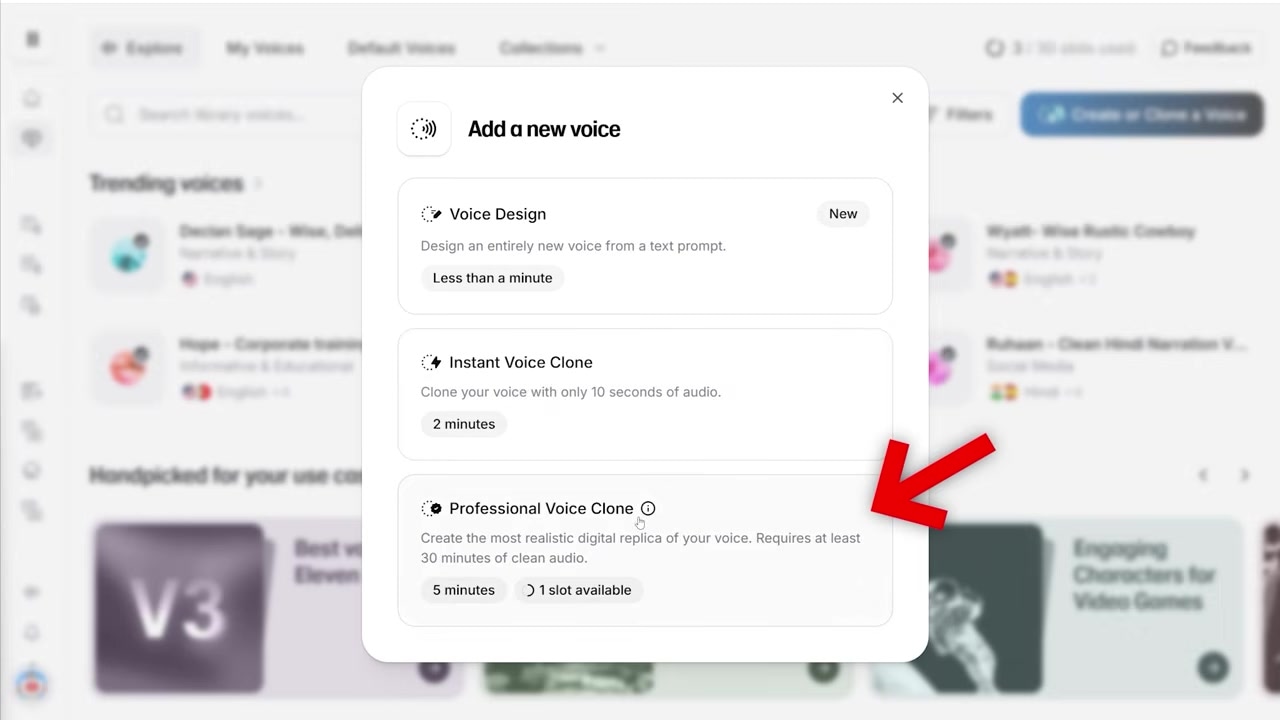
Caption: Navigating to the "Professional Voice Clone" option on the dashboard to begin custom model training.
- Prepare Your Training Audio:
- Minimum Length: You must upload a minimum of 30 minutes of spoken audio.
- The Gold Standard: For a perfect clone, aim to upload 2 hours of high-quality recordings. You can record directly inside the interface or upload files extracted from previous content (such as YouTube videos or podcast episodes).
- Environment Requirements: Record in a completely quiet, echo-free space.
- Hardware Requirements: Use a high-quality studio microphone. The AI replicates whatever is in your original file; a low-quality microphone will yield a low-quality voice clone.
- Fill in Your Voice Details: Name your voice clone, choose the language, and select the correct accent (such as British or American). You can leave the description field blank.
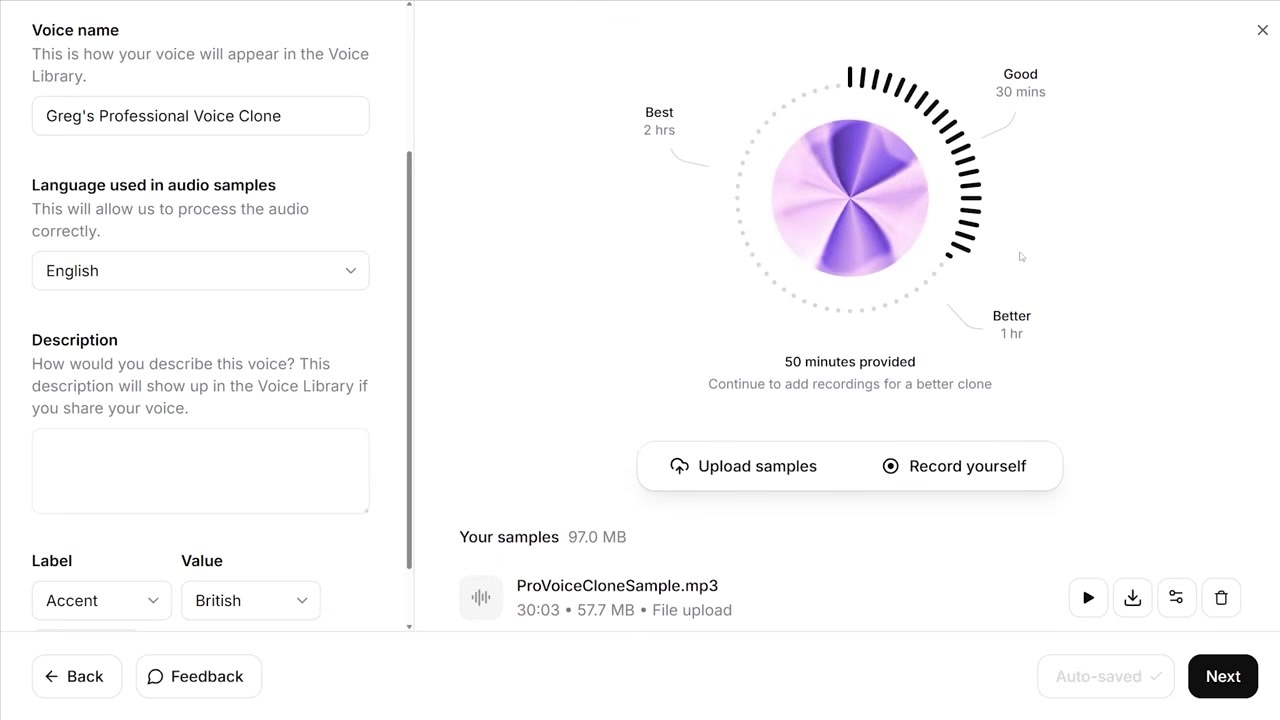
Caption: Uploading sample recordings to the platform. The dashboard displays the total processed audio length, recommending up to 2 hours.
- Verify Identity and Submit: Verify that you are cloning your own voice. Once submitted, the system will begin fine-tuning your custom model.
- Wait for Processing: The fine-tuning process takes between 2 to 6 hours. Once finished, your professional voice clone will be fully active and ready to use.
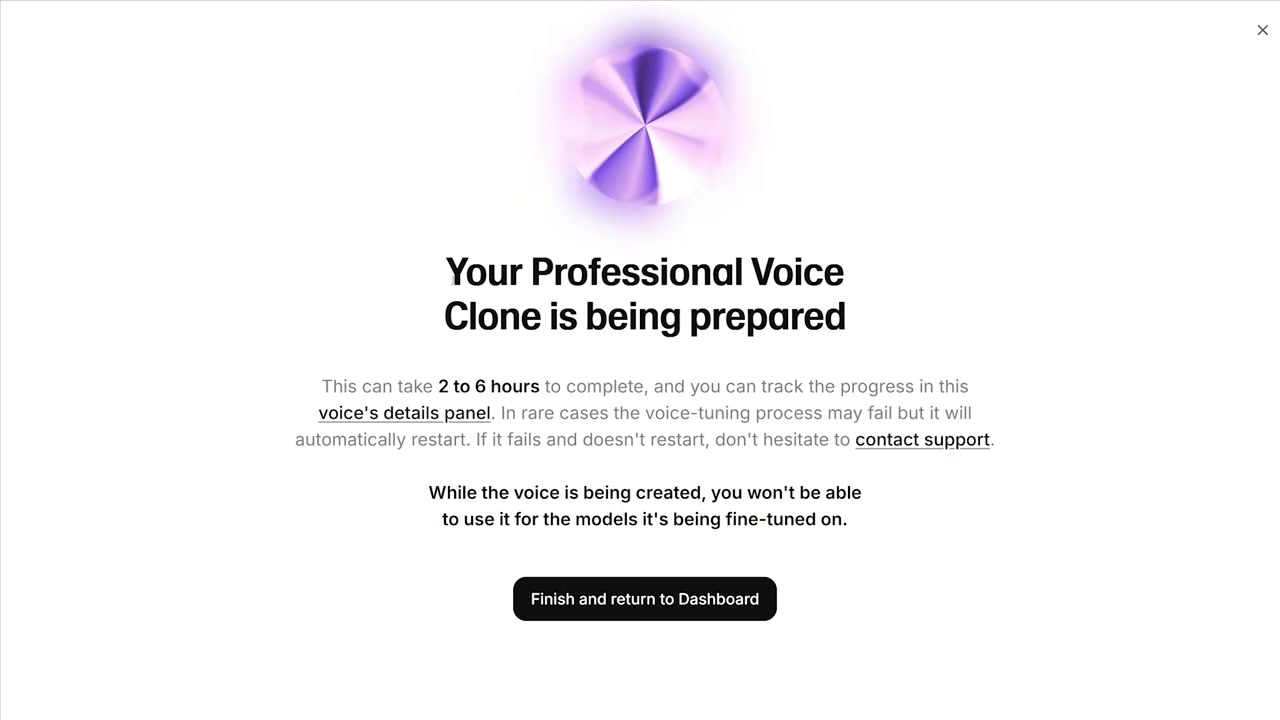
Caption: The preparation screen indicating that your professional voice clone is being fine-tuned (which typically takes 2 to 6 hours).
4. Advanced Voice Cloning Workflows
Once you have generated your custom voice clone, you can deploy it across three primary professional workflows:
Audiobook Narration
Using the long-form generation editor, you can paste entire book chapters and let your professional clone handle the narration. The custom-trained model retains consistent pronunciation, tone, and pacing over long stretches of text, removing the need for hours of manual recording and editing.
Digital Podcasts
If you need to record quick intros, mid-roll ads, or full podcast segments, you can script them and generate the audio in seconds. The professional voice clone is virtually indistinguishable from your live microphone recording.
Video Dubbing (Multilingual Translation)
ElevenLabs features an automatic dubbing tool that takes your generated audio, translates the content into other languages (such as Spanish, German, or Japanese), and speaks it in your exact voice clone. For example: "Doblaje de voz básicamente significa que se toma del idioma original y se traduce a otros idiomas."
ElevenLabs Models: Emotion Control with V3
If you want your voice clone to convey specific emotions, you can experiment with ElevenLabs' new Multilingual v3 model (now superseded by v4).
While the older Multilingual v2 model is highly stable and recommended for traditional voiceovers, the v3 model allows you to inject distinct emotional styles into your generated speech. Because it is a preview model, it can take multiple generations to achieve the exact performance you want. However, it represents the future of fully expressive, dynamic AI speech synthesis.
Try it here: Try ElevenLabs →
Frequently Asked Questions
What is the difference between an Instant and a Professional Voice Clone?
An Instant Voice Clone requires only 10 seconds of audio, generates instantly, and is ideal for quick testing on the Starter plan. A Professional Voice Clone requires at least 30 minutes of high-quality audio (2 hours is recommended), takes 2 to 6 hours to train, and produces a flawless, studio-grade replica available on the Creator plan — here is what every ElevenLabs plan actually costs.
What are the best slider settings for a realistic ElevenLabs voice clone?
For conversational pacing and realistic delivery, use the following settings:
- Speed: 0.95
- Stability: 50%
- Similarity: 90%
- Style Exaggeration: 40%
How long does it take for ElevenLabs to process a Professional Voice Clone?
Once you upload your audio files and verify your identity, the platform takes between 2 to 6 hours to compile, train, and deploy your custom-trained professional voice.
Can I translate my cloned voice into other languages?
Yes. Using the ElevenLabs Dubbing tool, you can translate your voice clone's audio into dozens of supported languages while maintaining your unique vocal identity, tone, and accent profile.