AI Podcast Generator: I Tested the Tool That Clones Your Voice
Last updated: July 2026
Author: Greg Preece — I test AI video and audio tools hands-on, showing content creators how to get realistic, production-ready results fast.
Imagine generating a highly engaging, professional podcast episode in a single click, using your exact voice as the host. While standard AI tools can turn documents into podcasts, they force you to use robotic pre-set voices and block you from changing a single word of the script.
I tested GenFM (developed by ElevenLabs), a powerful alternative to Google NotebookLM. Not only does it deliver the most realistic AI voice clone I’ve ever generated, but it also gives you a fully interactive editor to modify the final script line-by-line.
Here is my hands-on review and a complete guide on how to auto-generate podcast from text using your own cloned voice.
TL;DR: Why ElevenLabs GenFM is a Game-Changer
- The Core Benefit: Instantly converts documents, PDFs, or website links into high-quality co-hosted podcasts.
- The Secret Sauce: Allows you to use a cloned version of your own voice as the host.
- The NotebookLM Advantage: Unlike NotebookLM, GenFM color-codes your script and lets you edit the text to fix mistakes, adjust flow, or change phrasing on the fly.
- Price Tier Tip: While you can try it for free, getting a hyper-realistic voice clone that sounds indistinguishable from you requires upgrading to ElevenLabs' paid Creator plan. Verify the latest rates on the official ElevenLabs site.
Prefer to watch? Here's the video. Prefer to skim? The full breakdown is below.
Quick Link
Try it here: Try ElevenLabs →
NotebookLM vs. ElevenLabs GenFM: The Key Differences
Google’s NotebookLM sparked the trend of using an AI podcast generator to digest text. However, it comes with rigid limitations. When I pitted NotebookLM against ElevenLabs GenFM, a few crucial differentiators stood out:
| Feature | Google NotebookLM | ElevenLabs GenFM (Studio) |
|---|---|---|
| Voice Selection | Standard pre-set voices only | Over 10,000+ library voices or your own cloned voice |
| Script Editing | None (must regenerate the whole show) | Line-by-line interactive text editor |
| Formats | Dual-host conversation | Conversational (dual-host) or Bulletin (solo presenter) |
| Source Support | Text, PDF, Google Drive, URLs, YouTube | Text, PDF, EPUB, Word Docs, Web URLs |
| Workflow Focus | General note-taking and summaries | Premium audio production and brand-consistent voice output |
The biggest hurdle with NotebookLM is script control. If the AI hosts hallucinate a detail or pronounce a word incorrectly, you have to start from scratch. With GenFM, you simply type over the mistake, hit replay, and export.
How to Generate an AI Podcast with GenFM (Step-by-Step)
The GenFM tool is integrated directly into ElevenLabs Studio (formerly known as Projects). To get started, log into your account, locate the sidebar menu, and select the option to Generate a Podcast.
Here is the exact workflow I use to create mine.
Step 1: Provide Your Information Source
You need to point GenFM to the content you want the co-hosts to discuss. You have two options:
- Upload a Document: Import local files like PDFs, Word documents, EPUBs, or TXT files.
- Enter a URL: Paste a webpage or news article link. For my test, I pasted a URL pointing to a breaking news article.
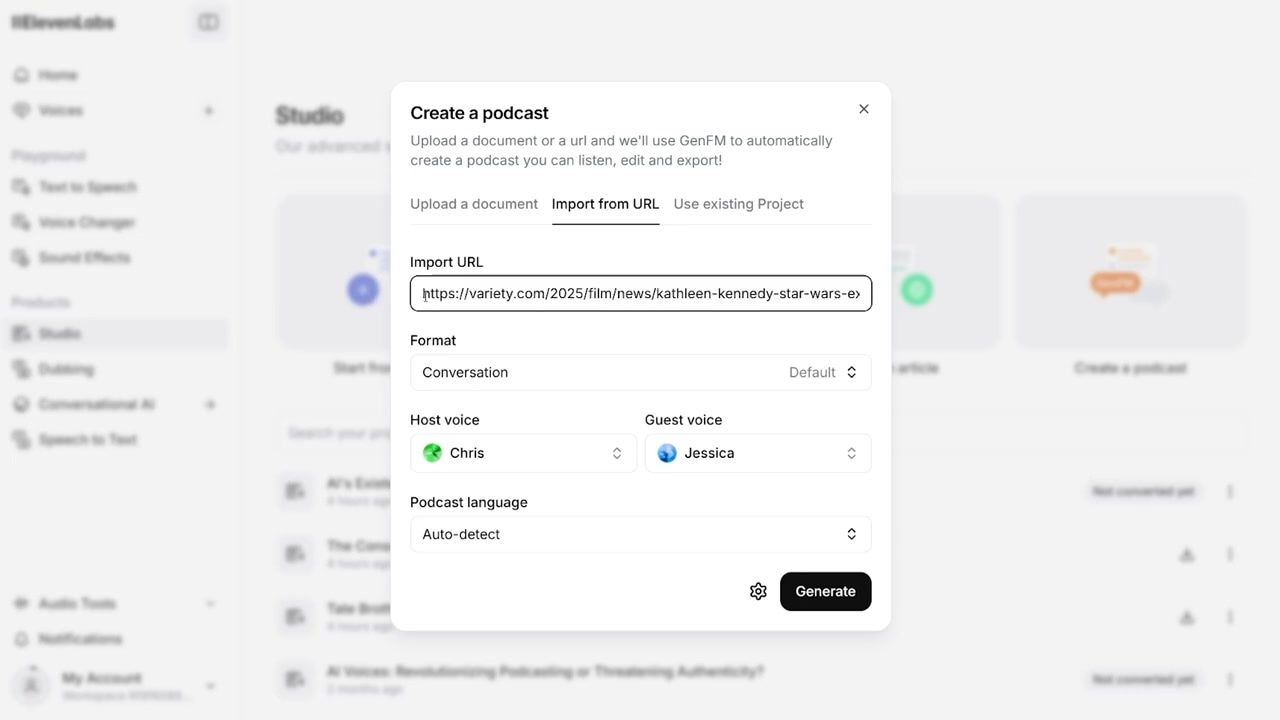
Caption: The source ingestion setup page in ElevenLabs, where you can paste any article link or upload a local PDF/document.
Step 2: Set Your Podcast Layout & Assign Your Voice
Next, you must set the structural rules and select who is speaking:
- Choose Style: Select Conversational for a dynamic co-hosted episode (a host and a guest trading insights) or Bulletin if you want a single speaker reading a news briefing. I opted for Conversational.
- Assign the Guest: Select a voice from ElevenLabs' massive preset library (e.g., "Jessica").
- Assign the Host (Clone Your Voice): Select your custom voice clone from the menu dropdown.
- Select Language: GenFM supports multiple languages; select your target output language (e.g., English).
Note: For the host voice to sound identical to you, use ElevenLabs' high-fidelity voice cloning feature. This requires their upgraded Creator plan to process the high-quality samples needed for ultra-realistic speech.
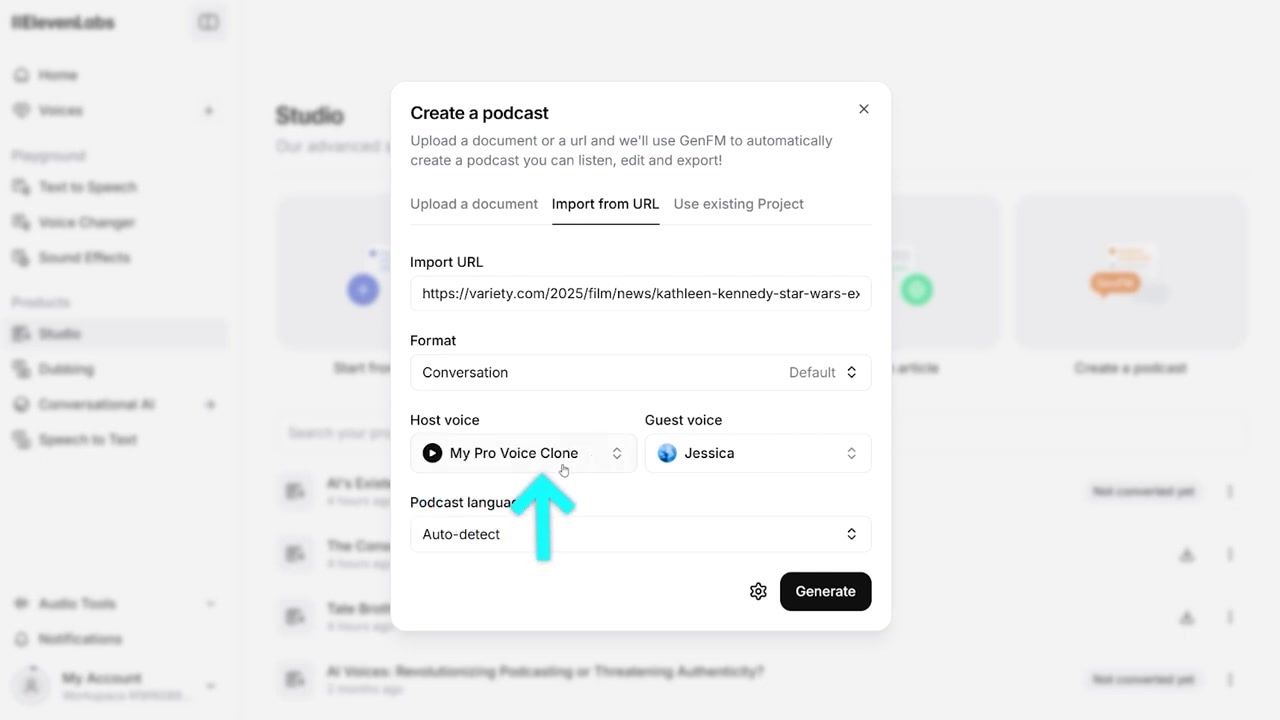
Caption: The voice assignment menu in ElevenLabs Studio, where you can pair your custom cloned voice with a guest co-host.
Step 3: Set Advanced Creative Direction (Optional)
If you want to guide the style of the conversation, click the advanced settings cog icon. Here, you can insert text prompts detailing the specific angle, tone, or subject focus you want your AI hosts to prioritize. Once done, click Save.
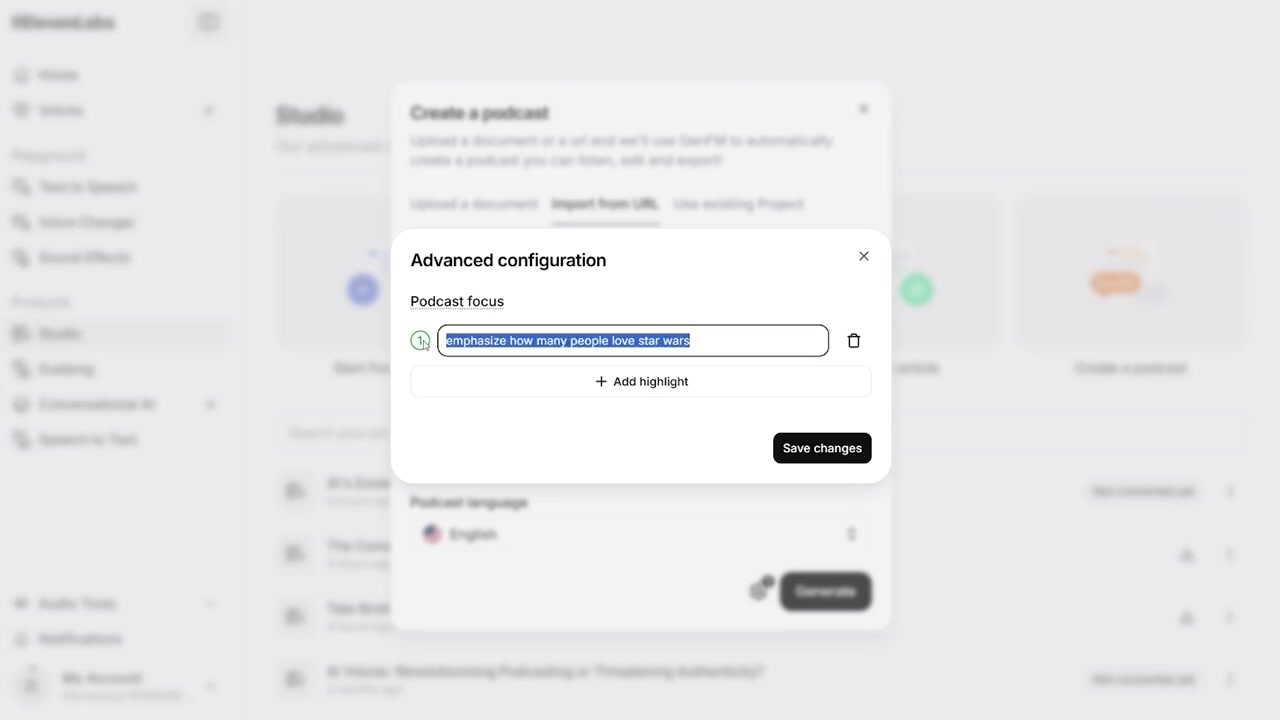
Caption: The focus options under the advanced cog settings let you steer the AI's conversation toward specific talking points.
Step 4: Generate and Edit the Script
Click the main Generate button. After a couple of minutes, the AI-generated script will appear on your screen, fully transcribed and color-coded.
- Green sections represent the host's lines (in my case, my cloned voice).
- Purple sections highlight the guest co-host's lines.
You can click any paragraph, type directly into the text window to rewrite words, insert pauses, or fix pacing, and hear the changes update instantly.
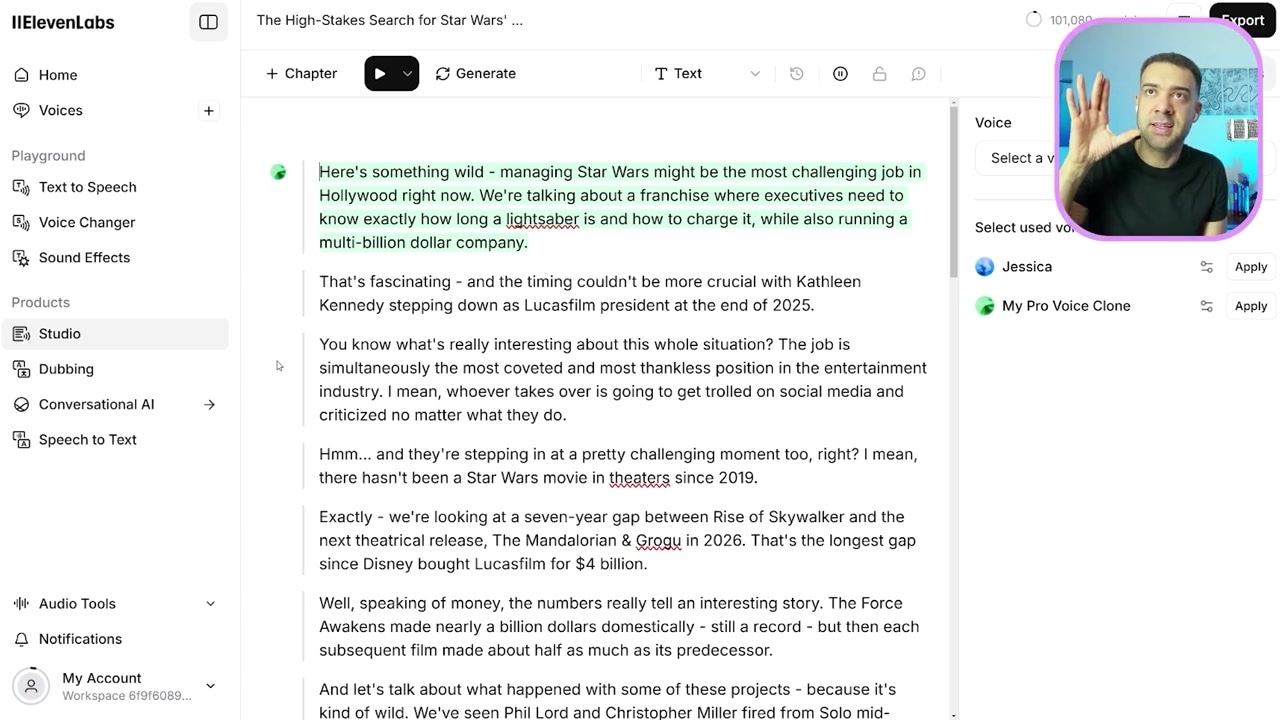
Caption: The color-coded script editor in ElevenLabs Studio allows you to change dialogue text directly on screen before generating the audio.
Step 5: Export Your Finished Episode
Once you’ve played through your edits and are completely happy with how the dialogue sounds, click the Export button at the top of the interface. Your high-quality audio file will immediately download to your computer as an MP3 or WAV file, ready for distribution.
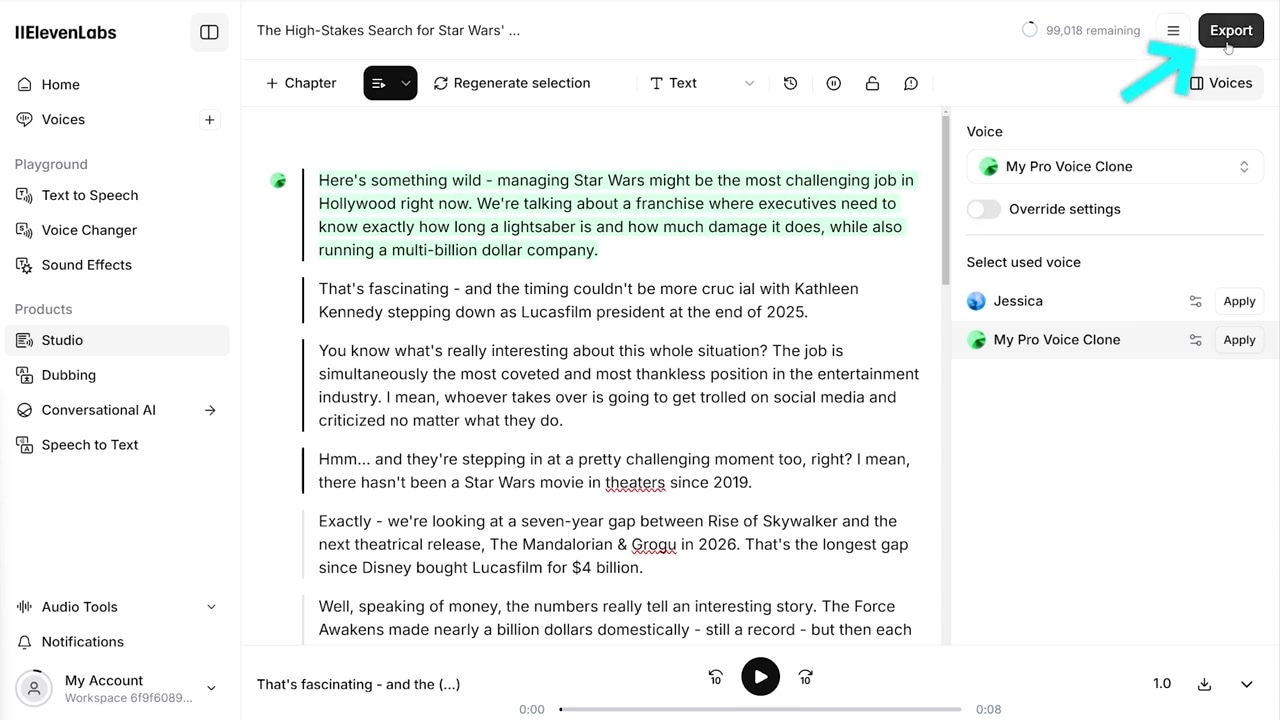
Caption: The final export menu in ElevenLabs Studio makes it easy to download your polished podcast episode in a single click.
Limitations: The Two Missing Features
While ElevenLabs GenFM is the most practical tool on the market for multi-speaker AI podcasts, there are two limitations I encountered during my hands-on testing:
- No Native YouTube Support: At this stage, you cannot paste a YouTube video link directly as your source material. You have to stick to PDFs, TXT documents, or general web articles.
- Audio-Only Output: The tool generates audio, not video. It does not create an AI-generated video of you actually speaking the words.
The Workaround: Generating a Video Podcast
If you want to turn your cloned audio file into a video podcast with a realistic digital human avatar, you can combine GenFM with a second platform like HeyGen:
- Generate and export your edited co-host audio from ElevenLabs.
- Upload that audio file into HeyGen.
- Apply the audio to your custom digital avatar. HeyGen will automatically lip-sync your face to the ElevenLabs audio track, providing a seamless video output.
The Verdict: Is GenFM the Best AI Podcast Generator?
If your goal is to auto-generate a podcast from text while keeping absolute control over your brand, voice, and script, then ElevenLabs GenFM is unmatched.
While Gemini Notebook (formerly NotebookLM) remains a great option for casual summaries, with a free tier alongside its paid Google AI plans, it simply cannot compete with ElevenLabs' voice cloning and inline text-editing features. If you are looking to save hours of production time without sacrificing human authenticity, this is the tool to use.
Ready to clone your voice and start building your own show? Try ElevenLabs for free: Try ElevenLabs →
FAQ
Can I try ElevenLabs GenFM for free?
Yes. ElevenLabs offers a free trial tier that allows you to test the GenFM workflow. However, to generate a hyper-realistic clone of your own voice for the podcast, you will need to upgrade to a paid ElevenLabs plan (such as the Creator tier).
How do I edit mistakes in the generated podcast?
Unlike other platforms where scripts are set in stone, GenFM displays a color-coded, line-by-line script directly in your dashboard. Simply click on the text segment you want to change, type in your edits, and hit replay. The audio engine will automatically re-render that specific line using your chosen voice.
Can I generate podcasts in languages other than English?
Yes. GenFM supports multilingual creation. During the configuration stage, you can specify your target language from the advanced layout settings before generating the script.