I Tested This AI Thumbnail Generator to Recreate Viral Layouts in 60 Seconds
Last updated: July 2026
Author: Greg Preece — I spent seven years mastering advanced design tools like Photoshop to make high-performing thumbnails. I test AI video and graphic tools hands-on to find workflows that save creators hundreds of hours.
If you rely on beginner-friendly Canva templates to design your YouTube thumbnails, your CTR is likely suffering. Standard templates look generic, fail to capture attention, and rarely go viral. To make thumbnails that draw millions of views, you traditionally needed years of advanced Photoshop skills or a massive budget for professional designers.
But a specialized ai thumbnail generator called Pikzels is changing that. In this guide, I will show you how I use this tool to recreate viral layout formats, generate custom designs from scratch, and swap in your own face in less than 60 seconds.
| Feature | Key Benefit | Target User |
|---|---|---|
| Recreate Tool | Mimics existing viral thumbnail layouts using original assets | Creators modeling proven formats |
| Text-to-Thumbnail | Generates tailored layouts from natural language prompts | Anyone wanting custom, fast concepts |
| Edit Brush / Command | Modifies specific subjects or objects in the image | Creators wanting instant variations |
| Face Swap | Replaces character faces with your own photo | Solitary creators branding their thumbnails |
Prefer to watch? Here's the video. Prefer to skim? The full breakdown is below.
Quick Link
Try it here: Try Pikzels →
Table of Contents
- Why Canva and Photoshop Aren't Cutting It Anymore
- [Recreating Viral YouTube Layouts in 20 Seconds](#recreating-viral-youtube-layouts-in-20-seconds)
- How to Generate Original Thumbnails from Prompts
- Refining Designs with the Edit Feature
- The Pro Formula for AI Thumbnail Prompts
- Step-by-Step Face Swapping: The Hybrid Workflow
- The Verdict: Is Pikzels Worth It?
Why Canva and Photoshop Aren't Cutting It Anymore
For years, creators have been stuck between two extremes. On one hand, you have Canva. While it is accessible, its pre-made templates are recognizable from a mile away. When audiences see generic layouts, they scroll right past them.
On the other hand, mastering a professional tool like Adobe Photoshop takes years. I spent over seven years refining my manual design skills just to produce layouts that consistently hit over 100,000 views.
This new wave of AI thumbnail generators bridges the gap. They allow you to produce highly detailed, customized, and clickable packaging without any design background.
Recreating Viral YouTube Layouts in 20 Seconds
Top YouTubers spend hundreds of dollars paying designers to build high-converting concepts. The easiest way to shortcut this cost is to model your packaging after layouts that are already working.
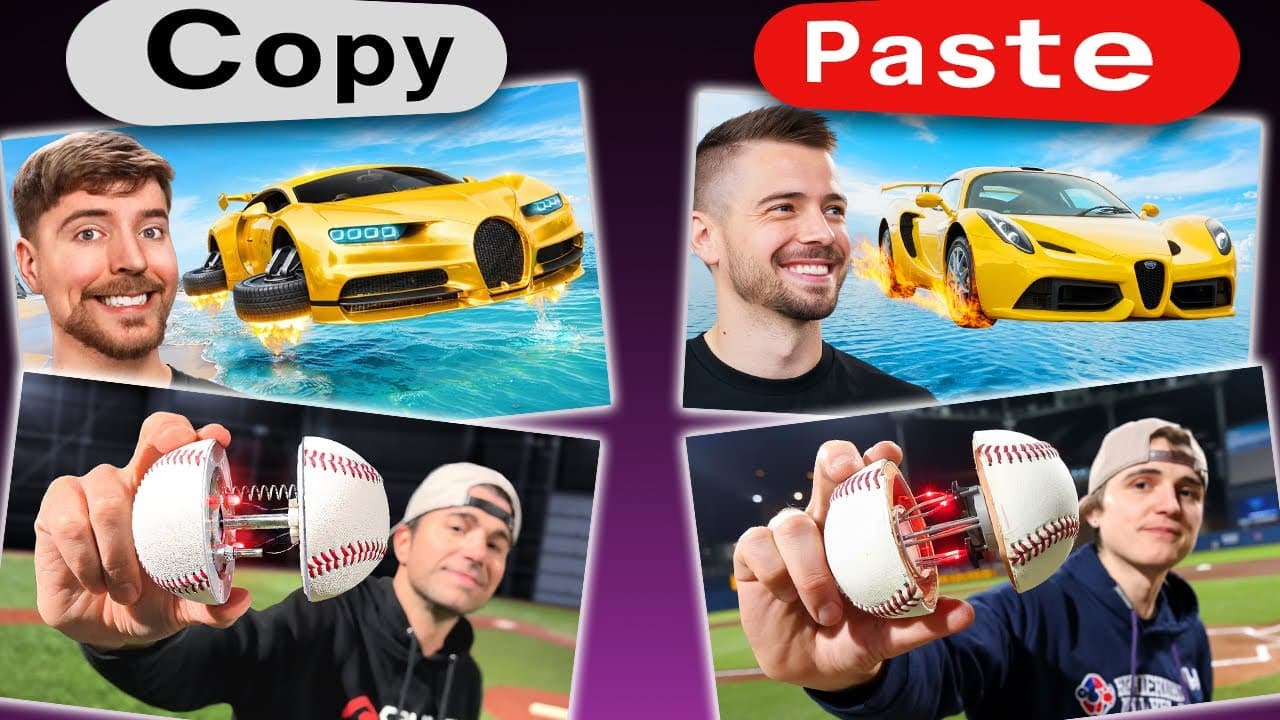
Pikzels features a dedicated Recreate tool that analyzes existing viral thumbnails and builds a fresh, original imitation of them in seconds.
 Caption: To begin copying a proven design, select "Recreate" and paste any YouTube link into the URL input field.
How to use the Recreate tool:
- Log into your dashboard and click the Recreate button.
- Paste the link of the YouTube video whose thumbnail you want to model.
- Set your Inspiration Weight (more on this below).
- Leave the "Changes" field blank if you want an exact structural layout, then click Generate.
In my testing, the generator processed the link in under 20 seconds.
The AI does not copy-paste or steal elements from the original file. Instead, it generates completely new assets—such as custom-styled t-shirts, environmental textures, or text written in the sand—to craft a unique imitation of the source structure.
 Caption: The AI maintains the thematic composition and layout rules of the original reference without copying its exact graphics.
The Power of "Inspiration Weight"
Pikzels gives you control over how closely the AI matches the source thumbnail:
- High: The closest structural imitation. The AI replicates elements like composition, object positioning, and background details as tightly as possible.
- Medium: Generates a thumbnail heavily inspired by the original, but introduces different angles and variations.
- Low: The AI takes minor thematic cues from the source but produces an entirely distinct layout.
Note: The Recreate feature is a premium capability that requires an upgraded Pikzels plan.
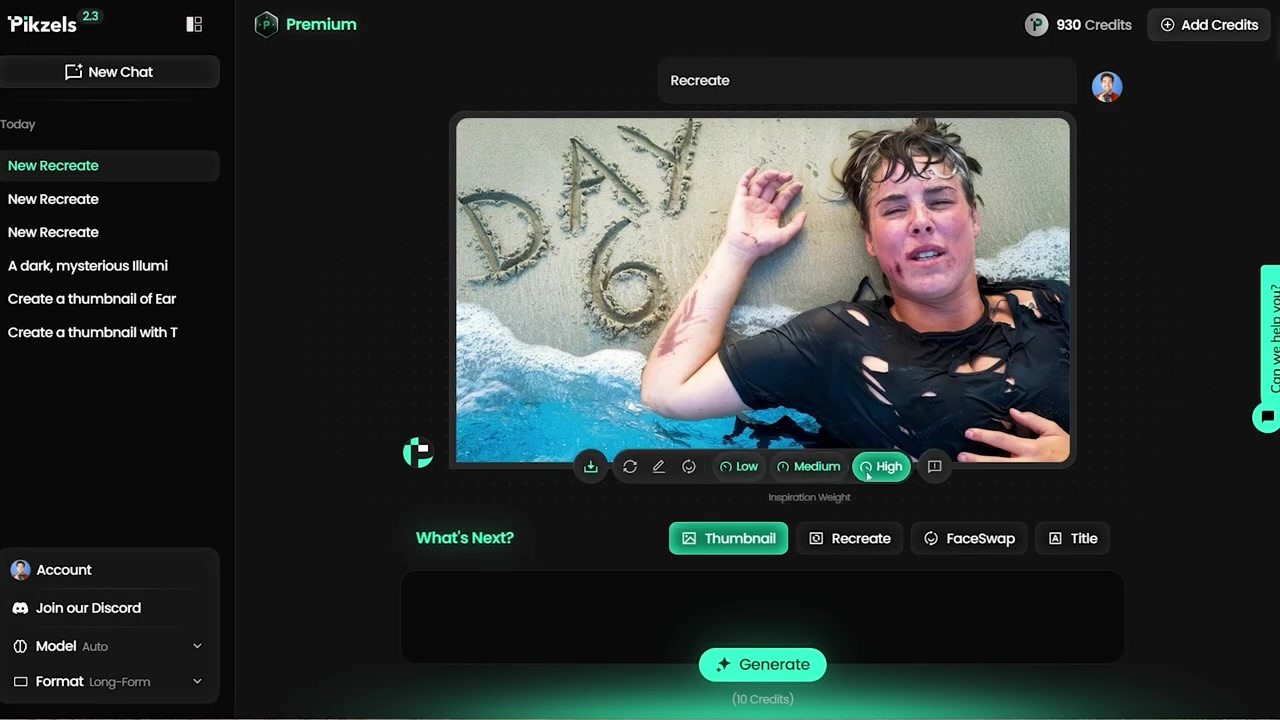 Caption: Altering the inspiration weight levels allows you to balance precise imitation with creative freedom.
How to Generate Original Thumbnails from Prompts
If you want to design a completely original concept rather than modeling an existing video, you can use the text-to-image engine.
- Navigate to the Thumbnail tab (highlighted in green).
- Type a highly descriptive prompt outlining the visual elements you want.
- Press Generate and wait roughly 60 seconds.
For my test, I wanted a thumbnail featuring Amazon's founder. I typed: "A thumbnail of Jeff Bezos holding a contract in his hand, and surrounded by delivery drones with spinning propellers holding packages."
 Caption: The text-to-image generator instantly builds custom scenes based on detailed prompts, mapping complex multi-subject interactions.
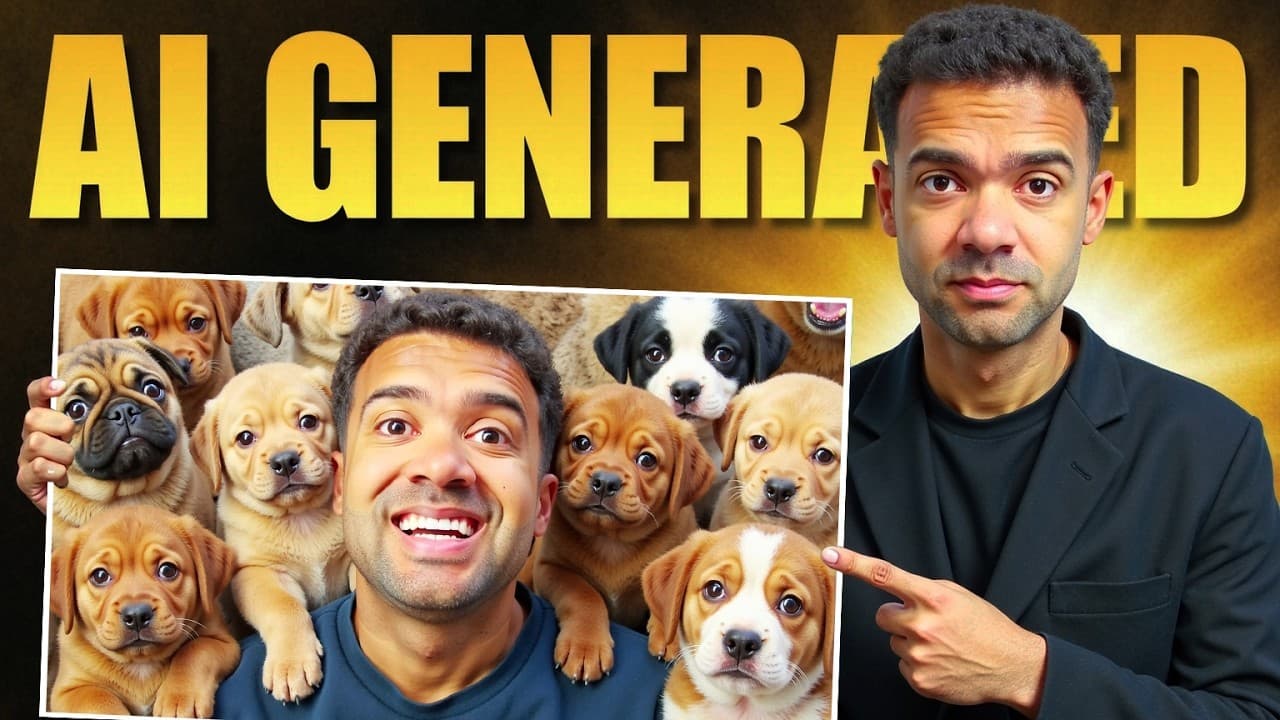
If your generation has a minor visual error—like a glitch on a shirt or a slightly distorted hand—you do not have to rewrite your prompt. Simply click the Redo button to run the engine again until you get a flawless generation.
Refining Designs with the Edit Feature
If you like the overall layout of a generated image but want to replace a specific subject, you can use the Edit feature (available on the premium plan).
For example, I wanted to change the subject in my Jeff Bezos thumbnail to Will Smith.
How to edit elements:
- Select the generated thumbnail and click Edit.
- In the text field, type your change (e.g., "Change Jeff Bezos to Will Smith").
- Crucial Pro-Tip: Always add the phrase "keep everything else the same" to your edit prompt. This prevents the AI from restructuring your background elements or lighting.
- Click Generate to review the side-by-side variations.
 Caption: Swapping a subject inside an existing AI-generated layout while keeping the background props and lighting consistent.
The Pro Formula for AI Thumbnail Prompts
To get predictable, high-ctr results out of an ai thumbnail maker, your prompts must be highly specific. Avoid generic, one-word descriptions and construct your prompts using these five layers:
- Subject: Clearly identify who or what is the focus of your design (e.g., a person, an animal, or a specific object).
- Action: Explicitly state what the subject is actively doing (e.g., holding a contract, running, screaming, pointing).
- Lighting: Describe the scene's illumination to establish a professional mood (e.g., well-lit daylight, high-contrast studio lights, dark and gloomy night scene).
- Colors: Define key color palettes for clothing and environments to draw eyes (e.g., bright yellow jacket, vibrant blue sky in the background).
- Emotions: Instruct the AI on how the characters should look (e.g., smiling, shocked, terrified, determined).
The more descriptive detail you provide across these five categories, the cleaner your output will be.
Step-by-Step Face Swapping: The Hybrid Workflow
If your channel relies on personal branding, you will want to insert your own face into these generated thumbnails.
Pikzels has a native face-swapping feature. However, in its current state, the built-in face swap can occasionally look a bit unnatural. To solve this, I developed a highly effective hybrid workflow that combines Pikzels with a free, external face-swapper tool.
Why Pre-Matching Faces is Key
Before you run any face swap, your generated character must have some structural similarity to you. If the skin tone, face shape, or hair color are completely different, the AI will warp the image and look highly unrealistic.
For my test, because I have dark skin, I purposefully swapped Jeff Bezos for Will Smith before executing the face swap to ensure the structural base matched my features.
Step 1: Perform the Initial Face Swap in Pikzels
- Click the face-swapping icon inside the edit panel.
- Upload a clear, front-facing photo of your face.
- Click Generate and wait a few minutes for the tool to process the replacement.
Step 2: Clean Up with Deepswapper
If the native Pikzels face swap looks slightly off, use this free, browser-based cleanup step:
- Download the generated thumbnail from Pikzels.
- Go to the free website Deepswapper.
- Upload the Pikzels thumbnail as your base image.
- Upload your raw face photo as the target swap image.
- Click Swap to generate an incredibly clean, high-fidelity final thumbnail.
 Caption: A direct comparison of the native face-swap result versus the ultra-realistic finish achieved using Deepswapper.
The Verdict: Is Pikzels Worth It?
If you are a solo creator, spending hours tweaking designs in Photoshop or settling for bland Canva templates is holding your channel back.
Using Pikzels dramatically speeds up your packaging workflow, allowing you to generate professional concepts, replicate viral layouts, and execute face swaps in minutes. While some features like Recreate and Edit require their paid subscription, the sheer amount of time and designer costs saved makes it incredibly valuable for serious creators.
Try it here: Try Pikzels →