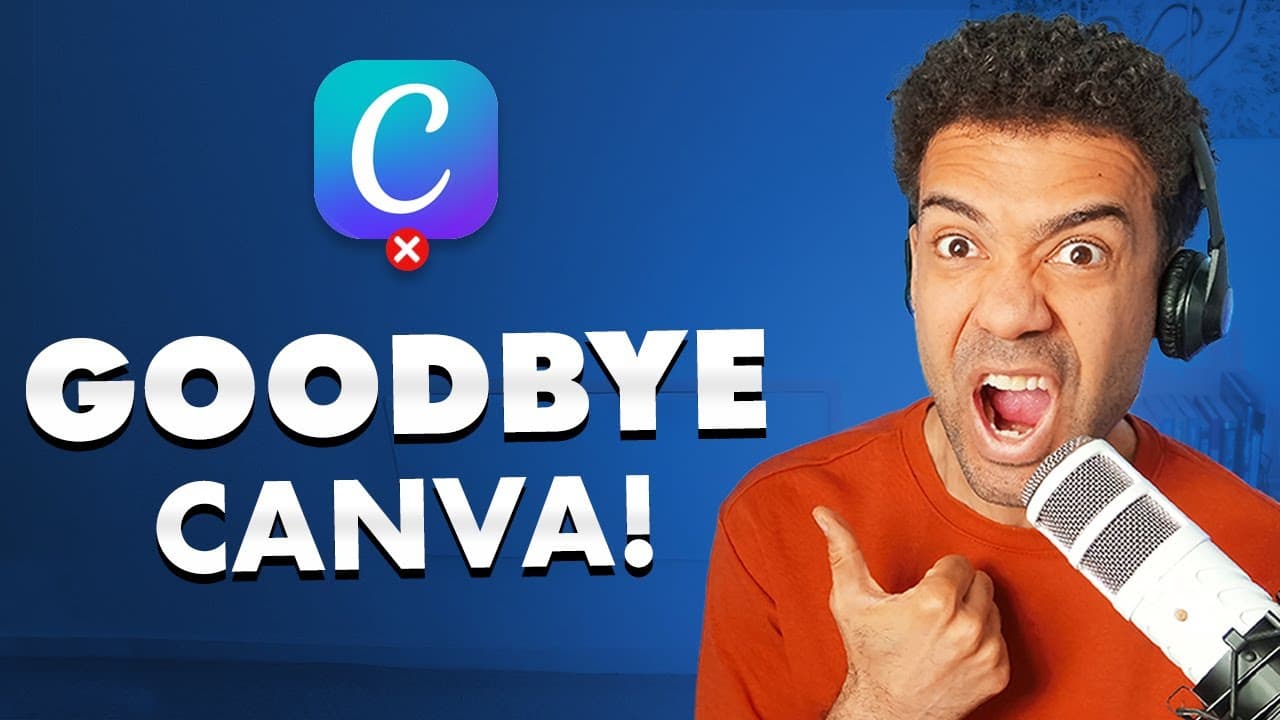
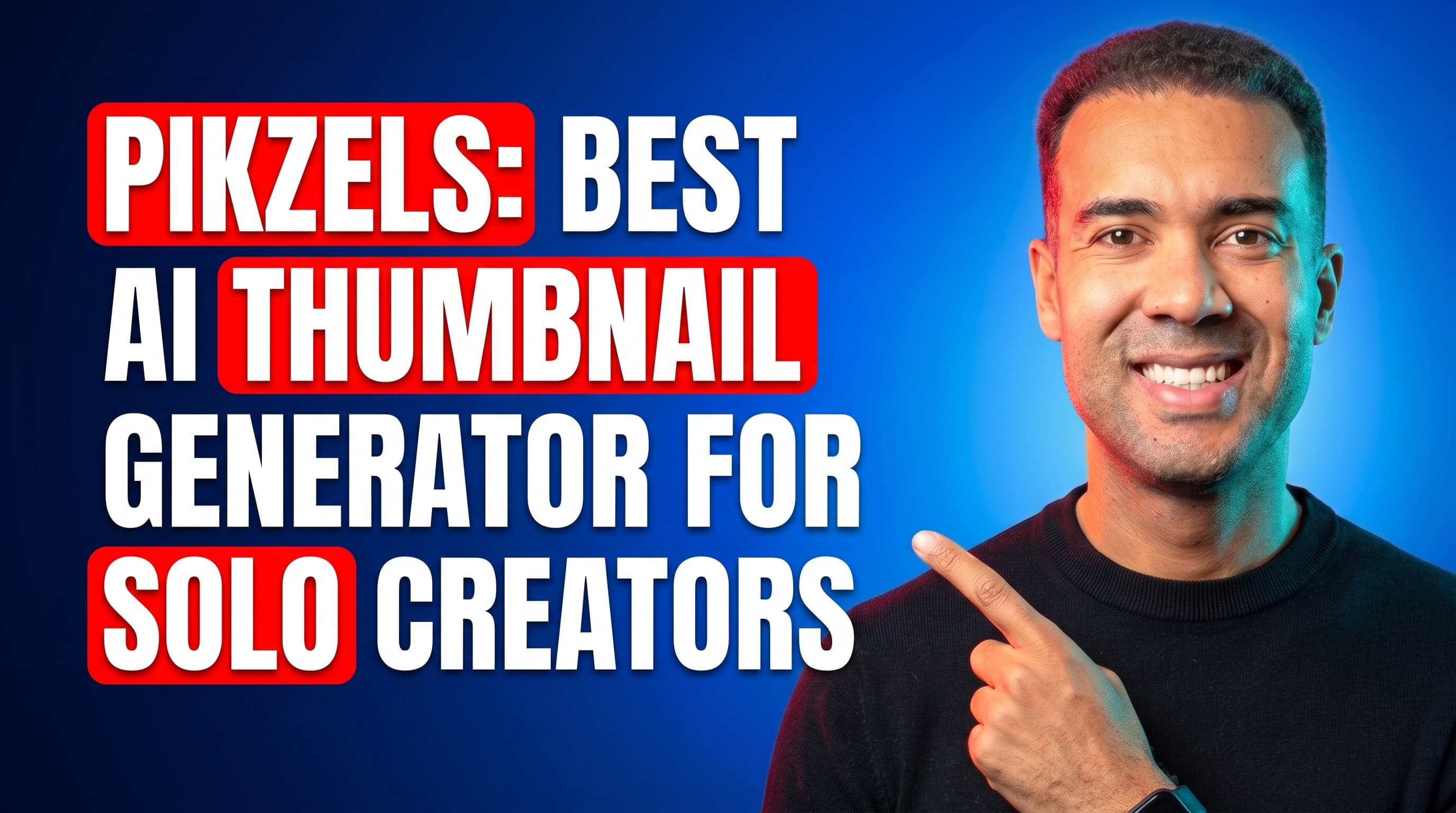
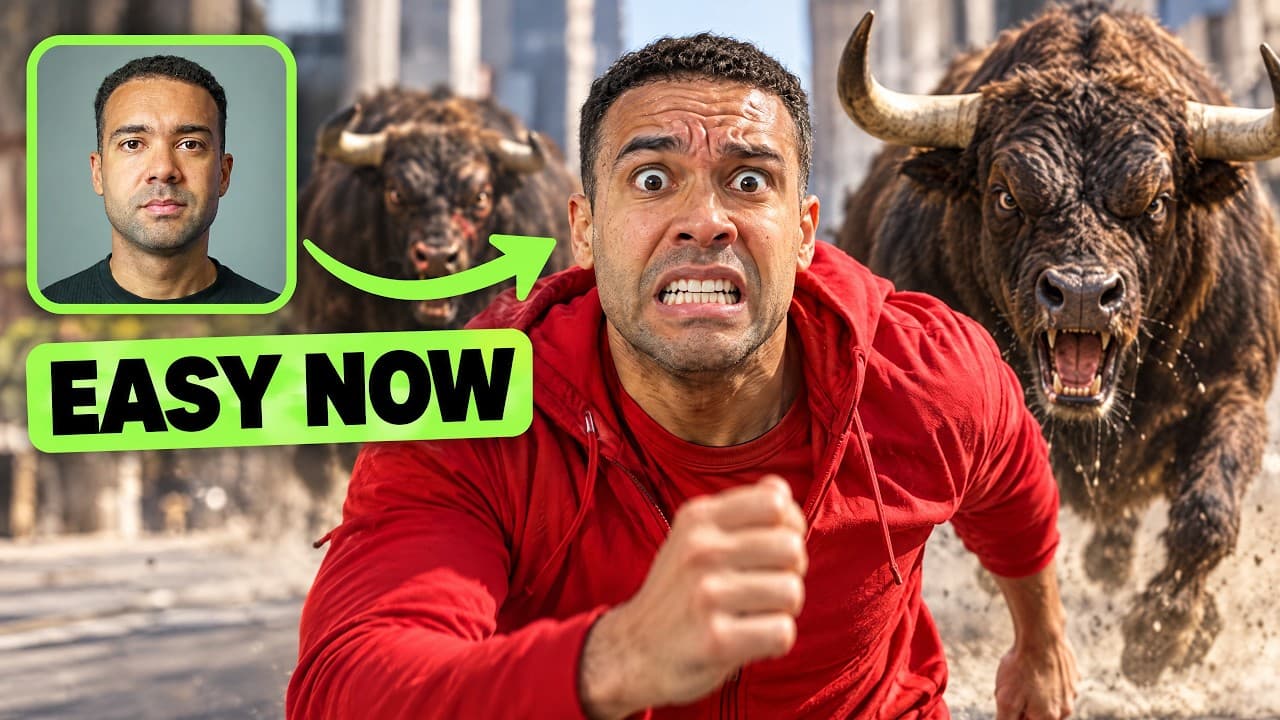
Pikzels AI Tutorial: How I Recreate Viral Thumbnails in 30 Seconds
Last updated: July 2026
Author: Greg Preece — I test AI creator tools hands-on to help you get high-performing results fast.
If you are struggling to get viewers to click on your YouTube videos, the real issue is likely your thumbnail packaging. Fortunately, you don’t need advanced Photoshop skills or a dedicated design team to fix this—you can use AI to replicate proven, high-CTR layouts with your own face automatically.
This step-by-step Pikzels AI tutorial shows you exactly how to build a custom face model and recreate viral thumbnails in less than 30 seconds.
TL;DR: Recreate Viral Visuals Fast
- The Core Method: Create an AI model of your face, paste any high-performing YouTube URL into Pikzels, and let the AI swap you in.
- Inspiration Weights: Use the High setting for an exact clone, or drop it to Medium/Low to create a unique concept inspired by the original layout.
- Ethics Matter: Rather than directly copying designs, we recommend taking loose inspiration with customized prompt swaps.
Prefer to watch? Here's the video. Prefer to skim? The full breakdown is below.
Pikzels: Try it here: Try Pikzels →
Why Thumbnail Optimization Matters
The biggest creators on YouTube spend thousands of dollars and employ dedicated teams just to produce their thumbnail concepts. As a smaller creator, trying to compete against those resources can feel impossible.
However, cloning proven thumbnail layouts and adapting them for your channel is a strategy that has worked on YouTube for years. By using an AI thumbnail generator, you can instantly level the playing field and design eye-catching graphics that convert impressions into views.
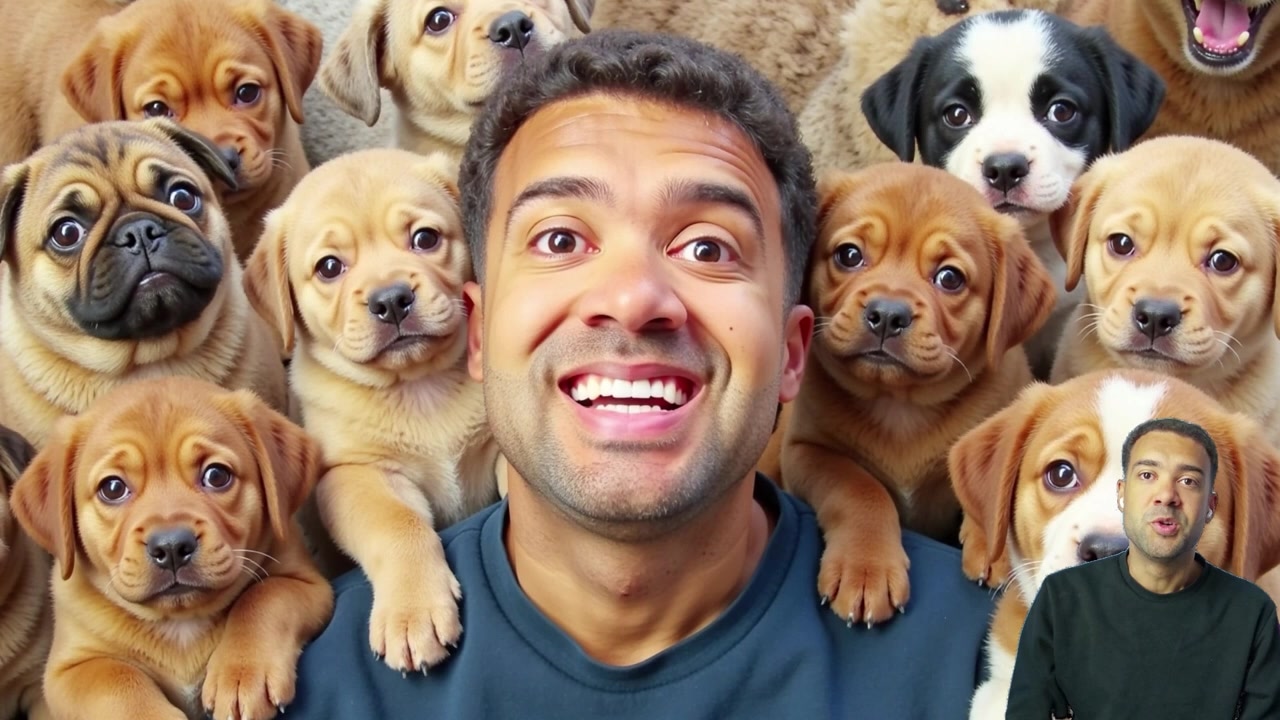
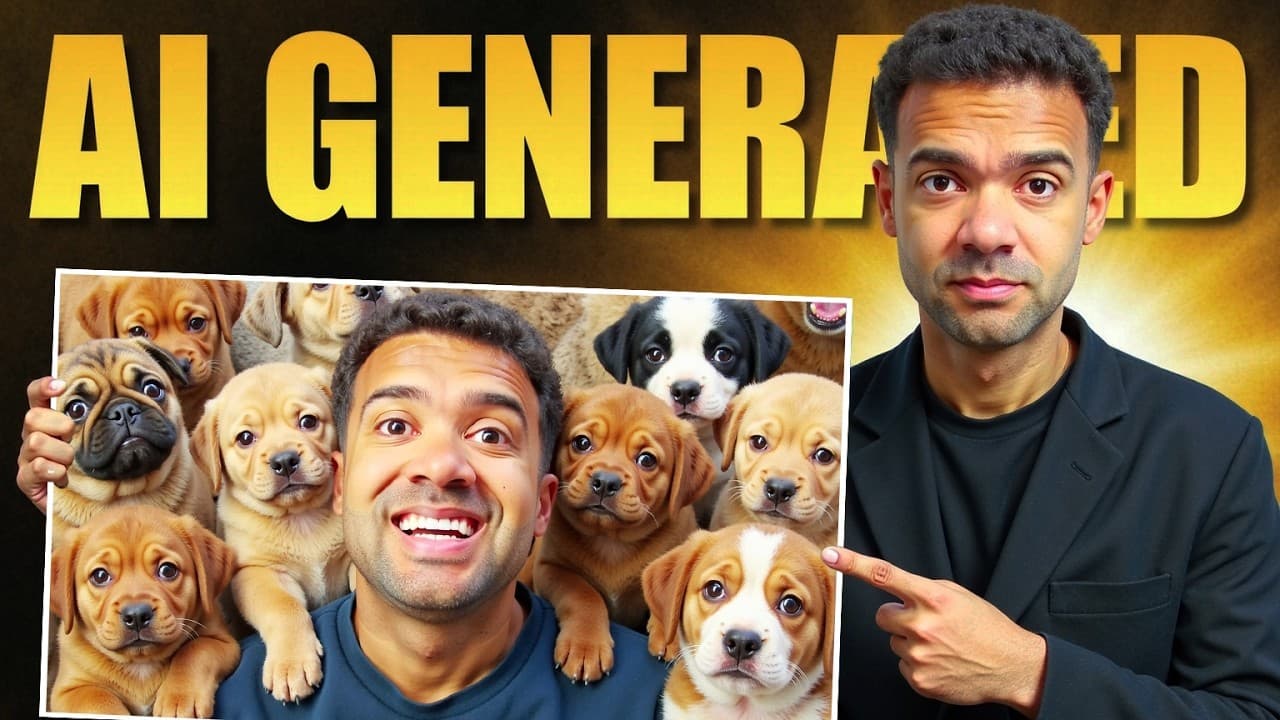
Caption: On the left is MrBeast's original puppy thumbnail; on the right is my exact face-swapped clone generated inside Pikzels in under 30 seconds.
Step 1: Build Your AI Face Persona
Before you can clone any templates, you need to train the AI to recognize and render your face accurately. Pikzels makes this process simple through its built-in Personas tab.
- Navigate to Personas: Open the Pikzels dashboard and select the Personas feature from the sidebar menu.
- Start a New Model: Click the Create button.
- Upload Your Assets: Type your name to label the model, then select and upload 10 to 20 images of your face.
- Train the Model: Click Generate. The rendering process typically takes about 3 to 5 minutes to complete.
Tip: For the best training results, upload images that show you expressing different emotions (happy, surprised, serious) and looking in slightly different directions. This provides the AI with maximum facial data, resulting in a cleaner final swap.
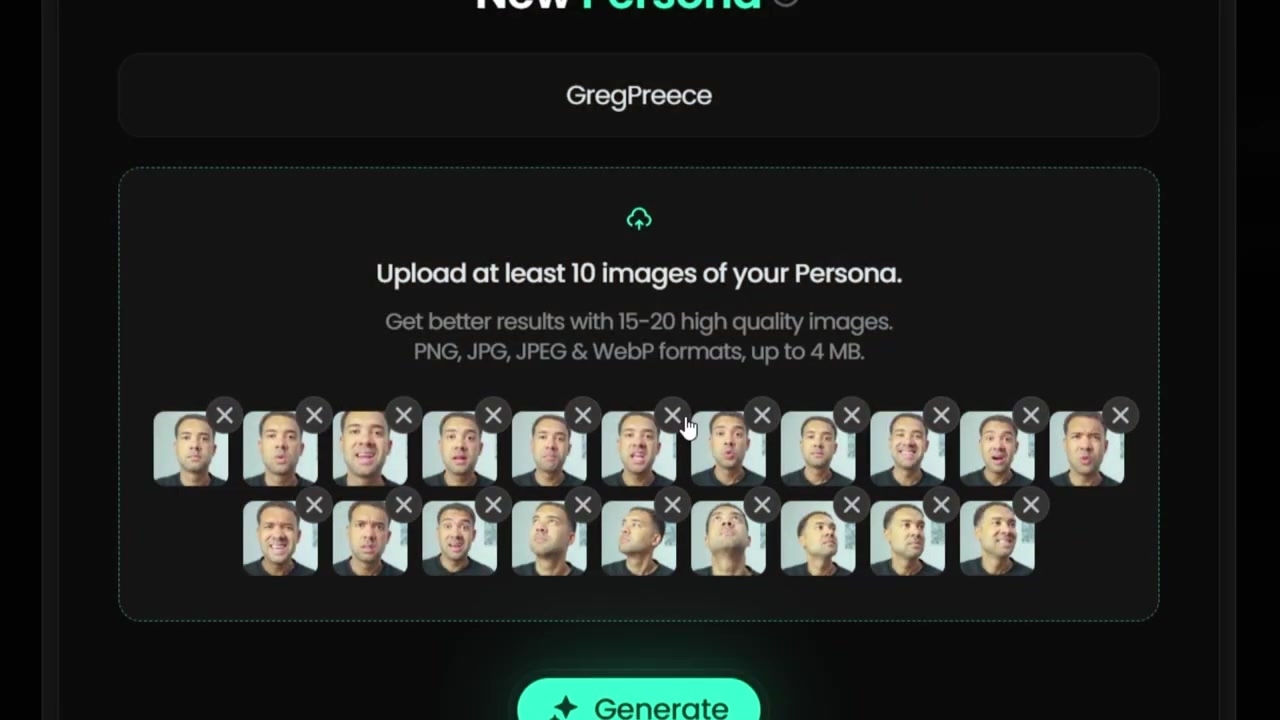
Caption: The Personas dashboard where you name your profile and upload reference photos to train your face swap model.
Step 2: Paste the Video URL to Recreate a Thumbnail
Once your custom Persona is processed, you are ready to insert your face into any viral video thumbnail on YouTube.
- Go to Recreate: Click on the Recreate option in the sidebar.
- Input the Link: Paste the link of the target YouTube video with the thumbnail you want to recreate. For my test, I pasted the link to MrBeast's puppy rescue video.
- Select Your Persona: Choose your newly created face copy from the Persona dropdown.
- Generate: Keep the default settings and click Generate. Within 30 to 60 seconds, you will receive a replicated layout with your face seamlessly swapped in.
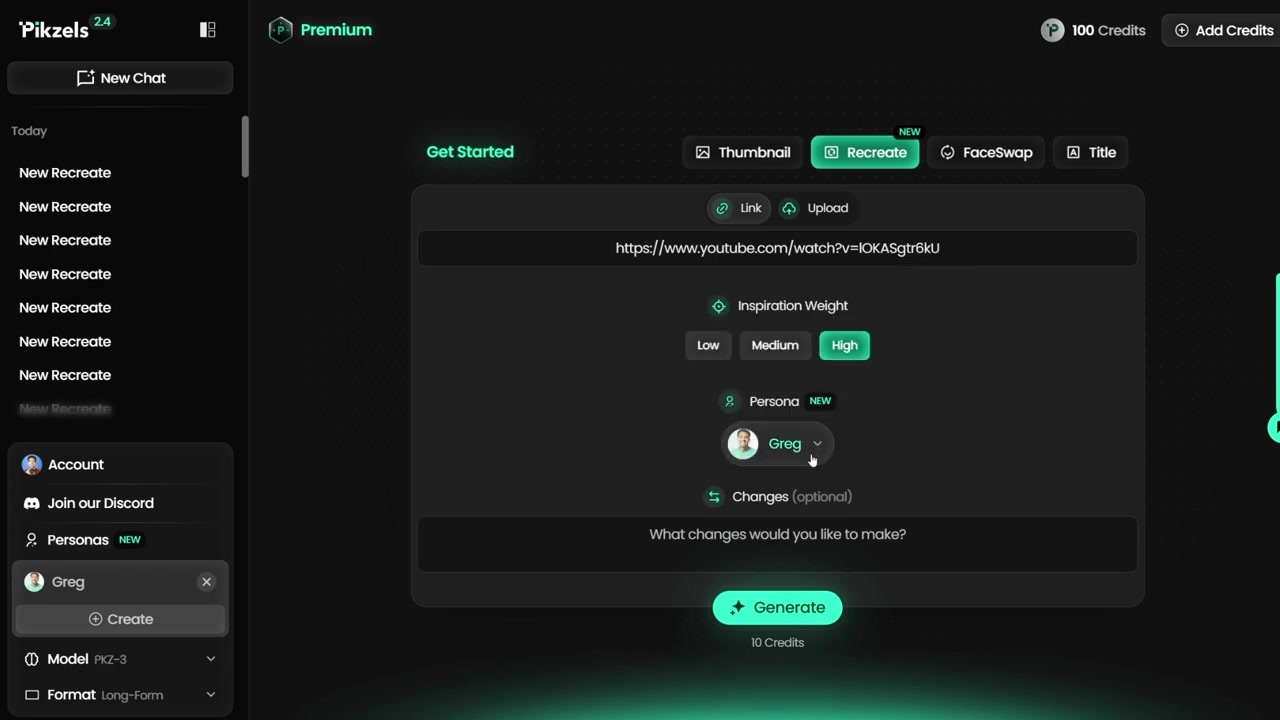
Caption: The Recreate dashboard where you paste your target YouTube link and select your trained persona.
Step 3: Modify the Composition with Inspiration Weights
Directly copying another creator's thumbnail can sometimes look like a direct rip-off. To avoid this, Pikzels features an Inspiration Slider with three distinct settings: High, Medium, and Low. This slider controls how strictly the AI mimics the source thumbnail.
High Inspiration Setting
By default, the slider is set to High. This delivers an exact replica of the original layout, matching the backdrop, characters, and framing as closely as possible.
Caption: The default High inspiration output which clones the layout, color scheme, and elements of the source thumbnail exactly.
Medium Inspiration Setting
Setting the slider to Medium tells the AI to use the source material as a guideline rather than an exact blueprint. When I ran the MrBeast puppy thumbnail through the Medium setting, the AI kept the general structure but altered the colors of the puppies from uniform beige to a mix of beige and black.
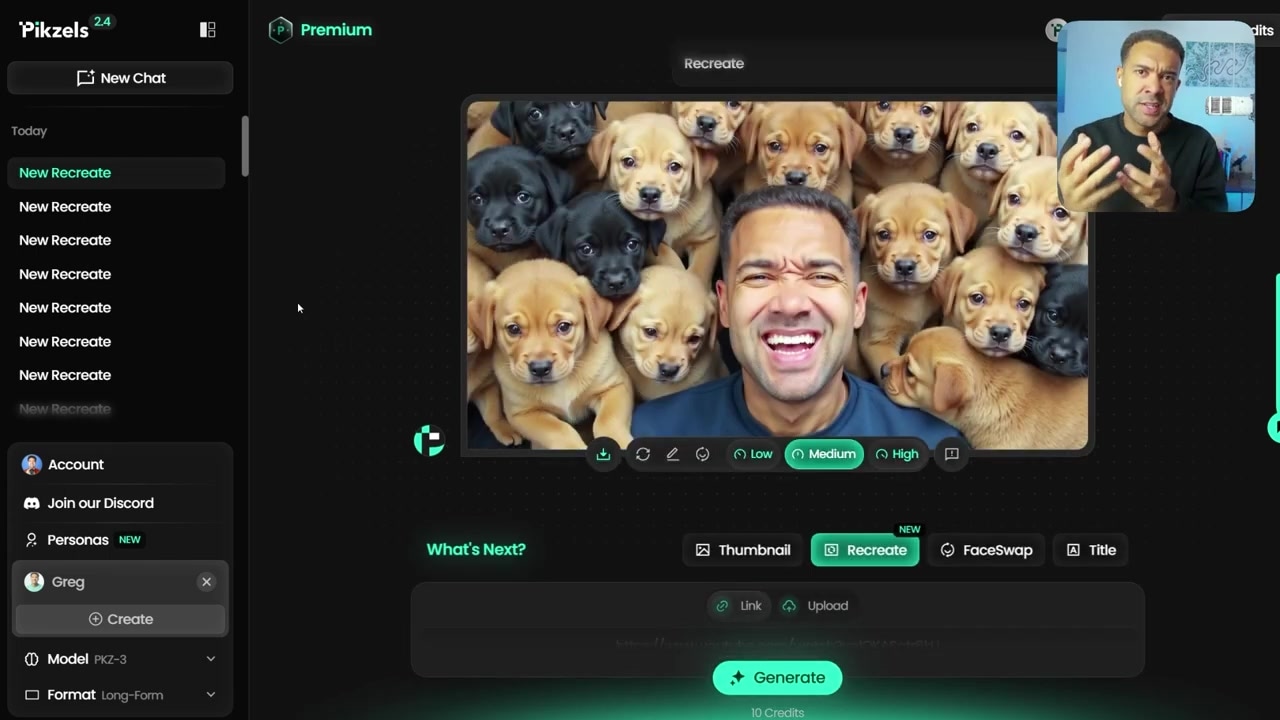
Caption: The Medium setting introduces variations—such as different puppy colors—while preserving the overall layout and face swap.
Low Inspiration Setting + Text Prompts
To make the final graphic truly your own, slide the setting to Low and use the custom text prompt box. For instance, I set the weight to Low and typed "kittens" to swap out the puppies entirely. The result was a completely unique visual layout that took only loose stylistic cues from the original viral thumbnail.
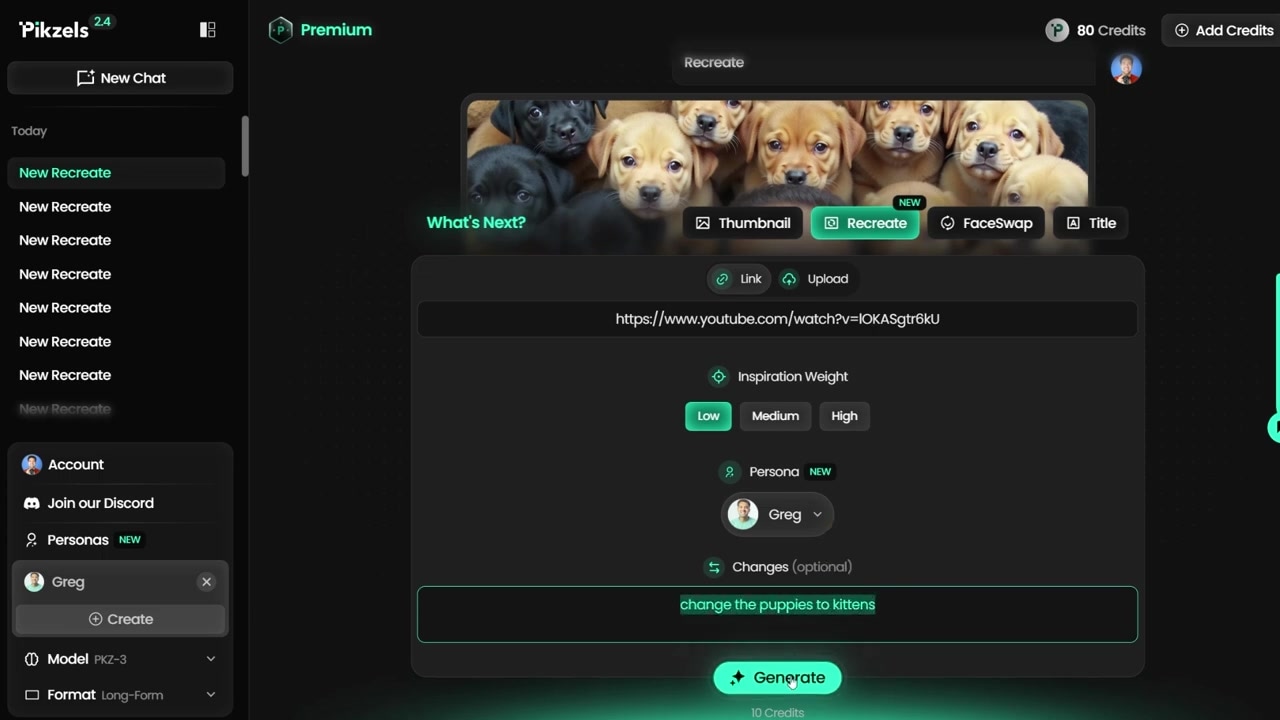
Caption: The Low setting combined with custom text prompts allows you to replace elements (like puppies to kittens) to build a unique concept.
Ethics: Direct Cloning vs. Taking Loose Inspiration
While some creators see direct visual replication as a standard growth tactic, others consider direct 1:1 copies unethical.
I highly recommend using the Medium and Low inspiration weights in Pikzels. This workflow allows you to analyze successful packaging concepts—such as framing, lighting, and focal points—and adapt them into a unique graphic with your own custom branding. By doing this, you capture the psychological factors that make a thumbnail viral without directly ripping off another creator's hard work.
Ready to start cloning viral layouts with your own face? Get started by trying out Try Pikzels →.
Frequently Asked Questions
What is the ideal number of photos to train my Pikzels face model?
You should upload between 10 and 20 high-quality photos. For the best outcome, include different facial expressions and diverse lighting angles to help the AI learn your facial features accurately.
How long does it take to recreate a YouTube thumbnail in Pikzels?
Once your face Persona is built (which takes 3 to 5 minutes), the actual thumbnail recreation process takes only 30 to 60 seconds per render.