VEED.io Tutorial: How I Generate AI Shorts in Under 5 Minutes
Last updated: July 2026
Author: Greg Preece — I test AI video tools hands-on and show creators how to get usable results fast.
Generating professional AI videos and avatars has historically meant juggling multiple platform subscriptions and fighting complex timelines. In this step-by-step VEED.io tutorial, I will show you how to leverage VEED's unified AI video generator to script, animate, refine, and translate high-performing YouTube Shorts in under five minutes.
TL;DR Summary
- The Main Goal: Learn how to go from a single text prompt to a 95% complete, localized social media video containing an AI avatar, dynamic captions, background music, and relevant b-roll.
- Workflow Highlights: Go from prompt to automated scripting, select a talking AI avatar, customize your b-roll, generate tailored AI video clips, and translate everything into over 29 languages.
- Why VEED? It replaces the tedious process of editing across multiple subscriptions by housing your scripting, avatars, b-roll generation, and AI dubbing in a single browser-based timeline.
Table of Contents
- Step 1: Set Up the AI Text to Video Prompt
- Step 2: Edit and Refine Your Auto-Generated Script
- Step 3: Swap and Customize Your Timeline B-Roll
- Step 4: Generate Custom AI Video Clips from Scratch
- Step 5: Translate and Dub Your Video in 29+ Languages
- Final Thoughts and Use Cases
- Frequently Asked Questions
Prefer to watch? Here's the video. Prefer to skim? The full breakdown is below.
Try VEED here: Try VEED →
Step 1: Set Up the AI Text to Video Prompt
When you log in to VEED to build your project, you are met with an all-in-one timeline designed to make modern video creation simple. To initiate the workflow, we start by feeding our prompt to VEED's text-to-video engine.
Here is the exact setup process I used to initiate my YouTube Short:
- Locate and click on the AI Text to Video option on the VEED dashboard.
- In the text field, input a detailed prompt explaining what your video is about. I typed: "YouTube Short fact video on the crazy things that happen every single minute on Earth."
- On the configuration screen, adjust your settings on the left-hand panel. Because I requested a YouTube Short, VEED automatically selected a vertical Portrait orientation.
- Choose your AI presenter. I scrolled through the visual preview list and selected Maya.
- Select your caption design template. I opted for the Rizz styling, which immediately updated on the right-side preview container.
- Click the Continue button in the top-right corner to process.
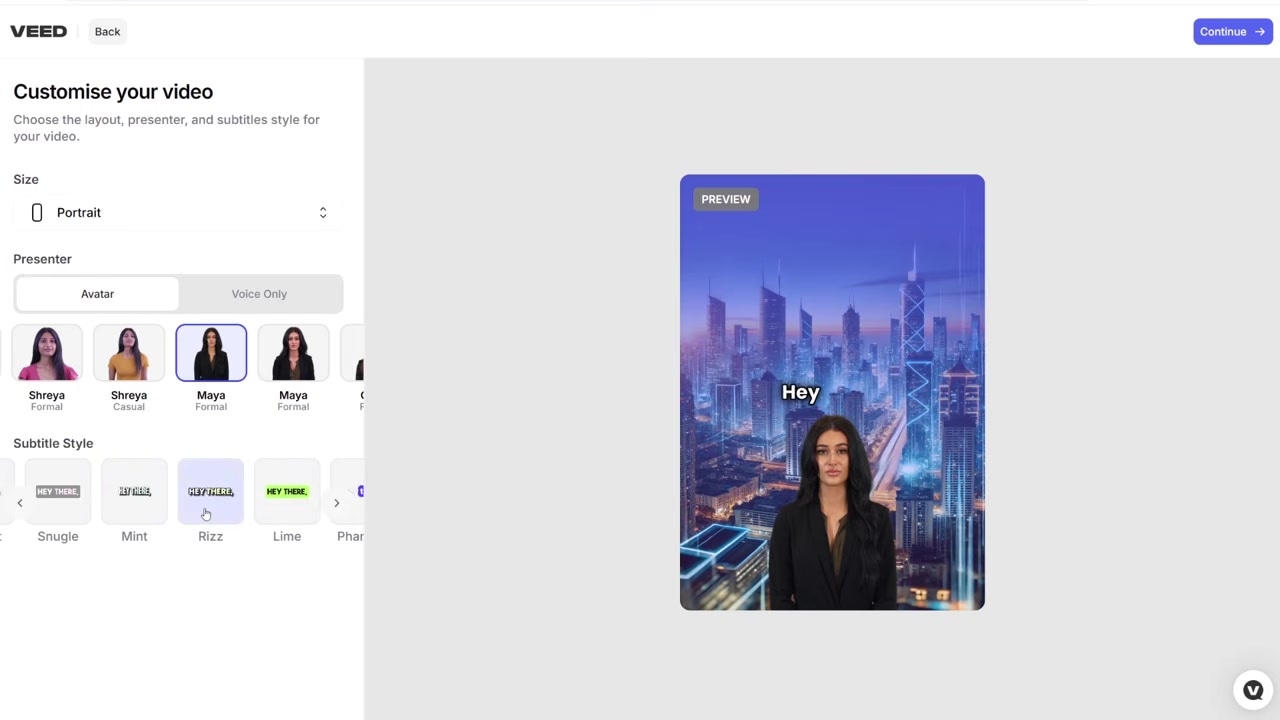
Caption: Adjust layout orientation, scroll through available AI presenters (like Maya), and select your caption template before generating.
Step 2: Edit and Refine Your Auto-Generated Script
Once the prompt is accepted, VEED does the background research and writes a complete, structured script for your avatar to speak.
Instead of relying on third-party writing tools, you can manage the script right inside the generation editor:
- Manual Tweaks: Click directly into the generated script box to edit words, adjust punctuation, or rephrase points.
- AI Rewriting: Tell the built-in AI assistant what specific tone or target audience you are aiming for, then click Rewrite to regenerate the text.
- Custom Scripts: If you have already drafted a script in another application, simply select the text box, paste your script over it, and click Continue to render.
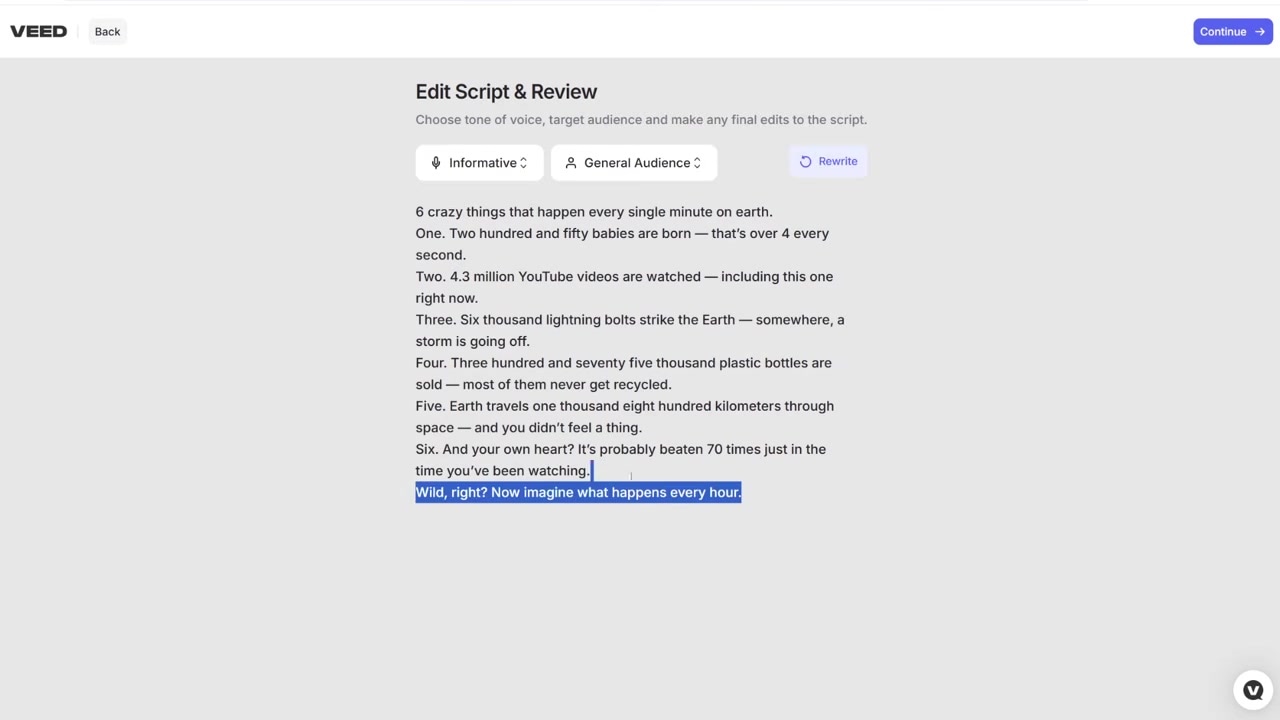
Caption: Review and tweak the script that VEED's AI writes for your prompt, or paste your own script.
Step 3: Swap and Customize Your Timeline B-Roll
After a couple of minutes of rendering, VEED populates your timeline. When I previewed the first draft, I was incredibly impressed: the AI-generated video was roughly 95% of the way to a finished project, featuring a speaking AI presenter, contextually selected stock b-roll, subtitles, and an active background music track.
However, you will almost always want to tweak the timeline to match your exact vision. Here is how I customized my rough cut:
1. Remove Unwanted Subtitles
If you plan to localize your video for multiple countries, you do not want hardcoded language tracks baked in. I clicked the purple subtitle track on my editing timeline and deleted the English subtitles so I could apply translated ones later.
2. Search and Swap Generic Stock Footage
VEED sometimes places generic placeholder b-roll that doesn't quite fit the context (for instance, showing a generic stock clip of a woman during a segment about YouTube view statistics). To replace a clip:
- Click the specific video segment on the editing timeline.
- Scroll to the Replace Video button on the settings panel.
- Use the search bar to locate a more accurate video from VEED's stock library (I typed "YouTube").
- Select the matching footage (like someone actively scrolling through a mobile feed).
- Drag the edges of the new footage to make it fill the Portrait container.
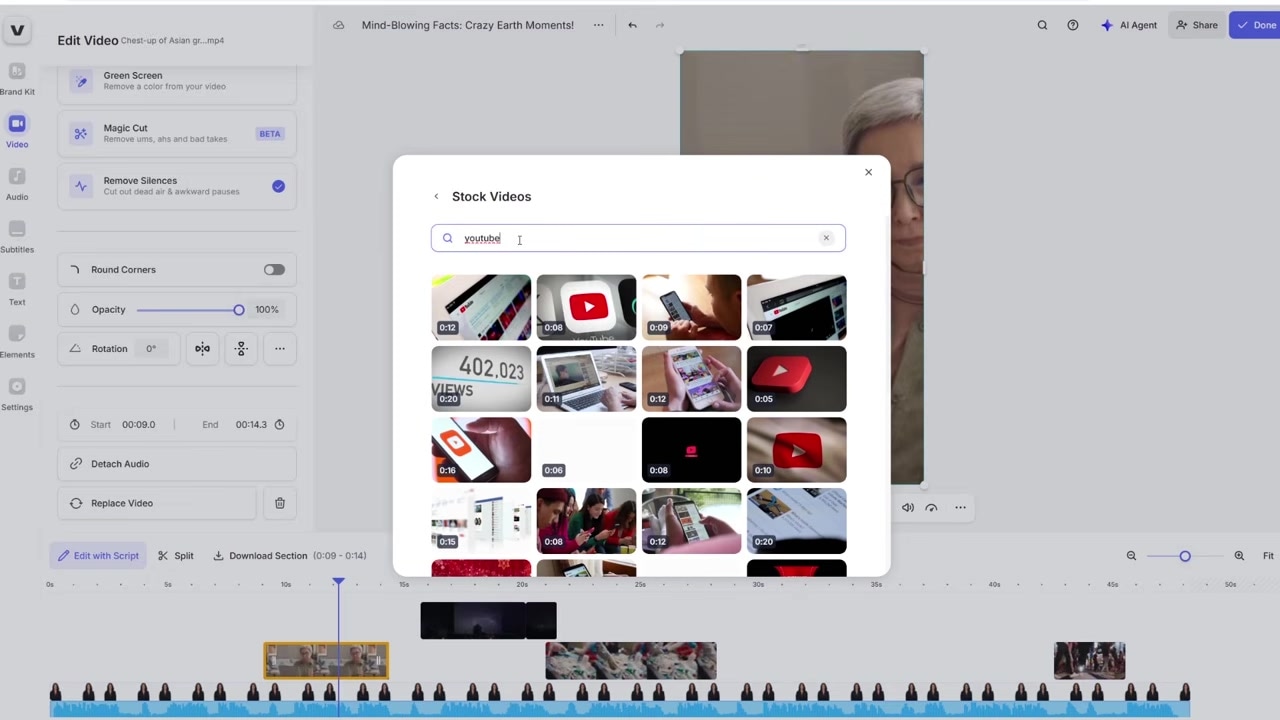
Caption: Click any clip on the timeline to search VEED's stock library and swap out generic clips for contextually relevant video.
Step 4: Generate Custom AI Video Clips from Scratch
Sometimes, even the most robust stock library won't have the specific visual you need to match your narration. In my fact video, the stock clip of babies in cots felt a bit dry. I wanted something more epic: a shot of the Earth exploding as seen from space.
Rather than scouring the web for a file, you can generate custom AI video directly inside VEED:
- Click AI Text to Video on the side panel and select the Generative option.
- Type in a highly specific prompt (I used: "the Earth exploding seen from space").
- Set the video layout to Portrait to match your vertical video project.
- Select Realistic as your visual style preference.
- Click Continue and let VEED construct your custom b-roll clip.
- Once generated, go to the Your Videos asset library on your dashboard, locate the clip, and drag it directly onto the timeline to replace the boring stock footage.
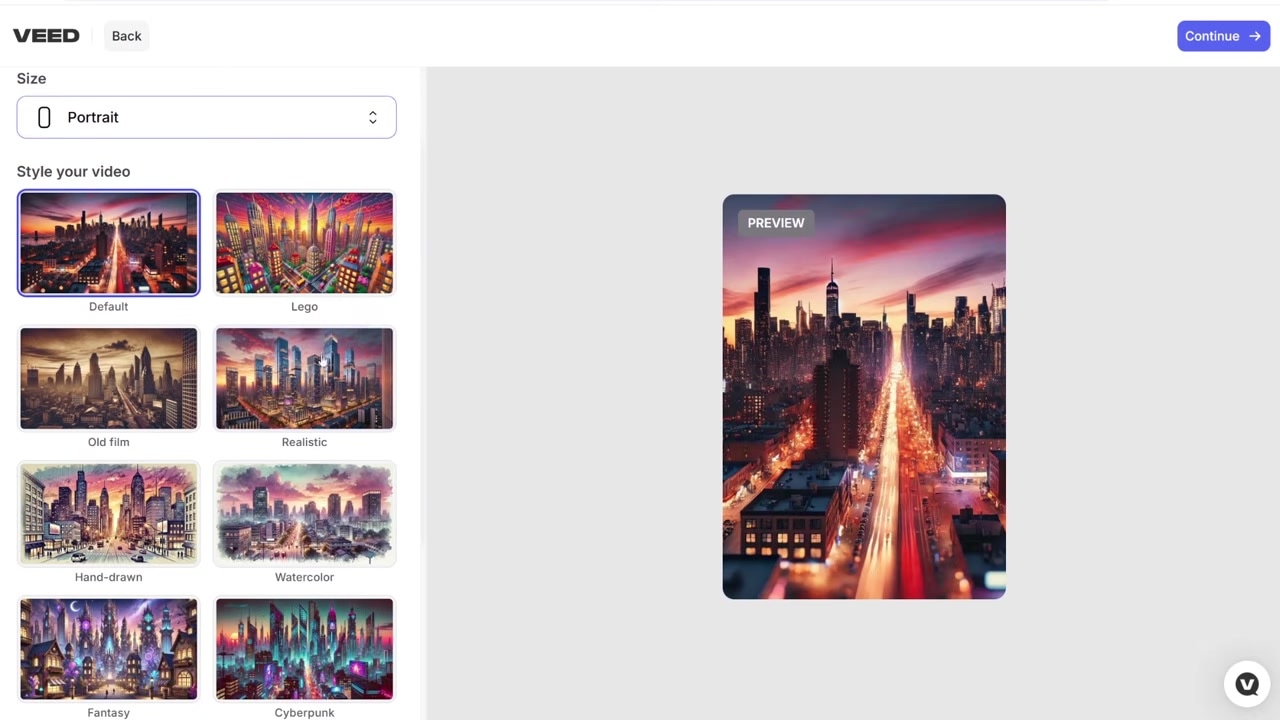
Caption: Enter a descriptive prompt and choose the 'Realistic' style to generate unique AI b-roll footage.
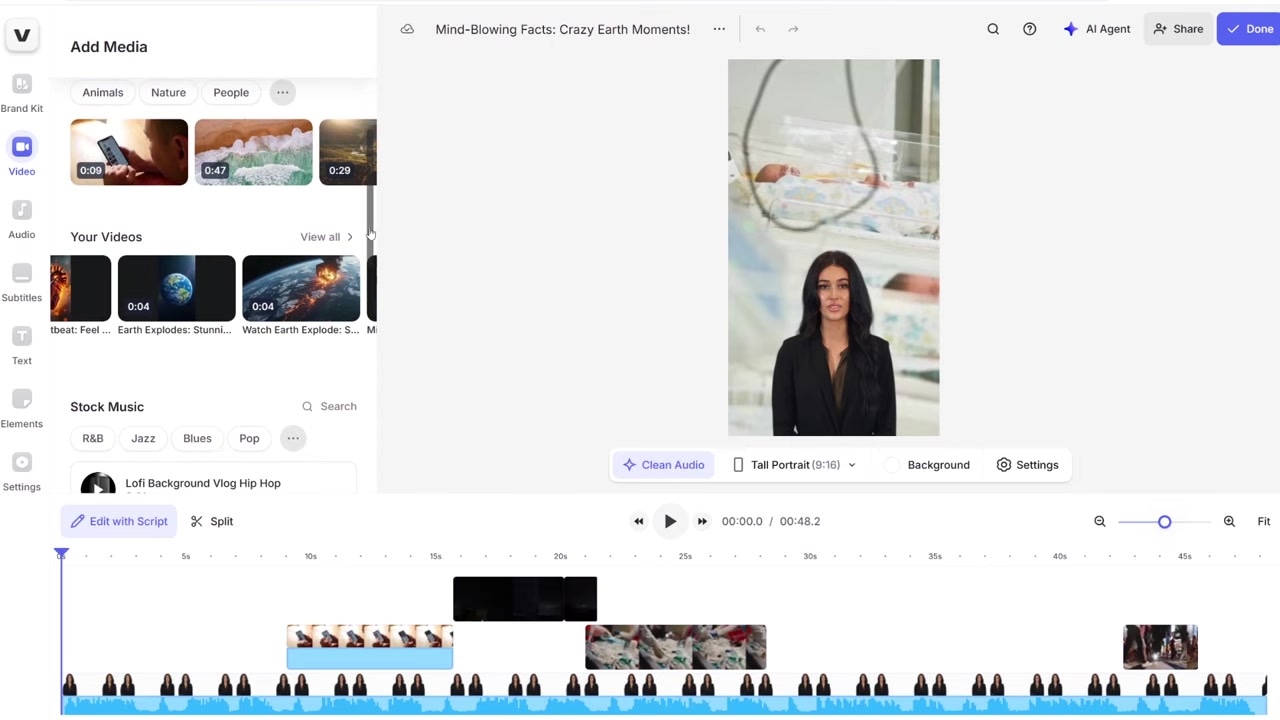
Caption: Locate your generated clips in the "Your Videos" asset library and drag them directly into your timeline.
Step 5: Translate and Dub Your Video in 29+ Languages
If you are only targetting English-speaking markets, your video is ready to be shared. But if you want to scale your viewership across multiple regions, you can use VEED's built-in AI Dubbing feature to automatically translate your speaking video into over 29 different languages.
Here is how I translated my English fact short into a fully-dubbed Polish version:
- Click the Done button in the upper-right corner.
- Select your export parameters (I prefer exporting in 4K resolution) and click Export Video.
- Once the export is finished, look at the share panel and click the Dub Video button.
- Select your target translation language (I chose Polish).
- Toggle on the voice cloning option. This tells VEED to keep the original speaker's vocal characteristics so the translation doesn't sound robotic.
- Click Dub Video to run the translation.
- To finish, open the dubbed video project, click Subtitles, select auto-captions in your target language (Polish), apply your layout style (like Rizz), and export.
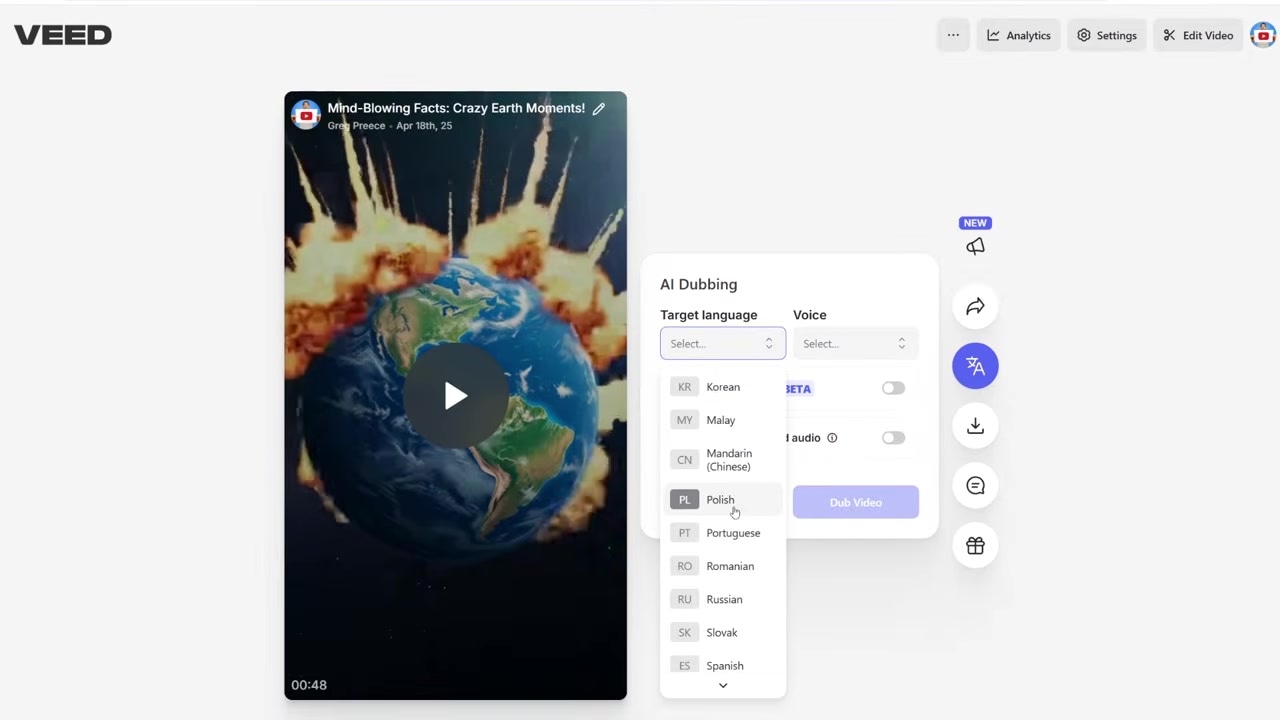
Caption: Export your final cut and select from over 29 languages to automatically translate and dub your video.
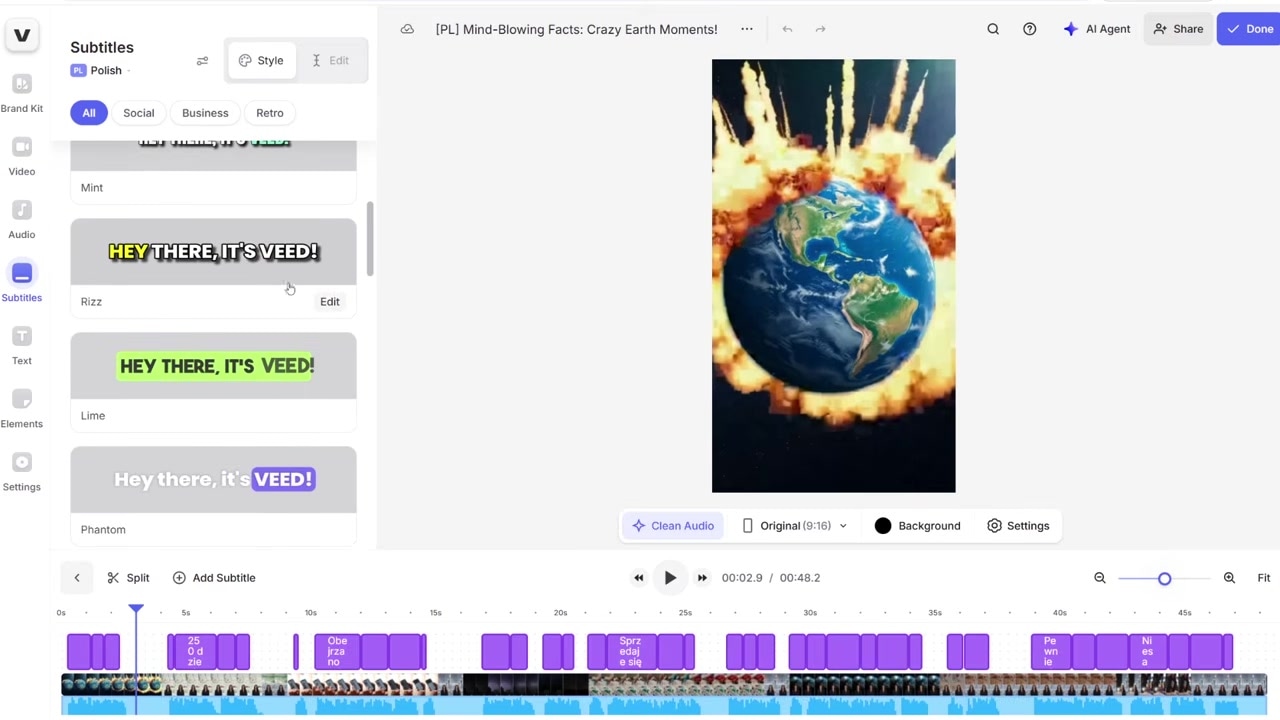
Caption: Generate auto-captions in your target language and style them instantly to match your template.
Final Thoughts and Use Cases
Using VEED's AI generation suite allows you to build complete, upload-ready social media content in minutes. The value here is the starting block: instead of starting from an empty timeline, your single prompt hands you a 95% finished draft with synchronized visuals, high-quality audio, dynamic captions, and background music.
This workflow isn't just limited to YouTube Shorts; I have used these exact AI tools to generate corporate update reports, educational explainers, and long-form storytelling videos.
Try VEED here: Try VEED →
Frequently Asked Questions
Can I use my own custom script with VEED's AI presenter?
Yes. During the text-to-video workflow, VEED allows you to bypass the auto-generated scripting feature. You can paste your own custom script directly into the editor, write prompts for AI rewrites, or even upload pre-recorded audio tracks to voice your presenter.
How accurate is the AI voice translation in VEED?
VEED's AI Dubbing tool is incredibly accurate, preserving not just the translated words but the vocal profile, tone, and inflection of the original speaker across 29+ languages. You can also generate automatic subtitles in your target language to maintain a highly accessible, professional format.
Do I need external editing software to clean up VEED videos?
No. Unlike standard generative video tools that output single raw clips, VEED is a full-featured online video editor. You can trim clips, search stock media libraries, apply transitions, import background music, and align everything on a multitrack timeline all inside your browser.