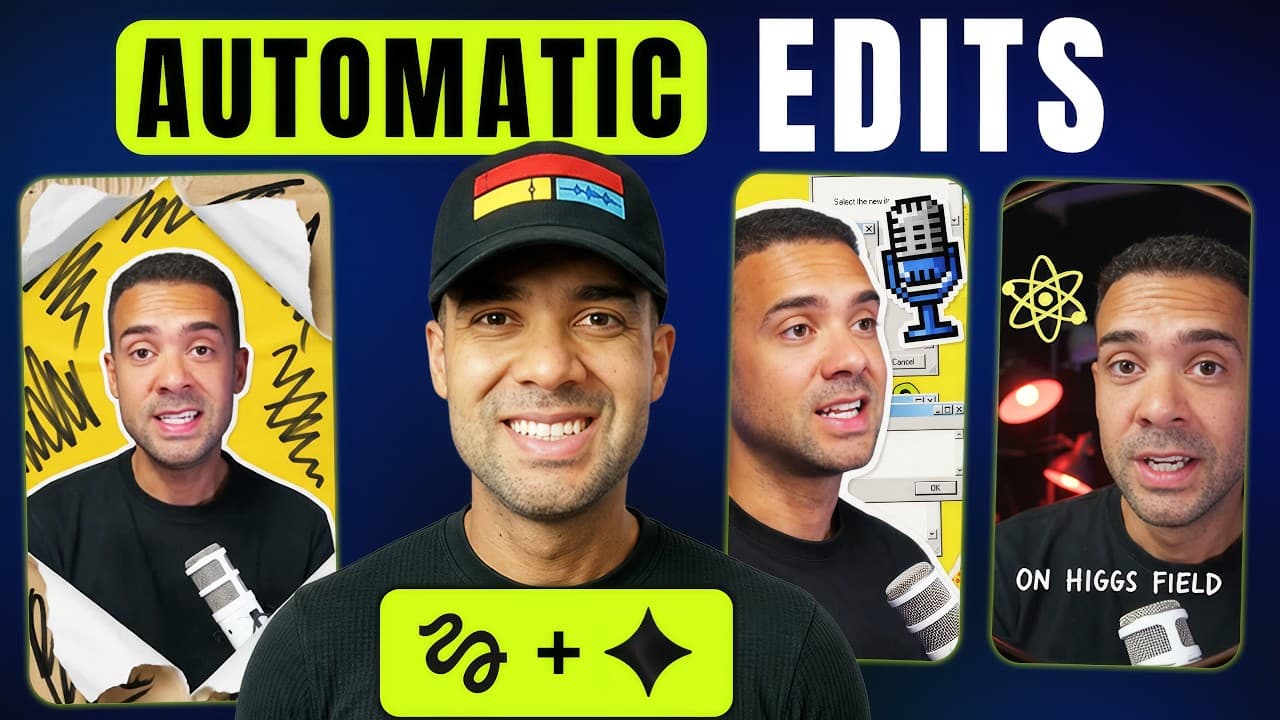
Gemini Omni + Higgsfield = INSANE Podcast Video Edits!
Last updated: July 2026
By Greg Preece — I make videos about AI video tools and test new features hands-on before covering them. Everything below is based on my own test of this feature, mistakes included.
Disclosure: some links on this page are affiliate links. If you sign up through them, I may earn a commission at no extra cost to you.
A high-quality podcast clip used to take hours to edit yourself — or hundreds of dollars to outsource. Higgsfield's new Shorts Studio feature, powered by Gemini Omni Flash, edits a clip automatically in a single button click. This guide is for podcasters and short-form creators who want the exact workflow, plus the honest limitations I hit while testing it.
TL;DR
- What it is: Shorts Studio is a new Higgsfield feature powered by Gemini Omni Flash that automatically edits and restyles a clip you upload — one click, no timeline editing.
- How it works: Upload a clip, choose vertical or horizontal, pick a visual preset (or build your own), press generate.
- What I found: Results can include camera angles that never existed in your original recording. Impressive — but it sometimes drops a word or adds a stutter, so expect 2–3 generations for a clean result.
- Best practice: Keep each generation to a standalone moment of about 10 seconds or less. Longer clips are more error-prone.
- Cost in my test: A 7-second clip cost me 24 credits — around 80p (roughly a dollar). Credit costs are shown before you generate, so verify current pricing on the official site.
Table of Contents
- What Is the Gemini Omni Flash Feature on Higgsfield?
- How to Auto-Edit a Clip in Shorts Studio (Step by Step)
- What It Costs (From My Test)
- What I Tested and What I Found
- Two Rules for Better Results
- Who This Is For
- FAQ
Prefer to watch? Here’s the video. Prefer to skim? The full breakdown is below.
Quick link — Higgsfield: Try it here: Try Higgsfield →
What Is the Gemini Omni Flash Feature on Higgsfield?
Shorts Studio is a brand-new feature on Higgsfield, powered by Google's Gemini Omni Flash model. You upload a clip, pick a visual style, and it automatically re-edits the footage — cuts, pacing, and visuals handled for you.
The part that genuinely surprised me: a clean generation gives you visuals you couldn't have created yourself, including shots from angles that didn't exist in the original recording. For podcast clips and YouTube Shorts, that's a big deal — this is exactly the kind of edit I used to skip making because of the time or cost involved.
 Caption: The Shorts Studio feature inside Higgsfield — note the "powered by Gemini Flash" label on the tool.
How to Auto-Edit a Clip in Shorts Studio (Step by Step)
The whole process is a handful of clicks:
- Open Higgsfield and go to Shorts Studio. It's the new feature labeled as powered by Gemini Flash.
- Upload your clip. Click the upload box and add the video you want edited.
- Set the orientation. Tell it whether your clip is vertical or horizontal. Mine was vertical, so I chose vertical.
- Pick a visual preset. Scroll the preset library and choose a style. I went with a clay/plasticine look this time. If nothing fits, you can also create your own preset — I didn't in this test, but it's good to know it's there.
- Check the credit cost. Before generating, Higgsfield shows exactly how many credits the clip will cost.
- Press generate and wait. Mine took a few minutes.
Outcome: a fully re-edited, restyled version of your clip — no manual editing at any point.
 Caption: The preset library. Most of these are strong as-is — Higgsfield has done a genuinely good job on the built-in styles.
What It Costs (From My Test)
In my test, a 7-second clip cost 24 credits — around 80p, or roughly a dollar if you're in America. That's obviously far cheaper than hiring a professional editor for the same result. Credit costs are displayed before you generate, and they can vary by clip, so verify current pricing on the official site.
What I Tested and What I Found
I ran my own podcast-style clip through Shorts Studio using the clay/plasticine preset.
What worked: the generation finished in a few minutes and the visual transformation was impressive — the kind of stylized edit that would have taken hours by hand.
What didn't: my first generation repeated a phrase ("to edit, to edit, to edit") that wasn't stuttered in the original. That matches what I've seen across my testing: it can occasionally drop a word or break the pacing of the original audio, even on short clips. I'm confident one or two more attempts would have produced a clean version — it just takes a bit of trial and error.
 Caption: The generated clip in the clay style. Watch for occasional dropped words or stutters — that's your cue to regenerate.
Two Rules for Better Results
1. Keep it to ~10-second standalone moments. In my testing, clips longer than about 10 seconds are prone to errors scattered through the video. Don't re-edit a whole podcast clip in one go — pick single short moments to spice up with this effect.
2. Budget for 2–3 generations. Even short clips sometimes drop a word or add a stutter. Plan on a couple of attempts to get a flawless take.
Who This Is For
- Podcasters who want scroll-stopping clip moments without hiring an editor.
- Shorts/Reels/TikTok creators who want a visual hook they couldn't film themselves.
- Anyone who's skipped making clips because editing took too long — that was me, honestly, which is why this feature caught my attention.
It's not yet a replacement for editing an entire long clip end-to-end. Used on short standalone moments, though, it's way quicker than editing yourself and arguably far more visually impressive.
If you want to try it on one of your own clips: Try Higgsfield →
FAQ
Is Gemini Omni the same as Gemini Flash on Higgsfield?
They're references to the same thing: Shorts Studio on Higgsfield is powered by Google's Gemini Omni Flash model. You'll see it labeled "powered by Gemini Flash" in the tool.
How long should my clip be?
Aim for standalone moments of about 10 seconds or less per generation. Longer clips are more likely to contain errors.
Does it make mistakes?
Sometimes, yes — even on short clips it can drop a word or add a stutter that ruins the pacing. Expect the occasional regenerate; two or three attempts is normal for a clean result.
Can I create my own visual style?
Yes. Alongside the built-in preset library, Shorts Studio lets you create your own custom preset.
Do I need editing skills to use it?
No. The entire workflow is upload → orientation → preset → generate. There's no timeline editing involved.