How I Use an AI Music Generator for Kids Songs in 2 Minutes
Last updated: July 2026
Author: Greg Preece — I test AI creative tools hands-on to help creators produce high-quality, monetizable content without technical hurdles.
Creating engaging music for children's content used to require professional production skills, expensive audio gear, or costly licensing fees. In this guide, I'll walk you through how I use an AI music generator to create complete, high-quality, vocal-led kids' songs in under two minutes—even with absolutely zero music production experience.
TL;DR: Create Kids' Songs Fast with Tempolor
- The Tool: Tempolor (an AI-powered text-to-song generator).
- Key Benefit: Generates full tracks with realistic vocals from simple text prompts or custom lyrics.
- Licensing: Tracks are completely royalty-free and safe for commercial monetization on platforms like YouTube.
- Length Support: Supports tracks up to 4 minutes and 50 seconds.
Table of Contents
- Why Create Kids' Songs with AI?
- Exploring Tempolor's Core Features
- Step-by-Step: How to Generate an AI Kids' Song
- How I Animated My AI Kids' Song
- Frequently Asked Questions
Prefer to watch? Here's the video. Prefer to skim? The full breakdown is below.
Quick Link
Try it here: Try Tempolor →
Why Create Kids' Songs with AI?
Children's channels are among the most popular and profitable niches on YouTube, but keeping up with content demand requires a steady stream of unique, catchy soundtracks. Writing, recording, and mixing children's tracks manually takes days of effort.
Using a dedicated AI kids song creator allows you to:
- Skip the Learning Curve: You don't need to know how to play instruments or write music notation.
- Generate Vocalists Instantly: Access studio-quality, synthetic singing voices.
- Protect Your Channel: Secure royalty-free licensing to ensure your videos can be fully monetized without copyright strikes.
Exploring Tempolor's Core Features
Before we dive into generating a custom children's song, it is helpful to look at how Tempolor operates. The platform is built around simplifying music selection and creation for creators.
Beyond the text-to-song generator, there are two other notable music tools on the platform:
- Royalty-Free Search Library: An AI-powered search function that lets you query and filter through over 200,000 pre-made, high-quality tracks.
- Video-to-Music Matching (Resona): You upload a raw video clip, and the AI analyzes the visual elements to recommend the ideal background music.
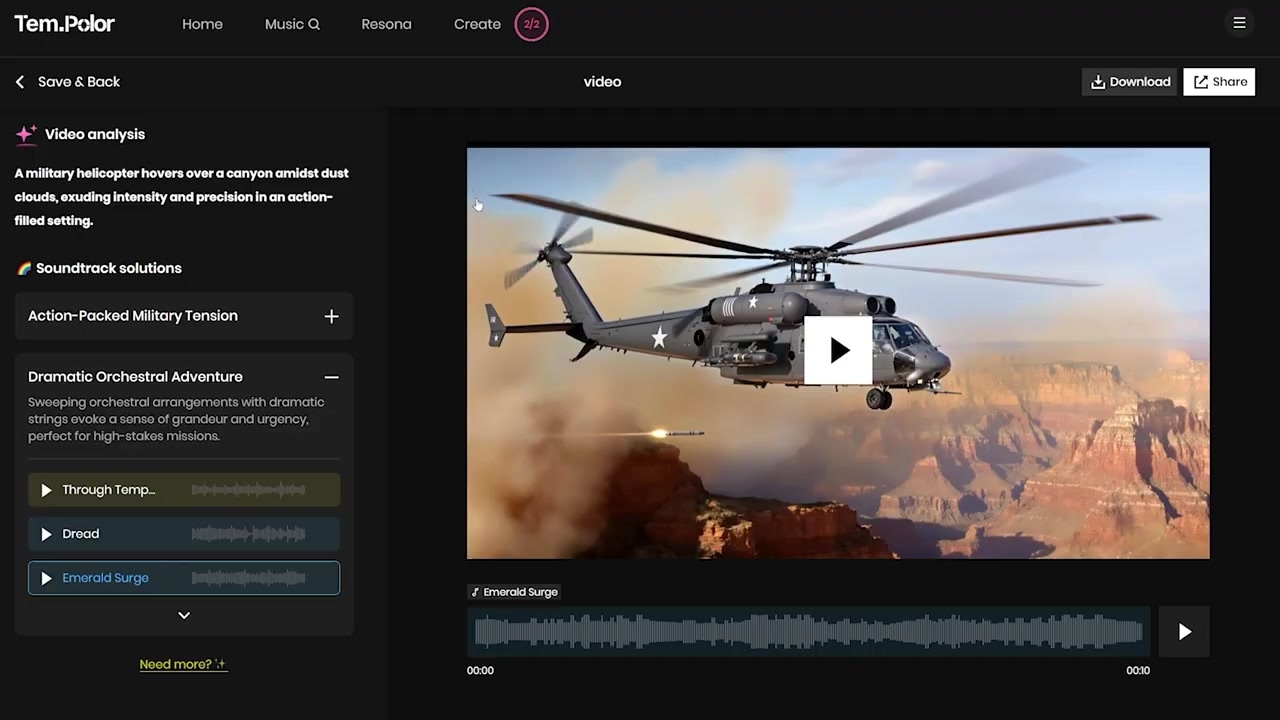
Caption: Uploading a video clip allows Tempolor's Resona engine to study the visual context and automatically propose highly fitting genres and musical directions.
When I tested the Resona video matcher with a clip of a military helicopter, the AI successfully suggested action-packed military tension soundtracks and dramatic orchestral options that perfectly synced with the on-screen visuals. However, to build a full song with singing from scratch, we need the "Create" dashboard.
Step-by-Step: How to Generate an AI Kids' Song
Within the Create area, you will find Tempolor's text-to-song engine. This tool specializes in generating music that sounds like it is being sung by actual session vocalists. It operates in two modes: Quick Start and Custom.
To help you choose the right approach for your project, here is a quick breakdown of how these two generation modes compare:
| Feature / Control | Quick Start Mode | Custom Mode |
|---|---|---|
| Ideal For | Quick exploration, placeholder tracks | Detailed workflows, specific lyric control |
| Lyrics Control | AI-generated based on simple prompts | Custom-written lyrics or structured paste-ins |
| Vibe / Style Control | Select voice; AI decides track vibe | Select voice + input hyper-detailed style prompts (BPM, instruments, sound effects) |
| Generation Speed | ~60 seconds for two variations | ~60 seconds for two variations |
Option 1: Quick Start Mode (For Fast Drafts)
If you have a general topic in mind but don't want to write lyrics or design musical arrangements yourself, Quick Start Mode handles the heavy lifting.
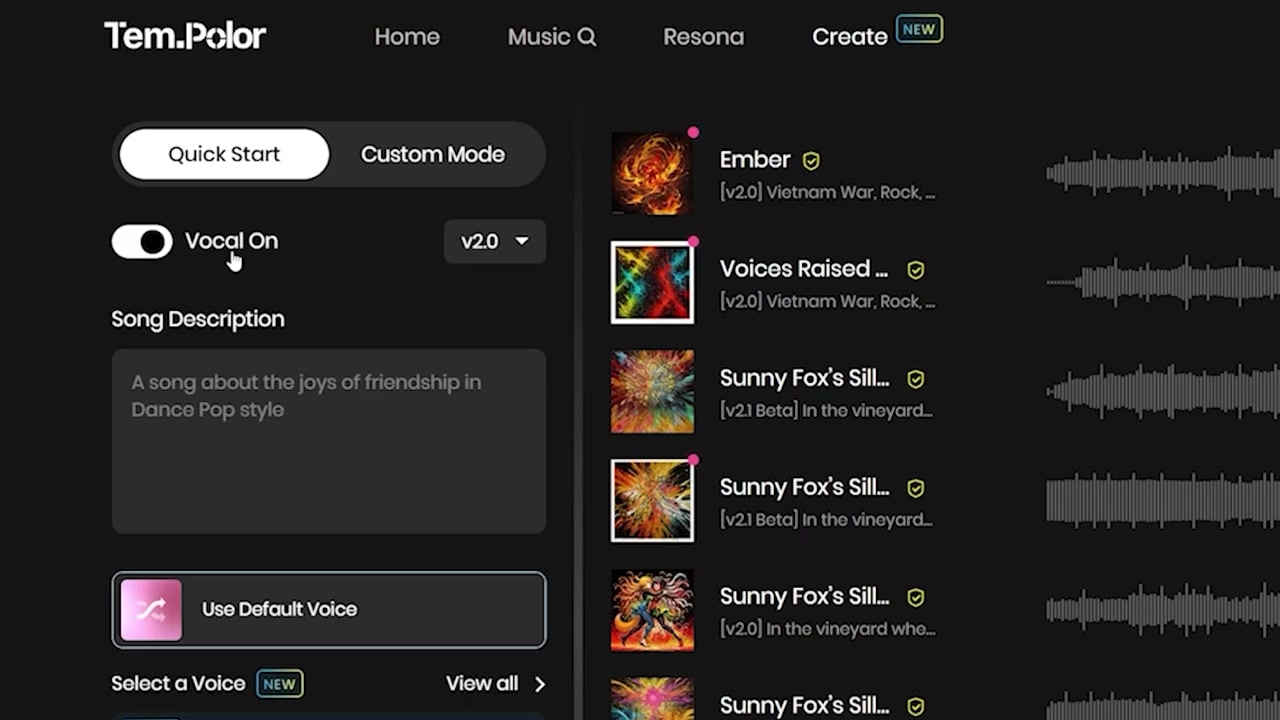
Caption: Quick Start lets you toggle singing on, write a basic prompt describing the song, and select an AI vocalist.
Step 1: Set Up Your Project
Toggle Singing on (this ensures you get a vocal track rather than a plain instrumental).
Step 2: Input Your Subject Matter
Type a description of your song's topic into the prompt box. For instance, I tested this by entering:
"A song about a YouTuber who makes videos about exciting video production AI tools."
Step 3: Choose Your Vocalist
Scroll down to the voice talent menu. You can hover over and preview several synthetic singers, including:
- Owen (energetic, modern style)
- Lennox (smooth, rhythmic tone)
- Hazel (bright, cheerful, and highly suited for children's melodies)
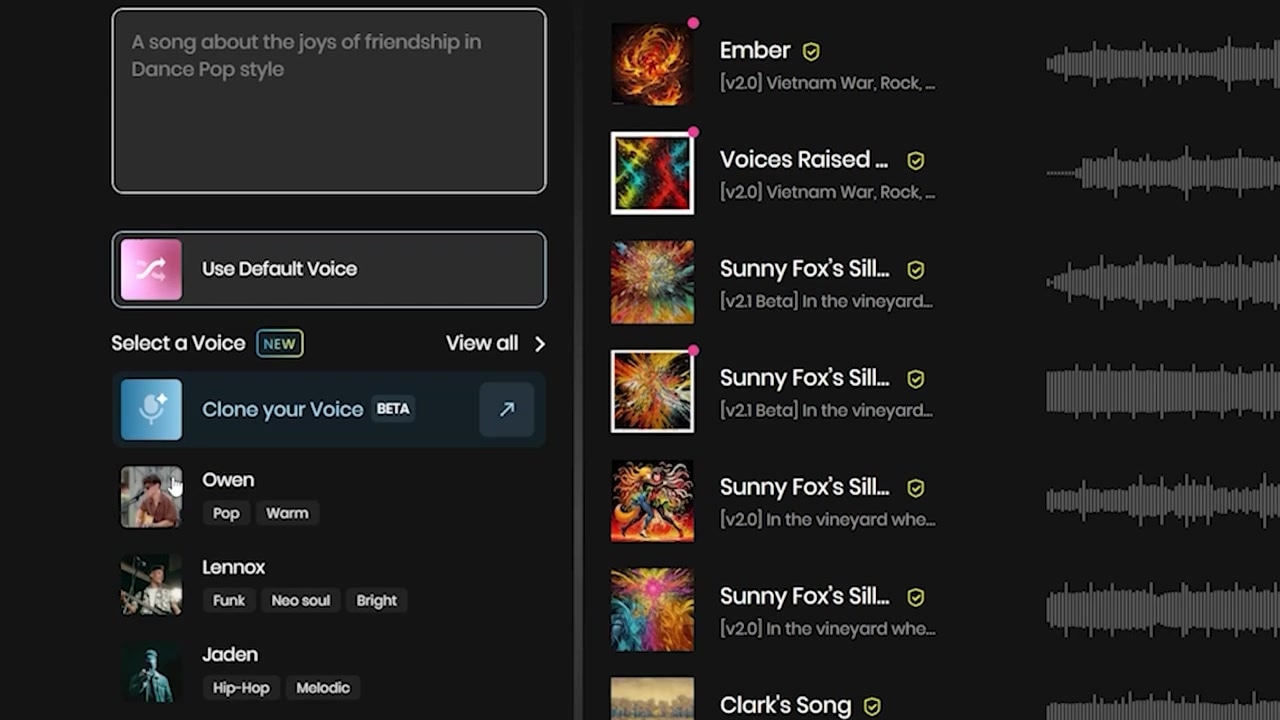
Caption: Preview different AI vocal styles to find the perfect match for your track. I selected 'Hazel' for my kids song.
Step 4: Click Create
Hit Create. Tempolor will process your request and generate two distinct tracks in less than 60 seconds.
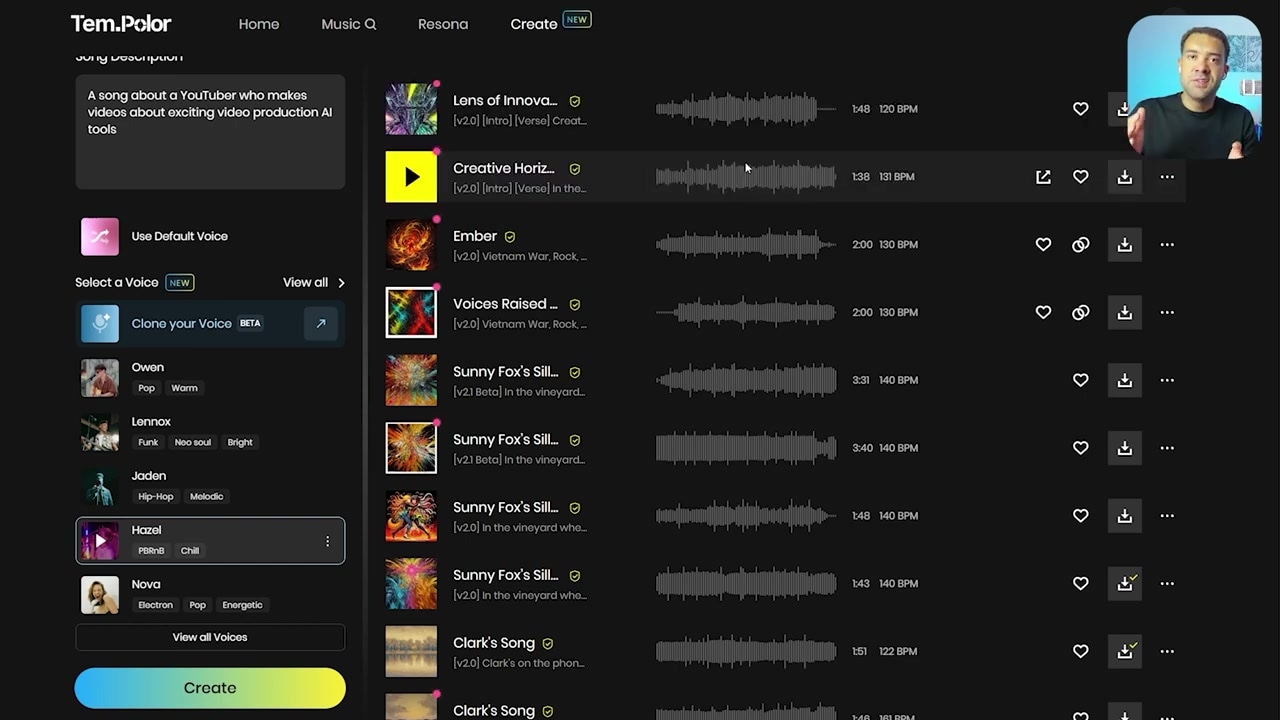
Caption: Tempolor generates two variations for every prompt, giving you immediate variety in vibe, lyrics, and rhythm.
While this mode is incredibly fast, you have zero direct control over the lyrics or style. To dictate the exact words the singer sings and configure the backing track, you must switch to Custom Mode.
Option 2: Custom Mode (For Precise Control)
Custom Mode gives you deep artistic control over the lyrics, instrumentation, tempo, and atmosphere. This is the exact workflow I used to make my viral-style children's song about a playful fox named Fizzy.
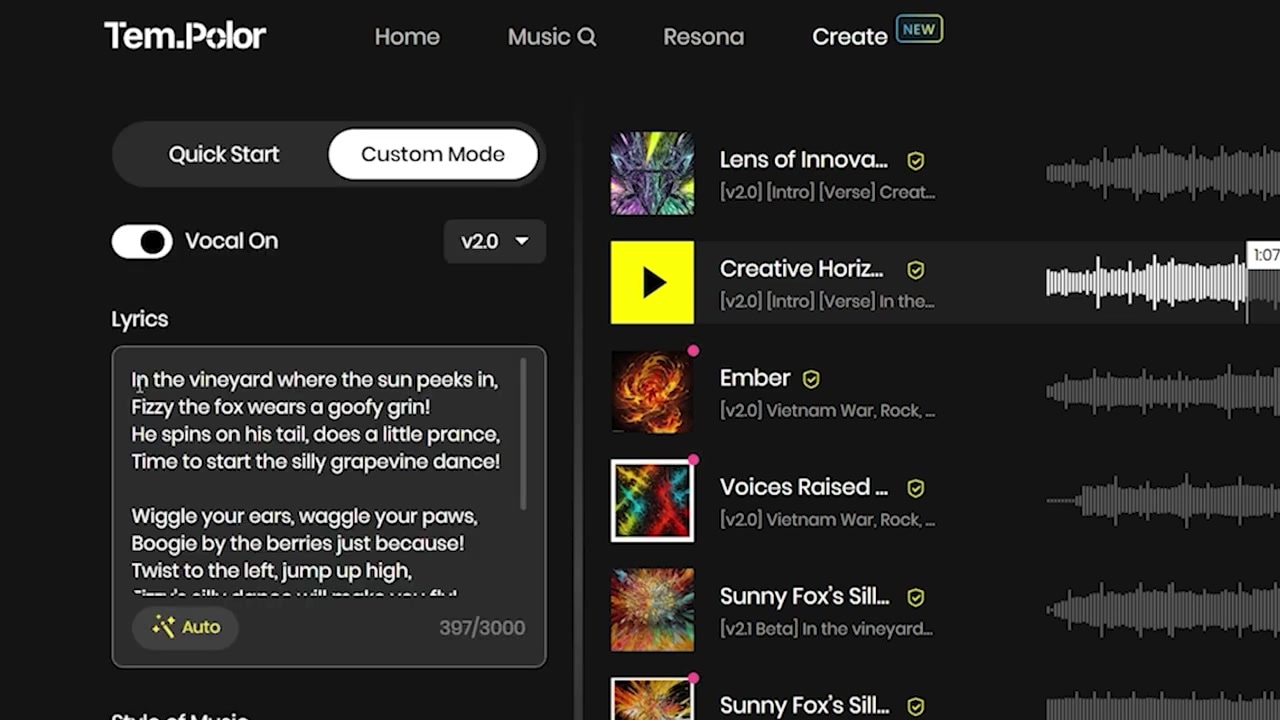
Caption: Custom Mode unlocks dedicated input fields for your custom lyrics and exact musical styling prompts.
Step 1: Input Your Custom Lyrics
Paste your custom lyrics directly into the lyric box. If you aren't a songwriter, you can easily draft lyrics using ChatGPT and refine them before pasting.
Note: The AI text-to-song generator stays highly true to your input, but it may adjust minor phrasing dynamically to maintain natural flow, rhythm, and song structure.
For my fox song, I entered the following lyrics:
"In the vineyard where the sun shines bright, Fizzy the fox dances with delight. He twirls and spins in a playful spree, sharing joy with everyone he can see. Wiggle your ears and waggle your paws, boogie by the berries just because. Twist to the left and jump up high, Fizzy's dance will make you touch the sky."
Step 2: Define Your Musical Style
Instead of selecting a generic genre tag, write a highly descriptive prompt detailing the exact style, instruments, pace, and sound effects you want.
Here is the exact detailed prompt I crafted for my track:
"An upbeat, whimsical children's song with bouncy ukulele, clapping percussion, light acoustic guitar strums, and cheerful glockenspiel melodies. Add silly sound effects like whooshes, giggles, and a few animal-like boings or bops. Tempo should be around 140 BPM with a bright and sunny vibe, perfect for a fun cartoon fox dancing in a vineyard. Think of the musical style of The Wiggles or Peppa Pig with high-energy, joyful instrumentation."
Step 3: Name Your Song and Choose Your Voice
Give your song a clean file name to organize your history (such as "Sunny's Fox version 3"). Select your favorite voice model—I chose Hazel again—and hit Create.
Within 60 seconds, you will receive two finished vocal tracks. The system saves these in your generation history where you can play, compare, and download them instantly.
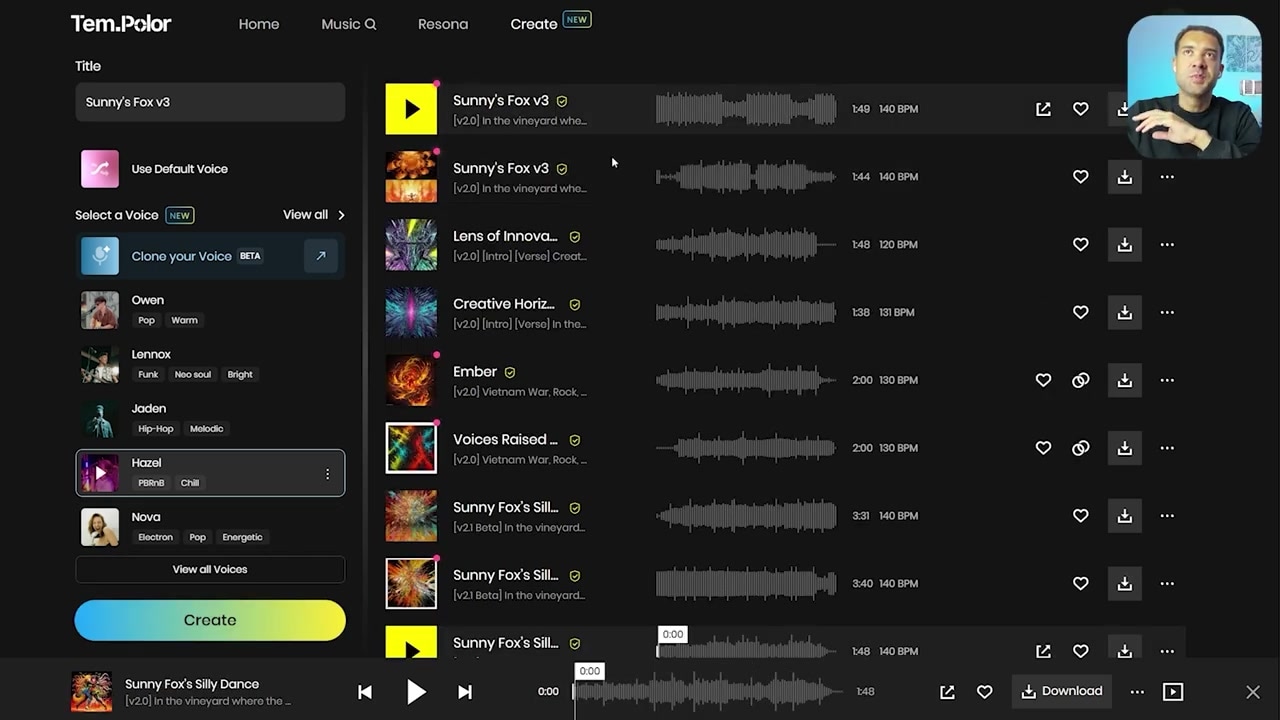
Caption: Review and manage your generated tracks directly from the dashboard, where they are saved and ready for download.
How I Animated My AI Kids' Song
Once you have generated your custom song, you can easily pair it with engaging visuals. To build the animated video for the Fizzy the Fox song, I used an all-in-one video generator to create multiple animated cartoon clips that directly matched the actions in my lyrics (such as the fox dancing, wiggling its ears, and jumping high in a vineyard).
By editing these custom visual shots together on a timeline and overlaying my downloaded Tempolor audio track, I completed a fully produced, high-retention kid's video in mere minutes.
If you are ready to start creating your own monetization-safe children's tracks, you can jump straight into the platform and test out your first prompt today.
Try it here: Try Tempolor →
Frequently Asked Questions
Are the songs generated by Tempolor royalty-free?
Yes. All tracks created using Tempolor are fully royalty-free and copyright-safe, meaning you can use them on your YouTube channel, monetize your videos, and keep 100% of the earnings without worrying about copyright claims.
What is the maximum song length supported?
Tempolor supports song generations up to 4 minutes and 50 seconds in length, giving you plenty of time to build full children's tracks, verse-chorus arrangements, or background instrumental sequences.
Do I need to write my own lyrics to use the AI generator?
No. While Custom Mode allows you to write or paste your own lyrics, the Quick Start Mode allows you to simply enter a general concept (like "a song about a cute bear sharing cookies") and the AI will write and sing cohesive, rhyming lyrics for you.