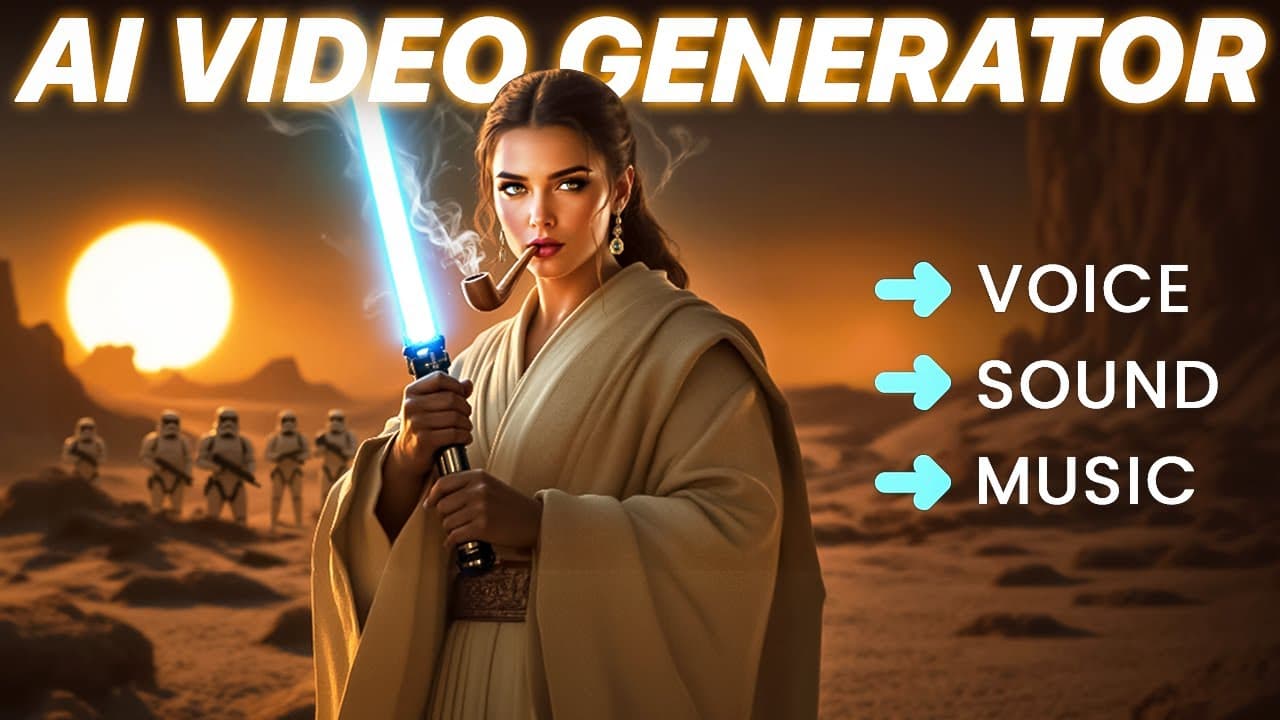
I Tested This All in One AI Video Generator (Here's My Workflow)
Last updated: July 2026
Author: Greg Preece — I test AI video generation tools hands-on and show creators how to produce cinema-quality results without a high-friction editing process.
If you have ever tried to generate a high-quality AI movie, you know the absolute nightmare of juggling five different tabs. Between image prompting, video rendering, generating voiceovers, finding sound effects, and cutting it all together in a complex editor, the learning curve is massive and the costs stack up fast. In this guide, I will show you how I built a cinematic short film entirely inside AIVideo.com—a browser-based workspace that brings every stage of the production pipeline into one timeline.
TL;DR: Is AIVideo.com Worth It?
- The Core Benefit: Instead of paying $64+/month subscribing to separate tools (Ideogram, Kling, ElevenLabs, Epidemic Sound, and Premiere Pro), AIVideo.com bundles all of them into a browser-based, multi-track timeline workspace starting at $19/month (or $171 a year), with free credits on signup.
- Top Features: Integrates state-of-the-art models like FLUX.2 (for images) and Kling 3.0 / Google Veo (for video) with free voiceovers, built-in custom AI sound effects, and an interactive "AI Edit" chat-assistant that automatically populates missing assets.
- The Verdict: A massive time-saver and the best all in one AI video generator for beginners and solo creators who want a frictionless, studio-style layout.
Prefer to watch? Here's the video. Prefer to skim? The full breakdown is below.
Try it here: Try AIVIDEO →
The Subscription Problem: Juggling Five Tools to Make One AI Video
Up until recently, anyone trying to produce a high-quality AI movie was essentially forced to run a multi-app production studio. To get professional results, your monthly subscription stack would typically look something like this:
| Tool Category | Alternative Tool | Starting Monthly Cost |
|---|---|---|
| AI Image Generator | Ideogram | $15 / month |
| AI Video Generator | Kling | $7 / month |
| AI Voice Generator | ElevenLabs | $6 / month |
| Audio & SFX Library | Epidemic Sound | $9.99 / month |
| Video Editing Software | Adobe Premiere Pro | $22.99 / month |
| Total Cost | Multiple Subscriptions | At least $64 / month |
For absolute beginners, spending $64/month just to experiment with video generation is a tough financial pill to swallow. As you get more serious and scale your usage, those separate tools can easily climb to $100 or $150+ per month.
By offering a centralized layout that packages all of these engines directly into one browser workspace, AIVideo.com slashes that starting barrier down to just $19/month. If you apply the discount code gpvideo at checkout, it drops to $16/month for your first year, saving you up to $48 every single month compared to subscribing to separate tools.
What Is AIVideo.com? The 9-in-1 Workspace Explored
AIVideo.com is a unified, browser-based creative studio. Instead of jumping from one website to another, exporting files, and re-importing them into an editor, you access nine distinct production features inside a single dashboard.
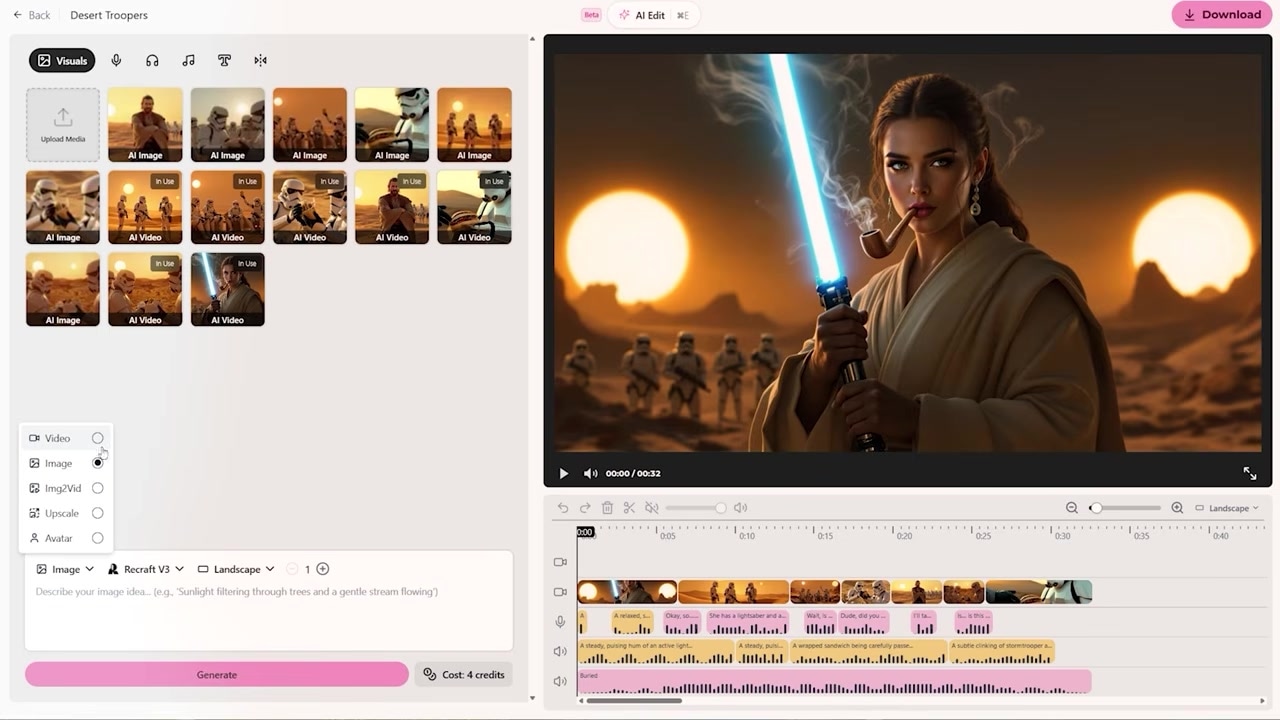
Caption: The central dashboard where creators can access image generation, video models, voiceovers, sound effects, and editing timelines inside one browser tab.
When you log into the platform, the primary creative interface is divided into nine core features:
- Video Generator: Generate raw text-to-video clips.
- Image Generator: Create high-quality base images using premium models.
- Image-to-Video Generator: Animate generated static images into continuous motion clips.
- Upscaler: Enhance low-resolution generated assets to clear, crisp resolutions.
- Avatar Builder: Build and animate digital talking avatars.
- AI Voiceovers: Generate character voices and narration.
- Sound Effects (SFX) Generator: Create highly specific foley and ambient sounds from scratch.
- Music Library: Browse and select background music tracks.
- Timeline Video Editor: Cut your clips, generate captions, apply transitions, and align multi-track audio.
- (Bonus) Script Generator: Automatically write structured scene-by-scene drafts.
Because all of these tools reside in the same interface, they interact natively with each other. You do not have to worry about local file management or running out of RAM on your computer; the entire rendering and timeline compilation process runs on cloud servers.
Step-by-Step Workflow: How I Build an AI Movie From Scratch
When using an all in one AI video generator, you cannot just throw a generic text prompt at a video engine and expect a cinematic sequence. The most reliable way to get high-quality video is the Image-to-Video method: first generating a highly detailed static image, and then animating it.
Here is the exact workflow I used to create a short Star Wars-themed comedic sequence featuring stormtroopers.
Step 1: Generate a Strong Starting Image
In AI video generation, video models struggle to construct complex subjects from pure text. Generating a static reference image first gives the video model a structural and stylistic blueprint to follow.
For my desert stormtrooper scene, I navigated to the Image Generation option on the sidebar.
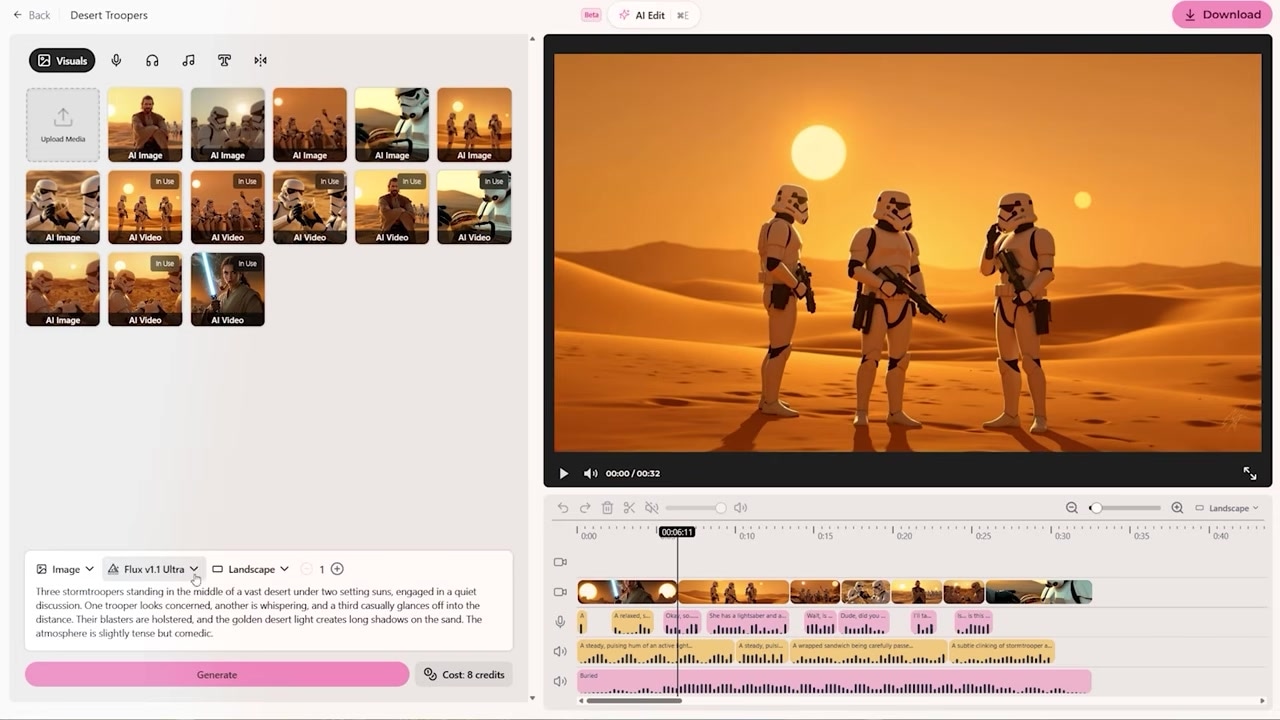
Caption: Setting the image generator to landscape mode and selecting the FLUX.1 Ultra model for crisp character detail.
The Image Prompting Formula
To get a cinematic base image, structure your prompt using three core pillars: Subject + Location + Action.
Here is the exact prompt I entered:
"Three stormtroopers standing in the middle of a vast desert under two setting suns, engaged in a quiet discussion. One trooper looks concerned, another is whispering, and a third casually glances off into the distance. Their blasters are holstered, and the golden desert light creates long shadows on the sand. The atmosphere is slightly tense but comedic."
I selected the FLUX.1 Ultra model (though the platform also hosts models like Luma, Recraft, Ideogram, and Stable Diffusion) and set the aspect ratio to landscape. This generation cost me exactly 8 credits.
Step 2: Convert the Image to Video
Once your starting image is rendered in your workspace gallery, you can easily turn it into a dynamic video scene. Right-click the image and select Generate video from image.
This action automatically switches your workspace to the Image-to-Video mode and pre-loads your static visual as the anchor frame.
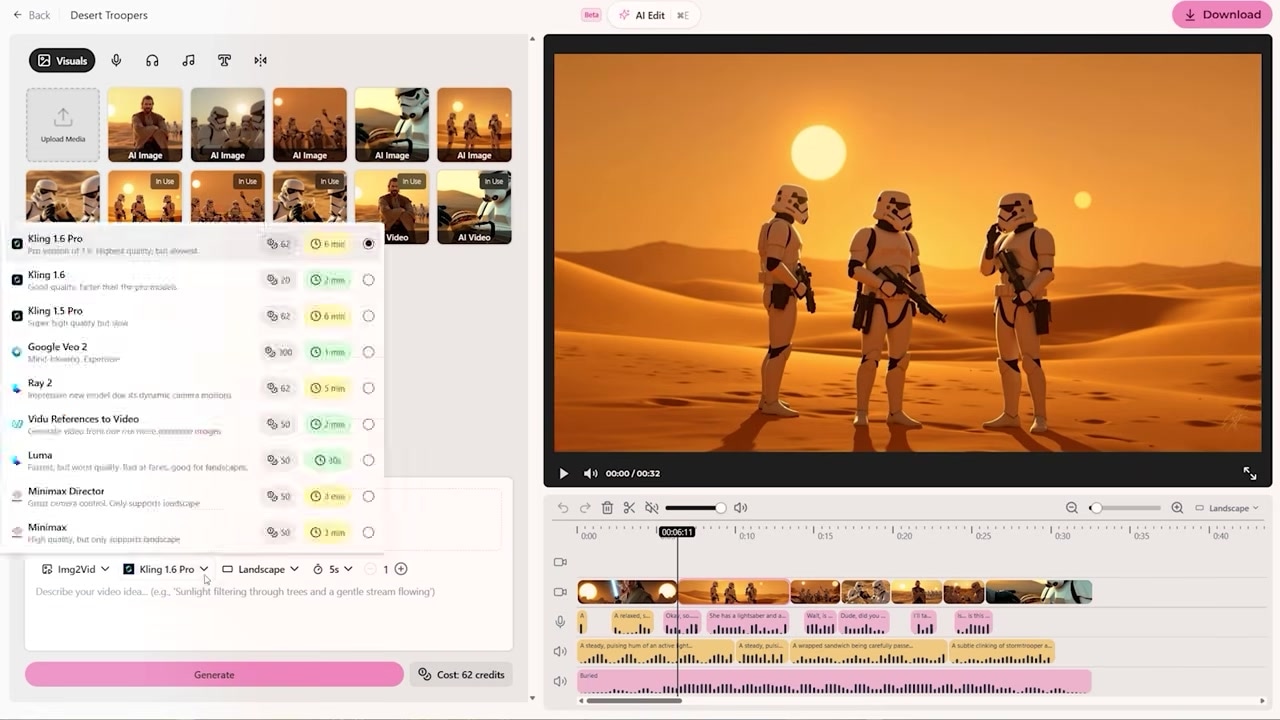
Caption: The image-to-video interface allows you to choose your preferred rendering engine, like Kling 1.6 Pro, and define specific camera movements.
The Video Motion Prompting Formula
When writing prompts for image-to-video, do not describe the static details again. Instead, focus entirely on Camera Movement + Subject Motion.
Here is the prompt I used to animate the scene:
"A slow dolly shot moves toward a small group of stormtroopers standing in the desert, glancing at each other as if whispering. One trooper shifts slightly, another tilts their helmet, uncertain. Heat waves distort the horizon behind them, adding to the atmosphere."
I chose Kling 1.6 Pro as my video engine (though you can alternate between Google Veo, Ray 2, Vidu, Luma, or MiniMax depending on your preference) and rendered a 10-second clip. The result was highly realistic character posture changes, subtle head tilts, and beautiful camera dollying.
Step 3: Generate Voices and Custom Sound Effects (SFX)
With your visual clips sitting in your asset manager, it is time to build out your sound design. AIVideo.com makes this process incredibly easy by grouping voice, sound effects, and music generators right next to the timeline.
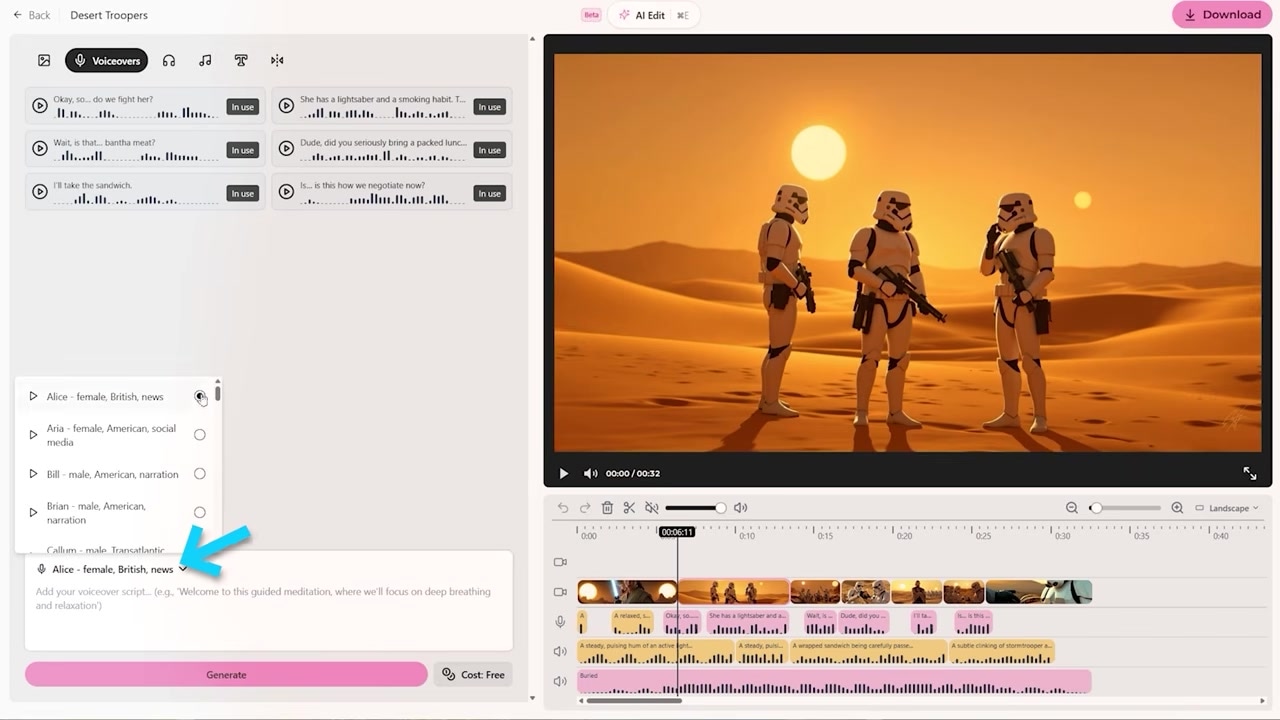
Caption: Generating dialogue using regional AI voice profiles and producing custom foley sounds like shuffling paper.
- Dialogue: I went to the AI Voiceover generator, selected my desired character voices, previewed them, and typed in the script dialogue. Generating voice clips in this workspace does not consume extra credits from your subscription.
- Foley SFX: Instead of scouring a generic audio library, I generated custom sound effects using descriptive text prompts. For the scene where a stormtrooper passes a wrapped lunch, I used the prompt: "A wrapped sandwich being carefully passed from one person to another. A soft paper shuffle as the grip is exchanged." For the lightsaber hum, I prompted: "A steady, pulsing hum of an active lightsaber. The deep bass tone has subtle fluctuations, creating a slightly futuristic, oscillating energy sound."
Step 4: Arrange Tracks on the Multi-Track Timeline
Once your assets are generated, building your scene is as simple as dragging and dropping them into the built-in video editor.
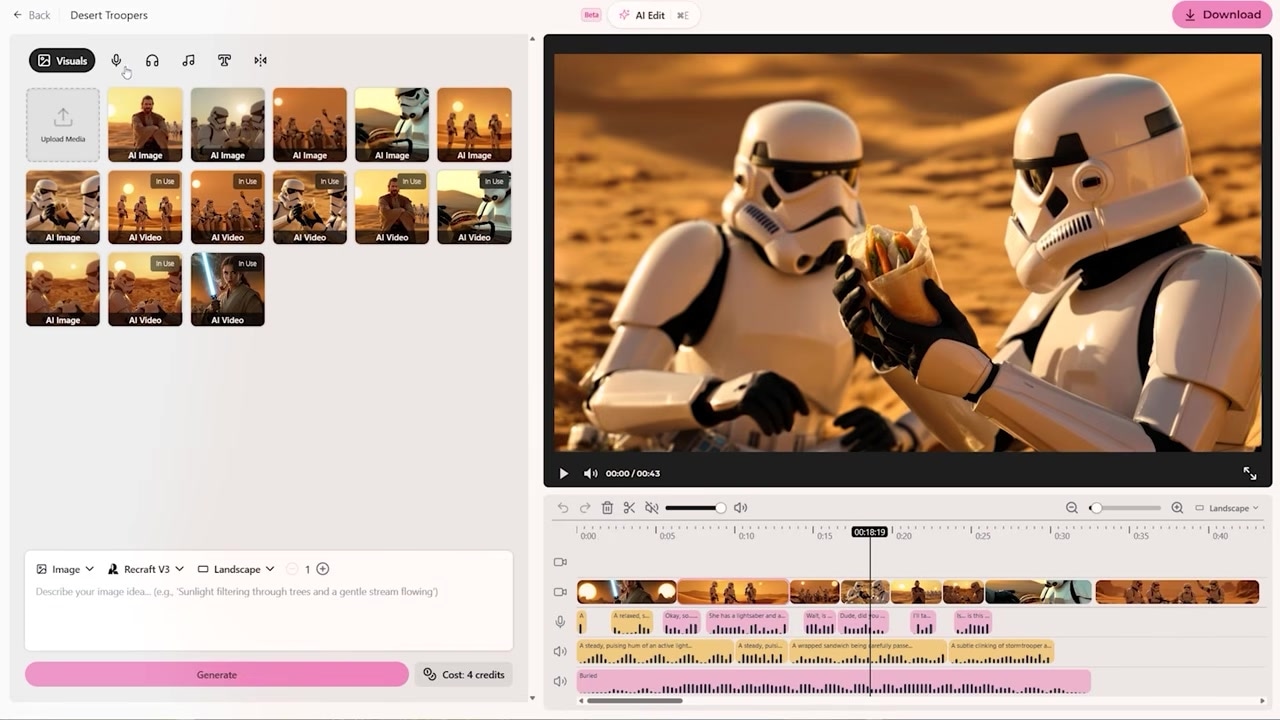
Caption: Arranging generated visuals on the primary top track while stacking voiceovers, sound effects, and background tracks below.
Keep your visuals on the top tracks. The editor provides three dedicated audio layers on the bottom, allowing you to easily stack:
- Dialogue Tracks (Voiceovers)
- Foley & Ambient Tracks (Sound Effects)
- Background Score Tracks (AI Music Library)
The Secret Weapon: AI Edit Assistant
If you want to speed up your workflow, AIVideo.com features a powerful tool called AI Edit. It is an interactive, chat-based assistant that can read your entire project's current visual and audio layout and generate missing components for you automatically.
Caption: The AI Edit assistant analyzes the desert scene and automatically generates ambient sound effects like wind-swept sand.
During my test, I clicked the AI Edit button and asked it to: "Generate and add some sound effects that will match my current video well."
The assistant scanned the stormtrooper timeline, recognized that the scene took place in a windy desert landscape, and automatically generated and placed two brand-new audio clips directly into my timeline:
- "Sand being kicked up by a light breeze"
- "A distant echo howl" (adding a touch of comedic tension to our lonely desert scene)
Is AIVideo.com Worth It? Pricing & Verdict
If you are trying to make AI-generated movies, social media shorts, or marketing ads, AIVideo.com is easily one of the most efficient tools on the market.
Pros
- Centralized Workspace: No downloading, uploading, or re-formatting. Everything happens on a unified multi-track timeline.
- Massive Cost Savings: Replaces at least five expensive software subscriptions with a single $19/month starter tier.
- Model Variety: Instead of lock-in, you can toggle between FLUX.1, Kling, Google Veo, Luma, and MiniMax depending on what fits your scene.
- Zero Learning Curve: Designed for beginners with drag-and-drop mechanics and an helpful AI Edit assistant.
Cons
- Credit Constraints: Complex, long-form film projects with extensive trial-and-error can consume monthly rendering credits quickly.
- Advanced Editing Limitations: While its timeline editor is fantastic for compiling and sound-designing AI films, it lacks the specialized color grading and advanced mask capabilities of desktop editors like Premiere Pro.
Pricing Breakdown
- Starter Tier: $19 / month (or $171 / year).
- Discount Code: Use code gpvideo at checkout to get 20% off your first year, which brings the cost down to $16 / month.
If you are a solo creator who wants to save time, money, and computing power, starting your AI film journey inside a single, unified workspace is a complete game-changer.
Try it here: Try AIVIDEO →
Frequently Asked Questions
What AI models are included inside AIVideo.com?
The platform integrates over a dozen top-tier AI generation models in one spot. This includes FLUX.1 Ultra, Luma, Recraft, and Ideogram for images; and Kling 1.6 Pro, Google Veo, Ray 2, Vidu, and MiniMax for high-quality video generation.
Does generating voiceovers consume subscription credits?
No. Unlike image and video generation, generating character voiceovers and dialogue sequences inside AIVideo.com does not deduct credits from your monthly subscription balance.
How do I apply a discount code to my subscription?
Simply click through the registration link, select your desired tier, and type in coupon code gpvideo at checkout to secure 20% off your subscription for the entire first year.