Higgsfield Shorts Studio: I Tested It (Avoid Wasting Your Money)
Last updated: July 2026
Author: Greg Preece — I test AI video tools hands-on to help creators cut through the hype and find workflows that actually work.
Higgsfield Shorts Studio promises to transform your raw video recordings into eye-catching vertical edits with a single click. But while the automated graphics and styled presets are undeniably impressive, the tool isn't perfect—and using it incorrectly can quickly drain your budget.
If you are looking to integrate this AI video generator into your short-form video workflow, here is my honest hands-on review, setup guide, and the specific limits you need to know.
| Feature / Aspect | Verdict & Details |
|---|---|
| Best For | High-impact video hooks and short clips under 10 seconds |
| Visual Quality | Excellent, professional-grade visual presets and multi-angle renders |
| Pacing & Audio | Highly inconsistent; prone to repeating words and voice swaps |
| Input Restrictions | Enforces a rigid 10-second limit per clip (longer uploads are sliced) |
| Subtitles | Fully automated and burned-in (cannot be turned off) |
Table of Contents
- [Quick Verdict: Is [Higgsfield](/articles/ai-video-generation-cost-per-clip) Shorts Studio Worth It?](#quick-verdict-is-higgsfield-shorts-studio-worth-it)
- How to Use Higgsfield Shorts Studio: A Step-by-Step Guide
- The Good: Why Higgsfield Shorts Studio Excels
- The Bad: The Major Flaws to Watch Out For
- My Verdict: How to Use It Without Wasting Money
- Frequently Asked Questions
Prefer to watch? Here's the video. Prefer to skim? The full breakdown is below.
Quick Link
Higgsfield: Try it here: Try Higgsfield →
Quick Verdict: Is Higgsfield Shorts Studio Worth It?
If you are hoping to drop a raw 60-second talking-head video into Higgsfield Shorts Studio and get a flawlessly edited, post-ready YouTube Short back, you are going to be disappointed. In my testing, the platform excels at creating stylized visual aesthetics, but the AI frequently alters your voice, messes up spoken pacing, and forces awkward cuts on clips longer than 10 seconds.
However, if you only use it to generate highly visual intro hooks or transition clips under 10 seconds, it is an incredibly powerful, fully automated tool. It leverages state-of-the-art visual models, including the Google Gemini Omni video generator, to deliver high-impact results for cheap.
How to Use Higgsfield Shorts Studio: A Step-by-Step Guide
Getting started with Shorts Studio is straightforward, though the initial link on the website is slightly tucked away. Here is the step-by-step workflow I used to generate stylized vertical edits.
Step 1: Navigate to the Shorts Studio Interface
Head over to the Higgsfield homepage. Look closely at the top navigation menu to find the slightly hidden link labeled Shorts Studio. Clicking this will bring you directly into the workspace.
 Caption: Click the "Shorts Studio" link at the top of the Higgsfield homepage to open the generator.
Step 2: Choose a Visual Preset
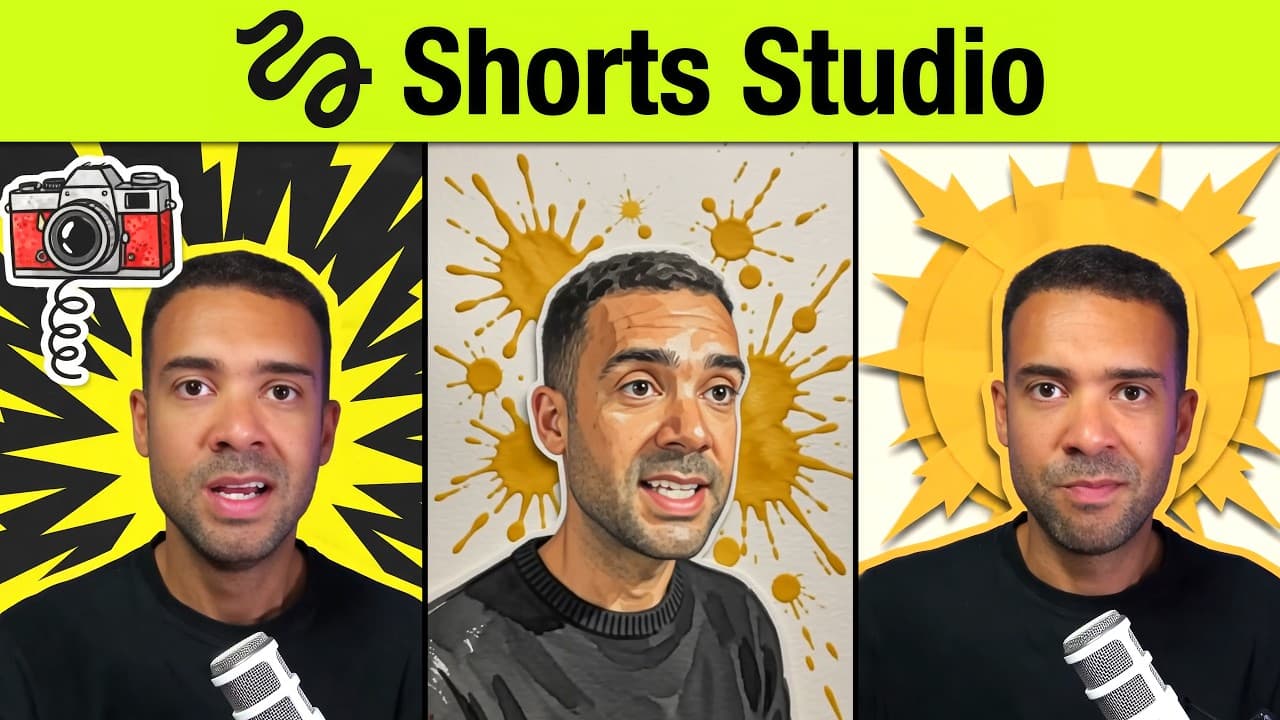
Once inside the workspace, scroll down the right-hand panel to view the available style presets. These templates have been designed by AI art professionals and cover a wide array of visual themes, such as the styled "Watercolor" filter. Click your preferred preset to apply it.
 Caption: Browse the right-hand panel to select from a variety of stylized visual presets.
Step 3: Upload Your Video Footage
Click the video upload box to import your file. You will see a history of your past uploads, or you can drag in a brand-new recording. Select the clip you want to use.
Step 4: Configure the Layout and Generate
Select whether you want to use the entire duration of your video. Next, choose either a vertical layout (ideal for TikTok or Shorts) or a horizontal aspect ratio depending on how your raw file was filmed. Hit the Generate button. The rest of the process is fully automated and takes just a few minutes to render.
 Caption: After uploading your footage, select your target aspect ratio and click generate to process the clip.
The Good: Why Higgsfield Shorts Studio Excels
When it works, the aesthetic output from this generator is incredible. Here is what makes the platform stand out:
- Designer-Grade Presets: The pre-made presets on the platform look highly professional. They aren't generic filters; they utilize generative AI to heavily style your footage with dynamic motion and complex art overlays.
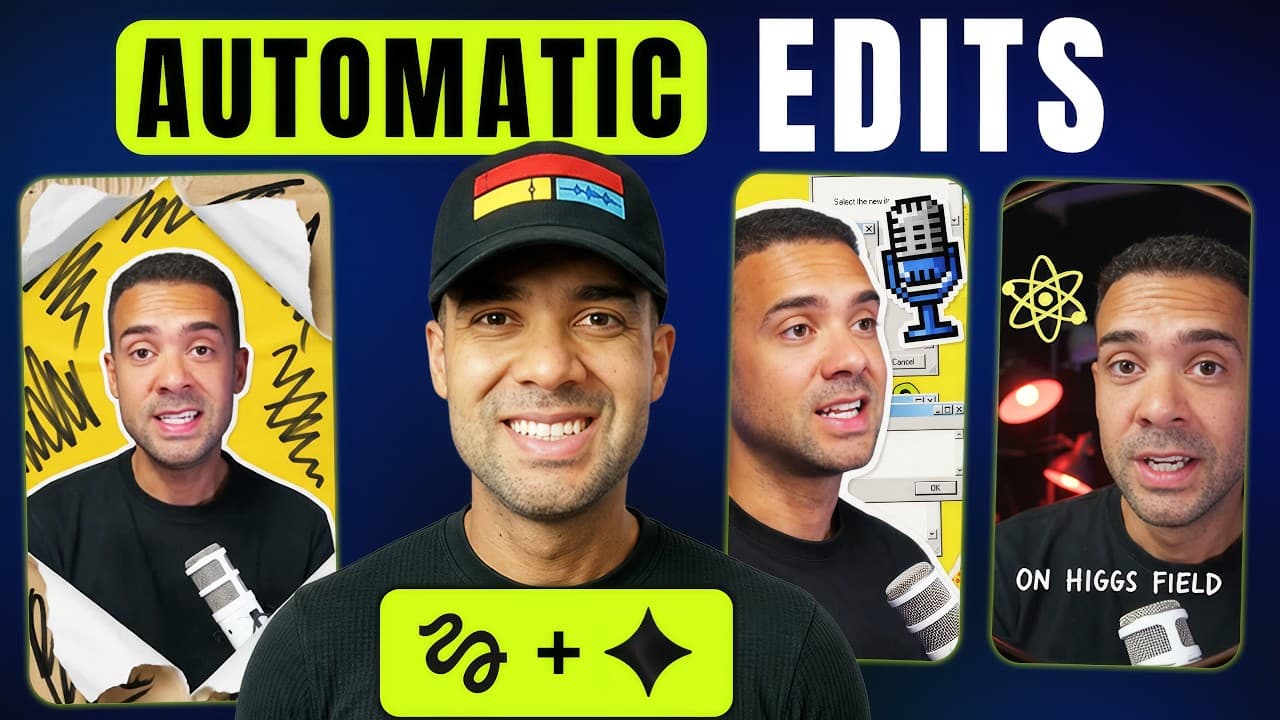
- Simulated Camera Angles: During my tests, I was surprised to find that the AI generated visual cuts and camera angles where I didn’t even have a physical camera set up. It builds a 3D environment from your flat footage.
- Kinetic Subtitles: The generator automatically applies highly engaging, styled kinetic captions to your videos, saving you the time of manual transcription and formatting.
 Caption: The output includes heavily stylized, multi-angle camera renders and automatically burned-in subtitles.
The Bad: The Major Flaws to Watch Out For
Despite the impressive visual capabilities, Higgsfield Shorts Studio has several major limitations that can cause you to waste valuable generation credits if you aren't careful.
1. Frustrating Audio Stutters and Word Repetitions
The AI engine can occasionally make mistakes when processing your speech audio. In my test clips, the system repeatedly added unnatural stutters, causing me to repeat words. For example, my raw voiceover was edited to say, "So here's how to set up Higgsfield, Higgsfield Shorts Studio," and "what it, what it's good for."
If your clip renders with one of these glitches, your only option is to spend more credits and regenerate the video.
 Caption: Check the audio waveforms on your generated files for doubled words or weird stutter edits.
2. Sudden AI Voice Replacement
One of the most disruptive issues is that the software can completely alter your spoken voice. During my hands-on testing of a podcast recording, the system outputted a voice that was entirely different from the one in the original footage.
Normally, you would fix a bad voice render by taking your original audio track and syncing it back over the new video in an external editor. However, Higgsfield often changes the spacing and pacing of how words are said in the output video, making it impossible to align your original audio file with the new video.
3. Burned-In Subtitles Cannot Be Disabled
While the automatic subtitle styling is high-quality, there is currently no option to toggle them off. If you prefer a clean edit without text overlays, or if you want to use external captioning tools, you are out of luck.
4. The 10-Second Upload Barrier
In my workflow tests, I found that the system operates on a 10-second limit per clip. If you upload a standard 60-second video, the platform automatically chops it into six individual 10-second clips.
This automatic slicing causes severe flow issues:
- The system often makes cuts directly in the middle of a spoken word.
- The pacing changes and voice-swapping inconsistencies vary from clip to clip, leaving you with a highly disjointed final output that is incredibly tedious to stitch back together.
 Caption: Videos longer than 10 seconds are split into individual parts, which can lead to broken words and awkward transitions.
My Verdict: How to Use It Without Wasting Money
Higgsfield Shorts Studio is a powerful asset for short-form creators, but only if you use it selectively.
Do not rely on this tool to edit entire 30- or 60-second talking-head videos. The audio stutters, pacing shifts, and segment cuts make long-form processing expensive and frustrating. Instead, treat Higgsfield as a visual hook generator.
Import short 5-to-8-second intro hooks or transitional moments, let the AI apply mind-blowing visuals, and then edit those styled files back into your main timeline using standard editing software. This hybrid approach gives you the absolute best of Higgsfield's visual power without burning through your wallet — here is what every Higgsfield plan actually costs.
Ready to test it for your own video hooks? Try it here: Try Higgsfield →
Frequently Asked Questions
Can I turn off the automated subtitles in Higgsfield Shorts Studio?
No. As of July 2026, Higgsfield Shorts Studio burns subtitles directly into your generated clip with no native setting to disable or customize them.
What is the maximum video upload length?
While you can upload longer recordings, the system operates on a rigid 10-second limit per segment. Anything longer will be automatically divided into multiple 10-second chunks, which can disrupt speech pacing and sentence flow.
Why does the tool change my voice?
The platform's underlying model sometimes substitutes your raw vocal track with a synthetic AI clone. Because the pacing of the video is also adjusted during generation, manually overlaying your original audio file in post-production is often difficult or impossible.