I Tested the ElevenLabs AI Music Generator: How I Edit and Refine Tracks
Last updated: July 2026
Author: Greg Preece — I test AI video and audio tools hands-on, helping creators find the workflows that actually make it into their production process.
Most AI music generators are a "one-and-done" deal. You write a prompt, hit generate, and if the track isn't perfect, you have to throw the entire song away and start from scratch. When I tested the ElevenLabs AI Music Generator, I found that its visual timeline, custom lyric syncing, and section-by-section editing capabilities completely change that workflow.
Quick Summary: Unlike traditional AI song makers, ElevenLabs Music gives you a granular, block-based timeline where you can rewrite lyrics, stretch vocal timing, and swap out instrumentation for individual sections (like the verse or chorus) without altering the rest of your track. It also features a visual "Video to Music" soundtrack generator.
Table of Contents
- [What Is the ElevenLabs AI Music Generator?](#what-is-the-elevenlabs-ai-music-generator)
- Step 1: Generate Your Base Music Track
- Step 2: Edit Lyrics and Vocal Timing on the Timeline
- Step 3: Prompt with Custom Lyrics From the Start
- Step 4: Use Video to Music to Auto-Compose Soundtracks
- Step 5: How to Swap Instruments in an Existing Track
- The Broader ElevenLabs Creative Production Suite
- Frequently Asked Questions
Prefer to watch? Here's the video. Prefer to skim? The full breakdown is below.
Quick Link
Try it here: Try ElevenLabs →
What Is the ElevenLabs AI Music Generator?
Unlike other platforms that focus solely on single-button generation, ElevenLabs treats music creation as a structured project. Built inside the primary ElevenLabs dashboard, the tool features a visual timeline that splits your track into logical, editable song blocks (such as the intro, verse, chorus, bridge, and outro).
Because of this visual, multi-section architecture, you can execute precise structural adjustments and local "inpainting" edits that would normally force you to regenerate a track entirely on other platforms.
Step 1: Generate Your Base Music Track
To begin your project, you will need to generate a foundational track. This serves as the musical canvas that you can edit and refine.
- Log into your dashboard and click on Music in the left-hand navigation pane.
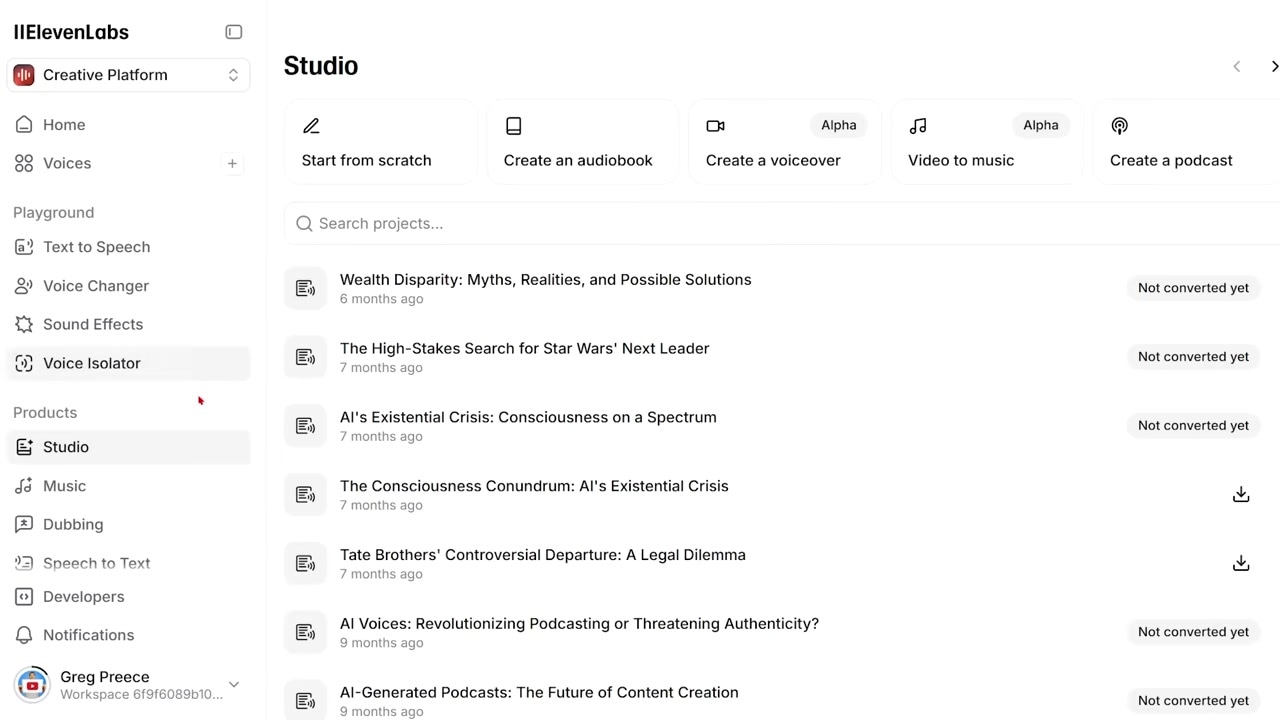
Caption: Open the generator by selecting the "Music" tab on the left sidebar of your ElevenLabs account.
- Enter a descriptive text prompt explaining your desired genre, mood, instrumentation, and vocal style (e.g., "A chill, emotional pop song with simple piano and soft synth pads").
- Set your target duration (for example, 1 minute) and click Generate.
- Monitor the generation panel. You will see ElevenLabs build the song section-by-section on your screen.
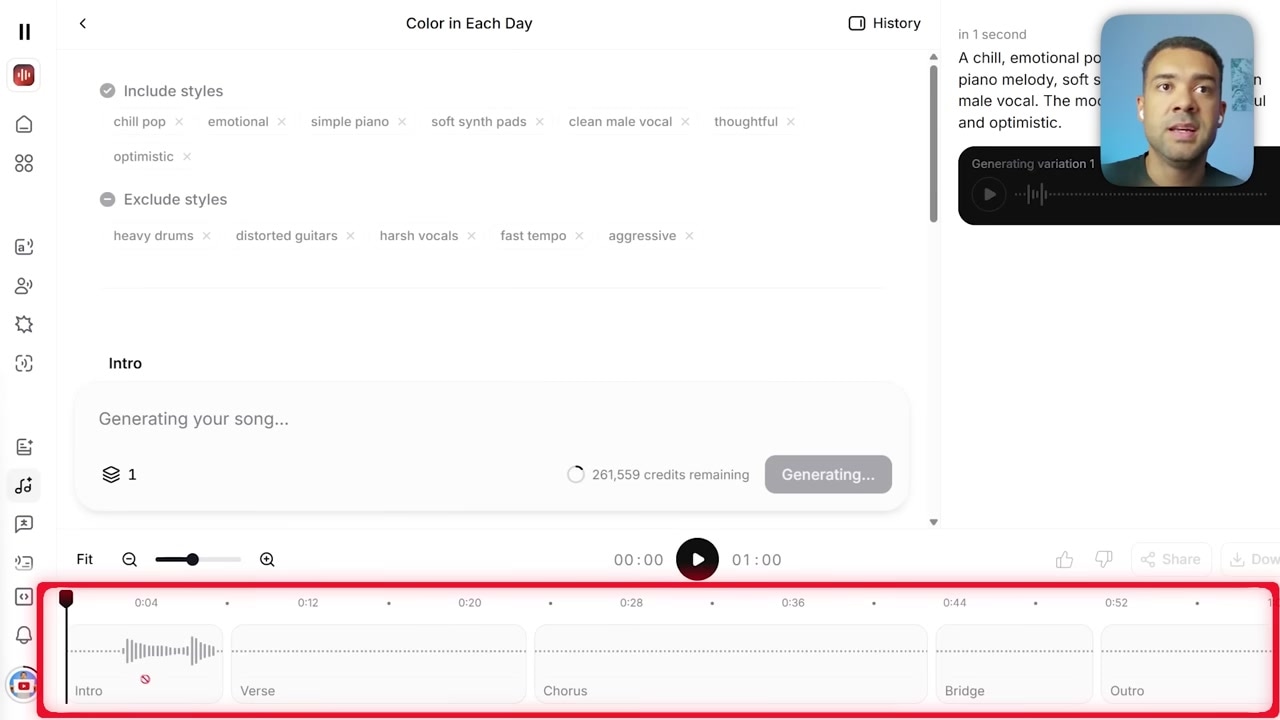
Caption: The generator builds your track sequentially, dividing the composition into visible timeline blocks like the intro, verse, and chorus.
Once generated, you can play the song to evaluate its arrangement. ElevenLabs automatically generates vocal styling and matching lyrics based on your base prompt.
Step 2: Edit Lyrics and Vocal Timing on the Timeline
If you listen to your generated track and realize a lyric does not fit or a line of vocals sounds rushed, you do not have to regenerate the entire song. Instead, you can edit that specific timeline block.
How to Modify Lyrics
- Scroll down to the lyrics editor below the main timeline.
- Locate the specific block of text you want to change (for instance, changing "release the weight again" to "release the weight of sorrow" to improve a rhyme scheme).
- Type your adjustments directly into the text box. The edited section on your visual timeline will instantly highlight in yellow, indicating a pending change.
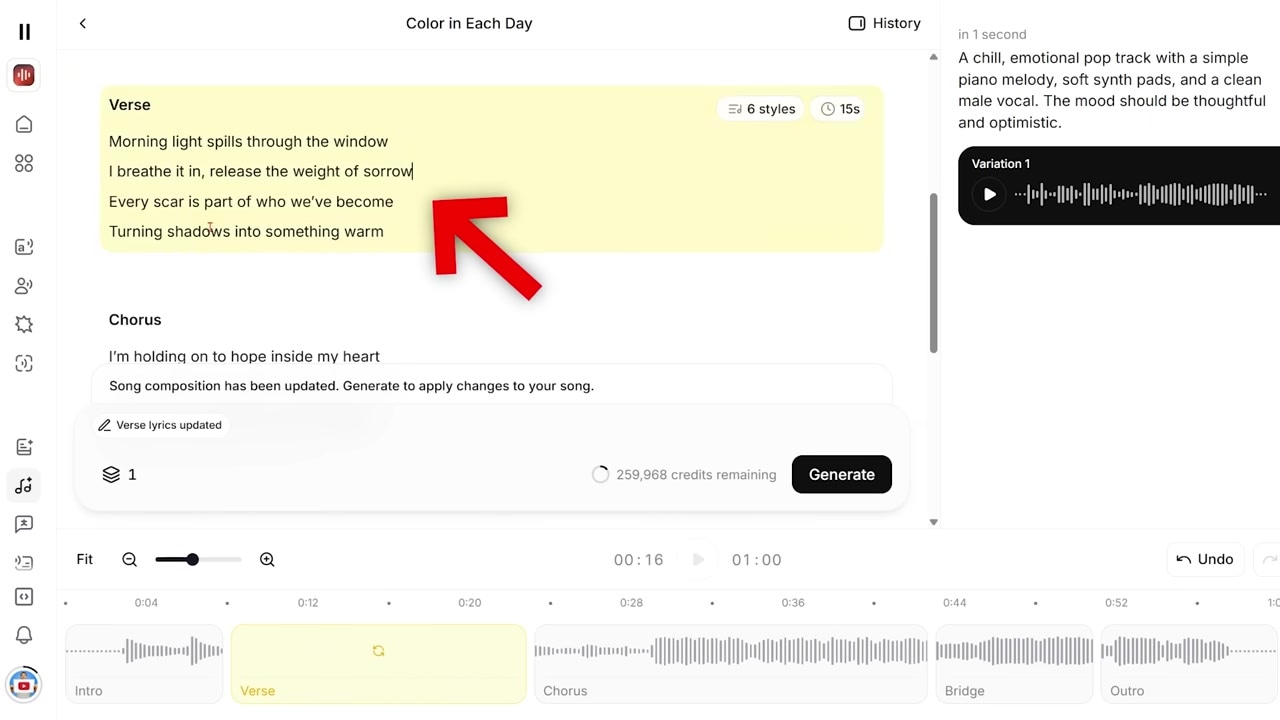
Caption: Modifying verse text directly in the lyrics box. The edited timeline segment turns yellow to mark it for targeted regeneration.
- Click Generate at the bottom of the screen to rebuild only that specific yellow highlighted block. The rest of your song’s vocals and backing instrumentation will remain completely untouched.
How to Adjust Vocal Pacing and Timing
If a vocalist is singing too quickly or a section feels rushed, you can adjust its duration visually:
- Hover your cursor over the edge of the target section block on the timeline.
- Click and drag the edge outward to lengthen the block (or inward to shorten it).
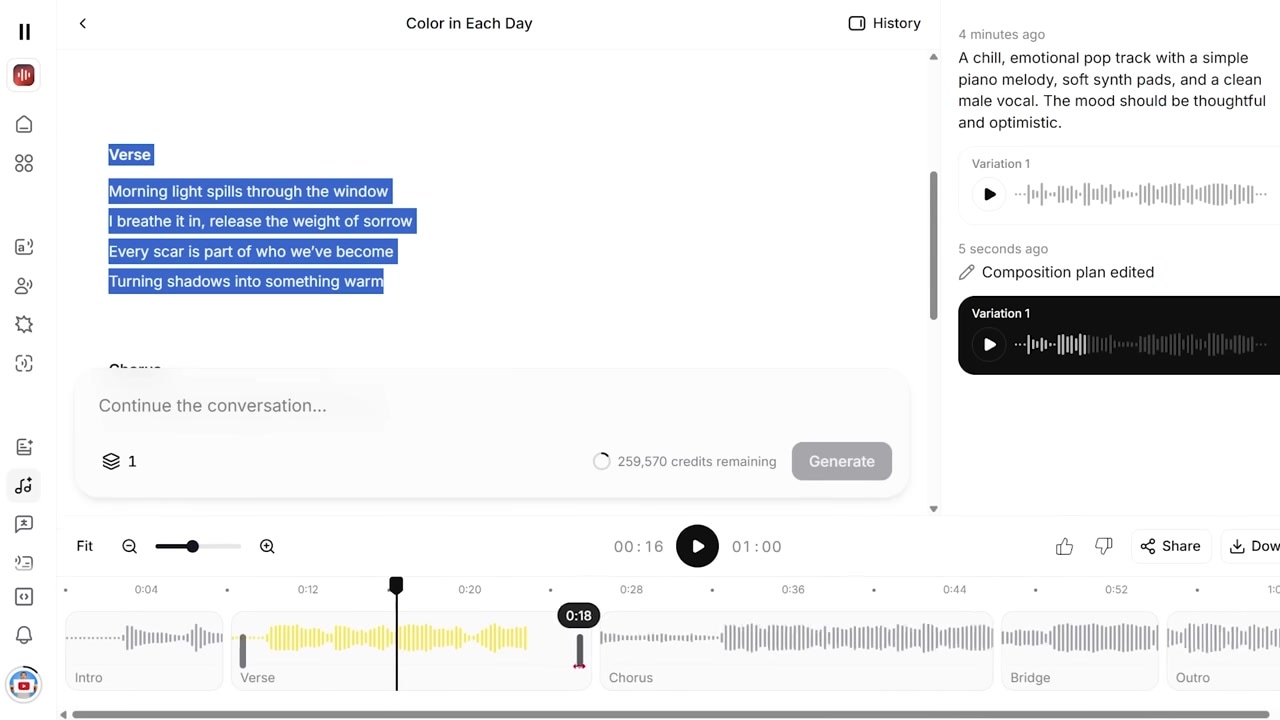
Caption: Dragging the edge of a verse block on the timeline to expand its physical duration, which tells the AI to stretch and slow down the vocal delivery.
- Hit Generate to regenerate the block. The AI will rebuild that section’s vocals to naturally fill the expanded time frame, slowing down the pacing to fit your adjustment.
Step 3: Prompt with Custom Lyrics From the Start
If you already have a pre-written set of lyrics for a channel intro, podcast theme, or original song, you can force the AI to use them from the very first generation.
- In your initial prompt box, type out your stylistic and genre instructions (e.g., "An upbeat synthwave track with a powerful male vocalist").
- Directly below your style instructions, paste your custom lyrics.
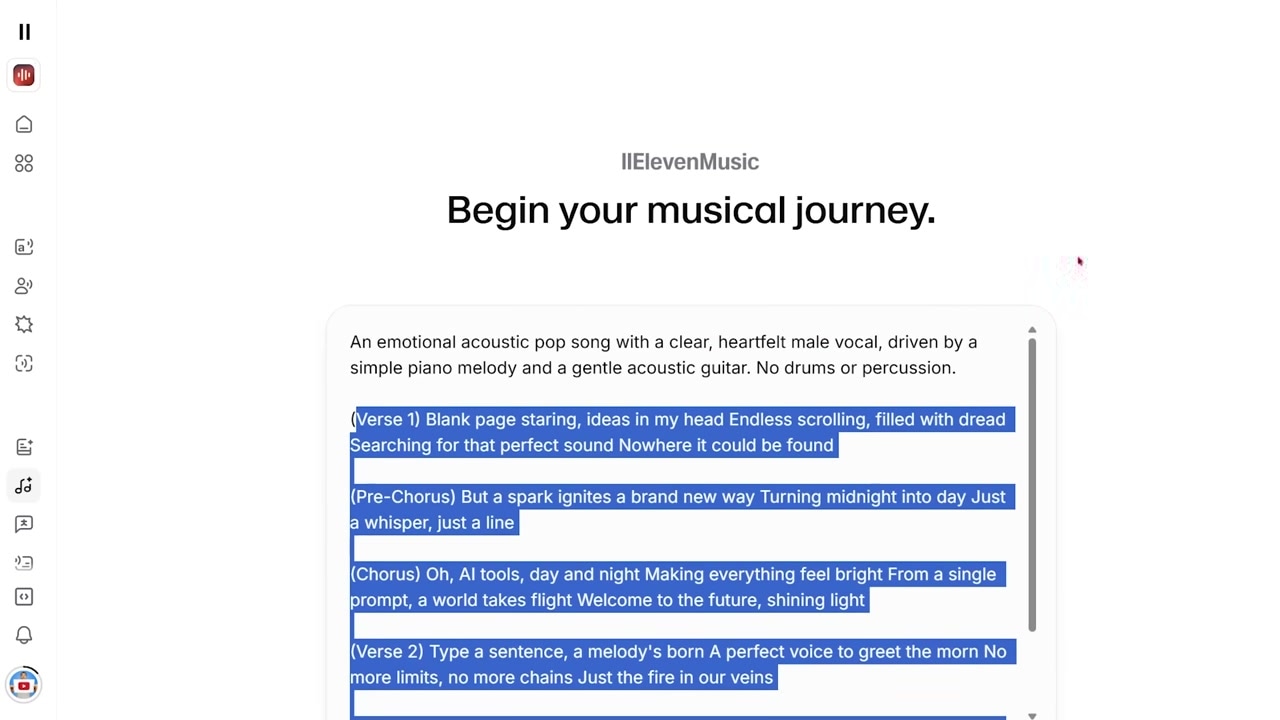
Caption: Write your genre and vocal instructions at the top of the prompt box, then paste your exact lyrics directly underneath.
- Press Generate. The model is designed to recognize these lines as song lyrics and will automatically partition, map, and sing them across the generated blocks on your timeline.
Step 4: Use Video to Music to Auto-Compose Soundtracks
If you are a video editor looking for background tracks that precisely match the mood of your visual footage, ElevenLabs features an automated utility called Video to Music.
- Navigate to the Studio tab on the left-side dashboard menu.
- Click on Video to Music.
- Upload your video file (for example, a visual of a creator walking across a skyscraper rooftop at dusk).
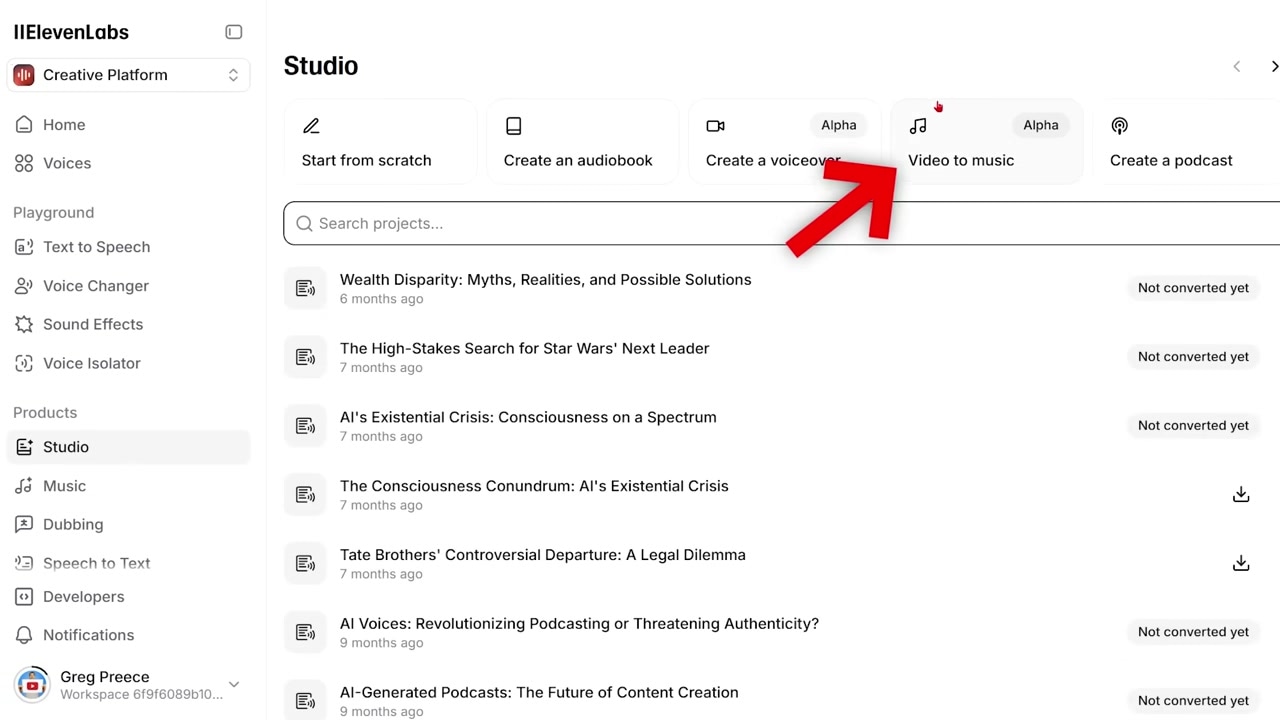
Caption: Upload video clips directly into Studio > Video to Music to generate tailor-made soundtracks without writing manual music prompts.
- Let the AI analyze the video. The model will write an automated description detailing the visual pacing, subjects, lighting, and overall emotional vibe.
- Watch as the tool automatically generates a matching, high-quality music track (like an upbeat hip-hop or trap track with heavy synths to match a confident rooftop clip) based on that visual analysis.
Step 5: How to Swap Instruments in an Existing Track
One of the most common issues you might run into is trying to change the instrumentation of an already-generated song. For example, you might generate a beautiful, ambient background track, but realize you need a high-energy version with heavy drums for your video's intro.
Initially, I made the mistake of simply typing "heavy drums" into the universal style box at the top of the screen and hitting regenerate. Because the entire song project highlights yellow, you would assume it updates the global style. It does not. The track's instruments will remain exactly the same.
To successfully swap or add instruments after a song has been generated, you must use a dual-layer approach to override the AI:
The Step-by-Step Instrument Swap Method
- Update Universal Styles: Go to the top of the project and add your new instrument style tags (e.g., "heavy drums", "tight drums") to the universal "Styles Included" list. Ensure percussion-related tags are removed from the "Styles Excluded" list.
- Update Section Styles: You must click into every single individual timeline block (Intro, Verse, Theme A, Outro, etc.) and manually add those same tags ("heavy drums") into the style field for each section. Ensure exclusions are cleared on a section level as well.
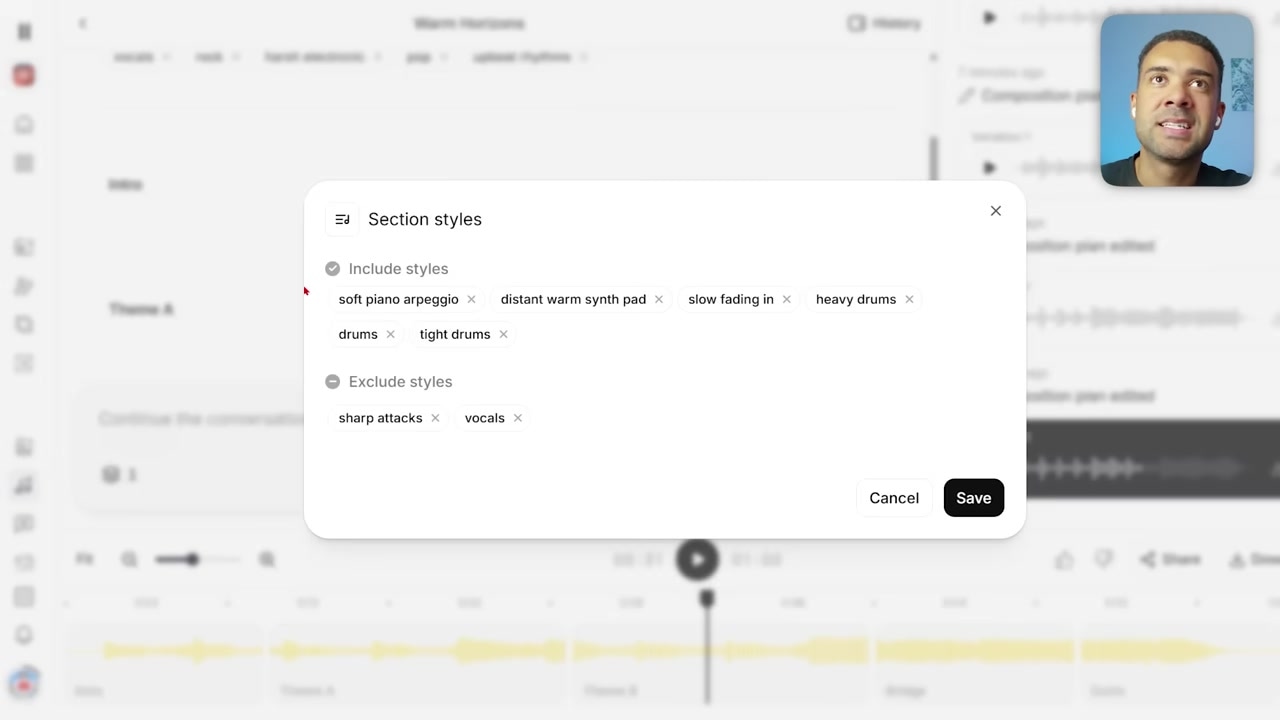
Caption: To force an instrument change, you must update the style tags at both the global project level and within every individual section block on the timeline.
- Regenerate the Track: Once both levels are synchronized, hit generate. This multi-layered update forces the AI model to actually apply the heavy-handed style changes, adding the desired instruments across your entire track.
The Broader ElevenLabs Creative Production Suite
The AI music generator is only a single piece of what is effectively a full creative audio studio. If you find yourself needing highly customized audio assets for a video or podcast, you can easily shift between workflows inside the same dashboard.
Aside from composing music, you can:
- Generate Sound Effects: Create specific foley, background noises, or transition effects from text prompts.
- Build Realistic Voices: Create ultra-realistic voice models, adjust their emotional delivery, and use them to narrate videos, commercials, or audiobooks.
Ready to start creating your own tracks? Try it here: Try ElevenLabs →
Frequently Asked Questions
Can I edit the lyrics of a song after it is generated?
Yes. ElevenLabs features section-by-section editing. You can modify the text of any block (like a verse or chorus) in the lyrics box under your timeline, and then regenerate only that highlighted section without altering the rest of your song.
Why didn't my song's instruments change when I updated the style prompt?
Updating only the global style tags at the top of your project is usually not enough to override the initial generation. To change instruments, you must add your new style tags to both the global style box and the style fields of each individual timeline block before regenerating.
How does the Video to Music feature work?
You upload a video file to the "Video to Music" tool in the Studio tab. The AI analyzes the visuals, subjects, and lighting of the video to create a descriptive text prompt, and then generates a matching soundtrack to fit the pacing and mood of your footage.