How I Make an AI Music Video in 5 Minutes (Zero Skills)
Last updated: July 2026
Author: Greg Preece — I test AI video tools hands-on to help creators get professional, high-converting results without spending thousands of dollars.
If you want to start a music video YouTube channel or create cinematic visuals to accompany your creative expression, you do not need a massive production budget or musical skills. Using AIVideo, an all-in-one ai video generator, you can produce a complete, synchronized music video in just a few clicks.
In this guide, I will show you the exact step-by-step workflow I used to generate an original song and turn it into a high-quality music video—all inside a single tool.
TL;DR: The 5-Minute AI Music Video Blueprint
- The Tool: [AIVideo](Try AIVideo →) handles both custom audio and video generation in one unified workspace.
- Generate the Song: Prompt the built-in AI music maker to create a song in any genre (like K-pop, rock, or country) and choose your track length.
- Annotate the Audio: Upload your track to the music video generator and add text descriptions at specific timestamps so the visuals sync to the lyrics.
- Select a Style Preset: Apply popular design themes like "Disposable Flashback" or "Surreal Underwater" to lock in your visual vibe.
- Fine-Tune the Timeline: Open the built-in editor to delete default zoom layers or wavy VHS effects, and add custom transitions like "Audio Glow" or "Magic Mosh."
Prefer to watch? Here's the video. Prefer to skim? The full breakdown is below.
Quick Link
AIVideo: Try it here: Try AIVideo →
Table of Contents
- Step 1: Generate an Original Track
- Step 2: Upload and Annotate Your Song
- Step 3: Choose Your Video Layout and Prompt
- Step 4: Pick a Visual Style Preset
- Step 5: Clean Up the Timeline and Add Visual Effects
- Conclusion
- Frequently Asked Questions
Step 1: Generate an Original Track
Before you can create ai music videos, you need some music. Inside AIVideo, there is a built-in AI music generator that makes it incredibly fast to build tracks from scratch.
To create your song, follow these steps:
- Navigate to the Music Generator on the main dashboard of the platform.
- Type your instructions into the generation prompt box. I decided to make a K-pop style song, but you can request any genre, tempo, or style.
- Choose the length of your song (I selected 30 seconds for my test track).
- Select how many generation variants you want. Generating two versions at once is perfect for comparing options.
- Click Generate.
The generation process is remarkably fast—it took only about 30 seconds to deliver two fully produced, catchy K-pop tracks. Listen to both options, download your favorite, and save it to your device.
 Caption: Setting up the song prompt, track length, and generation count inside the AIVideo Music Generator interface.
Step 2: Upload and Annotate Your Song
Once you have downloaded your preferred track, navigate back to the main AIVideo dashboard to prepare your video.
- Scroll down and click See More in the tool rows to locate the beta Music Video Generator.
- Click to open it and upload the K-pop song you just generated.
- Use the track annotation feature to align your imagery with the audio.
Track annotation is the secret to making highly synchronized AI music videos. By right-clicking directly on the uploaded audio waveform, you can add custom text cues at specific timestamps. For example, I added an annotation stating "the male K-pop singer is singing in English" and another saying "the singer is singing about feeling the magic". These notes study the vibe of the track and tell the AI exactly what scenes to generate to match the lyrical performance.
 Caption: Right-clicking the song waveform to add custom text annotations for the AI video generator.
Step 3: Choose Your Video Layout and Prompt
After annotating your song, scroll down to configure your layout options and describe your core concept:
- Choose Your Aspect Ratio: Select Portrait (9:16) if you are targeting mobile platforms like TikTok or YouTube Shorts, or Landscape (16:9) for traditional horizontal YouTube videos. I chose landscape for this project.
- Write Your Main Video Prompt: Keep your instructions clear and direct. For this video, I prompted the AI to create a highly stylized and choreographed K-pop dance video featuring talented dancers.
 Caption: Setting up the aspect ratio format and inputting the master visual prompt for the music video.
Step 4: Pick a Visual Style Preset
This is the most powerful part of the generator. AIVideo has pre-built visual style templates that instantly skin your scenes with professional aesthetics.
I tested several style presets to see how they altered the generation:
- Fantasy / Stranger Things style: Best for dark, nostalgic sci-fi themes.
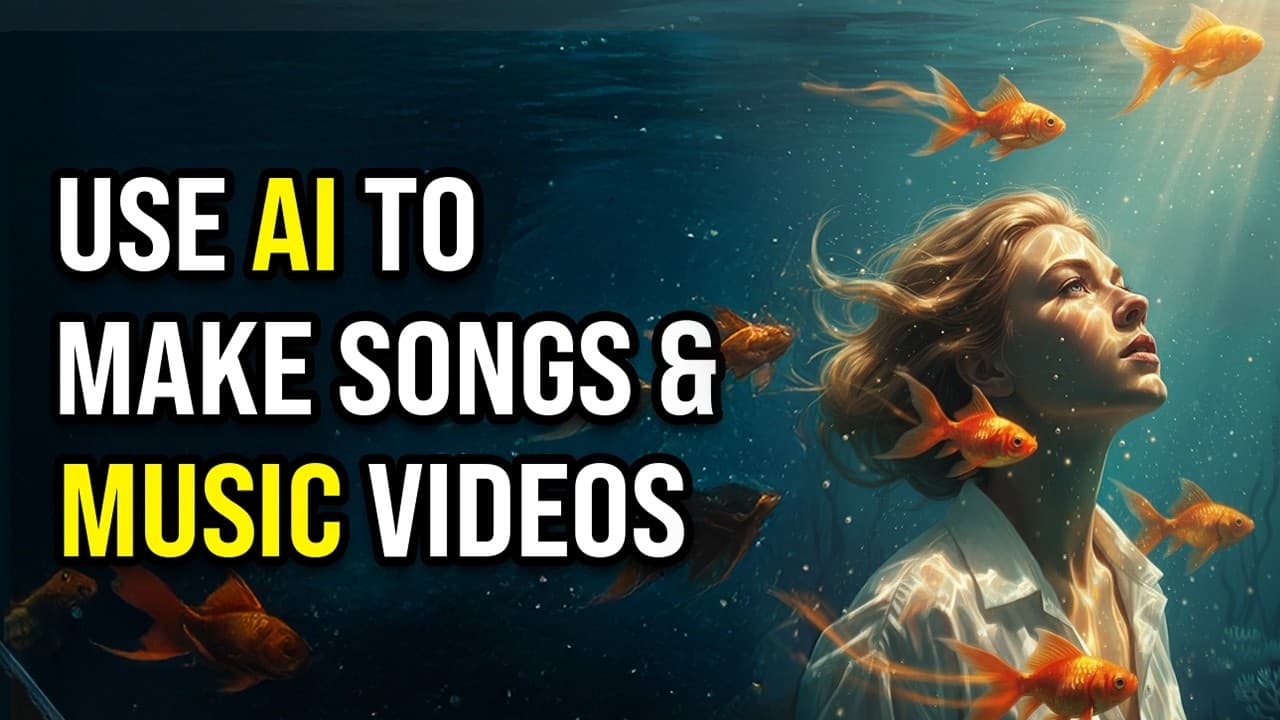
- Surreal Underwater: This template makes every shot look like your subjects are submerged underwater and surrounded by goldfish.
- Disposable Flashback: This style applies a warm, nostalgic Polaroid look with suburban, retro-American framing. I chose this template for my final video.
Once you have selected your style, click Generate. The AI will analyze the tempo, beat, and annotations of your song to build a synchronized video from start to finish. The entire process takes about five minutes.
 Caption: Choosing from popular design styles like 'Disposable Flashback' to theme your AI music video.
Step 5: Clean Up the Timeline and Add Visual Effects
Once your video finishes rendering, there are a few minor AI habits you will want to clean up to make your project look more polished.
Removing Auto-Zooms and Wavy Transitions
During my testing, I noticed that the generator has a habit of automatically applying heavy zooms and wavy VHS line effects to almost every shot. If you prefer a cleaner look, you can delete these layers easily:
- Open your project inside the built-in timeline editor.
- Locate the zoom and transition layers at the bottom of your timeline track.
- Click on the layers and press Delete on your keyboard to instantly remove them.
 Caption: Cleaning up the timeline by selecting and deleting the default zoom and wavy warp layers.
Adding Custom Interactive Effects
To customize individual clips and make the video pop, you can drag and drop custom transitions directly onto the timeline:
- Audio Glow: This effect makes the visual assets glow and pulse in perfect sync with the beat of your song.
- Magic Mosh: Creates a trippy, stylized datamosh transition between cuts.
Once you drop an effect onto a clip, you can use the sliders on the settings panel to increase or decrease its intensity until it matches your visual style.
 Caption: Fine-tuning the strength of custom interactive transitions using the timeline settings slider.
Conclusion
Creating an impressive AI music video used to require juggling multiple tools, but having an all-in-one ai video generator makes the entire workflow seamless. From generating the original audio track to polishing the transitions on an editing timeline, you can control the entire creative pipeline in one interface.
If you are ready to start making your own videos, use the link below to get started and receive an exclusive 20% discount on your subscription.
Try AIVideo today: Try AIVideo → (Use promo code gpvideo at checkout for 20% off your subscription).
Frequently Asked Questions
Can I make portrait videos for TikTok and YouTube Shorts?
Yes. Before generating your video scenes, you can select either portrait (9:16) layout or landscape (16:9) layout depending on the platform you want to publish to.
How does the AI sync the video to the song?
The generator automatically analyzes the BPM, tempo, and emotional vibe of your track. You can also manually add custom text annotations directly to the audio waveform to match specific visuals to your lyrics.
Do I need to write my own lyrics to generate a song?
No. You only need to provide high-level directions (like genre, mood, and instrumentation), and the AI music maker will automatically produce the vocals, lyrics, and melodies for you.