AI Video Editing Apps: I Tested 3 Tools That Do the Hard Work
Last updated: July 2026
Author: Greg Preece — I test AI video tools hands-on to help creators streamline their post-production and build better workflows.
Traditional video editing has always had a punishing learning curve. It takes years of practice to master complex transitions, color grades, and timeline tricks, but today's AI video editing apps can handle these intensive tasks in seconds.
By automating repetitive, highly technical edits—like removing backgrounds, translating dialogue with perfect lip-syncing, or generating custom music—these tools let you focus entirely on your creative vision. I tested three of the top AI-powered platforms to show you exactly how they can level up your workflow.
TL;DR: The Best AI Video Editing Apps At a Glance
| Tool | Core Strength | Standout AI Feature | Best For |
|---|---|---|---|
| Filmora 14 | All-in-one timeline editing | AI Copilot prompts & custom AI Music Generator | Beginners and general content creators looking for a complete suite |
| HeyGen | Flawless localization | Voice-cloned translation with advanced lip-syncing | Global creators, brands, and educators translating spoken content |
| Runway | Next-gen VFX & generative motion | Performance-based character animation & smart item removal | Advanced editors, animators, and visual effects specialists |
Prefer to watch? Here's the video. Prefer to skim? The full breakdown is below.
Quick Links to Try These Tools
- Filmora: Try it here: Try Filmora →
- HeyGen: Try it here: Try HeyGen →
- Runway: Try it here: Try Runway →
Filmora 14: Prompt-Based Timeline Editing and Custom Music
Wondershare Filmora 14 is a robust, timeline-based video editing software that has been thoroughly supercharged with AI. Rather than forcing you to dig through complex menus, Filmora 14 introduces prompt-based commands and automated generation tools designed to make advanced editing accessible to anyone.
This software is ideal for beginner editors who feel overwhelmed by traditional video editing software, as well as seasoned creators who need to generate original, copyright-safe audio assets quickly.
Try it here: Try Filmora →
Key AI Feature 1: AI Copilot Editing
If you are new to video editing, Filmora’s AI Copilot acts as a personal assistant on your timeline. Instead of searching for the right tool manually, you simply type what you want to achieve into a chat window.
For example, if your raw video looks too dark, you can type "make my footage lighter," and the AI will automatically adjust your exposure settings. If you want to make an adjustment yourself but aren't sure how, you can ask a question like, "how do I increase the volume?" The AI Copilot will instantly pinpoint the volume slider on screen to guide you directly to it.
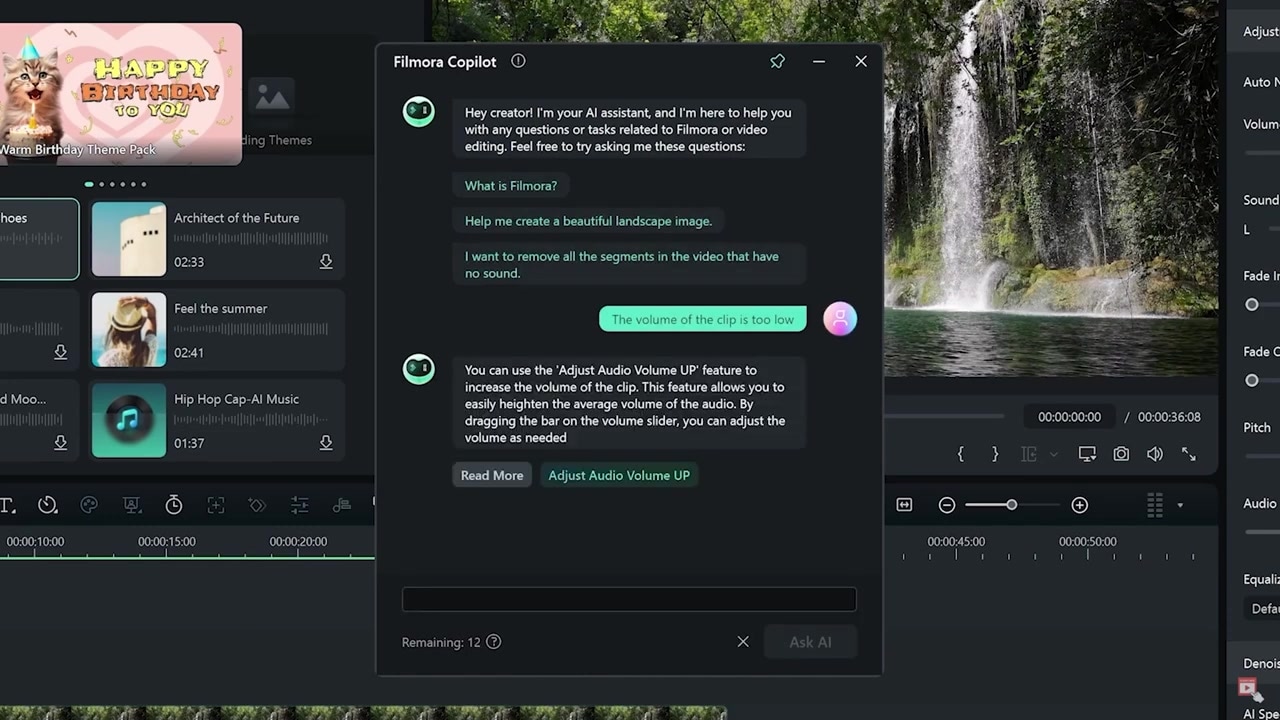
Caption: Filmora 14's prompt-based assistant showing real-time timeline modifications and software navigation guides.
Key AI Feature 2: AI Video Enhancer
Low-quality camera footage or heavily compressed web clips can easily ruin a clean edit. Filmora 14 features an integrated AI Video Enhancer that analyzes grainy, low-resolution clips and reconstructs them in higher definition, making your raw files instantly look more professional.
Key AI Feature 3: AI Music Generator
Finding the perfect background music that won't trigger copyright claims on YouTube is a constant struggle. Filmora 14 solves this by generating completely original, copyright-free instrumental tracks tailored to the exact length of your edit.
How to Generate Custom Music in Filmora 14:
- Locate your timeline length: Drag your playhead to the end of your project to see the exact duration needed. For my project, the video was exactly 32 seconds long.
- Access the tool: Navigate to the Audio tab in the top customization bar and click on AI Music.
- Select your parameters:
- Mood: Select your desired vibe (I chose Euphoric).
- Theme: Pick a conceptual theme (I went with Motivational and Inspiring).
- Genre: Choose the musical style (I selected Lo-Fi Hip-Hop).
- Configure your settings: Open the settings window and input your target duration (32 seconds) and set the track limit to 1 (or more if you want multiple options).
- Generate and apply: Click Generate. Once the AI renders your original audio file, preview it and drag it directly down to your timeline.
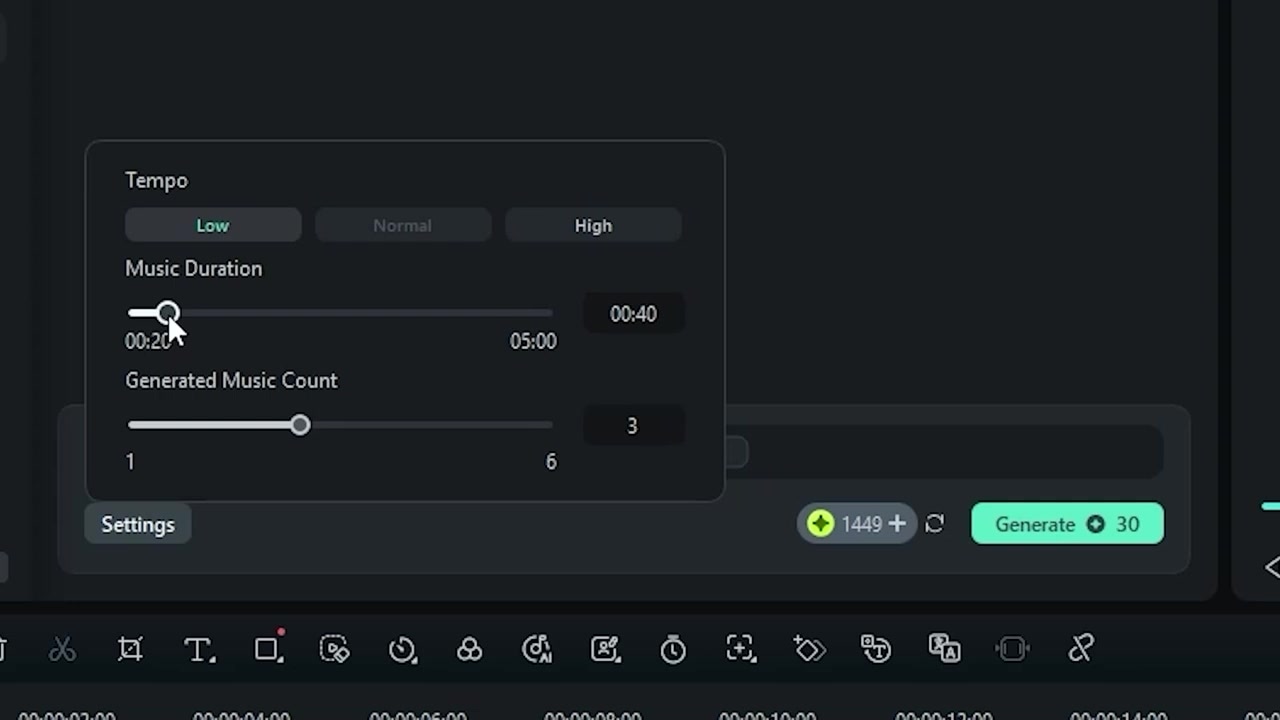
Caption: Selecting a Euphoric mood and a Motivational theme to build a custom 32-second lo-fi track inside Filmora 14.
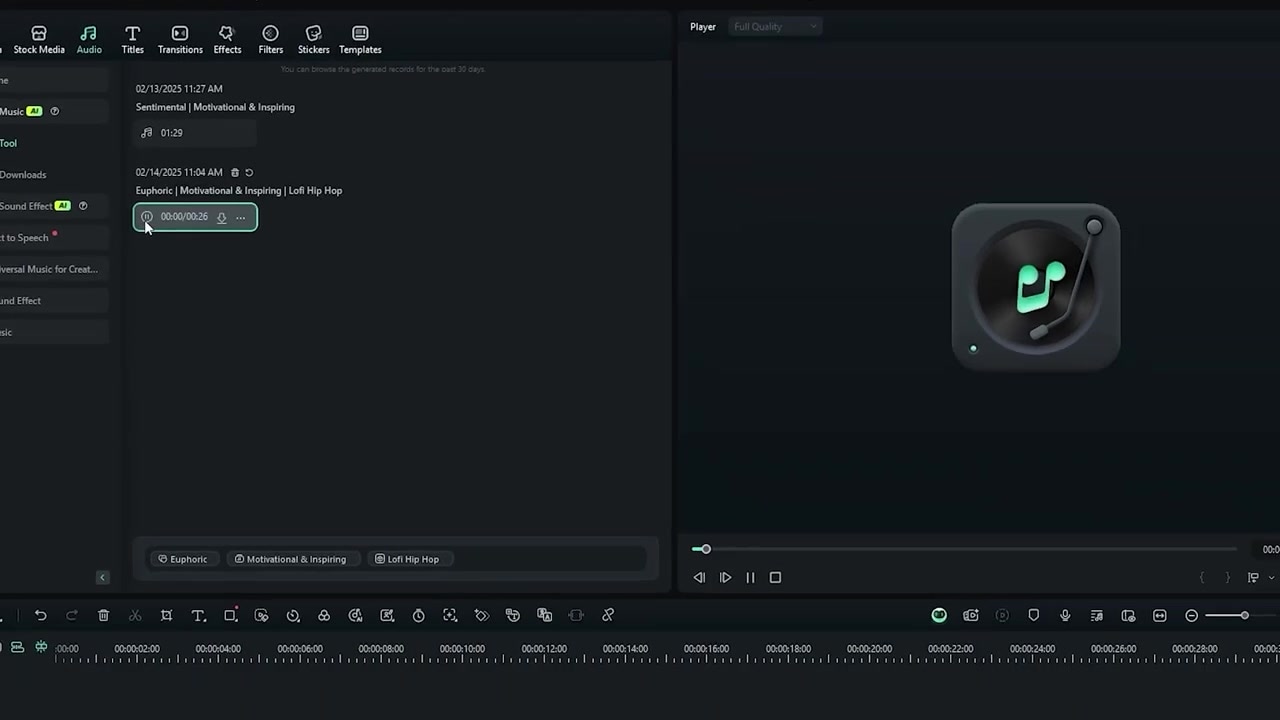
Caption: The completed, custom-generated background music track imported directly under the video track on the editing timeline.
HeyGen: Flawless Multilingual Translation with Lip-Syncing
If you need to translate spoken-word videos into new languages, HeyGen is a total lifesaver. Unlike traditional dubbing, which overlays generic voice actors, or simple captioning, which requires your viewers to read, HeyGen uses highly sophisticated generative technology to localize your actual face and voice.
This tool is a must-have for content creators, agencies, and businesses looking to scale their reach internationally without the massive budget required for human translation and re-recording.
Try it here: Try HeyGen →
Key AI Feature: Video Translation with Active Lip-Syncing
When I ran my English footage through HeyGen, it achieved two critical tasks that other translation tools fail to match:
- Voice Cloning: The AI doesn't just translate the text; it clones your unique vocal profile. When my English speech was translated into Spanish, the output voice still sounded exactly like me—just speaking fluent Spanish.
- Advanced Lip-Syncing: Translating audio without matching the speaker's mouth movements looks highly distracting. HeyGen's AI engine automatically alters the speaker's lip and jaw movements in the video so that they perfectly align with the new foreign vocabulary.
The result is incredibly convincing, making it look as though you recorded the video in the target language from the very beginning.
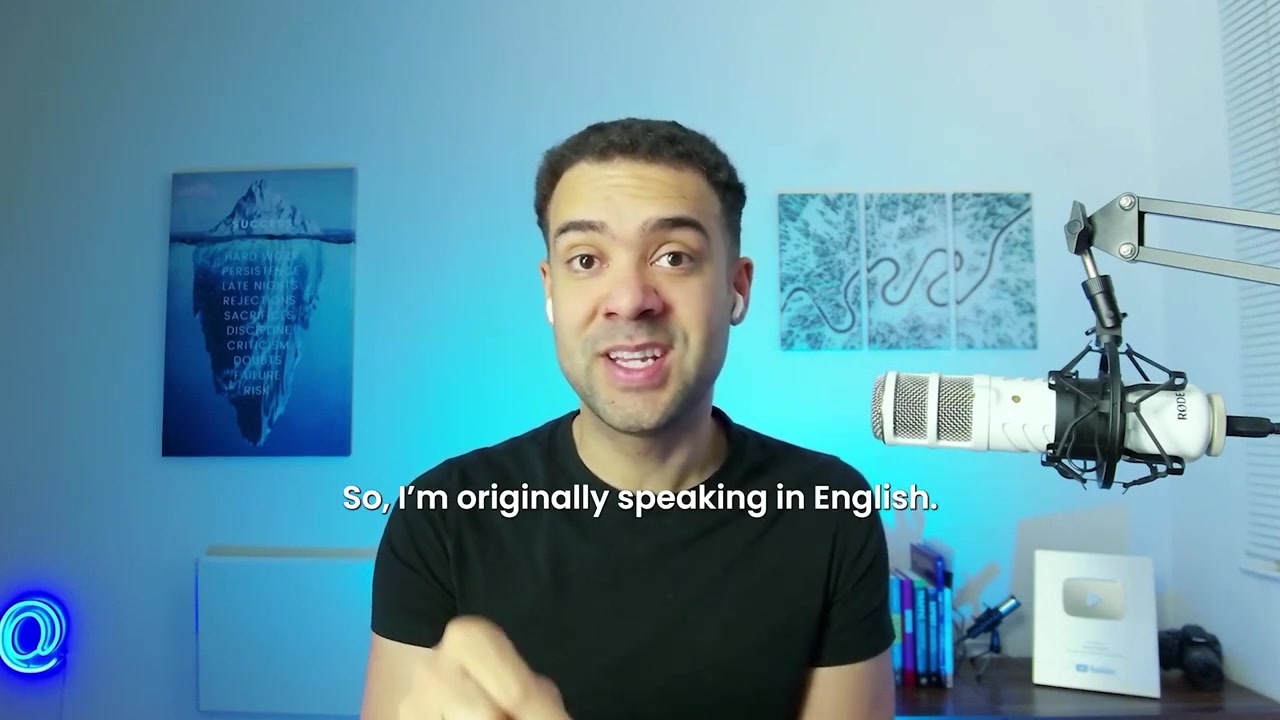
Caption: HeyGen's AI engine adjusting mouth movements in real time to match the newly translated Spanish audio track.
Runway: Character Animation and Advanced Object Removal
Runway (often referred to as RunwayML) is a powerhouse of generative video tools designed for editors who want to build advanced visual effects and custom animations without requiring a degree in traditional VFX software.
It is best suited for filmmakers, animators, and social media creators who want to introduce custom characters or clean up production errors in post-production with minimal friction.
Try it here: Try Runway →
Key AI Feature 1: Face-Synced Character Animation
If you want to create animations but have zero drawing or 3D modeling skills, Runway makes it incredibly easy. The app allows you to upload a video of a person speaking and use it to drive a static image of any character you choose.
By mapping the spoken performance directly onto the target image, the AI generates highly expressive face animations and lip syncs the character to your voice with a single click. I would have never been able to animate custom characters by hand, but this tool makes it achievable instantly.
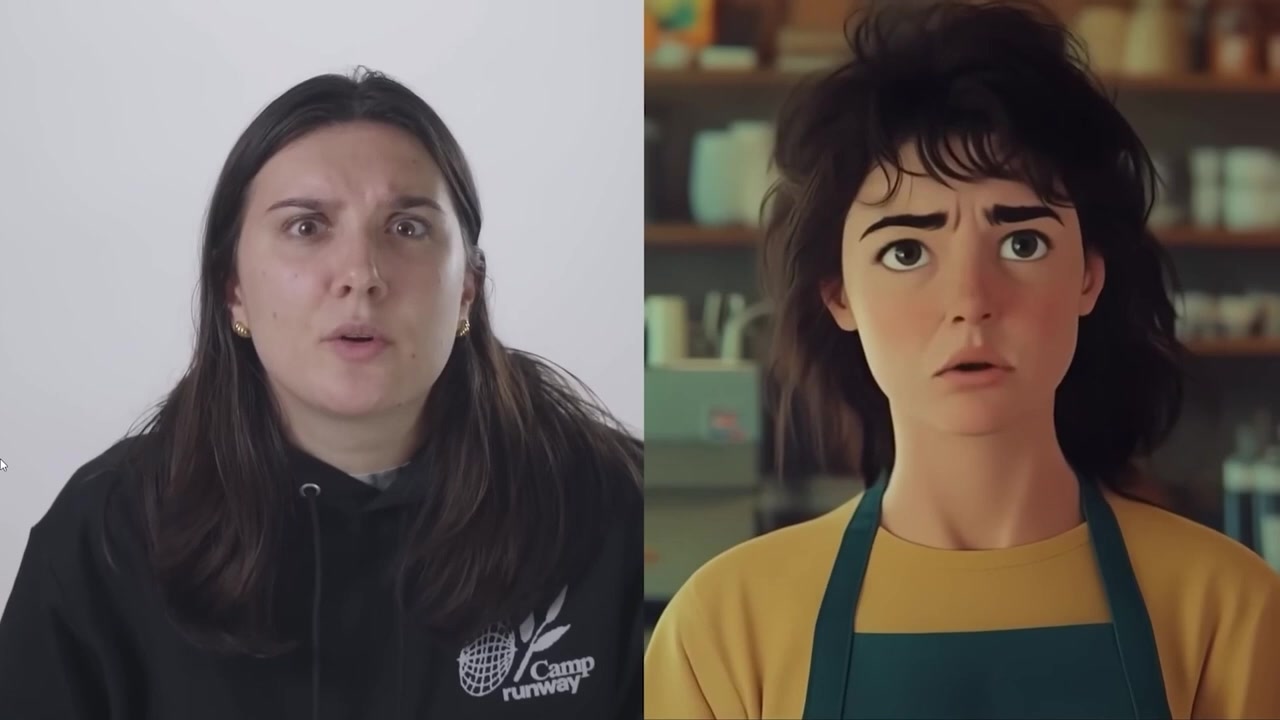
Caption: Mapping a human vocal performance onto a custom character avatar using Runway's performance animation engine.
Key AI Feature 2: Advanced Item Detection and Object Removal
Mistakes happen on set—whether it's an unwanted object in the corner, a background distraction, or an intrusive green screen element. Runway's advanced item detection is among the most precise available.
By using their "Remove from Video" tool, you can simply brush over or prompt the AI to isolate an object, and the engine will seamlessly erase it from your video timeline, cleanly filling in the background behind it.
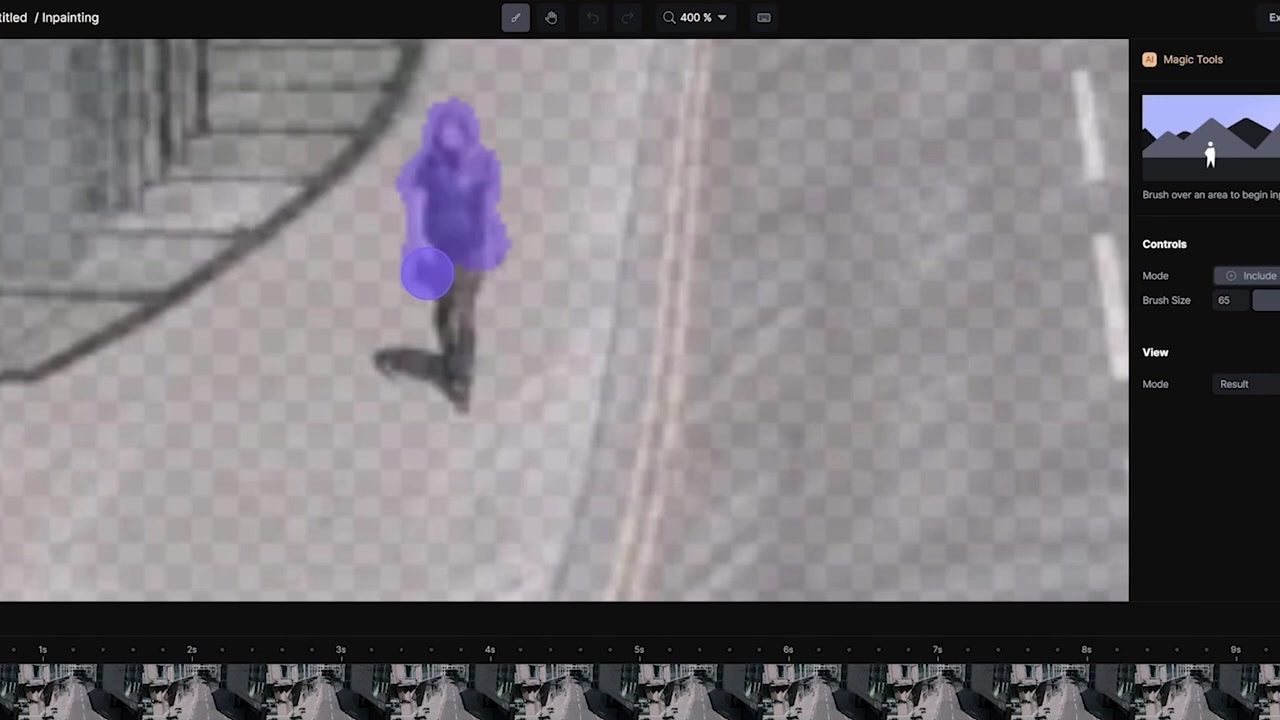
Caption: Isolating and removing an unwanted object from a video shot using Runway's advanced item detection brush.
Which AI Video Editing App Should You Use?
Choosing the right tool comes down to your primary bottleneck in the editing bay:
- If you are a beginner looking to build complete videos, handle timeline adjustments through chat commands, and generate copyright-free soundtracks on the fly, [Wondershare Filmora 14](Try Filmora →) is your best bet.
- If your goal is global reach, localization, and multi-language content, [HeyGen](Try HeyGen →) offers unparalleled translation and lip-sync precision.
- If you want to experiment with advanced visual effects, animate custom characters, or seamlessly remove background elements and distractions, [Runway](Try Runway →) is the clear choice.
By combining these specialized tools, you can easily bypass hours of tedious manual labor and construct professional, engaging videos in a fraction of the time.
Frequently Asked Questions
Are the music tracks generated by Filmora 14 safe for YouTube monetization?
Yes. The AI Music feature in Wondershare Filmora 14 generates completely original, royalty-free background music. Because the audio tracks are unique generations, you can use them in your videos without worrying about receiving copyright complaints or claims on YouTube.
How natural does HeyGen’s lip-sync translation look?
HeyGen features some of the most advanced lip-sync technology on the market. Unlike basic dubbing apps, HeyGen actively modifies the mouth movements of the speaker to match the phonemes of the target language. While there may be occasional minor artifacts on highly complex movements, the output is incredibly clean and professional.
Do I need to be an animator to use Runway's character tool?
Not at all. Runway's character animation tool is designed to work in one click. All you need is a static image of a character and a video of yourself (or another speaker) talking. The AI handles the complete rigging, lip-syncing, and facial expressions automatically.