Best AI Video Editor: How I Use Gling to Cut Hours of YouTube Editing
Last updated: July 2026
Author: Greg Preece — I've created and edited over 600 videos for YouTube, testing dozens of AI tools hands-on to find workflows that save creators time.
If you are tired of spending hours trimming raw footage and correcting spoken mistakes, finding a tool that handles the tedious work is a game-changer. After editing more than 600 videos for YouTube, I've found that one specific tool stands out as the ultimate time-saver. Here is my breakdown of Gling and the five key automations that make it my top recommendation for editing dialogue-heavy videos.
Quick Summary
- The Verdict: Gling is the best AI video editor for talking-head creators, podcasters, and YouTubers who need to turn messy raw footage into a clean rough cut fast.
- Key Automations: Automatic mistake/silence removal, AI B-roll generation, smart speech enhancement, animated captions, and auto YouTube chapters.
- Who It's For: Solo creators looking to automate hours of tedious "rough cut" editing without losing manual control over their final export.
Table of Contents
- Why Gling is My Go-To AI Video Editor
- Automation 1: One-Click Mistake and Silence Removal
- Automation 2: Automated B-Roll Suggestions
- Automation 3: One-Click Sound Enhancement
- Automation 4: Smart Animated Captions
- Automation 5: AI-Generated YouTube Chapters
- How to Sync Gling with Your Existing Editor
- Frequently Asked Questions
Prefer to watch? Here's the video. Prefer to skim? The full breakdown is below.
Quick Link
Gling: Try it here: Try Gling →
Why Gling is My Go-To AI Video Editor
Having created and edited hundreds of videos, I have tried almost every AI video editing software available on the market. I keep coming back to Gling because it actively solves the biggest bottleneck in video production: the rough cut. Just a few weeks ago, I used Gling to automate the bulk of the editing on a video that went on to gain over 200,000 views, cutting my actual editing time down by hours.
Gling is a dedicated desktop application designed to streamline the workflow for talking-head videos. It handles five specific editing tasks automatically so you can focus on the creative side of storytelling.
Automation 1: One-Click Mistake and Silence Removal
The absolute worst part of starting a new edit is cleaning up the raw footage. When you first import a video, you are looking at tons of unwanted silences, filler words ("ums" and "uhs"), and bad takes where you had to repeat a sentence because you got it wrong on the first try.
In Gling, removing these three common mistakes takes a single click:
- Import your raw recording into Gling.
- Select your cleanup settings on the start screen by choosing to cut silences, remove bad takes, and eliminate filler words.
- Click "Enhance and edit" to let Gling transcribe the video and automatically make the cuts.
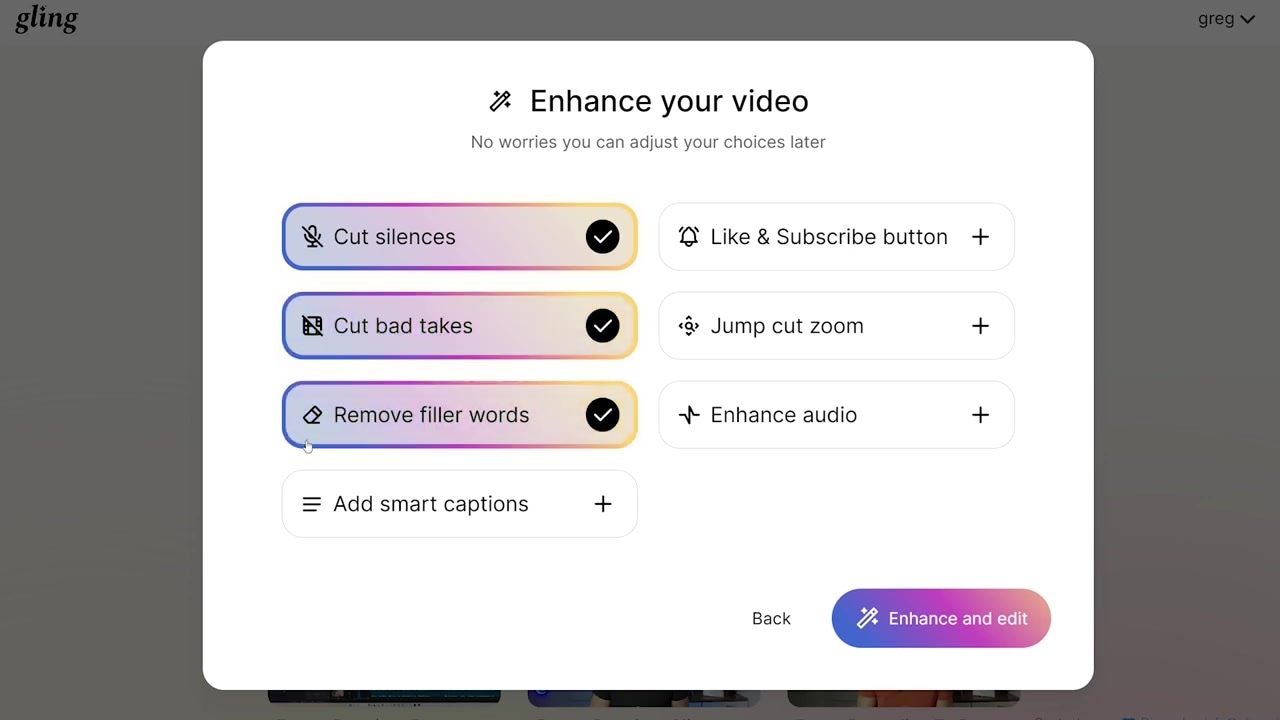
Caption: The import screen allows you to select automatic options for cutting silences, filler words, and bad takes before the AI processes your raw footage.
Once the AI finishes transcribing and cutting (which only takes a couple of minutes), you are presented with a text-based editing timeline. Everything that was said in the recording is displayed as text on the left.
Any mistakes that were cut are greyed out and struck through in the text, and appear as light gray blocks on the timeline below. The kept footage remains in full color. You can click on any word in the text to jump to that moment on the timeline and review how smoothly the cuts play back.
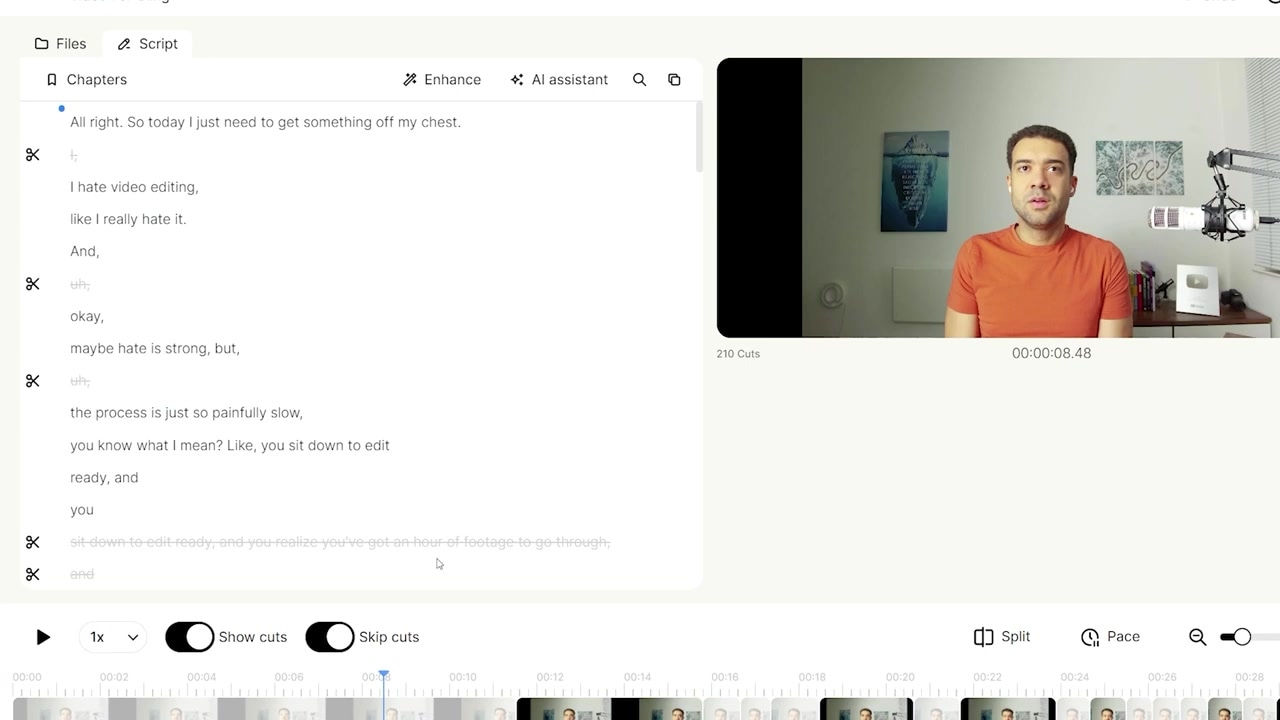
Caption: The dual-view interface lets you see greyed-out struck-through text on the left, which corresponds directly to the light gray cut segments in the timeline.
Automation 2: Automated B-Roll Suggestions
Manually adding B-roll is a slow, tedious process. You have to identify where B-roll is needed, find relevant clips on stock footage websites, download them, and import them into your editing timeline. Gling automates this workflow directly inside the app:
- Click on the Enhance button in the top menu.
- Toggle on the B-rolls option.
- Wait about 30 seconds as the AI reads your transcript, finds the perfect placement moments, and inserts appropriate stock footage.
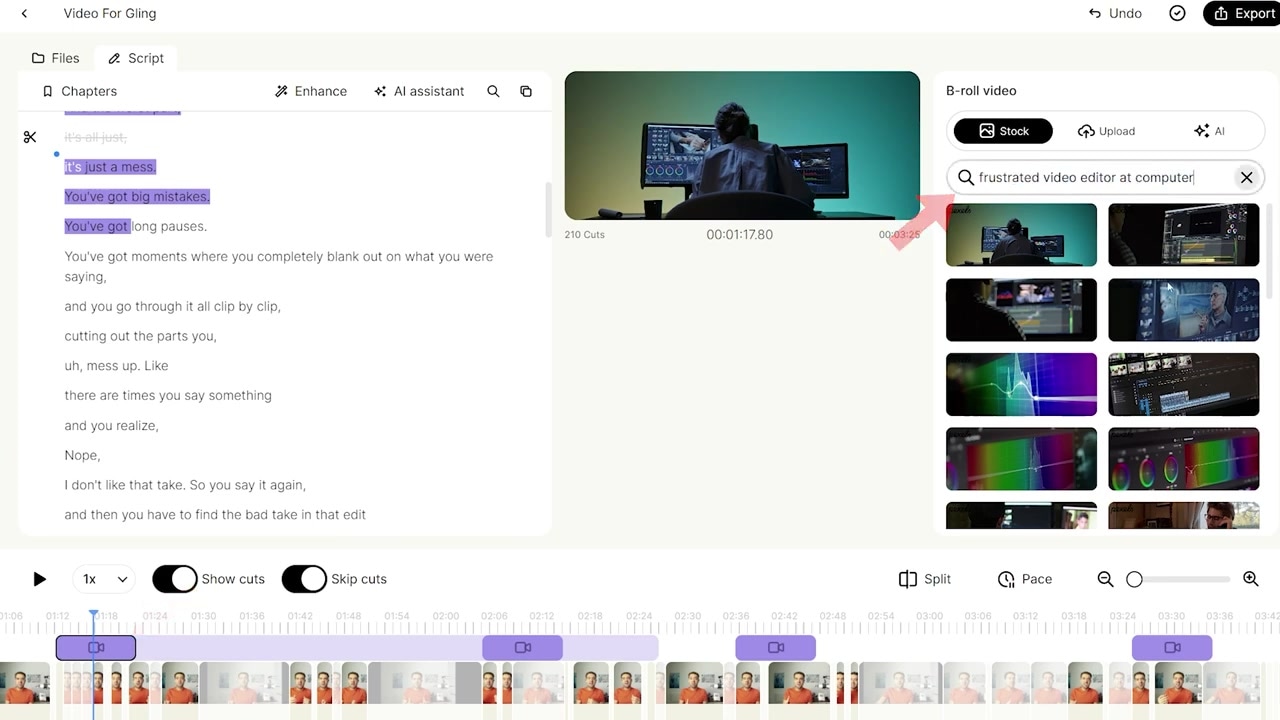
Caption: Gling populates your timeline with purple B-roll blocks. You can click on any block to see the search prompt used and manually choose a different clip if needed.
Automation 3: One-Click Sound Enhancement
Since many creators do not record in professional studios, dialogue track quality can vary. Gling features an AI-driven audio enhancer that brings any microphone recording up to professional standards with a single switch:
- Navigate to the Enhance menu at the top.
- Click Enhance audio to activate speech enhancement.
I tested this toggle back-to-back. With the switch turned off, the background noise and room echo are apparent. Turning the speech enhancement on instantly cleans up the signal, bringing a professional, crisp quality to the voice.
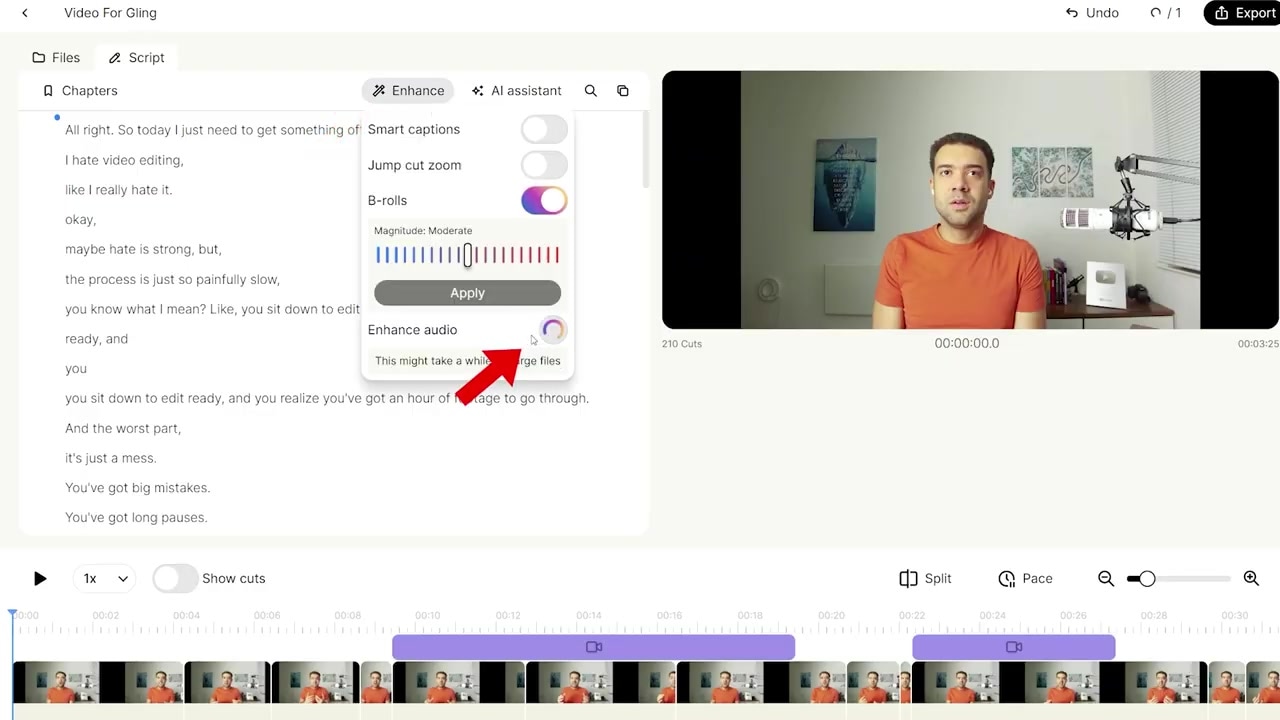
Caption: The speech enhancement toggle in the Enhance menu instantly processes and cleans up raw microphone audio.
Automation 4: Smart Animated Captions
Typing and animating subtitles yourself takes a significant amount of time. Gling generates modern, animated subtitles automatically:
- Under the Enhance menu, select Smart captions.
- Click All to ensure your entire video timeline is covered.
- The AI generates animated captions that track your speaking cadence in real-time.
You can click on any caption segment on the timeline to style the font, change colors, or adjust sizing, and click Apply to all to update your styling globally.
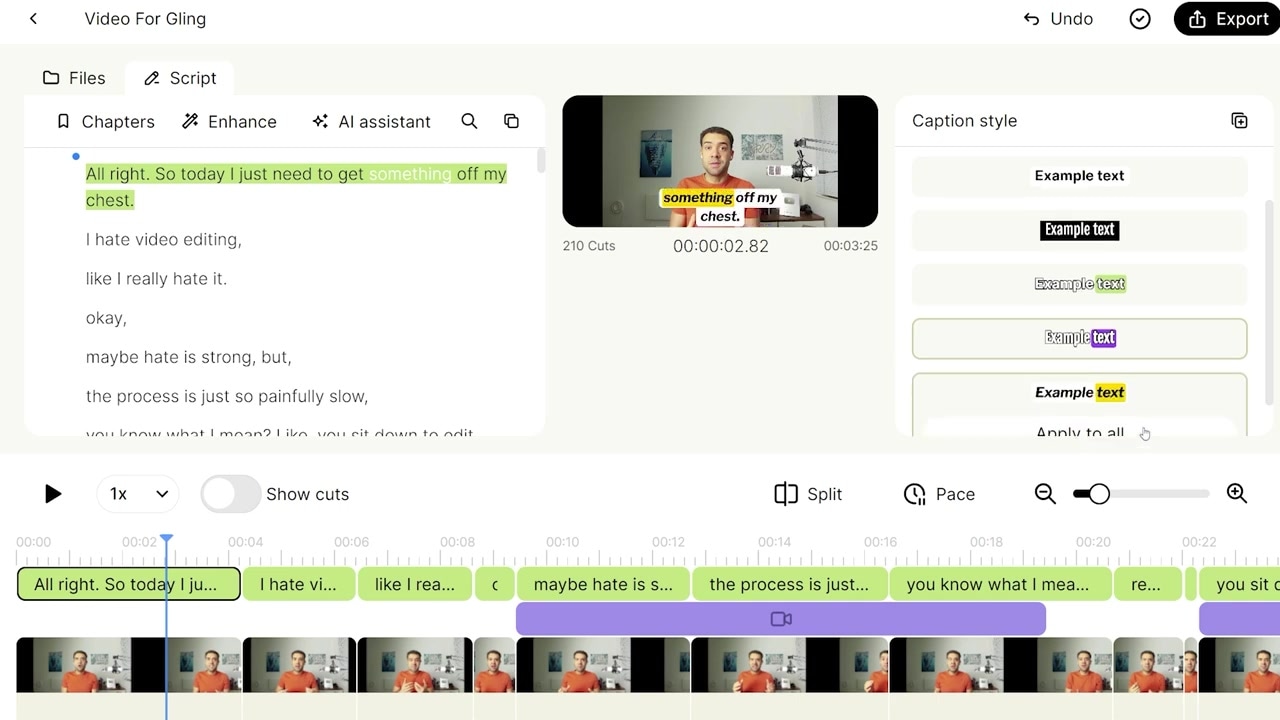
Caption: Gling generates responsive, animated word-by-word captions that can be globally customized to match your brand style.
Automation 5: AI-Generated YouTube Chapters
If you publish on YouTube, setting up chapters is vital for video SEO and viewer retention. Gling eliminates the need to manually scrub through your finished video to find timestamps:
- Click on Chapters in the top menu.
- Click Generate chapters.
- Gling analyzes your script to identify clear topic shifts, names each section, and provides exact timestamps.
- Click the Copy button to grab the formatted text and paste it directly into your YouTube description.
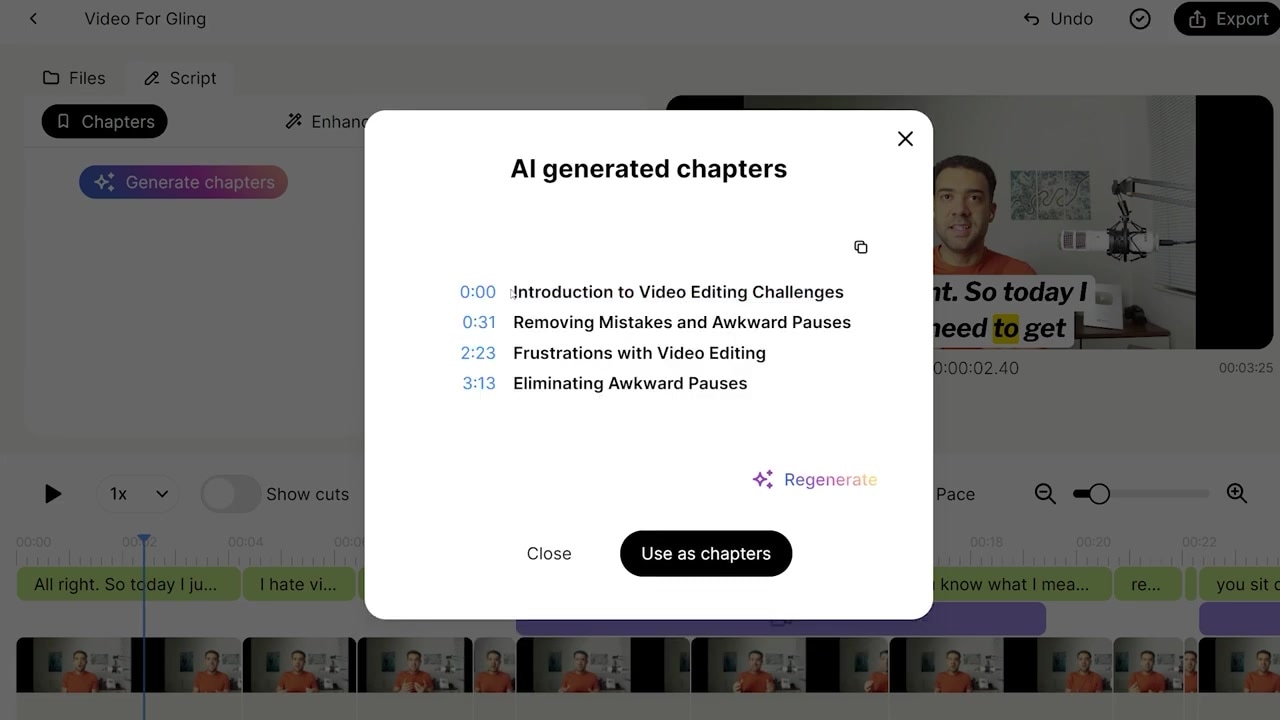
Caption: The chapter generator partitions your video into logical topics, producing perfectly formatted timestamps ready to copy.
How to Sync Gling with Your Existing Editor
Gling is not designed to replace heavy-duty editing software like Adobe Premiere Pro, DaVinci Resolve, or Final Cut Pro. Instead, it works as an accelerator for your current workflow.
Once Gling has automatically completed your rough cut and enhancements, you do not have to export a flat video file. Gling allows you to export your project directly as an XML or project file for your favorite professional editor. This means when you open the project in Adobe Premiere Pro or DaVinci Resolve, your timeline is already laid out with all the individual cuts preserved, allowing you to perform your final creative adjustments, grading, and sound design without starting from scratch.
If you want to save hours of manual trimming on your next video, you can sign up for a free trial of Gling to try these features on your own footage:
Try Gling for yourself: Try Gling →
Frequently Asked Questions
Is Gling free to use? Gling offers a free trial so you can import your footage, test the automated cuts, and evaluate the text-based editing features before choosing a paid plan.
What professional video editors is Gling compatible with? Gling can export project files directly into Adobe Premiere Pro, DaVinci Resolve, and Final Cut Pro, keeping your raw edit cuts intact for final polishing.
Does Gling work on both Windows and Mac? Yes, Gling is a cross-platform desktop application that runs natively on both Windows and macOS systems.