The Best AI Rough Cut Tool for Premiere Pro Editors
Last updated: 27 August 2026
Author: Greg Preece — I cover AI video tools and practical creator workflows.
I have made video for a living for 10 years, run a YouTube channel of over 130,000 subscribers and edited more than 600 videos. Here is the tool I use to skip the worst hour of every one of them.
If you record one camera and one microphone, publish long talking-head video, and have no intention of giving up Premiere Pro, Gling is the right tool. It is a desktop app that transcribes your recording, cuts the silences, the filler words and the bad takes, and then hands you an XML file your timeline opens with every one of those cuts already made.
The reason it beats the other options for this specific job is the bad takes. Plenty of tools will strip dead air. The part that actually eats your evening is finding the fourth attempt at a sentence and deleting the first three, and Gling does that in the same pass.
In short
- Best for one camera, one mic, you talking, finished in Premiere Pro, Final Cut Pro or DaVinci Resolve.
- Cuts silences, filler words and bad takes in a single pass, then exports XML with the cuts intact.
- You review the cuts as text before you export, so nothing is a surprise when you open Premiere.
- The free plan cannot export to Premiere, Final Cut or Resolve. That is the whole feature, so budget for a paid plan.
- Two cameras or a separate mic only work if you export to Resolve or Final Cut. Premiere users have to sync first.
- Metered in hours of media you upload each month, and unused hours do not roll over.
On this page
- Who Gling is for
- The problem with the first hour of every edit
- Why Gling solves it
- What I found using Gling
- Where Gling falls short
- What else I considered
- What Gling costs
- Getting started
- Method and freshness
Who Gling is for
This is for you if:
- You film one camera and one microphone and you are the only person talking.
- You publish long-form video where most of the runtime is speech.
- You finish in Premiere Pro, Final Cut Pro or DaVinci Resolve and you are keeping it that way.
- The slow part of your week is the first pass, not the grade or the sound design.
This is not for you if:
- Your video has little or no speech. Gling says this itself on its help pages, and it is right. The whole thing works off the transcript.
- You film with two cameras and finish in Premiere. Gling only supports a multi-camera workflow when you export to Resolve or Final Cut. For Premiere you have to sync the cameras yourself first, which is part of the job you wanted doing.
- You record to a separate audio recorder and finish in Premiere. Same restriction, same reason.
- You shoot ProRes or h265. Neither appears in the list of codecs Gling says it supports, so you would be transcoding before you start.
- You will not leave the timeline. Gling is a separate desktop app. There is no browser version and no Premiere extension.
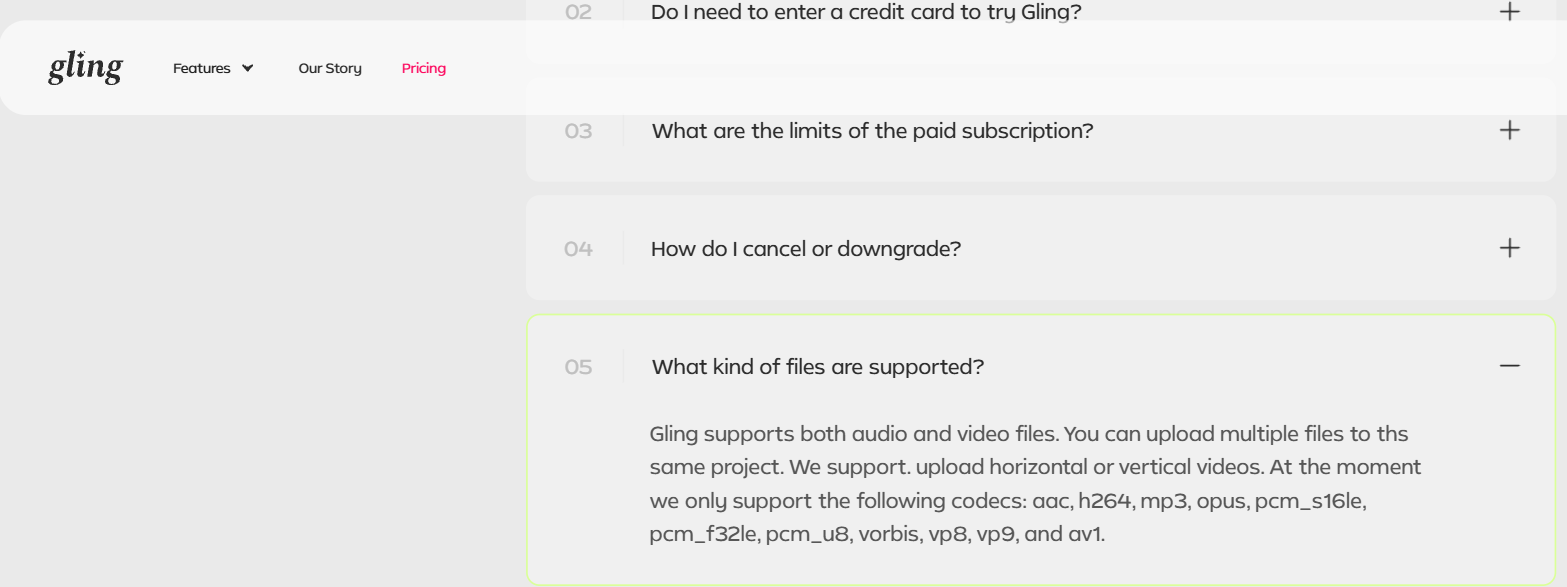
Gling's pricing page FAQ, captured 7 September 2026, listing the codecs it supports. ProRes and h265 are not among them.
The problem with the first hour of every edit
You film 40 minutes to publish 12. That gap is not creative work.
It is scrubbing back to find the take where you finally got the sentence right. It is listening to yourself say "um" 60 times. It is cutting the 4 seconds where you glanced at your notes, over and over, for an hour, before you have made a single decision that anyone watching would notice.
After 600 videos I can tell you what that hour is worth, which is nothing. Nobody has ever watched one of my videos and thought about the bad take I removed. They notice the pacing, the structure and the thumbnail. The first pass is the tax you pay to get to the part that matters.
The catch is that most tools which offer to do it for you want you to do the rest of the edit there too. If you have 10 years of muscle memory in Premiere, that is not a trade you are going to make.
Why Gling solves it
It cuts three things, not one. Silences, filler words and bad takes, all selected on the import screen before it starts. The bad-take pass is the one that saves the most time, because it is the one that requires listening rather than looking at a waveform.
You see the cuts as text before you commit. Once it has transcribed and cut, you get the whole recording as text with the removed lines greyed out and struck through, and the kept footage in full colour. Click any word and it jumps to that moment. You are checking a decision, not discovering one later.
The XML is the point. You do not export a flat video. You export a project file that Premiere, Final Cut or Resolve opens with every cut preserved as a separate clip. So any decision Gling made, you can undo in your own editor with your own keyboard shortcuts, instead of going back into Gling.
That is the whole argument. Gling does the part of the edit that is mechanical, and then gets out of the way before the part that is not.
What I found using Gling
Setup is one screen. Import the recording, tick cut silences, remove bad takes and remove filler words, then hit Enhance and edit. Transcribing and cutting takes a couple of minutes on a normal upload.
The review view is better than it sounds. Cut lines are greyed out and struck through in the text on the left, and show as light grey blocks on the timeline below. Kept footage stays in full colour. I can read a 40-minute recording in about 2 minutes that way and spot the one place it cut a beat I wanted.
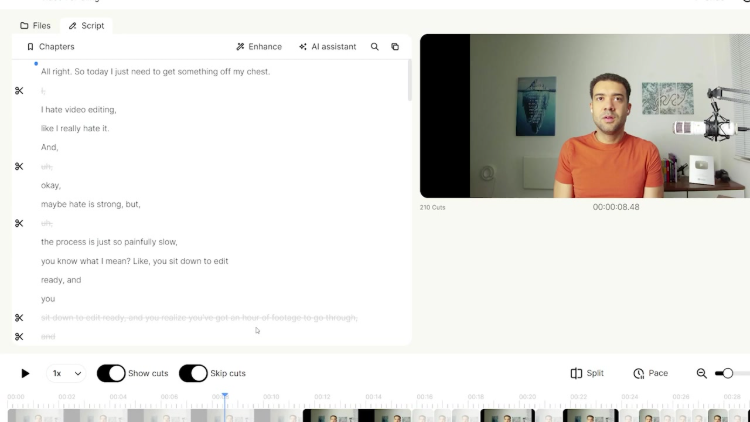
The review view: cut lines struck through and greyed in the transcript on the left, the same cuts as pale blocks along the timeline below, and the kept footage in full colour.
The audio enhancement is worth turning on. I tested the toggle off and on back to back on the same file. With it off, the room echo and background noise are obvious. With it on, it cleans up straight away. If you record in a spare room rather than a studio, this alone is worth the import.
B-roll goes in automatically. Turn it on under Enhance and wait about 30 seconds. Purple blocks appear on the timeline where it thinks B-roll belongs. Click one and you can see the search phrase it used to find that clip, and swap it for something else.
Chapters take one click. It reads the transcript, splits the video into topics, names them and gives you timestamps you can copy straight into the description.
I used all of this on a video that went on to do over 200,000 views. The full walkthrough is in Gling — the five automations I use on every video, and there is more detail on the app itself in Gling — hands-on review.
Where Gling falls short
The free plan cannot export to Premiere, Final Cut or Resolve. Gling states this plainly in its own help answers. You can run the full edit for free, watch it work and see the cuts. You just cannot take them anywhere except an MP4 with a watermark. The one feature this whole page is about is behind a paid plan, so go in knowing that.
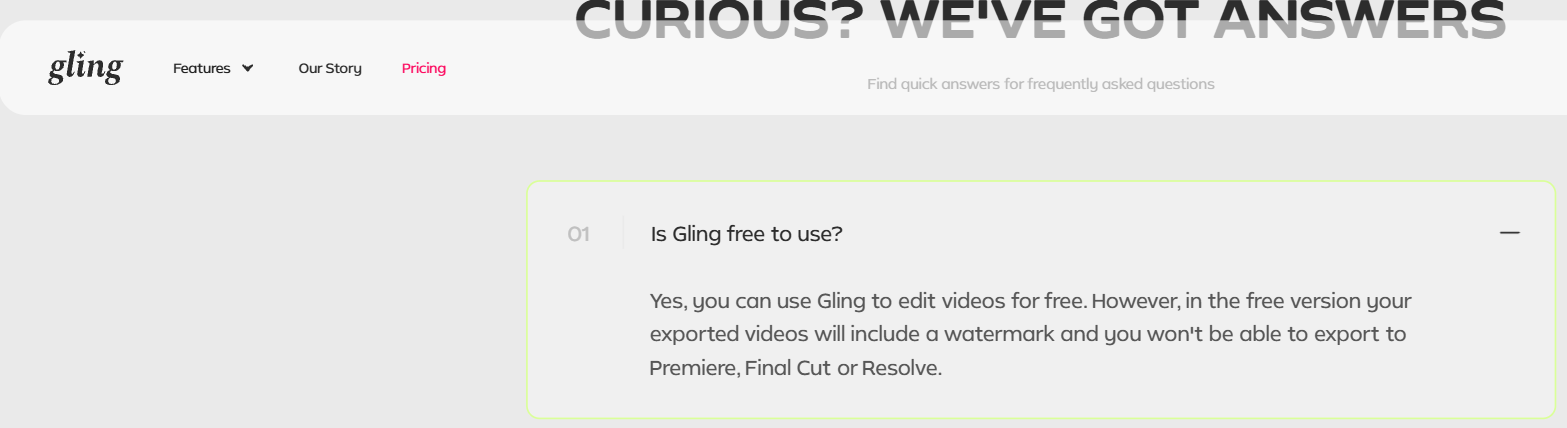
Gling's pricing page FAQ, captured 7 September 2026, stating that the free version watermarks exports and cannot export to Premiere, Final Cut or Resolve.
Multi-camera support does not reach Premiere. If you shoot two angles, Gling handles it only when you are exporting to Resolve or Final Cut. Premiere users sync first, upload the synced file, and get a single-camera edit back. The same restriction applies if your audio is on a separate recorder.
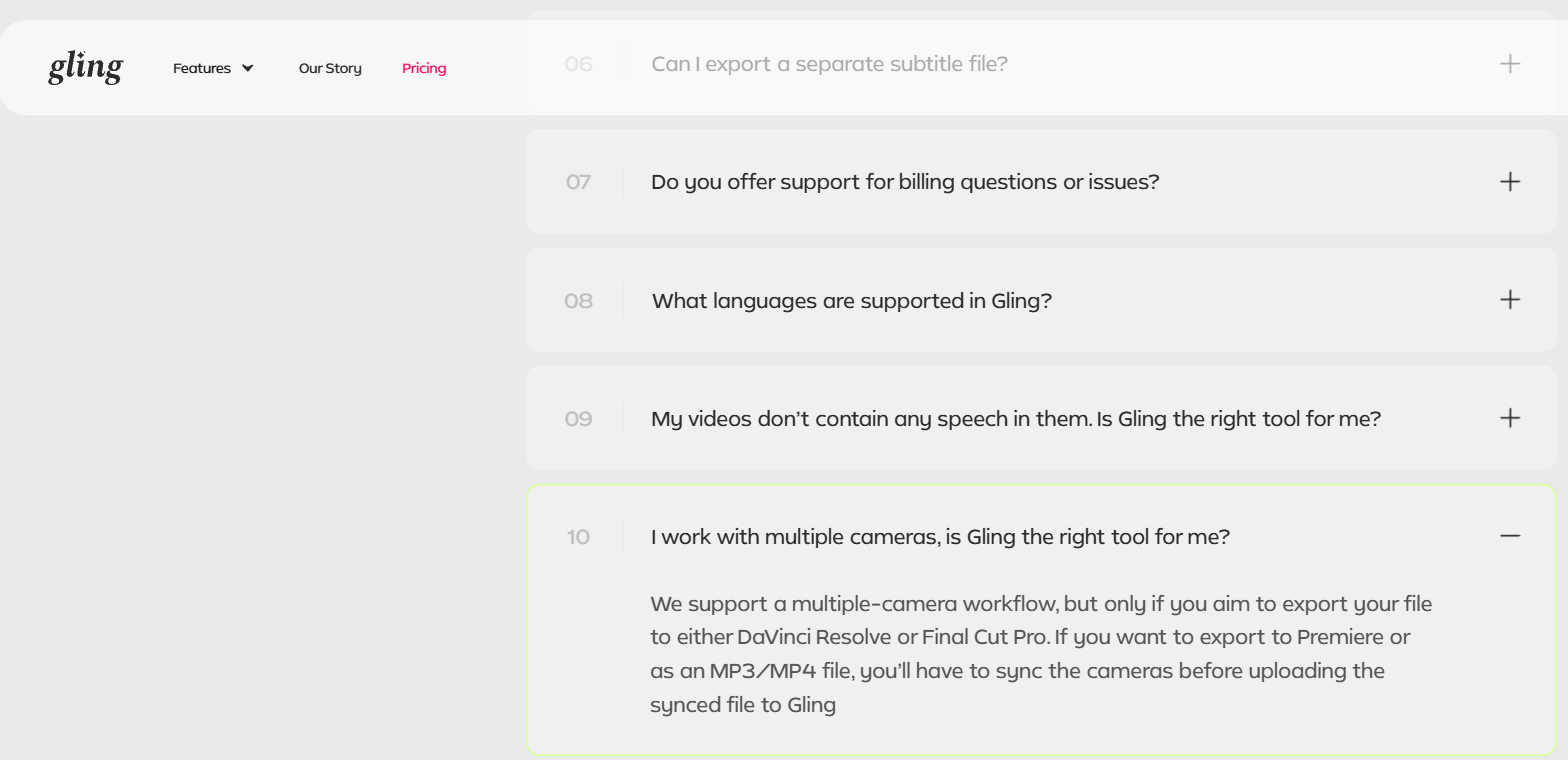
The same FAQ, captured 7 September 2026, confirming multi-camera works only when exporting to DaVinci Resolve or Final Cut Pro, and that Premiere users must sync first.
Unused hours vanish at the end of the month. You are buying hours of media you can upload, not videos or exports, and they do not carry forward. Film in bursts and you will pay for months you barely use.
The codec list is short. It stops at h264 and does not include ProRes or h265. Anyone shooting on a camera that records either has a transcode step before Gling even opens the file, and those are exactly the cameras a Premiere or Resolve editor is likely to own.
Desktop only, and they email you the link. There is no browser version, so you cannot start an edit on a machine that is not yours.
The interface is English only. It will transcribe speech in 25 languages, but you will be driving it in English regardless.
What else I considered
AutoCut runs inside Premiere as an extension, so nothing is exported and nothing is imported. If the objection you have to all of this is leaving the timeline at all, start there instead. I have not tested it.
TimeBolt takes the same route Gling does, cutting silence and handing Premiere an XML. I have not tested it either, so treat this as a name to look at rather than a comparison I have run.
Descript is the better pick when you would rather stop using a timeline entirely and edit by editing the text, exporting a finished file at the end. That is a genuinely different way to work rather than a worse one, and if the timeline is not sacred to you it is worth a look. I have written up Descript — the features I use in my own workflow separately.
What Gling costs
Gling meters hours of media you upload each month, not videos, exports or minutes of finished video. That is an unusual unit and it is the one to plan around, because a 40-minute recording costs you 40 minutes whether you publish 12 minutes or none.
There is a free tier, monthly plans, and the same plans cheaper if you pay for a year. Current figures are on Try Gling →.
Getting started
- Download the desktop app. Gling emails you the link, and there is no browser version to fall back on.
- Check your recording is a codec Gling lists. If your camera shoots ProRes or h265, transcode to h264 first.
- On the import screen, tick all three. Silences, filler words and bad takes.
- Read the transcript before you export anything. If it struck through a line you wanted, click it back.
- Export the XML, open it in Premiere, and spend your evening on the part of the edit a person should be doing.
You can do all 5 steps on the free tier except the last one, which is enough to decide whether the cuts are good before you pay for anything.
Method and freshness
The first-hand parts of this page come from my own edits, linked above. Gling's own pricing page and help answers were read on 27 August 2026 to confirm the export restriction on the free plan, the multi-camera and separate-mic limits, the codec list and the way the plans are metered. I have not tested AutoCut, TimeBolt or Descript against Gling on the same recording, and nothing above should be read as a comparison I have run.