HeyGen Translation Tutorial: How I Cloned My Voice into 5 Languages
Last updated: July 2026
Author: Greg Preece — I test AI video tools hands-on to help creators expand their reach and produce high-quality localized content.
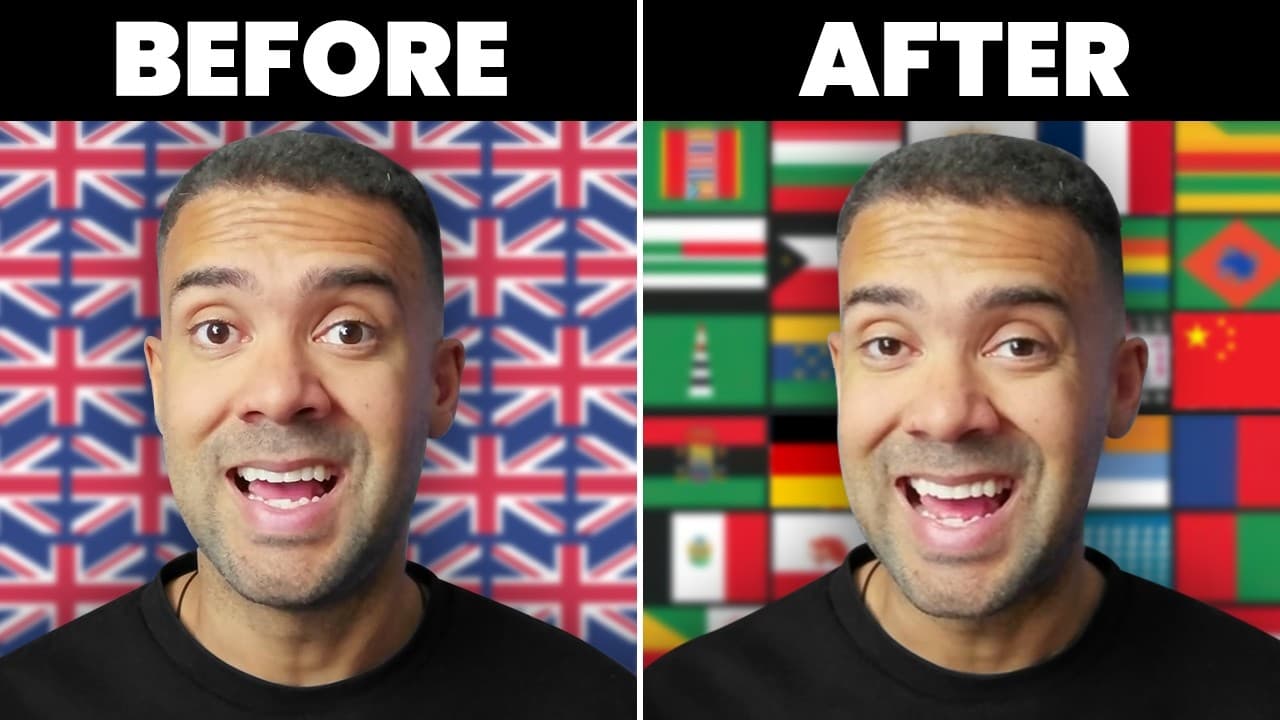
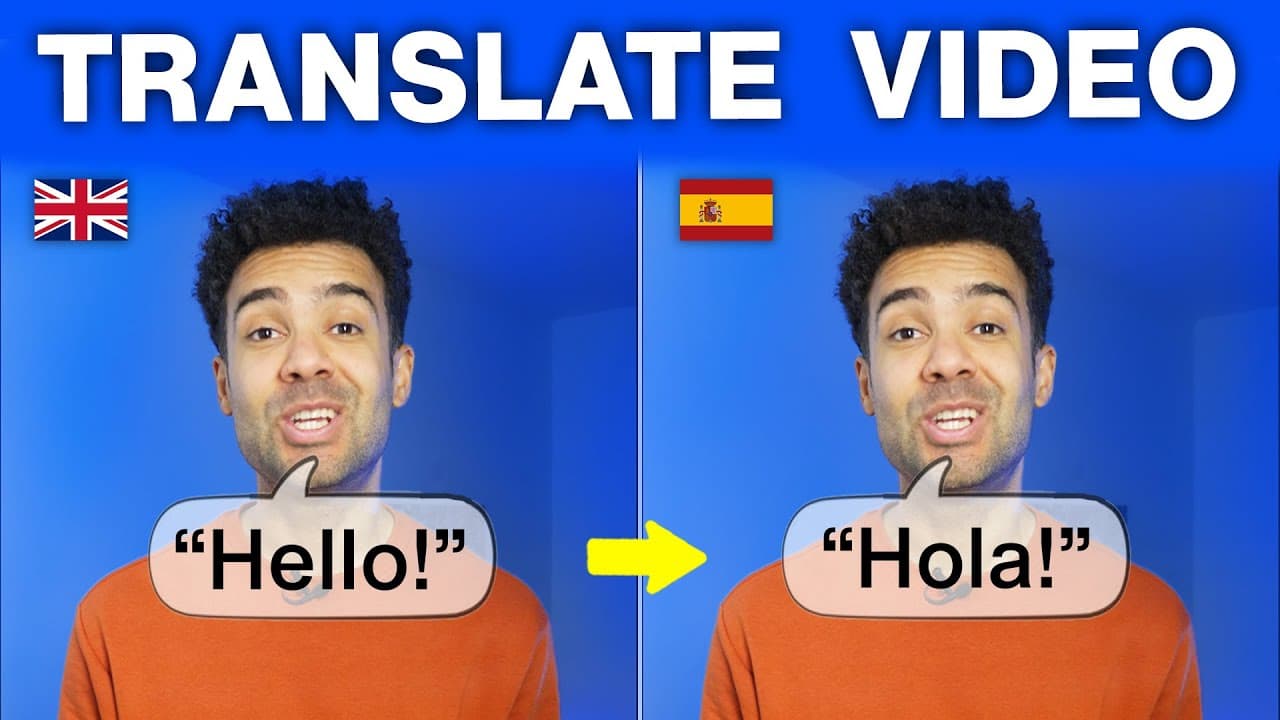
Translating your video content into multiple languages used to require expensive voice actors, complex script translations, and hours of video editing. In this HeyGen translation tutorial, I will show you how to use AI to clone your voice, translate your videos, and sync your lips automatically. By the end of this guide, you will be able to expand your global audience using a single source video.
Quick Summary
- The Tool: HeyGen's Video Translate tool (found in the Labs section).
- The Core Benefit: Automatically translates video speech, clones your voice in the target language, and modifies lip movements to match.
- What You Need: A short source video (at least 30 seconds long) with clear audio and a single speaker.
- Difficulty: Very easy (completed in just a few clicks).
Prefer to watch? Here's the video. Prefer to skim? The full breakdown is below.
HeyGen: Try it here: Try HeyGen →
Table of Contents
- Why Translate Your Videos?
- How to Use the HeyGen Video Translate Tool
- Best Practices for Perfect AI Dubbing
- What's Next: Creating Short Clips from Your Translations
- Frequently Asked Questions
Why Translate Your Videos?
The language barrier is one of the biggest roadblocks to growing an audience. If you only publish videos in English, you are missing out on billions of potential viewers who speak Spanish, Hindi, Portuguese, Mandarin, or Italian.
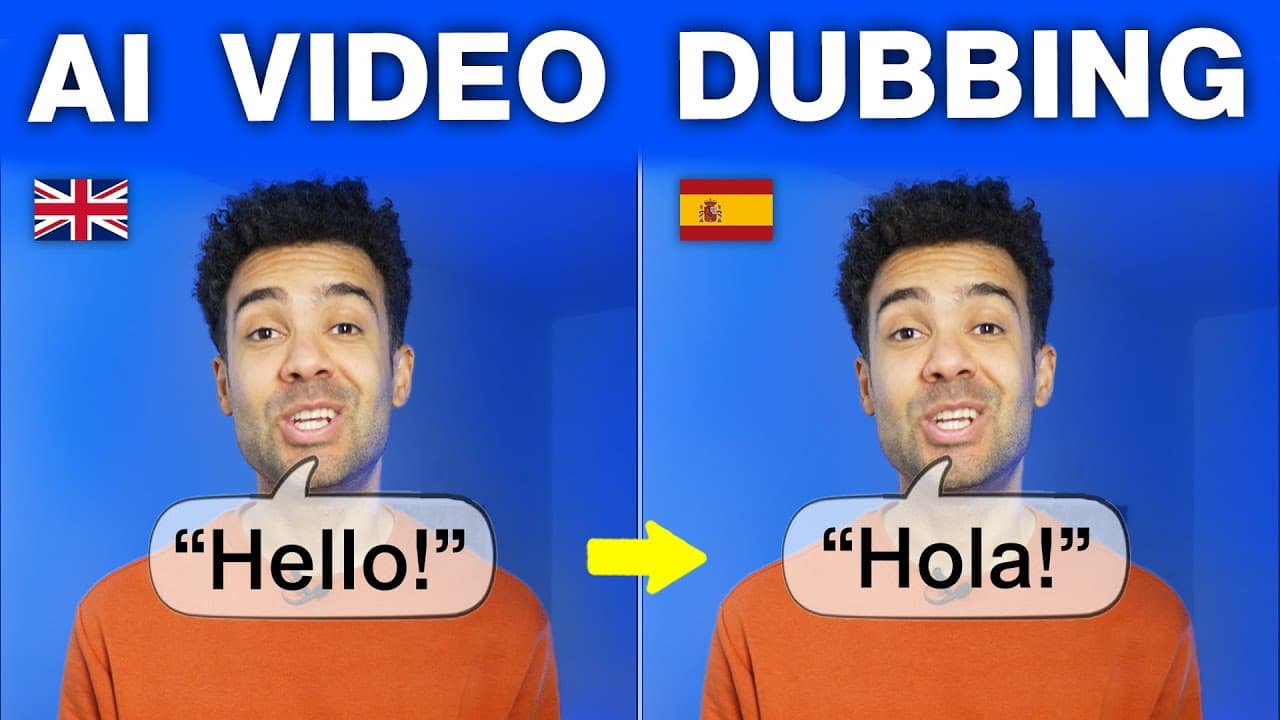
Using a dedicated AI video translator solves this problem without forcing you to learn a new language or hire voice actors. When I tested this tool, I found that the HeyGen AI video translator handles three massive challenges simultaneously:
- Translates the Script: It converts your spoken words into your chosen target language.
- Clones Your Voice: It clones your voice so that you sound exactly like yourself, maintaining your original tone and cadence in a completely different language.
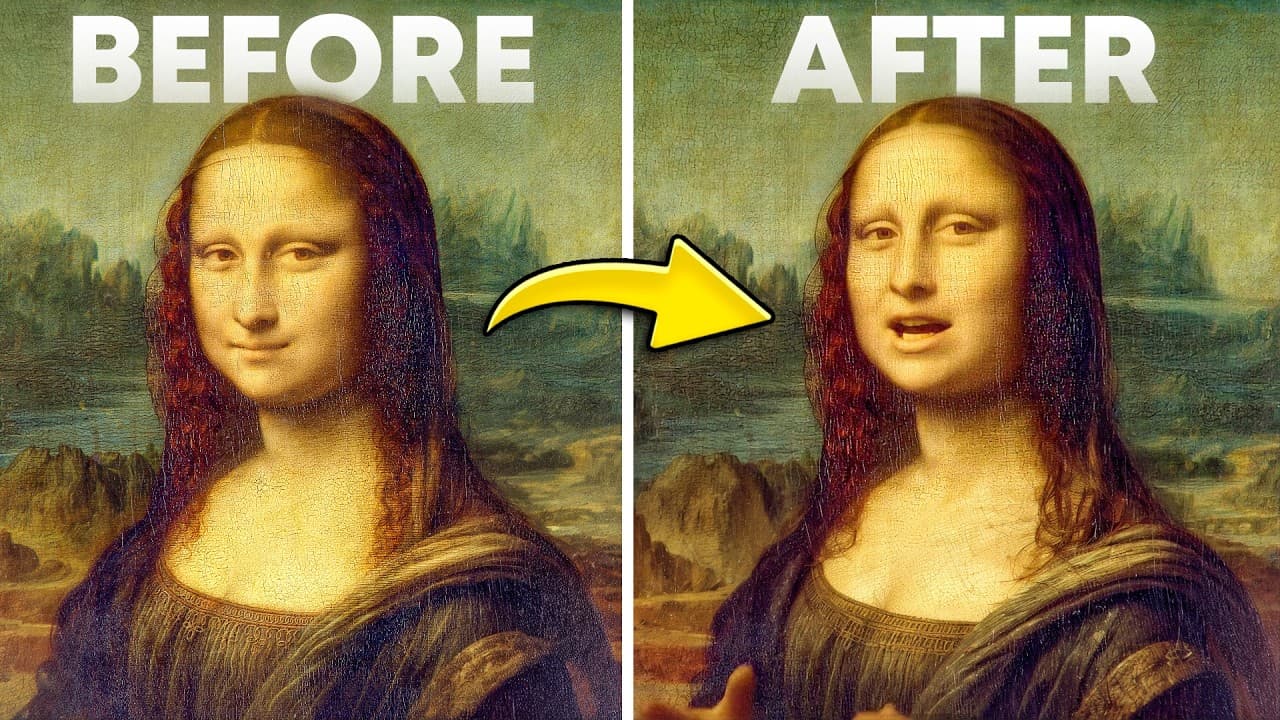
- Applies Lip-Syncing: It modifies your mouth movements in the video so that you actually look like you are naturally speaking the target language.
The best part? You don't need hours of training data. I only needed a 30-second video of myself speaking to complete the entire translation process.
How to Use the HeyGen Video Translate Tool
If you want to use HeyGen auto translation to localize your content, follow this simple step-by-step workflow.
Step 1: Navigate to the Video Translate Labs Tool
Log in to your dashboard. From the main menu, navigate to the Labs section. This is where the newest experimental AI video tools are hosted.
Within the Labs menu, click on the Video Translate tool.
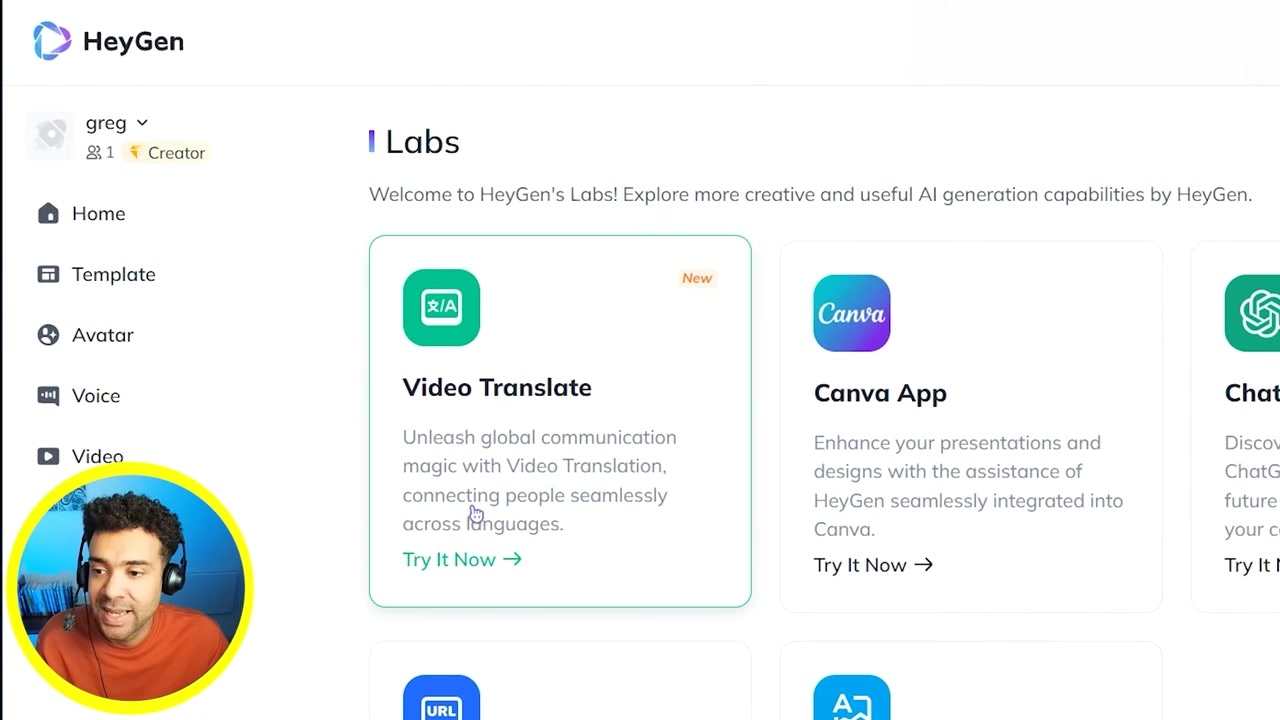
Caption: Inside the HeyGen interface, navigate to the Labs section to find the Video Translate tool.
Step 2: Upload Your Video File
Take the video file you want to translate and drag and drop it directly into the upload area.
I originally spoke my source video entirely in English. During my testing, I found that the AI works best on videos with no background noise when there’s just a single speaker talking.
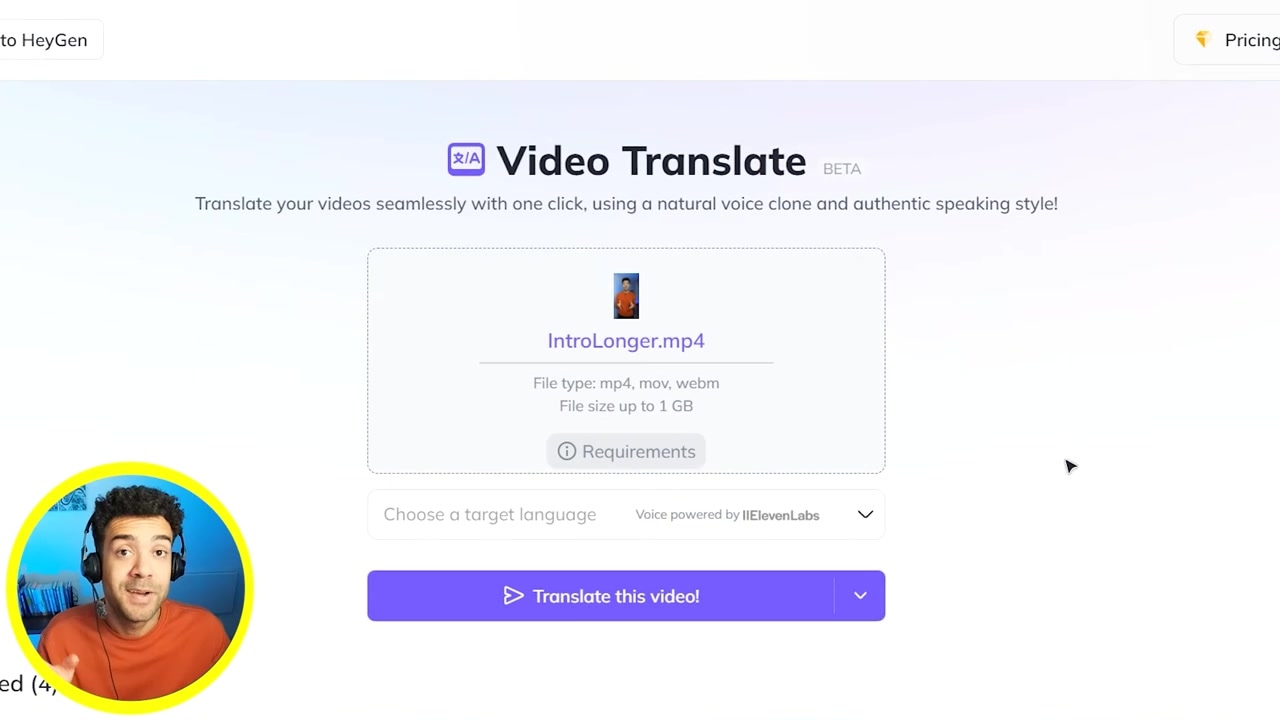
Caption: Drag and drop your original video into the translation window. For best results, use a clean audio track with a single speaker.
Step 3: Select Your Target Language
Click on the language selection box to choose the target language you want your original video translated to.
HeyGen offers an extensive selection of languages. This allows you to reach a massive audience outside of English speakers. For this example, I selected Portuguese, but I have also successfully translated my footage into Spanish, Hindi, Mandarin, and Italian.
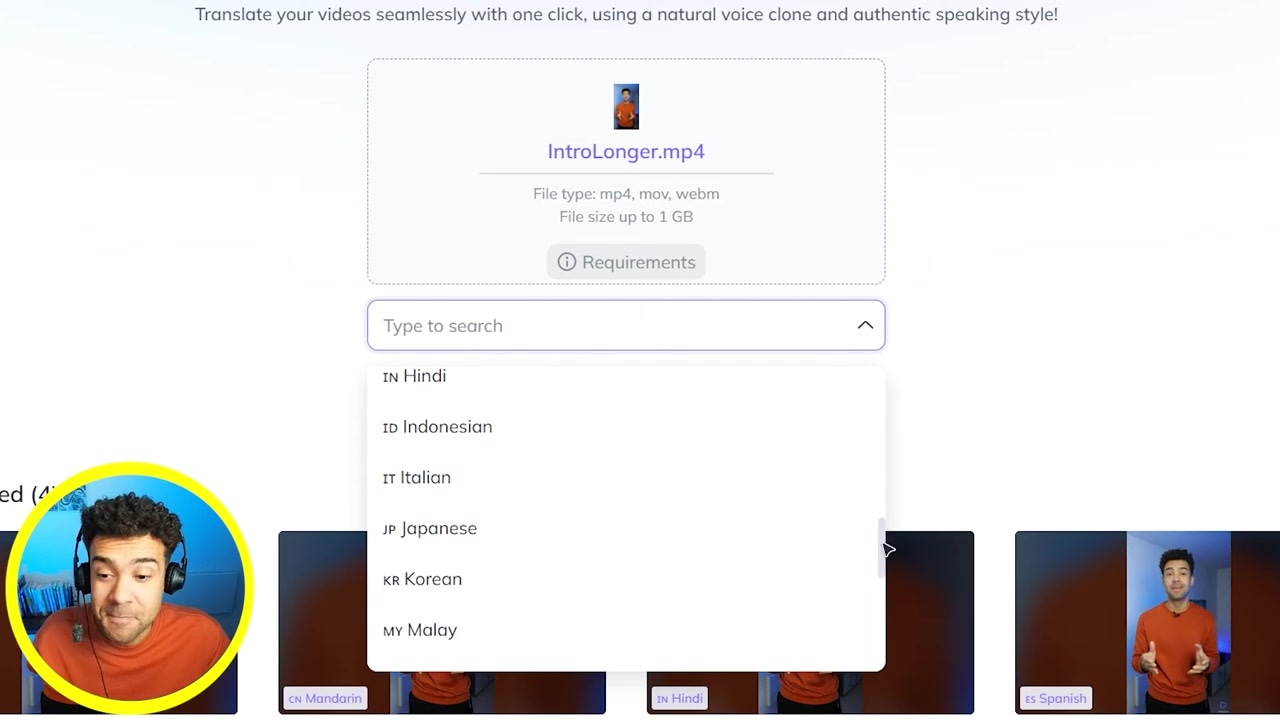
Caption: Choose your target language from HeyGen’s extensive dropdown list. In this tutorial, we are selecting Portuguese.
Step 4: Submit and Process the Translation
Once your video is uploaded and your target language is selected, click the submit button.
The tool will upload your file and begin processing the AI video translation. You can monitor the progress queue at the bottom of your screen.
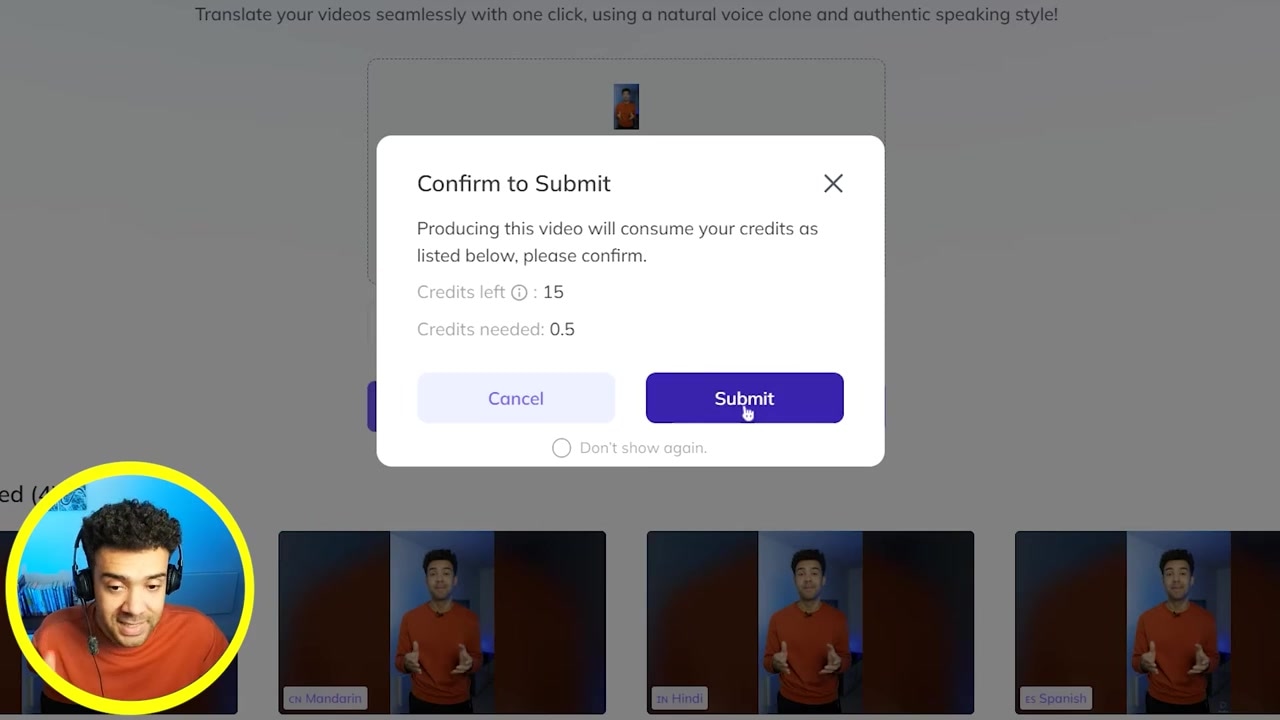
Caption: Click submit to upload the video and start the AI dubbing and lip-syncing process.
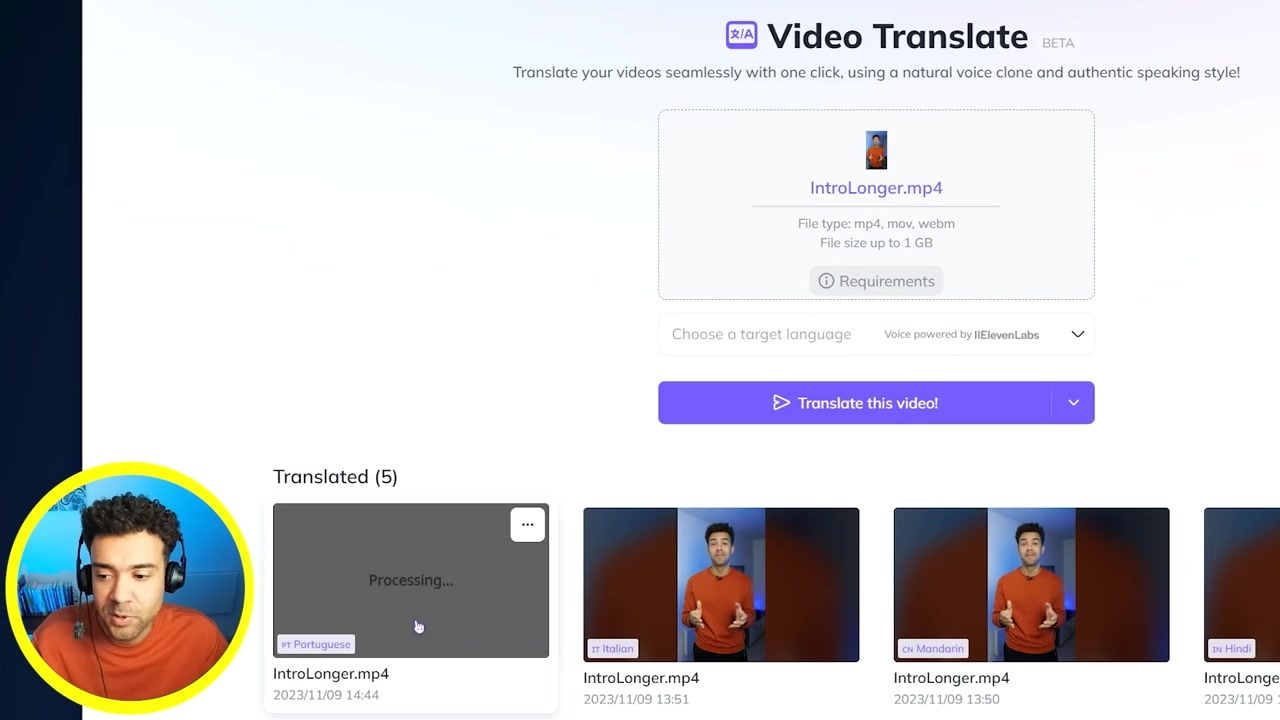
Caption: Track your progress at the bottom of the screen as the AI works on voice cloning and lip-syncing.
Once processing is complete, your localized video will be ready for download, featuring your cloned voice and perfectly matched lip movements.
Best Practices for Perfect AI Dubbing
To get the most realistic results from your HeyGen lip sync translation, keep these three factors in mind before filming your source video:
- Minimize Background Noise: Ensure there is no background music, traffic noise, or room echo. The voice-cloning algorithm performs significantly better when your audio track is clean and dry.
- Stick to a Single Speaker: Ensure there is only one person talking directly to the camera. Multiple speakers or off-camera voices can confuse the translation engine.
- Keep Your Mouth Visible: Avoid obstruction of your face. To get perfect lip-syncing, the AI needs a clear, unobstructed view of your mouth movements throughout the video.
Ready to test this workflow yourself? You can try out the translation feature on the official platform: Try HeyGen →
What's Next: Creating Short Clips from Your Translations
Once you have translated your long-form videos into foreign languages, the next logical step is to chop them up into short clips (like TikToks, YouTube Shorts, or Instagram Reels). This lets you double down on your global reach across multiple social media platforms.
Using dedicated AI video tools to automate this clipping process is the most efficient way to scale.
Frequently Asked Questions
Do I need to record a long audio sample to clone my voice in HeyGen?
No. You only need a video of about 30 seconds of you speaking to allow HeyGen to translate your video and clone your voice into different languages.
How many languages does HeyGen support for video translation?
HeyGen supports a wide variety of global languages, including Spanish, Portuguese, Hindi, Mandarin, Italian, German, and many others.
Does the lip-sync look realistic?
Yes, the AI auto-translation tool modifies your lip and mouth movements in the video to sync perfectly with the translated audio, making it look incredibly realistic.