I Tested the Best AI Shorts Maker: Why I Use OpusClip Over CapCut
Last updated: July 2026
Author: Greg Preece — I test AI video tools hands-on to find workflows that save creators time and help them grow their channels.
If you are still trying to use CapCut’s automatic long-to-shorts tool, you might be frustrated with the results. While CapCut is a fantastic manual editor for stitching together your own footage, its automated AI features are too raw to compete. After testing the top options on the market, I've found that OpusClip is the premier AI shorts maker for turning long-form videos into viral clips with zero manual friction.
TL;DR: The Quick Verdict
- Why CapCut Struggles: It requires local file downloads and lacks advanced automatic features like semantic topic targeting, intelligent bleeping, and automatic B-roll.
- The Winner: OpusClip is the leading AI shorts maker. It allows direct cloud imports via link pasting, topic-driven AI prompting, automated word-censor systems, and context-aware, editable B-roll.
- Best For: Podcasters, stream-clippers, and content creators who need to generate highly relevant, platform-ready YouTube Shorts, TikToks, or Instagram Reels quickly.
Prefer to watch? Here's the video. Prefer to skim? The full breakdown is below.
Try OpusClip For Free
Try it here: Try OPUS_CLIP →
Table of Contents
- Why CapCut Struggles
- 1. Direct Cloud Import
- 2. Topic-Targeted AI Prompting
- 3. Automatic Swear Word Censoring
- 4. AI-Generated B-Roll with Custom Prompts
- Conclusion
- FAQ
Why [CapCut](/articles/opusclip-pricing) Struggles
Using an editor like CapCut to manually trim and format a YouTube Short you filmed yourself works wonderfully. But when it comes to CapCut's AI feature designed to automatically convert a finished long video into multiple Shorts, the experience falls flat.
The tool is simply too new to compete. It lacks the streamlined, automated features that make content repurposing seamless. After testing these workflows side-by-side, I’ve found that OpusClip stands out as the superior AI shorts maker. It handles the entire "long-to-short" conversion process on autopilot.
Here are the four key features I tested in OpusClip that prove why it is the better choice for automated video repurposing.
1. Direct Cloud Import
One of the biggest friction points in video editing is downloading and uploading massive files. With CapCut's long-to-shorts tool, you are forced to have the long-form video file sitting locally on your computer to upload it.
OpusClip eliminates this step. You can pull videos directly from almost any video hosting or social platform online.
How to Import via Cloud Link:
- Copy the public link of your long-form video (such as a YouTube podcast or livestream).
- Navigate to the OpusClip dashboard.
- Paste the URL directly into the import box.
- The AI will immediately begin pulling the footage from the cloud, saving you gigabytes of local storage and precious download time.
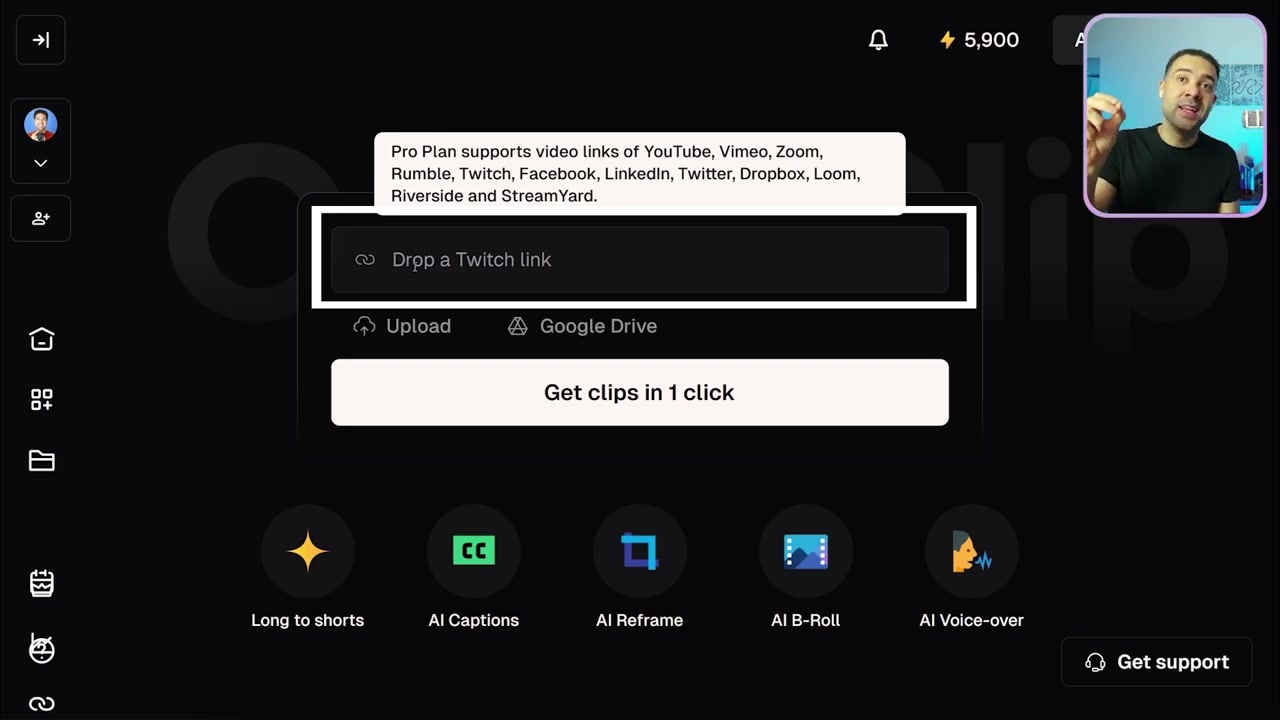
Caption: The OpusClip home screen allows you to paste video links directly from platforms like YouTube, Vimeo, Zoom, Rumble, Twitch, Facebook, and LinkedIn.
2. Topic-Targeted AI Prompting
Most standard AI clip generators run on autopilot but leave you with random, generic clips that miss the actual core of your conversation. If you’ve already watched your video, you know exactly which highlights will perform best.
OpusClip allows you to feed prompts directly into the clipping algorithm to isolate those precise moments.
How to Guide the AI with Prompts:
- Import your long video into OpusClip.
- Scroll down to the Prompt section on the setup dashboard.
- Type in the specific topics, themes, or segments you want to focus on (e.g., "artificial intelligence trends" or "startup advice").
- Run the generator to receive highly targeted, contextually relevant clips instead of random segments.
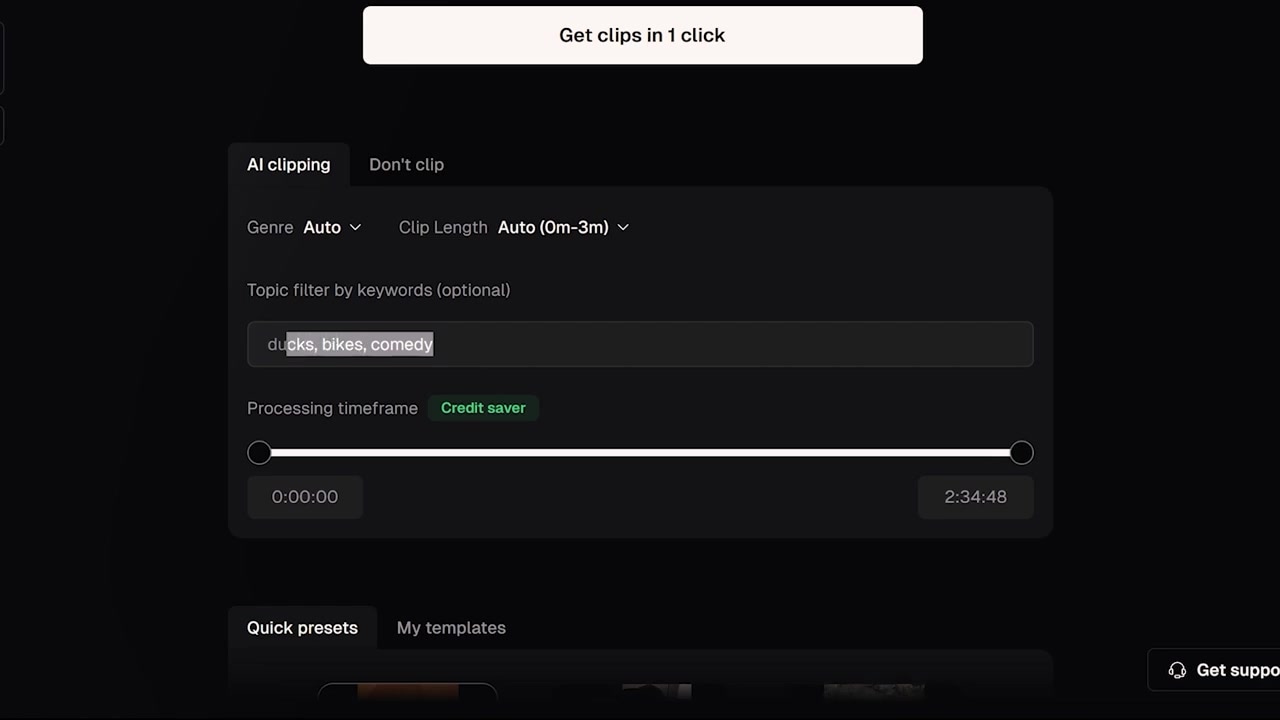
Caption: Feeding specific topic prompts to the OpusClip algorithm ensures the generated shorts focus strictly on the highlights you care about.
3. Automatic Swear Word Censoring
Platform guidelines and audience preferences can make swearing a liability. YouTube occasionally demonetizes channels that feature excessive cursing, and some audiences simply prefer clean content. Manually cutting or bleeping out swear words on an editor's timeline is tedious.
In OpusClip, you can auto-censor your short-form videos with a single click.
How to Auto-Censor Swear Words:
- Open your generated short in the editor interface.
- Select AI Enhance from the toolbar on the left.
- Toggle the Auto Censor feature.
- Ensure the default curse words list is checked.
- Click the censor button. The AI will automatically isolate the exact audio frames of the swear word, apply a bleep sound, and update your vertical text transcript to match.
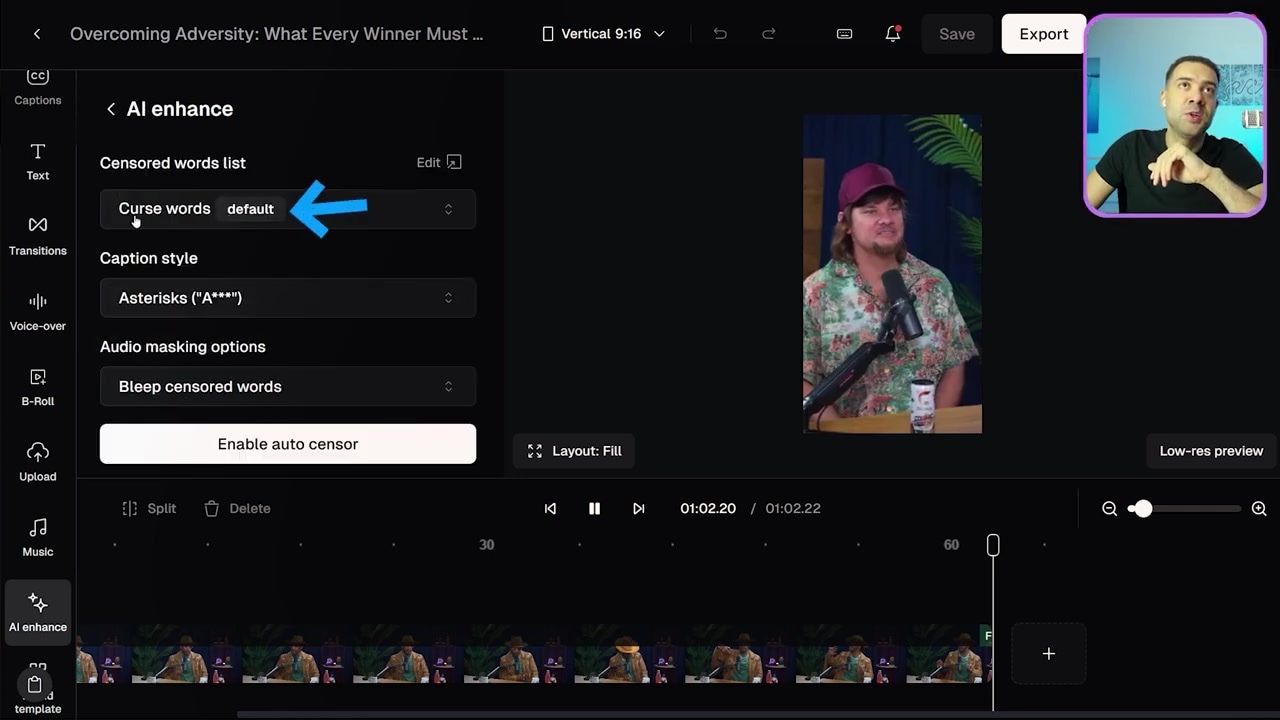
Caption: Activating the Auto Censor feature under AI Enhance instantly bleeps out targeted curse words across both audio and transcription.
In my test, I ran a clip that ended with the phrase "...so that you were able to then [censor] ride." The AI identified the exact word, bleeped it, and kept the pacing perfectly natural.
4. AI-Generated B-Roll with Custom Prompts
Retention on vertical video platforms relies heavily on visual hooks. Watching a talking head for 60 seconds is rarely enough to keep viewers engaged. While most clipping apps force you to manually source and overlay extra footage, OpusClip features context-aware, automated AI B-roll generation.
How to Automatically Generate and Customize B-Roll:
- Click the B-roll option on the left-hand editor panel.
- Select Auto Generate AI B-roll.
- The AI will analyze your audio transcript, understand the context of what is being discussed, and generate relevant overlay visuals in 30 to 60 seconds.
- To refine or replace a generated asset, simply click on the B-roll element in the timeline.
- Edit the text prompt at the bottom (for example, modifying the default "books" image to "a pile of books on fire").
- Click Regenerate to instantly generate four new AI image variations.
- Select your preferred image to automatically update the video preview.
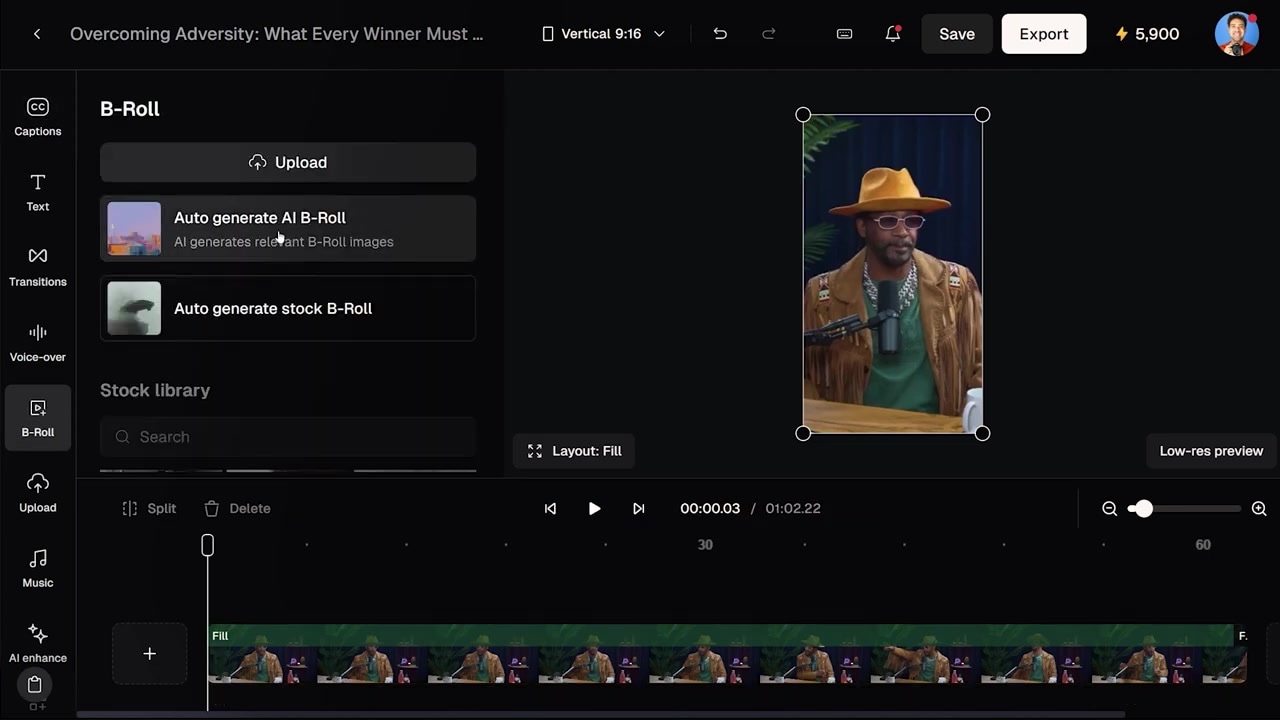
Caption: Selecting the Auto Generate AI B-roll button on the left sidebar prompts the AI to insert contextually relevant visuals based on the spoken transcript.
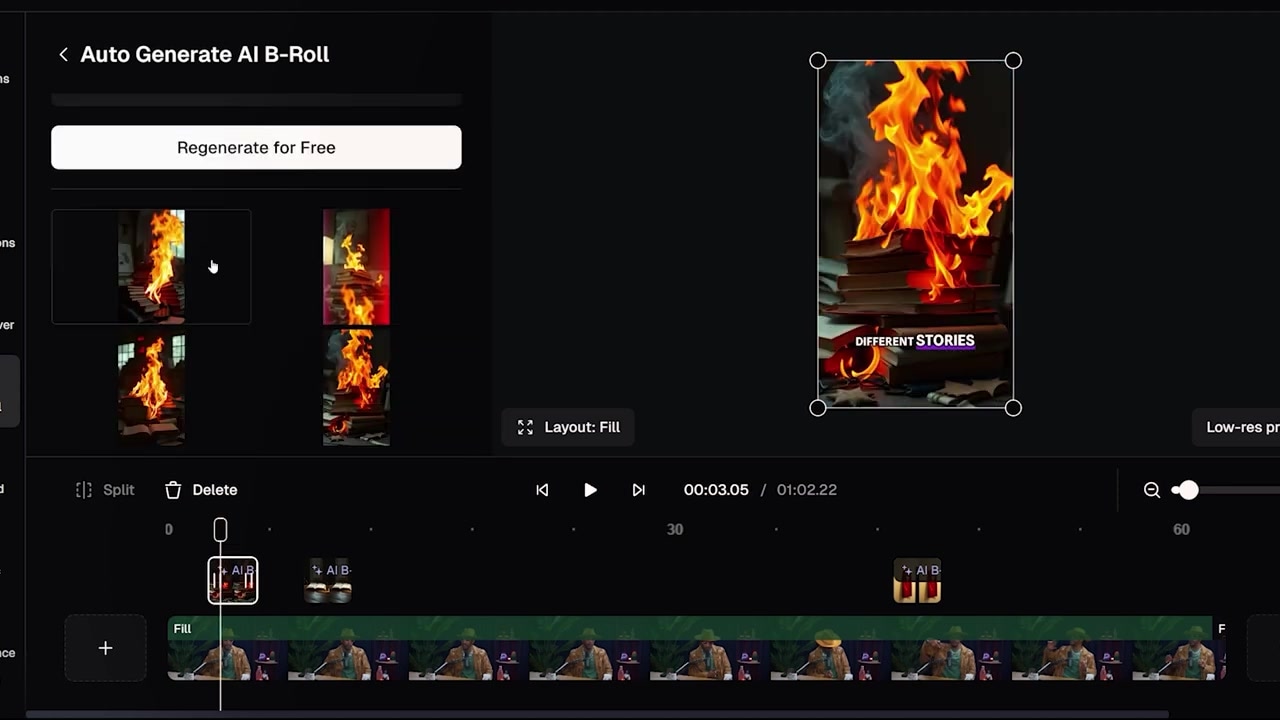
Caption: Clicking on any generated B-roll asset allows you to enter a custom text prompt, regenerate four alternatives, and apply the perfect match.
During my test, the AI understood the speaker was talking about "stories" and initially pulled a clean visual of books. By entering the custom prompt "a pile of books on fire", I easily updated the aesthetic to make the clip look exactly how I wanted.
Conclusion
When it comes to picking an AI shorts maker, CapCut is a fantastic powerhouse for manual video editing, but its automatic long-to-shorts conversion features can't keep up yet.
With cloud-based direct imports, precise topic prompting, automatic censoring, and highly customizable AI B-roll, OpusClip makes content repurposing an absolute breeze.
Try OpusClip with a free trial to see how it can transform your workflow: Try OPUS_CLIP →
If you're eager to build a modern, automated workflow to scale your channel, check out other essential AI tools designed to make video production easier.
FAQ
Does OpusClip support video links from sites other than YouTube?
Yes. You can import videos from Vimeo, Zoom, Rumble, Twitch, Facebook, and LinkedIn directly into the platform without downloading files first.
Can I manually edit the AI-generated transcripts?
Absolutely. OpusClip allows you to review the generated text transcripts frame-by-frame, edit word spellings, and adjust timestamps directly inside the editor timeline.
How does the Auto Censor work?
The AI automatically scans the transcript of your short, flags target swear words, and replaces the spoken audio with a standard bleep sound while updating the text subtitles.