Opus Clip Tutorial: How I Generate Viral Shorts (The Right Settings)
Last updated: July 2026
Author: Greg Preece — I test AI video tools hands-on to find workflows that actually get results. I've used Opus Clip to repurpose my own podcast episodes and grow my channels.
Repurposing long-form content into vertical videos is one of the fastest ways to grow on TikTok, Instagram, and YouTube. In this tutorial, I will show you how to use Opus Clip step-by-step to generate thousands of viral short-form clips in minutes—and the exact settings you need to select so your clips actually get views.
| Feature | Details |
|---|---|
| Primary Use Case | Turning long-form videos (like podcasts or webinars) into short-form, vertical videos with AI-generated captions and reframing. |
| Pricing | Free tier (60 credits a month, watermarked), paid plans start at $15/month on the Starter tier (verify on official site). |
| Output Range | Easily gets 10–25+ viral clips per long video, ranked by a "Virality Score". |
| Ease of Use | High—fully automated with text-based editing capabilities and single-click direct publishing to social media. |
Prefer to watch? Here's the video. Prefer to skim? The full breakdown is below.
Quick Link
Opus Clip: Try it here: Try Opus Clip →
Table of Contents
- What is Opus Clip?
- Step-by-Step: How to Use Opus Clip Correctly
- Editing and Fine-Tuning Your AI Clips
- One-Click Publishing to Social Media
- How to Scale: Generating Thousands of Clips in Minutes
- Final Verdict: Is Opus Clip Worth It?
- Frequently Asked Questions
What is Opus Clip?
Opus Clip is an AI video clipping tool designed to automatically cut long-form videos (such as podcasts, interviews, or lectures) into highly engaging, vertical short-form clips.
The AI does more than just slice your timeline. It transcribes your footage, identifies highly engaging "hook" moments, reframes horizontal video to fit a vertical 9:16 aspect ratio, and adds animated captions with styled text.
Opus Clip Pricing & Free Tiers
- Free Tier: Gives new users 60 credits a month to test the AI, enough for several clips, with a watermark on exports.
- Free-Forever Plan: This plan allows you to generate short videos without paying anything, but exports will include a small watermark.
- Monthly Paid Plans: Starting at just $15 per month on the Starter tier, upgrading removes watermarks and unlocks advanced features to fuel your channel growth. (Note: Always verify the latest pricing tiers and credits directly on the official site).
Step-by-Step: How to Use Opus Clip Correctly
Many creators simply dump a link into the software and hope for the best, only to wonder why their videos don't perform. If you don't choose the right parameters, the system won't yield optimal results.
Follow these steps to set up your workflow for success:
Step 1: Drop Your Long-Form Link
Once inside your account dashboard, copy the link to any YouTube video (such as a podcast episode you’ve published) and paste it into the main input box.
The AI will retrieve the video and prepare it for processing.
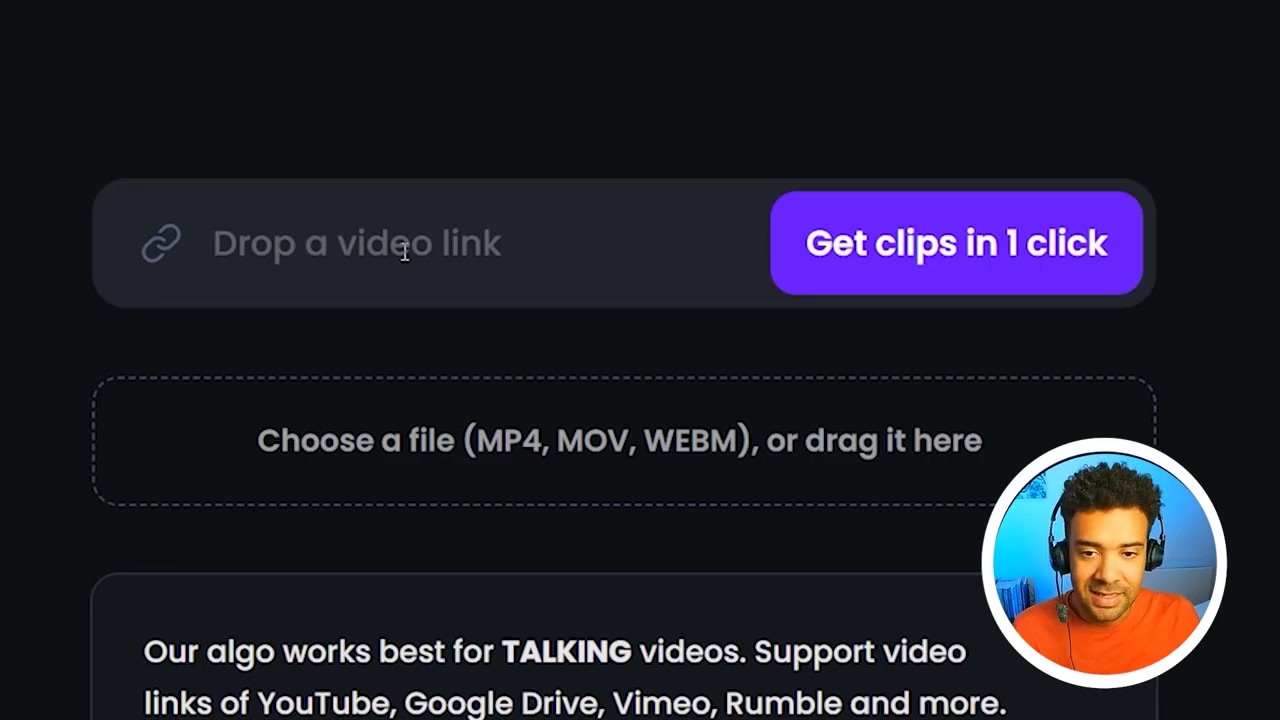
Caption: Simply copy your long-form YouTube URL and paste it into the main dashboard box to start.
Step 2: Configure Your Clip Length Settings
This is the most critical configuration step. Do not skip this!
You must restrict your clip output duration based on platform requirements:
- YouTube Shorts have a hard limit of 60 seconds.
- Instagram Reels have a maximum length of 90 seconds.
To ensure compliance across all major platforms, configure your settings to only generate clips that are less than 30 seconds or between 30 to 60 seconds. This guarantees your clips will fit seamlessly onto YouTube Shorts, TikTok, and Reels.
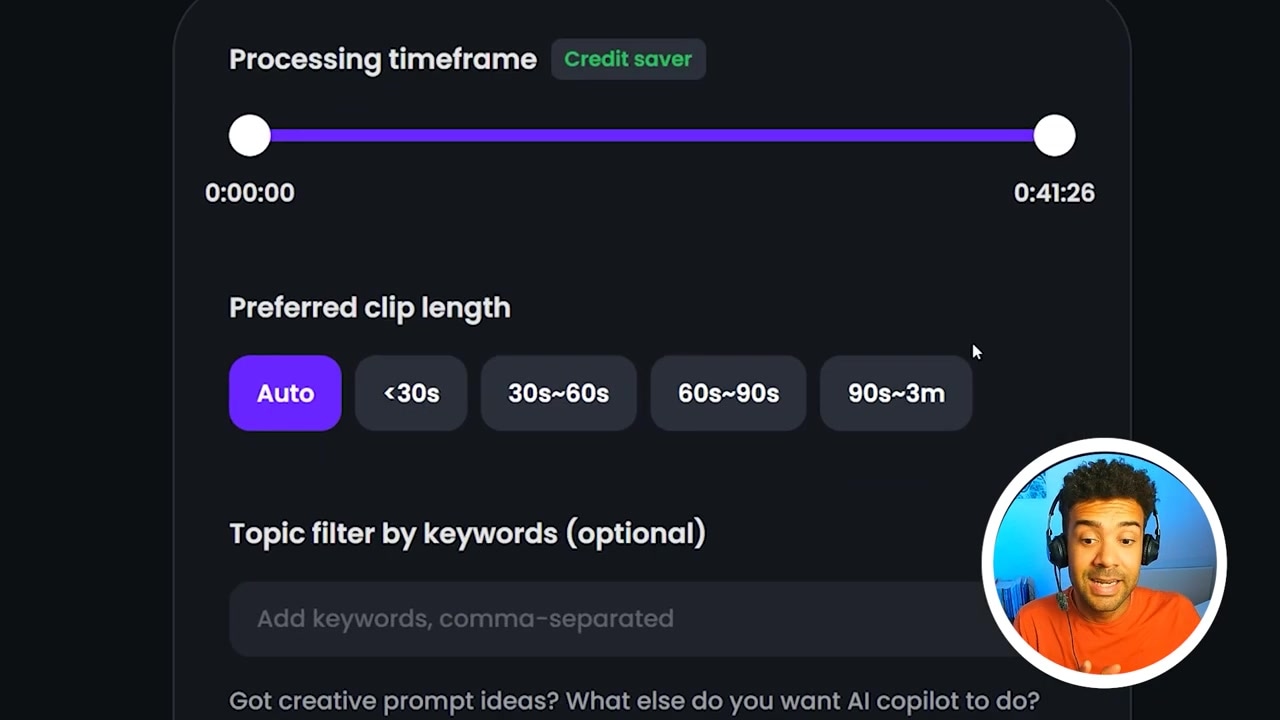
Caption: Make sure to restrict your clip lengths to under 30 seconds or 30–60 seconds for YouTube Shorts and Instagram Reels compliance.
Step 3: Run the AI and Wait
Once you have selected your length preferences, click the generate button. The AI will begin parsing your footage and chopping up your video.
Because processing runs in the cloud, you don't have to stay on the page. The platform will send you an email notification as soon as your batch of clips is ready.
Editing and Fine-Tuning Your AI Clips
Once processing completes, you will receive your dashboard of short-form videos. In my tests, feeding the AI a single long-form podcast episode automatically generated 23 fully subtitled clips.
The AI ranks each clip with a Virality Score, ordering them by how likely they are to capture attention and blow up on social feeds.
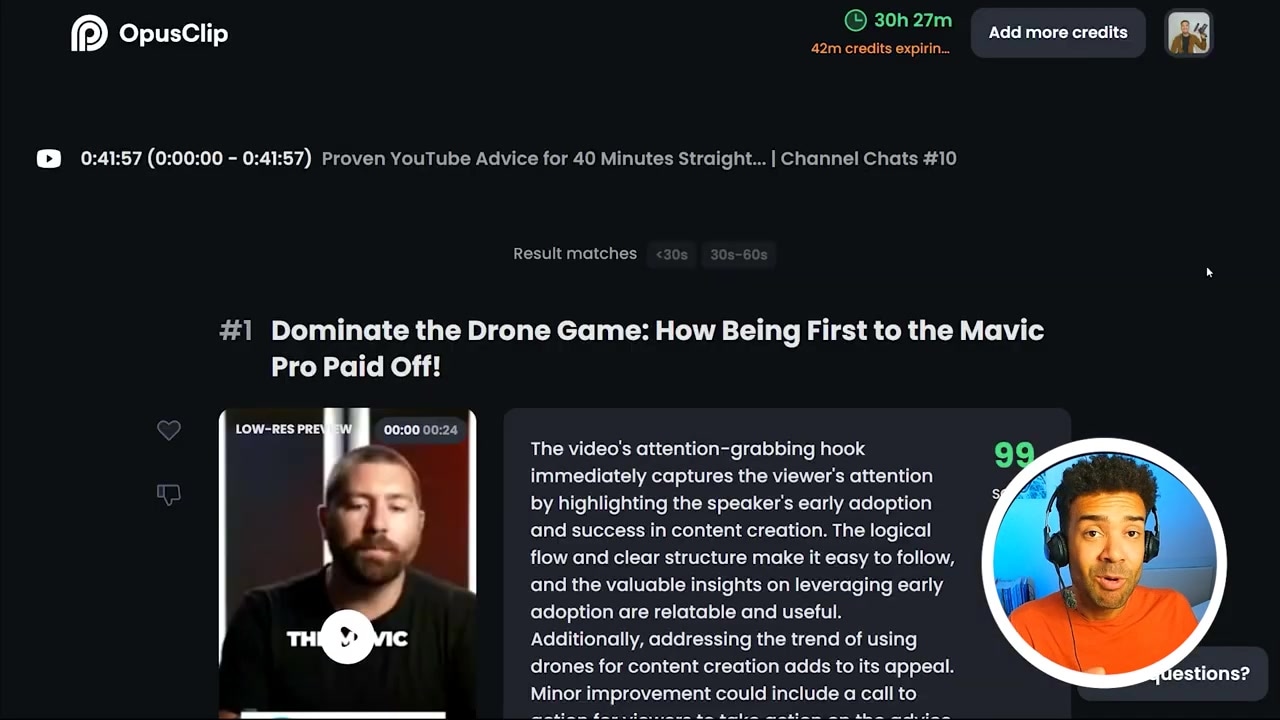
Caption: Once processing is complete, Opus Clip presents a list of ready-to-go short videos ranked by their predicted Virality Score.
While the AI-generated results are often solid right out of the box, you may want to customize individual clips before exporting. Click the Edit button under any clip to adjust the following:
Text-Based Trim Settings
Opus Clip converts the spoken audio in your video entirely to text. To change where your video starts or ends, you don't need to scrub a complex video timeline:
- Click the word in the transcript where you want your video to begin.
- Select Set as Start.
- Click the word where you want your clip to stop.
- Select Set as End.
This word-by-word editing makes clean-up quick and intuitive.
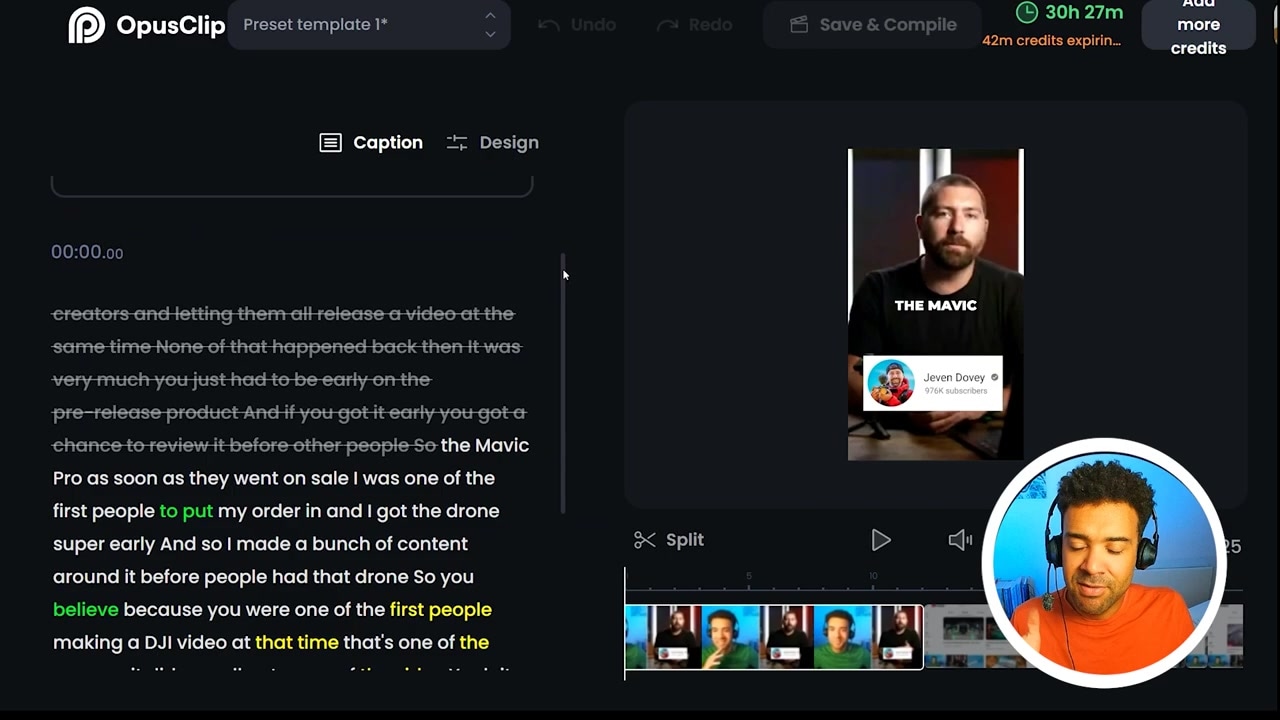
Caption: Set new start and end points for your clip by clicking specific words in the auto-generated transcript.
Caption Design and Emojis
By default, the AI auto-applies animated emojis based on keywords (for example, adding a clock emoji next to the word "time").
If you prefer a cleaner aesthetic, you can scroll down the design menu and turn off the emoji toggle. You can also customize your font size, colors, and styles.
Once you save these preferences into a style template, the platform remembers your choices and automatically applies them to all future clips.
One-Click Publishing to Social Media
Manually downloading dozens of files and re-uploading them to every separate social network eats up hours of your week.
My favorite feature of the platform is the direct-share tool. By clicking Share on any clip in your dashboard, you can connect your:
- YouTube Shorts channel
- TikTok account
- Instagram Reels account
Once connected, you can publish any of your generated clips directly to your social feeds in a single click.
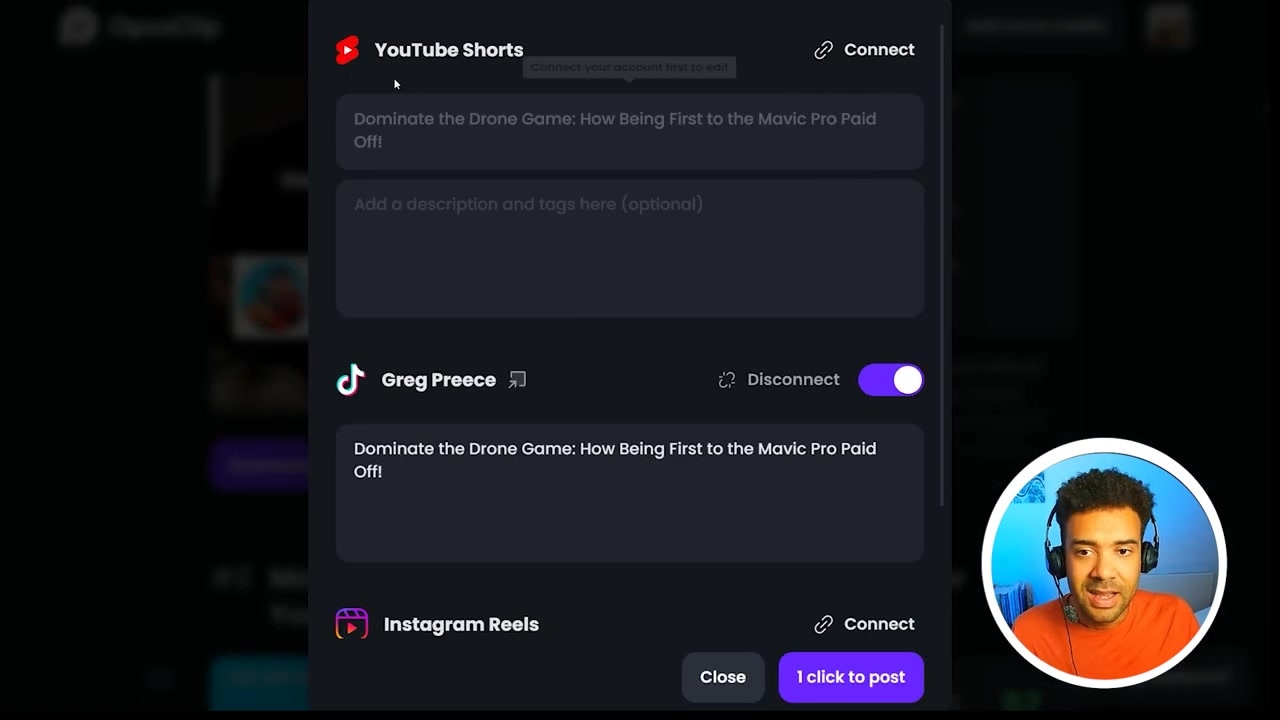
Caption: Use the share options to link your social accounts and auto-publish clips with a single click.
How to Scale: Generating Thousands of Clips in Minutes
If you want to build a high-frequency posting strategy, you can easily scale your clip generation to create thousands of shorts.
There is no limit to how many videos the platform can process at one time. You can use the Queue Method:
- Open multiple browser tabs pointing to the dashboard.
- Copy a long-form link and start processing it in the first tab.
- Open a second tab, paste a different long-form video link, and start processing.
- Repeat this process for 10, 20, or up to 50 videos at once.
The cloud-based AI will work on all queued videos concurrently. Once the batch is complete, you will receive an email. You can then return to your central dashboard to find thousands of fully compiled, captioned, and categorized shorts waiting for you.
Caption: To scale up to thousands of clips, open multiple browser tabs and queue up multiple long-form video links simultaneously.
Final Verdict: Is Opus Clip Worth It?
If you are a podcaster, streamer, or business looking to leverage short-form video without dedicating hours of your schedule to manual editing, Opus Clip functions like a full-time automated editor.
It lets you extract extra exposure, brand building, and advertising revenue out of the long-form content you’ve already created.
- Who it's for: Podcast hosts, active YouTubers, video marketers, and agencies managing multiple client social channels.
- Who it's not for: Creators who want absolute, custom frame-by-frame control over complex aesthetic transitions or B-roll timing.
Ready to scale your content? Try it here: Try Opus Clip →
Frequently Asked Questions
Does Opus Clip have a free plan?
Yes, Opus Clip offers a free-forever plan that allows you to generate short videos with a small watermark. There is also a free trial for new users to test out the software without watermarks for their first around 20 clips.
Why do my clips need to be under 60 seconds?
YouTube Shorts limit vertical videos to 60 seconds max, and Instagram Reels limit them to 90 seconds. Keeping your generated clips between 30 to 60 seconds ensures complete compatibility across both platforms.
Can I batch-process multiple videos at once?
Yes. The platform allows you to process multiple source videos simultaneously. You can open separate tabs to paste links and queue up to 50 videos concurrently, and the system will notify you by email once all clips are ready.