How I Use Automated Dubbing to Translate Videos (Tested)
Last updated: July 2026
Author: Greg Preece — I test AI video tools hands-on to help creators expand their reach, optimize workflows, and generate global views.
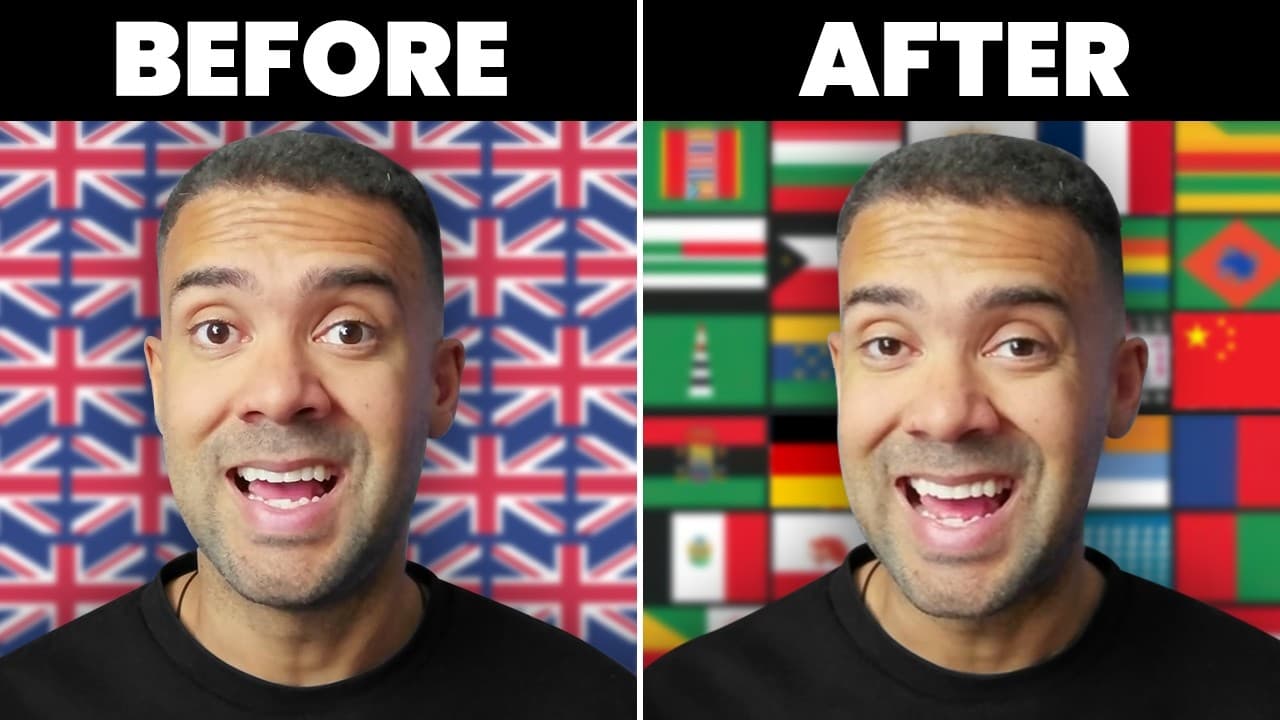
If you only produce videos in English, you are missing out on roughly 6.5 billion potential viewers worldwide. Thanks to YouTube's multi-language audio support and advanced AI localization tools, you can now seamlessly translate, dub, and clone your voice in dozens of languages. In this guide, I’ll show you exactly how to set up automated dubbing to unlock a massive global audience for your content.
TL;DR: The Quick Breakdown
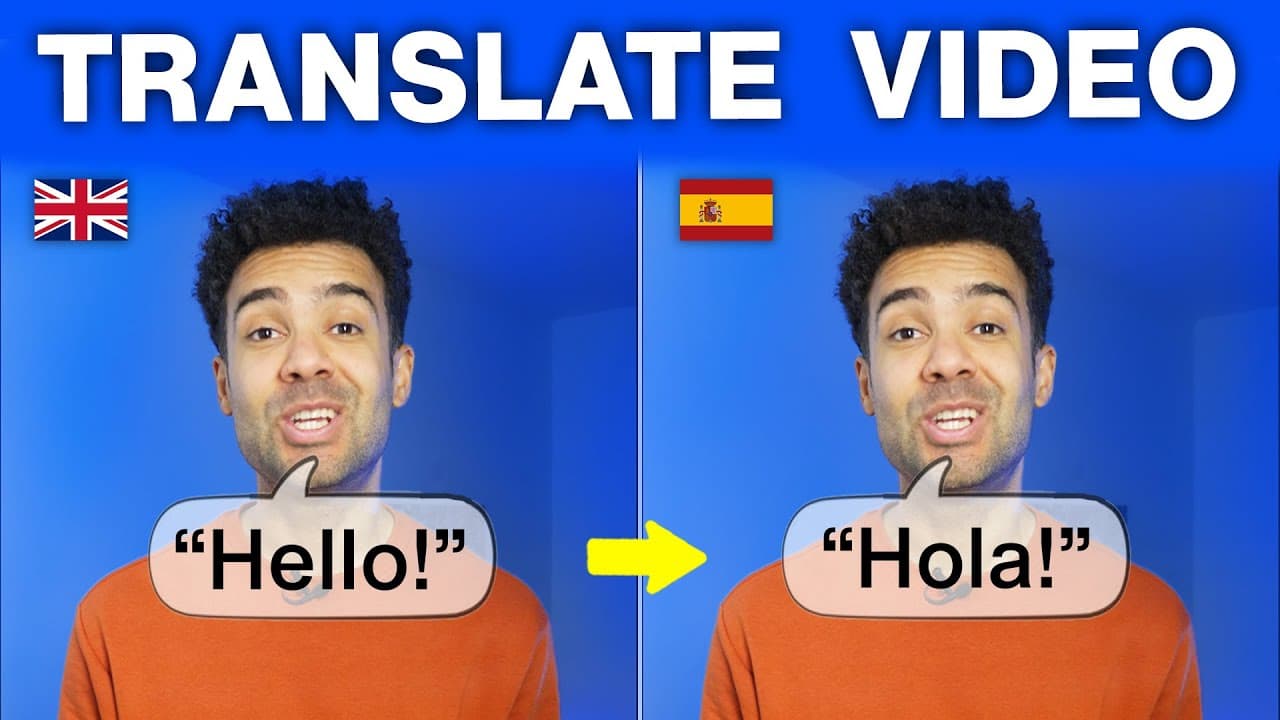
- The Core Tool: [Translate.Video] is an AI-powered translation and dubbing platform that lets you convert videos into 75+ languages while retaining your original voice.
- Key Features: Features instant voice cloning, multi-language bulk translation, and background noise preservation (like sound effects and music) during translation.
- The Opportunity: You can bulk-dub your entire YouTube backlog to expand your reach to 6.5 billion non-English speakers.
Table of Contents
- The Massive Global Audience Opportunity
- Step-by-Step: How to Automatically Dub Your Videos
- Managing and Refining Your Multi-Language Translations
- Step-by-Step: How to Clone Your Voice for Realistic Dubs
- Strategies for Translating Your YouTube Video Backlog
- Frequently Asked Questions
Prefer to watch? Here's the video. Prefer to skim? The full breakdown is below.
Try it here: Try Translate.Video →
The Massive Global Audience Opportunity
Only 1.5 billion people speak English worldwide. If you are exclusively making English-language videos, there are 6.5 billion people you are completely failing to reach.
With platforms like YouTube heavily pushing multi-language audio tracks, automated dubbing has quickly shifted from a luxury to an absolute necessity. However, classic translation models often sound robotic and wipe away the unique personality of the speaker.
The tool I have been testing, Translate.Video, solves this problem. It automatically dubs your video content into over 75 languages while utilizing advanced AI voice cloning to ensure that your foreign-language dubbed videos still sound exactly like you.
Step-by-Step: How to Automatically Dub Your Videos
To successfully translate your video content, you need to understand the translation interface and workflow. I tested this by uploading a short, 33-megabyte, one-minute video clip of MrBeast to see how the AI processes the file.
Step 1: Upload Your Video File
Once you log into the platform, click the primary upload button on the dashboard to select and import your raw video file.
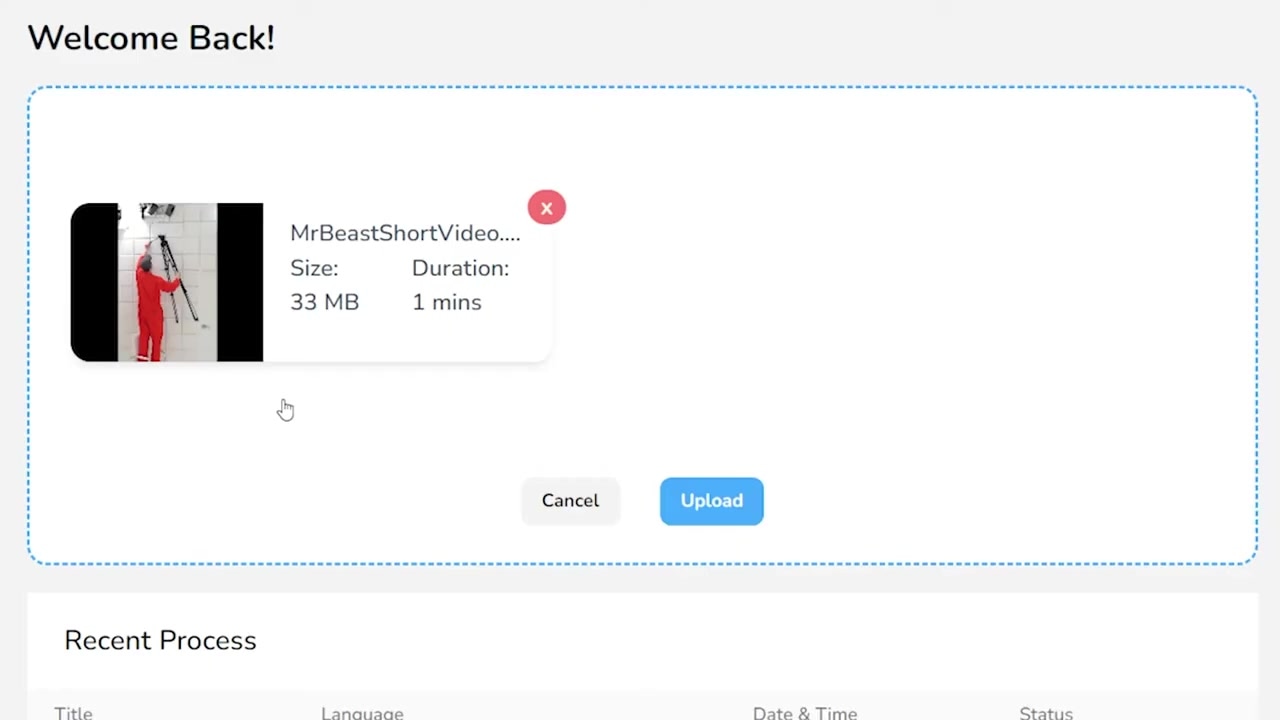
Caption: The file upload interface in Translate.Video. I selected a short MrBeast clip to run through the translation process.
Step 2: Configure Your Audio and Subtitle Settings
After selecting your video, you need to tell the AI what to translate:
- Choose Audio + Subtitles: Tick the left-hand option on the screen to translate both the voice track and subtitles (rather than generating subtitles only).
- Select the Original Language: Set the source language of your video. In my test, I selected "English".
- Select the Target Language: Select from over 75 available options. For this run, I chose "Mandarin Chinese".
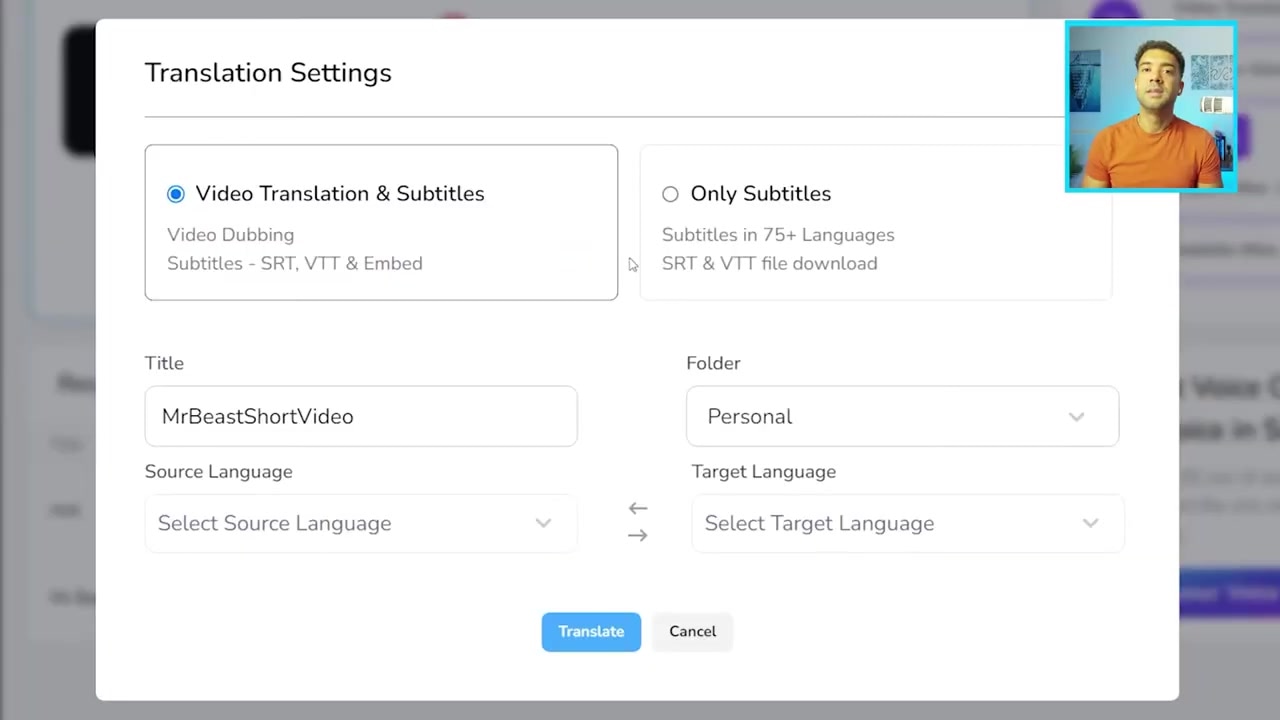
Caption: Configuring the audio translation. Make sure the left checkbox is ticked to generate both audio and subtitles, then select your target language and choose a preset voice.
Step 3: Select a Voice Preset and Run the Translation
Before hitting translate, you need to select the voice actor profile that will speak the new translation. The tool features preset voice options like Bo, Chen, Dan, and An. You can click the speaker icon next to each name to hear a quick preview (e.g., Chen or Dan saying "你好吗?").
Once you choose a voice (I chose "An"):
- Click the Translate button.
- Allow the AI a couple of minutes to analyze the original audio, transcribe the English text, and render the target language translation.
Managing and Refining Your Multi-Language Translations
When the translation finishes processing, Translate.Video opens up a highly intuitive editing interface.
The screen splits your video into individual, sentence-by-sentence blocks. The original English words are displayed on the left, while the corresponding Chinese translations are displayed on the right.
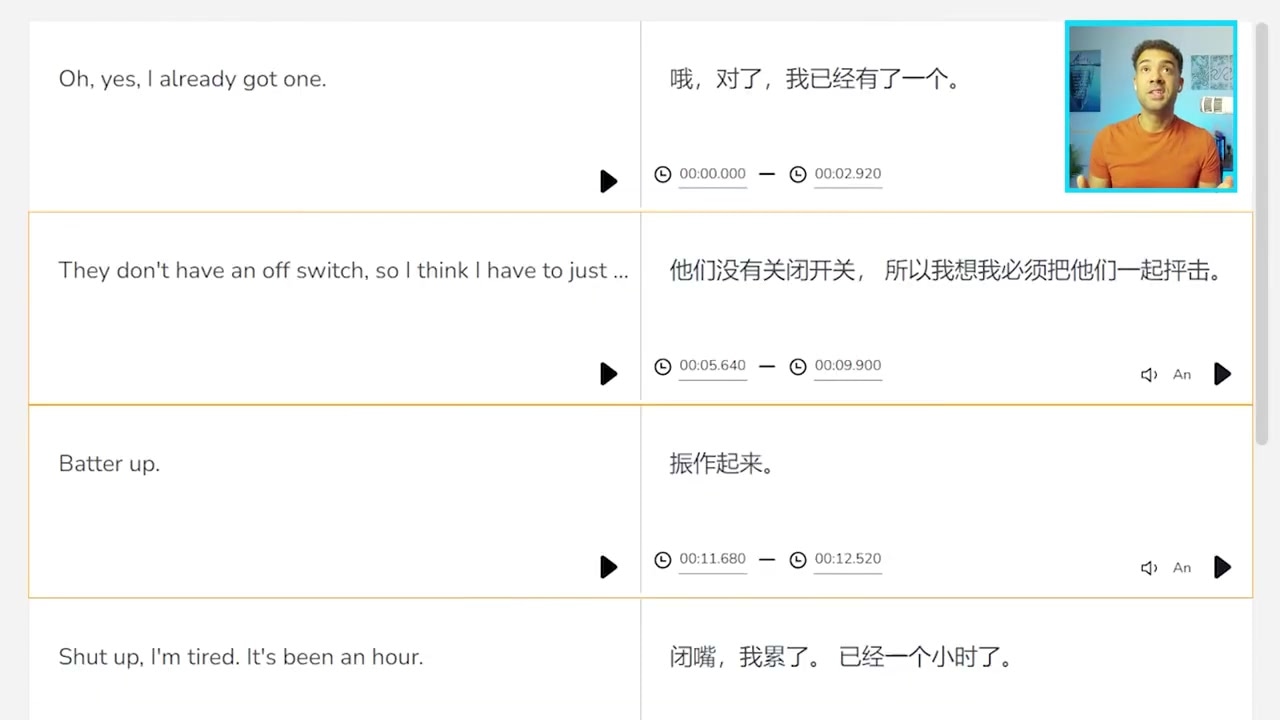
Caption: The post-translation editing interface. Individual sentences are mapped side-by-side, allowing you to preview and tweak specific segments of the script.
Preserving Background Atmosphere
One of the most impressive parts of this test was how the AI handled background audio. In the original MrBeast clip, there was a loud alarm sound going off behind the dialogue.
When the AI generated the Mandarin dub, it did not erase the background track. It cleanly isolated the English speaker, replaced the voice with Mandarin, and kept the alarm sound in the background perfectly intact. This level of audio preservation keeps the video sounding natural and high-production.
Mass Translating to Other Languages
If you want to target multiple countries, you do not have to restart the upload process. You can quickly scale up by adding more target tracks:
- Click the Add button in the translation dashboard.
- Select your next target language from the list (for instance, "French").
- Preview the translated sentences immediately.
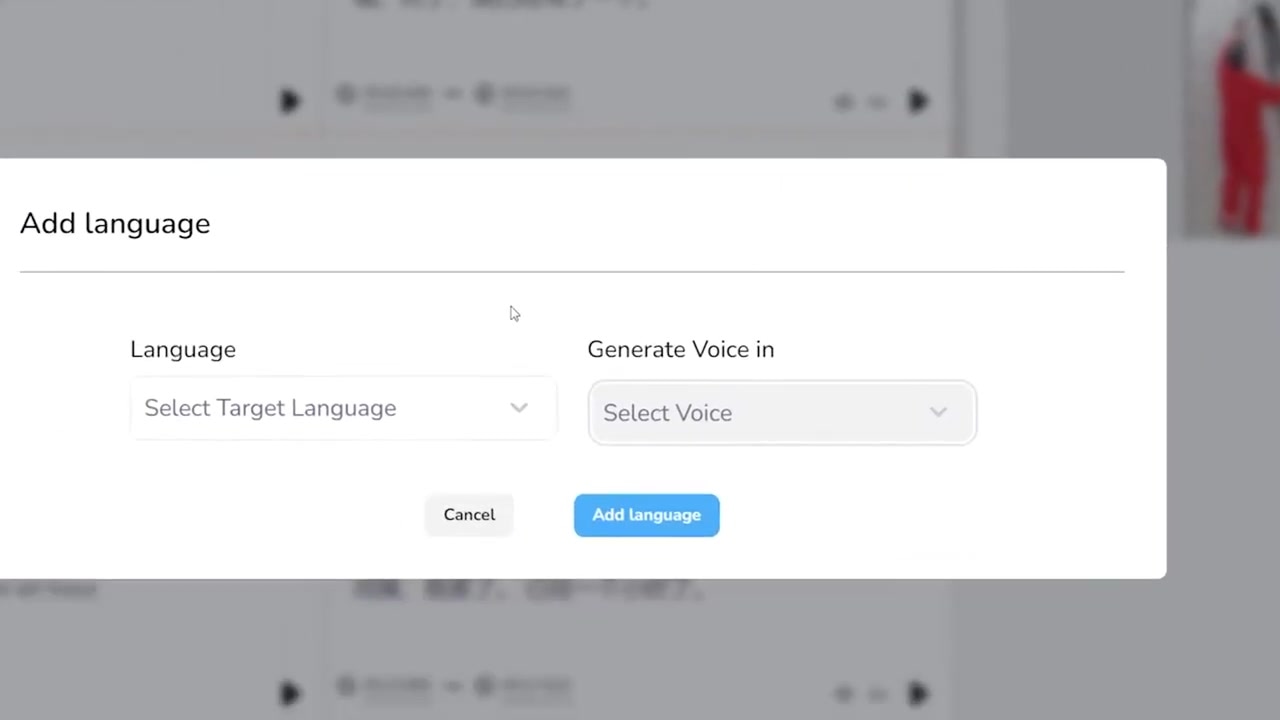
Caption: To target more regions, click the "Add" button and select an additional target language—like French—from the drop-down list.
While the standard presets are great for quick localization, they will not sound like you. To make the translation feel completely authentic, you need to use AI voice cloning.
Step-by-Step: How to Clone Your Voice for Realistic Dubs
By cloning your voice, you can generate natural-sounding multi-language audio tracks that retain your unique tone, pacing, and vocal print. Here is how I set up my custom voice clone in Translate.Video.
Step 1: Open the Instant Cloning Tool
Navigate to the left-hand menu on the platform dashboard and click on Instant Cloning to initiate the setup wizard.
Step 2: Input Your Profile Details
Name your custom voice (I entered my name, "Greg") and select your gender from the drop-down menu.
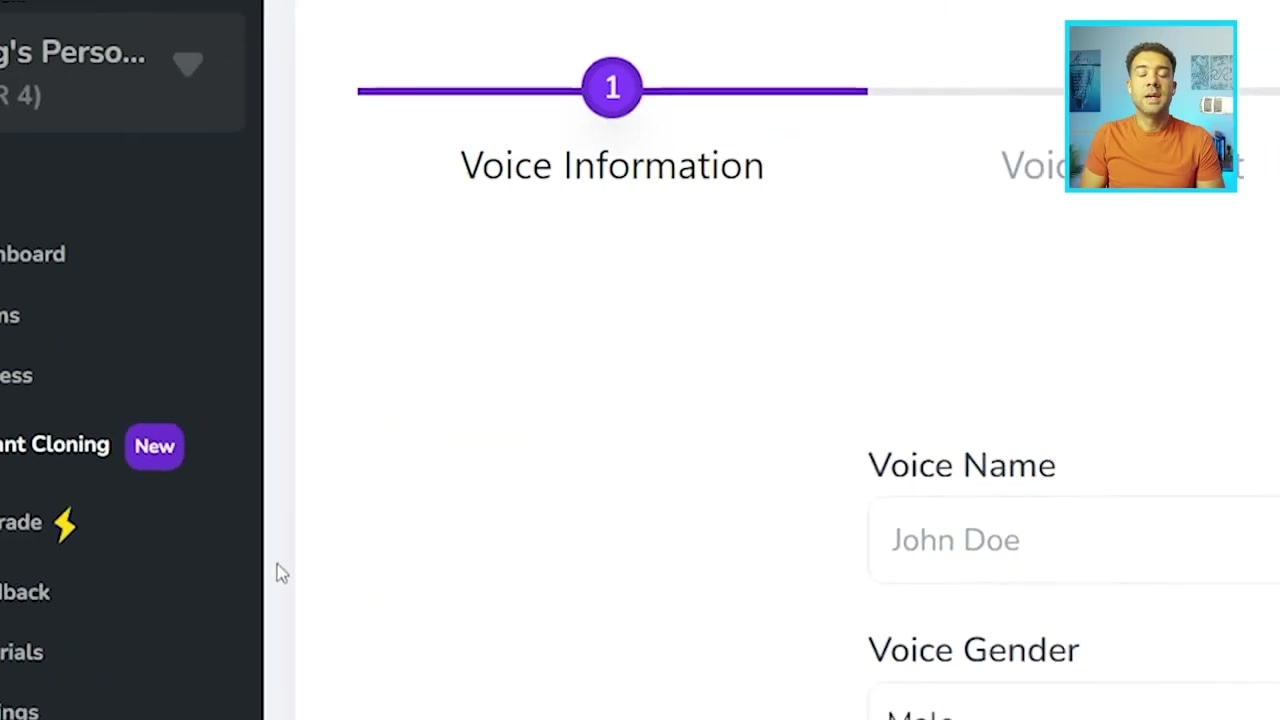
Caption: Setting up a custom cloned voice. You will enter your name, select your gender, and complete two short voice recording steps to train the model.
Step 3: Record the Security Consent
To prevent unauthorized voice spoofing, the platform requires you to read a short legal consent statement out loud. Click the recording box, read the on-screen sentence clearly, and save the recording.
Step 4: Record Your Voice Sample Script
Next, click the record button to read a short sample script. Speak in your normal, conversational voice so the AI can analyze your pitch and natural rhythm.
Step 5: Dub Your Video with the Cloned Voice
Once the voice sample processes, your custom cloned voice will appear as a selectable option in your voice dropdown list.
I applied my newly generated cloned voice ("Greg") to translate a video segment into Hindi. When playing back the finished video, the output spoke Hindi fluently while maintaining my exact vocal signature.
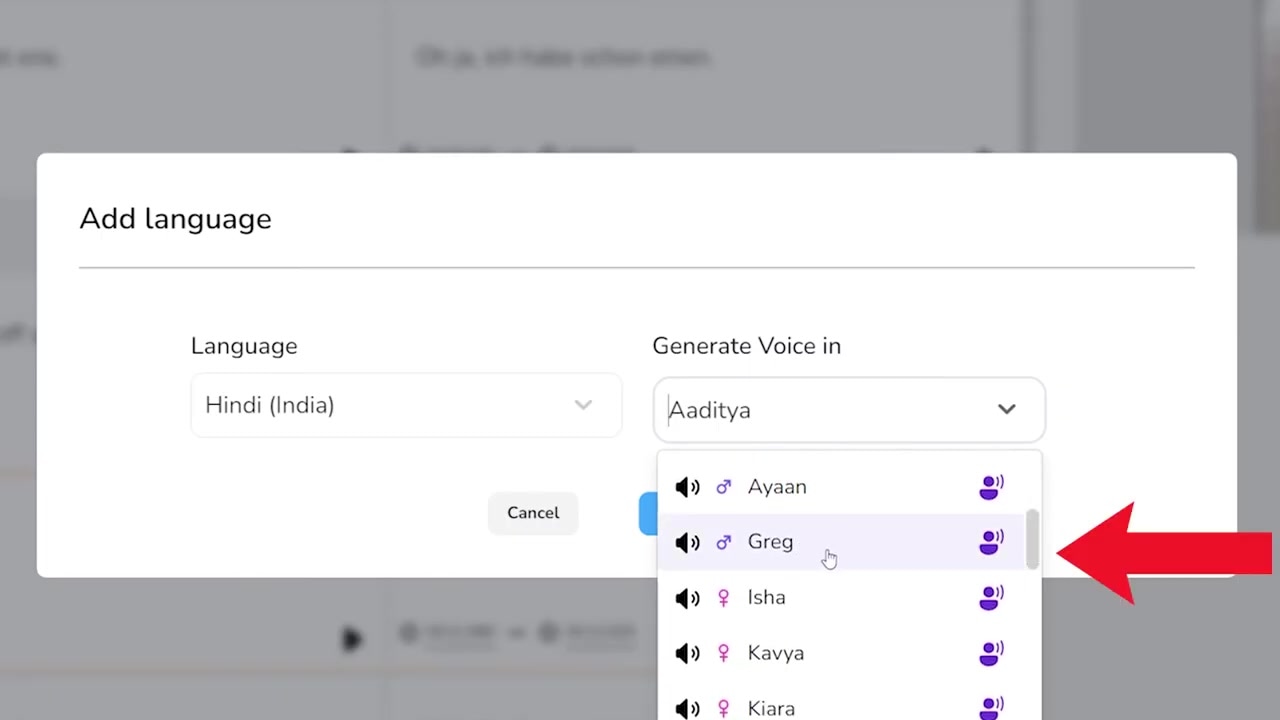
Caption: Once generated, your cloned voice (e.g., "Greg") will appear in the voice selection dropdown. Select it to dub your next video, like this Hindi translation example.
Strategies for Translating Your YouTube Video Backlog
If you have an established YouTube channel, you do not need to limit automated dubbing to your future uploads.
The smartest strategy for growing your channel traffic is to:
- Batch-download your existing top-performing YouTube videos.
- Run them through Translate.Video to quickly dub them into highly spoken languages like Spanish, French, Hindi, or Mandarin Chinese.
- Keep the original audio realistic by generating these dubs using your cloned AI voice profile.
- Upload these localized audio tracks directly to your old videos via YouTube’s multi-language audio feature.
This strategy breathes brand-new life into your backlog, instantly putting your old content in front of billions of potential new viewers without requiring you to record a single new video.
Where to Find the Tool
I originally sourced this tool through AppSumo, where Translate.Video ran a lifetime deal promotion. That deal has since sold out and is no longer available.
That lifetime deal is no longer on sale. Translate.Video now bills monthly only, starting at $29 a month on the Basic plan for 20 dubbing minutes.
If you are looking to scale your views, translate old videos in bulk, or establish a global audience, this is a highly capable tool to add to your video production workflow.
Try it here: Try Translate.Video →
Frequently Asked Questions
Does automated dubbing remove background music and sound effects?
No. Advanced AI video translators like Translate.Video are designed to separate speech from background noise. When generating a new language track, the AI keeps the background music, ambient sound effects, and environment noises intact while replacing only the vocal dialogue.
How many languages can I translate my video into?
Translate.Video currently supports automated dubbing and translations across over 75 different languages, allowing you to scale your content to major global markets like Spanish, Mandarin, French, and Hindi.
Is AI voice cloning safe to use?
Yes, provided you use trusted platforms. Translate.Video has a built-in security protocol that requires you to record a live consent statement prior to cloning your voice, ensuring that your vocal print cannot be generated without your explicit permission.