I Tested the Best AI Video Translator with Lip Sync (HeyGen Guide)
Last updated: July 2026
Author: Greg Preece — I test AI video tools hands-on to find workflows that actually look realistic, helping creators go global without awkward voiceovers.
Mismatched audio and video can completely ruin a viewer's immersion when translating your content into other languages. If you want to expand your global reach, you need a workflow that clones your voice and naturally aligns your mouth movements. In this guide, I will show you how to use an AI video translator with lip sync to achieve flawless, highly realistic translations in just a few clicks.
TL;DR: AI Video Translation That Looks Real
- The Problem: Standard translation tools like ElevenLabs clone your voice beautifully, but leave your lips moving to the original English words, creating a distracting mismatch.
- The Solution: HeyGen translates your audio, clones your voice, and dynamically adjusts your lip movements to match the newly generated language perfectly.
- My Verdict: HeyGen is the most convincing AI video translator with lip sync on the market. It requires zero manual editing and preserves your unique tone across dozens of languages.
Prefer to watch? Here's the video. Prefer to skim? The full breakdown is below.
Quick Link
Try it here: Try HeyGen →
Table of Contents
- The Problem with Audio-Only Video Translators
- How HeyGen Fixes the Lip-Sync Mismatch
- Step-by-Step Tutorial: How to Translate Your Video
- Understanding Key Settings: Dynamic Duration & Lip-Sync
- The Final Output: A Mandarin Test Case
- Expanding Your Content: Creating an AI Clone
- Frequently Asked Questions
The Problem with Audio-Only Video Translators
When I first started exploring translation tools, I wanted to find a way to easily localize my videos. I began by testing ElevenLabs' video translation feature. I recorded my original video in English and used their software to automatically translate my speech into Italian and Spanish.
The voice cloning was outstanding. ElevenLabs successfully kept the translated speech sounding like my actual voice, capturing my natural tone and delivery. However, there was a major issue that ruined the experience.
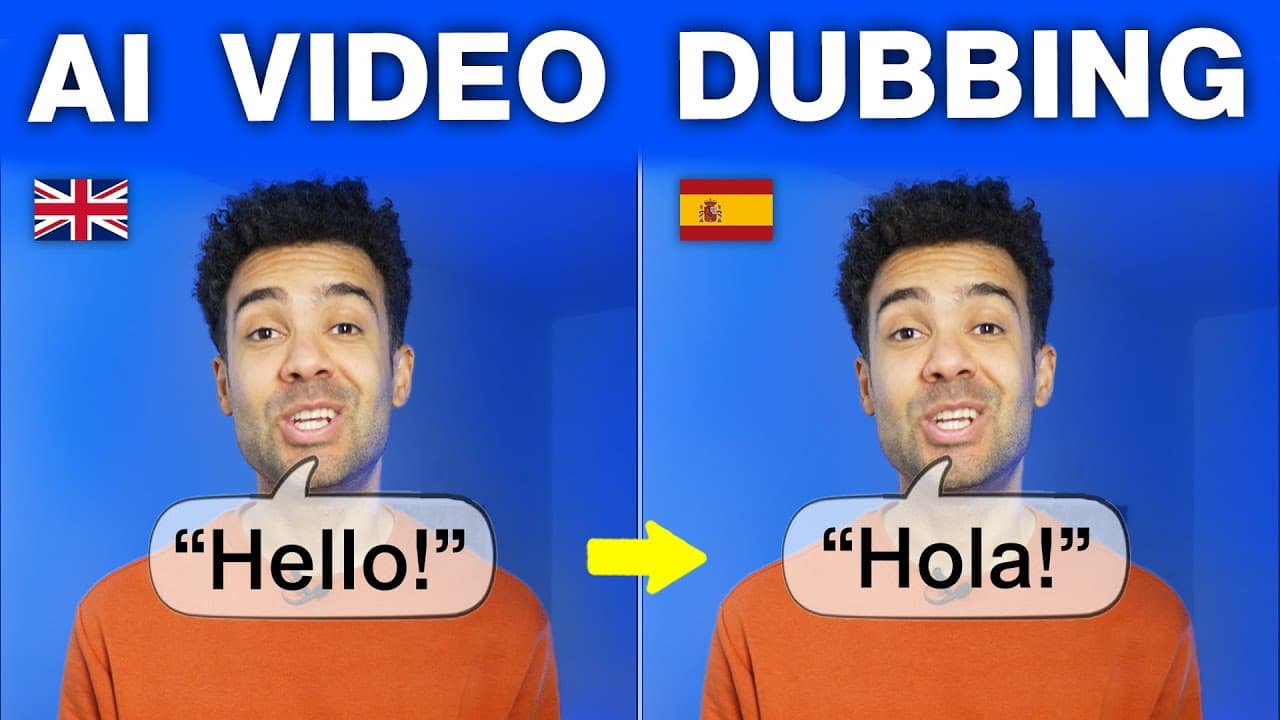
Even though the audio was translated into Spanish, my lips on screen were still moving to the original English words.
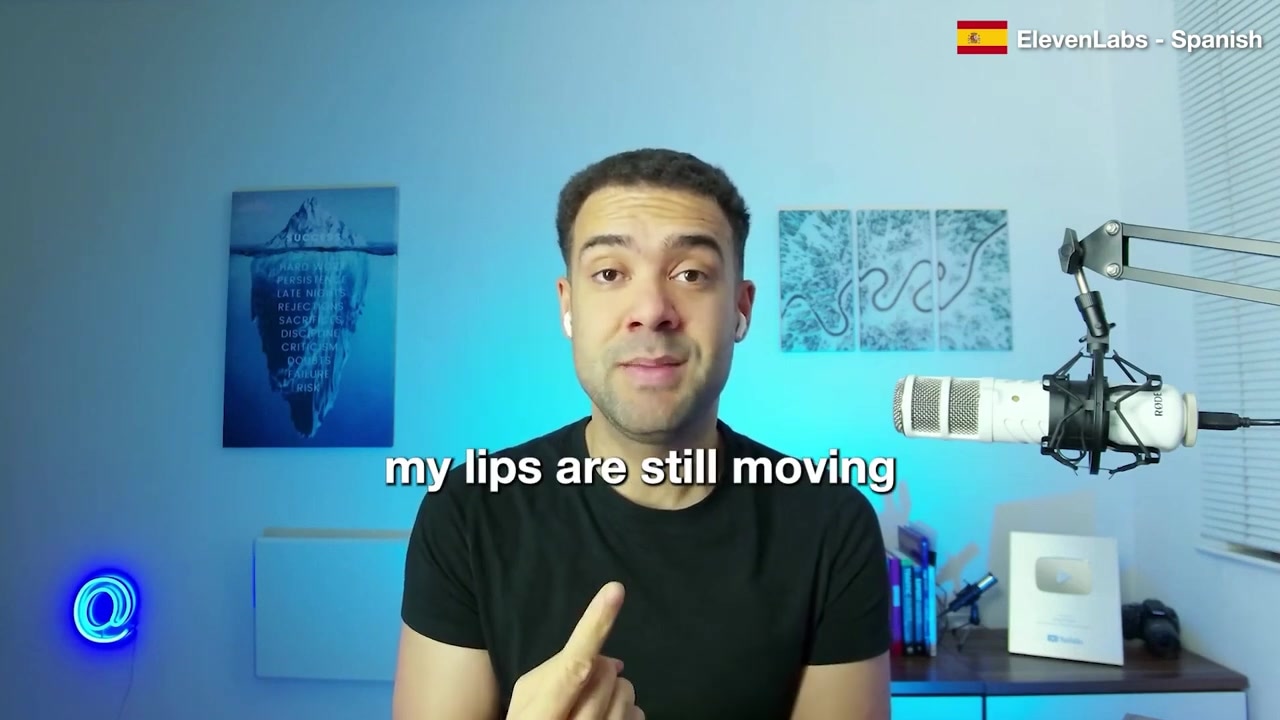
Caption: When translating with audio-only tools, the speaker's lips still move to the original English words, creating an unnatural mismatch.
If you have ever watched a foreign-language film with poor dubbing, you know how distracting this is. Mismatched lip movements immediately break the illusion and make the content feel cheap and unpolished for international viewers.
How HeyGen Fixes the Lip-Sync Mismatch
To solve this problem, I started looking for an AI video translation tool that could handle both voice cloning and visual lip-syncing. That is when I found HeyGen.
I put HeyGen to the test by translating my original English video into German. The difference was night and day.
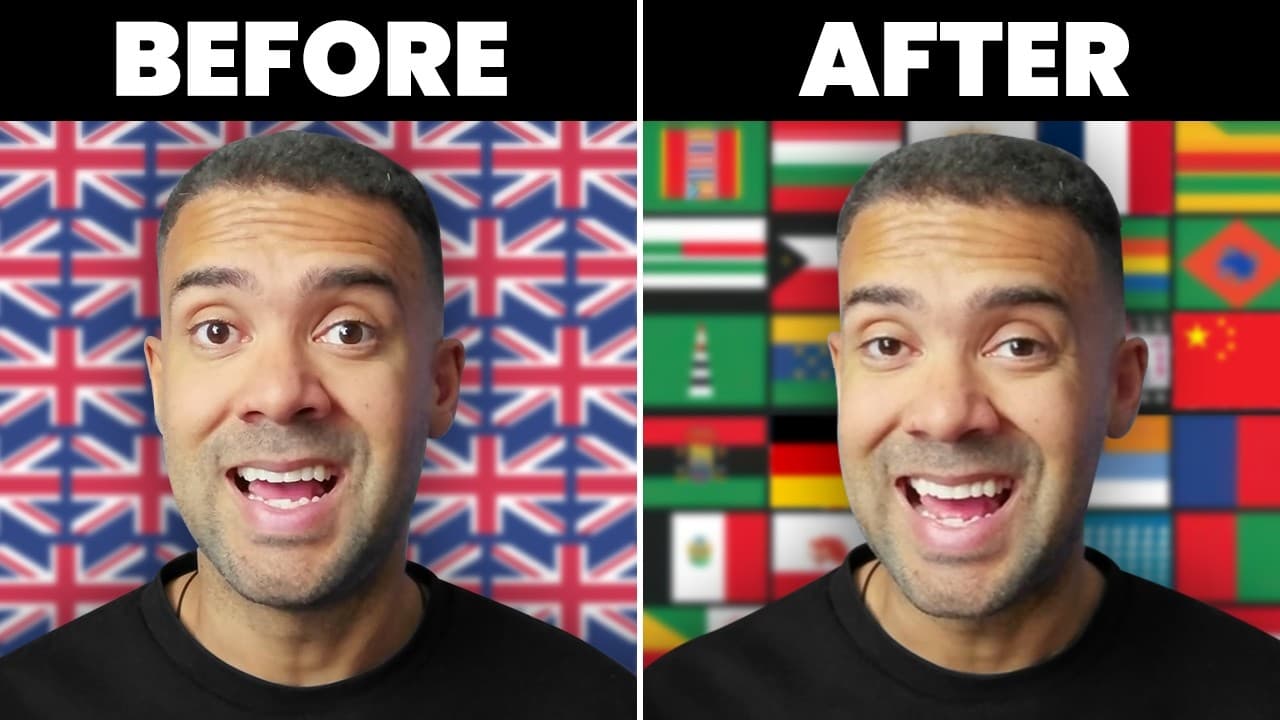
Not only did the AI translate my words and clone my speaking voice, but it also completely altered my lip movements in the video. The program synchronized my lips with the German words. The result was so natural that it looked as if I had spoken German in the studio during the original recording.
By visually aligning your face with the new language, you establish a much deeper level of trust and engagement with your global audience.
Step-by-Step Tutorial: How to Translate Your Video
Translating your video inside HeyGen takes only a few minutes. Here is the step-by-step workflow I use:
Step 1: Open the Video Translation Tool
Log into your HeyGen account dashboard. On the main page, find and click the Translate a Video option.
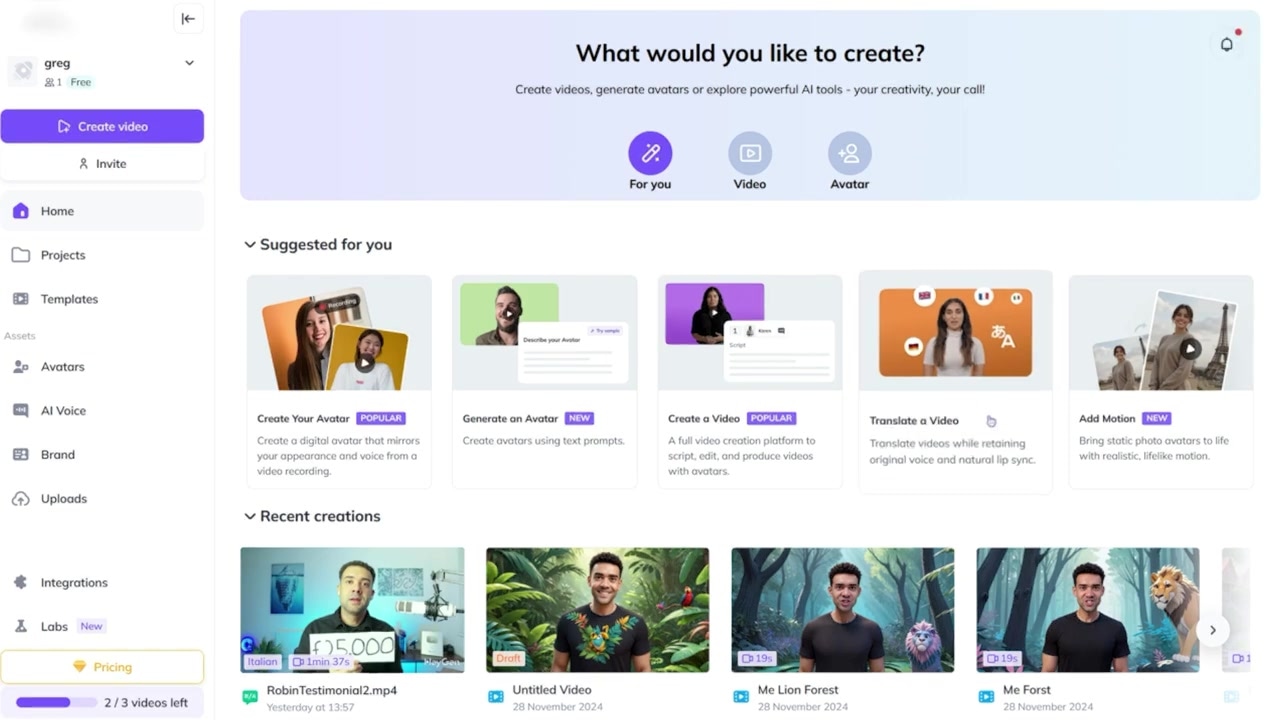
Caption: Locate and click the "Translate a Video" option from your HeyGen dashboard to start.
Step 2: Upload Your Video File
Click inside the file box to select a video file from your computer to upload. (HeyGen also supports pasting direct Google Drive or YouTube links).
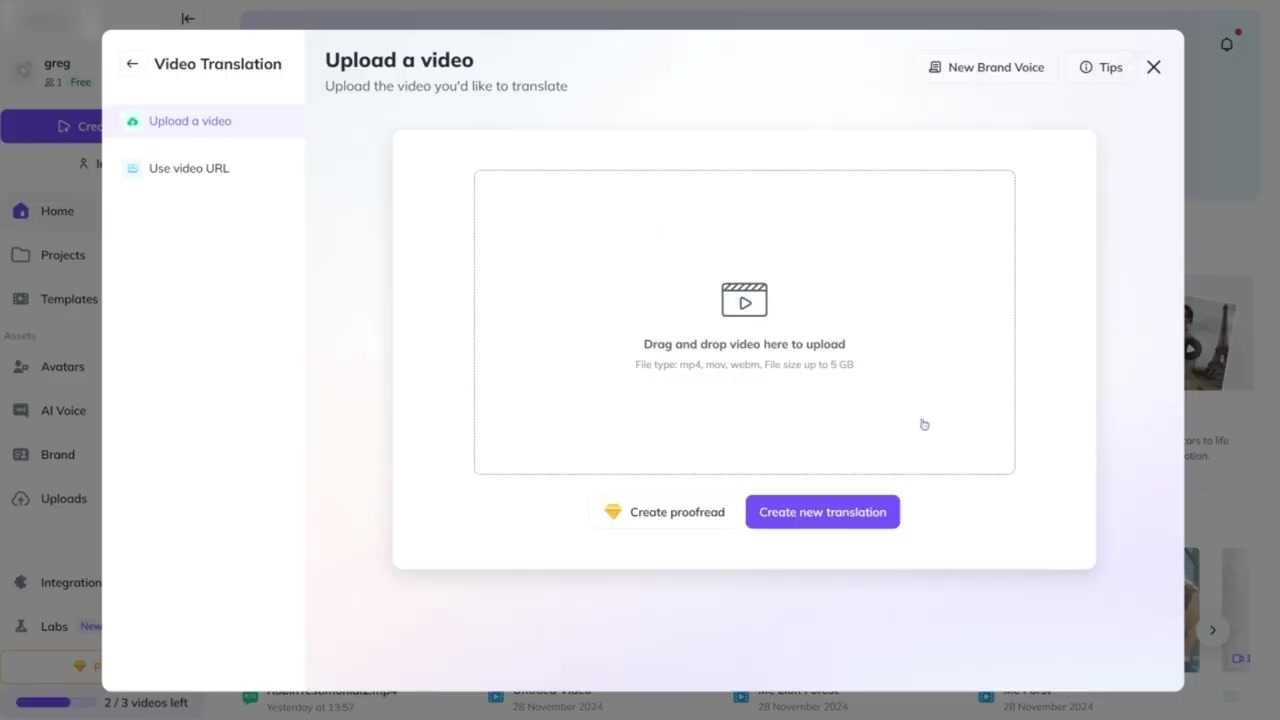
Caption: Upload your local MP4 or video file directly from your computer into the translator.
Step 3: Configure Your Translation Settings
Once your file is uploaded, click the Create new translation button. A settings window will appear.
Configure the following options:
- Original Language: Use the dropdown box to specify the language of your original video (e.g., English).
- Target Language: Select the language you want to translate your video into.
- Speaker Count: Tell the AI how many people are speaking in the video. For a standard talking-head video like mine, set this dropdown to 1 speaker.
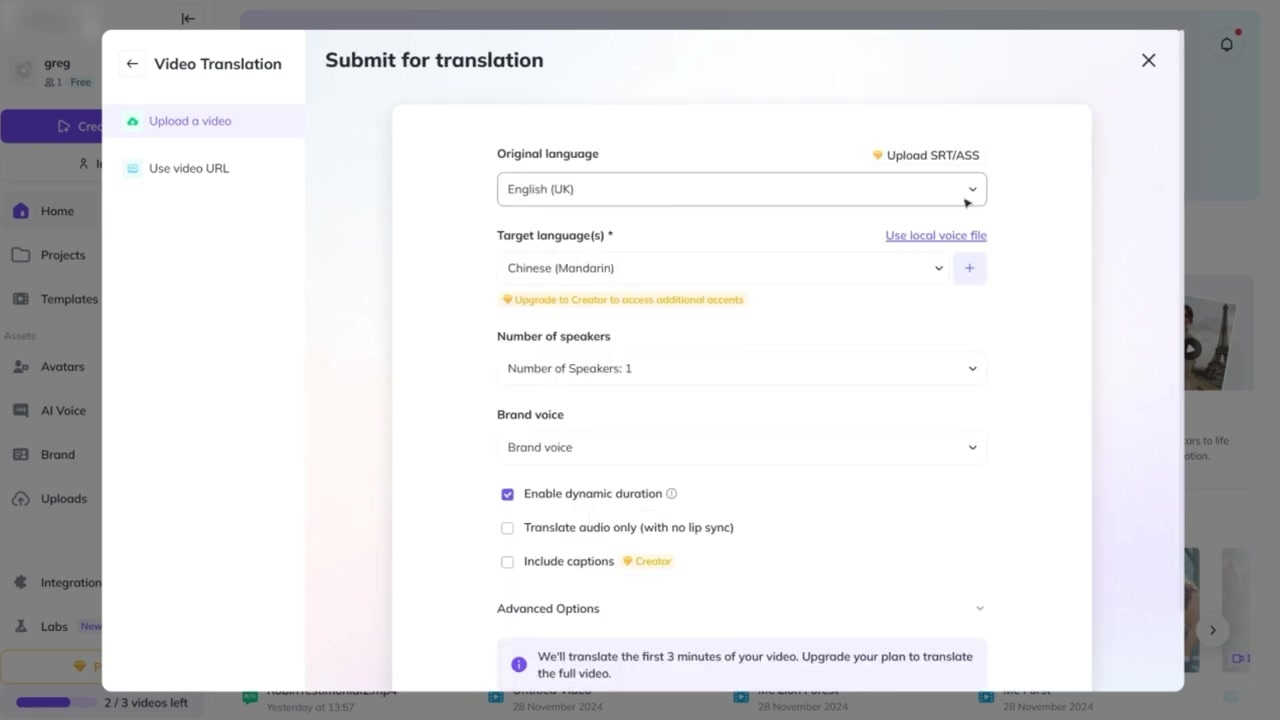
Caption: Set your original language, target language, and number of speakers.
Understanding Key Settings: Dynamic Duration & Lip-Sync
To get the most realistic result, you need to pay close attention to the advanced checkboxes at the bottom of the translation settings panel.
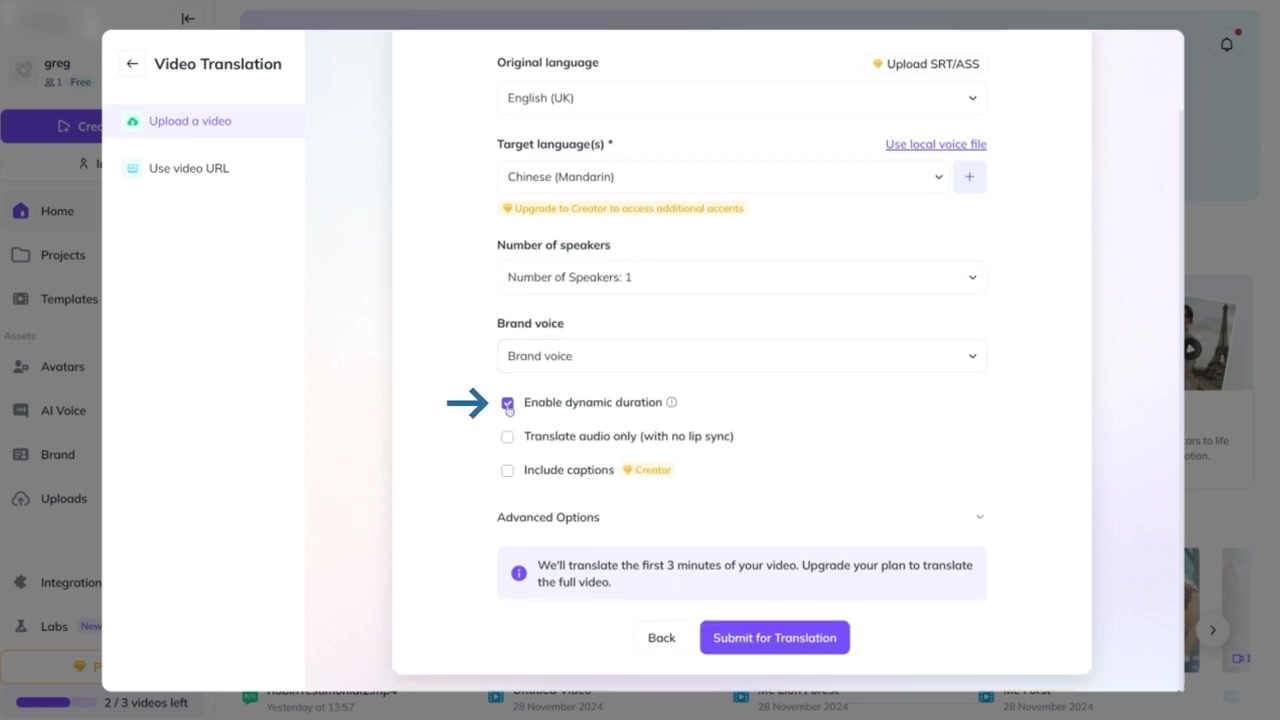
Caption: Ensure "Enable dynamic duration" is checked and "Disable lip sync" is unticked.
Enable "Dynamic Duration"
Always make sure the Enable dynamic duration box is ticked.
Different languages require different amounts of time to say the same thing. For example, translating English to Spanish or German often results in a longer script. Dynamic duration allows the AI to slightly stretch or adjust the pacing of your video so the translated words fit naturally without sounding rushed or cut off.
Keep "Disable Lip Sync" Unticked
In HeyGen's settings, there is a toggle to "Disable lip sync" (or translate audio only).
Because we want HeyGen to visually synchronize our mouth movements to the new language, you must leave this button unticked. If you accidentally tick this box, the tool will only translate your voice and leave your lips moving to the original audio.
Once these settings are correct, press the submit button at the bottom of the window to begin the translation.
The Final Output: A Mandarin Test Case
After hitting submit, your video will enter the processing queue. You can monitor the progress bar as it goes from 5% to 100%.
For my final test, I translated my English talking-head video into Mandarin. When the progress bar completed, the results were incredible. Here is what my AI-translated self said on screen:
"你在这视频中看到的一切,呃,都是由人工智能自动添加的。我没有做任何编辑工作。"
(Translation: "Everything you see in this video, uh, was automatically added by AI. I didn't do any editing work.")
The combination of seamless voice cloning and precise, frame-by-frame lip-syncing makes the final video completely convincing.
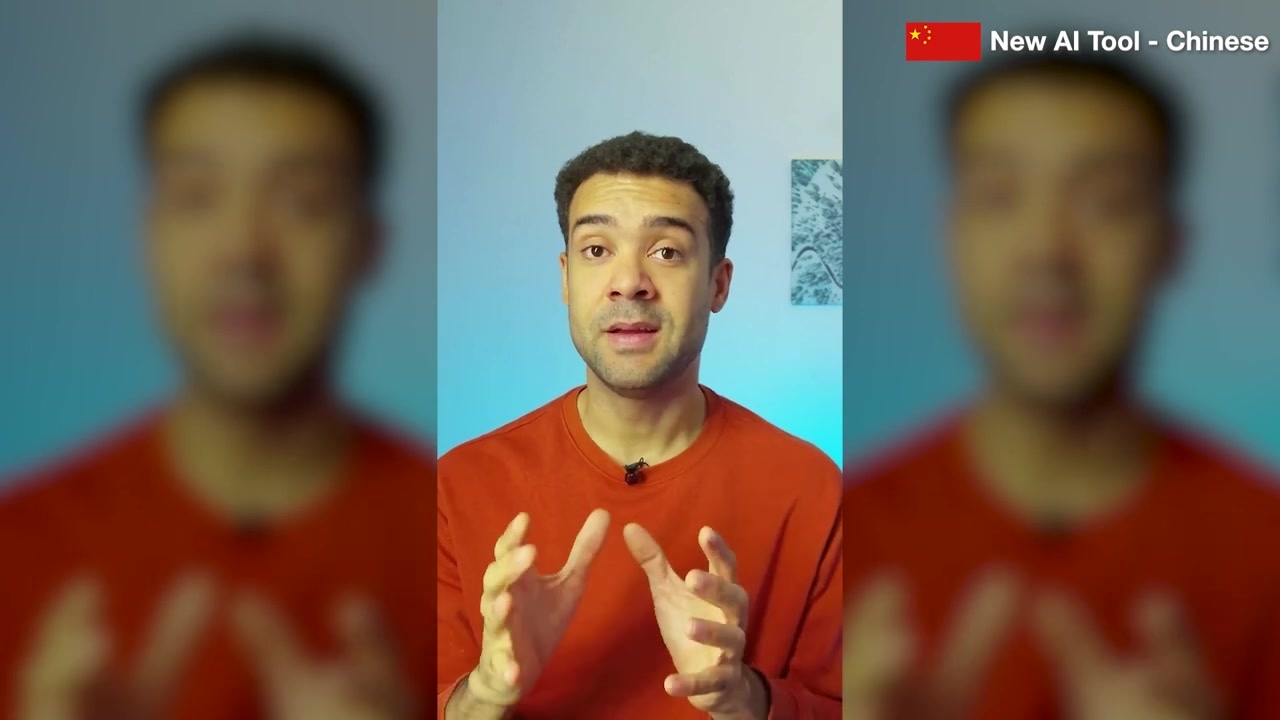
Caption: The final Mandarin result, showing the speaker's lips naturally matching the newly generated speech.
Expanding Your Content: Creating an AI Clone
If you are looking to scale your video production even further, you can take this technology a step beyond standard translation.
Inside HeyGen, you can use the exact same voice cloning and lip-syncing technology to build a complete digital clone of yourself. Once your clone is created, you can generate entirely new video content or establish your own AI influencer avatar just by typing in a text script.
If you are ready to start localizing your content and reaching new global audiences, you can test out these features yourself today.
To start translating your own content, you can sign up for a free trial here: Try HeyGen →
Frequently Asked Questions
Does HeyGen support multi-speaker videos?
Yes. During the settings configuration step, you can use the speaker dropdown box to indicate how many distinct voices are in your source video. HeyGen will detect and translate each speaker separately.
Will dynamic duration alter the length of my video?
Yes, it can. Because some languages take longer to speak than others, enabling dynamic duration will slightly adjust the playback speed and timing of your video segments to ensure the translated speech sounds natural and clear.
Can I translate my video without changing my lip movements?
Yes. If you only want to translate the audio (like a traditional dub), you can check the "Disable lip sync" box in the advanced settings before running the translation.