How I Create Vox Style Motion Graphics with Higgsfield Supercomputer

Last updated: July 2026
Author: Greg Preece — I test AI video generators hands-on to help creators build premium visual content without high-budget production setups.
Creating highly engaging, documentary-style animated explainers used to require a team of specialized motion designers and weeks of frame-by-frame editing. If you have ever wanted to make those fast-paced, visually complex, information-packed video clips popularized by creators like Vox, you know how incredibly tedious the workflow is.
However, with the release of the agentic AI platform Higgsfield and its powerful Supercomputer feature, you can now generate professional-grade videos from a single prompt. Below, I break down my exact workflow for creating high-quality animations using Fable 5 inside Higgsfield.
Table of Contents
- The Power of Agentic AI Motion Graphics
- Step 1: Navigate to Higgsfield Supercomputer
- Step 2: Upload Your Inspiration Reference Video
- Step 3: Craft the 7-Part Master Prompt
- Step 4: Choose Your Execution Mode
- Step 5: Review and Refine Your Output
- Best Practices and Common Pitfalls
- Frequently Asked Questions
Prefer to watch? Here's the video. Prefer to skim? The full breakdown is below.
Try Higgsfield here: Try Higgsfield →
The Power of Agentic AI Motion Graphics
Most traditional AI motion graphics generators generate short, disconnected, four-second clips that you still have to manually sequence, script, and overlay with voiceovers.
This workflow is entirely different. By utilizing Higgsfield’s Supercomputer powered by the Fable 5 reasoning model, you are essentially hiring an AI creative director. Fable 5 excels at multi-step, goal-oriented reasoning. It writes the script, selects appropriate models, generates custom assets, structures the pacing, overlays audio, and evaluates its own work step-by-step to produce a cohesive, ready-to-publish explainer video.
Here is how I set up this automated pipeline to generate my own Vox-style explainer clip.
Step 1: Navigate to Higgsfield Supercomputer
To begin, you will need to access the Supercomputer interface directly through the Higgsfield dashboard.
- Head to the official Higgsfield website and log in.
- Click the Supercomputer link located in the top navigation menu.
- Once inside the Supercomputer workspace, locate the model selector.
- From the dropdown list, scroll down and choose Fable 5 as your active reasoning model.
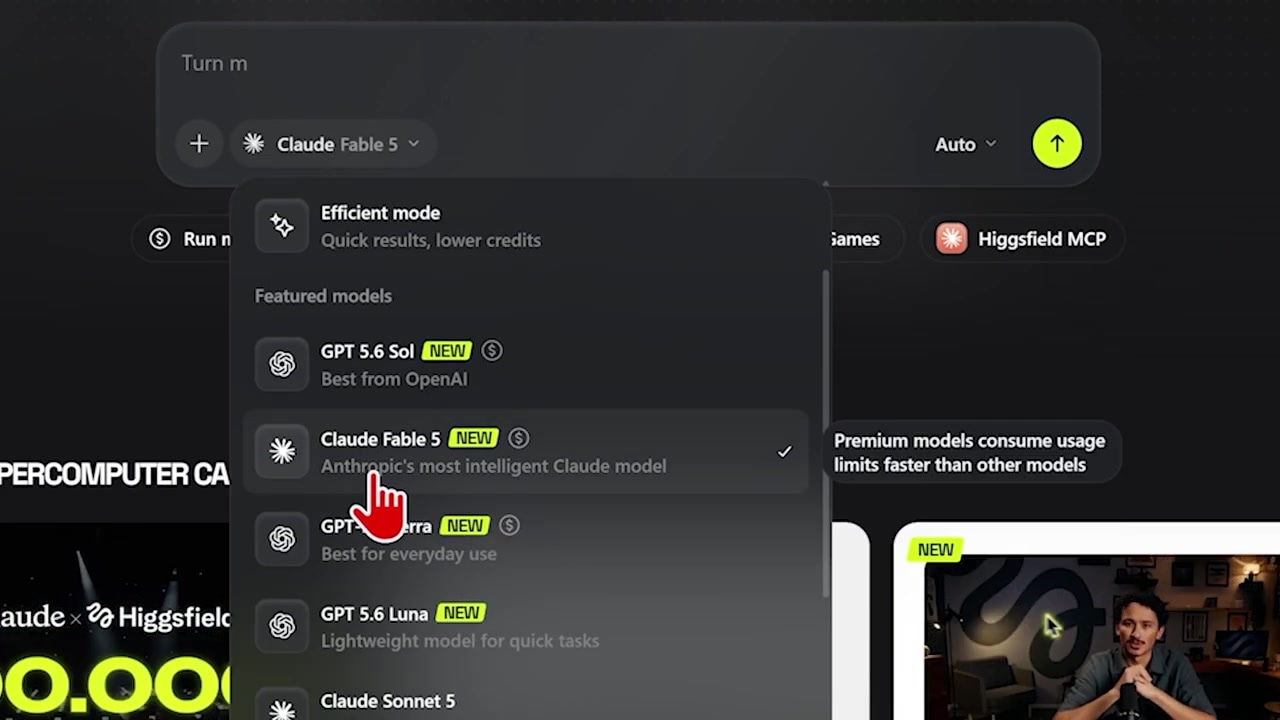
Caption: Select the Supercomputer tool from the top menu, then choose Fable 5 from the model dropdown list.
Step 2: Upload Your Inspiration Reference Video
This automated technique relies on giving Fable 5 a high-quality visual anchor. Instead of forcing the AI to guess what "Vox style animations" look like, you will upload a short clip of actual motion graphics to use as visual inspiration.
Find a clip that has the exact pacing, camera movements, text layouts, and map transitions you want to emulate.
- Locate the video upload button in the Supercomputer workspace.
- Upload your selected motion design reference file.
- Fable 5 will watch and analyze this footage frame-by-frame to dissect its stylistic DNA.
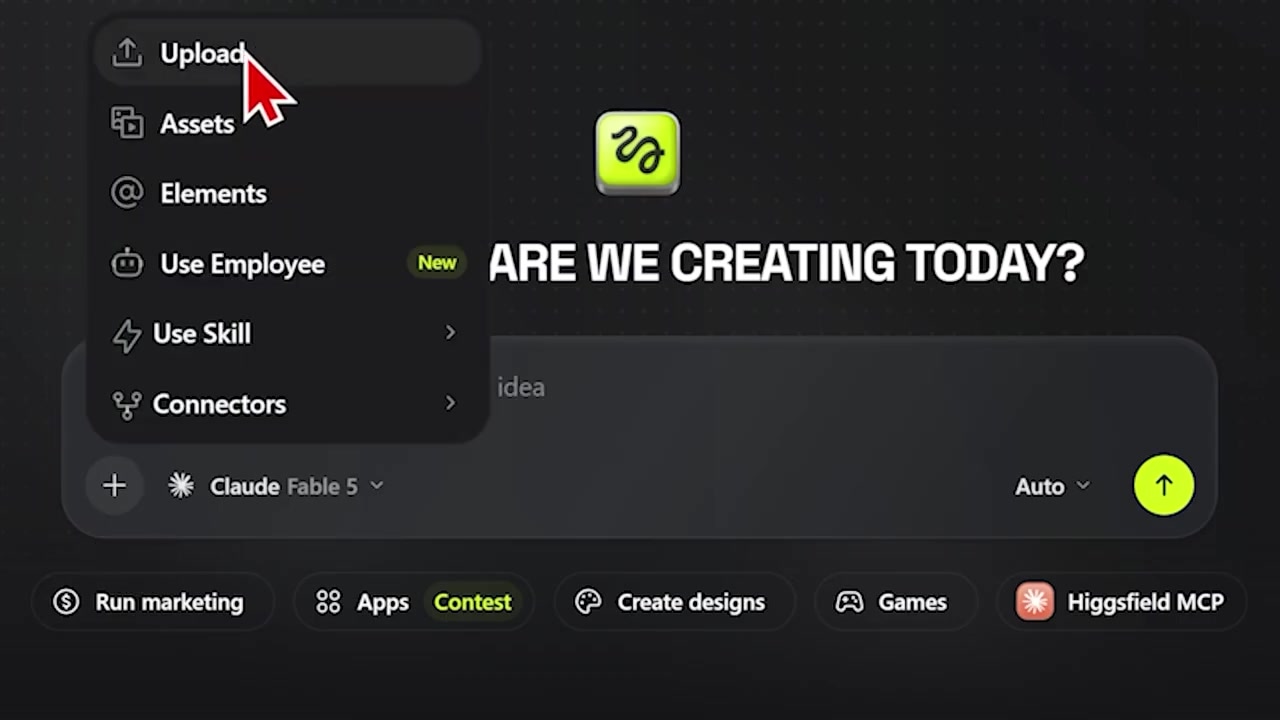
Caption: Uploading high-quality reference footage gives the AI model a clear target for motion graphic layouts and pacing.
Step 3: Craft the 7-Part Master Prompt
The magic of this agentic workflow lies in the structure of the prompt. To keep Fable 5 aligned across multiple generation stages, I structured my input into seven distinct segments. You can copy and adapt this 7-part framework for your own topics:
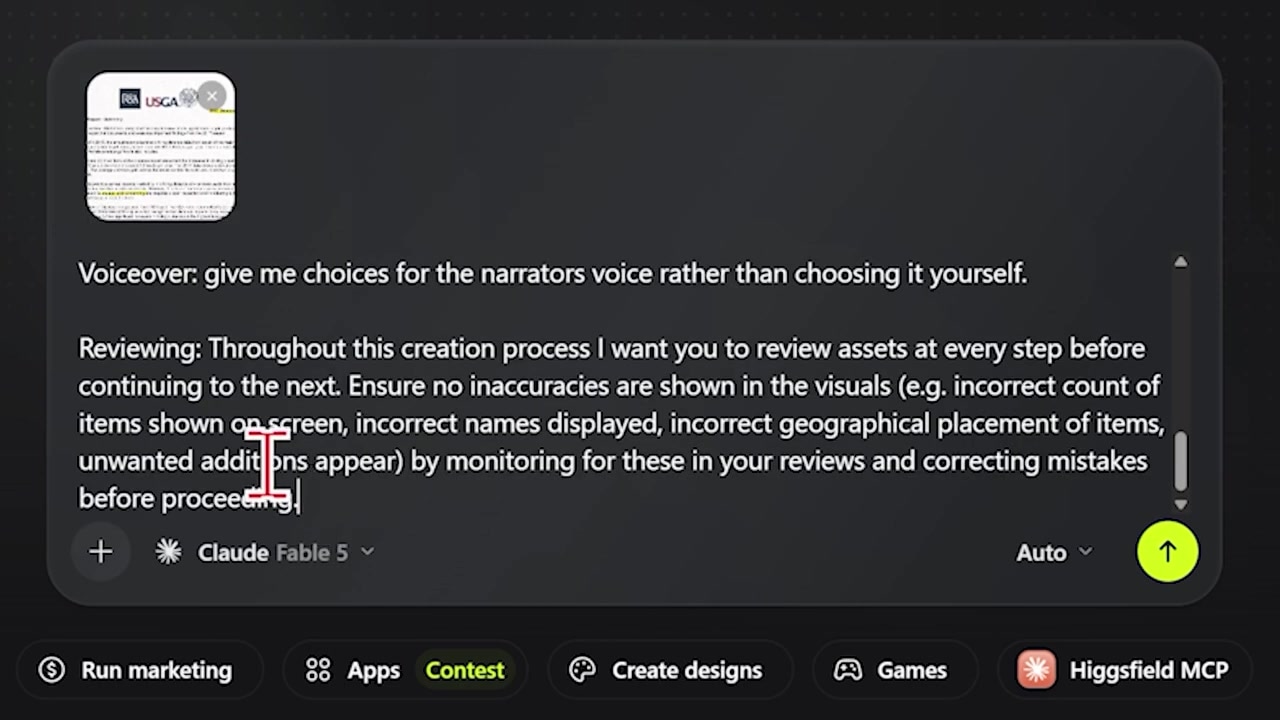
Caption: Structure your prompt inside Higgsfield using the seven distinct sections to direct everything from visuals to self-checking.
1. Style and Goal Alignment
State the exact goal of the video, its target duration, and explicitly tell Supercomputer to match the pacing and aesthetic essence of your uploaded reference file.
Example: "Create a cohesive video that is approximately 45 seconds long and matches the editing pacing, layout, and visual essence of the uploaded reference video."
2. Topic Specification
Provide the precise subject of your video. Fable 5 will use this to plan the narrative arc.
Example: "The topic of the video is the massive scale of the upcoming 2026 World Cup and how it is being shared by three host nations."
3. Script Writing Instructions
Direct the tone, information density, and visual timing of the script. Instruct Fable 5 to write a compelling voiceover script that specifically leaves room for fast-paced infographics and maps.
Example: "Write a script that is highly engaging, factual, and written in an editorial explainer style. The script must build suspense and design scenes with clear opportunities to display animated charts, regional maps, and statistics."
4. Visual Assets & Boundaries
Define what elements must appear on screen, and what elements should be strictly avoided.
Example: "Show clean, 2D minimalist maps highlighting Canada, Mexico, and the US, stylized football icons, and bold typographic slides. Avoid showing realistic human faces."
5. Audio and Sound Effects
Detail your preferences for the audio mix.
Example: "Include dramatic sound effects like swooshes for graphic transitions and paper-crumpling textures. Do not include any background music."
6. Voiceover Settings
Specify how you want the voiceover handled. You can choose to have Higgsfield auto-generate the narrator's voice, or you can ask the agent to present you with options first.
Example: "Generate the voiceover script but present me with a list of professional narrator voice profiles to choose from before finalizing the audio render."
7. Self-Checking & Verification
This is the most critical step. Fable 5 is built for long-horizon agentic workflows, meaning it has the unique ability to monitor its own output. By instructing it to review its progress, it keeps its generation loops on track.
Example: "Run a continuous evaluation check. Throughout this generation process, compare the current step against the stylistic guidelines of the reference video and correct any formatting or pacing errors before rendering the final asset."
Step 4: Choose Your Execution Mode
Before hitting generate, you need to decide how much manual control you want over the production process. Higgsfield offers two run modes:
- Auto Run: Supercomputer will draft the script, generate the assets, stitch them together, and render the final clip automatically from start to finish. I used this option to generate my initial World Cup video in one go.
- Step-by-Step Approvals: If you prefer to be hands-on, choose the manual approval option. Higgsfield will freeze the process at each milestone (such as script drafts or initial image models) and wait for your explicit approval before moving forward.
Once you have selected your preference, click Generate to begin the process.
Step 5: Review and Refine Your Output
Even the best generative models can make mistakes, but you do not need to restart from scratch. Supercomputer is built to accommodate real-time, text-based iterations.
If a visual transition is too slow or a text graphic has a typo, simply watch the rendered video inside your completed Supercomputer task window, go to the active chat box, and type in your requested fixes. Fable 5 will identify the specific error, reconstruct that segment, and update the video for you automatically.
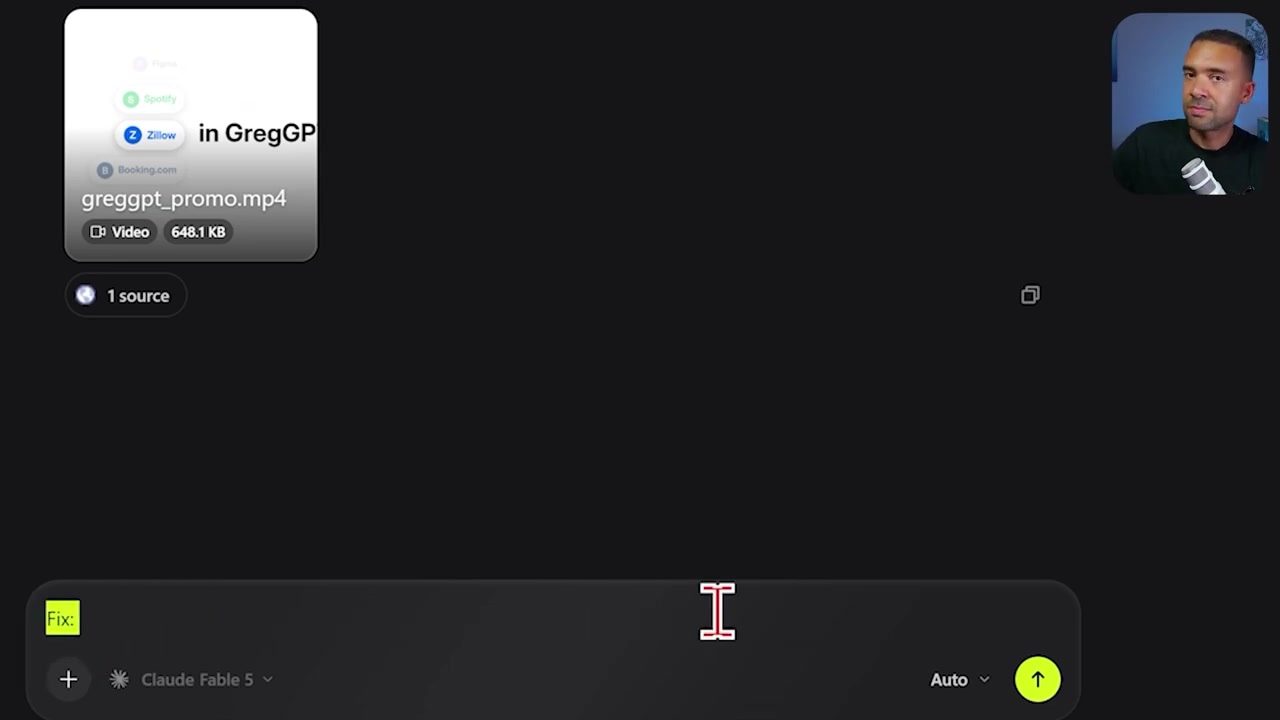
Caption: If you spot errors in the final output, describe the fixes directly in the chat and let Higgsfield regenerate the scene.
Best Practices and Common Pitfalls
Through my own testing of this platform, I have uncovered a few simple tips that will save you time and preserve your generation credits:
- Avoid Human Faces: Requesting realistic faces in your prompt can trigger copyright or security blocks on top-tier video generation engines. When a top-tier engine blocks a scene, Higgsfield will fall back to a more basic video generator, resulting in a significantly lower-quality video. For the best aesthetics, stick to clean vector assets, maps, text layers, and non-human elements.
- Keep Your References Clean: The layout and pacing of your output will heavily mimic the file you upload in Step 2. If your reference clip is cluttered or poorly animated, the generated output will replicate those flaws. Use a highly polished, short animation clip as your template.
- Leverage Post-Gen Revisions: Do not waste credits re-running the entire master prompt if a single shot is misaligned. Use the chat feed to make targeted, sentence-level corrections to the final output.
With this agentic setup, making custom, faceless animated explainer videos of up to 10 minutes in length is finally accessible to creators who don't have motion design backgrounds.
Try Higgsfield here: Try Higgsfield →
Frequently Asked Questions
Do I need to write my own scripts?
No. Once you outline your topic and target video length, Fable 5 will automatically write a complete, naturally paced narrator script and match it with corresponding visual segments.
Why should I use a reference video?
The reference video serves as a visual guide for the AI. It teaches the system what specific camera movements, infographic animations, and text transitions look like so the final render matches a professional "explainer" aesthetic.
What should I do if the generator makes a mistake?
Simply write a natural text command in the chat box specifying the error (e.g., "Fix the typo on the map text" or "Make the transition at 0:15 faster"). Higgsfield and Fable 5 will edit the timeline and re-render the scene.