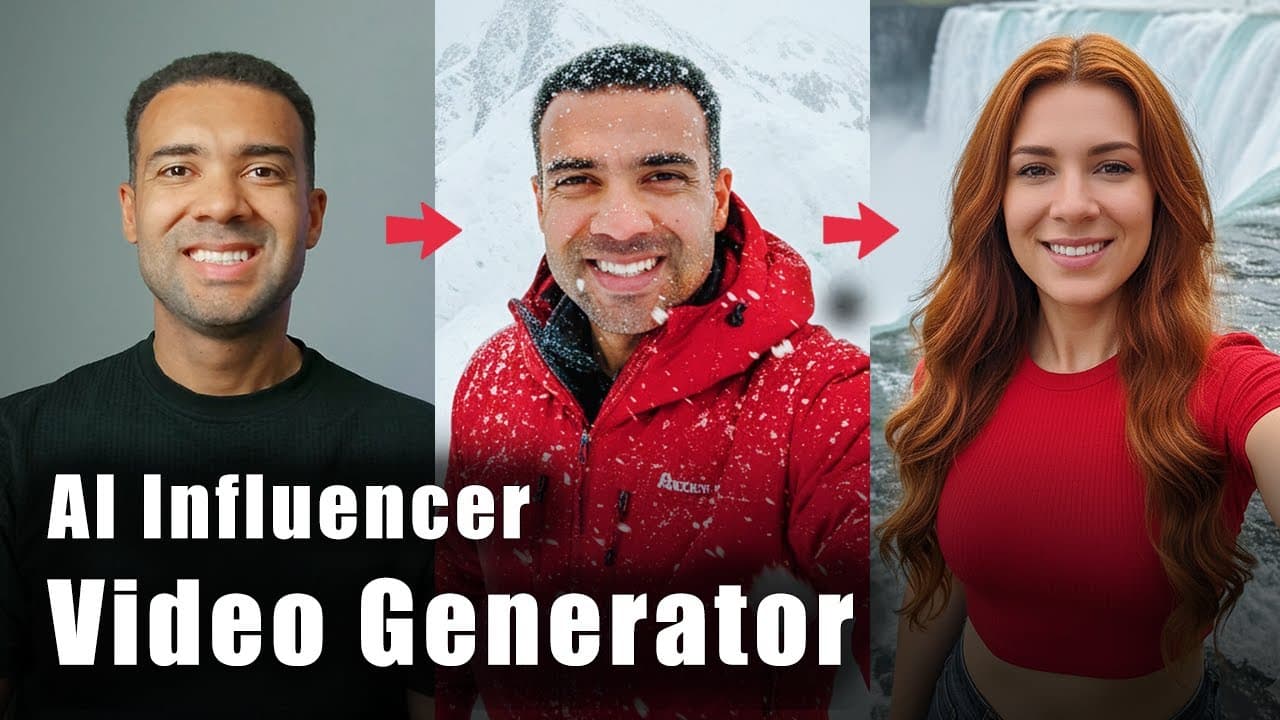
How I Use an AI Influencer Video Generator (Walking & Talking)
Last updated: July 2026
Author: Greg Preece — I test AI video tools hands-on and show creators how to get usable results fast.
Creating a realistic, animated digital avatar used to require juggling half a dozen expensive platforms. In this guide, I'll show you how to generate a walking, talking AI influencer in less than 10 minutes using a single, unified workspace.
TL;DR: The 10-Minute AI Influencer Workflow
To build a walking, talking AI influencer without juggling multiple platforms, use the unified workspace at AIVideo.com. This hands-on workflow uses Gemini 2.5 Flash Image for accurate face cloning, Kling 2.1 Pro for smooth 10-second character animations, and a built-in Lip Sync engine to sync your avatar's mouth movements to any AI voice or custom audio recording.
Prefer to watch? Here's the video. Prefer to skim? The full breakdown is below.
Try it here: Try AIVIDEO →
Table of Contents
- The All-in-One Workflow Solution
- Step 1: Generate Your Influencer's Face Reference
- Step 2: Animate Your Static Image into Motion
- Step 3: Sync Talking Audio and Lip Movements
- Step 4: Sequence Your Full Video on the Timeline
- Frequently Asked Questions
The All-in-One Workflow Solution
AI influencers like Aitana Lopez are pulling in millions of followers and securing massive paid brand deals with names like Prada, IKEA, and Calvin Klein. But if you've ever tried to create a digital clone of yourself or a brand character, you know the friction. Traditionally, you had to:
- Generate an image on one site.
- Animate it on a second site.
- Generate a voiceover on a third site.
- Lip-sync the audio on a fourth site.
- Stitch it together in an external video editor.
After weeks of trying to crack this process, I discovered a platform that unifies all of these technologies: AIVideo.com. It lets you generate, animate, voice, and edit walking, talking AI characters directly inside a single browser window.
Here is the exact step-by-step workflow I used to create my digital clone in under 10 minutes.
Step 1: Generate Your Influencer's Face Reference
First, we need to create a high-quality starting image of our influencer.
 Caption: The text-to-image dashboard inside AIVideo.com where you can upload reference faces and choose your AI generator.
To generate a consistent character or a digital clone of yourself, follow these steps:
- Navigate to the AIVideo.com dashboard and select Text to Image.
- Choose the Gemini 2.5 Flash Image model. Through my testing, I've found this model to be exceptional at rapidly translating face reference details into consistent AI generations.
- Click the upload box to add a reference image of your face.
- Type your character description prompt into the text box.
The Face-Alignment Prompting Trick
When writing your image prompt, always tell the AI that the influencer's face is looking directly at the camera. Keeping the eyes focused forward is a critical baseline that helps the animation model maintain face consistency later in the workflow.
Generate two or three versions of your prompt so you have several variations to choose from.
 Caption: Gemini 2.5 Flash generates multiple high-quality variants based on the uploaded reference face photo.
Select your favorite generated image. Once you have your static character, it's time to bring them to life.
Step 2: Animate Your Static Image into Motion
Having a static image isn't enough to build an engaging digital creator—we need a tool that can handle natural movement, like walking and talking.
 Caption: Setting up your animation by selecting the Kling 2.1 Pro model, setting a 10-second duration, and writing motion cues.
To animate your chosen image:
- Right-click your selected image inside AIVideo.com and click Generate video from image.
- Set your desired clip length. I highly recommend generating a 10-second video to give your character enough screen time to walk and speak.
- Open the AI model selection dropdown and select Kling 2.1 Pro.
- Input your motion prompt describing the action (e.g., "character walking slowly toward the camera").
Choosing Your Animation Model: Pro vs. Master
AIVideo.com offers both Kling 2.1 Pro and Kling 2.1 Master. While Kling 2.1 Master delivers peak cinematic fidelity, it is significantly more expensive — here is what every Kling AI plan actually costs. In my experience, Kling 2.1 Pro is incredibly capable, runs faster, and is more than good enough to generate realistic movement for social media formats.
The "Steady Head" Prompting Rule
Just like in the image generation step, explicitly write in your video prompt: "Make sure the influencer is looking directly into the camera the entire time." This instruction stops the AI model from turning the character’s head away awkwardly or warping the facial structure during the walking sequence.
 Caption: The fully generated video preview showing our digital clone walking smoothly toward the camera.
If your final video turns out too short or fast, double-check your length settings and re-run the generation at a full 10 seconds to get clean, natural pacing.
Step 3: Sync Talking Audio and Lip Movements
With your walking video generated, you now have a moving character. The next step is to make them speak.
 Caption: The lip-sync menu where you can input text for AI voice generation or upload a custom audio file to sync.
To apply the voiceover:
- Hover over your generated video clip, right-click, and select Lipsync.
- This pulls your video directly into the platform's Lip Sync editor.
From here, you have two distinct options for giving your influencer a voice:
Option A: The AI Text-to-Speech Engine
If you don't want to use your own voice, type your script directly into the text box. Browse through the integrated library of natural AI voices (such as Bill, Alex, or Adam), click play to preview their tone, select your favorite, and click generate.
Option B: Custom Audio Upload (Sync Audio)
If you want your avatar to sound exactly like you, click Sync Audio. Here, you can upload an external recording of your own voice. The lip-sync tool will map your avatar's mouth movements to the exact cadences of your uploaded file. This is the exact method I used to make my clone speak with my natural voice.
Wait a few minutes for the audio rendering to finish, and your character will be talking seamlessly while moving.
Step 4: Sequence Your Full Video on the Timeline
One of the biggest advantages of AIVideo.com is that you don't need to export these clips into premiere pro or CapCut just to make a complete video.
 Caption: The multi-track timeline within AIVideo.com, allowing you to sequence multiple animated clips together.
Once you have generated multiple talking scenes of your AI influencer, simply drag and drop each clip down onto the platform's built-in video editor timeline. You can arrange your clips, layer background tracks, and edit your sequence into a complete, publishable video in one browser-based workflow.
By consolidating your image generation, video rendering, lip-syncing, and video editing into a single subscription, you save significant time and money.
Ready to Create Your Own AI Influencer?
You can start animating your own digital clone today. Use the link below to set up your account and check for any active creator discounts (a 20% off promo code is frequently available at checkout).
Try it here: Try AIVIDEO →
Frequently Asked Questions
Does AIVideo.com offer a discount code?
Yes. A 20% off promo code is typically available for creators signing up for their first year. Check the checkout page on the official site using our link to claim the discount.
Can I clone my own voice for the lip-sync tool?
Yes. While you can upload standard audio files using the "Sync Audio" feature, you can also set up an AI voice clone so you only have to type text to have your digital avatar speak in your own voice.
Which Kling model should I use for image-to-video?
I highly recommend Kling 2.1 Pro. It is highly cost-effective and provides smooth, physics-aware body movements that are perfect for walking shots, making it a better day-to-day option than the more expensive Kling 2.1 Master model.