How to Clone Yourself with HeyGen: How I Made My AI Twin
Last updated: July 2026
Author: Greg Preece — I test AI video creation tools hands-on to help creators scale content production, streamline editing, and save time.
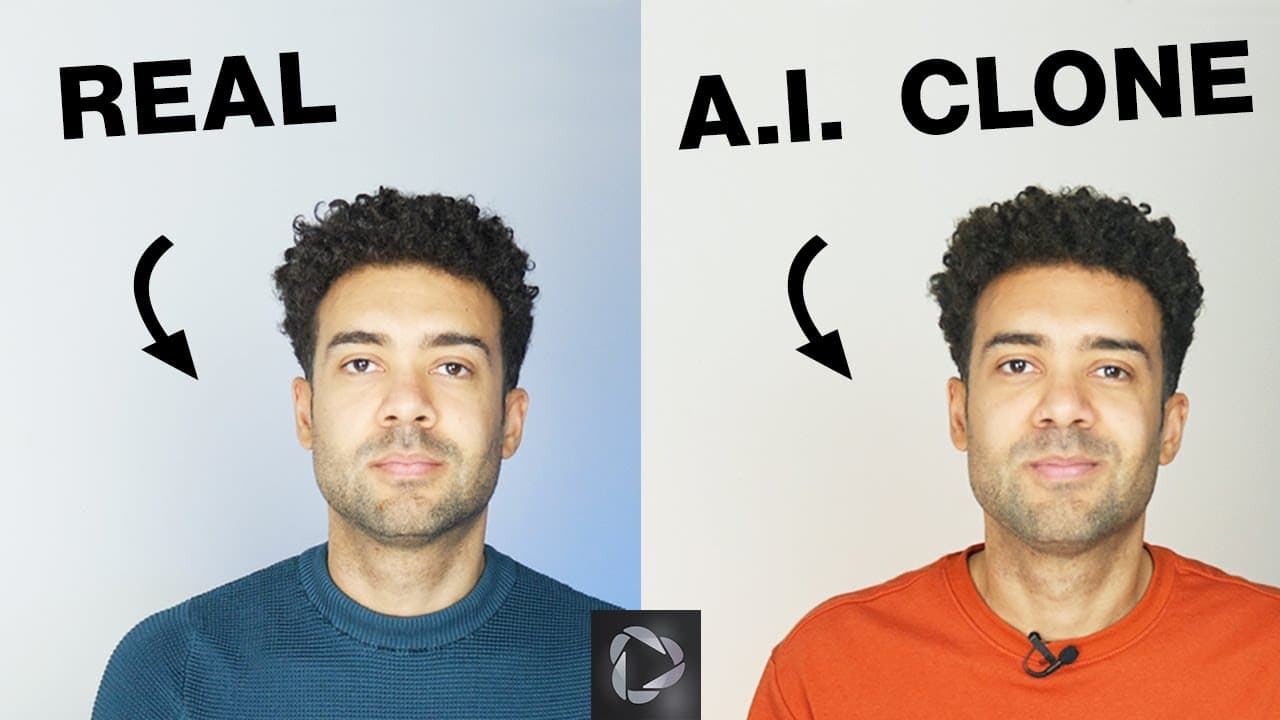
Imagine creating high-quality, professional video content without ever sitting in front of a camera. With HeyGen's AI-powered Instant Avatar technology, you can clone your voice, appearance, and mannerisms in less than five minutes. In this guide, I will show you my exact step-by-step workflow to generate a realistic digital clone that handles your video production for you.
Quick Summary
Creating an AI clone of yourself with HeyGen involves filming a short high-quality training video, uploading it, and submitting a verbal consent clip. In this tutorial, I'll walk you through how I successfully generated my digital twin, how to avoid the layout and recording errors that ruin your clone, and how to fine-tune your clone's performance for lifelike voice narration.
Table of Contents
- [Why Clone Yourself? The Power of AI Avatars](#why-clone-yourself-the-power-of-ai-avatars)
- How to Prepare Your Training Footage (Avoid My First Mistake)
- Step-by-Step: How to Clone Yourself with HeyGen
- Generating and Editing Your AI Clone's Script
- Fine-Tuning Your Clone's Pronunciation and Pacing
- Next Steps: Translating Your AI Clone for Global Reach
- Frequently Asked Questions
Prefer to watch? Here's the video. Prefer to skim? The full breakdown is below.
Quick Link
Try it here: Try HeyGen →
Why Clone Yourself? The Power of AI Avatars
As digital platforms demand more content, staying consistent can feel like a full-time chore. This is where a digital twin changes the game. By creating an AI [[influencer](/articles/rewrite-flow-test-jv0mg6)](/articles/rewrite-flow-test-po4skg) clone, you can simply type out a script, hit render, and let your clone do the talking.
While the facial mapping technology occasionally shows slight processing gaps, the workflow is fast enough to help creators put out content at scale without having to set up lights, background, and camera equipment for every single video. For creators who struggle to stay consistent due to lack of time, having an accurate digital clone is a major productivity shortcut.
How to Prepare Your Training Footage (Avoid My First Mistake)
Before you upload anything to the platform, you must shoot the raw video that HeyGen will use to scan your voice and body movements.
I made a critical mistake on my first attempt: I looked away from the lens, turned my head, and shifted my body while speaking. Because of those small movements, the cloning process failed.
To ensure your avatar compiles perfectly on your first try, stick to these filming criteria:
- Provide at least 2 minutes of footage: HeyGen requires enough verbal and visual data to accurately model your voice patterns and physical expressions.
- Maintain eye contact: Look directly into the camera lens. Do not divert your gaze or look around the room.
- Keep your hands below your chest: Do not lift your hands in front of your face or upper chest. High gestures disrupt the spatial tracking and ruin the render.
- Keep your posture still: Do not shift weight, sway side-to-side, or lean toward the camera.
- Limit head movement: Keep your head as still as possible when speaking. Excessive nodding or tilting will cause generation errors.
 Caption: Pay close attention to HeyGen's filming guidelines, particularly keeping hands low and holding your gaze steady to prevent generation errors.
Step-by-Step: How to Clone Yourself with HeyGen
Once you have recorded a clean, steady video of yourself, follow these steps to build your custom AI clone.
Step 1: Access the Instant Avatar Tool
Log in to your HeyGen account (you can sign up for a free tier to test this workflow). From the main dashboard, look for the Instant Avatar option on the menu and click it. Next, select the Free Instant Avatar button to launch the creation wizard.
 Caption: Navigate to your HeyGen dashboard and click on Instant Avatar to start the digital twin setup.
Step 2: Skip the Intro and Select Text Instructions
The setup wizard begins with an introductory demonstration clip featuring HeyGen's founder alongside his digital twin avatar.
- Click the Get Started button to proceed.
- When prompted to choose between video or text instructions for the rest of the setup, click Text. It is faster to digest and gets your project moving much quicker.
 Caption: Opt for text-based instructions for a faster, easier walkthrough during setup.
Step 3: Upload Your Footage (The Google Drive Bypass)
The platform will ask if you want to record a video now using your webcam or upload a pre-existing file. To get a high-quality clone, you should always shoot on a dedicated camera or high-end phone and select the upload route.
If you shot your video in high-definition (like 4K), your file size might exceed the 2 gigabyte browser upload limit.
- My Workaround: Upload your video to Google Drive, create a shareable link, and paste that link directly into HeyGen's upload prompt. The Google Drive connection bypasses the local upload cap instantly.
 Caption: Use the Google Drive link workaround to import large, high-quality video files without hitting the 2GB browser limit.
Scroll down, check the four confirmation boxes stating you followed the recording rules, and proceed.
Step 4: Record Your Consent Video
To prevent unauthorized deepfakes, HeyGen requires a security check. You must record a brief verbal authorization using your computer’s webcam and microphone.
- Ensure your webcam and microphone are enabled.
- Click the consent button to display the statement text.
- Read the verbal authorization script clearly into the lens.
- Click submit to initiate the avatar generation.
 Caption: Record your brief consent video using your webcam to authenticate your avatar creation request.
The rendering engine will process your files. After just a couple of minutes, your completed digital twin will show up in your library, ready to be dropped into a video.
 Caption: Your newly rendered digital clone appears directly in your personal avatar catalog.
Generating and Editing Your AI Clone's Script
Now that your clone is generated, you can feed it any script. Here is how to create a video:
- Click on your avatar from the library and click Create Video.
- Choose your aspect ratio. Since my training video was shot horizontally, I selected Landscape to preserve my framing.
- You will enter the project canvas workspace. In the text box at the bottom, replace the default greeting with your custom script.
- Hit the play button to hear your clone read the text back in your natural voice.
 Caption: Type any script in the text box and hit play to hear your clone say your words in your actual voice.
Fine-Tuning Your Clone's Pronunciation and Pacing
While the text-to-speech output is remarkably accurate, the AI might occasionally stumble over a syllable or rush through a sentence. You can fix these issues using simple editing tricks in the script workspace:
- Phonetic Spelling: If the AI mispronounces a word, try spelling it phonetically. Click the Tips box for a complete list of phonetic spelling recommendations.
- Hyphens for Syllables: To slow down or clarify a word, split it with hyphens. For example, writing
dig-i-talinstead ofdigitalforces the AI engine to speak each syllable distinctly. - Punctuation Tweaks: Commas, periods, and hyphens automatically generate natural-sounding pauses of varying lengths.
- Insert Pauses: Use the clock icon tool directly inside the editor to drop hard pause markers into the text timeline.
 Caption: Use hyphenation and the pause icon to fine-tune pronunciation and flow.
Next Steps: Translating Your AI Clone for Global Reach
Once you are comfortable generating standard videos, you can expand your reach with HeyGen’s translation features. The platform has a translation engine that allows you to translate your videos into dozens of different languages.
Remarkably, the AI doesn't just translate the text and clone your voice; it also edits your mouth movements in the video to align perfectly with the phonetics of the target language. It’s an incredibly powerful way to scale your audience internationally without recording new footage.
Try it here: Try HeyGen →
Frequently Asked Questions
Can I create a HeyGen clone for free?
Yes. You can sign up for a free HeyGen account, which grants access to the "Free Instant Avatar" option so you can test the creation flow and voice rendering.
What is the maximum file size for video uploads?
When uploading files directly from your computer, the limit is 2 gigabytes. If your file is larger, upload it to Google Drive and paste the share link into HeyGen.
Why did my Instant Avatar fail to generate?
Failures are usually caused by camera movement, head tilting, turning your eyes away from the lens, or lifting your hands above chest level during the training video. Keep your posture still and look directly at the lens.
How do I fix bad pronunciation?
You can use hyphens to break up complex syllables (e.g., watch-ing) and use the clock pause button to slow down the speaking pace.